How to Convert getBoundingClientRect Coordinates to PyAutoGUI Positions
Convert viewport CSS coordinates into reliable PyAutoGUI screen clicks by measuring the browser viewport origin and calibrating scale.
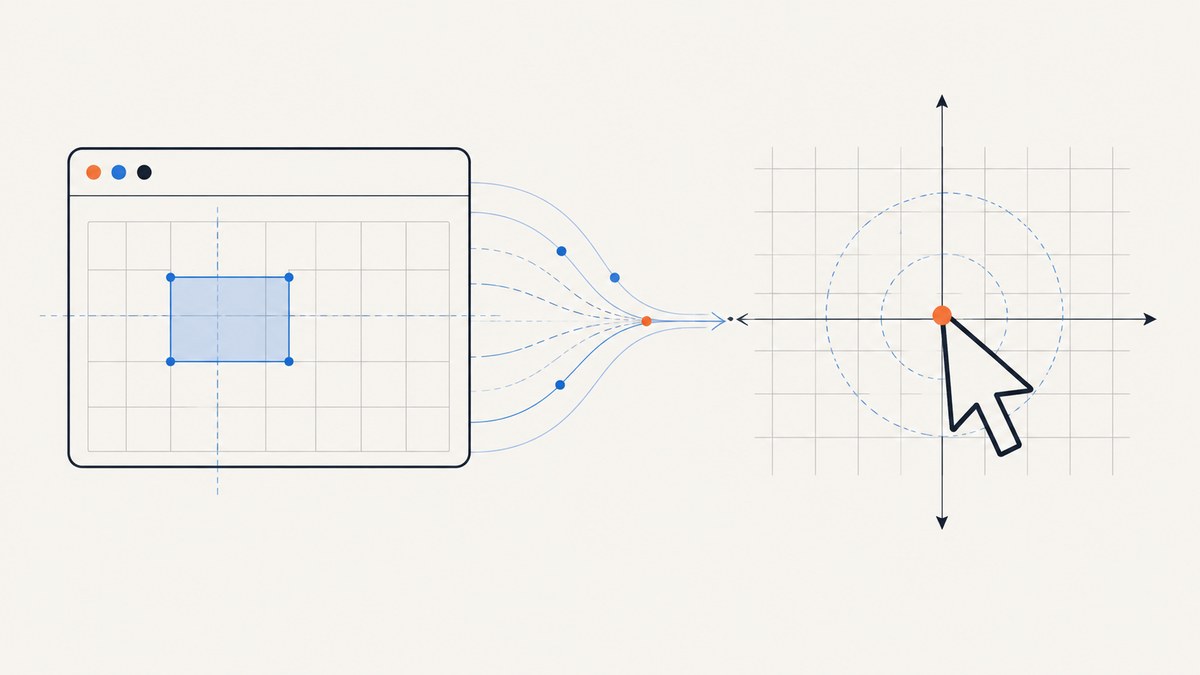
Direct answer: getBoundingClientRect() returns coordinates relative to the browser’s content viewport in CSS pixels. PyAutoGUI clicks in the desktop screen coordinate system. Pick a point inside the rectangle, then add the measured screen position of the viewport’s top-left corner and multiply by a scale calibrated for the target display.
const rect = element.getBoundingClientRect();
const point = {
  x: rect.left + rect.width / 2,
  y: rect.top + rect.height / 2,
};
# Values measured for this browser, display and automation environment
screen_x = round(viewport_screen_x + point_x * scale_x)
screen_y = round(viewport_screen_y + point_y * scale_y)
if pyautogui.onScreen(screen_x, screen_y):
pyautogui.click(screen_x, screen_y)A devicePixelRatio value can help estimate scale, but it is not the complete conversion. You still need the viewport’s desktop origin, and you must validate the relationship on the actual operating system, browser zoom level, monitor and remote-desktop setup.
1. Understand the two coordinate systems
Element.getBoundingClientRect() returns a DOMRect containing left, top, right, bottom, x, y, width and height. The position fields are relative to the viewport, so the top-left visible content area is approximately (0, 0). See the MDN reference.
PyAutoGUI uses a top-left screen origin: x increases to the right and y increases downward. pyautogui.size() reports the screen bounds, while pyautogui.onScreen(x, y) checks whether a point is inside them. See the PyAutoGUI mouse documentation.
Viewport coordinates are not document coordinates
Do not add window.scrollX or window.scrollY when clicking an element that is currently visible. The rectangle is already viewport-relative. Add scroll offsets only when you intentionally convert the result to document coordinates for storage or later comparison.
2. Extract a safe click point in the browser
The center is usually the safest target, but you can choose another point when the center is covered by a child element or when only part of the element is actionable.
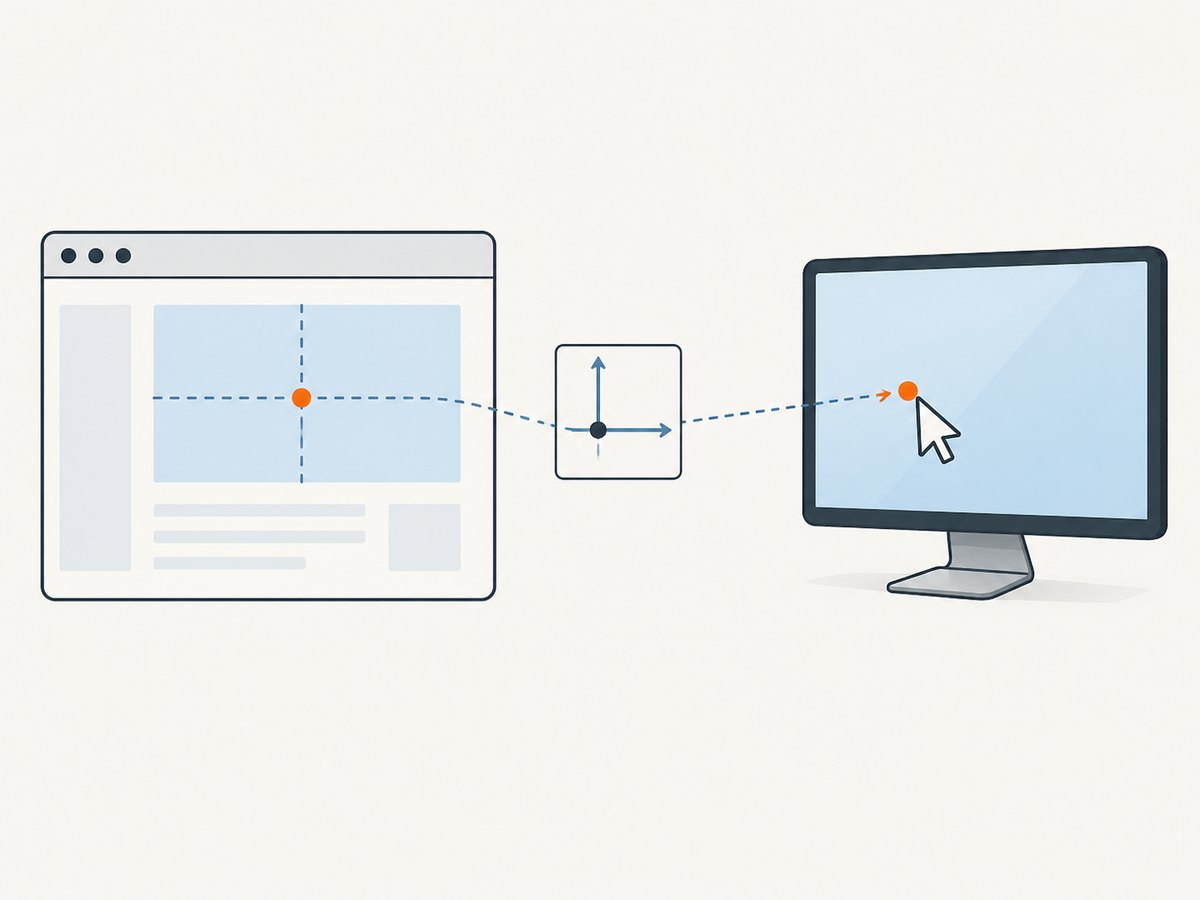
function getElementPoint(selector, fractionX = 0.5, fractionY = 0.5) {
  const element = document.querySelector(selector);
  if (!element) throw new Error(`No element matches ${selector}`);

  const rect = element.getBoundingClientRect();
  if (rect.width <= 0 || rect.height <= 0) {
    throw new Error('Element has no visible area');
  }

  return {
    x: rect.left + rect.width * fractionX,
    y: rect.top + rect.height * fractionY,
    width: rect.width,
    height: rect.height,
    dpr: window.devicePixelRatio,
    viewportWidth: window.innerWidth,
    viewportHeight: window.innerHeight,
  };
}

console.log(getElementPoint('#checkout-button'));
Run this after the page has rendered and after any layout-changing animation. A point from a stale rectangle can be wrong even when your coordinate conversion is correct.
3. Measure the viewport origin and scale
The missing values are:
| Value | Meaning |
|---|---|
viewport_screen_x |
Desktop screen X coordinate of the browser content viewport’s left edge |
viewport_screen_y |
Desktop screen Y coordinate of the browser content viewport’s top edge |
scale_x, scale_y |
Desktop coordinate units per CSS pixel |
The browser frame, tabs, address bar and OS window borders are outside the content viewport. Their size varies by browser, theme, operating system and display scaling, so do not substitute the outer window position for the content origin.
Calibration approach
- Keep the browser at the same zoom and on the same display used for automation.
- Expose a visible marker at a known viewport coordinate, such as a fixed-position element at
(0, 0). - Use a desktop screenshot to identify that marker’s screen coordinate.
- Repeat with a second point farther right and, ideally, a third point lower down.
- Calculate the origin and independent horizontal and vertical scales. Recalibrate after browser zoom, display changes or remote-session resizing.
If browser and PyAutoGUI screenshots represent the same physical pixels, the relationship can be estimated from screenshot dimensions. PyAutoGUI’s screenshot and image-location APIs can provide visual evidence for this check; see the PyAutoGUI screenshot documentation.
4. Convert and click with Python
This complete example accepts a point extracted from JavaScript, applies a measured transform, checks screen bounds and clicks.
import pyautogui

# Replace these with measurements from your environment.
VIEWPORT_SCREEN_X = 112
VIEWPORT_SCREEN_Y = 86
SCALE_X = 1.0
SCALE_Y = 1.0

# Example output from getBoundingClientRect(), in CSS pixels.
point_x = 640.5
point_y = 318.0

screen_x = round(VIEWPORT_SCREEN_X + point_x * SCALE_X)
screen_y = round(VIEWPORT_SCREEN_Y + point_y * SCALE_Y)

width, height = pyautogui.size()
print(f'screen: ({screen_x}, {screen_y}), display: {width}x{height}')

if not pyautogui.onScreen(screen_x, screen_y):
    raise ValueError('Converted point is outside the PyAutoGUI screen bounds')

pyautogui.moveTo(screen_x, screen_y, duration=0.15)
pyautogui.click()
Use a calibration function
from dataclasses import dataclass
import pyautogui

@dataclass
class ViewportTransform:
    origin_x: float
    origin_y: float
    scale_x: float
    scale_y: float

    def to_screen(self, css_x: float, css_y: float) -> tuple[int, int]:
        x = round(self.origin_x + css_x * self.scale_x)
        y = round(self.origin_y + css_y * self.scale_y)
        if not pyautogui.onScreen(x, y):
            raise ValueError(f'Point ({x}, {y}) is outside the screen')
        return x, y

transform = ViewportTransform(112, 86, 1.0, 1.0)
screen_point = transform.to_screen(640.5, 318)
pyautogui.click(*screen_point)
5. Account for devicePixelRatio and zoom
window.devicePixelRatio is the ratio of physical pixels to CSS pixels. Page zoom changes it; pinch zoom does not. Moving a window between displays can also change the value. The MDN devicePixelRatio documentation describes these behaviors.

In a setup where you have verified that desktop coordinates and browser screenshots use the same physical pixels, you may find that scale_x = scale_y = devicePixelRatio. Treat that as a measured property of your setup, not a universal rule. OS scaling, browser chrome, mixed-DPI monitors and remote desktops can produce a different transform.
6. Handle scrolling, sticky elements and layout changes
- Current viewport click: use the rectangle directly; do not add scroll offsets.
- Document position: use
rect.top + window.scrollYandrect.left + window.scrollXfor a scroll-independent document coordinate. - Element moved after measurement: query the rectangle immediately before converting and clicking.
- Sticky headers: check whether a fixed header overlaps the selected point; choose a visible interior point or scroll the element into a safe position.
- Partially visible elements: clamp the target point to the visible viewport, or scroll first.
- Transforms: CSS transforms affect the returned rectangle. Use the rectangle’s rendered geometry rather than the element’s untransformed dimensions.
7. Debug the mapping visually
Before clicking a consequential control, move the pointer without clicking and capture a screenshot. Compare the cursor location with the browser element. A fixed test marker makes this repeatable.
import pyautogui

x, y = transform.to_screen(point_x, point_y)
pyautogui.moveTo(x, y)
image = pyautogui.screenshot()
image.save('mapping-check.png')
Also log the browser rectangle, DPR, viewport size, transform values and final screen point. Those values usually reveal whether the error is an origin problem, a scale problem or a stale layout measurement.
8. Common errors and fixes
| Symptom | Likely cause | Fix |
|---|---|---|
| Every click is shifted by the same amount | Wrong viewport origin; browser frame was omitted or included twice | Re-measure the content viewport’s top-left screen position. |
| Error grows toward the right or bottom | Incorrect scale or DPR assumption | Calibrate with two or more known points and calculate X/Y scales separately. |
| Clicks are too low after scrolling | scrollY was added to a viewport-relative rectangle |
Remove scroll offsets for a current viewport click. |
| Works on one monitor only | Different DPI or display coordinate space | Calibrate on the target monitor and re-check after moving the window. |
| Works until zoom changes | Page zoom changed CSS-to-screen scaling | Lock zoom or invalidate and repeat calibration. |
| Point is outside the screen | Wrong origin, scale or monitor coordinates | Print pyautogui.size(), call onScreen() and inspect a screenshot. |
| Point lands on a different element | Layout changed between extraction and click | Wait for the page to settle and extract immediately before clicking. |
9. Reliability and performance checklist
- Keep browser zoom, OS scaling and window placement stable during a run.
- Wait for the target selector and any relevant network or animation activity to finish.
- Prefer the center of a visible, enabled element, with a fallback point if overlays are possible.
- Use short pointer movement and a screenshot-based dry run before destructive actions.
- Recalibrate after display, zoom, browser-window or remote-session changes.
- Record the transform with the automation artifact so failures can be reproduced.
Calibration adds setup time but prevents repeated misclicks. Once the origin and scale are stable, the conversion itself is constant-time; the dominant runtime is usually page rendering, waiting and screenshot capture.
Or skip the browser setup
If your goal is a clean screenshot rather than a physical desktop click, ScreenshotNeo returns an image or PDF from one request. It handles the browser environment for you and can capture a full page or a CSS-selected element.
Use the ScreenshotNeo API documentation for all options. A basic request looks like this:
curl -G "https://api.screenshotneo.com/v1/shot" -d access_key=YOUR_API_KEY --data-urlencode url=https://stripe.com -o shot.webpimport requests
r = requests.get("https://api.screenshotneo.com/v1/shot", params={"access_key": "YOUR_API_KEY", "url": "https://stripe.com"}, timeout=90)
open("shot.webp", "wb").write(r.content)const q = new URLSearchParams({ access_key: 'YOUR_API_KEY', url: 'https://stripe.com' });
const res = await fetch(`https://api.screenshotneo.com/v1/shot?${q}`);Cookie and consent banners, newsletter popups and chat widgets are removed before the shot. Bot checks, blank pages and failed loads are never billed, and response headers identify the page verdict and billing result. An MCP server lets Claude, Cursor and other MCP clients take screenshots with take_screenshot, inspect pages with get_page_info and create PDFs with capture_pdf. The Free plan includes 1,000 screenshots a month with no card; paid plans start at $5 for 3,000.
Create a free ScreenshotNeo account.
FAQ
Should I use the element’s x and y or left and top?
Either is suitable for the rectangle’s top-left position. Compute the click point from left/top plus half the width and height.
Can DPR alone convert browser coordinates to PyAutoGUI coordinates?
No. DPR describes a scale between physical and CSS pixels. It does not provide the browser content viewport’s screen origin.
Why not use screenshot image coordinates directly?
You can when the screenshot and desktop coordinate spaces are aligned and have identical scaling. Verify that alignment first; browser screenshots may represent CSS or device pixels differently from the desktop capture.
Do scroll offsets ever belong in the formula?
Only when converting viewport coordinates into document coordinates. They do not belong in a direct click conversion for the currently visible viewport.
What should I do in a remote desktop or virtual machine?
Calibrate inside that session. Remote display scaling and host-to-guest coordinate mapping are environment-specific.


