GitHub Open Graph Images: Add, Size, and Troubleshoot Repository Social Previews
Learn how to add a GitHub repository social preview, choose the right image size, verify Open Graph fields, and fix common display problems.

A GitHub Open Graph image is the custom image GitHub displays when someone shares a repository link on a social platform. GitHub calls this setting Social preview. If you do not upload one, GitHub says the link expands with basic repository information and the owner’s avatar. [GitHub documentation]
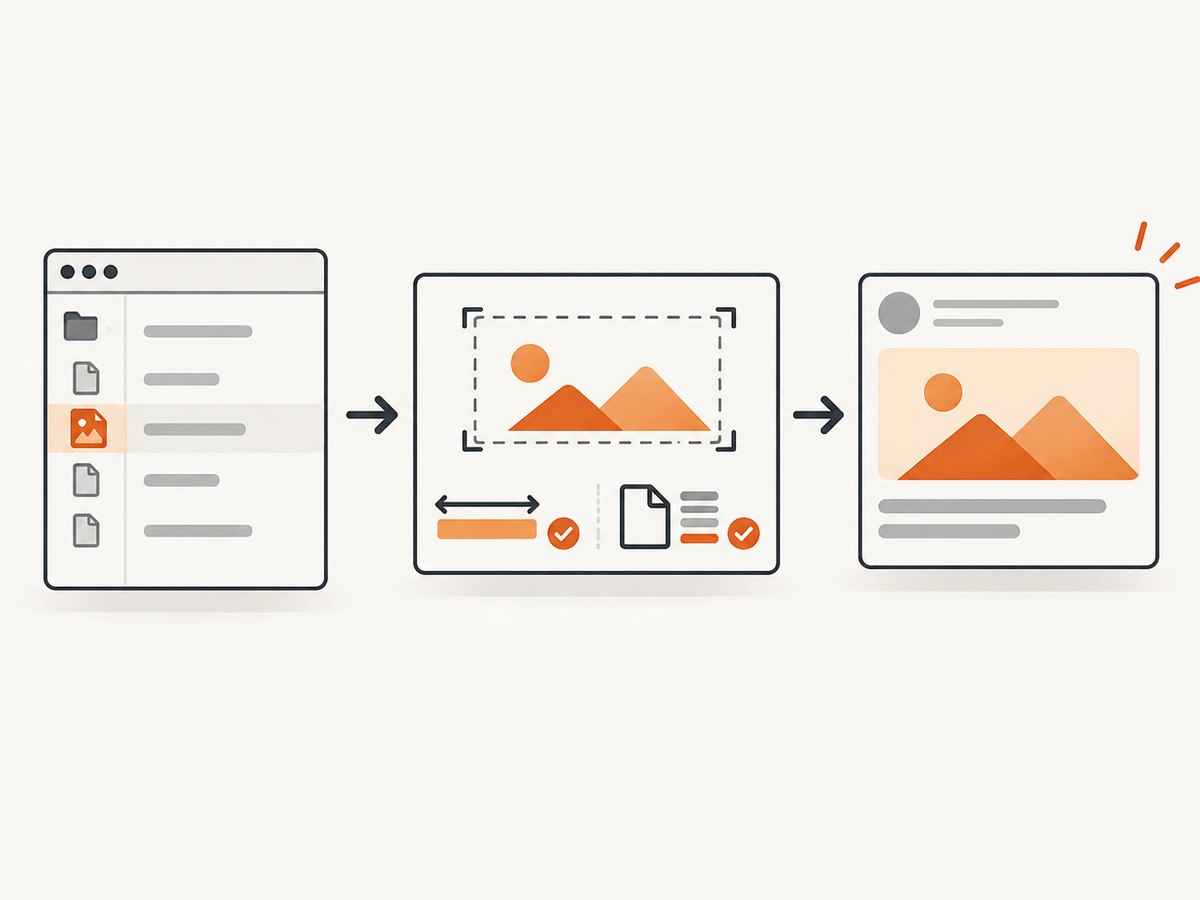
To add one, open the repository, choose Settings → Social preview → Edit, upload a PNG, JPG, or GIF under 1 MB, and save. GitHub recommends at least 640 × 320 pixels and suggests 1280 × 640 pixels for the best display. The rest of this guide explains the exact workflow, image preparation, private-repository rules, API verification, troubleshooting, and an automated capture option.
What GitHub’s Open Graph image does
When a repository URL is pasted into a service that reads Open Graph metadata, the service can show a preview card. The custom social preview supplies the visual part of that card. It does not change the repository’s README, files, default branch, or GitHub Pages site.
Without a custom image, GitHub’s documented fallback is basic repository information and the owner’s avatar. This is why a repository link may show a profile image even when the repository itself has no artwork.
Social preview versus Open Graph API fields
The setting is configured in the repository’s web interface. For API consumers, GitHub’s GraphQL repository reference exposes two useful fields:
| Field | Use |
|---|---|
openGraphImageUrl |
Returns the URL GitHub uses to represent the repository in Open Graph data. |
usesCustomOpenGraphImage |
Indicates whether the repository uses a custom Open Graph image instead of the owner’s avatar. |
These fields let a release script, catalog, or internal dashboard check image state. They do not replace the repository Settings workflow for uploading the file. [GitHub GraphQL repository reference]
GitHub image requirements and practical design guidance
| Requirement or guidance | What to use |
|---|---|
| Accepted formats | PNG, JPG, or GIF |
| Maximum file size | Under 1 MB |
| Recommended minimum | 640 × 320 pixels |
| Suggested size for best display | 1280 × 640 pixels |
| Transparency | Supported for PNG files, but appearance varies by background and platform |
The 2:1 ratio keeps the image aligned with GitHub’s guidance. Keep the main subject, repository name, and any short label away from the extreme edges because different services can crop or scale the card. Use large, high-contrast shapes that remain recognizable in a small preview. That is design advice, not a GitHub performance guarantee.
GitHub notes that transparent PNG artwork can work well on communication platforms that support dark mode. The same image can look different on a colored background or on a service that does not preserve transparency. If you cannot predict the sharing destinations, GitHub’s safe recommendation is a solid background.
Choosing PNG, JPG, or GIF
- PNG: useful for flat illustrations, sharp text, and transparency.
- JPG: useful for photographic or textured artwork where a smaller file is easier to achieve.
- GIF: accepted by GitHub, though a static frame is the most predictable result across services.
How to add a GitHub repository social preview
- Open the repository’s main page while signed in with permission to change repository settings.
- Click Settings. If the tab is not visible, open the repository’s settings from the dropdown menu.
- In the settings sidebar, find Social preview.
- Click Edit, then select the prepared PNG, JPG, or GIF.
- Confirm that the file is under 1 MB and meets the recommended dimensions.
- Save the change and return to the repository page.
GitHub also provides a remove-image action in the same Social preview area. Removing the custom image returns the repository to GitHub’s default preview behavior.
Private repository behavior
GitHub says an image may be uploaded to a public repository, or to a private repository where an image had previously been uploaded. The image can only be shared from a public repository. A private repository’s preview therefore should not be treated as a public asset or used as a dependable image URL for unauthenticated viewers.
Prepare and validate an image before uploading
A quick local check catches the most common rejection: an oversized file or an unsuitable format. The following Python script uses Pillow to print the dimensions, format, and byte size.
from pathlib import Path
from PIL import Image

path = Path("social-preview.png")
with Image.open(path) as image:
    size_bytes = path.stat().st_size
    print("format:", image.format)
    print("dimensions:", image.width, "x", image.height)
    print("bytes:", size_bytes)
    if image.format not in {"PNG", "JPEG", "GIF"}:
        raise SystemExit("Use PNG, JPG/JPEG, or GIF")
    if size_bytes >= 1_000_000:
        raise SystemExit("File must be under 1 MB")
    if image.width < 640 or image.height < 320:
        print("Warning: GitHub recommends at least 640 x 320 pixels")
For a new design, export at 1280 × 640 pixels, then compress until the file remains below 1 MB. Keep the original editable source separately so you can revise the artwork without repeatedly resizing a compressed copy.
Verify the image state with GitHub GraphQL
GitHub's GraphQL API can report whether the repository has a custom image and which Open Graph URL is associated with it. You need a token with access to the repository and the repository owner/name.
cURL
curl https://api.github.com/graphql \
  -H "Authorization: bearer YOUR_GITHUB_TOKEN" \
  -H "Content-Type: application/json" \
  --data '{"query":"query { repository(owner: \"OWNER\", name: \"REPOSITORY\") { usesCustomOpenGraphImage openGraphImageUrl } }"}'
Python
import requests

query = """
query($owner: String!, $name: String!) {
  repository(owner: $owner, name: $name) {
    usesCustomOpenGraphImage
    openGraphImageUrl
  }
}
"""
response = requests.post(
    "https://api.github.com/graphql",
    headers={"Authorization": "bearer YOUR_GITHUB_TOKEN"},
    json={"query": query, "variables": {"owner": "OWNER", "name": "REPOSITORY"}},
    timeout=30,
)
response.raise_for_status()
print(response.json())
Node.js
const query = `
  query($owner: String!, $name: String!) {
    repository(owner: $owner, name: $name) {
      usesCustomOpenGraphImage
      openGraphImageUrl
    }
  }
`;

const res = await fetch('https://api.github.com/graphql', {
  method: 'POST',
  headers: {
    authorization: 'bearer YOUR_GITHUB_TOKEN',
    'content-type': 'application/json'
  },
  body: JSON.stringify({
    query,
    variables: { owner: 'OWNER', name: 'REPOSITORY' }
  })
});
if (!res.ok) throw new Error(`GitHub returned ${res.status}`);
console.log(await res.json());
A true value for usesCustomOpenGraphImage confirms that GitHub has a custom image configured. Treat openGraphImageUrl as the API's image URL value, not as permission to expose a private repository's artwork publicly.
Automate screenshots for repository previews
If your image is generated from a live project page, documentation site, changelog, or demo, a browser screenshot pipeline can create a fresh asset whenever the design changes. A reliable pipeline should wait for the page to finish rendering, hide transient UI, and save the image in GitHub's dimensions and size limit.
Browser workflow checklist
- Launch a headless browser at a fixed viewport.
- Navigate to the public page and wait for the key selector or network idle.
- Accept or remove cookie consent UI before capture.
- Hide chat widgets, newsletter prompts, and animations that obscure the design.
- Capture the full page or the target element.
- Resize or crop to 1280 × 640 pixels.
- Compress and validate the file is under 1 MB.
- Upload it through GitHub's Social preview settings.
For recurring jobs, pin the browser version, set a timeout, and record the final file dimensions and byte size. Dynamic pages can change because of fonts, ads, geolocation, consent state, or loading failures, so keep the source URL and capture timestamp with the generated asset.
Or skip the browser setup
ScreenshotNeo is a website screenshot API and MCP server. One GET request returns a PNG, JPEG, WebP, or PDF, with options for full-page capture, a CSS-selected element, dark mode, device presets, retina scale, custom CSS and JavaScript, click actions, selector or network-idle waits, blocked resource types, cookies, headers, user agents, timezones, geolocation, resizing, caching, signed links, asynchronous jobs, bulk capture, and PDF output. See the ScreenshotNeo documentation for the complete parameter list.

cURL
curl -G "https://api.screenshotneo.com/v1/shot" -d access_key=YOUR_API_KEY --data-urlencode url=https://github.com/OWNER/REPOSITORY -o social-preview.webpPython
import requests
r = requests.get("https://api.screenshotneo.com/v1/shot", params={"access_key": "YOUR_API_KEY", "url": "https://github.com/OWNER/REPOSITORY"}, timeout=90)
open("social-preview.webp", "wb").write(r.content)
Node.js
const q = new URLSearchParams({ access_key: 'YOUR_API_KEY', url: 'https://github.com/OWNER/REPOSITORY' }); const res = await fetch(`https://api.screenshotneo.com/v1/shot?${q}`);Cookie banners, newsletter popups, and chat widgets are removed before the shot. Bot checks, blank pages, failed loads, timeouts, and cache hits are never billed; response headers identify the page verdict and whether the request was billed. The MCP server includes take_screenshot, get_page_info, and capture_pdf tools for Claude, Cursor, and other MCP clients. The Free plan includes 1,000 screenshots a month with no card; paid plans start at $5 for 3,000 shots. Create a free ScreenshotNeo account.
Troubleshooting GitHub previews
| Symptom | Likely cause | Fix |
|---|---|---|
| Owner avatar appears | No custom image is configured, or the link points to a different repository. | Check the exact repository's Settings → Social preview area and upload an image. |
| Upload is rejected | Unsupported format or file is 1 MB or larger. | Export PNG, JPG, or GIF and compress it below 1 MB. |
| Image looks blurry | Source dimensions are below the recommended minimum or the platform resized it heavily. | Start with 1280 × 640 pixels and use sharp, high-contrast artwork. |
| Transparent artwork disappears | The sharing service places it on a similar-colored background or does not preserve transparency. | Use a solid background when the destination is unknown. |
| Private repository image is not visible publicly | GitHub restricts sharing of private repository images. | Use a public repository for a public preview. |
| GraphQL returns an error | Invalid token, owner/name, or insufficient repository access. | Check authentication, repository spelling, and token permissions; inspect the API error object. |
| Screenshot contains a consent banner | The capture happened before consent handling or popup removal. | Accept consent, hide the selector, or use ScreenshotNeo's cleanup and wait options. |
Performance, reliability, and cost considerations
- File size: Staying below 1 MB makes the upload predictable. A smaller file also reduces transfer time for services that fetch the preview.
- Rendering consistency: Fixed viewport, timezone, user agent, and fonts reduce visual drift between captures.
- Dynamic content: Wait for a selector or network idle before taking a screenshot. A fixed delay alone can be too short on a slow page and waste time on a fast one.
- Retries: Retry transient navigation failures with a bounded count and preserve the error response. Do not overwrite a known-good preview with a blank or partial capture.
- Caching: Cache a generated image until the source design changes. ScreenshotNeo lets you choose a cache TTL and reports cache hits as non-billed responses.
- Cost control: Generate only when the source content changes, use element capture when full-page output is unnecessary, and validate locally before making repeated uploads.
FAQ
What is the recommended GitHub social preview size?
GitHub recommends at least 640 × 320 pixels and suggests 1280 × 640 pixels for the best display.
Can I use a transparent PNG?
Yes. GitHub supports transparency, but the result can vary with the receiving platform's background. Use a solid background when you need predictable contrast.
Can a private repository's image be shared?
GitHub documents uploading to a private repository when an image had previously been uploaded, but says the image can only be shared from a public repository.
How do I know whether a custom image is active?
Check the repository's Social preview settings or query usesCustomOpenGraphImage and openGraphImageUrl through GitHub's GraphQL API.
Does changing the image rewrite old social posts?
The repository setting controls future metadata fetches. Individual platforms may cache previews, so an already-shared link can continue showing an older card until that platform refreshes it.


