How to Set Up Passwordless Authentication for a GitHub Private Repository
Set up a GitHub passkey, understand private-repository permissions, and configure separate HTTPS or SSH credentials for Git operations.

A GitHub passkey lets you sign in to the GitHub account that can access a private repository without typing that account password. Add it from Settings → Password and authentication → Passkeys → Add a passkey, complete the authenticator prompt, and then choose Sign in with a passkey on GitHub’s login page. The passkey authenticates your account; repository membership, organization policy, and SAML SSO still control whether that account can open the private repository.
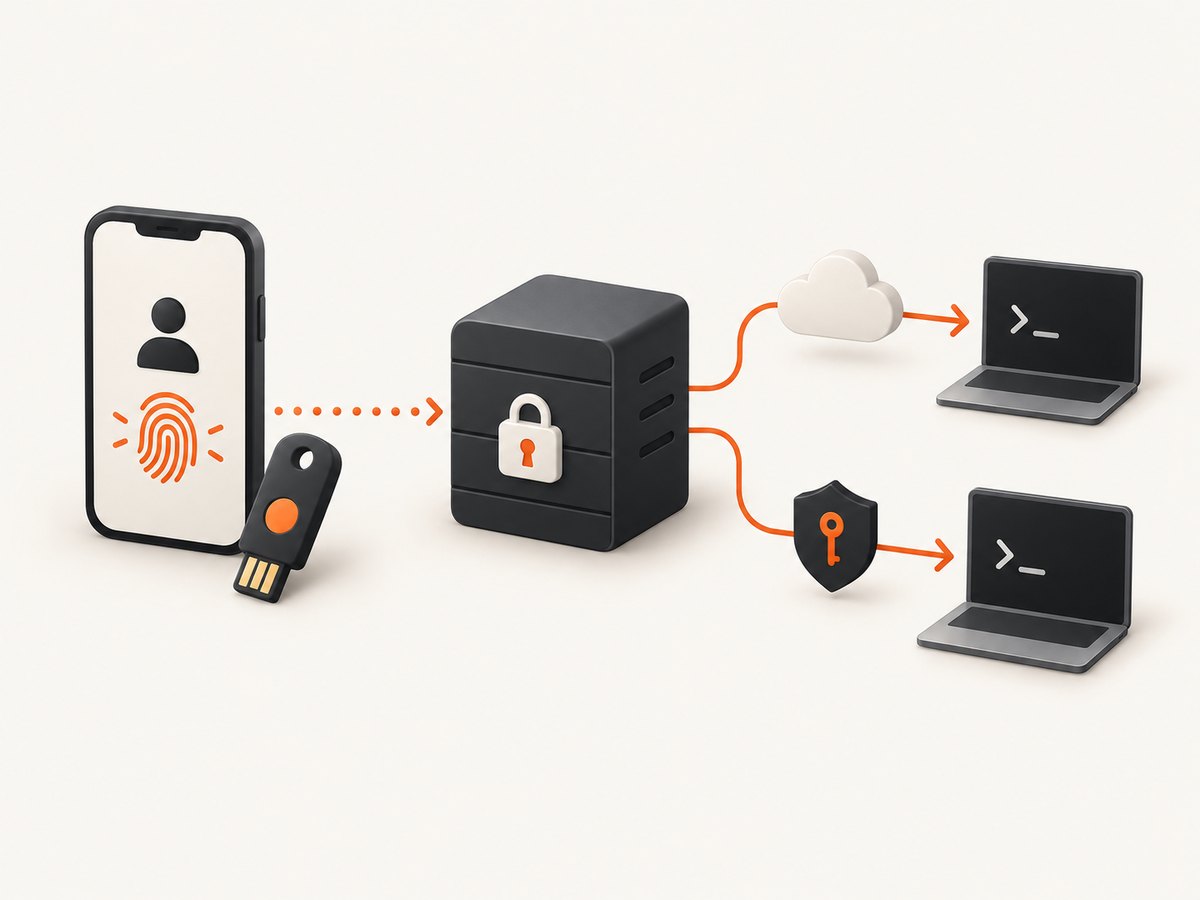
A browser passkey does not configure git clone, git pull, or git push. Those commands use a separate HTTPS token/credential-helper flow or an SSH key. This guide covers both paths, recovery planning, enterprise edge cases, troubleshooting, and how to verify the setup.
What passwordless authentication changes
A passkey is a public/private cryptographic credential stored by an authenticator. GitHub receives proof from the authenticator, not the private key itself. The credential is bound to GitHub’s website domain, which helps prevent phishing. If two-factor authentication is enabled, GitHub says a passkey can satisfy the password and 2FA requirements in one sign-in step. It can also be used for sudo mode and password reset. See GitHub’s passkey documentation.
| Task | Credential used | What a passkey does |
|---|---|---|
| Open GitHub in a browser | Passkey | Authenticates the GitHub account |
| Clone or push over HTTPS | GitHub CLI or personal access token | Does not replace the token or CLI setup |
| Clone or push over SSH | Local SSH private key | Does not create or install an SSH key |
| Open an organization repository | Account plus organization permissions and possibly SAML SSO | Does not bypass organization policy |
Before you begin
- Use the GitHub account that is a collaborator, team member, or otherwise entitled to the private repository.
- Have access to at least one supported authenticator: a phone, Windows Hello, a FIDO2 security key, or a password manager with passkey support.
- Keep another recovery method available. A device-bound passkey on a lost or wiped device cannot be restored through cloud sync.
- If the repository belongs to an organization, check whether SAML SSO or an Enterprise Managed User identity provider is required.
Set up a GitHub passkey step by step
- Sign in to the correct account. Confirm the avatar and username belong to the account that can already see the private repository.
- Open account settings. Select your profile menu, choose Settings, then open Access → Password and authentication.
- Start passkey enrollment. In the Passkeys section, select Add a passkey. GitHub may request your password or another existing authentication method before enrollment.
- Choose an authenticator. Follow the browser and operating-system prompt. You might approve with a device biometric, PIN, phone confirmation, hardware-key touch, or password-manager prompt.
- Name and save the credential. When GitHub reports success, select Done. Use a name that identifies the device or provider so you can remove it later.
- Register a backup. Add a second passkey on another device when possible. GitHub recommends at least two devices when you rely only on device-bound passkeys; see Managing your passkeys.
Sign in with the passkey
- Open the GitHub sign-in page in a browser that supports passkeys.
- Select Sign in with a passkey.
- Choose a passkey on the current device, select a nearby phone, insert or tap a security key, or choose your password manager.
- Complete the PIN, biometric, or device-unlock prompt.
- Open the private repository directly. If it is missing, verify the repository owner, your membership, team access, and any organization SSO authorization.
Passkeys may be cloud-backed and synchronized by a provider, or device-bound. A FIDO2 hardware key is portable but normally does not synchronize its credential to another key. Buying a security key is optional; an existing phone, computer authenticator, or supported password manager may be enough.
Private-repository permissions still apply
Authentication proves which GitHub account is signing in. Authorization decides what that account may do. A successful passkey login cannot grant access to a repository you were not invited to, cannot override a team restriction, and cannot skip an organization’s SAML SSO requirement.
Organization SAML SSO
For an organization protected by SAML SSO, sign in through the organization’s identity provider when GitHub requests it. You may need to authorize your personal access token or SSH key for that organization separately. If the account is an Enterprise Managed User, the enterprise identity provider controls sign-in and your available settings may differ from those of a personal account.
Repository visibility checks
- Open the repository’s exact owner/name URL rather than relying on an old bookmark.
- Ask an administrator to confirm your direct, team, or outside-collaborator role.
- Check that the repository was not transferred, archived, or renamed.
- For an organization repository, complete the SSO authorization flow for the current session and credential.
Configure Git clone, pull, and push separately
Git transports do not automatically use your browser passkey. Pick HTTPS or SSH and configure that path on every machine that will access the repository.
Option A: GitHub CLI and HTTPS
GitHub CLI can open a browser-based authentication flow and store credentials for Git operations. Install the current gh client, then run:
gh auth login
# Choose: GitHub.com
# Choose: HTTPS
# Choose: Login with a web browser
Complete the browser flow, which may use your passkey. Verify the account and Git protocol:
gh auth status
gh auth setup-git
git clone https://github.com/OWNER/PRIVATE-REPOSITORY.git
The passkey authenticates the browser portion; the CLI credential helper supplies Git’s HTTPS credentials afterward.
Option B: HTTPS with a personal access token
When a credential helper or automation needs a token, create the narrowest token permitted by your organization. Use the repository’s HTTPS URL and provide the token when Git asks for a password. Do not paste a token into a remote URL, shell history, source file, or issue.
git clone https://github.com/OWNER/PRIVATE-REPOSITORY.git
cd PRIVATE-REPOSITORY
git pull
git push origin main
Store the token in an operating-system credential manager or an approved secret store. Fine-grained token access may require explicit repository selection and organization approval.
Option C: SSH
Create a local key pair, add the public key to GitHub, and use the SSH remote. A hardware-backed FIDO2 key can also protect an SSH key, but that is a separate setup from registering a GitHub web passkey.
ssh-keygen -t ed25519 -C "you@example.com"
# Copy ~/.ssh/id_ed25519.pub into GitHub Settings → SSH and GPG keys
ssh -T git@github.com
git clone git@github.com:OWNER/PRIVATE-REPOSITORY.git
Use an SSH agent and a passphrase for the private key. If the organization requires SSO, authorize the SSH key for that organization in GitHub’s settings.
Recovery and security checklist
- Register at least two passkeys, preferably on separate devices.
- Keep an additional recovery method and verify that it still works.
- Review the passkey list periodically and delete entries for lost or retired devices.
- Review SSH keys, deploy keys, authorized OAuth apps, and GitHub Apps after suspected compromise.
- Enable 2FA if it is not already enabled.
- Expect GitHub to request a password for some sensitive actions, such as adding SSH keys, authorizing applications, or modifying team members. Passwordless sign-in does not remove every password challenge.

Troubleshooting common errors
| Symptom | Likely cause | Fix |
|---|---|---|
| No “Sign in with a passkey” button | Unsupported browser, account policy, or an unavailable authenticator | Update the browser and OS, try another supported device, or use an existing sign-in method to enroll from settings. |
| Passkey prompt says no credentials found | The passkey is on another device or provider | Choose the nearby-device or security-key option, unlock the password manager, or enroll a passkey on the current device. |
| Passkey succeeds but repository returns 404 | Wrong account, missing membership, renamed repository, or private visibility | Confirm the account username, repository owner/name, and collaborator or team permission. |
| Organization blocks access | SAML SSO or managed-user policy | Complete the identity-provider login and authorize the relevant token or SSH key; contact the organization administrator if policy prevents personal credentials. |
git clone asks for a password repeatedly |
No HTTPS credential helper, expired token, or remote uses the wrong protocol | Run gh auth setup-git, refresh the token, inspect git remote -v, or switch to a configured SSH remote. |
| Lost device-bound passkey | Credential was not synchronized | Use a second registered passkey or recovery method, sign in, and remove the lost credential from the passkey list. |
| SSH reports “Permission denied (publickey)” | Wrong key, agent not loaded, or key not authorized for SSO | Run ssh -vT git@github.com, load the intended key into the agent, add its public key to GitHub, and complete organization authorization. |
Performance, reliability, and operational notes
Passkey sign-in is usually a short interactive operation, but reliability depends on the authenticator, browser, network, and organization identity provider. Nearby-device authentication adds a phone or Bluetooth step; a hardware key adds USB, NFC, or Bluetooth handling. Keep a second authenticator available before traveling or replacing a laptop.
For CI, deployment, and unattended jobs, an interactive passkey is unsuitable. Use a narrowly scoped deploy key, fine-grained token, GitHub App, or organization-approved secret mechanism. Rotate it, limit repository access, and keep it outside logs.
When diagnosing failures, separate the layers: first prove browser account authentication, then repository authorization, then Git transport. A successful browser login does not prove that an HTTPS token, SSH key, or SSO authorization is valid.
Or skip the browser setup
If your goal is to capture documentation, repository pages, or authenticated web screens rather than configure Git credentials, ScreenshotNeo provides a single website screenshot API request. Its cleanup step accepts cookie and consent banners and removes more than 60 known consent platforms, newsletter popups, and chat widgets before capture. Bot checks, blank pages, timeouts, failed loads, and cache hits are not billed, and response headers identify the page verdict and billing result.
See the ScreenshotNeo API documentation for all options. A basic request is:
curl -G "https://api.screenshotneo.com/v1/shot" -d access_key=YOUR_API_KEY --data-urlencode url=https://stripe.com -o shot.webpimport requests
r = requests.get("https://api.screenshotneo.com/v1/shot", params={"access_key": "YOUR_API_KEY", "url": "https://stripe.com"}, timeout=90)
open("shot.webp", "wb").write(r.content)const q = new URLSearchParams({ access_key: 'YOUR_API_KEY', url: 'https://stripe.com' });
const res = await fetch(`https://api.screenshotneo.com/v1/shot?${q}`);ScreenshotNeo also has an MCP server with take_screenshot, get_page_info, and capture_pdf tools for Claude, Cursor, and other MCP clients. It supports full-page and element captures, device presets, custom headers and cookies, wait conditions, blocking rules, PDFs, signed links, asynchronous jobs, bulk capture, and more. The Free plan includes 1,000 screenshots each month with no card; paid plans start at $5 for 3,000 shots. Create a free ScreenshotNeo account.
FAQ
Can I use a passkey to access a private GitHub repository?
Yes, when the GitHub account holding the passkey has repository permission. Organization SSO or managed-user policies may add another identity-provider step.
Does a GitHub passkey work for git clone and push?
Not directly. Configure GitHub CLI/HTTPS credentials or an SSH key for command-line transport.
Do I need to buy a security key?
No. GitHub supports phones, Windows Hello, password managers, and FIDO2 security keys. A key is useful when you want a portable, device-bound authenticator.
Can passkeys replace every GitHub password prompt?
No. GitHub can still require a password for sensitive account changes and credential-management actions.
What should I do before deleting a passkey?
Confirm another passkey or recovery method works, then remove only the credential tied to the retired or lost device.


