How to Use Cookies When Converting HTML to PDF in Go
Set authentication cookies in Go HTTP clients and browser sessions, verify access, and print protected HTML pages to reliable PDFs.
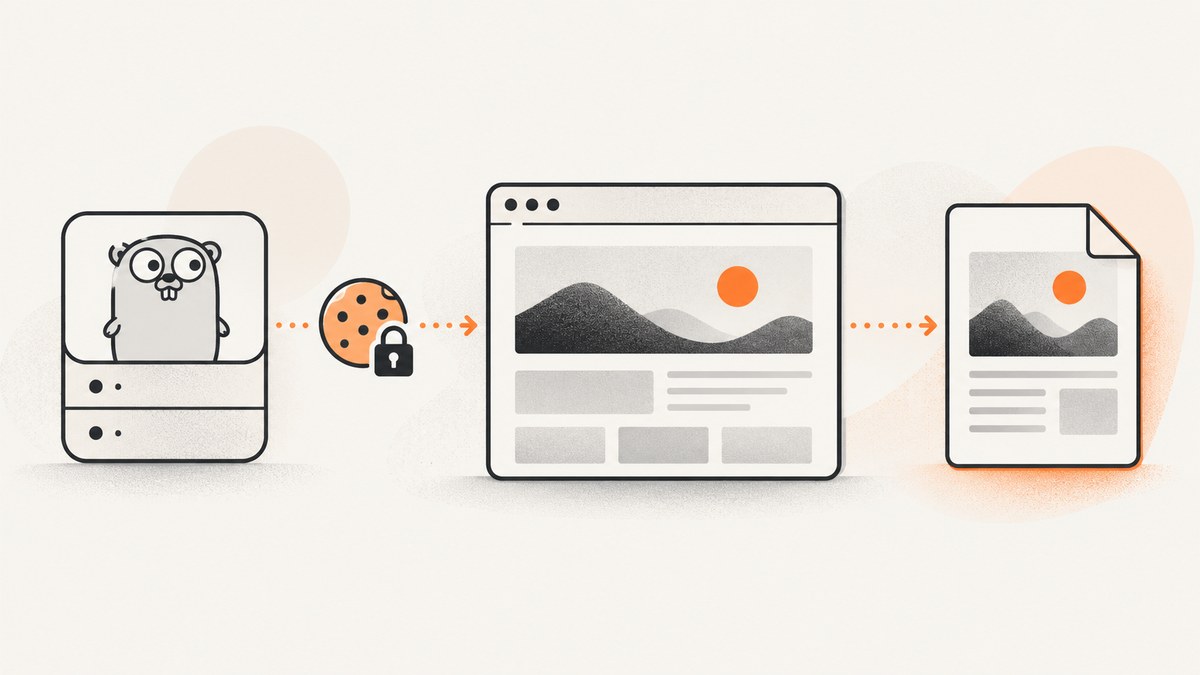
To convert a cookie-protected HTML page to PDF in Go, set the cookie in the component that actually fetches the page. If net/http downloads the HTML, attach the cookie to that request with Request.AddCookie. If Chrome or another browser loads and renders the page, insert the cookie into that browser session before navigation, then call the browser’s PDF-printing API. A cookie on a Go HTTP request does not automatically appear in a separate browser process.
This distinction explains most failed conversions. The PDF library may work perfectly while rendering a login page because authentication was configured in the wrong request context. The safe sequence is: create the right cookie, scope it to the target URL or domain, set it before navigation, wait for authenticated content, verify the page state, and only then print the PDF.
Choose the request path first
There are three common architectures:
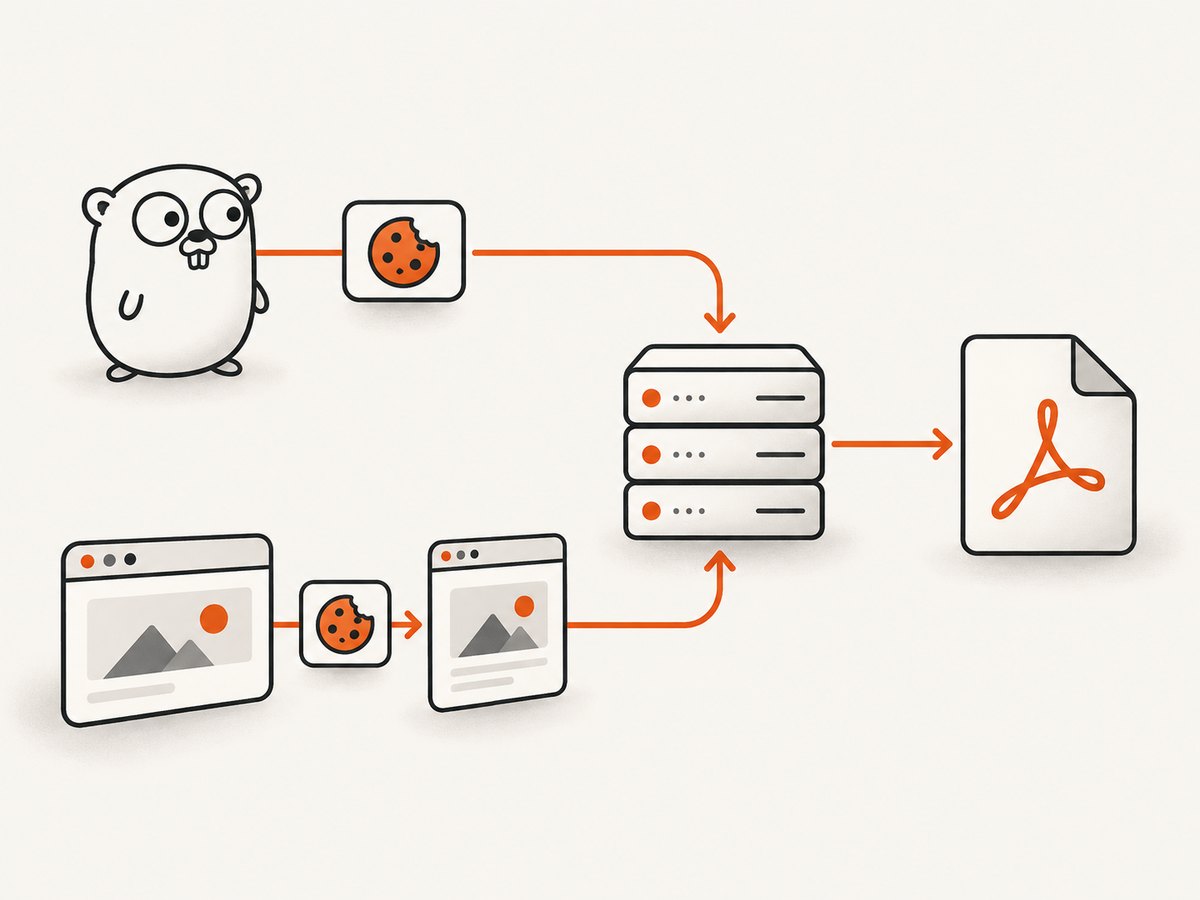
| Architecture | Where the cookie goes | PDF step |
|---|---|---|
| Go fetches HTML | http.Request via AddCookie |
Pass the returned HTML to your renderer |
| Browser renders HTML | Browser context via Chrome DevTools Protocol or Playwright | Browser PDF command such as page.PrintToPDF or page.pdf() |
| Command-line renderer | Renderer flags such as wkhtmltopdf --cookie |
Run the renderer with the cookie arguments |
Keep the authentication lifecycle with the fetcher. A cookie added to a direct HTTP request is not shared with Chrome, and a cookie inserted into Chrome is not added to a later net/http request.
Option 1: Fetch protected HTML with net/http
Use this path when the page is server-rendered and does not require browser JavaScript to produce the content. Go’s standard library exposes Request.AddCookie for associating a cookie with one request (Go net/http documentation).
package main

import (
    "fmt"
    "io"
    "net/http"
    "os"
)

func main() {
    req, err := http.NewRequest(http.MethodGet, "https://example.com/account/invoice", nil)
    if err != nil {
        panic(err)
    }

    // Match the session cookie issued by the site.
    req.AddCookie(&http.Cookie{
        Name:  "session",
        Value: "YOUR_SESSION_VALUE",
        Path:  "/",
    })

    client := &http.Client{}
    resp, err := client.Do(req)
    if err != nil {
        panic(err)
    }
    defer resp.Body.Close()

    if resp.StatusCode != http.StatusOK {
        panic(fmt.Sprintf("protected page returned %s", resp.Status))
    }

    html, err := io.ReadAll(resp.Body)
    if err != nil {
        panic(err)
    }
    if len(html) == 0 {
        panic("empty HTML response")
    }

    if _, err := os.Create("page.html"); err != nil {
        panic(err)
    }
    // Write the bytes to your HTML-to-PDF renderer here.
    fmt.Printf("downloaded %d bytes\n", len(html))
}
The cookie’s Path, domain, expiry, Secure flag, and SameSite policy should match the site’s session design. Avoid widening a cookie’s scope just to make a conversion work. If the application needs several cookies, call AddCookie for each one or use a cookie jar for a multi-request session.
When direct HTML fetching is insufficient
A raw HTTP response can omit content assembled by JavaScript, data loaded after the initial response, canvas output, and browser-only authentication flows. In those cases, use a browser renderer and set cookies in its context before opening the page.
Option 2: chromedp browser cookies and PDF output
With chromedp, cookie commands come from the Chrome DevTools Protocol network package, while PDF printing comes from the page package. Set cookies before calling chromedp.Navigate. The generated protocol references document network.SetCookie, network.SetCookies, and page.PrintToPDF (network package, page package).
package main

import (
    "context"
    "os"
    "time"

    "github.com/chromedp/cdproto/network"
    "github.com/chromedp/cdproto/page"
    "github.com/chromedp/chromedp"
)

func main() {
    ctx, cancel := chromedp.NewContext(context.Background())
    defer cancel()

    ctx, cancel = context.WithTimeout(ctx, 90*time.Second)
    defer cancel()

    target := "https://example.com/account/invoice"

    var pdf []byte
    err := chromedp.Run(ctx,
        network.SetCookie("session", "YOUR_SESSION_VALUE").
            WithURL(target).
            WithPath("/").
            WithHTTPOnly(true).
            WithSecure(true),
        chromedp.Navigate(target),
        chromedp.WaitVisible(`body`, chromedp.ByQuery),
        chromedp.Sleep(500*time.Millisecond),
        chromedp.ActionFunc(func(ctx context.Context) error {
            // PrintToPDF returns the PDF bytes and a stream flag.
            var err error
            pdf, _, err = page.PrintToPDF().
                WithPrintBackground(true).
                WithPreferCSSPageSize(true).
                Do(ctx)
            return err
        }),
    )
    if err != nil {
        panic(err)
    }
    if err := os.WriteFile("invoice.pdf", pdf, 0600); err != nil {
        panic(err)
    }
}
WithURL scopes the cookie to the destination. You can instead use a domain and path when that matches the site’s cookie policy. If the session cookie is not Secure, omit WithSecure(true); setting an incompatible attribute can prevent it from being sent. Session cookies have no expiry unless you provide one.
Set several cookies at once
cookies := []*network.CookieParam{
    {Name: "session", Value: "SESSION", URL: target, Path: "/", HTTPOnly: true, Secure: true},
    {Name: "tenant", Value: "acme", URL: target, Path: "/"},
}

err := chromedp.Run(ctx, network.SetCookies(cookies))
Use this when the application separates identity, tenant, CSRF, or feature state across cookies. Keep the browser context alive for the entire navigation and print operation so the cookies remain available.
Verify authentication before printing
A successful PDF call only proves that the browser printed something. It does not prove that the result is the protected document. Before printing, check a page signal that only authenticated users can see: an invoice heading, account navigation, a known element, or a URL that does not contain the login route.
var heading string
err := chromedp.Run(ctx,
    chromedp.TextContent(`h1`, &heading, chromedp.ByQuery),
)
if err != nil {
    panic(err)
}
if heading != "Invoice" {
    panic("authentication check failed; refusing to print")
}
Choose a selector that is stable for your application. Do not rely only on HTTP status: login pages commonly return 200 OK. Save the final URL and, during troubleshooting, capture a screenshot or HTML snapshot to determine whether the browser was redirected.
Print settings that affect the PDF
PDF output can differ from the screen view because print styles are applied. Playwright documents that page.pdf() uses print CSS media by default (Playwright page.pdf documentation). In a browser workflow, account for:
- Print media: CSS inside
@media printmay hide navigation or change colors. - Backgrounds: enable background printing when shaded sections are part of the document.
- Paper size and margins: set them explicitly for repeatable pagination.
- Fonts: wait for
document.fonts.readywhen custom fonts affect line breaks. - Images: wait for important images to finish loading before printing.
await chromedp.Run(ctx,
    chromedp.Evaluate(`document.fonts.ready`, nil),
    chromedp.WaitReady(`main`, chromedp.ByQuery),
)
Playwright and wkhtmltopdf alternatives
Playwright exposes cookie insertion on a browser context and returns PDF bytes from page.pdf(). This is useful when your Go service already operates a Playwright-managed browser or when you need its waiting and locator features. Keep cookies in the same context that opens the page.
wkhtmltopdf is a command-line renderer. Its manual lists repeatable --cookie and --cookie-jar options (wkhtmltopdf usage documentation). Verify flags against the exact binary version deployed; command-line behavior and JavaScript support differ from a current browser.
| Choose | Best fit | Check before deployment |
|---|---|---|
| chromedp | Native Go service with Chrome-level rendering | Browser installation, sandboxing, context cleanup |
| Playwright | Teams already using Playwright automation | How Go integrates with the browser runner and print media |
| wkhtmltopdf | Existing CLI pipeline and simple pages | Binary version, JavaScript compatibility, cookie flags |
Cookie scope, security, and session lifetime
- Use the exact target URL or the narrowest matching domain.
- Use
Path=/only when the site requires the whole origin; otherwise narrow it. - Keep session values out of logs, URLs, source control, and error messages.
- Use HTTPS and the Secure attribute for production sessions.
- Use HTTP-only cookies when JavaScript does not need to read the value.
- Discard browser contexts after the conversion so one user’s cookies cannot reach another job.
- Set a conversion timeout and cancel the context on failure.
A browser context is stateful. Reusing one across tenants can leak authentication or produce a PDF for the previous user. Create an isolated context per job or clear cookies explicitly before reuse.
Or skip the browser setup
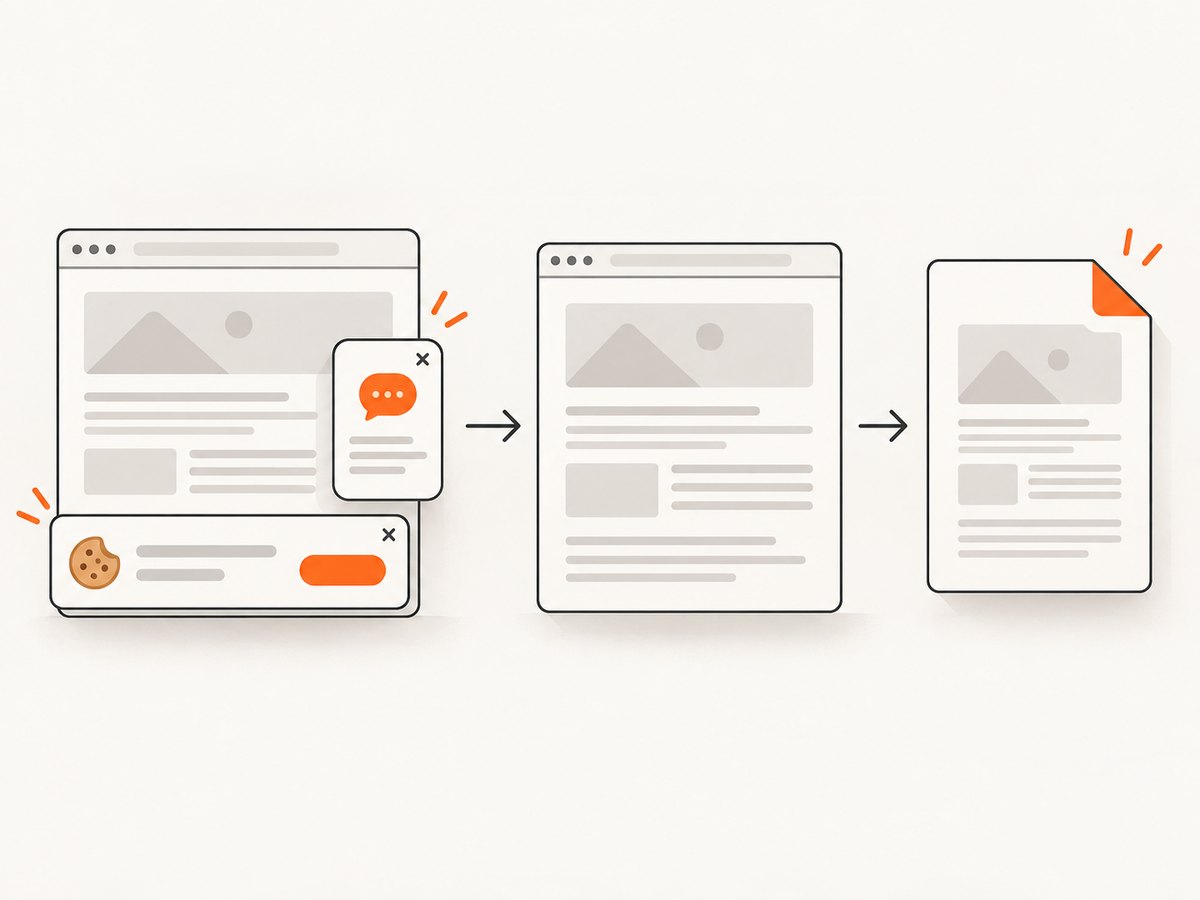
ScreenshotNeo provides a single request for screenshots or PDFs when you do not want to operate Chrome. Its API accepts the URL and supports custom cookies, headers, user agents, authorization, waits, CSS, JavaScript, PDF paper settings, margins, landscape mode, and page ranges. See the ScreenshotNeo API documentation for the request options.
curl -G "https://api.screenshotneo.com/v1/shot" -d access_key=YOUR_API_KEY --data-urlencode url=https://stripe.com -o shot.webpimport requests
r = requests.get("https://api.screenshotneo.com/v1/shot", params={"access_key": "YOUR_API_KEY", "url": "https://stripe.com"}, timeout=90)
open("shot.webp", "wb").write(r.content)const q = new URLSearchParams({ access_key: 'YOUR_API_KEY', url: 'https://stripe.com' });
const res = await fetch(`https://api.screenshotneo.com/v1/shot?${q}`);For a cookie-authenticated PDF, add the cookie in the API’s cookie option described in the docs and request PDF output. Cookie banners, newsletter popups, and chat widgets are removed before the shot. Bot checks, blank pages, failed loads, timeouts, and cache hits are not billed, and response headers identify the page verdict and whether it was billed. ScreenshotNeo also has an MCP server with take_screenshot, get_page_info, and capture_pdf for Claude, Cursor, and other MCP clients. The free plan includes 1,000 screenshots per month with no card; paid plans start at $5 for 3,000. Create a free ScreenshotNeo account.
Troubleshooting checklist
The PDF is a login page
Cause: the cookie was attached to net/http while Chrome performed the navigation, the domain/path does not match, or the session expired. Fix: set the cookie in the browser context before navigation, verify its URL or domain, and assert an authenticated selector before printing.
The cookie appears in DevTools but is not sent
Cause: Secure, domain, path, or SameSite rules exclude the request. Fix: use HTTPS, scope the cookie to the target origin, and match the site’s attributes rather than broadening them.
Page content is incomplete
Cause: printing happened before JavaScript, fonts, images, or API calls finished. Fix: wait for a meaningful selector, network idle where appropriate, and document.fonts.ready; use a bounded timeout.
It works locally but fails in production
Cause: Chrome is missing, sandbox permissions differ, outbound access is blocked, or the session is tied to an IP or user agent. Fix: install and pin the browser binary, configure the runtime sandbox deliberately, allow the destination, and send the expected user agent and headers.
PDF layout is different from the browser view
Cause: print media CSS, paper dimensions, margins, or missing backgrounds. Fix: inspect print styles, set paper and margins explicitly, and enable background printing.
Requests hang
Cause: a page resource or authentication endpoint never completes. Fix: use a context timeout, log the final URL and status, block unnecessary resources where safe, and return a clear failed-job result.
Performance, reliability, and cost practices
- Reuse a launched browser process but isolate browser contexts per job.
- Set separate navigation and total-job timeouts so one slow page cannot exhaust workers.
- Wait for a business-ready selector instead of sleeping for an arbitrary long delay.
- Limit concurrent conversions according to available CPU and memory.
- Cache immutable PDFs, but never cache a personalized document without including the user or tenant in the cache key.
- Record authentication outcome, final URL, render duration, and PDF byte size while redacting cookie values.
- Retry transient navigation failures with a limit; do not blindly retry invalid credentials.
Hosted conversion changes the operational trade-off: you pay for the service instead of maintaining browsers and workers. With ScreenshotNeo, only clean shots are billed, while failed loads and cache hits are free, and the response headers report the verdict and billing state.
FAQ
Can I put the cookie in the URL?
No. Cookies belong in request headers or browser cookie stores. Putting session values in URLs exposes them to logs, history, and referrers.
Should I use a cookie jar?
Use a jar when several HTTP requests must share cookies. For a browser conversion, set cookies in that browser context instead.
Why does a 200 response still produce an unauthenticated PDF?
Login pages often return 200. Verify authenticated content or a protected selector before calling the PDF API.
Can a PDF renderer refresh an expired session?
Only if your application performs a login or token-refresh flow. Otherwise obtain a valid session first and inject it into the same fetch context.
Which approach should a production Go service use?
Use direct HTTP plus an HTML renderer for static server-rendered pages. Use an isolated browser context when JavaScript, modern CSS, or browser authentication behavior is required. Choose a hosted API when operating browsers is not part of your service.


