Do Google Docs Notify Others When You Take a Screenshot?
Google Docs does not normally notify collaborators when you take a screenshot. Learn what viewers can see, privacy caveats, and safer capture options.
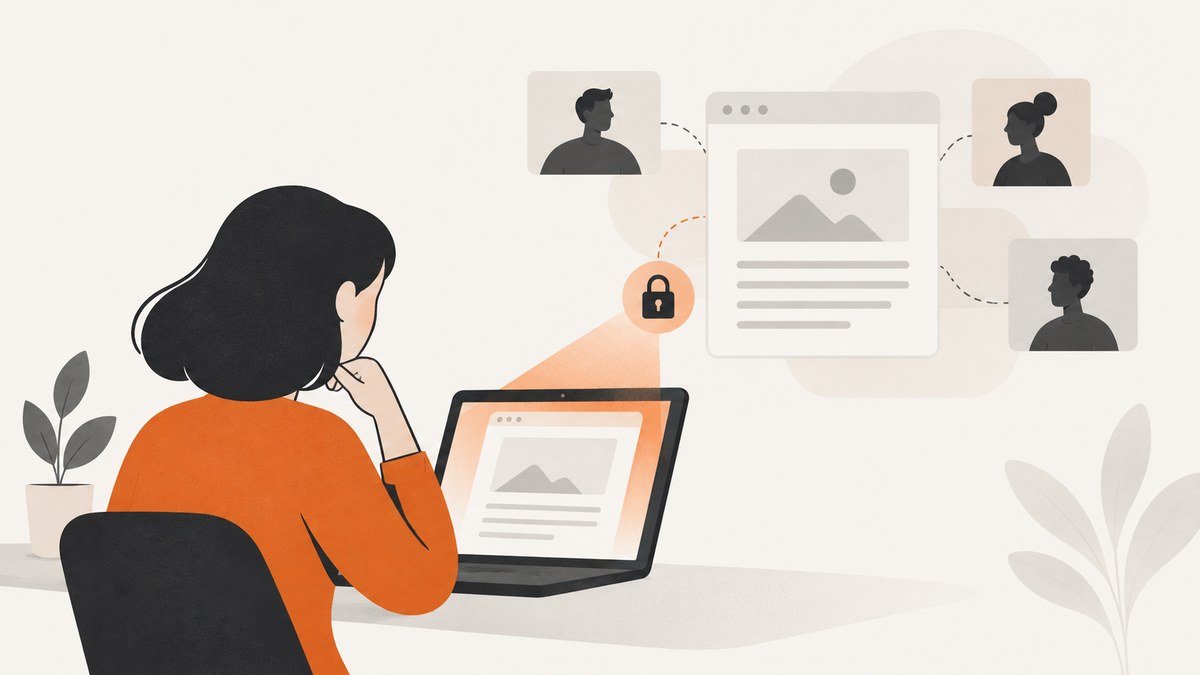
Short answer: no. Google Docs does not appear to notify collaborators when you take an ordinary screenshot of a document. Google’s published Drive and Docs notification categories cover sharing, comment mentions and action items, and access requests; screenshot capture is not listed as a notification event. Google Drive Help lists the available notification types.
That answer applies to a normal screenshot made with your computer or phone. It does not promise that every managed device, company monitoring tool, browser extension, or operating-system policy behaves the same way. It also does not mean that the document owner cannot see any activity. In some Google Workspace organizations, an Activity dashboard can show who viewed a file and when they viewed it. A view record is different from a screenshot alert.
1. What Google Docs actually notifies people about
Google Drive’s notification settings describe three relevant event groups:
- Someone shares a new file or folder with you.
- You are mentioned in a comment or assigned an action item.
- Someone requests access to a file you own.
You can manage these notifications in Drive settings and choose mobile, web, or email delivery where available. The documented list does not include “someone took a screenshot.” There is no ordinary Docs setting that sends the owner an alert when another collaborator presses a screenshot shortcut.
Google Docs also has per-file edit notifications. Those messages can describe what changed, when it changed, and who made the edit. They concern document content changes, not screen capture. Google’s edit-notification announcement explains that distinction.
2. Can the owner see that you viewed the document?
Possibly, depending on the account and organization settings. Google Workspace administrators can enable an Activity dashboard that lets users see file activity, including the names of people who viewed a file and the time of the view. Google Workspace documentation describes this dashboard.
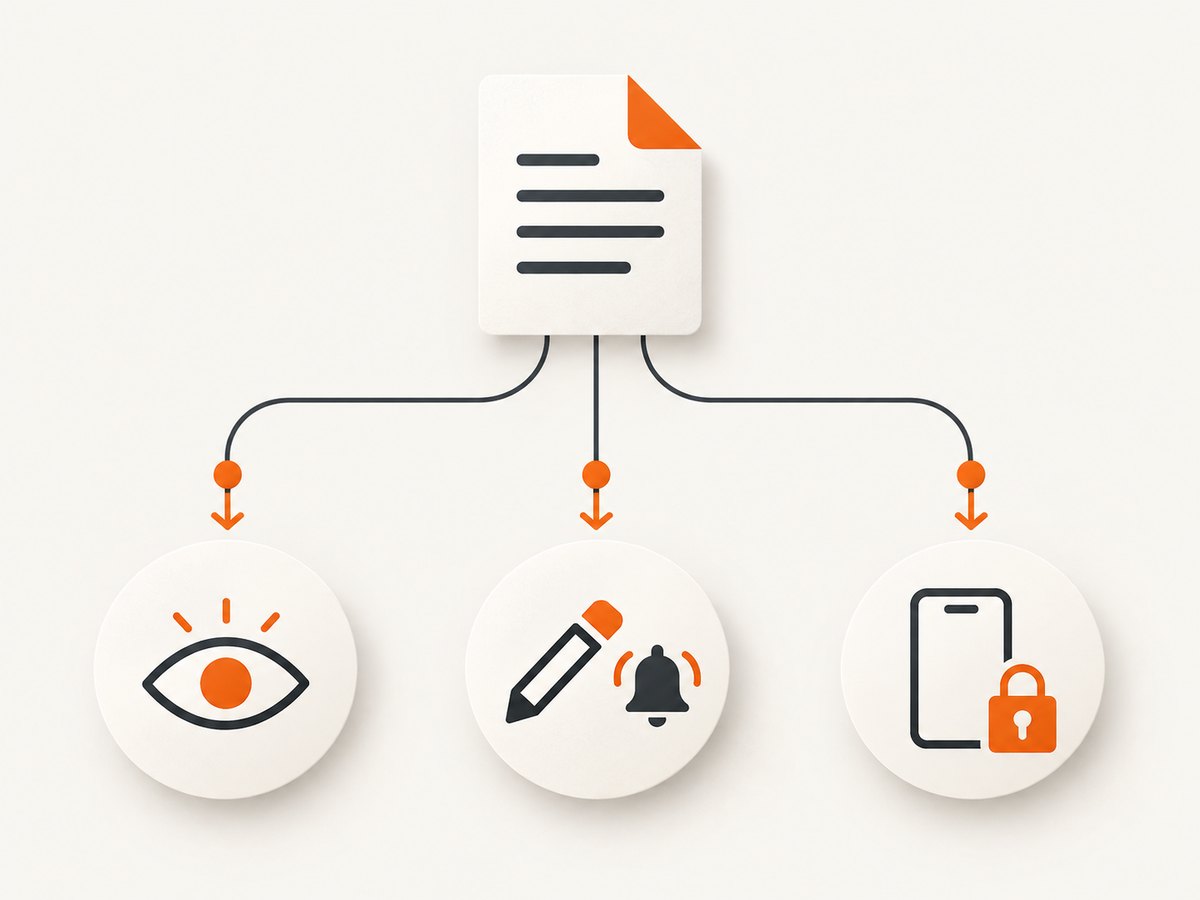
This is a record of opening or viewing the file. It is not a record of pressing Print Screen, taking a macOS screenshot, using a phone’s screenshot gesture, or saving a screen capture through another application. A person might see that you opened the document at a certain time, but the dashboard does not establish that you captured an image.
Activity visibility varies. Consumer accounts, Workspace editions, administrator settings, privacy settings, and organizational policies can change what appears. If you need certainty about your employer or school account, ask the administrator which audit and monitoring tools are enabled.
3. Does Google Docs block screenshots?
In normal use, Google Docs does not present a general screenshot-blocking screen. Your operating system can usually capture the browser window like any other application. A company-managed computer may impose separate controls, such as endpoint monitoring, data-loss-prevention software, virtual desktop restrictions, or screen-capture blocking. Those controls come from the managed environment, not from the standard Google Docs notification feature.
Some documents can also be configured to limit downloading, printing, or copying for viewers and commenters. Those restrictions affect the commands Google exposes inside Drive. They do not constitute a documented screenshot alert, and they cannot guarantee that a viewer cannot photograph a screen with another device.
4. The privacy check that matters more than a screenshot alert
If you own the document, check who can access it:
- Open the document and select Share.
- Look at General access.
- Choose Restricted if only named people should open it.
- Review the people and groups listed under access.
- Remove old collaborators or change their role from Editor to Commenter or Viewer when appropriate.
Google’s privacy guidance says: “The content you save on Google Docs, Sheets, Slides, and Vids is private to you, unless you choose to share it.” Read the full explanation in Google’s Docs privacy help. Sharing controls decide who can open the file; they do not create a way to know whether an authorized viewer made a screenshot.
If you are a viewer, treat anything you can read as potentially copyable. Avoid placing passwords, private keys, personal identification numbers, or confidential customer data in a document unless the sharing arrangement and organizational policy allow it.
5. Why people sometimes think a screenshot alert exists
Several different events can be confused with screenshot detection:
| Event | What may happen | Is it a Docs screenshot alert? |
|---|---|---|
| Opening a file | An Activity dashboard may record your name and view time in some Workspace contexts. | No |
| Editing text | Per-file edit notifications may describe the change and editor. | No |
| Sharing a file | The recipient can receive a sharing notification. | No |
| Comment mention or action item | The mentioned user can receive a notification. | No |
| Access request | The owner can receive an access-request notification. | No |
| Screenshot on a managed device | An employer or school tool might log or block capture. | Not a standard Docs event |
| Gemini visual capture in Google Meet | Presenters receive an on-screen notice when the meeting feature captures presentation visuals. | No; this is Meet |
6. The Google Meet caveat
Google has described a separate Google Meet “Take notes for me” capability in which Gemini can capture screenshots of presentation visuals. Presenters receive an on-screen notification when presentation capture begins, and presenters or administrators can manage or disable visual screenshot capture from the Meet notes panel. The July 2026 Workspace Updates entry describes that behavior.
This is easy to misread because it uses the word “screenshot.” It concerns visual material captured by a Meet note-taking feature during a meeting. It is not evidence that Google Docs alerts a document owner when you take a screenshot on your own device.
7. A practical way to reason about your situation
- Identify the app. Are you in Google Docs, Google Meet, a company portal, or a remote desktop? Rules can differ.
- Identify the account. A personal Gmail account and a managed Workspace account may have different audit settings.
- Separate viewing from capture. An owner may see that you opened a file without seeing a screenshot event.
- Check local policy. Employer, school, or contractor policies can require consent for copying or recording even when Docs sends no alert.
- Use the least sensitive copy. If you need a reference, export only the relevant section and remove confidential data where policy permits.
8. If you need a repeatable screenshot for documentation
For a one-off personal reference, your operating system’s built-in capture tool is usually enough. For engineering documentation, visual regression checks, or a batch of public pages, an automated capture service avoids maintaining a browser installation. Keep access permissions in mind: automation does not bypass a document’s sharing rules.
A self-hosted browser workflow can use Playwright. Install it with npm install playwright, then install a browser with npx playwright install chromium. The following script opens a URL you are authorized to view and saves a PNG:
import { chromium } from 'playwright';

const browser = await chromium.launch();
const page = await browser.newPage({
  viewport: { width: 1440, height: 1000 },
  deviceScaleFactor: 1
});
await page.goto(process.env.DOC_URL, { waitUntil: 'networkidle' });
await page.screenshot({ path: 'document.png', fullPage: true });
await browser.close();
Run it with DOC_URL="https://docs.google.com/document/d/your-id/edit" node capture.mjs. If the document requires login, use an approved authenticated browser context and protect the stored session. Never put a password or session cookie in source control.
Browser-capture edge cases
- Login redirects: wait for authentication before calling
screenshot; a redirect page is not the document. - Lazy-rendered pages: scroll through the document or wait for a known selector before capturing.
- Large documents: full-page images can consume substantial memory; capture sections when a single image is unnecessary.
- Fonts and layout: use a fixed viewport, device scale factor, timezone, and locale if pixel consistency matters.
- Permission changes: a previously valid URL can begin returning an access request page; inspect the final URL and page text.
9. Or skip the browser setup
ScreenshotNeo is a website screenshot API and MCP server. One GET request returns a PNG, JPEG, WebP, or PDF. Cookie and consent banners are accepted and removed before capture, along with more than 60 known consent platforms, newsletter popups, and chat widgets. Bot checks, blank pages, timeouts, failed loads, and cache hits cost nothing, and the response identifies the result with X-Page-Verdict and X-Billed headers.
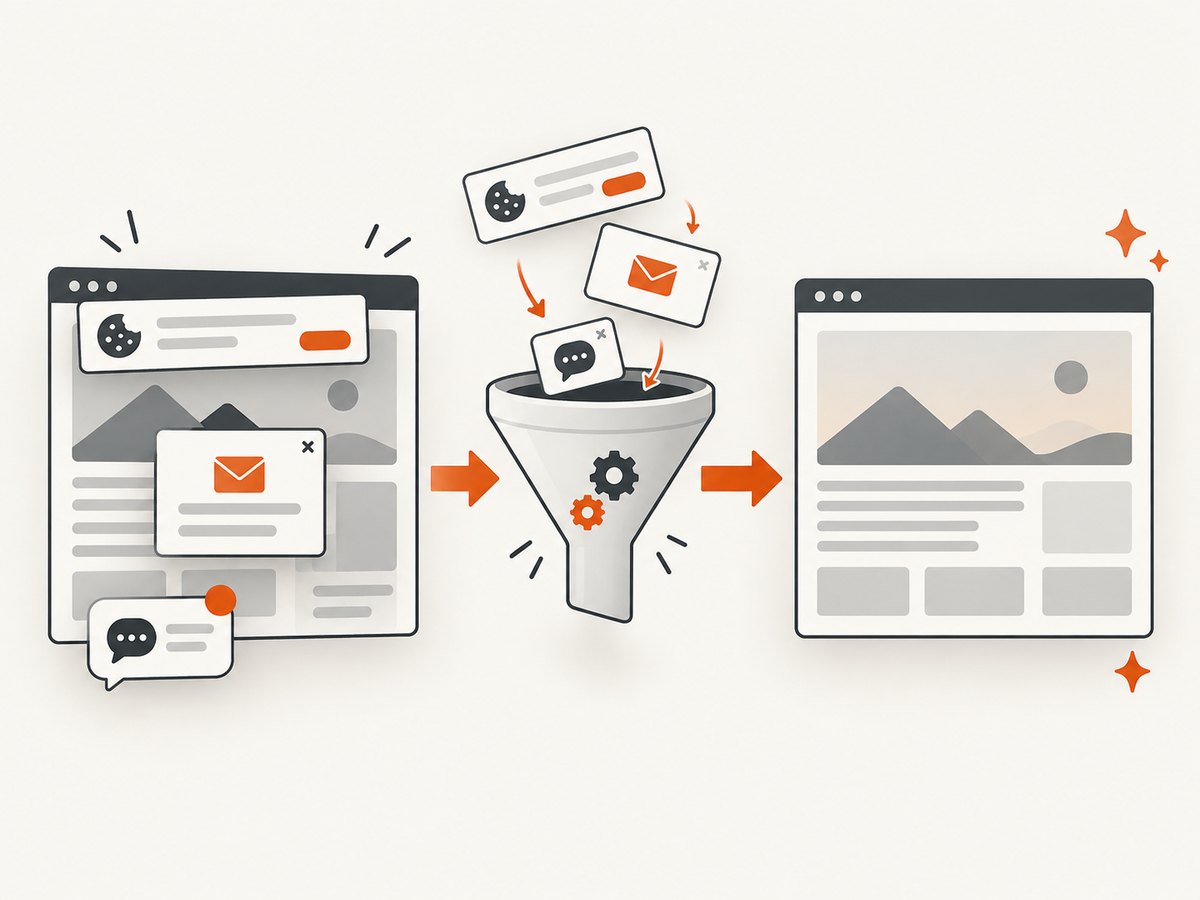
See the ScreenshotNeo documentation for all options. The same request can also use full-page capture with lazy images loaded, an element CSS selector, dark mode, device presets or a custom viewport, retina scale, custom CSS and JavaScript, clicks, selector or network-idle waits, blocked resources, headers, cookies, user agents, authorization, timezone, geolocation, transparent backgrounds, resizing, a chosen cache TTL, signed image links, asynchronous jobs with signed webhooks, bulk capture of up to 100 URLs, and usage data. It also provides PDF controls, HTML/CSS-to-image capture, an OpenAPI specification, and familiar parameter names for easier migration.
cURL
curl -G "https://api.screenshotneo.com/v1/shot" \
  -d access_key=YOUR_API_KEY \
  --data-urlencode url=https://stripe.com \
  -o shot.webp
Python
import requests

r = requests.get(
    "https://api.screenshotneo.com/v1/shot",
    params={"access_key": "YOUR_API_KEY", "url": "https://stripe.com"},
    timeout=90,
)
r.raise_for_status()
open("shot.webp", "wb").write(r.content)
Node.js
const q = new URLSearchParams({
  access_key: 'YOUR_API_KEY',
  url: 'https://stripe.com'
});
const res = await fetch(`https://api.screenshotneo.com/v1/shot?${q}`);
if (!res.ok) throw new Error(`HTTP ${res.status}`);
const buffer = Buffer.from(await res.arrayBuffer());
require('fs').writeFileSync('shot.webp', buffer);
For reliability, check the HTTP status and the verdict headers, use a timeout appropriate for the page, and retry only transient network failures. Caching with a TTL you choose can reduce repeated work. For public <img> tags, use signed links rather than exposing your access key.
Pricing is straightforward: the Free plan includes 1,000 shots each month with no card. Starter is $5 for 3,000 shots, Growth is $15 for 15,000, Pro is $39 for 60,000, Scale is $99 for 250,000, and Business is $249 for 1,000,000. Yearly billing gives two months free, and every feature is available on every plan. An MCP server lets Claude, Cursor, and other MCP clients call take_screenshot, get_page_info, and capture_pdf.
Create a free ScreenshotNeo account to get 1,000 screenshots a month with no card; paid plans start at $5 for 3,000.
10. Troubleshooting checklist
| Symptom | Likely cause | Fix |
|---|---|---|
| The owner says they saw activity. | They saw a view in an Activity dashboard. | Explain that view time does not identify a screenshot. |
| You received an email after opening a file. | It was a sharing, comment, action-item, or access notification. | Review the event type; Docs does not list screenshot alerts. |
| Your capture shows a login page. | The browser was not authenticated or the session expired. | Authenticate through an approved account and verify the final URL. |
| The image is blank. | The page timed out, blocked automation, or had not rendered. | Wait for a selector or network idle, confirm access, and inspect response status. |
| A managed laptop blocks capture. | Endpoint or data-loss-prevention policy. | Follow the organization’s policy or ask an administrator; this is outside Docs notifications. |
| ScreenshotNeo returns an error. | Invalid key, inaccessible URL, timeout, or malformed parameters. | Check the key and URL, use URL encoding, inspect HTTP status and X-Page-Verdict, and retry transient failures. |
11. FAQ
Can someone see if I screenshot a Google Doc?
Google’s documented Docs and Drive notifications do not include ordinary screenshot capture. They may still see that you viewed the file in some Workspace Activity dashboard.
Does Google Docs tell the owner when I use Snipping Tool or Command-Shift-4?
There is no standard Docs screenshot notification for those operating-system tools. A managed device could have separate monitoring software.
Does disabling download, print, and copy stop screenshots?
Those controls limit commands inside Drive. They do not document screenshot detection and cannot guarantee that someone cannot photograph the screen.
Can an administrator audit screenshots?
The supplied Google Docs sources establish view and document activity features, not universal screenshot auditing. Ask your administrator about endpoint, browser, or remote-desktop controls.
Is the Google Meet screenshot notice related to Docs?
No. The Meet notice concerns Gemini visual capture during meeting note-taking, with its own controls.
What is the safest privacy setting for a sensitive document?
Open Share, review every listed person and group, and set General access to Restricted when only named collaborators should have access.
Conclusion
Taking an ordinary screenshot of a Google Doc does not appear to notify other collaborators. The events people can confuse with a screenshot alert are file views, edits, sharing, comments, access requests, and a separate Google Meet capture feature. Check the document’s Share settings, follow any managed-device policy, and remember that authorized viewers can potentially preserve what they can read.


