How to Load Google Fonts in Puppeteer PDF Headers and Footers on AWS Lambda
Load Google Fonts reliably in Puppeteer PDFs on AWS Lambda, style header and footer templates explicitly, and diagnose missing fonts in production.

Short answer: treat the PDF body and Puppeteer’s header and footer templates as separate HTML inputs. Load Google Fonts in the page document and apply the family in print CSS; set the font explicitly with an inline style in each header and footer template, with a fallback. Page.pdf() waits for document.fonts.ready by default, but that only means font loading activity settled—it does not prove that Google’s stylesheet and font file were fetched successfully. For consistent Lambda output, check failed requests in the deployed browser and consider bundling a suitably licensed font.
This guide covers the page, templates, Lambda deployment considerations, and a complete Node.js example. The exact Puppeteer, Chromium, runtime, architecture, and network combination must be validated in your own function; the code is a practical pattern, not a tested Lambda recipe.
1. Understand which document is being rendered
Puppeteer’s Page.pdf() generates a PDF using print media. Its headerTemplate and footerTemplate options take HTML strings. Although these strings are passed as part of one PDF operation, do not assume the page’s stylesheet will style them. Give template content its own inline styles and fallback fonts. Puppeteer documents template constraints and special classes, but does not promise general stylesheet inheritance or universal remote-font behavior inside the templates.
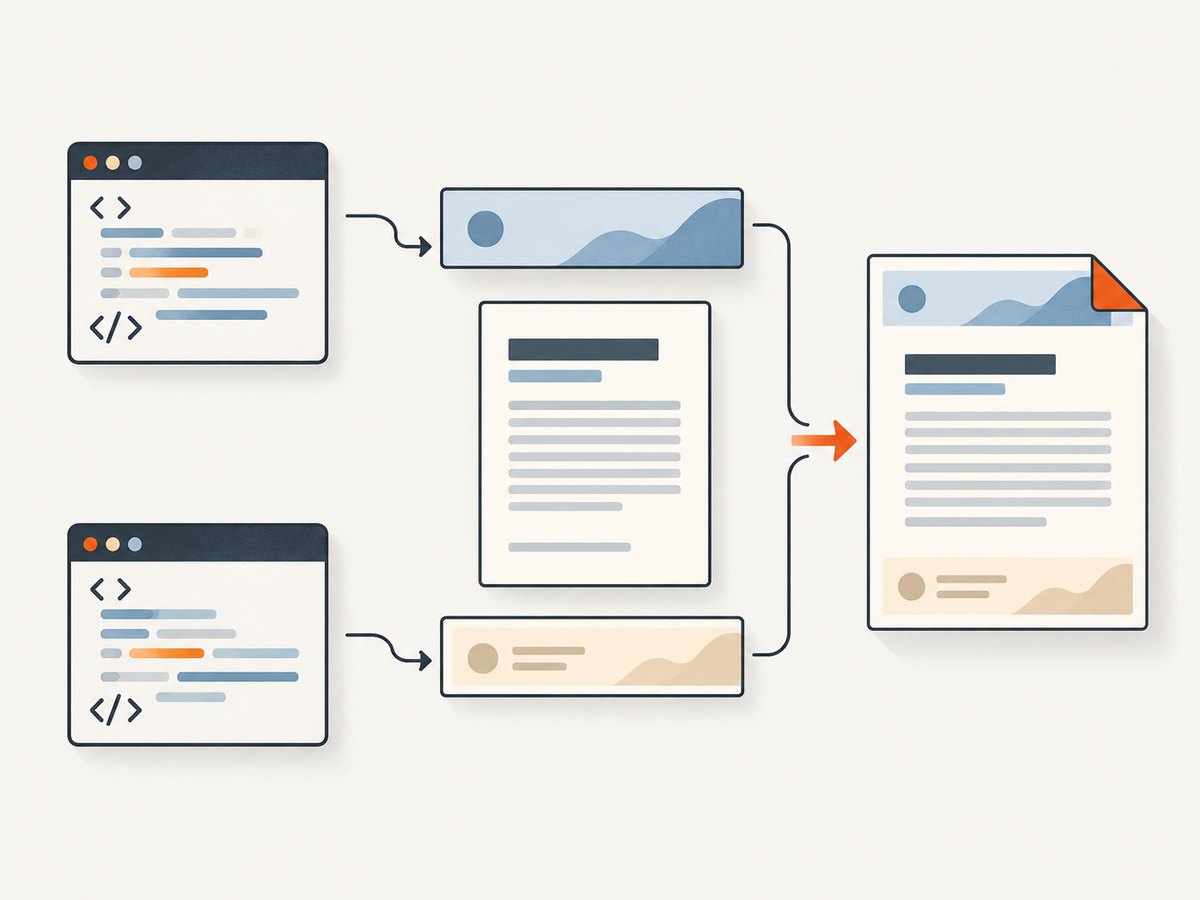
Google Fonts also involves two browser requests: the page requests a stylesheet from Google Fonts, then requests the font file referenced in that CSS. Either request can fail. A font-ready signal is useful synchronization, but it is not a successful-load assertion for a particular family.
2. Load Google Fonts for the PDF page content
Add the Google Fonts stylesheet to the HTML page, then use the declared family in CSS that applies when the page is printed. Keep a generic fallback such as sans-serif. If you own the HTML being rendered, a link element in its head is straightforward:
<link rel="preconnect" href="https://fonts.googleapis.com">
<link rel="preconnect" href="https://fonts.gstatic.com" crossorigin>
<link href="https://fonts.googleapis.com/css2?family=Roboto:wght@400;700&display=swap" rel="stylesheet">
<style>
  body { font-family: Roboto, Arial, sans-serif; }
  @media print {
    body { font-family: Roboto, Arial, sans-serif; }
  }
</style>
The family name and weight requested in the stylesheet need to match the CSS you apply. If you are rendering a page you do not control, use page.addStyleTag() after navigation to add print-aware styling. That changes the page’s content style; it does not establish the font style of the header or footer templates.
3. Style the header and footer templates explicitly
Set displayHeaderFooter: true to print templates. Use inline CSS and include a fallback family in each template. Puppeteer recognizes these special classes in template markup: date, title, url, pageNumber, and totalPages. A minimal header/footer pair is:
const headerTemplate = `
  <div style="width:100%;font-size:9px;padding:0 12mm;font-family:Roboto,Arial,sans-serif">
    Monthly report
  </div>`;

const footerTemplate = `
  <div style="width:100%;font-size:9px;padding:0 12mm;text-align:right;font-family:Roboto,Arial,sans-serif">
    <span class="pageNumber"></span> / <span class="totalPages"></span>
  </div>`;
These styles make the intended family explicit, but remote font availability inside templates can vary with the precise browser and deployment. Validate rendered output rather than assuming that loading Roboto in the page document covers the templates too. If the header must match exactly on every invocation, a local font source is generally more predictable than a live font-service request, subject to licensing and character coverage.
4. Complete Puppeteer PDF pattern
This example assumes you already have a compatible Puppeteer and Chromium setup for your Lambda package, and that the target page is reachable. It illustrates navigation, print styling, font waiting, page visibility, templates, and writing the PDF. The networkidle2 condition is used in Puppeteer’s PDF guide example; it is not a guarantee that the requested font loaded.
import puppeteer from 'puppeteer';
import { writeFile } from 'node:fs/promises';

const url = process.env.RENDER_URL;
if (!url) throw new Error('Set RENDER_URL to the page to render');

const browser = await puppeteer.launch({ headless: true });
try {
  const page = await browser.newPage();
  page.on('requestfailed', request => {
    console.error('Request failed:', request.url(), request.failure()?.errorText);
  });
  page.on('console', message => {
    if (message.type() === 'error') console.error('Browser:', message.text());
  });

  await page.goto(url, { waitUntil: 'networkidle2', timeout: 60000 });
  await page.addStyleTag({ content: `
    @media print {
      body { font-family: Roboto, Arial, sans-serif; }
    }
  ` });

  // Puppeteer documents bringing a background page forward when font waiting stalls.
  await page.bringToFront();
  const pdf = await page.pdf({
    format: 'A4',
    printBackground: true,
    displayHeaderFooter: true,
    waitForFonts: true,
    margin: { top: '22mm', bottom: '18mm', left: '12mm', right: '12mm' },
    headerTemplate: 'Report',
    footerTemplate: ' / ',
  });
  await writeFile('/tmp/report.pdf', pdf);
} finally {
  await browser.close();
}
Install the Puppeteer package version appropriate to your deployment and use its documented launch configuration for the Chromium binary you have selected. The example deliberately does not prescribe an executable path or Lambda layer: those depend on the Chromium package, runtime, architecture, and packaging approach you choose. Review the Puppeteer PDF generation guide and the PDFOptions reference for the API details.
5. Set up and validate the Lambda deployment
- Choose compatible components. Select Puppeteer, a Chromium distribution, Node.js runtime, CPU architecture, and packaging format as a compatible set. Puppeteer’s troubleshooting guide discusses Lambda package-size challenges and points to the community sparticuz/chromium project; it does not certify every version and runtime pairing.
- Check outbound access. If using the Google Fonts API at render time, the function’s browser must reach both the stylesheet and the font file. Confirm the network configuration permits those requests. A function’s successful navigation to the page does not prove that the font host is reachable.
- Run a production-shaped check. Deploy to the intended runtime and architecture, render a representative page, and inspect the PDF’s body, header, and footer. Include characters and scripts your real documents require.
- Observe cold starts and output. Test a cold invocation as well as later invocations. Record navigation and PDF errors, failed resource requests, and whether the output exists and contains expected text. This helps distinguish packaging or launch failures from font-loading failures.
- Choose the font source. Keep Google Fonts remote when the convenience is worth a runtime network dependency. For more controlled rendering, package a properly licensed font and use
@font-face, keeping a generic fallback.
Google Fonts says its fonts use open-source licenses and can be used for commercial and non-commercial projects. Check the individual font’s license and packaging requirements, and verify glyph coverage for your content. See the Google Fonts getting started guide and Google Fonts FAQ.

6. Remote font or bundled font?
| Approach | Useful when | Things to validate |
|---|---|---|
| Google Fonts API at render time | You want a convenient hosted stylesheet and font files. | Both stylesheet and font-file requests must succeed from the Lambda browser. Check failures and fallback rendering. |
| Bundled or self-hosted font | Repeatable output matters and deployment can include the asset. | Packaging size, font license, correct @font-face URL, and required glyph coverage. |
| Font only in page CSS | You need the document body styled normally. | This does not prove the templates inherit the page’s style. Specify template styling separately. |
| Inline template family | You want explicit typography in headers and footers. | Use allowed template markup, a fallback family, and test the chosen font source in the deployed browser. |
7. Troubleshooting missing fonts and PDF issues
| Symptom | Likely cause | What to do |
|---|---|---|
| Body uses a fallback font | The Google stylesheet or referenced font file failed, or the family/weight does not match the CSS declaration. | Log failed requests and browser console errors in Lambda. Check access to both Google font hosts and align the requested family and weight. |
| Body looks right, header/footer do not | Template typography was assumed to inherit page CSS, or remote fonts behave differently in template rendering. | Add explicit inline font-family and fallback to each template. Test the exact Chromium build; use a bundled font for more predictable output. |
waitForFonts completes but font is absent |
The font set settled after a failure, or the intended face was not used by rendered elements. | Treat readiness as synchronization only. Inspect resource failures and check computed family, weight, and actual PDF output. |
| PDF call appears to hang waiting for fonts | The page may be backgrounded and the font-ready promise may not resolve as expected. | Bring the page to the foreground with page.bringToFront() before page.pdf(); also impose an application-level timeout around rendering. |
| PDF has clipped header or footer | Template content exceeds available space or PDF margins leave insufficient room. | Adjust the top or bottom margin, reduce template font size/padding, and inspect a multi-page output. |
| Chromium fails to launch in Lambda | Browser package, architecture, runtime, or deployment packaging is incompatible or incomplete. | Check the selected Chromium project’s compatibility guidance and Puppeteer troubleshooting docs; reproduce with the deployed runtime and architecture. |
| Works locally, fails only in Lambda | Network access, package contents, runtime, or architecture differs. | Log launch and request errors in Lambda; validate the actual deployed environment rather than relying on local rendering. |
8. Performance, reliability, and cost considerations
A remote font adds network work to PDF rendering: the browser needs the stylesheet and then the font resource. Reusing a browser within a warm invocation may avoid repeated process startup, but the font availability and cache behavior still need validation in the deployment. Do not treat a particular load time or speedup as guaranteed. Set explicit navigation and job timeouts, close pages and browsers reliably, and avoid waiting for network quiet as the only proof of font success.
A bundled font shifts work from runtime network access to deployment packaging and licensing checks. It can make the font source more controlled, while increasing artifact requirements and requiring checks for supported glyphs. Neither choice removes the need to verify the final PDF. For cost planning, account for Lambda execution duration, memory configuration, and invocation volume in your own deployment; the cited documentation does not establish a universal cost or performance figure for this rendering pattern.
Or skip the browser setup
If your goal is a screenshot or PDF of a web page rather than control over a Puppeteer-generated document, ScreenshotNeo is a website screenshot API and MCP server. A single GET request can return a screenshot or PDF. For an API screenshot, see the ScreenshotNeo API documentation:
curl -G "https://api.screenshotneo.com/v1/shot" -d access_key=YOUR_API_KEY --data-urlencode url=https://stripe.com -o shot.webp

import requests
r = requests.get("https://api.screenshotneo.com/v1/shot", params={"access_key": "YOUR_API_KEY", "url": "https://stripe.com"}, timeout=90)
open("shot.webp", "wb").write(r.content)

const q = new URLSearchParams({ access_key: 'YOUR_API_KEY', url: 'https://stripe.com' });
const res = await fetch(`https://api.screenshotneo.com/v1/shot?${q}`);
ScreenshotNeo removes cookie banners, popups, and chat widgets before the shot. Bot checks, blank pages, and failed loads are never billed; response headers report the page verdict and billing status. Its MCP server lets AI agents use screenshot tools. The free plan includes 1,000 screenshots a month with no card, and paid plans start at $5 for 3,000. Sign up for free and capture your first 1,000 screenshots a month with no card.
FAQ
Does waitForFonts need to be set?
It is true by default in the current Puppeteer PDF options. Setting it explicitly can make the intent clear. It waits for document.fonts.ready; it does not confirm that a specific Google Font downloaded successfully.
Can I use a Google Font in the header template?
Give the template an explicit inline font family and fallback, then test it with the exact deployed Chromium build. The official template reference does not guarantee universal remote-font behavior or stylesheet inheritance.
Is networkidle2 enough to know the font loaded?
No. It is a navigation wait condition, not a check that the intended font face was fetched and applied. Inspect failed requests and the rendered PDF.
What is the most predictable font option?
For controlled output, bundle an appropriately licensed font, define it with @font-face, retain a generic fallback, and verify the characters your documents need.


