Google Play Screenshot Generator: Requirements, Sizes, Workflow, and Automation
Create Google Play screenshots that meet size and device rules. Learn capture, composition, export, upload, automation, troubleshooting, and costs.
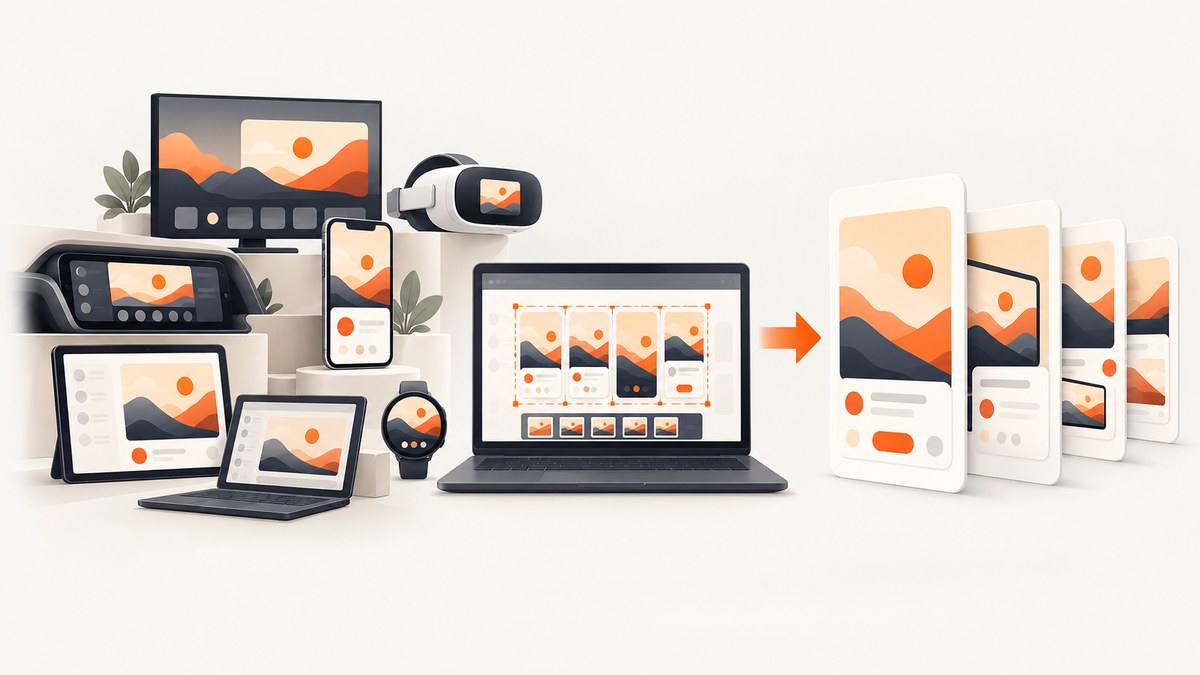
Direct answer: A Google Play screenshot generator should begin with accurate captures of your current app, arrange them for the device categories you support, and export files that satisfy Google Play’s technical rules. For a standard listing, you need at least two screenshots across device types, and you can upload up to eight screenshots for each supported device type. Use JPEG or opaque 24-bit PNG files, keep every dimension between 320 and 3840 pixels, and ensure the long dimension is no more than twice the short dimension. Google also recommends larger sets for recommendation surfaces: four app screenshots at 1080 pixels or higher, or three for games, in 16:9 landscape or 9:16 portrait.
This guide covers the complete workflow: capturing real screens, choosing sizes, designing readable compositions, handling phones and special device categories, exporting and validating files, uploading them in Play Console, automating web-based capture, and fixing common failures.
1. Separate publishing requirements from recommendations
Google’s preview-asset guidance contains hard publishing rules and separate recommendations. Treat them differently when planning your generator.
| Rule or guidance | What to do |
|---|---|
| Minimum listing coverage | Provide at least two screenshots across device types. |
| Maximum per device type | Upload up to eight screenshots for each supported type. |
| Accepted formats | Use JPEG or opaque 24-bit PNG. Do not use an alpha channel. |
| Dimensions | Every side must be 320–3840 px; the long side cannot exceed twice the short side. |
| Recommendation-oriented app set | Provide four images at 1080 px or higher, in 16:9 landscape or 9:16 portrait. Minimum recommended canvas is 1920×1080 or 1080×1920. |
| Recommendation-oriented game set | Provide at least three images at the same recommended orientations and sizes, showing gameplay. |
Passing the minimum lets a listing publish. Following the larger, higher-resolution guidance can make assets eligible for more screenshot-led surfaces. Google may resize or crop screenshots in search and home experiences, so keep important UI and captions away from edges.
2. Capture the real app
Your generator should use current, genuine in-app or in-game screens. Start from a release build or a controlled staging build that has the same navigation, permissions, data density, and visual treatment users will see after installation.
Android Studio
- Launch the app on an emulator configured for the target device category.
- Navigate to the screen you want to present and wait for asynchronous content to finish loading.
- Use Android Studio’s screenshot control to save the frame at the emulator’s native resolution.
- Repeat for the key user journey: first value, core feature, and strongest differentiator.
Physical device
On many Android devices, press and hold Power and Volume-down simultaneously. Capture several states rather than repeating the same screen with minor changes. Record the Android version, density, orientation, and app build for every source image so that a later redesign does not leave mixed versions in your store listing.
Do not frame listing screenshots
Android’s Device Art Generator can wrap a capture in device artwork for websites and other promotional materials. Google’s documentation says not to use those framed graphics in Google Play feature images or screenshots; use the screenshot alone for the listing.
3. Choose a screenshot set that tells a useful story
Order matters. The first three images should be UI-forward and explain the product without requiring a reader to decode decorative copy.
- First screen: show the primary outcome immediately after launch.
- Second screen: show the core workflow or the feature that solves the user’s problem.
- Third screen: show depth, personalization, collaboration, or another reason to install.
- Later screens: cover secondary features, settings, offline behavior, integrations, or supported form factors.
Stylized screenshots can connect across multiple uploads, and short taglines are allowed when they clarify the image. Keep any tagline to no more than 20% of the canvas. Avoid claims about rankings, awards, testimonials, prices, discounts, or promotions. Words such as “Best,” “#1,” “Top,” and “Million downloads” are specifically poor fits for listing screenshots.
4. Generate device-specific assets
A phone-only set does not cover every platform. In Play Console, prepare separate groups for the categories your app supports.
| Category | Important requirements and design notes |
|---|---|
| Phones | Use portrait or landscape images within the general 320–3840 px and 2:1 ratio limits. |
| 7-inch and 10-inch tablets | Capture tablet layouts, not enlarged phone layouts. Check navigation rails, split panes, and typography. |
| Chromebooks | Capture the resizable window and keyboard-oriented layout at a readable desktop width. |
| Android TV | Supply at least one TV screenshot and a TV banner. Keep text large enough for viewing distance. |
| Wear OS | Use a 1:1 image with a minimum of 384×384 px. Show only the app interface, without device frames or added graphics. |
| Automotive OS | Rules depend on app category. Where screenshots are required, Google specifies at least two 800×1280 portrait and two 1024×768 landscape images, with generic system UI. |
| Android XR | Provide four to eight screenshots in an 8:5 ratio, up to 8 MB each. Recommended size is 3840×2400; minimum is 1920×1200. |
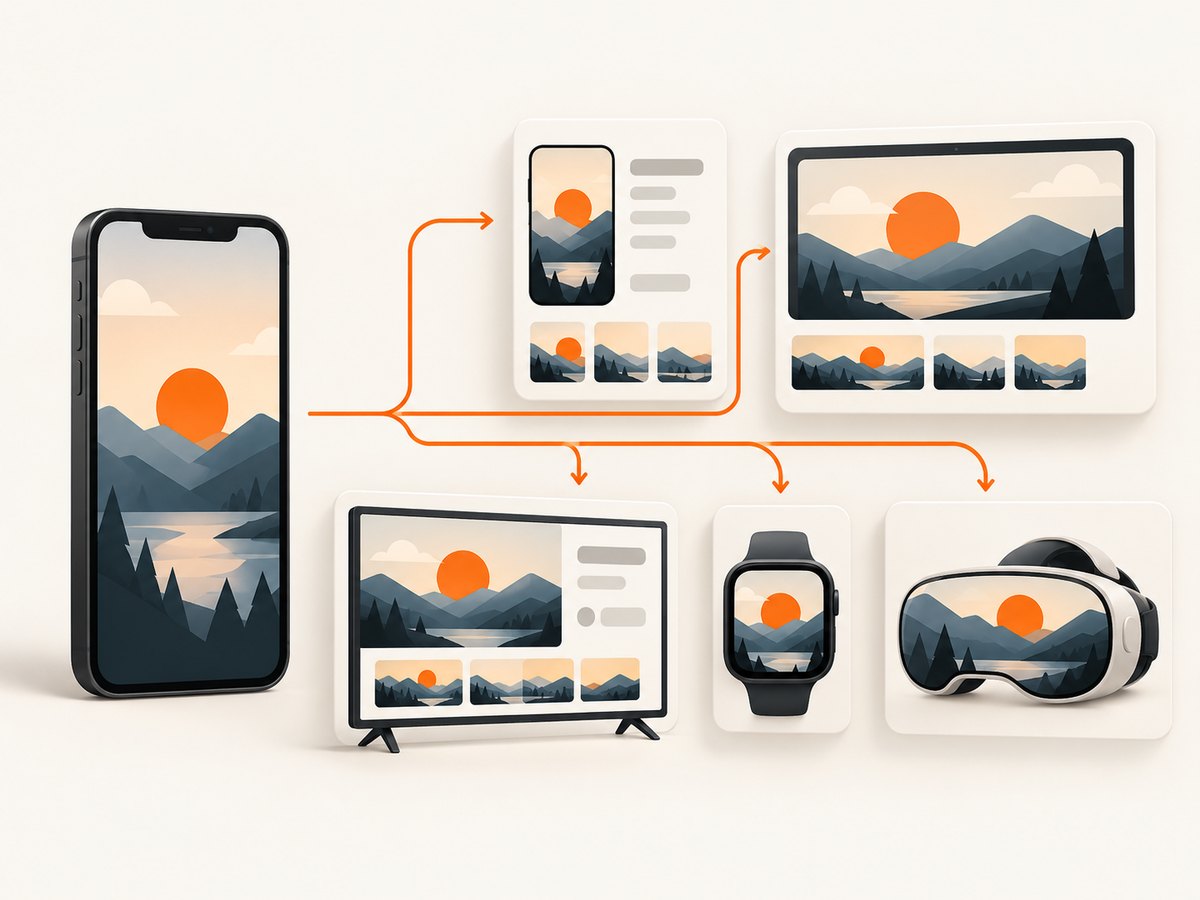
Do not stretch a phone capture to fill a tablet or TV canvas. Re-capture at the target density so controls, empty states, and system bars remain authentic.
5. Compose and export without breaking the rules
Canvas and safe areas
Choose one orientation per set and keep a consistent visual system. Leave a safe margin around navigation bars and device cutouts. If you add a background, use an opaque layer so the exported PNG has no transparency.
Readable copy
Design at the largest intended canvas, then preview at thumbnail size. If the app UI becomes unreadable when reduced, use a tighter crop or a simpler screen rather than adding more text. Keep the first three images focused on the interface.
File validation checklist
- File extension is .jpg, .jpeg, or .png.
- PNG is 24-bit and has no alpha channel.
- Width and height are each from 320 to 3840 px.
- Long dimension is no more than two times the short dimension.
- File is below any device-category size limit, including the 8 MB Android XR limit.
- Image shows the current app and does not contain prohibited promotional claims.
- Each device group contains the correct orientation and number of screenshots.
6. Upload and organize assets in Play Console
Play Console’s Asset Library centralizes graphics for the main listing, custom listings, experiments, and events. Upload files from your computer or Google Drive, crop a new copy when needed, and search or filter by aspect ratio, language, asset type, use, and tag. Create tags for an app version, campaign, locale, or theme so obsolete images can be found and replaced.
- Open your app in Play Console and select the store listing area for the relevant device type.
- Upload the validated screenshots or select existing files from the Asset Library.
- Arrange images in narrative order, with the strongest UI-first images at the beginning.
- Review every language and custom listing separately; an asset in one listing is not automatically correct for another.
- Save and inspect the listing preview at reduced size before publishing.
7. Automate capture for web-based demos and companion pages
Android Studio and physical devices are the right source for native app listing screenshots. If your workflow also needs current screenshots of a web dashboard, hosted demo, documentation page, or browser-based companion experience, automate those captures with a browser tool. A typical self-hosted process is:
- Launch a fixed browser version in a clean environment.
- Set the viewport, device scale factor, timezone, and locale.
- Load the URL and wait for a selector, a delay, or network idle.
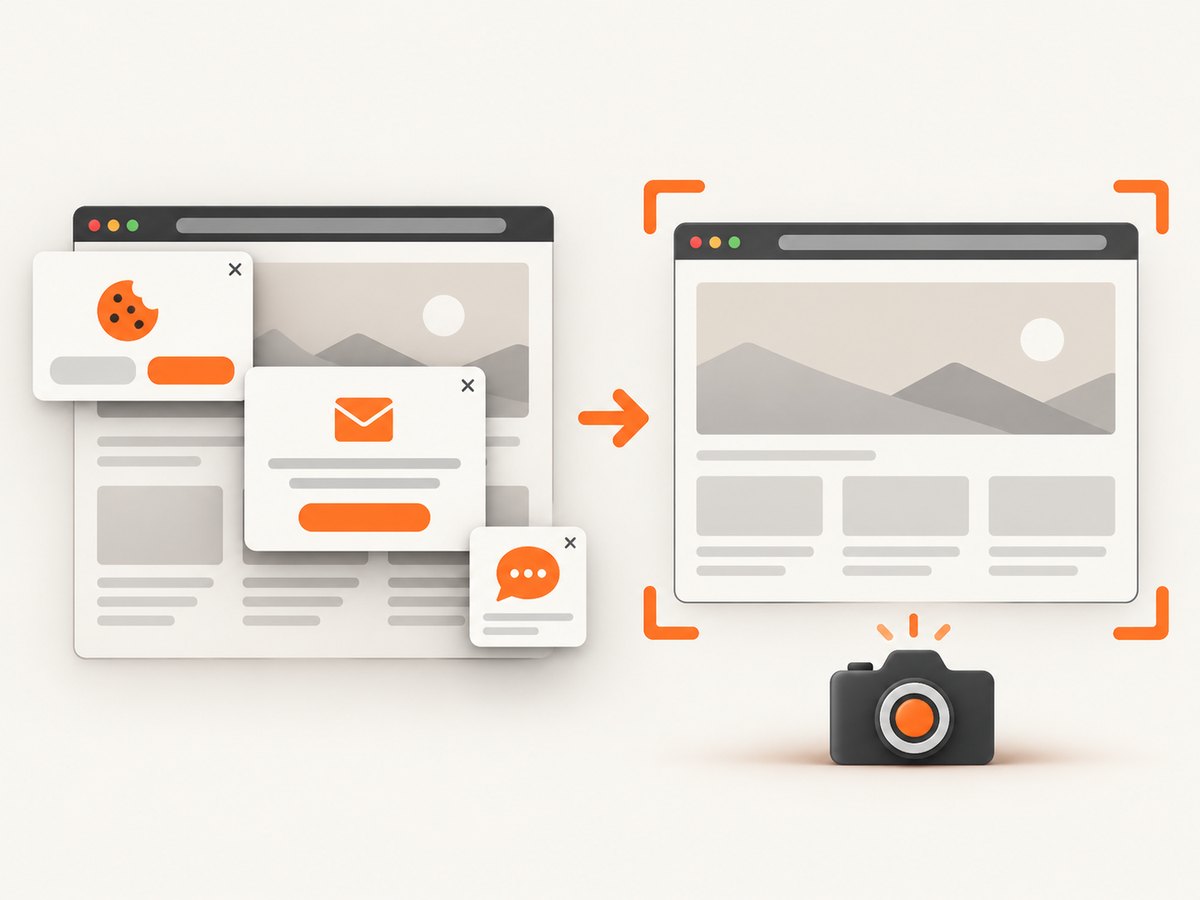
- Dismiss consent banners and close overlays before capture.
- Capture the full page or a selected element.
- Resize and convert to an opaque JPEG or PNG, then run dimension checks.
import { chromium } from 'playwright';

const browser = await chromium.launch();
const page = await browser.newPage({
  viewport: { width: 1080, height: 1920 },
  deviceScaleFactor: 1
});
await page.goto('https://your-demo.example.com', { waitUntil: 'networkidle' });
await page.screenshot({ path: 'demo.png', fullPage: true });
await browser.close();
For repeatability, pin the browser version, seed deterministic data, disable animations, and save the URL, commit, viewport, and capture timestamp beside each file. Never substitute a web demo for the actual native app screen when the listing is meant to represent installed Android behavior.
Or skip the browser setup
ScreenshotNeo is a website screenshot API and MCP server. It is useful for web-based companion pages and hosted demos that belong in your marketing workflow. One GET request returns PNG, JPEG, WebP, or PDF, and the service can capture a full page or one CSS-selected element.
Before the capture, cookie and consent banners are accepted and more than 60 known consent platforms, newsletter popups, and chat widgets can be removed; each step can be disabled. Bot checks, blank pages, timeouts, failed loads, and cache hits cost nothing, and response headers identify the page verdict and whether the request was billed. The MCP server exposes take_screenshot, get_page_info, and capture_pdf to Claude, Cursor, and other MCP clients.
See the ScreenshotNeo API documentation for all options. The following calls use a placeholder URL; replace it with your own public page.
cURL
curl -G "https://api.screenshotneo.com/v1/shot" -d access_key=YOUR_API_KEY --data-urlencode url=https://your-demo.example.com -o shot.webpPython
import requests
r = requests.get("https://api.screenshotneo.com/v1/shot", params={"access_key": "YOUR_API_KEY", "url": "https://your-demo.example.com"}, timeout=90)
r.raise_for_status()
open("shot.webp", "wb").write(r.content)
Node.js
const q = new URLSearchParams({ access_key: 'YOUR_API_KEY', url: 'https://your-demo.example.com' });
const res = await fetch(`https://api.screenshotneo.com/v1/shot?${q}`);
if (!res.ok) throw new Error(`HTTP ${res.status}`);
const fs = await import('node:fs/promises');
await fs.writeFile('shot.webp', Buffer.from(await res.arrayBuffer()));
Relevant options include dark mode, any viewport or one of 12 device presets, retina scale, custom CSS and JavaScript, clicks, selector or network-idle waits, hidden selectors, blocked ads/trackers/requests/resource types, custom headers and cookies, user agent, Authorization, timezone, geolocation, transparent background, resizing, a chosen cache TTL, signed links, asynchronous jobs with signed webhooks, bulk capture of up to 100 URLs per call, usage reporting, and PDF controls. The API also accepts parameter names used by other screenshot services, which can simplify migration.
Free accounts include 1,000 screenshots per month with no card. Paid plans start at $5 for 3,000 shots; higher plans are $15 for 15,000, $39 for 60,000, $99 for 250,000, and $249 for 1,000,000. Yearly billing gives two months free, and every feature is available on every plan. Create a free ScreenshotNeo account.
8. Troubleshooting common failures
| Symptom | Likely cause | Fix |
|---|---|---|
| Play rejects the file | Wrong format, alpha channel, dimensions, or aspect ratio. | Export opaque 24-bit PNG or JPEG; check both dimensions and the 2:1 limit. |
| Screenshot looks blurry | Upscaled phone capture or low-density emulator. | Capture at the target device resolution and export at 1080 px or higher for recommended sets. |
| Text is unreadable in previews | Too much copy or small UI. | Use a simpler screen, crop closer, and preview at thumbnail size. |
| Consent banner covers the page | Capture happened before interaction or the site uses a new consent platform. | Wait for the banner, click its accept control, or hide it with a selector. For automated web captures, use ScreenshotNeo’s consent handling. |
| Blank or partially loaded web image | Capture occurred before lazy content or network requests completed. | Wait for a selector, delay, or network idle; load lazy images and block unnecessary third-party requests. |
| Native listing does not match the app | Staging data, old build, or wrong device layout. | Capture from the release candidate, record the build number, and repeat on each supported category. |
| Automated request returns an error | Missing API key, malformed URL, timeout, or authentication requirement. | URL-encode the target, check the key, increase timeout within your client, and provide required headers or cookies. |
9. Performance, reliability, and cost planning
For local capture, the largest variables are emulator startup, app data seeding, font loading, and network-dependent screens. Keep a warm emulator for batch work, use deterministic fixtures, and wait on a meaningful selector instead of an arbitrary long sleep. For web automation, cache stable assets, block analytics and ads, and run independent URLs concurrently within your provider’s limits.
Reliability improves when each screenshot has a manifest containing URL or app build, device category, viewport, locale, timestamp, and checksum. Re-run captures after UI changes and compare the resulting dimensions and file sizes in CI. Keep the original capture separate from the composed listing image so you can rebuild captions without recapturing the app.
Google Play itself does not require a paid screenshot generator. Android Studio, physical devices, and Asset Library cover the official workflow. A service becomes useful when you need repeatable browser capture, consent cleanup, batch URLs, signed delivery, or PDF output. With ScreenshotNeo, failed loads, blank pages, bot checks, timeouts, and cache hits are not billed, and the usage API plus X-Page-Verdict and X-Billed headers help reconcile costs.
10. Short FAQ
How many screenshots are required?
At least two screenshots across device types are required to publish a standard listing. You may upload up to eight for each supported device type.
Can I use a phone frame?
Do not use framed Device Art Generator graphics for Play listing screenshots. Use the screenshot alone.
Should every image contain marketing text?
No. Keep the first three UI-forward. Use a short tagline only when it helps explain the screen, and keep it under 20% of the image.
Do tablet and Chromebook screenshots need separate captures?
Yes. Capture the layout at the target form factor instead of stretching a phone image.
Can ScreenshotNeo capture my installed Android app?
ScreenshotNeo captures web URLs. Use Android Studio or a physical device for native app listing images, and use ScreenshotNeo for web demos and companion pages.
What should I keep after publishing?
Keep source captures, composed exports, the asset manifest, and the Play Console listing version. This makes future updates and localization safer.
Final pre-publish checklist
- Real current app screens are used for every native listing asset.
- At least two screenshots cover the supported device types.
- Files meet format, dimension, aspect-ratio, and category rules.
- First three images explain the core experience without prohibited claims.
- Tablet, Chromebook, TV, Wear OS, Automotive, and XR assets are supplied when applicable.
- Assets are organized and labeled in Play Console’s Asset Library.
- Reduced-size previews remain legible.
- Web captures have deterministic waits, consent cleanup, and recorded metadata.


