Google Play Store Screenshot Size in Pixels
Google Play has no single screenshot size. Use the correct pixel range, aspect ratio and device-specific rules before uploading.
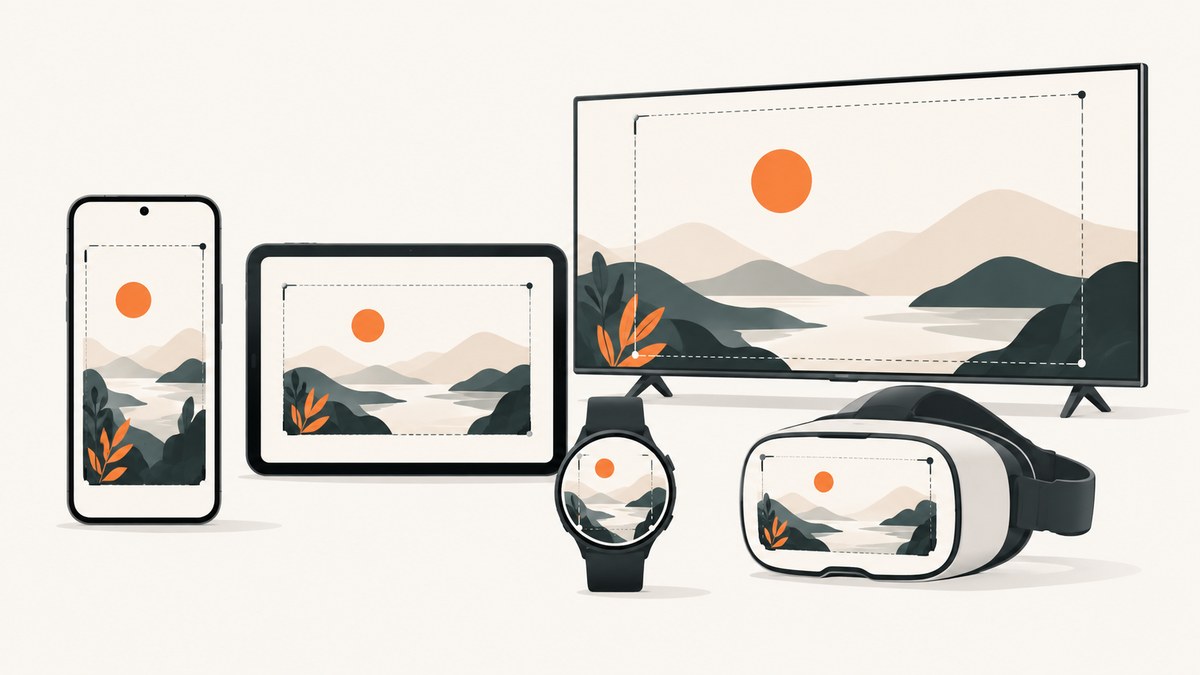
There is no single Google Play screenshot size. For a general store listing, upload JPEG or 24-bit PNG files without transparency. Each dimension must be between 320 and 3840 pixels, and the longest dimension can be no more than twice the shortest. Device categories such as tablets, Wear OS, Android TV, Automotive OS and Android XR have additional rules, so confirm the category in Play Console before exporting.
Google’s official guidance is in Play Console Help. Treat the values below as upload requirements or recommendations exactly as labeled; they are not interchangeable.
General Google Play screenshot requirements
| Rule | What to export |
|---|---|
| File type | JPEG or 24-bit PNG |
| Transparency | No alpha channel; use an opaque background |
| Smallest dimension | At least 320 px |
| Largest dimension | At most 3840 px |
| Aspect constraint | The longest side must not exceed twice the shortest side |
| Publishing coverage | At least two screenshots across different device types are required to publish a listing |
For example, 1080 × 1920, 1440 × 2560 and 1920 × 1080 satisfy the two-to-one limit. A 1000 × 250 image does not, even though both dimensions are inside the pixel range.
Requirements by device category
| Category | Current guidance |
|---|---|
| Phones and general listings | 320–3840 px per dimension, JPEG or 24-bit PNG, no alpha, longest side no more than 2× shortest. At least two screenshots across device types are required for publishing. |
| Apps in screenshot-based recommendation placements | Provide at least four screenshots at 1080 px minimum. Recommended formats are 16:9 landscape (at least 1920 × 1080) or 9:16 portrait (at least 1080 × 1920). This is recommendation eligibility guidance, not the basic upload minimum. |
| Games in screenshot-based recommendation placements | At least three landscape 16:9 screenshots (at least 1920 × 1080) or three portrait 9:16 screenshots (at least 1080 × 1920). Show actual gameplay. |
| Tablets and Chromebooks | 1080–7680 px, using 16:9 landscape or 9:16 portrait. Google says developers can add at least four images to demonstrate the in-app experience. |
| Wear OS apps and watch faces | At least one accurate, square screenshot of at least 384 × 384 px. Show only the interface or watch face. Do not add a device frame, text, graphics or background; avoid transparency and masking. |
| Android TV | At least one TV screenshot is required before publishing, along with an Android TV banner. TV screenshots appear only on Android TV devices. |
| Android Automotive OS | When screenshots are required by the app category, provide at least two 800 × 1280 portrait images and two 1024 × 768 landscape images. Show generic system UI rather than a specific vehicle or OEM. |
| Android XR | Four to eight screenshots in an 8:5 ratio, PNG or JPEG, up to 8 MB each. Recommended resolution is 3840 × 2400; minimum is 1920 × 1200. |
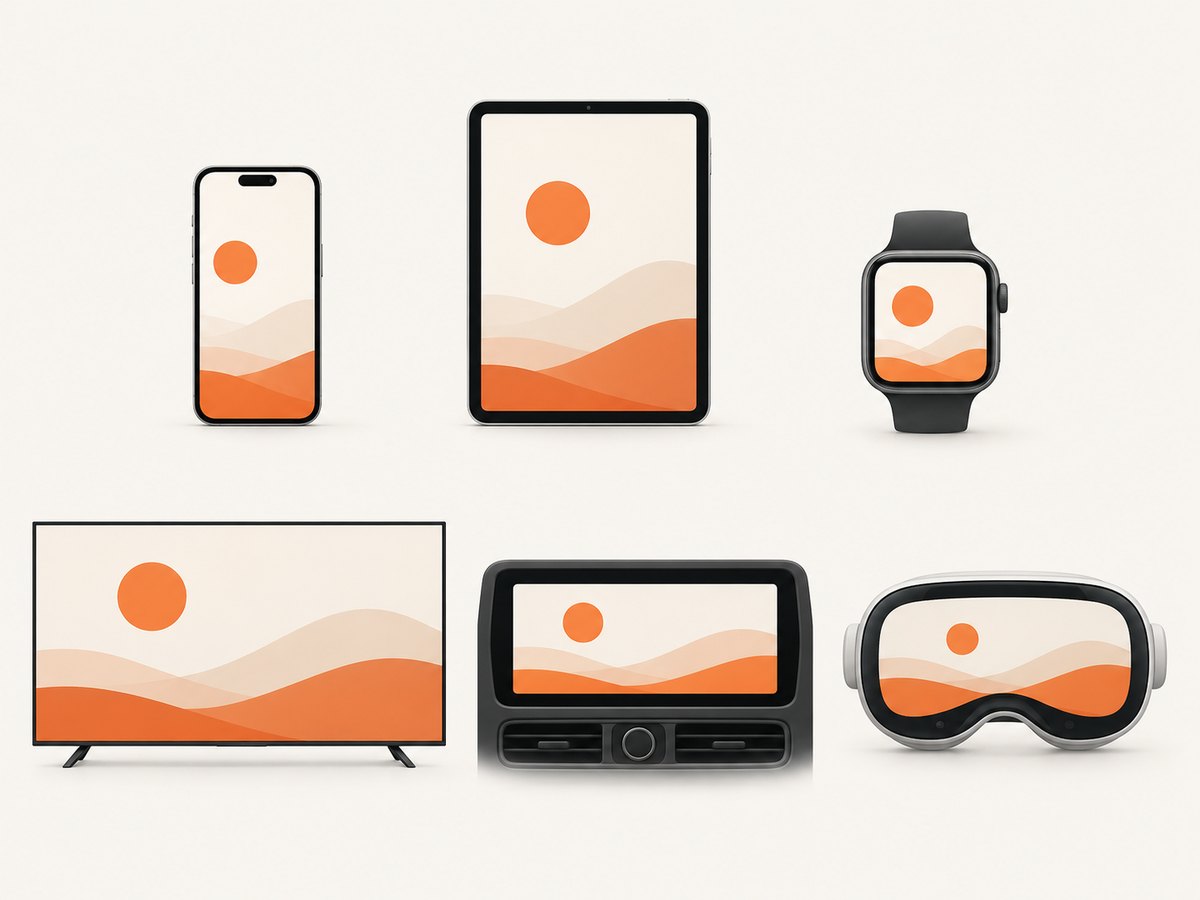
Requirement versus recommendation
The 320–3840 px range and two-to-one aspect rule describe the general upload baseline. The four 1080 px app screenshots and three high-resolution game screenshots relate to eligibility for some recommendation placements. They should not be presented as a universal minimum for every listing.
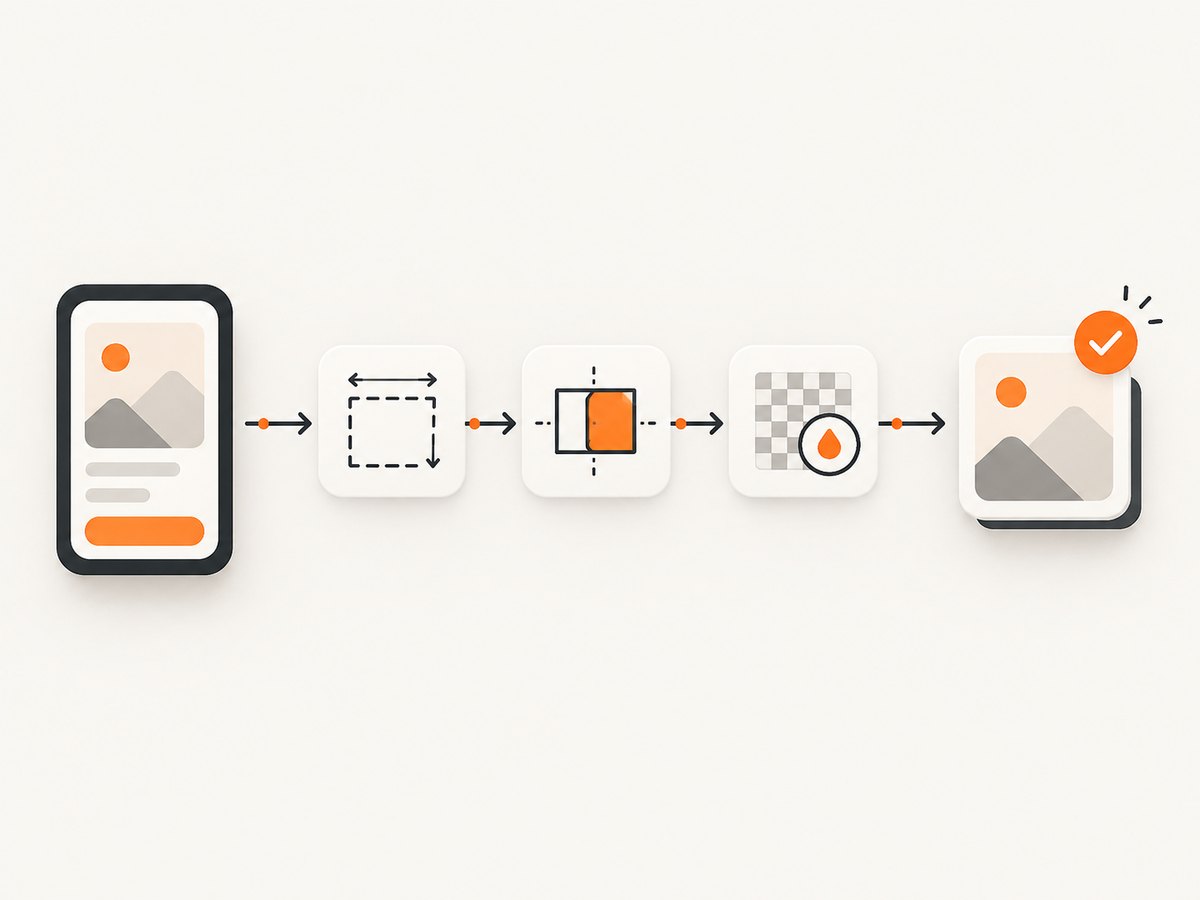
Large-screen and emerging-device categories have their own constraints. A phone screenshot cannot substitute for a Wear OS, TV, Automotive OS or XR asset when Play Console asks for that category.
Choosing dimensions and orientation
Portrait phone screenshots
Use 1080 × 1920 when you want the commonly recommended 9:16 format for discovery placements. Confirm that the captured screen is truly portrait and that any marketing text remains readable after Play displays it in the listing.
Landscape screenshots
Use 1920 × 1080 for the recommended 16:9 landscape format. This is useful for games, video-heavy apps and tablet or Chromebook experiences. Keep the important action away from edges that may be cropped in previews.
Square and specialist formats
Wear OS requires a 1:1 image of at least 384 × 384 px. Android XR uses 8:5, while Automotive OS specifies both 800 × 1280 portrait and 1024 × 768 landscape assets when applicable. Do not force every category into a phone-sized canvas.
Export workflow
- Identify every supported device category. Check the app’s Play Console device declarations and the current category guidance.
- Capture the real app. Screenshots should represent the current shipped experience on each supported platform and orientation.
- Set the pixel dimensions before export. Check width, height and the two-to-one maximum ratio.
- Flatten transparency. Export JPEG or opaque 24-bit PNG. For Wear OS, remove frames and decorative backgrounds.
- Localize text-bearing assets. Create separate screenshots for each language in which the image contains language-specific copy.
- Review readability. Keep added text minimal and make sure controls and content are legible at listing-preview size.
- Validate file size and format. Android XR files may be up to 8 MB each; check the current Play Console limit for other assets before upload.
- Upload and inspect in Asset Library. Play Console can filter by aspect ratio and asset type, display dimensions and crop an asset into a new copy.
Validate dimensions locally
The following Python script uses Pillow to reject files outside the general baseline or the two-to-one ratio. Install the dependency with python -m pip install Pillow.
from pathlib import Path
from PIL import Image

root = Path("screenshots")
for path in sorted(root.iterdir()):
    try:
        with Image.open(path) as image:
            width, height = image.size
            longest = max(width, height)
            shortest = min(width, height)
            problems = []
            if image.format not in {"JPEG", "PNG"}:
                problems.append("use JPEG or PNG")
            if width < 320 or height < 320 or width > 3840 or height > 3840:
                problems.append("outside the 320-3840 px baseline")
            if longest > shortest * 2:
                problems.append("longest side exceeds twice shortest side")
            if "A" in image.getbands():
                problems.append("contains alpha transparency")
            print(path.name, f"{width}x{height}", "OK" if not problems else "; ".join(problems))
    except Exception as exc:
        print(path.name, "could not read:", exc)
Common mistakes and fixes
| Error | Cause | Fix |
|---|---|---|
| “Screenshot is too small” | One dimension is below 320 px, or a category requires a larger minimum. | Export at least 320 px for general listings; use the category minimum for Wear OS, tablets, Automotive OS or XR. |
| “Screenshot is too large” | A dimension exceeds 3840 px, or a specialist category has a different ceiling. | Resize the image while preserving its target ratio. Android XR files must also remain within the 8 MB limit. |
| Invalid aspect ratio | The longest side is more than twice the shortest. | Crop or resize to a ratio of 2:1 or narrower, such as 9:16, 16:9 or 1:1. |
| Transparency rejected | The PNG contains an alpha channel. | Flatten onto an opaque background and export as JPEG or 24-bit PNG. |
| Wrong device preview | A phone image was uploaded for a TV, watch, car or XR listing. | Create assets from that device category and follow its dedicated dimensions. |
| Recommendation eligibility missing | The listing has only baseline-size images. | For eligible app placements, add at least four screenshots at 1080 px minimum; for eligible games, add at least three 16:9 or 9:16 screenshots at the recommended dimensions. |
| Text is unreadable | Marketing copy is too small or too dense. | Reduce added text, increase contrast and preview the asset at listing size. Localize text-bearing images per language. |
Performance, reliability and cost considerations
Higher pixel counts preserve detail but produce larger files and slower uploads. Use the smallest dimensions that satisfy the target category and the visual detail your interface needs. Keep a source file so you can export a new ratio without repeatedly scaling a compressed image.
Automate validation in your release pipeline. Check dimensions, ratio, format, alpha channels, file size and naming before an upload reaches Play Console. Re-capture screenshots whenever the UI changes so the listing accurately represents the current app.
Google’s guidance changes, especially for newer device categories. Recheck the official Play Console documentation immediately before a release rather than relying on an old export checklist.
Or skip the browser setup
If you need screenshots of your marketing site, documentation or release notes while preparing store assets, ScreenshotNeo provides a single screenshot API request. It accepts the cookie or consent banner like a visitor and removes more than 60 known consent platforms, newsletter popups and chat widgets before capture; each step can be turned off. Bot checks, blank pages, timeouts, failed loads and cache hits are not billed, and response headers identify the page verdict and billing status. Its MCP server lets Claude, Cursor and other MCP clients call take_screenshot, get_page_info and capture_pdf.
See the ScreenshotNeo API documentation for all options, including full-page and element capture, device presets, retina scale, custom CSS and JavaScript, waits, request blocking, headers, cookies, geolocation, caching, signed links, asynchronous jobs and bulk capture.
cURL
curl -G "https://api.screenshotneo.com/v1/shot" -d access_key=YOUR_API_KEY --data-urlencode url=https://stripe.com -o shot.webpPython
import requests
r = requests.get("https://api.screenshotneo.com/v1/shot", params={"access_key": "YOUR_API_KEY", "url": "https://stripe.com"}, timeout=90)
open("shot.webp", "wb").write(r.content)
Node.js
const q = new URLSearchParams({ access_key: 'YOUR_API_KEY', url: 'https://stripe.com' });
const res = await fetch(`https://api.screenshotneo.com/v1/shot?${q}`);
1,000 screenshots per month are free with no card. Paid plans start at $5 for 3,000 shots, and every feature is included on every plan. Create a free ScreenshotNeo account.
FAQ
Is 1080 × 1920 required for Google Play?
No. It is a recommended 9:16 format for some screenshot-based recommendation placements. The general baseline allows dimensions from 320 to 3840 px, subject to the two-to-one ratio rule.
Can I upload screenshots with transparent backgrounds?
No. General listing screenshots must be JPEG or 24-bit PNG without alpha transparency. Wear OS guidance also calls for no transparent backgrounds or masking.
How many screenshots should a listing contain?
At least two screenshots across different device types are required to publish a general listing. Recommendation placements and specialist categories can require additional images.
Do tablet screenshots replace phone screenshots?
No. Upload assets for each supported category you want to demonstrate. Tablets and Chromebooks have their own 1080–7680 px guidance and 16:9 or 9:16 formats.
Where can I verify the current rules?
Check the official Google Play Console screenshot guidance and the requirements shown in your Play Console before exporting.


