10 Tools to Turn Google Sheets into an API
Compare 10 practical ways to turn Google Sheets into an API, from Google’s official service to hosted REST tools and automation platforms.

Short answer: You can turn a Google Sheet into an API with Google Sheets API v4, Apps Script, a hosted JSON service, or an automation platform. Choose the official API when you need control over permissions and ranges; choose a hosted service when you need a REST endpoint quickly; choose Zapier or Make when the sheet is one step in a larger workflow.
This guide compares ten approaches by setup, authentication, CRUD depth, filtering, private-sheet support, caching, webhooks, SDKs, MCP support, quotas, and cost. It also shows a complete Google Sheets API implementation so you can build the endpoint yourself.
What “turn a Google Sheet into an API” means
An API exposes spreadsheet data over HTTP or a programming library. A client can read rows, append records, update cells, search values, or trigger an automation without opening the Sheets interface. There are four common architectures:
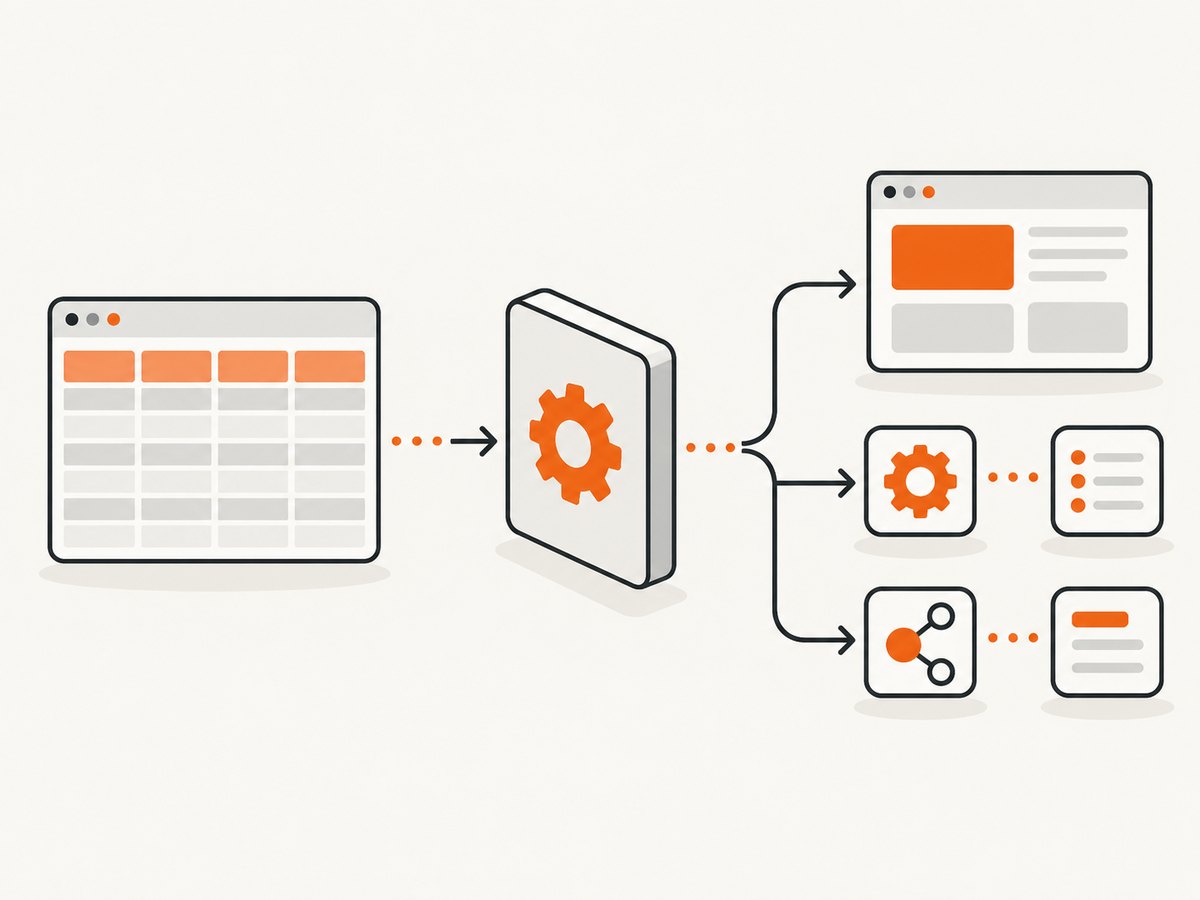
- Official API: Your application calls Google’s REST service with authorized credentials.
- Apps Script web app: A script runs on Google’s infrastructure and returns JSON from a deployed URL.
- Hosted API wrapper: A service maps rows and columns to REST endpoints.
- Workflow automation: Zapier or Make connects Sheets to other systems and actions.
For most hosted tools, put stable field names in row 1. Those headers become JSON property names and make later schema changes safer. Keep IDs in a dedicated column, avoid duplicate headers, and decide whether blank rows are data or separators before publishing.
1. Google Sheets API v4
Google’s official REST API gives the most control over spreadsheet IDs, A1 ranges, permissions, reads, writes, appends, clears, batch gets, batch updates, and spreadsheet management. You need a Google Cloud project, the Sheets API enabled, and an authorization design. Google’s reference documents the REST resources and client libraries: Sheets API overview and REST reference.
Required setup
- Create or select a Google Cloud project.
- Enable Google Sheets API.
- Choose OAuth for user-owned sheets or a service account for server-to-server access.
- Share the spreadsheet with the service-account email when using a service account.
- Record the spreadsheet ID from the URL and select explicit ranges such as
Orders!A1:F1000.
Read values with cURL
curl \
  -H 'Authorization: Bearer ACCESS_TOKEN' \
  'https://sheets.googleapis.com/v4/spreadsheets/SPREADSHEET_ID/values/Orders!A1:F100?majorDimension=ROWS'
The response contains a values array. Empty trailing cells are omitted, so map values by position carefully when a row is shorter than the header row.
Read and append with Python
from google.oauth2.service_account import Credentials
from googleapiclient.discovery import build

SCOPES = ['https://www.googleapis.com/auth/spreadsheets']
creds = Credentials.from_service_account_file('service-account.json', scopes=SCOPES)
sheets = build('sheets', 'v4', credentials=creds)
spreadsheet_id = 'SPREADSHEET_ID'

read = sheets.spreadsheets().values().get(
    spreadsheetId=spreadsheet_id,
    range='Orders!A1:F100',
    majorDimension='ROWS',
).execute()
print(read.get('values', []))

body = {'values': [['ord_1042', 'paid', '29.00']]}
sheets.spreadsheets().values().append(
    spreadsheetId=spreadsheet_id,
    range='Orders!A:F',
    valueInputOption='USER_ENTERED',
    insertDataOption='INSERT_ROWS',
    body=body,
).execute()
Read with Node.js
import { google } from 'googleapis';

const auth = new google.auth.GoogleAuth({
  keyFile: 'service-account.json',
  scopes: ['https://www.googleapis.com/auth/spreadsheets'],
});
const sheets = google.sheets({ version: 'v4', auth });
const result = await sheets.spreadsheets.values.get({
  spreadsheetId: process.env.SPREADSHEET_ID,
  range: 'Orders!A1:F100',
});
console.log(result.data.values ?? []);
Write operations and configuration
Use values.update for a known range, values.append for a new row, and values.clear to remove values. Use spreadsheets.batchUpdate for formatting, adding sheets, developer metadata, filters, and multiple structural changes. Set valueInputOption to RAW when strings must remain literal, or USER_ENTERED when Sheets should parse dates and formulas. For reads, FORMATTED_VALUE, UNFORMATTED_VALUE, and FORMULA control returned representations.
Do not expose a service-account key in a browser. Put credentials on a server, grant the smallest practical scope, validate requested ranges, and authorize each caller. Add pagination in your own API even though Sheets ranges are not cursor-based; cap row counts and reject unbounded ranges.
2. Google Apps Script
Apps Script is Google’s hosted, low-code JavaScript environment for custom functions, menus, automation, and external connections. A doGet(e) or doPost(e) function can return JSON from a web-app deployment. It is useful when your logic is small and the data already lives in one spreadsheet.
function doGet(e) {
  const sheet = SpreadsheetApp
    .openById('SPREADSHEET_ID')
    .getSheetByName('Orders');
  const rows = sheet.getDataRange().getDisplayValues();
  const headers = rows.shift();
  const data = rows.map(row => Object.fromEntries(
    headers.map((header, i) => [header, row[i] ?? ''])
  ));
  return ContentService
    .createTextOutput(JSON.stringify(data))
    .setMimeType(ContentService.MimeType.JSON);
}
Deploy it as a web app, choose who executes the script, and restrict access where possible. Add authentication inside the script if the deployment is reachable by anyone. Apps Script quotas and execution limits make it a poor fit for high-volume public APIs without caching and request controls.
3. SheetDB
SheetDB is a hosted service that turns a spreadsheet into a JSON API. Its documented setup starts with column names in the first row and API creation from its dashboard. It is a fast choice for read and write endpoints when you do not want to maintain OAuth code or a server.
4. Sheety
Sheety provides a beginner-friendly RESTful JSON layer. Its URLs support getting data in and out of spreadsheet rows, which suits prototypes, simple websites, and CMS-style content. Check the project’s authentication and plan limits before putting sensitive data behind an endpoint.
5. Sheet2API
Sheet2API supports Google Sheets and Excel Online. Its product material emphasizes quick setup, security, and caching. Documentation covers private-sheet authorization and MCP access for AI clients, which can matter when an agent needs structured spreadsheet data.
6. Sheet2DB
Sheet2DB is aimed at CRUD use cases. Its documented operations include read, insert, update, delete, search, range access, batch updates, and a JavaScript SDK. Choose it when row-level mutations and search matter more than a minimal read-only endpoint.
7. Sheet Best
Sheet Best provides API-key authentication, row and range reads, writes, updates, filtering, search, and aggregations. It also documents MCP connectivity. This combination is useful for lightweight analytics or agent workflows that need filtering without building a query layer yourself.
8. Zapier
Zapier is a workflow route rather than a dedicated database-style REST API. Its Google Sheets integration supports row triggers, searches, creates, updates, and deletes. Webhooks/API by Zapier can call other endpoints with supported authentication methods. Use it when a spreadsheet event must start a multi-service workflow, such as creating a ticket, sending an email, or updating a CRM.
9. Make
Make offers Google Sheets modules and a “Make an API Call” action. OAuth connections can be reused across scenarios. Make is strong when you need visual branching, retries, transformations, and several downstream services, but scenario operations and platform limits should be included in your cost calculation.
10. gspread and other client libraries
gspread is a code-first wrapper around Google Sheets API access. It simplifies authentication, worksheet selection, cell operations, and record-style helpers while leaving your application responsible for the public HTTP API, authorization, validation, and rate limiting. Applications still need authenticated and authorized Sheets access.
Comparison table
| Approach | Best for | CRUD | Filtering/search | Private sheets | MCP |
|---|---|---|---|---|---|
| Sheets API v4 | Maximum control | Deep | Build it | OAuth/service account | Build it |
| Apps Script | Custom lightweight endpoint | Custom | Custom | Script permissions | Custom |
| SheetDB | Fast JSON API | Basic | Limited | Service-dependent | Check plan |
| Sheety | Simple prototypes | Basic | Limited | Service-dependent | Check plan |
| Sheet2API | Google or Excel setup | REST | Service-dependent | Documented | Documented |
| Sheet2DB | CRUD applications | Deep | Documented | Service-dependent | Check plan |
| Sheet Best | Filtering and aggregations | Strong | Documented | Service-dependent | Documented |
| Zapier | Event workflows | Actions | Search steps | OAuth | Not a core API |
| Make | Visual scenarios | Modules | Custom steps | OAuth | Not a core API |
| gspread | Python applications | Library-level | Build it | OAuth/service account | Build it |
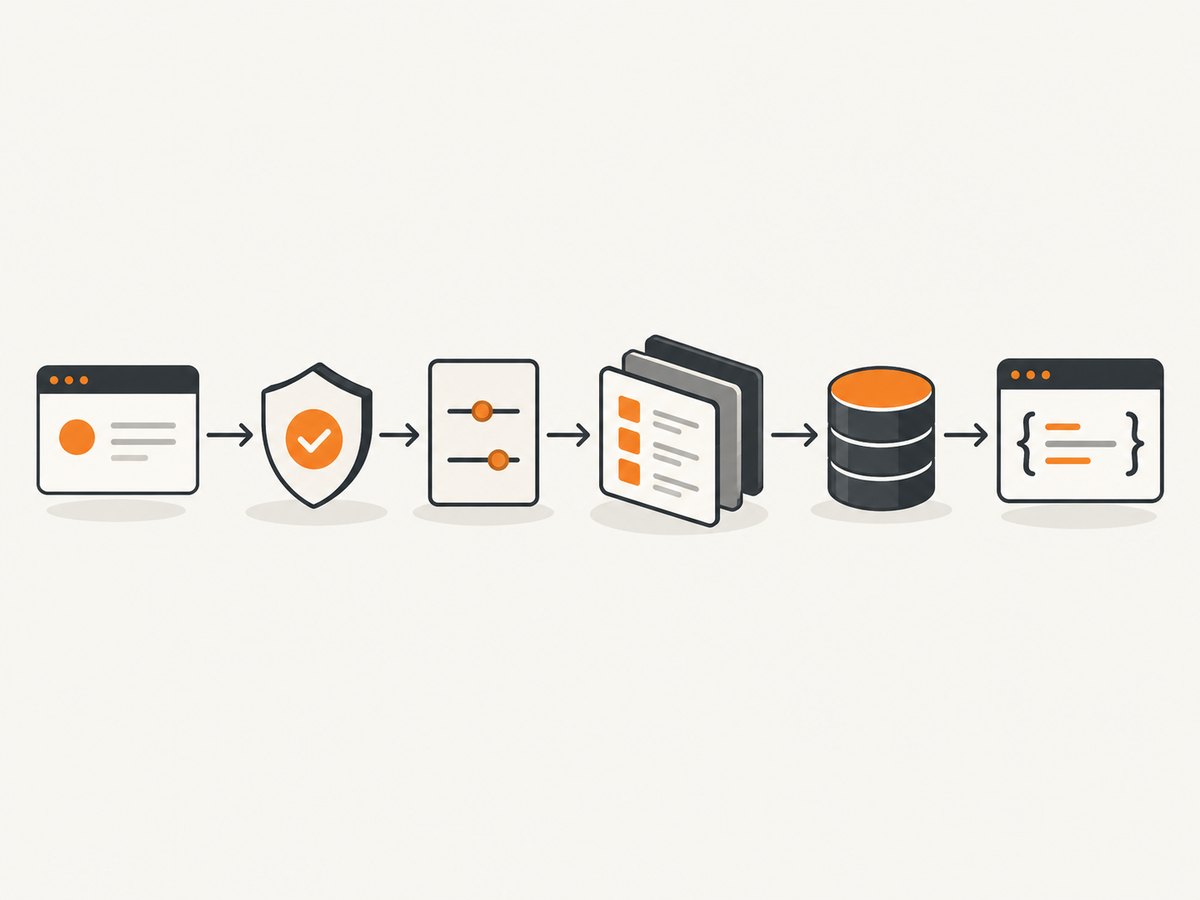
How to choose
- Choose Sheets API v4 for strict permission control, large range operations, and a long-lived engineering-owned service.
- Choose Apps Script for a small custom endpoint maintained by spreadsheet owners.
- Choose SheetDB, Sheety, Sheet2API, Sheet2DB, or Sheet Best when launch speed matters and a hosted REST layer meets your security requirements.
- Choose Zapier or Make when the primary outcome is an automation across several products.
- Choose gspread when your Python application needs a convenient client and you will expose your own API.
Security, reliability, and performance checklist
- Keep secrets server-side and rotate API keys or service credentials.
- Use OAuth scopes and spreadsheet sharing that grant only required access.
- Validate column names, row IDs, ranges, and write values before sending them to Sheets.
- Cache stable reads, but invalidate after writes if clients require fresh data.
- Batch reads and writes to reduce round trips. Avoid one request per cell.
- Implement exponential backoff for transient 429 and 5xx responses.
- Log request IDs, range names, operation type, latency, and status without logging secrets.
- Define behavior for concurrent edits. A row number can change when users insert rows; stable IDs are safer.
- Protect formulas and header rows from arbitrary client writes.
Troubleshooting common errors
401 or 403 responses
The token is missing, expired, scoped incorrectly, or the spreadsheet is not shared with the service account. Reauthorize the client, enable the API, and verify the exact spreadsheet ID.
404 spreadsheet or worksheet not found
Check that the ID is from the spreadsheet URL and that the tab name, including spaces and capitalization, is correct. Quote unusual sheet names in A1 ranges.
200 response with missing columns
Sheets omits trailing empty cells. Pad each row to the header length before converting arrays to objects.
Formulas returned instead of values
Set the read render option to formatted or unformatted values. Request formulas explicitly only when formula text is what your client needs.
Writes appear in the wrong place
Use an explicit range for updates and a stable key for locating rows. Do not assume a row number remains stable after manual sorting or insertion.
429 quota errors or slow requests
Batch operations, cache reads, cap ranges, and retry with exponential backoff. A hosted service may have separate request and plan limits; inspect its current documentation.
Or skip the browser setup
If your application also needs website screenshots for documentation, QA, previews, or an AI workflow, ScreenshotNeo provides a one-call website screenshot API. See the API documentation for all options.
curl -G "https://api.screenshotneo.com/v1/shot" -d access_key=YOUR_API_KEY --data-urlencode url=https://stripe.com -o shot.webpimport requests
r = requests.get("https://api.screenshotneo.com/v1/shot", params={"access_key": "YOUR_API_KEY", "url": "https://stripe.com"}, timeout=90)
open("shot.webp", "wb").write(r.content)const q = new URLSearchParams({ access_key: 'YOUR_API_KEY', url: 'https://stripe.com' });
const res = await fetch(`https://api.screenshotneo.com/v1/shot?${q}`);ScreenshotNeo removes cookie banners, newsletter popups, and chat widgets before capture. Bot checks, blank pages, failed loads, timeouts, and cache hits are not billed, and response headers identify the page verdict and billing result. Its MCP server gives Claude, Cursor, and other MCP clients take_screenshot, get_page_info, and capture_pdf tools. The Free plan includes 1,000 screenshots each month with no card; paid plans start at $5 for 3,000 shots. Create a free ScreenshotNeo account.
FAQ
Can I expose a private Sheet safely?
Yes, with OAuth or a service account on a server, or with a hosted provider that documents private-sheet authorization. Never publish a credential in client-side JavaScript.
Which option supports CRUD?
The official API, Apps Script, Sheet2DB, Sheet Best, and several hosted services can support writes. Confirm update and delete semantics before switching from a prototype.
Do I need a database?
No for small, low-concurrency tools. A database becomes safer when you need transactions, complex queries, audit history, or high write volume.
Can an AI agent use a Sheets API?
Yes. You can expose your own tools around the official API, or choose services that document MCP support, such as Sheet2API and Sheet Best.


