Google’s Unsafe Website Warnings and What They Mean
Learn what Chrome’s dangerous-site warnings mean, how visitors should respond, and how website owners can investigate and request a review.

A full-page red warning in Chrome means Google Safe Browsing has flagged the site or page as unsafe. Don’t enter a password or payment details, download files, or continue through the warning. The alert is different from a “Not secure” label: that label concerns the privacy of the connection, while a Safe Browsing warning concerns potentially harmful or deceptive content. If you own the flagged site, use Google Search Console to identify and fix the underlying issue across the site before requesting a review.
1. What Google’s unsafe-site warnings mean
Chrome and Google Search can show several warnings that look related but point to different problems. Start by identifying the exact message and where it appears.
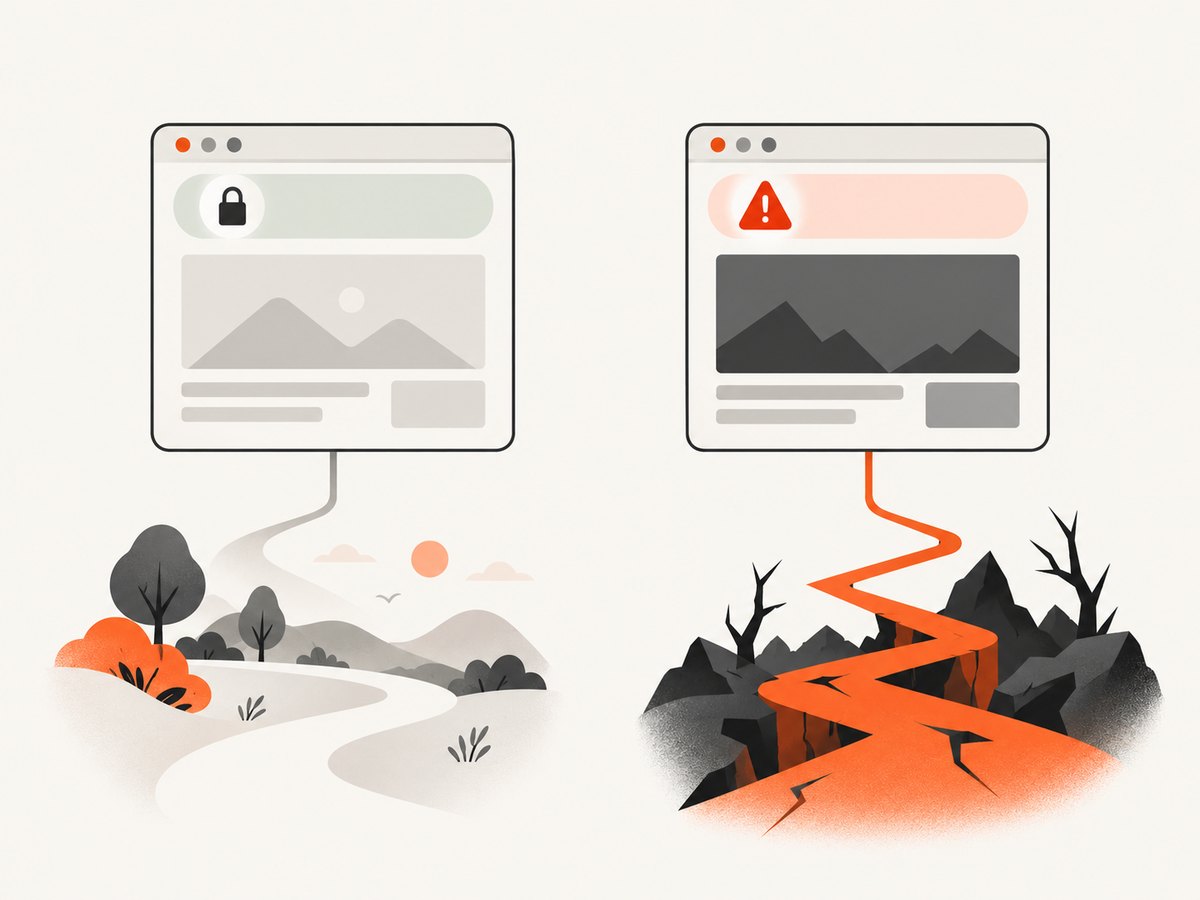
| Message or indicator | What it generally means | What to do |
|---|---|---|
| Full-page red “Dangerous site” or similar Chrome screen | Safe Browsing has flagged a site or page as unsafe. Risks can include phishing, social engineering, malware, unwanted software, abusive sites or extensions, and malicious or intrusive ads. | Do not proceed, submit information, or download files from the page. |
| “Did you mean…?”, “Is this the right site?” or “Fake site ahead” | The address may be deceptive or resemble a legitimate address, possibly with a small alteration. | Check the spelling. Reach the organization through a known bookmark or independently verified source. |
| “Not secure” or an HTTPS connection notice | The connection may not be private. Information sent to or received from the site could be exposed. | The site owner should secure the connection with HTTPS. This notice alone does not mean Safe Browsing has classified the site as malicious. |
| “This site may harm your computer” in Google Search | Google thinks the result could allow programs to install malicious software. | Avoid the result until the notice disappears. |
| A warning on a downloaded file | Chrome may consider a download malicious, deceptive, uncommon, or capable of hiding malware. This is distinct from a page-level warning. | Don’t open the file unless you have established that it is safe. |
HTTPS does not prove that a site operator is trustworthy or that a page is safe. A secure connection and a safe destination are separate questions.
2. What visitors should do when Chrome warns you
- Stop before entering sensitive information. A flagged page may try to steal credentials or personal details, or to install harmful software. Don’t enter passwords, payment details, or other private information.
- Check the address independently. Look for misspellings or an unexpected domain ending. For a lookalike warning, use a bookmark you already trust or find the organization’s address through a reliable, independent channel.
- Don’t download anything promoted by the warning page. A page may falsely claim your device has a virus to persuade you to install harmful software. Close it instead of following its instructions.
- Keep Safe Browsing enabled. Turning it off removes unsafe-site and download warnings. Google recommends against turning protection off. Chrome may allow you to bypass an individual warning, but proceeding is not recommended.
- If you downloaded or opened a file, treat that separately. Closing the warning doesn’t establish whether a device is clean. The warning itself is a reason to avoid running the file; use your organization’s or device provider’s security guidance if you need to investigate further.
Don’t rely on the presence of HTTPS as a reason to ignore a red warning. HTTPS protects the connection; it does not undo a Safe Browsing classification.
3. Standard and Enhanced Safe Browsing protection
Chrome’s protection settings involve a tradeoff between checking for known or potential threats and the amount of browsing-related information shared with Google. Neither setting guarantees that every threat will be detected.
| Setting | What Google says it checks | Information involved |
|---|---|---|
| Standard protection | Known dangers. It is enabled by default. | URL information is checked against Safe Browsing lists using an obfuscated portion of URLs through privacy servers. Full URLs and bits of page content are sent only when suspicious behavior occurs. |
| Enhanced protection | Potential new dangers that Google may not previously know about. | Chrome sends visited URLs, a small sample of page content, extension activity, and system information for checks. Google says this information is used for security purposes. |
| Protection off | Safe Browsing checks and warnings are removed. | Google recommends against turning protection off. |
Choose Enhanced protection if its broader checks and additional data sharing fit your preferences. Keep in mind that it is designed to identify more potential threats, not to guarantee safety. Standard protection still checks for known dangers while sharing less browsing information in the cases Google describes.
4. If you own the website: investigate and fix the flag
A warning in Google Search, a browser Safe Browsing screen, and an HTTPS notice may reflect different problems. Confirm which one you see and follow the corresponding report and remediation steps.

- Verify ownership in Search Console. Open the relevant property. Review the Security Issues report and, where relevant, Manual Actions. Read the alerts and account notifications, and inspect the sample affected URLs Google provides.
- Check the flag’s scope. If you are not a verified owner, Google’s Safe Browsing Transparency Report can check a URL. For a Search result warning, check whether it persists and review the relevant Search Console reports.
- Identify the root cause. The report may indicate hacked content, phishing or social engineering, malware, unwanted software, or another policy issue. Inspect the sample pages and investigate how the content appeared. A sample URL is a clue, not proof that the problem is limited to that one page.
- Clean the site and address the cause. Remove malicious or deceptive content throughout the site, and fix the security weakness that enabled it. Cleaning only the listed sample may leave other compromised pages or a vulnerability that could allow reinfection.
- Request a review after the full site is clean. In Search Console, submit the review and explain the changes you made. Google warns that requesting review while the issue remains can prolong the period the site is flagged.
- Wait for the review and updates to propagate. A malware review may take a few days. Some hacked-spam reviews can take several weeks. Even after approval, warnings can take additional days to disappear as Google’s systems update.
For the Google Search message “This site may harm your computer,” Google’s stated sequence is to verify the site in Search Console, inspect Security Issues for infected sample URLs, fix the issue that enabled infection, consult its hacked-site resources, and request a review after the entire site is clean and secure.
Google says Safe Browsing scans its web index daily. Its published help material also gives operational timing estimates: unsafe sites are added to its infected-sites list within minutes of detection, with an average of half an hour for the warning to appear externally. After a clean malware scan and review request, removal is typically within 24 hours; other review types can take longer. These are Google’s estimates, not deadlines or guarantees.
5. Capture a flagged page for investigation
A screenshot can help document what an affected URL displayed at a particular point in an investigation. It is evidence of rendered appearance, not a malware scan, verdict, or substitute for Search Console. Don’t bypass a browser warning to capture a page containing a risk you haven’t assessed. If you already have a safe, accessible affected URL or a clean reproduction, a headless browser can capture it for a report.
DIY with Playwright and Chromium
The example below captures a page only if navigation succeeds. It stores a full-page PNG and reports navigation errors. It does not suppress browser security warnings or determine whether the page is safe.
npm init -y
npm install playwright
npx playwright install chromium
// capture.mjs
import { chromium } from 'playwright';
const target = process.argv[2];
if (!target) throw new Error('Usage: node capture.mjs https://example.com');
const browser = await chromium.launch({ headless: true });
try {
const page = await browser.newPage({ viewport: { width: 1440, height: 1000 } });
page.setDefaultNavigationTimeout(30_000);
const response = await page.goto(target, { waitUntil: 'domcontentloaded' });
if (!response) throw new Error('Navigation returned no response');
console.log(`HTTP ${response.status()} ${response.url()}`);
await page.screenshot({ path: 'page.png', fullPage: true });
} catch (error) {
console.error(`Capture failed: ${error.message}`);
process.exitCode = 1;
} finally {
await browser.close();
}Run it with node capture.mjs https://example.com. The browser may show a warning page instead of the target. Treat that as a capture outcome, not a reason to click through. If you need an auditable investigation, record the URL, timestamp, response status, and whether the browser rendered the target or its warning screen.
Useful capture choices
- Wait strategy:
domcontentloadedreturns after initial HTML parsing. Useloadfor pages that require load completion, or wait for a specific selector when a known component must appear. Network-idle waits can hang on sites with long polling or analytics. - Viewport and full page: Set a fixed viewport for repeatable comparisons. Full-page captures can be very tall and use more memory; use a viewport shot if only the warning banner or page header matters.
- Authentication: Don’t place credentials in a shared command line or commit them to code. Use a controlled test account and environment variables if a protected page must be captured. Never send private user data to an untrusted page.
- Reproducibility: Record the browser version, viewport, locale, capture time, and any relevant cookies or headers. Dynamic content, geolocation, consent state, and A/B tests can change the result.
- Resource use: Reuse a browser process for batches of captures, but isolate contexts when cookies or sessions must not leak between pages. Limit concurrency to avoid exhausting memory or overwhelming the target host.
6. Or skip the browser setup
ScreenshotNeo is a website screenshot API and MCP server for developers. One request returns an image or PDF. Its clean-capture steps can accept cookie consent and remove known consent banners, newsletter popups, and chat widgets before capture; each step can be turned off. It reports whether a page was clean, blocked, blank, timed out, failed to load, or served from cache, and only clean shots are billed.
For this example, replace https://stripe.com with a page you’re authorized to capture. See the ScreenshotNeo API documentation for request options and response details.
cURL
curl -G "https://api.screenshotneo.com/v1/shot" \
  -d access_key=YOUR_API_KEY \
  --data-urlencode url=https://stripe.com \
  -o shot.webp
Python
import requests

r = requests.get(
    "https://api.screenshotneo.com/v1/shot",
    params={"access_key": "YOUR_API_KEY", "url": "https://stripe.com"},
    timeout=90,
)
r.raise_for_status()
open("shot.webp", "wb").write(r.content)
Node.js
const q = new URLSearchParams({
  access_key: 'YOUR_API_KEY',
  url: 'https://stripe.com'
});
const res = await fetch(`https://api.screenshotneo.com/v1/shot?${q}`);
if (!res.ok) throw new Error(`Screenshot request failed: ${res.status}`);
await import('node:fs/promises').then(fs => fs.writeFile('shot.webp', Buffer.from(await res.arrayBuffer())));
ScreenshotNeo also offers an MCP server with take_screenshot, get_page_info, and capture_pdf tools for AI agents and MCP clients such as Claude and Cursor. Its options include full-page capture with lazy images loaded, CSS selector element capture, dark mode, device and viewport presets, retina scale, PDF layout and page ranges, custom CSS and JavaScript, clicks and selector hiding, wait conditions, request and resource blocking, headers, cookies, user agent and Authorization, timezone, geolocation, transparent backgrounds, image resizing, cache TTL, signed image links, asynchronous jobs with signed webhooks, batches of up to 100 URLs, a usage API, and an OpenAPI spec. Common parameter names used by other screenshot APIs also work, which can ease a migration.
Cookie banners, popups, and chat widgets are removed before the shot; bot checks, blank pages, and failed loads are never billed; an MCP server lets AI agents take screenshots. The free plan includes 1,000 screenshots a month with no card, and paid plans start at $5 for 3,000. Sign up for ScreenshotNeo’s free plan.
7. Troubleshooting capture and warning investigations
| Symptom | Likely cause | What to try |
|---|---|---|
| Playwright times out at navigation | The site is slow, blocks automation, or keeps network connections open. | Use a bounded timeout and wait for domcontentloaded or a required selector rather than network idle. Treat a timeout as an outcome to record. |
| The screenshot shows a Chrome warning instead of the page | Safe Browsing or another browser security interstitial prevented navigation. | Do not automate a bypass. Record the warning and investigate through Search Console or the site owner. |
| The saved image is blank or incomplete | Rendering may require more time, a selector, or client-side content; the page may also genuinely be blank. | Wait for a known element, check the response status and console, and compare a viewport capture with a full-page capture. |
| Images or below-the-fold content are missing | Lazy loading may wait until content enters the viewport. | Scroll through the page in controlled increments and wait for images, or capture with a service option that loads lazy images. |
| Repeated captures differ | Dynamic ads, experiments, consent state, locale, or time-dependent content changed. | Fix viewport, timezone, locale, cookies, and wait condition; record the capture timestamp. |
| Search Console still shows a warning after cleanup | The review may be pending, the issue may still exist elsewhere, or systems have not propagated the update. | Review all affected URLs and reports, confirm the full site is clean, submit an accurate review, then allow time for review and propagation. |
| “Not secure” remains after a Safe Browsing review | The connection issue is separate from the content safety classification. | Configure HTTPS and ensure the site serves a valid secure connection; handle the Safe Browsing issue through its own review. |
8. Performance, reliability, and cost considerations
For a small investigation, a local headless browser is useful because you control the browser version and can inspect logs. It consumes local CPU and memory, and full-page screenshots can be expensive on very long pages. Reusing a browser process and limiting parallel pages helps control resource use. Keep retries bounded: repeated attempts against a slow or suspicious site can waste time and create misleading evidence.
For a repeatable capture pipeline, define what counts as success: a successful response, a rendered target page, and a nonempty image are separate checks. Record failures rather than silently retrying forever. A screenshot is a snapshot, not proof that a page was benign at capture time or that it will remain unchanged.
ScreenshotNeo’s listed monthly plans are Free: 1,000 shots with no card; Starter: $5 for 3,000; Growth: $15 for 15,000; Pro: $39 for 60,000; Scale: $99 for 250,000; and Business: $249 for 1,000,000. Yearly billing gives two months free, and every feature is on every plan. The API bills only clean shots; response headers identify the page verdict and billing status. For budget control, inspect those headers and the usage API, choose a cache TTL suited to how often the page changes, and use asynchronous jobs or bulk calls for larger workflows.
9. Frequently asked questions
Does a red warning prove that the site owner is malicious?
No. It means Google Safe Browsing has flagged a site or page as unsafe. The cause can include compromised content or other risks; the warning alone does not establish the owner’s intent.
Does an HTTPS padlock mean I can ignore a dangerous-site warning?
No. HTTPS concerns the connection. A Safe Browsing warning concerns potentially harmful or deceptive content.
Can a screenshot tell me whether a site contains malware?
No. A screenshot records rendered pixels. Use Search Console reports and appropriate security investigation to diagnose a flagged site.
How quickly will Google remove a warning?
There is no guaranteed universal turnaround. Review type and propagation affect timing; Google describes malware reviews as taking a few days and some hacked-spam reviews as taking several weeks.
Should I turn off Safe Browsing to reach a page?
Google recommends keeping protection enabled. If the warning concerns a site you own, investigate and request a review after remediation instead of disabling protection.


