How to Handle Alerts in Headless ChromeDriver
Handle JavaScript alerts, confirms, and prompts in headless Chrome with Selenium’s WebDriver alert API, waits, and deliberate unexpected-prompt settings.
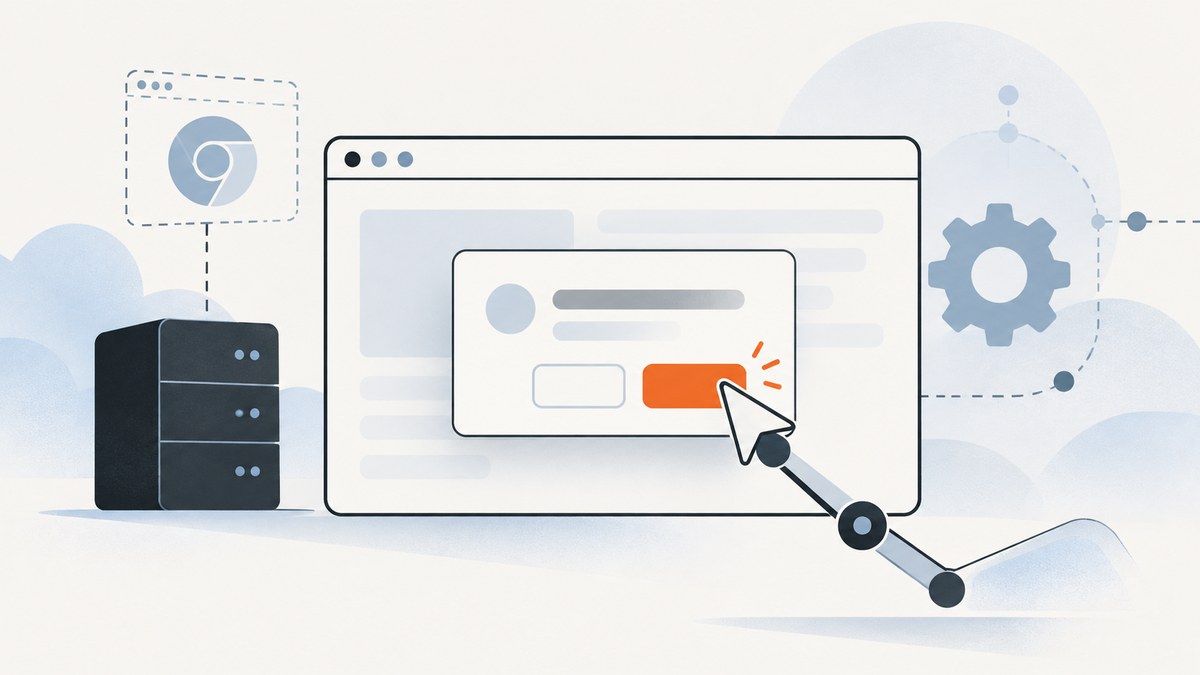
To handle a JavaScript alert in headless ChromeDriver, wait for it with Selenium’s alert-present condition, switch to the returned alert, then read its text and accept or dismiss it. For a prompt, send the response text before accepting. Headless mode hides the browser window; it does not change the WebDriver alert API.
These dialogs are browser-native, not HTML elements. You cannot locate them with a CSS selector or click them through the page DOM. The examples below use Python, followed by complete Java and JavaScript examples. Selenium’s official guide covers the same alert, confirm, and prompt operations: JavaScript alerts, prompts and confirmations.
1. Start ChromeDriver in headless mode
Install Selenium for your language and make sure Chrome and ChromeDriver are compatible. For repeatable CI, use a version-pinned Chrome for Testing binary with its matching ChromeDriver. Chrome’s current automation guidance describes this workflow; since milestone 115, Chrome and ChromeDriver releases are available through the Chrome for Testing channels.
In Python, add --headless to Chrome options. Selenium Manager can manage the driver in common setups, but CI should use a known browser and driver version so changes in the environment do not make runs unpredictable.
from selenium import webdriver
from selenium.webdriver.chrome.options import Options

options = Options()
options.add_argument("--headless")
driver = webdriver.Chrome(options=options)

try:
    driver.get("https://example.com")
    print(driver.title)
finally:
    driver.quit()
Chrome’s unified Headless mode has the browser’s regular functionality while running without visible UI. The older separate headless implementation became a standalone chrome-headless-shell binary starting with Chrome 132.0.6793.0. For ordinary ChromeDriver automation, configure headless through Chrome options as above. See Chrome Headless documentation.
2. Wait for and accept an alert
Do not immediately call switch_to.alert after navigating or clicking. The page may not have opened the dialog yet. Wait for the alert to appear, then operate on it:
from selenium import webdriver
from selenium.webdriver.chrome.options import Options
from selenium.webdriver.support.ui import WebDriverWait
from selenium.webdriver.support import expected_conditions as EC

options = Options()
options.add_argument("--headless")
driver = webdriver.Chrome(options=options)

try:
    driver.get("https://example.com/page-that-opens-an-alert")
    # Trigger the page action that opens the alert, if it is not automatic.
    driver.find_element("id", "show-alert").click()

    alert = WebDriverWait(driver, 10).until(EC.alert_is_present())
    message = alert.text
    print("Alert says:", message)
    alert.accept()
finally:
    driver.quit()
Replace the example URL and locator with the page and action under test. The example assumes the page has an element with ID show-alert. If the dialog opens on navigation, omit the click and wait after get. The explicit wait raises a timeout if the dialog never appears, which is usually more useful than a later, ambiguous failure.
3. Choose an action by dialog type
| Dialog | WebDriver action | Expected meaning |
|---|---|---|
| Alert | Read text, then accept() |
Close the message with its OK action |
| Confirm | accept() or dismiss() |
Confirm or cancel the application action |
| Prompt | Optional send_keys(value), then accept; or dismiss |
Submit a value or cancel the prompt |
Accepting and dismissing are not interchangeable. A confirm dialog often controls whether a destructive or state-changing operation proceeds. Assert the resulting application state after acting so the test checks the behavior, not just that a dialog disappeared. An ordinary alert has only its accept action. Prompt text input is supported for prompt dialogs.
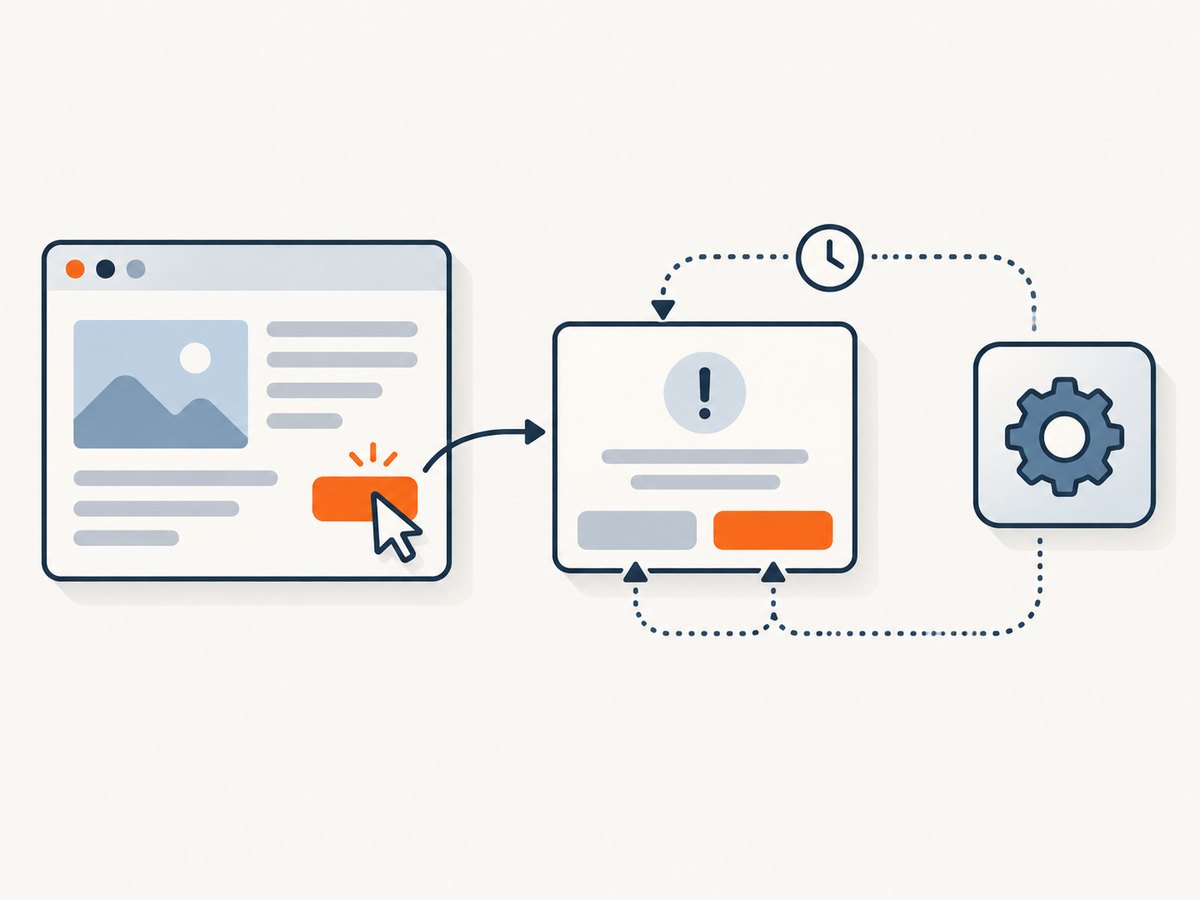
Confirm: accept or cancel
alert = WebDriverWait(driver, 10).until(EC.alert_is_present())
message = alert.text

if should_confirm:
    alert.accept()
else:
    alert.dismiss()
should_confirm is test logic you supply. Follow the dialog action with a check of the page’s expected result, such as whether a record was deleted or whether a confirmation message appeared.
Prompt: enter a value
alert = WebDriverWait(driver, 10).until(EC.alert_is_present())
message = alert.text
alert.send_keys("sample response")
alert.accept()
Use a representative value, including an empty string or boundary value when those matter to the application. If the prompt should be cancelled, call dismiss() instead. Do not call send_keys on an alert or confirm dialog.
4. Complete examples in other Selenium bindings
Java
import java.time.Duration;
import org.openqa.selenium.Alert;
import org.openqa.selenium.By;
import org.openqa.selenium.chrome.ChromeDriver;
import org.openqa.selenium.chrome.ChromeOptions;
import org.openqa.selenium.support.ui.ExpectedConditions;
import org.openqa.selenium.support.ui.WebDriverWait;

public class HandleAlert {
  public static void main(String[] args) {
    ChromeOptions options = new ChromeOptions();
    options.addArguments("--headless");
    ChromeDriver driver = new ChromeDriver(options);
    try {
      driver.get("https://example.com/page-that-opens-an-alert");
      driver.findElement(By.id("show-alert")).click();
      WebDriverWait wait = new WebDriverWait(driver, Duration.ofSeconds(10));
      Alert alert = wait.until(ExpectedConditions.alertIsPresent());
      System.out.println(alert.getText());
      alert.accept();
    } finally {
      driver.quit();
    }
  }
}
For a confirm that should be cancelled, replace alert.accept() with alert.dismiss(). For a prompt, call alert.sendKeys("sample response") before accepting. Use a Selenium Java dependency in your project and compatible Chrome/ChromeDriver binaries.
JavaScript (Node.js)
const { Builder, By, until } = require('selenium-webdriver');
const chrome = require('selenium-webdriver/chrome');

(async function handleAlert() {
  const options = new chrome.Options().addArguments('--headless');
  const driver = await new Builder()
    .forBrowser('chrome')
    .setChromeOptions(options)
    .build();
  try {
    await driver.get('https://example.com/page-that-opens-an-alert');
    await driver.findElement(By.id('show-alert')).click();
    const alert = await driver.wait(until.alertIsPresent(), 10000);
    console.log(await alert.getText());
    await alert.accept();
  } finally {
    await driver.quit();
  }
})();
For a prompt, use await alert.sendKeys('sample response') before accepting. To cancel a confirm or prompt, call await alert.dismiss(). Install the selenium-webdriver package and configure a compatible ChromeDriver in the environment.
5. Decide how unexpected prompts behave
A dialog can appear while WebDriver is trying to run an unrelated command. Selenium exposes the unhandledPromptBehavior capability so you can choose what the driver does when a prompt has not been handled explicitly. Set it at session creation, not after the unexpected prompt has already interrupted a command.
| Value | Behavior | Use when |
|---|---|---|
dismiss |
Dismiss and continue without reporting the prompt as an error | Cancellation is the deliberate recovery behavior |
accept |
Accept and continue without reporting it as an error | Acceptance is safe and intended |
dismiss and notify |
Dismiss, then report an error | You want the run to fail visibly after cleanup |
accept and notify |
Accept, then report an error | Acceptance is needed to unblock the browser, but the prompt still signals a test failure |
ignore |
Leave it open for explicit handling | Your test will detect and handle it itself |
Selenium documents dismiss and notify as the default. Choose a policy deliberately: silently accepting an unexpected prompt can make a test pass through an application state that should have failed. For Python, set the capability on Chrome options before creating the session:
from selenium import webdriver
from selenium.webdriver.chrome.options import Options

options = Options()
options.add_argument("--headless")
options.set_capability("unhandledPromptBehavior", "dismiss and notify")
driver = webdriver.Chrome(options=options)
The supported setting names and descriptions are in Selenium browser options. Recent drivers automatically dismiss beforeunload prompts by default. ChromeDriver 126 implemented automatic acceptance of beforeunload dialogs in Classic sessions; exact behavior depends on browser, driver, and session mode. Check the versions used by the run rather than assuming every setup handles page-exit prompts identically.
6. Troubleshoot common failures
| Symptom | Likely cause | Fix |
|---|---|---|
NoAlertPresentException or alert lookup fails |
The code switched before the dialog opened, or the page never triggered it | Wait with alert_is_present(); verify the click, navigation, or application state that should create the dialog. |
| Wait times out | The trigger did not happen, the site behavior changed, or the timeout is too short for that flow | Confirm the trigger and URL, then choose a timeout appropriate to the operation. Do not replace the wait with a fixed sleep unless the page specifically requires a known delay. |
UnexpectedAlertPresentException |
A prompt appeared during a WebDriver command that expected to interact with the page | Handle the dialog at the action that opens it, or set unhandledPromptBehavior to a policy that matches the test’s intent. |
| Element lookup or click fails while a dialog is open | WebDriver commands for page content are blocked by the native dialog | Switch to the alert and accept or dismiss it first. The dialog is outside the DOM. |
| Prompt value is missing | Text was not sent before acceptance, or the dialog was not a prompt | Call send_keys on the prompt before accepting; verify the dialog type and resulting page state. |
| Headless Chrome will not start in CI | Chrome/ChromeDriver incompatibility or a Linux environment issue | Pin compatible Chrome for Testing and ChromeDriver versions, run the same binary and arguments outside the harness, and inspect verbose driver logs. ChromeDriver warns that running Chrome as root on Linux is a common startup-crash cause; its --no-sandbox workaround is unsupported and highly discouraged. |
ChromeDriver supports verbose logging with --verbose and an optional --log-path. For example, when launching a service in Python:
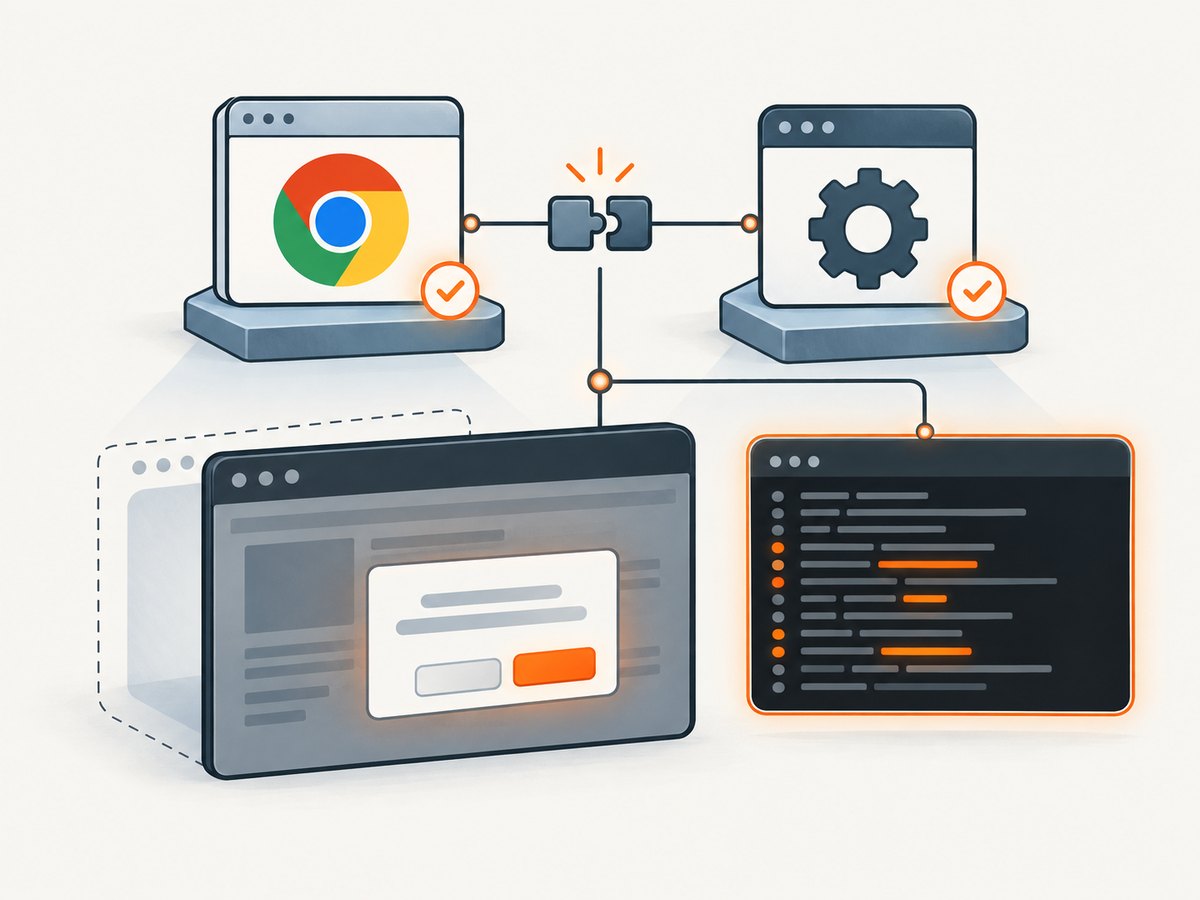
from selenium.webdriver.chrome.service import Service

service = Service(service_args=["--verbose"], log_output="chromedriver.log")
driver = webdriver.Chrome(service=service, options=options)
See the official ChromeDriver logging guide and Chrome startup troubleshooting. Protect logs if they contain sensitive URLs or session details.
7. Reliability, timing, and cost considerations
Waiting for the dialog’s actual presence is more reliable than guessing with a fixed pause. Keep the timeout bounded and make failures describe the expected event. Always quit the driver in a finally block so a failed assertion or timeout does not leave Chrome processes running.
Headless mode avoids showing a browser window, but it does not remove the need to manage browser versions, startup dependencies, or alert timing. Pin the browser and driver in CI and log versions when diagnosing differences. ChromeDriver recommends current versions, and the Chrome for Testing channel provides corresponding binaries for modern releases. See the ChromeDriver overview and downloads and release notes.
Alert handling itself does not have a special per-dialog fee; operational cost comes from the machines and time used to run the browser session, plus maintenance of its dependencies. Reduce avoidable runtime by waiting on the specific condition, ending sessions reliably, and avoiding retries that repeat a state-changing action without checking whether the first attempt succeeded.
8. Or skip the browser setup
If the task is to get a screenshot rather than test dialog behavior, ScreenshotNeo provides a website screenshot API and MCP server. Its one-call capture returns an image or PDF, without requiring you to run Selenium and ChromeDriver yourself. It does not automate dialog acceptance as a Selenium test does; use WebDriver when the dialog interaction itself is what you need to validate.
Example request and language clients are in the ScreenshotNeo documentation.
curl -G "https://api.screenshotneo.com/v1/shot" -d access_key=YOUR_API_KEY --data-urlencode url=https://stripe.com -o shot.webpimport requests
r = requests.get(
"https://api.screenshotneo.com/v1/shot",
params={"access_key": "YOUR_API_KEY", "url": "https://stripe.com"},
timeout=90,
)
open("shot.webp", "wb").write(r.content)const q = new URLSearchParams({ access_key: 'YOUR_API_KEY', url: 'https://stripe.com' });
const res = await fetch(`https://api.screenshotneo.com/v1/shot?${q}`);
if (!res.ok) throw new Error(`Screenshot request failed: ${res.status}`);
const image = Buffer.from(await res.arrayBuffer());
require('node:fs').writeFileSync('shot.webp', image);- Cookie banners, newsletter popups, and chat widgets are removed before the shot; each cleanup step can be turned off.
- Bot checks, blank pages, timeouts, failed loads, and cache hits are never billed. Response headers say which outcome occurred.
- An MCP server lets AI agents using Claude, Cursor, or another MCP client take screenshots.
- 1,000 screenshots a month are free with no card; paid plans start at $5 for 3,000. Every feature is available on every plan.
Create a free ScreenshotNeo account and get 1,000 screenshots a month with no card.
9. FAQ
Does headless Chrome ignore JavaScript alerts?
No. Headless mode runs Chrome without visible UI, but WebDriver still exposes native JavaScript dialogs through its alert API. Wait for the dialog and handle it explicitly.
Can I locate an alert with Selenium’s element selectors?
No. Alerts, confirms, and prompts are browser dialogs, not page elements. Use driver.switch_to.alert after waiting for presence.
Should I accept every unexpected prompt?
No. Select a policy based on the application outcome the test expects. Accepting can confirm an action; dismissing can cancel it. A notifying policy can close the dialog while still failing the run.
Do I need a special ChromeDriver version for headless alerts?
There is no special alert-only mode in the workflow. Use compatible Chrome and ChromeDriver versions, and verify version-specific behavior for beforeunload dialogs.


