How to Handle Browser Ads with Selenium and C#
Handle ad banners, popups, new tabs, and JavaScript dialogs in Selenium with C#. Choose the right browser context, wait reliably, and avoid brittle fixes.
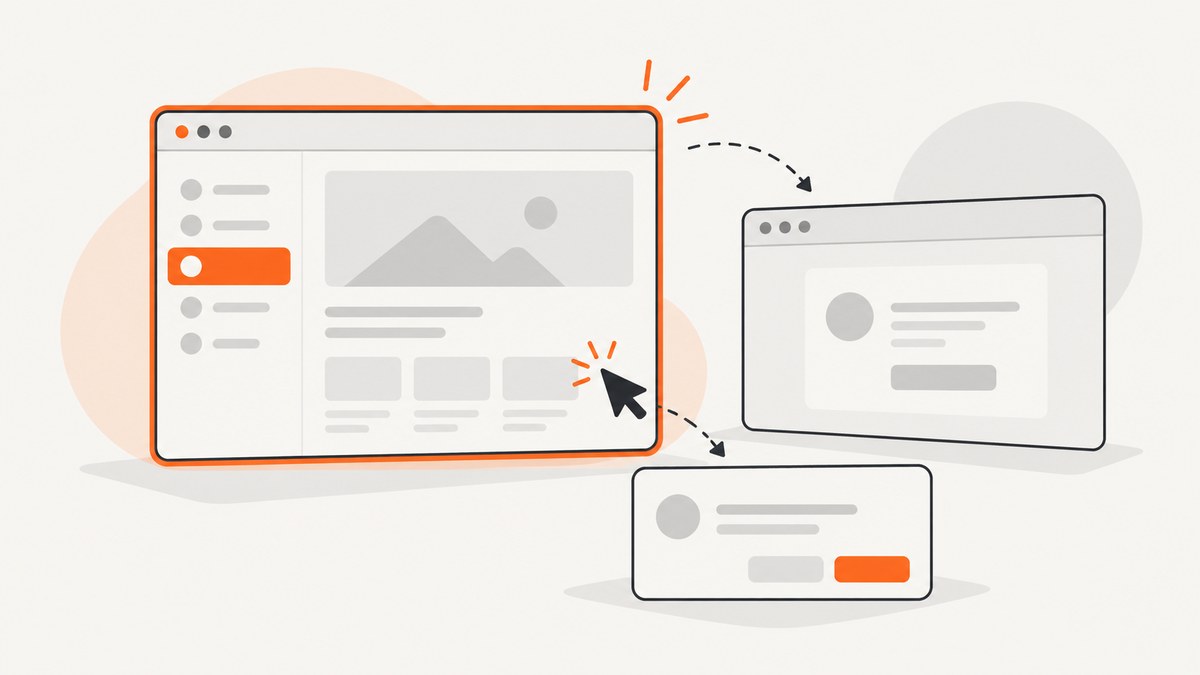
“How to Handle Browser Ads with Selenium and C#” depends on what the browser is showing. An ad can be a banner or overlay in the page DOM, content inside an iframe, a new tab or window, or a native JavaScript dialog. Selenium has no universal ad-blocking switch: identify the context, then wait for and interact with the right thing. This guide shows each approach and explains when changing browser behavior would undermine the test.
1. Identify the kind of ad
Start by deciding what outcome you need. Are you verifying that an ad appears, closing an overlay so a workflow can continue, preventing an unrelated window from derailing automation, or observing network activity? These goals call for different techniques. A DOM element is handled as page content; a tab is handled with a window handle; a native alert is handled through Selenium’s alert interface.
| What you see | Where it lives | Selenium approach |
|---|---|---|
| Banner, modal, or interstitial | Page DOM, possibly an iframe | Wait for and interact with its element |
| Ad opens another tab or window | Separate browsing context | Compare window handles, switch, then close or inspect |
| Browser-style JavaScript dialog | Native dialog | Use SwitchTo().Alert() |
| Requests for ad resources | Network activity | Instrument browser activity with version-specific tooling; do not assume ordinary element handling blocks requests |
Keep test intent in view. If the task is to test the real page layout, deleting an ad node or changing popup settings may make the test less representative. Prefer a controlled fixture or the actual close control when those preserve the behavior you mean to test.
2. Set up Selenium for C#
Use Selenium WebDriver with the browser driver for your target browser. The examples below use Chrome and Selenium.Support’s explicit wait utilities. Install compatible Selenium packages and ensure the browser and driver setup match the environment where the code runs. Selenium recommends browser-specific option classes; navigation reaching document readiness does not necessarily mean JavaScript-driven content has finished loading. [Selenium browser options]
dotnet new console -n AdHandling
cd AdHandling
dotnet add package Selenium.WebDriver
dotnet add package Selenium.Support
Replace the sample URL and selectors with the page under test. A selector such as .consent-close is illustrative; ad markup varies by site and can change. Start with a stable, page-owned selector, and avoid assuming a particular ad network URL or fixed window position.
3. Wait for and dismiss a DOM banner or overlay
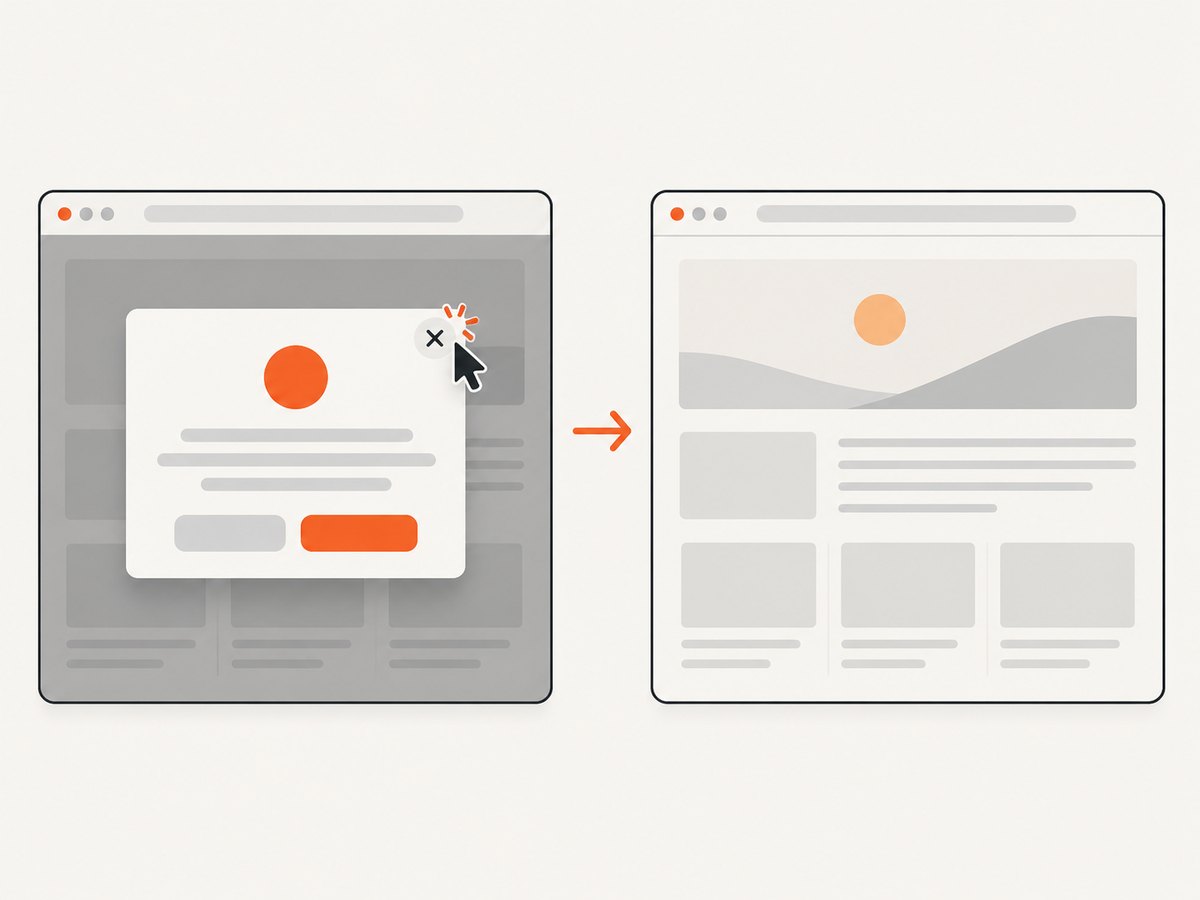
A banner rendered in the page is ordinary DOM content. Locate the close or accept button and wait until it is clickable. A targeted wait is more reliable than sleeping for a guessed number of seconds because the banner may appear after scripts run, or may never appear at all.
using OpenQA.Selenium;
using OpenQA.Selenium.Chrome;
using OpenQA.Selenium.Support.UI;

using var driver = new ChromeDriver();
var wait = new WebDriverWait(driver, TimeSpan.FromSeconds(10));
driver.Navigate().GoToUrl("https://example.com");

try
{
    var closeButton = wait.Until(d =>
    {
        var element = d.FindElement(By.CssSelector(".consent-close"));
        return element.Displayed && element.Enabled ? element : null;
    });
    closeButton.Click();
}
catch (WebDriverTimeoutException)
{
    // The banner did not appear within the expected interval.
    // Continue only if the test scenario allows the banner to be absent.
}

// Continue with the page assertion or workflow.
Console.WriteLine(driver.Title);
Choose the action that matches the page’s actual controls: a site may offer “accept,” “reject,” or “close,” and these choices are not interchangeable for a consent test. If the banner is part of what you need to verify, assert its presence rather than dismissing it. Selenium’s interaction APIs operate in the selected browsing context; for an iframe, switch into the frame first. [Selenium browser interactions]
When the banner is inside an iframe
Find the iframe in the top-level document, switch into it, interact with the button there, and switch back to the main document. The selector below is a placeholder for the site’s real frame selector.
var frame = wait.Until(d => d.FindElement(By.CssSelector("iframe[title='Consent']")));
driver.SwitchTo().Frame(frame);

try
{
    var close = wait.Until(d => d.FindElement(By.CssSelector("button.close")));
    close.Click();
}
finally
{
    driver.SwitchTo().DefaultContent();
}
Do not search for a frame’s button before switching into that frame: it is not part of the top-level document’s DOM. If the frame is cross-origin, that does not prevent WebDriver from switching to it, but the frame still needs to be located from its parent context.
4. Handle an ad that opens a tab or window
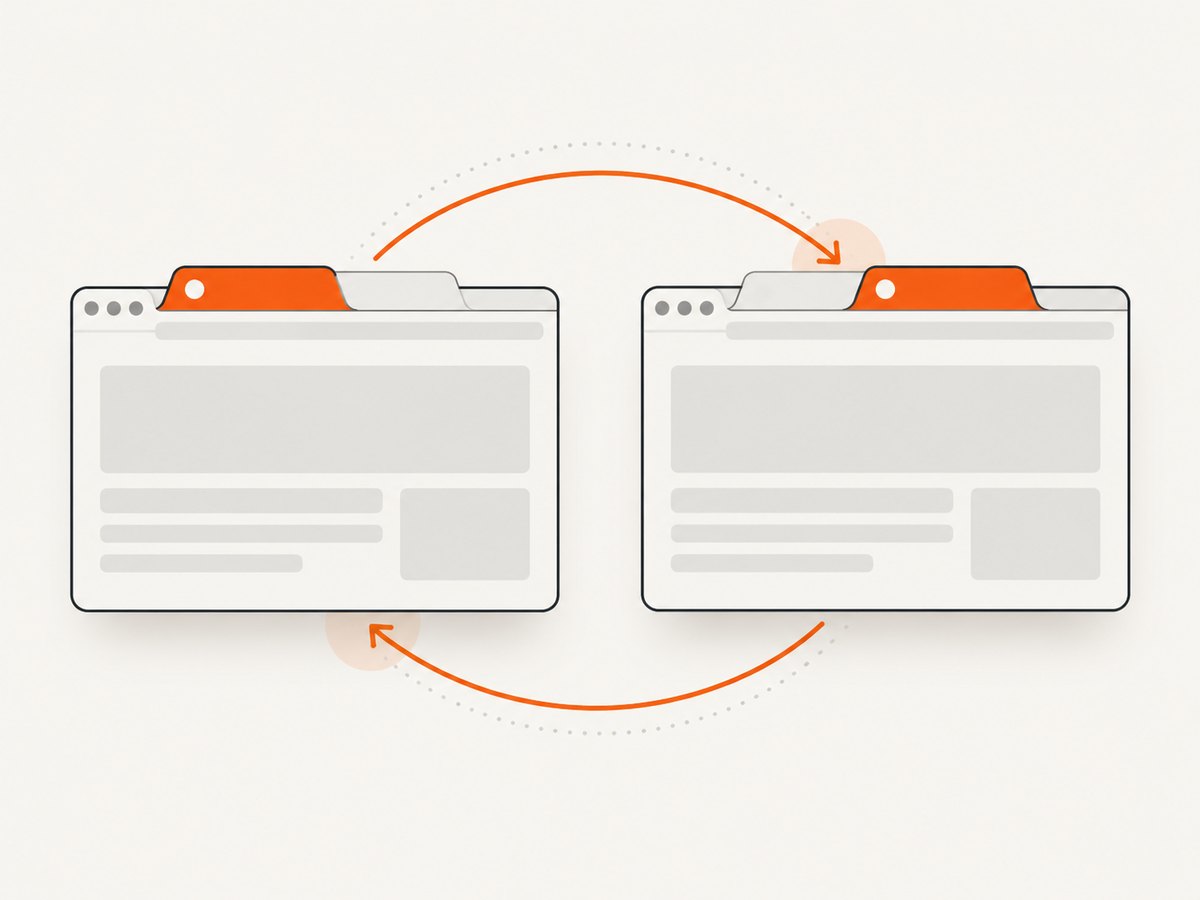
Selenium represents tabs and windows with handles. Save the original handle and the set of handles before the interaction. After clicking, wait for a handle that was not present before, switch to it, then close it or perform the relevant check. Finally, return to the original handle. Do not rely on the new context being at index 1. [Selenium windows and tabs]
var originalHandle = driver.CurrentWindowHandle;
var handlesBeforeClick = driver.WindowHandles.ToHashSet();

// Replace this locator with the control that triggers the new context.
driver.FindElement(By.CssSelector("a.open-promotion")).Click();

var newHandle = wait.Until(d =>
    d.WindowHandles.FirstOrDefault(h => !handlesBeforeClick.Contains(h)));

driver.SwitchTo().Window(newHandle);

// Inspect the page, or close an unwanted context if that is the test's intent.
Console.WriteLine($"New page title: {driver.Title}");
driver.Close();
driver.SwitchTo().Window(originalHandle);

// The original page is active again.
Console.WriteLine($"Original page title: {driver.Title}");
If opening a new context is asynchronous, the explicit wait allows time for it to appear. If no new handle arrives, inspect the click target, whether the site opened a same-tab navigation instead, and whether the browser or driver reported an error. A popup-blocking option changes whether certain popups open; it does not block page banners, trackers, or all ad content.
5. Handle a native JavaScript dialog
A native JavaScript alert is not a DOM element and is not a tab. Switch to the alert interface and accept or dismiss it according to the scenario. Confirm the precise API behavior against the Selenium .NET version installed in your project. [Selenium .NET API documentation]
var alert = wait.Until(d =>
{
    try { return d.SwitchTo().Alert(); }
    catch (NoAlertPresentException) { return null; }
});

Console.WriteLine(alert.Text);
alert.Accept(); // Use Dismiss() instead when that matches the expected behavior.
Only wait for an alert if the page action is expected to trigger one. Otherwise, an unnecessary alert wait slows the test and can obscure the actual failure. If a dialog unexpectedly blocks later commands, handle or report it explicitly rather than trying to locate its text with FindElement.
6. Choose options and waits deliberately
Browser options configure a session; they do not turn Selenium into a general ad filter. Use an option only when its documented effect matches the test. ChromeDriver documents Chrome-specific capabilities and options, but popup behavior depends on the browser and driver versions in use. Validate any such setting against the versions you actually run rather than copying old flags as universal advice. [ChromeDriver capabilities and ChromeOptions]
For page timing, wait for the condition your next step needs: an element to become visible, a button to become enabled, a result to appear, or a new handle to be created. Navigation returning at document-ready is not a guarantee that dynamically loaded ads, overlays, or other JavaScript content have settled. Selenium’s options documentation describes navigation and page-load strategy behavior. [Browser options and page loading]
- Use one explicit wait per meaningful condition, with a timeout suited to the test environment.
- Prefer stable selectors owned by the application or test fixture over generated class names.
- Do not mix long implicit waits with explicit waits without understanding how their timing interacts.
- Use JavaScript execution only after selecting the right frame or window; execution applies to the currently selected context.
Removing an overlay with JavaScript can be useful for a narrowly scoped diagnostic, but it bypasses the site’s controls and can hide layout or interaction bugs. For a representative end-to-end test, use the close action or configure a controlled test page.
7. Observe network activity without assuming ad blocking
WebDriver BiDi is Selenium’s bidirectional protocol for event streams that can include network requests, console messages, and JavaScript errors. It may help investigate what the browser is doing. The documentation cited here does not establish a ready-to-copy, browser-independent C# implementation for blocking ad requests, so treat request observation and request interception as separate, version-specific tasks. Do not describe BiDi as an ad-blocking feature without verifying the exact API and implementation for your Selenium and browser versions. [Selenium WebDriver and BiDi overview]
8. Troubleshooting
| Symptom | Likely cause | Fix |
|---|---|---|
NoSuchElementException for the close button |
The banner has not loaded, the selector is stale, or the element is inside a frame. | Wait for the element, re-check the selector, and switch into the correct frame before locating it. |
ElementClickInterceptedException |
Another layer covers the target, or the page has not finished changing. | Wait for the overlay state to settle, locate the actual clickable control, and check whether a different banner is covering it. |
| The new tab is never found | The click navigated in the same tab, did nothing, or a script failed. | Compare handles before and after; inspect the original page’s URL and browser/driver logs; do not assume every ad opens a tab. |
| Commands fail after switching tabs | The driver is still focused on a closed or unexpected context. | Switch to a handle that remains in WindowHandles; restore the saved original handle after closing the ad tab. |
NoAlertPresentException |
The dialog has not appeared or the page used an HTML modal instead. | Wait only when the action is expected to trigger a native dialog; inspect the DOM if it is an overlay. |
| Waits time out intermittently | Dynamic content timing varies, or the selector matches an element that never becomes actionable. | Wait for the actual state needed, use a stable selector, and capture page state on failure for diagnosis. |
| Popup behavior differs across machines | Browser, driver, policy, or option versions differ. | Pin and report browser/driver versions in the test environment, then validate the specific option there. |
9. Performance, reliability, and cost
Ad-related content can add network requests, scripts, and delayed layout changes, so a test that waits for a fixed duration may be both slow and flaky. Waiting for a specific condition usually keeps the test focused: it continues as soon as the required state appears and fails with a clear timeout if it does not. Keep timeouts bounded and collect enough context on failure—current URL, title, active handle, and relevant element state—to diagnose whether the problem was a missing banner, a blocked popup, or a changed page.
For repeatable automation, control the test page or environment when possible. Third-party ad delivery is inherently less predictable than a local fixture. If third-party behavior itself is under test, preserve it and assert the observed behavior; if it is unrelated noise, isolate it deliberately and document the changed browser conditions so the test’s meaning remains clear.
Selenium’s main cost in this workflow is the time and maintenance required to run browsers and keep selectors and driver versions compatible. Browser-specific options and DOM removal can make results less portable or faithful. There is no general Selenium setting in the cited documentation that promises comprehensive ad removal or a particular performance gain, so measure the actual test suite instead of assuming one.
10. Or skip the browser setup
If the goal is a screenshot rather than interaction with the ad behavior, ScreenshotNeo provides a website screenshot API and MCP server. One GET request returns an image or PDF; see the API documentation for parameters and output options.
curl -G "https://api.screenshotneo.com/v1/shot" -d access_key=YOUR_API_KEY --data-urlencode url=https://example.com -o shot.webpScreenshotNeo accepts cookie and consent banners like a visitor and removes 60+ known consent platforms, newsletter popups, and chat widgets before capture; each step can be turned off. Bot checks and CAPTCHAs, blank pages, timeouts, failed loads, and cache hits cost nothing, and response headers report the page verdict and billing status. Its MCP server gives Claude, Cursor, and other MCP clients the tools take_screenshot, get_page_info, and capture_pdf. The free plan includes 1,000 screenshots a month with no card; paid plans start at $5 for 3,000 screenshots.
Create a free ScreenshotNeo account for 1,000 screenshots a month, with no card.
11. FAQ
Can Selenium block every browser ad?
No universal ad-blocking switch is established by the cited Selenium documentation. Handle the specific context you encountered, or use a separately verified browser/network setup for a request-blocking requirement.
Should I close every new tab that appears?
Only if that matches the automation goal. A test may need to verify the destination or the fact that a new context opened.
Can I use JavaScript to remove the ad element?
You can execute JavaScript in the selected context, but deleting page content can hide layout and interaction issues. Prefer the real control or a test fixture when fidelity matters.
Does BiDi automatically block ad requests?
No. The cited overview describes event streams, including network requests; it does not establish a ready-to-use C# ad-request blocking recipe.


