How to Handle Certificate Selection Dialogs in Puppeteer
Learn why Puppeteer cannot directly accept Chrome’s native client-certificate chooser, how to identify the dialog, and which documented options work.

Short answer: Puppeteer’s page.on('dialog') handler can accept or dismiss JavaScript alert, confirm, and prompt dialogs created by a web page. It does not control Chrome’s native TLS client-certificate selection dialog. That chooser appears when a server requests a client certificate during the TLS handshake. The documented Chrome integration point is the certificateProvider extension API, while Puppeteer’s acceptInsecureCerts option only ignores server-certificate errors and does not select a client identity.
First identify which of these three situations you have:
| What you see | Mechanism | Correct response |
|---|---|---|
| A page alert, confirm, or prompt | Puppeteer Dialog event |
Call dialog.accept() or dialog.dismiss(). |
| “Your connection is not private” or another HTTPS warning | Server-certificate validation failure | Fix trust and certificate configuration, or use acceptInsecureCerts only for controlled testing. |
| A native list of client certificates | TLS client authentication | Make a suitable certificate available to Chrome and use the browser’s client-authentication flow. A Puppeteer dialog handler is not the API. |
1. Handle JavaScript dialogs with Puppeteer
Puppeteer documents Dialog instances as being dispatched through the page’s dialog event. This code handles page-created alerts, confirms, and prompts:

import puppeteer from 'puppeteer';

const browser = await puppeteer.launch({ headless: true });
const page = await browser.newPage();

page.on('dialog', async dialog => {
  console.log(`Dialog type: ${dialog.type()}`);
  console.log(`Dialog message: ${dialog.message()}`);

  if (dialog.type() === 'prompt') {
    await dialog.accept('value supplied by automation');
  } else {
    await dialog.accept();
  }
});

await page.goto('https://example.com', { waitUntil: 'networkidle2' });
await browser.close();
Install Puppeteer first:
npm install puppeteerRegister the listener before navigation or the action that opens the dialog. A page dialog can block JavaScript execution until it is accepted or dismissed, so an asynchronous handler should always settle it.
Accept versus dismiss
page.on('dialog', async dialog => {
  if (dialog.type() === 'confirm' && dialog.message().includes('delete')) {
    await dialog.dismiss();
    return;
  }

  await dialog.accept();
});
This only applies to dialogs generated by page content. It will not select an entry in Chrome’s operating-system-level certificate chooser.
2. Why the native certificate chooser is different
During TLS client authentication, the server asks the browser for a client certificate. Chrome matches certificates available to the browser and operating system against the server’s request. Matching choices are presented to the user in a selection dialog. After a certificate is selected, the client proves possession of its private key by signing data for the TLS handshake.
The chooser is therefore outside the page’s JavaScript context. It is not a window.alert(), window.confirm(), or window.prompt(), so Puppeteer does not expose it as a Dialog object. Calling dialog.accept() cannot interact with it.
Chrome’s documented extension model for this flow is the certificateProvider API. An extension reports certificates, Chrome matches them to the server request, and the user selects or aborts. If Chrome proceeds, the extension receives a signing request so it can use the corresponding private key.
3. Use acceptInsecureCerts only for server-certificate errors
Puppeteer’s acceptInsecureCerts launch or connect option changes how HTTPS certificate errors are handled. It is intended for cases such as a self-signed or otherwise untrusted server certificate. It does not provide a client certificate and does not answer a server’s request for client authentication.
import puppeteer from 'puppeteer';

const browser = await puppeteer.launch({
  headless: true,
  acceptInsecureCerts: true
});

const page = await browser.newPage();
await page.goto('https://test-host.example', { waitUntil: 'domcontentloaded' });
console.log(await page.title());
await browser.close();
Use this setting only in a controlled test environment. For production systems, configure the server trust chain and certificate names correctly. If the server is requesting a client identity, changing this option will not make the handshake succeed.
4. The documented extension-oriented architecture
When automation must participate in client certificate authentication, the supported Chrome concept is an extension that implements certificateProvider:
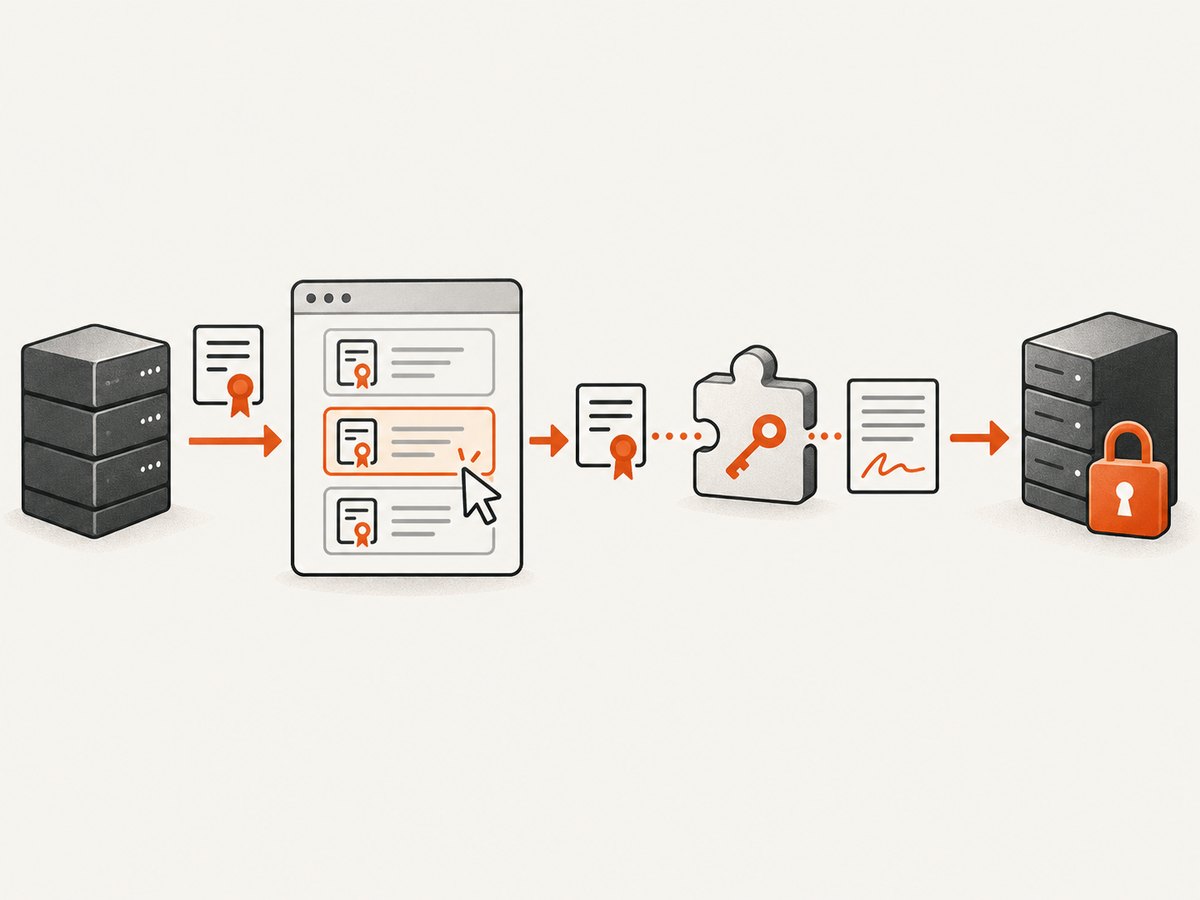
- The extension registers certificate-provider listeners.
- Chrome asks the extension which certificates it can provide for a TLS request.
- Chrome filters and matches candidates for the remote host.
- The browser’s client-authentication flow presents matching choices to the user, or aborts if none is suitable.
- For the selected certificate, Chrome asks the extension to sign handshake data.
This is an extension architecture, not a one-line Puppeteer call. You must still solve certificate storage, private-key access, browser policy, user approval, and deployment. The extension must be written and packaged for the target Chrome profile, and its behavior depends on the browser version and operating system.
Puppeteer’s guide for running inside Chrome extensions labels that environment experimental and describes restricted attachment behavior. Treat it as a constrained design to validate in your exact deployment rather than a universal way to drive native UI.
Conceptual extension skeleton
The following is intentionally a structural example, not a drop-in certificate implementation. The certificate and signing operations depend on your key store and security design.
chrome.certificateProvider.onCertificatesUpdateRequested.addListener(
  async request => {
    // Return certificates that your extension can use.
    // Keep private keys outside page JavaScript.
    const certificates = await loadCertificatesForRequest(request);
    chrome.certificateProvider.setCertificates({
      certificates,
      reportError: undefined
    });
  }
);

chrome.certificateProvider.onSignDigestRequested.addListener(
  async request => {
    try {
      const signature = await signWithPrivateKey(
        request.certificate,
        request.digest
      );
      chrome.certificateProvider.reportSignature({
        signRequestId: request.signRequestId,
        signature
      });
    } catch (error) {
      chrome.certificateProvider.reportSignature({
        signRequestId: request.signRequestId,
        error: 'Failed to sign TLS data'
      });
    }
  }
);
Do not copy this as a promise that Puppeteer can select a native entry. Verify the API shape, permissions, manifest requirements, and browser support against the Chrome version you deploy.
5. Provision the certificate before launching Puppeteer
Chrome can only offer certificates that are available to the profile and operating-system certificate store, subject to platform policy. Before debugging Puppeteer, verify:
- The certificate contains client-authentication usage in its key-usage or extended-key-usage extensions.
- The certificate is within its validity period and chains to a CA trusted by the server.
- The private key is installed and accessible to the browser or certificate-provider extension.
- The certificate’s subject or SAN matches the identity expected by the server.
- The server requests the issuing CA and signature algorithms your certificate supports.
- The automation profile is the same profile in which the certificate was installed.
Use a dedicated test profile when you need repeatable provisioning. Avoid putting long-lived private keys in source control, container images, command lines, or page JavaScript.
6. A diagnostic workflow
- Reproduce manually. Open the URL in the same Chrome build, profile, OS account, proxy path, and network environment.
- Classify the prompt. Check whether it is a page dialog, a server-certificate warning, or a client-certificate chooser.
- Inspect the server handshake. Confirm that the server actually sends a certificate request and identify the acceptable issuing CAs.
- Check certificate eligibility. Confirm client-auth usage, validity, trust, private-key access, and profile installation.
- Choose an integration boundary. Use
page.on('dialog')for page dialogs, trust configuration for server-certificate errors, or a certificate-provider extension for client authentication. - Run headful during diagnosis. Native prompts and profile problems are easier to distinguish when Chrome is visible. Move to headless only after the certificate flow is proven in the target environment.
7. Common errors and fixes
| Symptom | Likely cause | Fix |
|---|---|---|
page.on('dialog') never fires |
The prompt is a native TLS chooser, not a page JavaScript dialog. | Inspect the TLS flow and use certificate provisioning or the certificateProvider architecture. |
acceptInsecureCerts changes nothing |
The server requires a client identity; this option only ignores HTTPS errors. | Install a suitable client certificate and private key, then configure the client-auth flow. |
| No certificate appears in the chooser | The certificate is unavailable, expired, untrusted, missing client-auth usage, or installed in another profile. | Check the profile, key usage, validity, issuer chain, and private-key permissions. |
| Certificate appears but authentication fails | The server rejects the issuer, subject, signature algorithm, or certificate chain. | Compare the server’s requested CAs and policy with the certificate details and TLS logs. |
| Works manually but not in automation | Puppeteer uses a different profile, OS account, proxy, browser binary, or policy context. | Launch with the intended profile and binary, and compare environment details. |
| Headless mode behaves differently | Native UI and extension support can differ by Chrome version and mode. | Validate the exact headless mode and browser version; use headful mode while isolating the issue. |
| Extension attaches inconsistently | Puppeteer’s extension environment has experimental and restricted support. | Test the extension independently, pin compatible browser versions, and avoid assuming cross-platform behavior. |
| Private-key operation fails | The key is hardware-backed, locked, unavailable to the extension, or blocked by policy. | Review key-store permissions and signing integration; do not expose the key to page code. |
8. Reliability, performance, and security considerations
Reliability
Client authentication depends on more than page navigation. A successful test must keep the browser build, profile, certificate store, proxy, server policy, and extension version consistent. Record the selected certificate’s fingerprint and the server endpoint in diagnostic logs, but never log private-key material.
Performance
The certificate handshake adds network round trips and may require an extension or hardware-backed signing operation. Set navigation timeouts based on the real network path, and distinguish a TLS handshake timeout from a page-load timeout. Reusing a browser process can avoid repeated startup cost, but do not reuse a profile across unrelated tenants when certificates or cookies differ.
Security
- Prefer short-lived, least-privilege client certificates for automation.
- Keep private keys in an OS key store, hardware module, or narrowly scoped secret service.
- Do not disable certificate validation globally to work around a client-authentication problem.
- Do not pass private-key passwords in shell history or public CI logs.
- Use separate browser profiles and credentials for development, staging, and production.
9. Or skip the browser setup
If your goal is to capture a page image or PDF after navigation, ScreenshotNeo removes the browser automation setup. Its API accepts a URL and returns a PNG, JPEG, WebP, or PDF. Cookie and consent banners, newsletter popups, and chat widgets are removed before the shot. Bot checks, blank pages, failed loads, timeouts, and cache hits are not billed, and the response identifies the result with X-Page-Verdict and X-Billed headers. ScreenshotNeo also provides an MCP server with take_screenshot, get_page_info, and capture_pdf tools for AI clients.
Read the complete ScreenshotNeo API documentation for options such as full-page capture, CSS selectors, device presets, custom headers and cookies, waits, request blocking, PDF settings, caching, signed links, asynchronous jobs, and bulk capture.
cURL
curl -G "https://api.screenshotneo.com/v1/shot" -d access_key=YOUR_API_KEY --data-urlencode url=https://stripe.com -o shot.webpPython
import requests

r = requests.get(
    "https://api.screenshotneo.com/v1/shot",
    params={"access_key": "YOUR_API_KEY", "url": "https://stripe.com"},
    timeout=90,
)
r.raise_for_status()
open("shot.webp", "wb").write(r.content)
Node.js
const q = new URLSearchParams({ access_key: 'YOUR_API_KEY', url: 'https://stripe.com' });
const res = await fetch(`https://api.screenshotneo.com/v1/shot?${q}`);
if (!res.ok) throw new Error(`Screenshot failed: ${res.status}`);
const buffer = Buffer.from(await res.arrayBuffer());
await import('node:fs/promises').then(fs => fs.writeFile('shot.webp', buffer));
There are 1,000 screenshots per month on the free plan with no card. Paid plans start at $5 for 3,000 shots, and every feature is included on every plan. Create a free ScreenshotNeo account.
10. FAQ
Can Puppeteer click the certificate chooser?
Not through the documented Dialog API. The chooser is native browser UI associated with TLS client authentication. Use certificate provisioning and, where appropriate, Chrome’s certificate-provider extension model.
Is a client certificate the same as an HTTPS certificate?
No. An HTTPS server certificate authenticates the server to the browser. A client certificate authenticates the client to the server. acceptInsecureCerts concerns server-certificate errors only.
Should I automate the native dialog with desktop mouse tools?
That approach is fragile across operating systems, display sessions, browser versions, and headless environments. Prefer a supported certificate store or extension architecture that can be tested in the deployment you control.
Why does the page load in my normal browser but fail in CI?
CI may use a different profile, certificate store, OS account, proxy, browser binary, or policy. Compare those inputs before changing Puppeteer code.
Can ScreenshotNeo select a client certificate for a protected site?
The provided ScreenshotNeo API facts cover URL capture and page controls, not client-certificate selection. For sites requiring mutual TLS, use a browser or HTTP client environment that has the required certificate and key, then capture through that environment.


