How to Handle Cookie Consent Prompts With Puppeteer
Build reliable Puppeteer flows for cookie prompts with resilient selectors, navigation waits, shadow DOM support, debugging, and production safeguards.

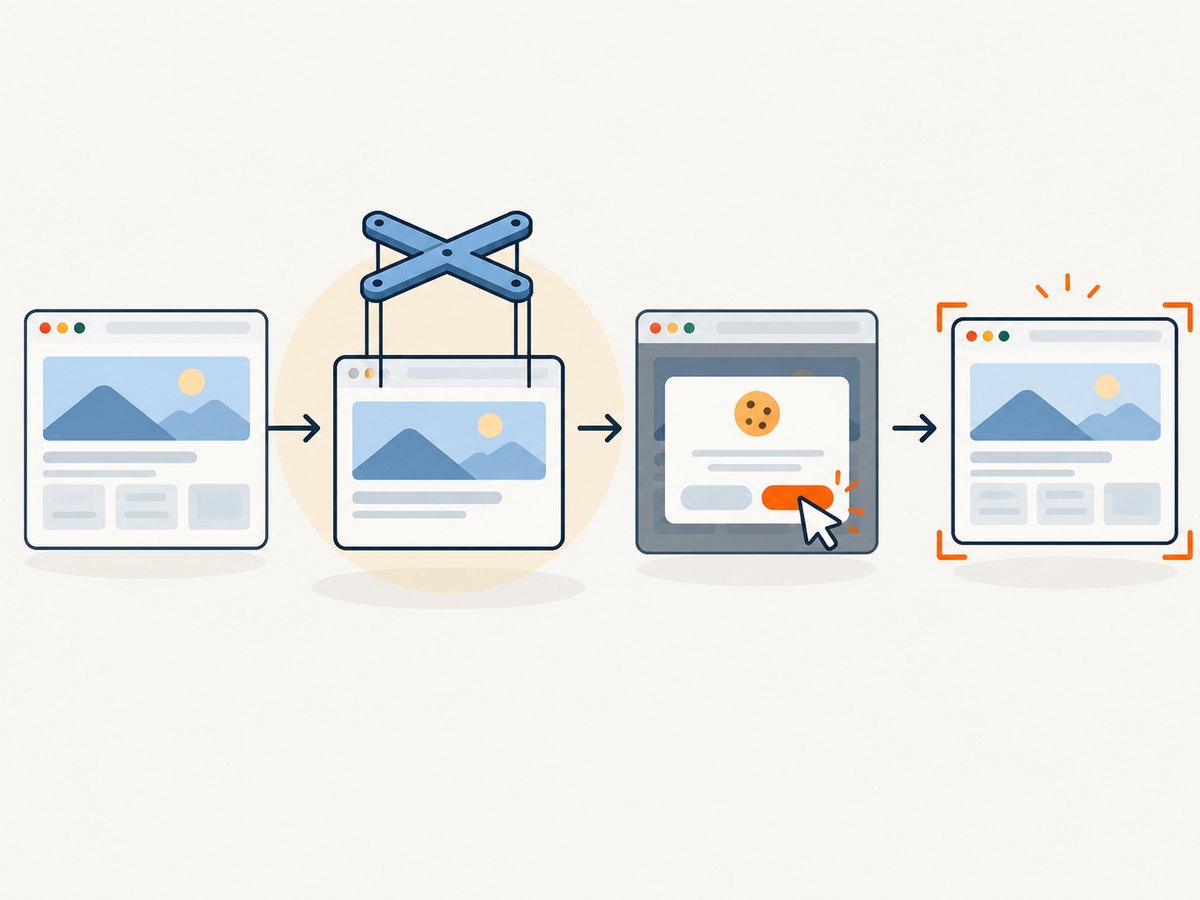
Cookie consent prompts are ordinary web controls, but they are not standardized. A reliable Puppeteer script must identify the target site’s actual control, make the intended choice through that interface, and wait for the resulting state. The most dependable pattern is to use Puppeteer locators, choose a site-specific or accessible selector, and synchronize a click with navigation when the click causes navigation.
Puppeteer’s interaction guide says, “Locators is the recommended way to select an element and interact with it.” A locator waits for conditions such as visibility, enabled state, viewport placement, and a stable bounding box before acting. That matters when a consent banner is injected after the initial document load.
1. Install Puppeteer and decide the consent outcome
Install Puppeteer in a new Node.js project:
npm install puppeteerBefore writing a selector, decide what the automation should do. The correct action may be accepting, rejecting, selecting only necessary cookies, or opening a preference center. Your script should represent that intended choice. A working click is not, by itself, evidence of legal compliance; the appropriate choice depends on the site, user, jurisdiction, and test objective.
Consent controls vary by localization, experiment, framework, and viewport. Inspect the page in DevTools and record a stable attribute, an accessible name, or a site-owned class. Avoid assuming that every website has a button named Accept or Reject all.
2. Minimal locator example
This example handles a visible button whose accessible name is Reject all:
const puppeteer = require('puppeteer');

(async () => {
  const browser = await puppeteer.launch({headless: true});
  const page = await browser.newPage();

  await page.goto('https://example.com', {waitUntil: 'domcontentloaded'});

  await page
    .locator('::-p-aria([name="Reject all"][role="button"])')
    .click();

  await browser.close();
})();
The ARIA selector is illustrative, not universal. A site may use different text, a different role, a preference panel, or a localized label. Puppeteer documents text and ARIA selectors, plus a deep combinator for controls inside an open shadow root, in its page interaction guide.
3. Selectors that survive ordinary markup changes
Stable site-specific attributes
Prefer a selector owned by the site and intended to identify the control, such as [data-testid='consent-reject'] or a documented component class. Stable attributes generally survive cosmetic changes better than a long chain of parent and sibling selectors.
await page.locator('[data-testid="consent-reject"]').click();Accessible names and roles
Accessible selectors describe what a user perceives and can be more robust than generated class names:
await page.locator('::-p-aria([name="Reject all"][role="button"])').click();They can also expose localization risk. If the page is translated, the accessible name may not be English. Use a locale-specific map or inspect the page’s language before choosing the name.
Text selectors
Text can be useful when the visible wording is stable:
await page.locator('::-p-text(Reject all)').click();Text matching can become ambiguous when the same phrase appears in a footer, dialog, or hidden template. Narrow the locator to the consent dialog when possible.
Open shadow roots
Some consent managers render their controls in an open shadow root. Puppeteer’s deep selector syntax can cross that boundary. The exact host and button names remain site-specific:
await page.locator('consent-banner >>> button.reject').click();This does not cross a closed shadow root. In that case, use an integration point exposed by the page, configure the consent vendor, or handle the prompt through an approved browser-level strategy.
4. Synchronize clicks with navigation
A consent click can submit a form or redirect to a new URL. Start the navigation wait before clicking so the event listener is attached in time:
const [response] = await Promise.all([
  page.waitForNavigation({waitUntil: 'domcontentloaded'}),
  page.locator('[data-testid="consent-accept"]').click(),
]);

console.log('Navigated to:', response.url());
This pattern follows Puppeteer’s Page API guidance. Do not use waitForNavigation automatically for every banner. Many consent managers update the current document without navigation. For those, wait for a meaningful state change such as the banner disappearing, a preference dialog closing, or a consent cookie appearing.
await page.locator('[data-testid="consent-reject"]').click();
await page.locator('[data-testid="cookie-banner"]').waitHandle({timeout: 5000}).catch(() => {});
A clearer same-page check is to wait for the banner to become hidden or detached with the visibility or DOM condition supported by your Puppeteer version. The important principle is to wait for the resulting state, not an arbitrary sleep.
5. A production-style helper with fallbacks
A helper can try a short, ordered list of selectors and return whether it handled the prompt. Keep the list specific to the target site. Broad selectors such as every button containing the word Accept can click the wrong control.
async function handleConsent(page, {
  selectors,
  timeout = 5000,
  navigation = false,
}) {
  for (const selector of selectors) {
    try {
      const locator = page.locator(selector);
      await locator.setTimeout(timeout).click();

      if (navigation) {
        await page.waitForNavigation({
          waitUntil: 'domcontentloaded',
          timeout,
        }).catch(() => {});
      }

      return {handled: true, selector};
    } catch (error) {
      if (!/timeout|not found|detached|not visible/i.test(String(error))) {
        throw error;
      }
    }
  }

  return {handled: false};
}

const result = await handleConsent(page, {
  selectors: [
    '[data-testid="consent-reject"]',
    '::-p-aria([name="Reject all"][role="button"])',
    '::-p-text(Reject all)',
  ],
});

console.log(result);
Use this helper only when the selectors express the same intended choice. Do not mix an accept selector and a reject selector in one fallback list. Log which selector matched so a site change is visible in CI.
6. Complete runnable example
The following script opens a URL, waits for the page, attempts a site-specific rejection action, captures diagnostics when the control is absent, and saves a screenshot. Replace the selectors with those from the target site.
const fs = require('node:fs/promises');
const puppeteer = require('puppeteer');

async function handleConsent(page) {
  const selectors = [
    '[data-testid="consent-reject"]',
    '::-p-aria([name="Reject all"][role="button"])',
  ];

  for (const selector of selectors) {
    try {
      await page.locator(selector).setTimeout(7000).click();
      return selector;
    } catch (error) {
      if (!/timeout|not found|detached|not visible/i.test(String(error))) {
        throw error;
      }
    }
  }

  return null;
}

(async () => {
  const browser = await puppeteer.launch({headless: true});
  const page = await browser.newPage({
    viewport: {width: 1440, height: 1000},
  });

  page.on('console', message => {
    console.log(`[browser:${message.type()}] ${message.text()}`);
  });

  try {
    await page.goto('https://example.com', {
      waitUntil: 'domcontentloaded',
      timeout: 30000,
    });

    const matched = await handleConsent(page);
    console.log(matched ? `Consent handled with ${matched}` : 'No consent control matched');

    await page.screenshot({path: 'after-consent.png', fullPage: true});
  } catch (error) {
    await page.screenshot({path: 'consent-error.png', fullPage: true}).catch(() => {});
    await fs.writeFile('consent-error.html', await page.content()).catch(() => {});
    throw error;
  } finally {
    await browser.close();
  }
})();
7. Cookie storage is separate from clicking consent
Puppeteer’s current documentation deprecates page-level cookie methods and points to Browser or BrowserContext methods. See the browser management guide for the current storage model.

Writing or deleting a cookie is not the same operation as making a choice through the site’s consent interface. A site may store consent in several cookies, local storage, IndexedDB, or a server-side account. It may also require a version, timestamp, region, or category payload. Direct storage manipulation can be useful for test setup when you control the application, but do not present it as a legally valid substitute for the site’s interface without evidence.
For an isolated test context, create a fresh browser context and set only the storage state your test requires. Keep state isolated between tests so one test’s consent does not hide the prompt in another.
8. Timing, lazy rendering, and race conditions
- Wait for the prompt’s container: If the banner is injected after scripts run, wait for its dialog or host before searching for the button.
- Use locator waits: Locators check visibility, enabled state, placement, and stable geometry before clicking.
- Avoid fixed sleeps: A delay may be too short on a slow run and waste time on a fast run. Prefer a selector, navigation, or resulting-state wait.
- Handle overlays: A consent button may be visible but covered by another modal. Close the higher-priority modal or target the actual topmost control.
- Check frames: If the prompt is inside an iframe, locate the frame first and run the selector in that frame’s context.
const frame = page.frames().find(f => f.url().includes('consent-vendor.example'));
if (frame) {
  await frame.locator('button.reject').click();
}
Do not assume a vendor URL or iframe structure. Inspect the page on the current release and keep frame matching narrow.
9. Debugging when the click fails
Capture the HTML, screenshot, URL, and browser console output on failure. These artifacts show whether the prompt was absent, localized, inside a frame, covered, or changed markup.
console.log({url: page.url(), title: await page.title()});
console.log((await page.locator('body').innerText()).slice(0, 4000));
await page.screenshot({path: 'debug.png', fullPage: true});
await fs.writeFile('debug.html', await page.content());
Run headed during investigation:
const browser = await puppeteer.launch({headless: false, slowMo: 100});Headed mode helps you see whether the banner appears only after scrolling, whether another overlay covers it, and whether the click triggers navigation. Return to headless mode in CI after the selector and wait strategy are stable.
10. Common errors and fixes
| Error or symptom | Likely cause | Fix |
|---|---|---|
Waiting failed or locator timeout |
The prompt is delayed, absent, localized, or the selector changed. | Inspect a saved screenshot and HTML; wait for the container; update the site-specific selector. |
| Click intercepted | Another overlay covers the control or the element moved. | Close the higher overlay, scroll the locator into view, or wait for stable geometry. |
| Click succeeds but page is unchanged | The control updates state without navigation. | Wait for the dialog to disappear, a state attribute to change, or an application-specific result. |
| Navigation timeout after click | The click did not navigate, or navigation exceeded the timeout. | Use Promise.all only for navigation clicks; otherwise remove the navigation wait and wait for same-page state. |
| Selector works in DevTools but not Puppeteer | The element is in an iframe, shadow root, or a different responsive layout. | Switch to the frame context or deep selector syntax and use the same viewport as production. |
| Wrong button is clicked | A broad text selector matches several controls. | Scope the locator to the consent dialog and use role, accessible name, or a stable attribute. |
| Prompt returns on every run | Each run uses a new context, or consent is stored outside the expected cookie. | Decide whether persistence is required; use Browser or BrowserContext storage APIs for controlled test state. |
| Works locally, fails in CI | Different browser version, locale, viewport, network speed, or blocked resource. | Pin the Puppeteer/browser version, set locale and viewport explicitly, and retain failure artifacts. |
11. Reliability and performance practices
Keep selectors intentional
One accurate selector is faster and safer than dozens of broad guesses. Maintain selectors beside the site integration and review them when the site changes its consent provider.
Limit waiting scope
Use a short timeout for an optional prompt, then continue when the banner is not present. Use a longer timeout only for a prompt you know must appear. This prevents every page load from paying the maximum delay.
Reuse browsers carefully
Launching a browser is expensive. Reuse a browser process for batches, but create separate contexts when cookies, local storage, or identity must not leak between jobs. Close pages and contexts after each job.
Control network and rendering conditions
Set a consistent viewport, locale, timezone, and user agent when screenshots are compared. A different locale can change consent text; a different viewport can switch from a full banner to a compact settings button.
Make retries safe
A retry may run after the first click succeeded. Design the helper to treat an already-dismissed prompt as success and avoid submitting a preference form twice. Record the final URL and a small result code such as handled, absent, or failed.
12. Testing checklist
- Test the intended accept, reject, or preference path explicitly.
- Test when the prompt is absent because consent already exists.
- Test a fresh context with no cookies.
- Test the target’s primary locales and mobile and desktop viewports.
- Test navigation-triggering and same-page controls.
- Test iframe and open-shadow-root variants when the site uses them.
- Verify that the resulting page state matches the intended choice.
- Save HTML and screenshots for failures.
- Check that retries do not make a different choice.
13. Or skip the browser setup
If your goal is a clean screenshot rather than browser automation itself, ScreenshotNeo handles the capture through one API request. Before the capture it accepts the cookie or consent banner like a visitor and removes more than 60 known consent platforms, newsletter popups, and chat widgets. Each step can be turned off.
With the API, bot checks and CAPTCHAs, blank pages, timeouts, failed loads, and cache hits cost nothing. The response identifies the result with X-Page-Verdict and X-Billed headers. ScreenshotNeo also provides an MCP server with take_screenshot, get_page_info, and capture_pdf tools for Claude, Cursor, and other MCP clients.
See the ScreenshotNeo documentation for all options. A direct call looks like this:
curl -G "https://api.screenshotneo.com/v1/shot" -d access_key=YOUR_API_KEY --data-urlencode url=https://stripe.com -o shot.webpimport requests
r = requests.get("https://api.screenshotneo.com/v1/shot", params={"access_key": "YOUR_API_KEY", "url": "https://stripe.com"}, timeout=90)
open("shot.webp", "wb").write(r.content)const q = new URLSearchParams({ access_key: 'YOUR_API_KEY', url: 'https://stripe.com' }); const res = await fetch(`https://api.screenshotneo.com/v1/shot?${q}`);ScreenshotNeo supports full-page captures with lazy images loaded, CSS element captures, dark mode, device presets and custom viewports, retina scale, PDF output, custom CSS and JavaScript, clicks, selector waits, delays, network-idle waits, blocked requests, headers, cookies, user agents, authorization, timezone, geolocation, transparent backgrounds, resizing, caching, signed links, async jobs, signed webhooks, bulk capture, usage data, and an OpenAPI specification. Parameter names used by other screenshot APIs also work, which simplifies migration.
There is a free plan with 1,000 screenshots per month and no card. Paid plans start at $5 for 3,000 shots; yearly billing gives two months free, and every feature is available on every plan. Create a free ScreenshotNeo account to try it.
14. FAQ
Should I accept or reject cookies in automation?
Choose the action that matches your test or user intent. Puppeteer can perform the interface action, but the script alone does not establish legal compliance.
Can I use one universal cookie-banner selector?
No. Consent markup, wording, localization, frames, and shadow-root usage differ. Maintain selectors for each target or use a service that handles known consent platforms.
When should I use a cookie API?
Use Browser or BrowserContext storage APIs for controlled state setup and isolation. Use the site’s interface when the purpose is to exercise the real consent flow.
Why did my click trigger no navigation?
Many consent managers update the current page. Wait for the banner to disappear or another meaningful state change instead of waiting for navigation.
How do I keep screenshots consistent?
Set the viewport, locale, timezone, user agent, and consent state explicitly. Keep browser versions consistent in CI and save artifacts when a prompt changes.


