How to Handle GDPR Cookie Popups in Playwright
Learn resilient Playwright patterns for accepting, rejecting, persisting and testing GDPR cookie consent without flaky selectors or leaking state.

Handling a GDPR cookie popup in Playwright starts with the test’s purpose. If you are testing the consent experience, create a fresh browser context and interact with the banner. If you are testing a feature that requires a known preference, create a reviewed consent fixture once and reuse its storage state only in tests that intentionally share it. This keeps tests deterministic and prevents cookies from leaking between cases.
Playwright’s isolated BrowserContext, user-facing locators, storage APIs and request routing cover most consent workflows. The examples below show accept and reject paths, delayed and iframe banners, persisted consent, API setup, verification of optional tracking, troubleshooting and CI practices.
1. Decide what the test is proving
Write the intent down before choosing an implementation:
- Consent UI test: start with a new context, load the page, locate the dialog and exercise accept, reject or settings controls.
- Downstream feature test: prepare a reviewed consent state in setup, then start the feature test with that state. Keep banner behavior in a separate test.
- Compliance behavior test: verify both the recorded preference and network behavior. A successful click alone is not evidence that optional tracking was gated.
Playwright recommends that each test run independently with its own local storage, session storage and cookies. A fresh context is the default that makes this isolation explicit.
2. Use resilient, accessible locators
Prefer role and accessible-name locators. They describe what a user sees and usually survive CSS refactors.
import { test, expect } from '@playwright/test';

test('accepts optional cookies', async ({ browser }) => {
  const context = await browser.newContext();
  const page = await context.newPage();
  await page.goto('https://example.com');

  const banner = page.getByRole('dialog', {
    name: /cookie|privacy|consent/i,
  });
  await expect(banner).toBeVisible();
  await banner.getByRole('button', { name: /accept all/i }).click();

  await expect(banner).toBeHidden();
  await context.close();
});
Use getByRole with a regular expression when wording varies by locale. Scope the buttons to the banner so a similarly named button elsewhere cannot be clicked. If the component has no dialog semantics, scope to a stable application container and use getByText or a contract test id. Avoid generated class names and long XPath chains.
3. Handle delayed, iframe and shadow DOM banners
Delayed rendering
Do not add arbitrary sleeps as your first solution. Locator assertions and actions auto-wait for visibility and actionability.
const banner = page.getByRole('dialog', { name: /cookie|privacy/i });
await expect(banner).toBeVisible({ timeout: 10_000 });
await banner.getByRole('button', { name: /reject all|necessary only/i }).click();
If the banner is optional on some environments, check visibility after navigation and continue when it is absent:
if (await banner.isVisible({ timeout: 3_000 }).catch(() => false)) {
  await banner.getByRole('button', { name: /reject all|necessary only/i }).click();
}
Iframe consent managers
Identify the frame by a stable URL fragment or title, then apply the same role-based strategy inside it.
const consentFrame = page.frameLocator('iframe[title*="consent" i]');
const frameBanner = consentFrame.getByRole('dialog', {
  name: /cookie|privacy|consent/i,
});
await frameBanner.getByRole('button', { name: /accept all/i }).click();
Prefer a stable frame attribute owned by your application. Third-party frame URLs can change, so keep the selector in a small helper and update it when the provider changes.
Shadow DOM
Playwright locators pierce open shadow roots in supported cases. Locate the host by a stable contract and then query the accessible button. Closed shadow roots require an application-level test hook or an API/setup path; do not depend on implementation details that production code does not promise.
4. Accept and reject with explicit assertions
Test both branches when your product offers both controls. After the click, assert the visible result and the stored preference.
import { test, expect } from '@playwright/test';

test('rejects non-essential cookies', async ({ page, context }) => {
  await page.goto('https://example.com');
  const banner = page.getByRole('dialog', { name: /cookie|privacy/i });

  await banner.getByRole('button', {
    name: /reject all|necessary only/i,
  }).click();
  await expect(banner).toBeHidden();

  const cookies = await context.cookies();
  const consent = cookies.find((cookie) => cookie.name === 'YOUR_DOCUMENTED_CONSENT_COOKIE');
  expect(consent?.value).toContain('reject');
});
Replace the placeholder cookie name with the name and value documented by your application. Never guess a vendor’s internal cookie contract. For stronger coverage, intercept requests to your own analytics endpoint and assert that they do not occur before consent and do occur only after an allowed choice.
5. Persist a reviewed consent fixture
After a controlled interaction, save storage state. The file can include cookies and origin storage, so treat it as sensitive and keep it out of version control.
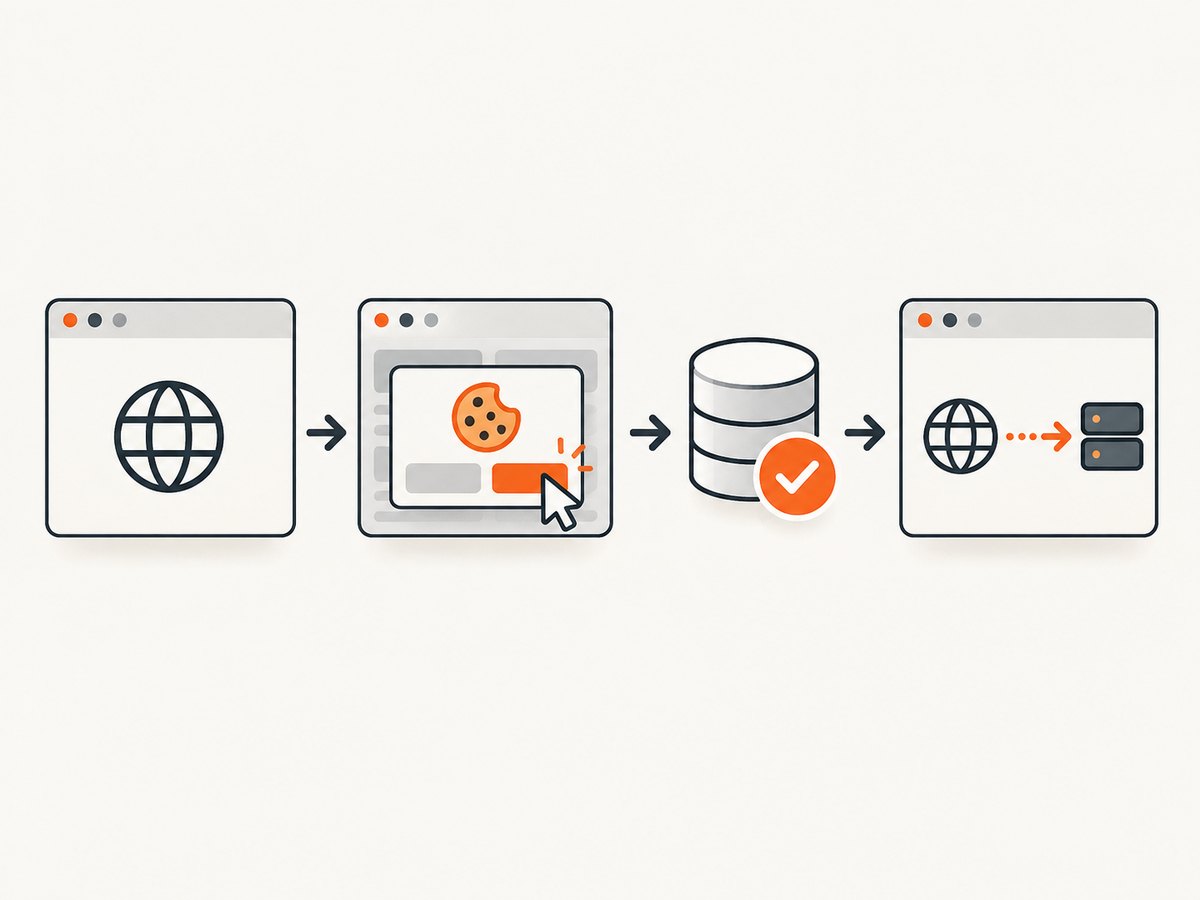
import { test as setup, expect } from '@playwright/test';

setup('create accepted consent state', async ({ browser }) => {
  const context = await browser.newContext();
  const page = await context.newPage();
  await page.goto('https://example.com');

  const banner = page.getByRole('dialog', { name: /cookie|privacy/i });
  if (await banner.isVisible().catch(() => false)) {
    await banner.getByRole('button', { name: /accept all/i }).click();
  }
  await expect(banner).toBeHidden();
  await context.storageState({ path: 'playwright/.auth/consent-accepted.json' });
  await context.close();
});
Use that file only for tests whose purpose includes an accepted preference:
import { test } from '@playwright/test';

test.use({ storageState: 'playwright/.auth/consent-accepted.json' });

test('opens reports with the accepted preference', async ({ page }) => {
  await page.goto('https://example.com/reports');
});
Keep accepted and rejected fixtures separate. Regenerate them when consent schema changes, and run the banner tests with a clean context so a stale file cannot hide a regression.
6. Seed cookies only when the contract is known
context.addCookies() is useful when your application documents a supported consent cookie. Supply a URL, or the exact domain and path, and preserve attributes such as httpOnly, secure, sameSite, expiry and partition keys where applicable.
await context.addCookies([{
  name: 'YOUR_DOCUMENTED_CONSENT_COOKIE',
  value: 'accepted',
  url: 'https://example.com',
  secure: true,
  sameSite: 'Lax',
}]);
const page = await context.newPage();
await page.goto('https://example.com');
Do not copy a cookie name from a different site or infer a value from a minified CMP script. Such shortcuts make tests pass while production behavior remains unverified.
7. Prepare consent through an API when your app supports it
A context-associated APIRequestContext shares the browser context’s cookie jar. If your application exposes a supported preference endpoint, use it for deterministic setup and reserve UI tests for the consent component itself.
import { test, expect } from '@playwright/test';

test('uses an API-created preference', async ({ browser }) => {
  const context = await browser.newContext();
  const request = await context.request;
  const response = await request.post('https://example.com/api/preferences', {
    data: { analytics: false, advertising: false },
  });
  expect(response.ok()).toBeTruthy();

  const page = await context.newPage();
  await page.goto('https://example.com/account');
  await expect(page.getByText(/privacy settings/i)).toBeVisible();
  await context.close();
});
Use only an endpoint intended for this purpose. API setup should not bypass authorization or create an undocumented state that real users cannot reach.
8. Verify tracking and functional behavior
For a reject test, essential features should continue working while optional tracking remains disabled. For an accept test, optional behavior should begin only after consent. Route or observe requests to services you control:
test('does not send analytics before consent', async ({ page }) => {
  const analyticsRequests: string[] = [];
  page.on('request', (request) => {
    if (request.url().includes('/analytics')) analyticsRequests.push(request.url());
  });

  await page.goto('https://example.com');
  await page.waitForTimeout(1_000);
  expect(analyticsRequests).toHaveLength(0);

  const banner = page.getByRole('dialog', { name: /cookie|privacy/i });
  await banner.getByRole('button', { name: /accept all/i }).click();
  await page.waitForTimeout(1_000);
  expect(analyticsRequests.length).toBeGreaterThan(0);
});
Replace the endpoint and timing with contracts from your own service. Avoid depending on live third-party banners or trackers in CI; they can change independently of your application.
9. Complete fixture pattern for rejected consent
import { test as base, expect } from '@playwright/test';

export const test = base.extend<{ consentContext: void }>({
  consentContext: async ({ browser }, use) => {
    const context = await browser.newContext();
    const page = await context.newPage();
    await page.goto('/');
    const banner = page.getByRole('dialog', { name: /cookie|privacy|consent/i });
    if (await banner.isVisible().catch(() => false)) {
      await banner.getByRole('button', {
        name: /reject all|necessary only/i,
      }).click();
    }
    await context.storageState({
      path: 'playwright/.auth/consent-rejected.json',
    });
    await context.close();
    await use();
  },
});
Adapt names and structure to your accessible UI. This pattern demonstrates fixture lifetime and isolation; it does not establish that a particular banner is legally compliant.
10. Troubleshooting common failures
| Symptom | Likely cause | Fix |
|---|---|---|
| Locator times out | Banner is delayed, localized or absent in this environment. | Use a bounded visibility check, a locale-aware accessible name and a stable container. |
| Button is found but not clickable | An overlay, animation or disabled state blocks actionability. | Wait for visibility and enabled state; inspect the trace; avoid force-click unless the contract requires it. |
| Locator finds the wrong button | Query is global and another “Accept” control exists. | Scope the button under the dialog or CMP container. |
| Nothing is found in the page | Banner is inside an iframe or shadow root. | Use frameLocator or a stable host and query inside it. |
| Consent leaks between tests | Pages share a context or a saved state is applied globally. | Create a new context per test and apply storage state only to intentional fixtures. |
| State file works locally but not CI | Origin, base URL, browser project or environment differs. | Generate state in the same project and assert the target origin before use. |
| Reject test still sees analytics | Tracking runs before the click, uses another domain, or the cookie contract is wrong. | Observe requests from navigation onward, verify the documented preference value and test your own endpoints. |
| Tests expose credentials | Storage state contains cookies or authorization headers. | Keep playwright/.auth ignored, use CI secrets, and rotate leaked state. |
11. Performance, reliability and CI practices
- Reuse setup carefully: one generated fixture is faster than clicking a banner in every feature test, while dedicated UI tests retain coverage of the consent flow.
- Keep contexts small: close contexts after setup and after each isolated test to release browser resources.
- Prefer deterministic waits: locator assertions, response assertions and application events are more stable than fixed sleeps.
- Control external dependencies: route third-party calls or use a test CMP configuration so a vendor outage does not fail unrelated tests.
- Capture traces on retry: traces reveal whether the banner was absent, inside a frame, covered by an overlay or rendered with different text.
- Run locale and viewport coverage intentionally: button labels, responsive layouts and frame placement can vary. Add projects only for combinations your product supports.
- Protect fixtures: consent state can include identifiers and headers. Store it outside source control and regenerate it when the application contract changes.
12. Privacy and legal boundary
Automation proves application behavior; it does not decide whether your consent design satisfies a jurisdiction’s law. The UK ICO says organisations should tell people cookies are present, explain what they do and obtain consent for cookies outside a strictly necessary exception. CNIL states that consent for non-exempt trackers generally must come before depositing or reading them and must be free, specific, informed and unambiguous. Requirements and enforcement vary, so involve the privacy counsel or regulator guidance applicable to your deployment.
Or skip the browser setup
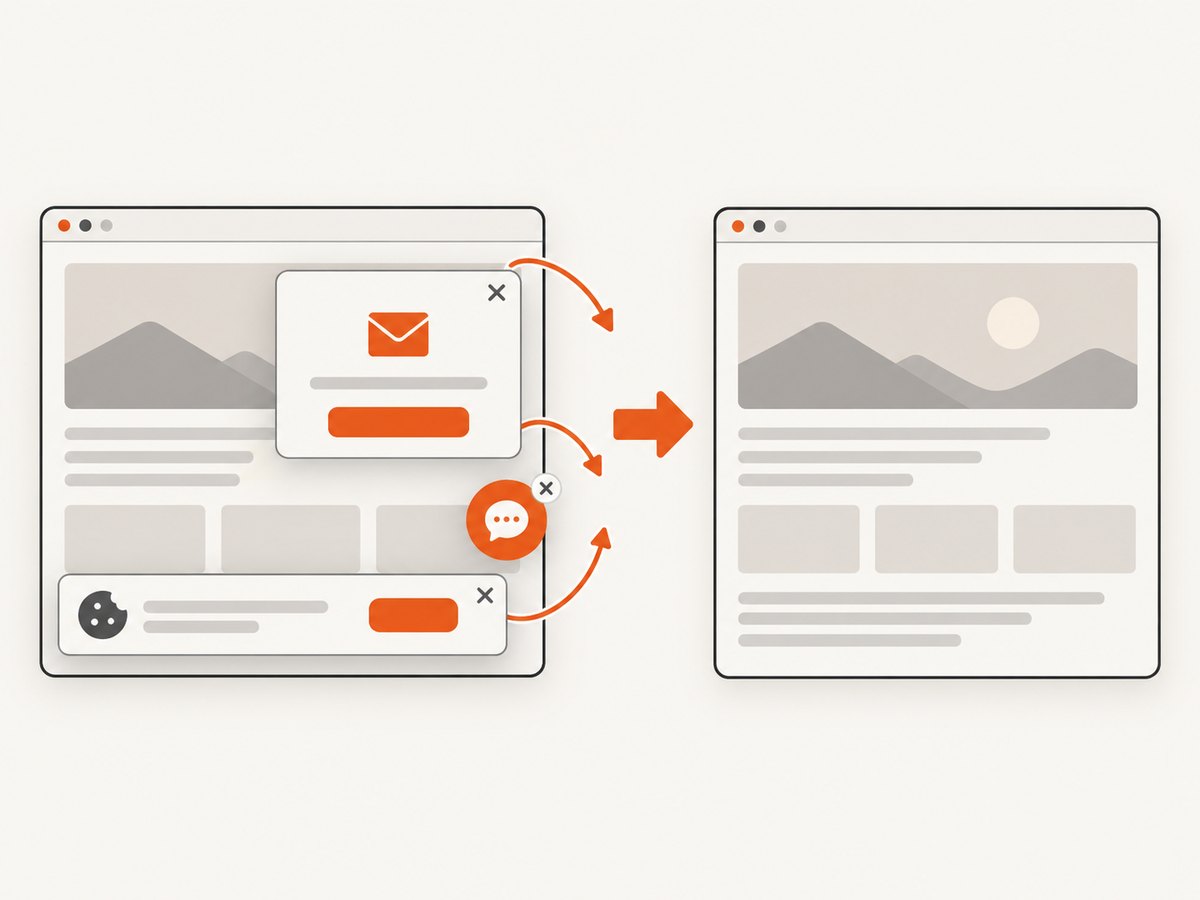
If your goal is a clean screenshot rather than an interaction test, ScreenshotNeo handles the browser capture for you. Before the shot it accepts the cookie or consent banner like a visitor and removes more than 60 known consent platforms, newsletter popups and chat widgets; each step can be turned off. Bot checks, blank pages, timeouts, failed loads and cache hits are not billed, and response headers identify the page verdict and whether it was billed. It also offers an MCP server with take_screenshot, get_page_info and capture_pdf for Claude, Cursor and other MCP clients.
See the complete option list and parameter details in the ScreenshotNeo documentation. A one-call capture looks like this:
curl -G "https://api.screenshotneo.com/v1/shot" -d access_key=YOUR_API_KEY --data-urlencode url=https://stripe.com -o shot.webpimport requests
r = requests.get("https://api.screenshotneo.com/v1/shot", params={"access_key": "YOUR_API_KEY", "url": "https://stripe.com"}, timeout=90)
open("shot.webp", "wb").write(r.content)const q = new URLSearchParams({ access_key: 'YOUR_API_KEY', url: 'https://stripe.com' });
const res = await fetch(`https://api.screenshotneo.com/v1/shot?${q}`);There are 1,000 screenshots per month on the free plan with no card. Paid plans start at $5 for 3,000 shots, and every feature is included on every plan. Create a free ScreenshotNeo account.
FAQ
Should every test click “Accept”?
No. Test the consent UI with a fresh context, then use explicit accepted or rejected fixtures for tests whose purpose requires a known preference.
Can I reuse one storage state for all projects?
Only when origin, browser project and consent meaning are identical. Otherwise generate project-specific state and keep it isolated.
Is a cookie assertion enough to prove compliance?
No. Verify the recorded choice and the resulting network behavior, and evaluate the design against the rules that apply to your users.
What if the banner text changes by language?
Use accessible roles with locale-aware names or a stable test contract. Keep translations in the test data rather than relying on one English string.
When should I use API setup instead of clicking?
Use a supported preference endpoint when you need fast, deterministic feature setup. Keep at least one UI test for the real consent interaction.


