How to Handle Microsoft Login Popups in Headless Chrome with Selenium Java
Classify the popup first, then use Selenium waits, window handles, and prompt APIs correctly in headless Chrome without fighting Microsoft identity policies.
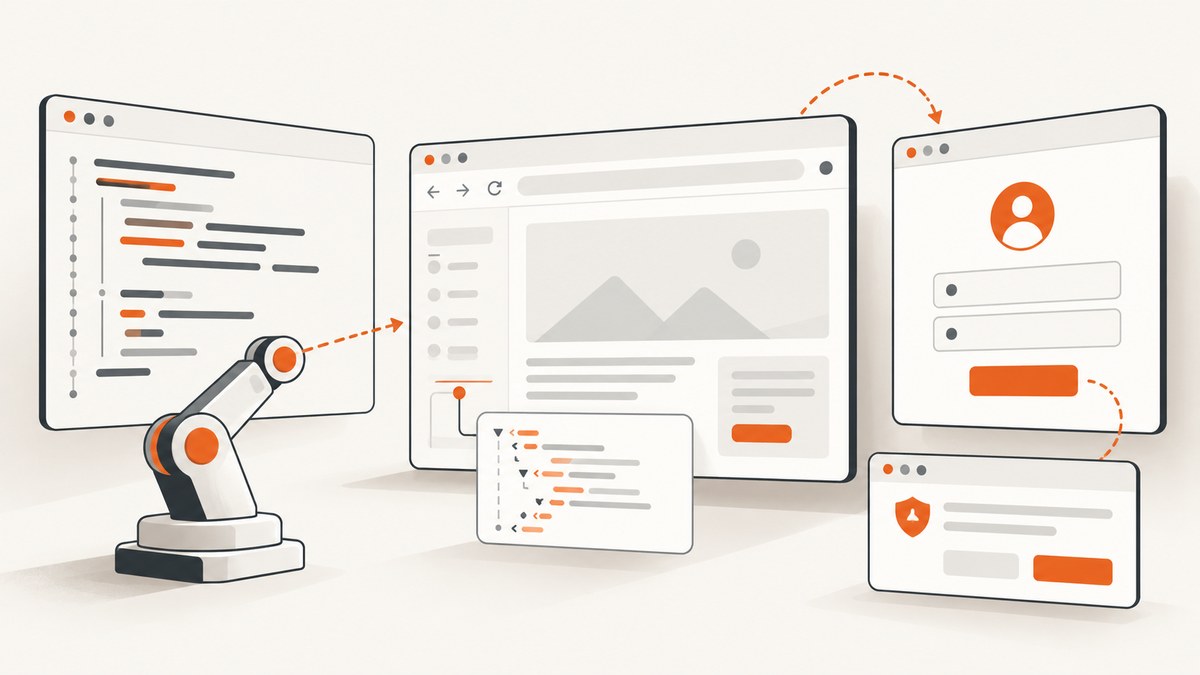
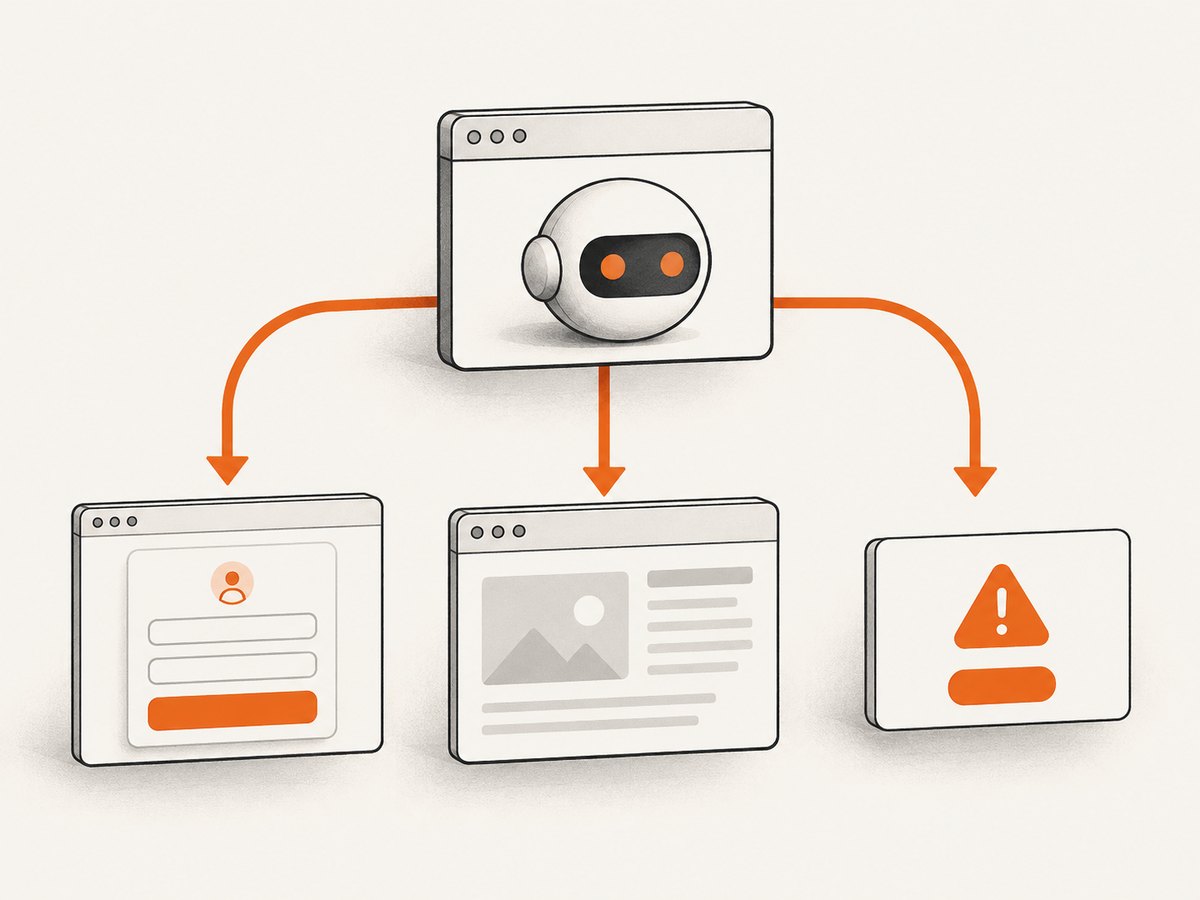
“Microsoft login popup” can describe three different things: a sign-in panel rendered in the page DOM, a new browser tab or window, or a browser-managed prompt. Selenium Java handles each one differently. Start by identifying which type your test displays, then use explicit waits for the state you need, window handles for a new tab or window, and WebDriver’s prompt support for browser-managed dialogs.
Headless Chrome changes how you observe the browser, but it does not remove Microsoft Entra ID requirements. Credentials, MFA, passwordless verification, consent, Conditional Access, and tenant-specific policies can still interrupt an unattended test. If your application only needs an access token for Microsoft APIs, an MSAL Java device-code flow may be a better design than automating a website’s interactive login.
1. Classify the popup before writing a locator
DOM sign-in panel or redirect page
A panel inside the page is ordinary web content. It can be found with normal Selenium locators after the application has rendered it. Microsoft web sign-in commonly redirects the browser to the identity platform and then back to the application, where the returned token is validated and an identity cookie establishes the session. The markup and selectors are application- and flow-specific, so there is no universal Microsoft login selector.
New tab or browser window
Some applications open authentication in a separate tab or window. Selenium exposes each top-level browsing context through a window handle. Save the original handle before clicking, wait for the handle set to grow, switch to the new handle, and wait for the expected page state.
Browser-managed prompt
A browser prompt is not part of the DOM. Do not try to locate it with CSS or XPath. Use WebDriver’s alert or prompt interface and configure unhandled-prompt behavior when appropriate. The correct action depends on whether the test should accept, dismiss, or inspect the prompt.
2. Create a headless Chrome driver in Java
Selenium’s Chrome guidance uses ChromeOptions and the --headless=new argument. Keep the Chrome and ChromeDriver major versions aligned, and record the Selenium, Java, Chrome, operating-system, and driver versions in test logs.
import org.openqa.selenium.WebDriver;
import org.openqa.selenium.chrome.ChromeDriver;
import org.openqa.selenium.chrome.ChromeOptions;

public final class BrowserFactory {
    public static WebDriver create() {
        ChromeOptions options = new ChromeOptions();
        options.addArguments("--headless=new");
        options.addArguments("--window-size=1440,1000");
        return new ChromeDriver(options);
    }
}
This starts a headless browser; it does not create credentials, satisfy MFA, grant consent, or change tenant policy. Use only the browser arguments required by your environment. Extra flags copied from unrelated examples can change security and rendering behavior.
3. Wait for the application state, not an arbitrary sleep
Page-load completion does not mean that a dynamic sign-in panel, redirect result, or post-login element is ready. Use WebDriverWait with the exact condition your test needs. Selenium cautions that mixing implicit and explicit waits can create unpredictable timing, so choose an explicit-wait strategy for this flow.
import java.time.Duration;
import org.openqa.selenium.By;
import org.openqa.selenium.WebDriver;
import org.openqa.selenium.support.ui.ExpectedConditions;
import org.openqa.selenium.support.ui.WebDriverWait;

WebDriver driver = BrowserFactory.create();
try {
    driver.get("https://your-app.example/login");

    WebDriverWait wait = new WebDriverWait(driver, Duration.ofSeconds(15));
    wait.until(ExpectedConditions.visibilityOfElementLocated(
        By.cssSelector("your-app-specific-login-selector")));

    // Interact with the elements your application actually renders.
} finally {
    driver.quit();
}
The selector is intentionally a placeholder. Inspect your application’s DOM and use a stable attribute owned by that application. A Microsoft-wide selector is not reliable because tenants, policies, account types, and authentication methods can produce different pages.
4. Handle a sign-in tab or window
Capture the original handle before the action that opens authentication. Then wait until a second handle exists and switch to it. Waiting for a title or URL after switching confirms that the new context has navigated.
import java.time.Duration;
import java.util.Set;
import org.openqa.selenium.By;
import org.openqa.selenium.WebDriver;
import org.openqa.selenium.support.ui.ExpectedConditions;
import org.openqa.selenium.support.ui.WebDriverWait;

String original = driver.getWindowHandle();
Set<String> before = driver.getWindowHandles();

driver.findElement(By.cssSelector("your-app-specific-sign-in-button")).click();

WebDriverWait wait = new WebDriverWait(driver, Duration.ofSeconds(20));
wait.until(d -> d.getWindowHandles().size() > before.size());

String loginWindow = driver.getWindowHandles().stream()
    .filter(handle -> !handle.equals(original))
    .findFirst()
    .orElseThrow(() -> new IllegalStateException("Login window did not open"));

driver.switchTo().window(loginWindow);
wait.until(ExpectedConditions.urlContains("login"));

// Perform only the interactions approved for your test tenant.

// Return to the application when the flow is complete.
driver.switchTo().window(original);
Do not assume that a new handle means authentication succeeded. Verify the application’s post-login state after switching back, such as a dashboard element or an authenticated redirect owned by your application.
5. Handle browser prompts with WebDriver
If Chrome displays a JavaScript alert, confirmation, or prompt, use switchTo().alert(). A prompt can be accepted, dismissed, or read. A prompt that never appears will make an immediate call fail, so wait for it when its appearance is asynchronous.
import java.time.Duration;
import org.openqa.selenium.Alert;
import org.openqa.selenium.support.ui.ExpectedConditions;
import org.openqa.selenium.support.ui.WebDriverWait;

WebDriverWait wait = new WebDriverWait(driver, Duration.ofSeconds(10));
Alert alert = wait.until(ExpectedConditions.alertIsPresent());
String message = alert.getText();
alert.accept();
For a prompt that should be dismissed, call alert.dismiss(). For a text prompt, call alert.sendKeys("approved-test-value") before accepting. This API applies to browser-managed JavaScript dialogs, not an HTML sign-in panel or a separate authentication window.
6. Microsoft identity requirements still apply in headless mode
Microsoft Entra ID can require credentials, MFA, passwordless verification, administrator or user consent, and Conditional Access checks. Headless mode does not bypass these controls. When a test stops at one of these steps, treat it as an identity-policy result rather than a missing Selenium selector.
Microsoft’s automated integration-testing guidance discusses Resource Owner Password Credential (ROPC) for specific controlled scenarios and states that MFA does not work with ROPC. It is not a general recommendation or a way to override an organization’s security requirements. Use a tenant-approved test account and policy design.
For a browserless application that calls Microsoft APIs as a user, MSAL Java supports device-code flow. The application displays a code; the user completes normal authentication on another device, including required consent or MFA. This is an application authentication choice, not a solution for testing a website’s interactive login UI in Chrome.
// Conceptual sequence for a device-code client:
// 1. Create an MSAL Java public-client application.
// 2. Request the API scopes required by your service.
// 3. Display the device code returned by MSAL.
// 4. Let the user complete sign-in in another browser.
// 5. Use the resulting token for Microsoft Graph or another approved API.
Use Microsoft’s current MSAL Java device-code sample for the concrete dependency versions and tenant configuration. Do not copy a device-code flow into a UI test that specifically needs to exercise the website’s redirect and login controls.
7. A diagnostic sequence for a test that stalls
- Run once with a visible browser where your test environment permits it. Save the URL, a screenshot, and the page state at the stall point.
- Classify what appeared: DOM content, another tab or window, or a browser-managed prompt.
- For DOM content, inspect the actual rendered markup and wait explicitly for an application-specific condition.
- For another window, compare the handle set before and after the click, wait for the new handle, and switch by handle.
- For a browser prompt, use the alert interface or an appropriate unhandled-prompt setting.
- If the blocker is MFA, consent, passwordless verification, or Conditional Access, stop changing selectors. Consult the identity administrator and use an approved test-tenant design.
- Record Chrome, ChromeDriver, Selenium, Java, operating system, account type, tenant, policy context, and the exact observed prompt.
This record separates version problems from identity-policy decisions and makes a flaky failure reproducible.
8. Common errors and fixes
| Error | Likely cause | Fix |
|---|---|---|
NoSuchElementException |
The panel is not rendered yet, the selector belongs to another page, or the content is in another window. | Classify the popup, switch to the correct handle, and wait for a stable application-owned locator. |
TimeoutException while waiting for an element |
The flow is waiting for the wrong state, or MFA/consent/policy stopped navigation. | Capture URL and page state, verify the selector, and inspect the identity step instead of increasing the timeout blindly. |
NoSuchWindowException |
The window closed or the test switched using a stale handle. | Wait for the handle, check that it still exists, and switch back to a known surviving handle. |
NoAlertPresentException |
The dialog is not a JavaScript prompt or has not appeared. | Use an explicit alert wait, or locate the HTML panel rather than calling the alert API. |
| Chrome fails to start | Chrome and ChromeDriver major versions do not match, or the binary is unavailable. | Install compatible versions and log their versions in CI. |
| Login stops at MFA or passwordless verification | Tenant policy requires an interactive proof. | Use an approved test account and flow; do not attempt to bypass the policy. |
| ROPC flow cannot complete MFA | Microsoft documents that MFA does not work with ROPC. | Use a tenant-approved alternative or a browser/device-code design appropriate to the product scenario. |
| Assertions pass locally but fail headless | Viewport, timing, redirects, or resources differ. | Set an explicit window size, wait for state, and capture diagnostics from the same CI environment. |
9. Reliability and performance practices
- Keep waits narrow and state-based. A fifteen-second wait for a specific element is easier to diagnose than several fixed sleeps.
- Use one browser context per test when isolation matters, and always call
quit()in afinallyblock. - Preserve the original window handle and never depend on the order of handles returned by WebDriver.
- Use a dedicated test tenant and test identities whose MFA, consent, and Conditional Access behavior is documented.
- Capture a screenshot, current URL, page source, console output, and handle list on failure. Redact credentials and tokens.
- Keep Chrome, ChromeDriver, Selenium, and Java versions explicit in CI. Recheck compatibility when upgrading.
- Prefer API-level authentication for an API client. Reserve browser UI automation for tests that genuinely need to verify the website experience.
Headless execution is often faster and easier to run in CI, but speed does not make an identity flow deterministic. Redirect latency, tenant policy, account state, and external verification can dominate test time.
10. Or skip the browser setup
If your goal is to capture a page for documentation, visual checks, or an agent workflow rather than test Microsoft’s interactive login UI, ScreenshotNeo provides a single screenshot request. See the ScreenshotNeo API documentation for all options.
curl -G "https://api.screenshotneo.com/v1/shot" -d access_key=YOUR_API_KEY --data-urlencode url=https://stripe.com -o shot.webpimport requests
r = requests.get("https://api.screenshotneo.com/v1/shot", params={"access_key": "YOUR_API_KEY", "url": "https://stripe.com"}, timeout=90)
open("shot.webp", "wb").write(r.content)const q = new URLSearchParams({ access_key: 'YOUR_API_KEY', url: 'https://stripe.com' });
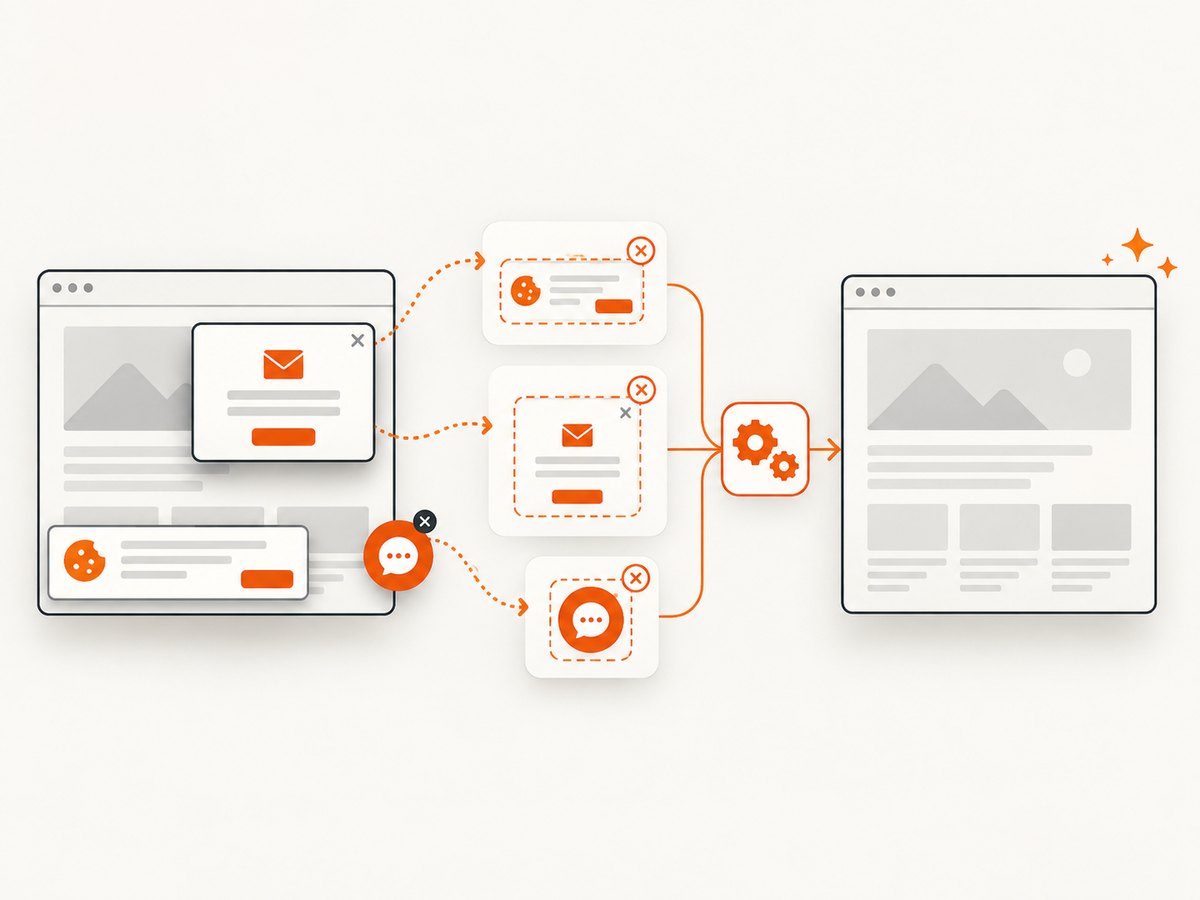
const res = await fetch(`https://api.screenshotneo.com/v1/shot?${q}`);ScreenshotNeo accepts cookie and consent banners before capture and removes more than 60 known consent platforms, newsletter popups, and chat widgets; each step can be disabled. Bot checks, blank pages, timeouts, failed loads, and cache hits are not billed, and response headers report the page verdict and billing result. Its MCP server provides take_screenshot, get_page_info, and capture_pdf tools for Claude, Cursor, and other MCP clients.
You can capture full pages with lazy images, a CSS-selected element, dark mode, device presets or custom viewports, retina scale, PDF paper and margin settings, custom CSS or JavaScript, clicks, waits, blocked requests, headers, cookies, user agents, Authorization, timezone, geolocation, transparent backgrounds, resizing, TTL caching, signed image links, asynchronous webhooks, bulk capture of up to 100 URLs per call, and usage data. Every feature is available on every plan.
The Free plan includes 1,000 screenshots per month without a card. Paid plans start at $5 for 3,000 shots; higher plans are Growth ($15/15,000), Pro ($39/60,000), Scale ($99/250,000), and Business ($249/1,000,000). Yearly billing gives two months free. Create a free ScreenshotNeo account to start.
11. FAQ
Can Selenium click a Microsoft login popup in headless mode?
Yes, when it is an HTML element in the current page or a page in a window you have switched to. A browser-managed prompt requires the prompt API instead.
Why does headless Chrome still stop for MFA?
MFA is enforced by identity policy. Headless mode controls browser display; it does not remove the required verification.
Should I use a fixed ten-second sleep?
No. Wait for the exact element, URL, handle, title, or alert condition your next test step requires.
Is device-code flow a replacement for Selenium?
Only for a browserless application obtaining API tokens. It does not test a website’s Microsoft login UI, redirects, or browser cookies.
What should I check first when a popup is not found?
Determine whether it is DOM content, another window, or a browser prompt. Then inspect the current URL and handle list before changing selectors.


