How to Handle Missing g-recaptcha-response Values in Puppeteer
Diagnose empty reCAPTCHA tokens in Puppeteer by checking frames, callbacks, widget IDs, timing, and backend verification errors.
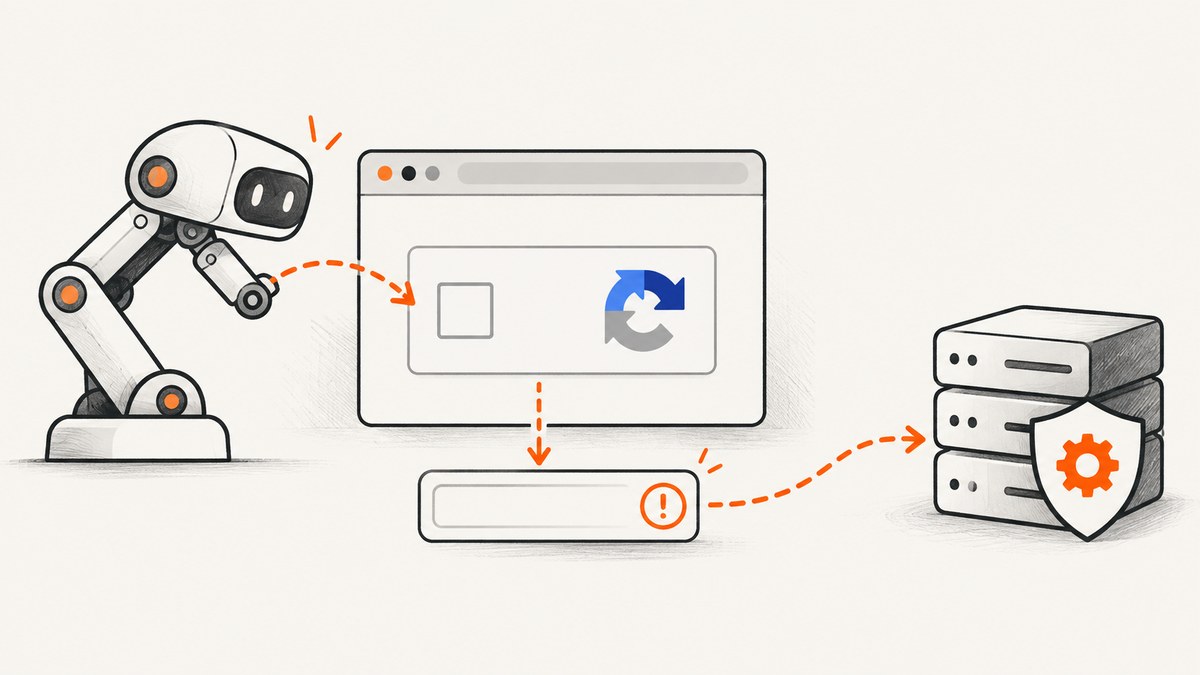
When g-recaptcha-response is empty in Puppeteer, the page has not produced a usable token yet, or your automation is reading the wrong widget, frame, callback, or field. The reliable fix is to identify the integration type, wait for the reCAPTCHA client and widget, attach the documented callback before interaction, read the correct widget response, submit immediately, and verify the token on your server.
Google supports three ways to retrieve a response: the g-recaptcha-response POST field, grecaptcha.getResponse(widgetId), and the string supplied to a configured data-callback function. getResponse() returns an empty string when no token has been created yet. See Google’s client-side API reference and server-side verification guide.
What the empty value means
An empty value is a synchronization or integration signal, not a token that can be submitted. Common causes include:
- The reCAPTCHA script was blocked or has not finished loading.
- The widget is inside a child frame while your code evaluates only the main frame.
- Multiple widgets exist and
getResponse()reads the wrong widget ID. - The callback named by
data-callbackwas not defined before the interaction. - The form submitted before the callback or hidden field was populated.
- The backend dropped, renamed, or incorrectly serialized the response field.
- The token expired or was already verified.
Do not fabricate a token, replay a captured token, or treat this workflow as a way to bypass another site’s anti-bot controls. Use it only with applications and test environments where you have authorization.
A dependable diagnostic workflow
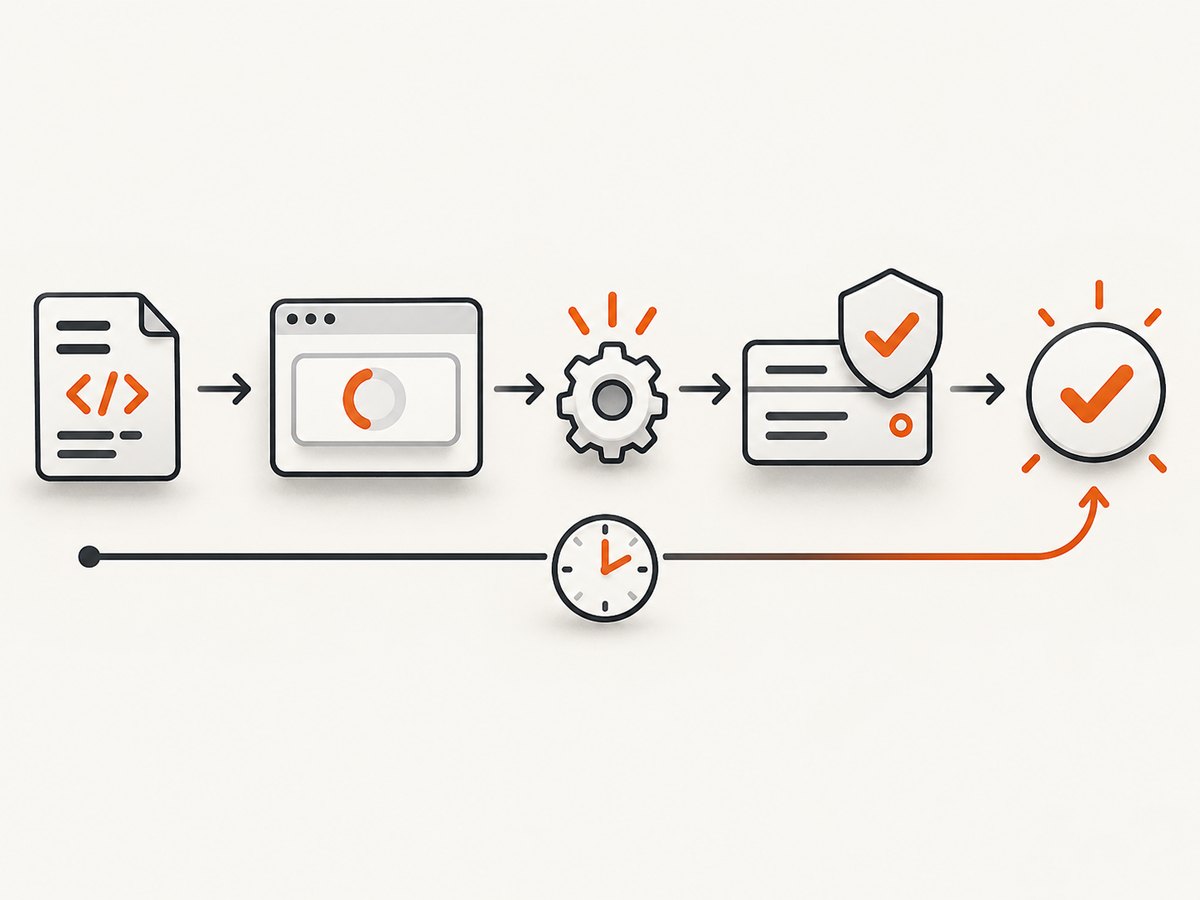
- Identify the integration. Record whether the page uses checkbox, invisible, score-based, or Enterprise reCAPTCHA. Also record the site key, action, widget ID, callback name, and expected backend field.
- Confirm script loading. Wait for the reCAPTCHA client script and inspect all frames. Consent tooling, network policy, or a wrong site key can prevent rendering.
- Install the callback first. Define the function named by
data-callbackbefore clicking or executing the widget. Log the callback argument. - Read the correct widget. If the page calls
grecaptcha.render(), retain the returned widget ID and pass it togrecaptcha.getResponse(widgetId). - Gate submission. Continue only when the callback receives a non-empty token or the response field contains a non-empty value.
- Inspect the outgoing request. Capture the form submission or API request and confirm that
g-recaptcha-responseis present and non-empty. - Submit promptly. Google says tokens are valid for two minutes and can be verified only once. Generate a new token instead of retrying a stale or already verified token.
- Verify on the backend. Send the secret and response to Google’s verification endpoint and inspect
success,hostname,challenge_ts, anderror-codes.
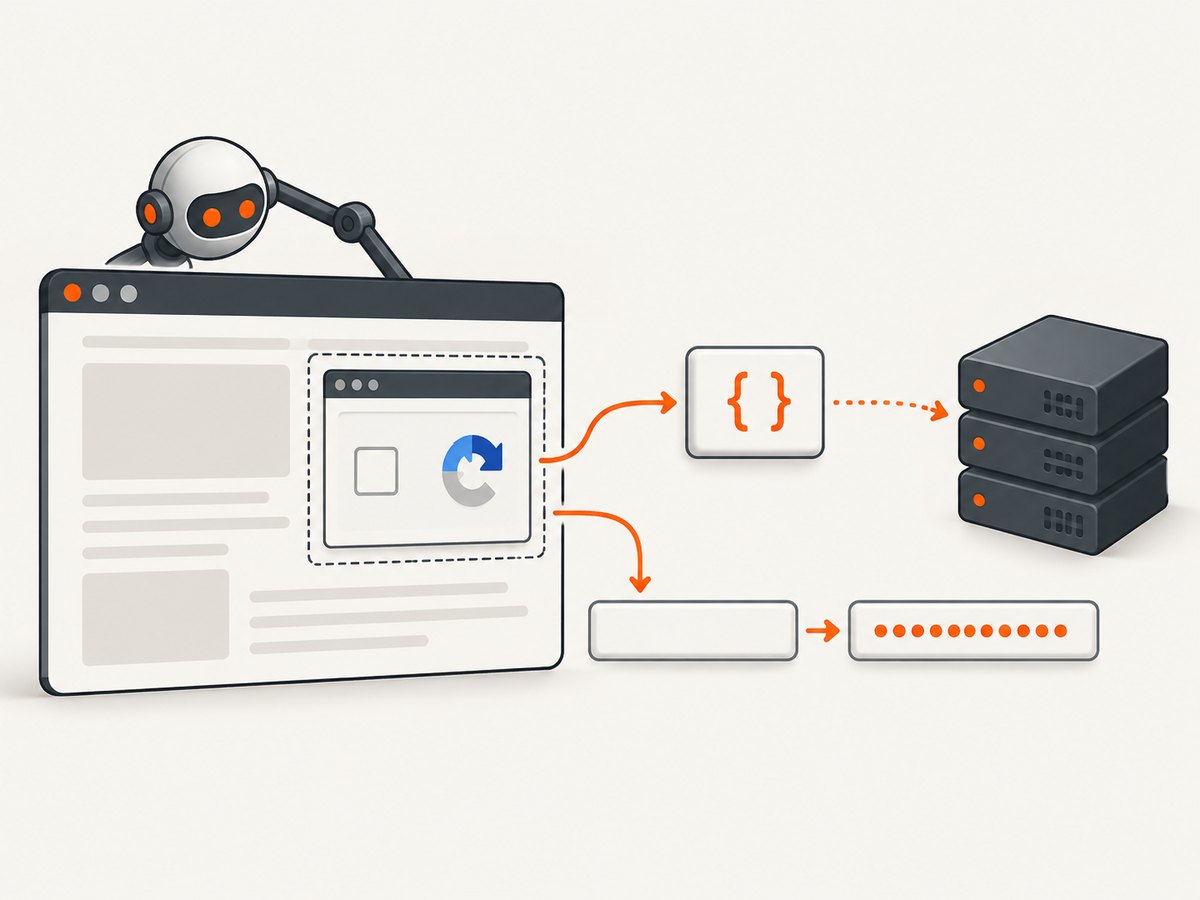
Runnable Puppeteer diagnostic
The following script demonstrates the synchronization pattern. Replace the URL, selector, callback name, and interaction with the integration documented by the application owner. It does not solve a challenge or obtain a token from an unauthorized site.
import puppeteer from 'puppeteer';

const browser = await puppeteer.launch({headless: true});
const page = await browser.newPage();
let token = null;

await page.exposeFunction('captureRecaptchaToken', value => {
  token = value;
  console.log('callback token length:', typeof value === 'string' ? value.length : 0);
});

await page.goto('https://your-authorized-app.example/form', {
  waitUntil: 'domcontentloaded',
  timeout: 60000
});

// Define the callback before the page triggers reCAPTCHA.
await page.evaluate(() => {
  window.onRecaptchaSuccess = value => {
    window.captureRecaptchaToken(value);
    window.__recaptchaTokenReady = Boolean(value);
  };
});

await page.waitForFunction(() => {
  return typeof window.grecaptcha !== 'undefined';
}, {timeout: 30000});

// Use the application's documented interaction here.
await page.click('[data-testid="submit"]');

await page.waitForFunction(() => {
  return window.__recaptchaTokenReady === true;
}, {timeout: 30000});

if (!token) {
  throw new Error('No reCAPTCHA token was produced');
}

// Submit immediately through the application's normal form/API path.
console.log('received a fresh token; submit it once');
await browser.close();
This is a diagnostic shape, not a universal selector. The callback name, frame, widget ID, and submission code must match the target page.
Reading a rendered widget by ID
For pages that explicitly render widgets, keep the ID returned by grecaptcha.render(). Calling getResponse() without an ID can read the first widget even when the user interacted with another one.
const widgetId = await page.evaluate(() => {
  const container = document.querySelector('#recaptcha-container');
  return window.grecaptcha.render(container, {
    sitekey: 'AUTHORIZED_SITE_KEY',
    callback: 'onRecaptchaSuccess'
  });
});

await page.waitForFunction(id => {
  return typeof window.grecaptcha.getResponse === 'function' &&
    window.grecaptcha.getResponse(id).length > 0;
}, {timeout: 30000}, widgetId);

const response = await page.evaluate(id => {
  return window.grecaptcha.getResponse(id);
}, widgetId);
Inspecting frames
A reCAPTCHA widget often involves child frames. List them before choosing a frame-specific selector or evaluation context:
for (const frame of page.frames()) {
  console.log(frame.url());
}

const recaptchaFrame = page.frames().find(frame =>
  frame.url().includes('google.com/recaptcha') ||
  frame.url().includes('recaptcha.net/recaptcha')
);

if (!recaptchaFrame) {
  throw new Error('reCAPTCHA frame was not found; check script loading and network policy');
}
Do not assume that every value is readable from the challenge frame. The application may expose the response through its callback or hidden field in the parent document.
Waiting correctly for callbacks and fields
Attach the callback before the click or execute() call. A late callback definition can miss the only notification. For a hidden field, wait for a non-empty value rather than waiting for the element alone:
await page.waitForFunction(() => {
  const field = document.querySelector('textarea[name="g-recaptcha-response"]');
  return Boolean(field && field.value.trim());
}, {timeout: 30000});

const fieldValue = await page.$eval(
  'textarea[name="g-recaptcha-response"]',
  element => element.value
);

if (!fieldValue.trim()) {
  throw new Error('The response field is present but empty');
}
For score-based integrations, wait for the page’s documented execute() promise and check that the returned action matches the action expected by your server. Google Cloud’s guidance says to execute again when a token expires.
Backend verification and error meanings
The browser only obtains a token. Your server must verify it with Google’s endpoint:
curl -sS -X POST 'https://www.google.com/recaptcha/api/siteverify' \
  --data-urlencode 'secret=YOUR_SECRET' \
  --data-urlencode 'response=TOKEN_FROM_BROWSER'
missing-input-response means the response parameter was absent. timeout-or-duplicate means the token is too old or has already been used. A successful response should also be checked against the expected hostname; score and action integrations require checking the returned action.
Node.js verification
const body = new URLSearchParams({
  secret: process.env.RECAPTCHA_SECRET,
  response: token
});

const verify = await fetch('https://www.google.com/recaptcha/api/siteverify', {
  method: 'POST',
  headers: {'content-type': 'application/x-www-form-urlencoded'},
  body
});
const result = await verify.json();

if (!result.success) {
  throw new Error(`reCAPTCHA failed: ${(result['error-codes'] || []).join(', ')}`);
}
Python verification
import os
import requests

result = requests.post(
    'https://www.google.com/recaptcha/api/siteverify',
    data={
        'secret': os.environ['RECAPTCHA_SECRET'],
        'response': token,
    },
    timeout=15,
).json()

if not result.get('success'):
    raise RuntimeError(', '.join(result.get('error-codes', ['verification failed'])))
Common errors and fixes
| Error or symptom | Likely cause | Fix |
|---|---|---|
getResponse() returns '' |
Token is not ready or wrong widget ID | Wait for the callback or a non-empty value and pass the ID returned by render(). |
| Widget never renders | Script blocked, wrong site key, consent or network issue | Inspect console/network errors, wait for the client library, and confirm the key belongs to the authorized hostname. |
| Selectors find nothing | Widget is in a child frame | Enumerate page.frames() and use the correct frame context. |
| Callback never fires | Name mismatch or callback defined too late | Read data-callback and define that exact global function before interaction. |
| Form submits with an empty field | Submission races callback propagation | Gate the submit handler on a non-empty token and inspect the actual POST body. |
missing-input-response |
Field omitted or renamed during serialization | Log the outgoing request and send the exact response parameter to verification. |
timeout-or-duplicate |
Token expired or was already verified | Run the widget again and submit the fresh token once, within two minutes. |
| Score request rejected | Unexpected action | Compare the assessment action with the expected action and call execute() again after expiry. |
Reliability and performance practices
- Use explicit timeouts for navigation, script readiness, callback readiness, and backend verification so failures are diagnosable.
- Capture browser console messages and failed requests during diagnosis; these often reveal blocked scripts or frame loading problems.
- Keep one token associated with one submission attempt. Do not queue a token for later or retry verification with the same value.
- Use the application’s normal callback and submission path instead of scraping an incidental DOM value when the integration provides one.
- For parallel browser jobs, keep widget IDs and tokens scoped to the page and submission that created them.
- Retry navigation or a failed page load only when no token was generated. If verification reports a duplicate, obtain a new token rather than retrying the old one.
- Record verification metadata such as hostname, timestamp, action, and error codes without logging secrets or full tokens.
Or skip the browser setup
If your goal is a clean screenshot rather than an authorized reCAPTCHA test, ScreenshotNeo provides a single HTTP request. Its capture flow accepts cookie and consent banners like a visitor, then removes more than 60 known consent platforms, newsletter popups, and chat widgets before the shot. Bot checks, blank pages, timeouts, failed loads, and cache hits are not billed, and the response identifies the result with X-Page-Verdict and X-Billed headers.
See the ScreenshotNeo API documentation for all options.
cURL
curl -G "https://api.screenshotneo.com/v1/shot" -d access_key=YOUR_API_KEY --data-urlencode url=https://stripe.com -o shot.webpPython
import requests
r = requests.get("https://api.screenshotneo.com/v1/shot", params={"access_key": "YOUR_API_KEY", "url": "https://stripe.com"}, timeout=90)
open("shot.webp", "wb").write(r.content)
Node.js
const q = new URLSearchParams({ access_key: 'YOUR_API_KEY', url: 'https://stripe.com' });
const res = await fetch(`https://api.screenshotneo.com/v1/shot?${q}`);
ScreenshotNeo also offers an MCP server with take_screenshot, get_page_info, and capture_pdf tools for Claude, Cursor, and other MCP clients. It includes full-page and element capture, device presets, custom CSS and JavaScript, waits, request blocking, headers, cookies, user agents, geolocation, caching, signed links, asynchronous jobs, bulk capture, and PDF controls.
There are 1,000 free shots each month with no card. Paid plans start at $5 for 3,000 shots. Create your free ScreenshotNeo account.
FAQ
Can I reuse a reCAPTCHA token?
No. Google documents a two-minute validity window and single-use verification. Generate a new token for another attempt.
Should I wait for a fixed delay?
A fixed delay can be too short or unnecessarily slow. Prefer the documented callback, a non-empty response field, or a completed execute() promise, with a maximum timeout.
Why does the hidden textarea exist but contain nothing?
The element can be created before the widget has produced a token. Wait for its value, and confirm that the interaction completed the same widget whose field you read.
Does a successful browser callback prove verification will pass?
No. The server must verify the token and validate the returned metadata. Transport errors, an incorrect secret, hostname mismatch, expiry, and replay can still cause rejection.
What should I log in production?
Log the integration type, widget or action identity, timing, hostname result, and error codes. Avoid storing secrets or complete response tokens.


