How to Handle Page-Load Errors When Generating PDFs
Diagnose PDF page-load errors with navigation checks, resource logs, readiness waits, print settings, and reliable Playwright fixes.
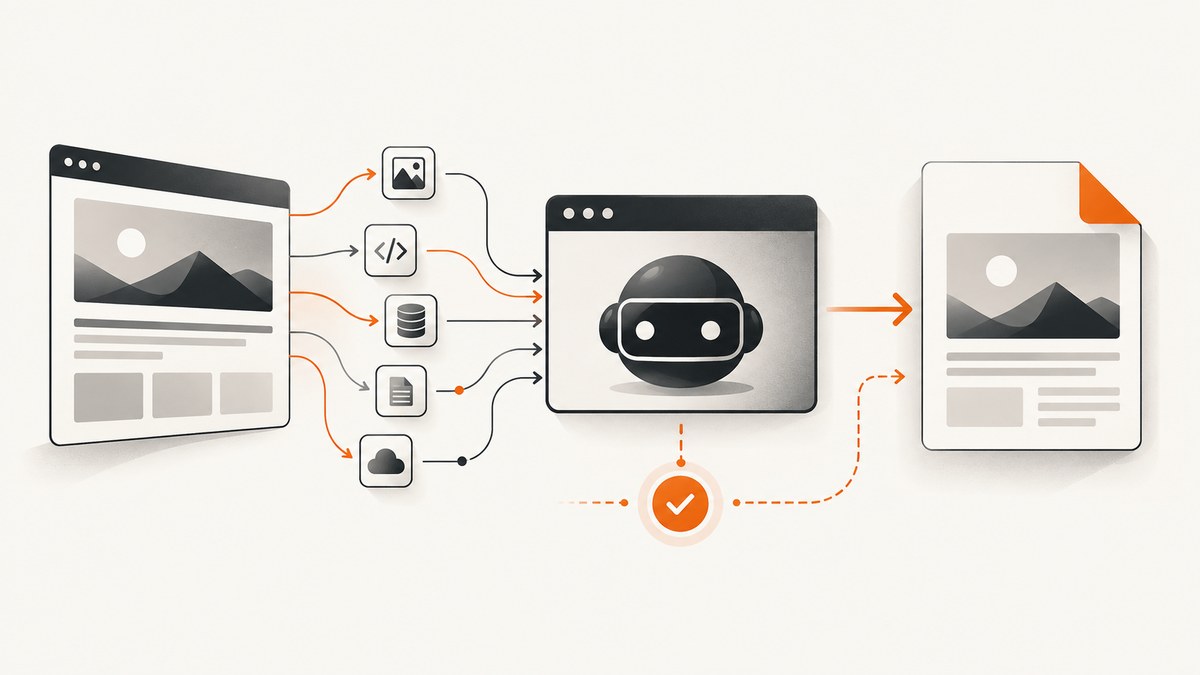
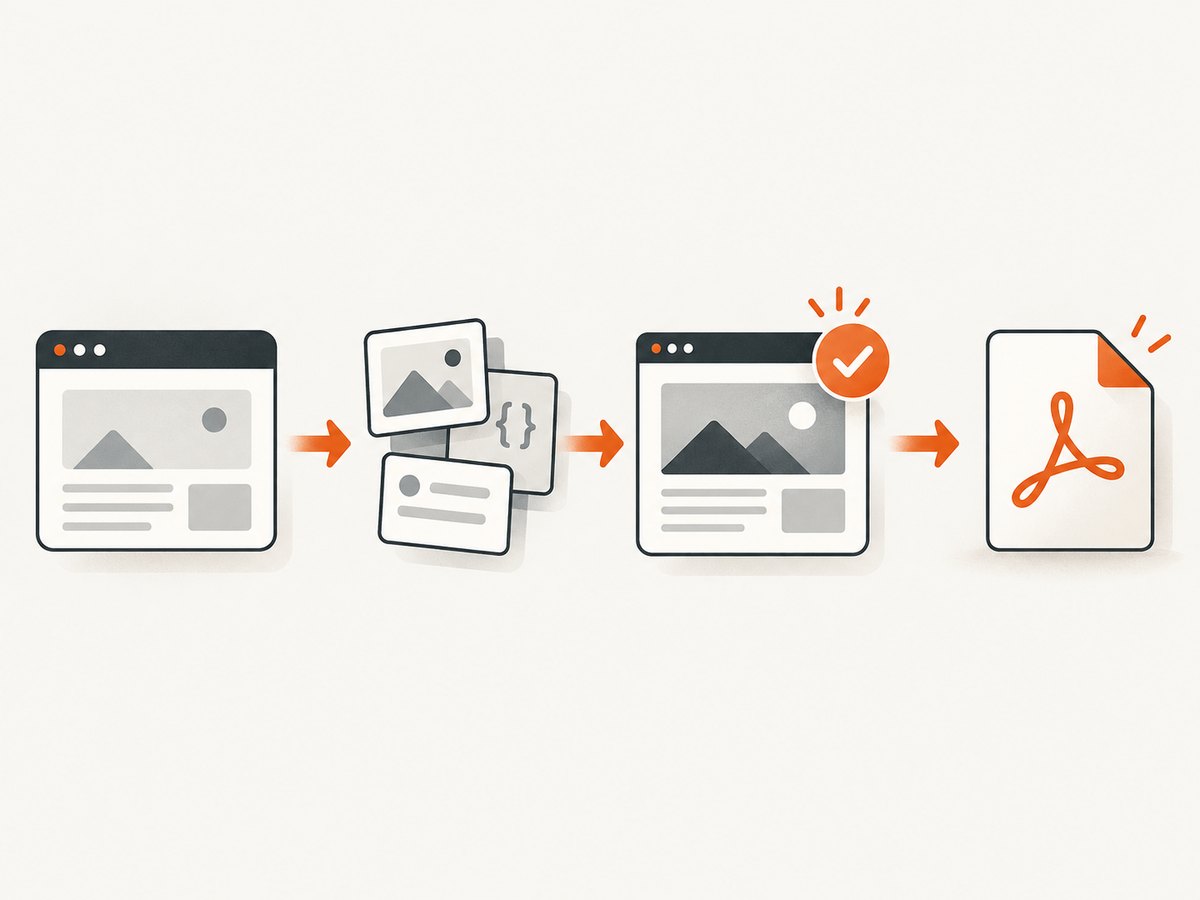
Direct answer: prove navigation succeeded before debugging PDF layout. Record the final URL and response status from page.goto(), log failed subresource requests, wait for an application-specific readiness marker, and only then call page.pdf(). A browser can reach a page that returns HTTP 404 or 500, while SSL failures, invalid URLs, timeouts, and main-resource failures can throw before a document exists. Once the inputs are ready, set print media, paper size, margins, backgrounds, and page ranges deliberately.
This workflow explains why PDF generation reports page-load errors, why a PDF can be blank even when the browser opens the page, how to wait for JavaScript, and why fonts or images disappear. It uses Chrome Headless and Playwright because both expose the signals needed to separate navigation, resource, readiness, and print-layout failures.
1. Reproduce the failure with the smallest possible command
Start with a known-good page. This tells you whether the browser binary, sandbox, fonts, and output permissions work before your application is involved.
chrome --headless --print-to-pdf 'https://developer.chrome.com/'Add a bounded wait when the page needs a short amount of time after navigation:
chrome --headless --print-to-pdf --timeout=5000 'https://developer.chrome.com/'For pages whose content is released by timers, test a controlled virtual-time budget:
chrome --headless --print-to-pdf --virtual-time-budget=42000 'https://mathiasbynens.be/demo/time'Chrome documents that --timeout sets the maximum wait in milliseconds before capture. A timeout is a diagnostic boundary, not proof that the page is ready. If the known-good command fails, fix the runtime, sandbox, executable path, container networking, or writable output directory first. See the Chrome Headless command-line reference.
2. Distinguish navigation errors from HTTP error responses
Navigation has two different outcomes: the browser may fail to obtain a main resource, or it may obtain a response whose status is 404 or 500. Playwright’s page.goto() can throw for SSL errors, invalid URLs, unreachable servers, timeouts, and other main-resource failures, but an HTTP error response is still a response you can inspect. The Playwright Page API documents this distinction.
import { chromium } from 'playwright';

const browser = await chromium.launch();
const page = await browser.newPage();
const started = Date.now();
const target = 'https://example.com/report';

try {
  const response = await page.goto(target, {
    waitUntil: 'domcontentloaded',
    timeout: 30_000
  });
  console.log(JSON.stringify({
    originalUrl: target,
    finalUrl: page.url(),
    status: response ? response.status() : null,
    elapsedMs: Date.now() - started
  }));
} catch (error) {
  console.error(JSON.stringify({
    originalUrl: target,
    finalUrl: page.url(),
    elapsedMs: Date.now() - started,
    error: String(error)
  }));
}
await browser.close();
Keep this diagnostic record for each failed job:
- Original URL, redirect chain, and final URL.
- HTTP status and elapsed navigation time.
- Browser version, host or container, proxy settings, and certificate mode.
- The exact timeout and readiness condition used.
What each navigation failure means
| Symptom | Likely cause | First fix |
|---|---|---|
| Certificate or SSL error | Untrusted chain, expired certificate, or hostname mismatch | Fix the certificate chain or trust store in the rendering environment. |
| Invalid URL | Missing scheme or malformed escaping | Require an absolute https:// or http:// URL and encode query characters. |
| Timeout or unreachable host | DNS, proxy, firewall, overloaded origin, or too-short budget | Check connectivity from the worker and set a finite, realistic timeout. |
| Main-resource failure | Browser network error or server connection reset | Inspect browser errors and origin logs; retry only transient failures. |
| 404 or 500 response | The server returned an error document | Keep the response, status, and body for diagnosis; do not treat status alone as a browser exception. |
3. Log failed requests and non-success responses
A successful document response does not prove that the PDF inputs loaded. Fonts, images, stylesheets, JavaScript bundles, API calls, and iframes can fail independently because of blocked outbound traffic, missing authentication, different DNS, CORS or CSP rules, certificate trust, or lazy loading.
page.on('requestfailed', request => {
  console.error('REQUEST_FAILED', request.method(), request.url(), request.failure());
});
page.on('response', response => {
  if (response.status() >= 400) {
    console.error('HTTP_ERROR', response.status(), response.url());
  }
});
Filter these logs by resource type when a page is noisy. A failed font request explains fallback typography; a failed image request explains empty boxes; a failed XHR or fetch often explains a blank table or invoice total. Capture the URL and status, but avoid logging authorization headers or personal data.
4. Wait for application readiness, not a guess
domcontentloaded means the initial HTML was parsed. load means load-event resources finished. Neither guarantees that a single-page app fetched its data or that a chart finished rendering. Playwright documents networkidle, but discourages using it as a generic readiness signal; long polling, analytics, and chat connections can keep a page busy forever. Prefer a selector or assertion that proves the content required in the PDF exists.
await page.goto('https://example.com/invoice/123', {
  waitUntil: 'domcontentloaded', timeout: 30_000
});
await page.locator('[data-pdf-ready="true"]').waitFor({
  state: 'visible', timeout: 20_000
});
await page.locator('text=Total').waitFor({ state: 'visible' });
If your application controls the page, add a deterministic marker after data binding and font loading:
await page.evaluate(async () => {
  await document.fonts.ready;
  document.documentElement.dataset.pdfReady = 'true';
});
await page.locator('html[data-pdf-ready="true"]').waitFor();
Use a finite timeout and report which condition failed. A fixed delay can help with a known animation, but it is slower on fast runs and still flaky on slow runs. If you must use one, keep it bounded and combine it with a content assertion.
5. Make print output match the intended design
Playwright’s page.pdf() generates PDF output with print CSS media by default. A page can load correctly and still look blank, clipped, unstyled, or unexpectedly paginated because print styles hide sections, paper defaults differ from the screen viewport, or backgrounds are disabled.
await page.emulateMedia({ media: 'screen' });
await page.pdf({
  path: 'report.pdf',
  format: 'A4',
  margin: { top: '16mm', right: '14mm', bottom: '16mm', left: '14mm' },
  printBackground: true,
  preferCSSPageSize: true,
  pageRanges: '1-4'
});
Choose one sizing strategy. Use format such as A4 or Letter for standard paper, or explicit width and height for a controlled canvas. Set margin explicitly when headers, footers, or edge-to-edge artwork matter. Set printBackground: true for colored panels. Use pageRanges for selected pages, and preferCSSPageSize: true when the document’s @page rule is authoritative. If the web page is designed for print, omit media emulation so print CSS applies; if it is designed for the screen, emulate screen deliberately.
6. Complete Playwright PDF implementation
import { chromium } from 'playwright';

const url = process.argv[2] || 'https://example.com/report';
const browser = await chromium.launch({ headless: true });
const context = await browser.newContext({
  viewport: { width: 1440, height: 1000 },
  deviceScaleFactor: 1
});
const page = await context.newPage();
const failures = [];
page.on('requestfailed', request => failures.push({
  type: request.resourceType(), url: request.url(), failure: request.failure()
}));
page.on('response', response => {
  if (response.status() >= 400) failures.push({
    type: 'http', status: response.status(), url: response.url()
  });
});
const started = Date.now();
try {
  const response = await page.goto(url, {
    waitUntil: 'domcontentloaded', timeout: 45_000
  });
  if (!response) throw new Error('No main-resource response');
  await page.locator('[data-pdf-ready="true"]').waitFor({ timeout: 20_000 });
  await page.evaluate(() => document.fonts.ready);
  await page.emulateMedia({ media: 'screen' });
  await page.pdf({
    path: 'output.pdf', format: 'A4', printBackground: true,
    margin: { top: '16mm', right: '14mm', bottom: '16mm', left: '14mm' },
    preferCSSPageSize: true
  });
  console.log(JSON.stringify({ ok: true, status: response.status(),
    finalUrl: page.url(), elapsedMs: Date.now() - started, failures }));
} catch (error) {
  console.error(JSON.stringify({ ok: false, finalUrl: page.url(),
    elapsedMs: Date.now() - started, error: String(error), failures }));
  process.exitCode = 1;
} finally {
  await browser.close();
}
7. Common blank or incomplete PDF causes
JavaScript data is missing
The HTML shell loaded, but the API call failed or readiness was checked too early. Log fetch responses, copy required cookies or authorization into the browser context, and wait for a data-specific selector.
Images are empty
Image URLs may be lazy, protected, blocked by DNS, or still downloading. Scroll to trigger lazy loading, wait for the image’s complete state, and inspect failed image requests.
Fonts fall back or text shifts
Wait for document.fonts.ready and verify font responses. A missing webfont changes line wrapping and pagination even when the PDF is otherwise valid.
Styles disappear
Print CSS may hide the content, or a stylesheet request may fail. Compare screenshots under print and screen media, then set emulateMedia and printBackground intentionally.
An iframe is blank
The frame may require separate authentication, reject the renderer’s origin, or fail TLS. Log frame URLs and requests, and make the embedded content available to the same browser context.
Capture is slow or intermittent
Look for third-party trackers, long polling, retries, and unbounded waits. Block unnecessary resource types where appropriate, use a readiness marker, cap navigation and assertion timeouts, and retry only errors that are demonstrably transient.
8. Reliability, performance, and cost decisions
- Bound every wait. Separate navigation, readiness, and PDF timeouts so one stalled phase is visible.
- Reuse browsers carefully. A long-lived browser with isolated contexts reduces startup cost; close pages and contexts to avoid memory growth.
- Control network work. Block ads, trackers, and unneeded media only when they cannot affect the document. Blocking a required API creates a false ready page.
- Make jobs repeatable. Pin browser versions, set timezone and locale, provide authentication explicitly, and record final URLs and resource failures.
- Retry with evidence. Retry DNS resets or 5xx responses with backoff; do not retry invalid URLs, certificate errors, or deterministic selector timeouts without changing inputs.
- Budget infrastructure. Headless browsers consume CPU and memory per concurrent page. Queue work and cap concurrency instead of allowing an unbounded worker spike.
9. Or skip the browser setup
ScreenshotNeo provides a hosted screenshot and PDF API when you do not want to operate browser workers. It handles consent banners before capture and removes more than 60 known consent platforms, newsletter popups, and chat widgets; each step can be disabled. Bot checks or CAPTCHAs, blank pages, timeouts, failed loads, and cache hits cost nothing, and the response identifies the result with X-Page-Verdict and X-Billed headers. Its MCP server exposes take_screenshot, get_page_info, and capture_pdf for Claude, Cursor, and other MCP clients.

The same endpoint supports PDF paper size, margins, landscape mode, page ranges, custom CSS and JavaScript, clicks, selector waits, delays, network-idle waits, request blocking, headers, cookies, user agents, authorization, timezone, geolocation, caching TTL, async signed webhooks, bulk capture, and usage reporting. See the ScreenshotNeo documentation for parameter details.
curl -G 'https://api.screenshotneo.com/v1/shot' -d access_key=YOUR_API_KEY --data-urlencode 'url=https://stripe.com' -o shot.webpimport requests
r = requests.get('https://api.screenshotneo.com/v1/shot', params={'access_key': 'YOUR_API_KEY', 'url': 'https://stripe.com'}, timeout=90)
open('shot.webp', 'wb').write(r.content)const q = new URLSearchParams({ access_key: 'YOUR_API_KEY', url: 'https://stripe.com' });
const res = await fetch(`https://api.screenshotneo.com/v1/shot?${q}`);There is a free allowance of 1,000 screenshots each month with no card. Paid plans start at $5 for 3,000 shots; every feature is on every plan. Create a free ScreenshotNeo account and try the request with your own URL.
10. Troubleshooting checklist
- Run the minimal Chrome command and confirm the runtime works.
- Validate an absolute URL and record redirects, final URL, status, and elapsed time.
- Classify thrown navigation errors separately from 404/500 responses.
- Log failed requests and non-success responses for fonts, images, CSS, scripts, APIs, and frames.
- Wait for a selector or application marker that proves the PDF content exists.
- Wait for fonts and lazy images that the document requires.
- Choose print or screen media, paper dimensions, margins, backgrounds, and page ranges deliberately.
- Cap concurrency, set finite timeouts, and retry only transient failures.
FAQ
Does a 500 response always prevent PDF generation?
No. Playwright can return the main-resource response for an HTTP error status. Decide whether the error document is useful, then record its status and content.
Is networkidle the best wait condition?
Usually no. A concrete selector or application-ready marker is more reliable because background connections can keep the network busy.
Why does the PDF differ from the browser window?
PDF uses print media by default and has paper, margin, background, and page-break rules. Emulate screen media and set output options when screen fidelity is required.
How do I prove a missing image caused the problem?
Log requestfailed events and response statuses, then inspect the image URL, authentication, certificate, and lazy-loading state.
When should I use a hosted service?
Use one when maintaining browser binaries, networking, concurrency, retries, and diagnostics costs more than the PDF workflow itself. ScreenshotNeo is an option with a free monthly tier and explicit verdict and billing headers.


