How to Handle Password Alert Boxes That Close Pyppeteer
Learn whether a Pyppeteer password box is HTTP authentication or a JavaScript dialog, then fix it with the right API and reliable handlers.
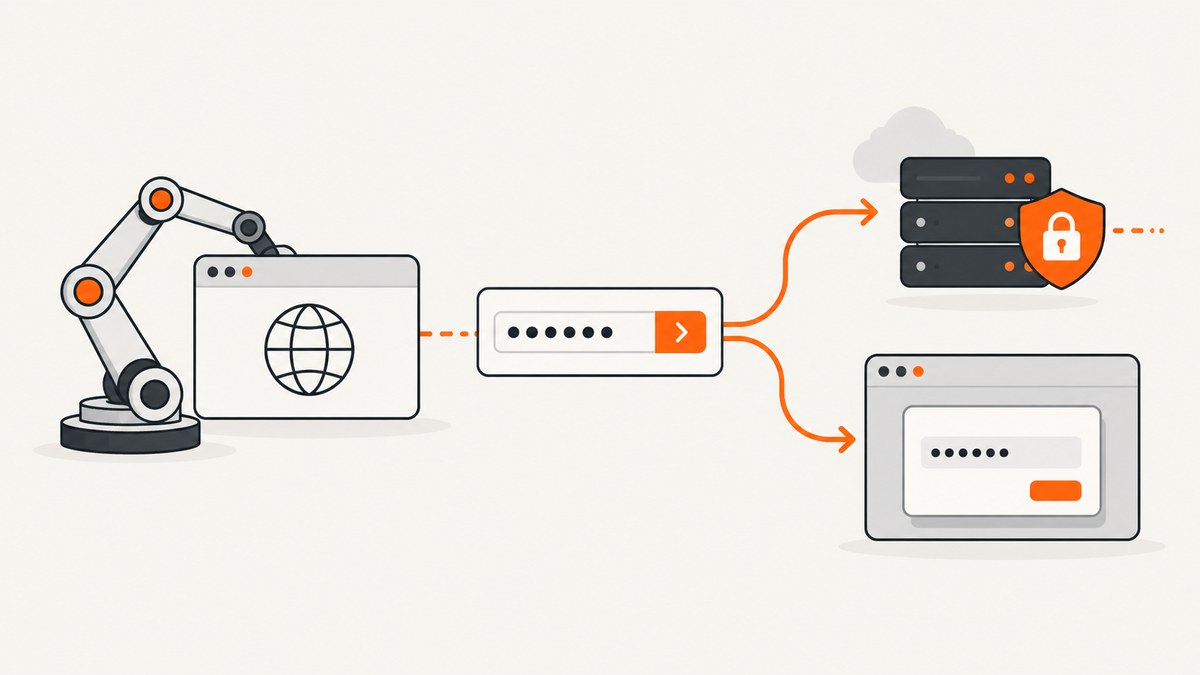
A password-looking box in Pyppeteer is usually one of two different mechanisms:
- HTTP authentication (Basic or Digest): a browser or network challenge. Supply credentials with
page.authenticate()before the request that receives the challenge. - JavaScript dialog: a page calls
prompt(),confirm(),alert(), or abeforeunloadhandler. Listen for the pagedialogevent and resolve it withaccept()ordismiss().
DOM selectors cannot type into an HTTP-auth prompt, and page.authenticate() cannot answer a JavaScript prompt. Identify the mechanism first, then use the matching pattern below.
1. Identify which password box you are seeing
| Clue | HTTP authentication | JavaScript dialog |
|---|---|---|
| Origin | Server/network protocol challenge | Page JavaScript |
| Pyppeteer API | page.authenticate({username, password}) |
page.on('dialog', handler) |
| Where credentials go | Browser networking layer | Prompt text passed to dialog.accept(value) |
| Typical symptom | 401 response, repeated challenge, or browser auth chrome | Click/navigation stalls until the modal is accepted or dismissed |
| Timing | Before the protected request | Before the click, navigation, or close that triggers it |
Log the dialog type and message (never the password), inspect the current URL, and check network responses for a 401. Pyppeteer documents Page.authenticate for HTTP authentication and the page dialog event for JavaScript dialogs.
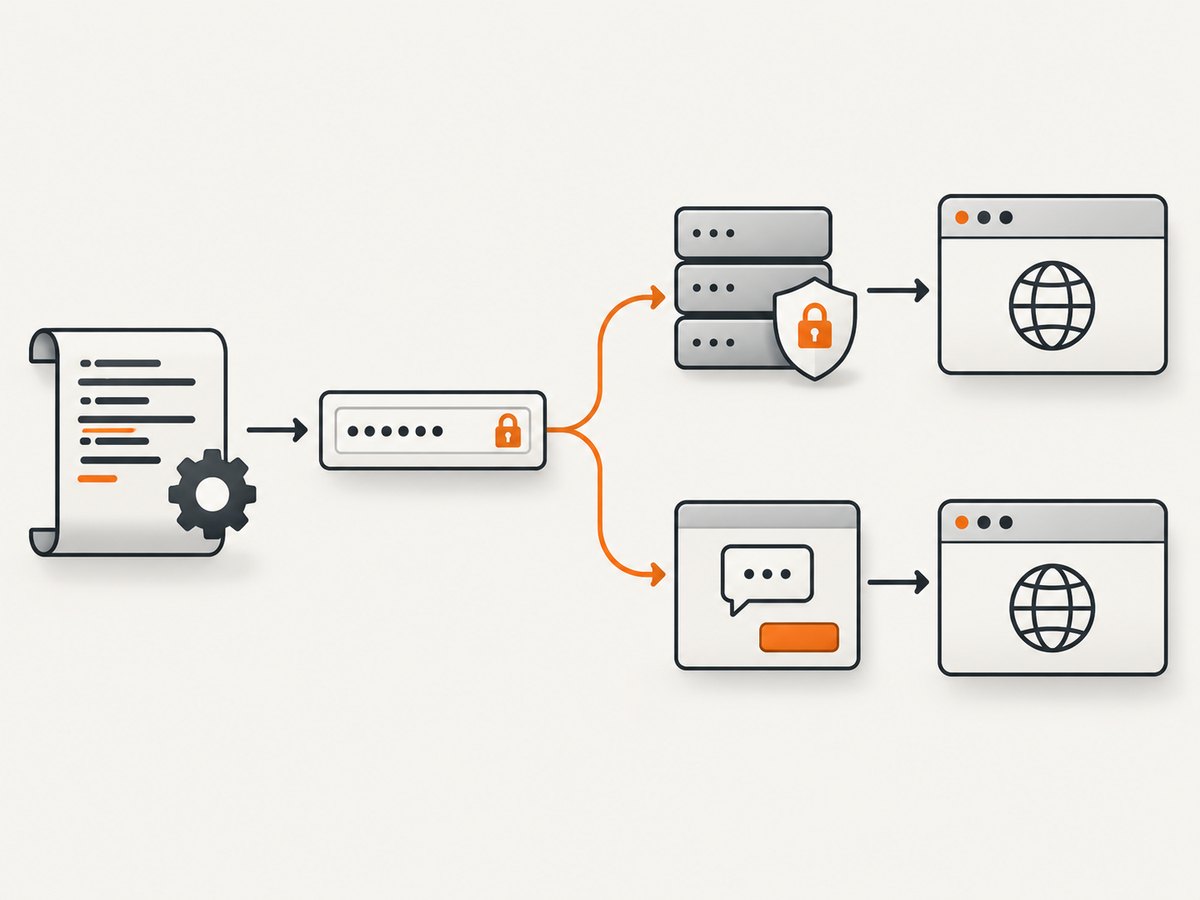
2. Handle HTTP Basic or Digest authentication
Set credentials before calling goto() or any action that can trigger the challenge.
import asyncio
from pyppeteer import launch

USERNAME = "replace-me"
PASSWORD = "replace-me"
PROTECTED_URL = "https://example.test/private"

async def main():
    browser = await launch()
    page = await browser.newPage()
    try:
        await page.authenticate({
            "username": USERNAME,
            "password": PASSWORD,
        })
        response = await page.goto(PROTECTED_URL, {"waitUntil": "networkidle2"})
        print("status:", response.status if response else "no response")
        print("url:", page.url)
    finally:
        await browser.close()

asyncio.get_event_loop().run_until_complete(main())
Keep credentials in environment variables or a secret manager, never in source control or logs. If the server still returns 401, inspect its WWW-Authenticate challenge and verify the account, realm, and authentication scheme. Do not try to locate the browser prompt with CSS.
HTTP-auth checklist
- Create the page.
- Call
page.authenticate(). - Navigate to the protected URL.
- Record the status code without recording secrets.
- Clear or discard the page when the credential should no longer be used.
3. Handle a JavaScript password prompt
Attach the listener before the click or navigation that opens the prompt. Every dialog must be accepted or dismissed; printing its message alone leaves the modal blocking page execution.
import asyncio
from pyppeteer import launch

PASSWORD = "replace-me"

async def handle_dialog(dialog):
    print("dialog type:", dialog.type)
    print("dialog message:", dialog.message)
    if dialog.type == "prompt":
        await dialog.accept(PASSWORD)
    else:
        await dialog.dismiss()

async def main():
    browser = await launch()
    page = await browser.newPage()
    page.on("dialog", lambda dialog: asyncio.ensure_future(handle_dialog(dialog)))
    try:
        await page.goto("https://example.test/login", {"waitUntil": "domcontentloaded"})
        await page.click("#login-or-unlock")
        await page.waitForSelector("#private-content")
    finally:
        await browser.close()

asyncio.get_event_loop().run_until_complete(main())
The dialog object exposes type, message, accept(), and dismiss(). The documented types are alert, beforeunload, confirm, and prompt. Only pass a value to accept() for a prompt.
Accept, dismiss, or branch by message
async def handle_dialog(dialog):
    if dialog.type == "prompt" and "password" in dialog.message.lower():
        await dialog.accept(PASSWORD)
    elif dialog.type == "confirm":
        await dialog.accept()
    else:
        await dialog.dismiss()

page.on("dialog", lambda d: asyncio.ensure_future(handle_dialog(d)))
Prefer the dialog type and a stable, non-secret part of the message. Never write the supplied password or a full sensitive prompt message to logs.
4. Handle before-unload dialogs during close
Pyppeteer normally closes a page without running unload handlers. Passing runBeforeUnload=True changes that behavior and can summon a beforeunload dialog that must be handled through the dialog event.
async def handle_beforeunload(dialog):
    if dialog.type == "beforeunload":
        await dialog.dismiss()
    else:
        await dialog.dismiss()

page.on("dialog", lambda d: asyncio.ensure_future(handle_beforeunload(d)))
await page.close({"runBeforeUnload": True})
Use the default await page.close() when unload handlers are not required. If you do run them, register the handler before closing.
5. A complete diagnostic script
import asyncio
from pyppeteer import launch

async def main():
    browser = await launch()
    page = await browser.newPage()

    async def dialog_handler(dialog):
        print({"type": dialog.type, "message": dialog.message})
        if dialog.type == "prompt":
            await dialog.accept("replace-me")
        else:
            await dialog.dismiss()

    page.on("dialog", lambda d: asyncio.ensure_future(dialog_handler(d)))
    page.on("pageerror", lambda error: print("pageerror:", error))
    page.on("requestfailed", lambda request: print("requestfailed:", request.url, request.failure))
    page.on("response", lambda response: print("response:", response.status, response.url) if response.status >= 400 else None)

    try:
        await page.goto("https://example.test", {"waitUntil": "domcontentloaded", "timeout": 60000})
        print("url:", page.url)
        print("closed:", page.isClosed())
        await page.click("#trigger")
    finally:
        print("final url:", page.url)
        print("closed:", page.isClosed())
        await browser.close()

asyncio.get_event_loop().run_until_complete(main())
Reproduce with the smallest page possible and record the Pyppeteer version, Chromium revision, operating system, exact dialog type, and non-sensitive dialog text.
6. Common errors and fixes
| Error or symptom | Cause | Fix |
|---|---|---|
| Typing into a selector does nothing | The box is browser-native HTTP authentication | Call page.authenticate() before navigation. |
page.authenticate() has no effect |
The page uses JavaScript prompt() |
Register a dialog handler and call accept(value). |
| Click or navigation hangs | The dialog listener never resolves the modal | Always call accept() or dismiss(). |
| Dialog appears before the handler | Listener was attached after the triggering action | Attach it before click(), goto(), or close(). |
| Close appears stuck | runBeforeUnload=True triggered a beforeunload dialog |
Handle that type or omit the option. |
| Repeated 401 responses | Wrong credentials, realm, scheme, or server policy | Inspect response status and WWW-Authenticate; verify server configuration. |
| Browser closes unexpectedly | Unhandled exception or cleanup closing the browser | Use try/finally, log page errors and request failures, and check page.isClosed(). |
7. Reliability and performance practices
- Install the dialog handler once, immediately after creating the page.
- Use explicit navigation and selector timeouts appropriate to the site; avoid unbounded waits.
- Resolve dialogs quickly. A modal blocks page JavaScript and can delay navigation.
- Use
try/finallyso failed authentication or prompts do not leak browser processes. - Capture status codes and failed requests to distinguish authentication failures from rendering failures.
- Keep one page per credential scope when different accounts are required.
- Do not retry blindly on a 401; repeated challenges add latency and can trigger account lockouts.
- For repeat captures, reuse a browser process where safe, but create fresh pages when cookies or credentials must be isolated.
8. Or skip the browser setup
If your goal is a clean screenshot rather than interactive browser control, ScreenshotNeo provides a single request that returns PNG, JPEG, WebP, or PDF. Cookie and consent banners, newsletter popups, and chat widgets are removed before the shot. Bot checks, blank pages, failed loads, timeouts, and cache hits are not billed, and response headers report the page verdict and billing result. Its MCP server lets Claude, Cursor, and other MCP clients use take_screenshot, get_page_info, and capture_pdf.

See the ScreenshotNeo API documentation for all options.
curl -G "https://api.screenshotneo.com/v1/shot" -d access_key=YOUR_API_KEY --data-urlencode url=https://stripe.com -o shot.webpimport requests
r = requests.get("https://api.screenshotneo.com/v1/shot", params={"access_key": "YOUR_API_KEY", "url": "https://stripe.com"}, timeout=90)
open("shot.webp", "wb").write(r.content)const q = new URLSearchParams({ access_key: 'YOUR_API_KEY', url: 'https://stripe.com' });
const res = await fetch(`https://api.screenshotneo.com/v1/shot?${q}`);The Free plan includes 1,000 screenshots each month with no card. Paid plans start at $5 for 3,000 shots, and every feature is included on every plan. Create a free ScreenshotNeo account.
9. FAQ
Can I use a CSS selector for a browser password box?
No. Browser-native HTTP authentication is outside the page DOM. Use page.authenticate().
Should I accept or dismiss an unexpected prompt?
Choose according to the workflow. In diagnostic or unattended jobs, dismiss unknown dialogs and record their type without logging secrets.
Why does logging the dialog not unblock Pyppeteer?
A dialog pauses the page until it is accepted or dismissed. Logging does not resolve it.
When should I set runBeforeUnload?
Only when unload handlers must run. Otherwise the default close avoids a possible beforeunload dialog.
Does a 401 prove the password is wrong?
No. It can also indicate the wrong authentication scheme, realm, server policy, or a challenge sent before credentials were configured.


