How to Handle Popup Boxes with Selenium in Python
Classify the popup first, then use Selenium’s alert API, DOM locators, window handles, or frame switching to handle it reliably in Python.
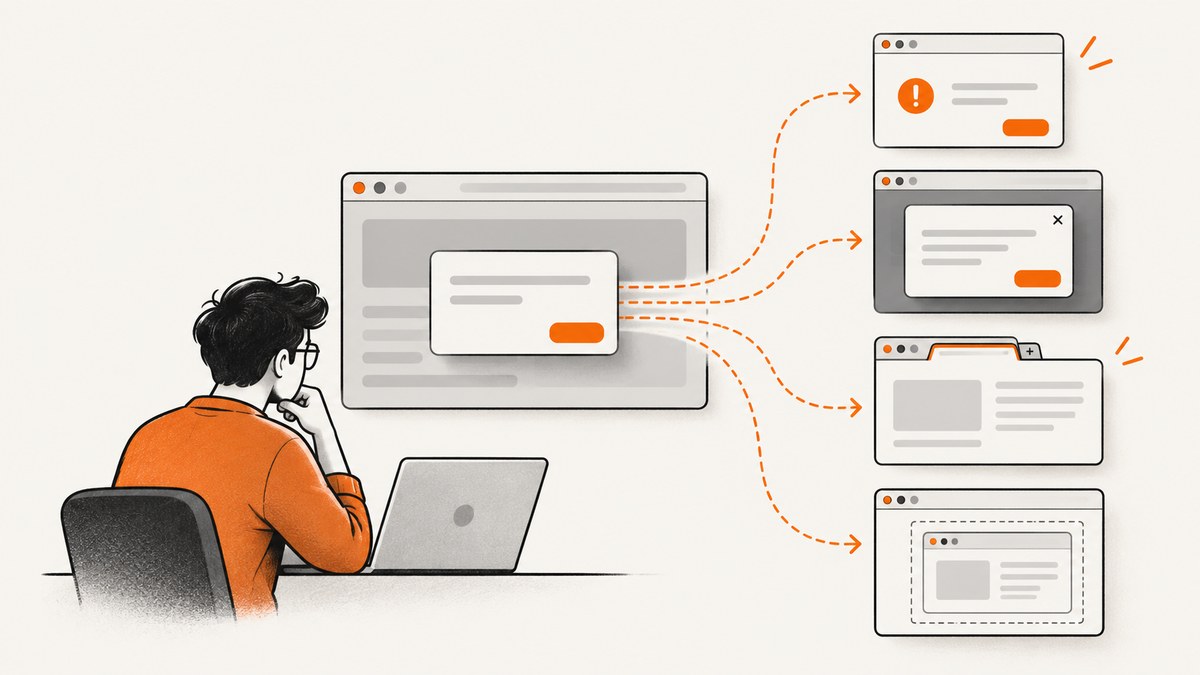
To handle a popup in Selenium with Python, first identify what kind of popup it is. A JavaScript alert, confirm, or prompt is handled through Selenium’s alert API. An HTML/CSS modal is part of the page and uses normal element locators. A new tab or window requires switching window handles. Content inside an iframe requires switching into that frame.
Using the wrong API is the most common source of failure: driver.switch_to.alert does not target an HTML modal, and clicking a page element does not accept a native JavaScript alert. Use explicit waits for the state you expect, take the intended action, and assert the result.
1. Identify the popup type
| What you see | What it is | Selenium approach |
|---|---|---|
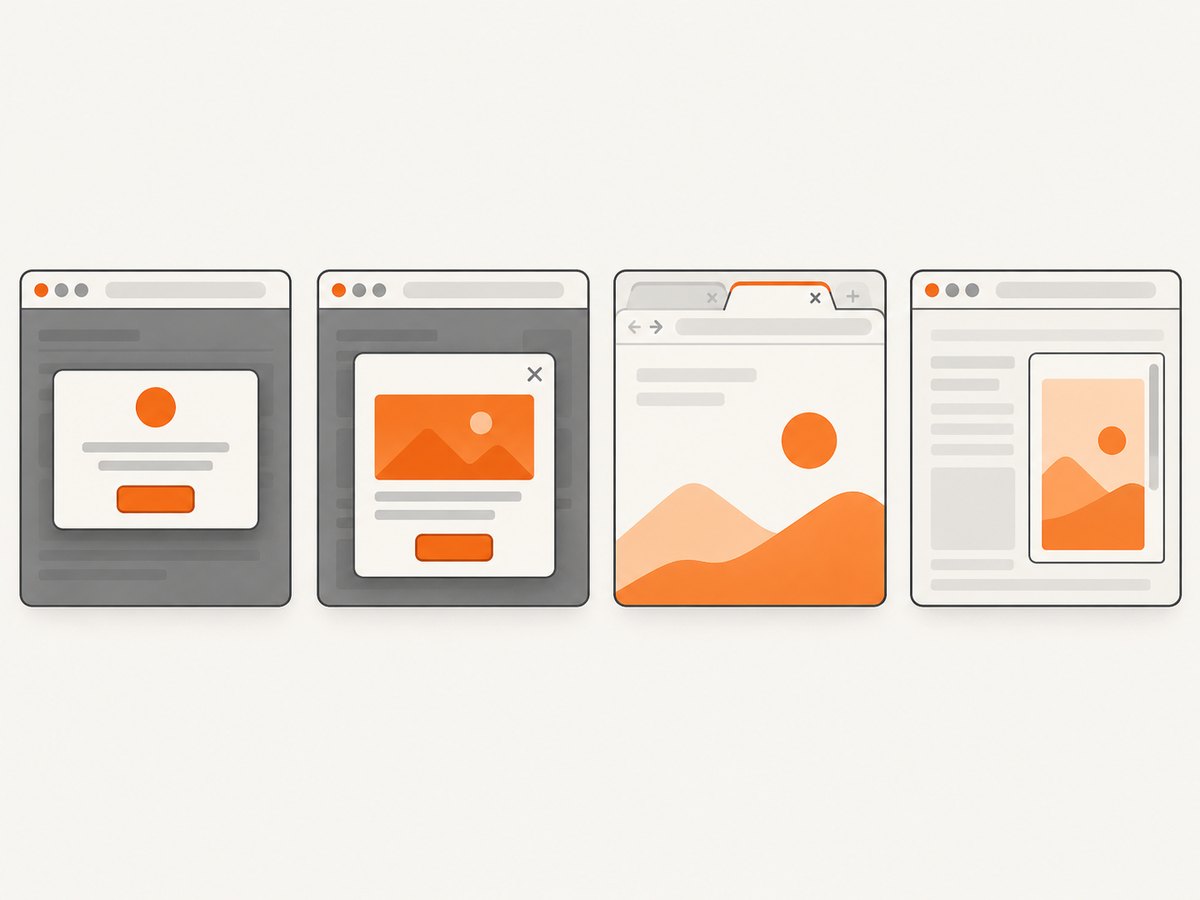
| A browser-owned message with OK, Cancel, or a text field | JavaScript alert, confirm, or prompt | EC.alert_is_present(), then accept, dismiss, or enter text |
| A dialog styled as part of the website | HTML/CSS modal in the DOM | Find and operate its buttons or form controls |
| A separate tab or window opens | New browsing context | Wait for a new window handle and switch to it |
| The content is embedded in a frame | Iframe document | Switch to the frame, interact, then return to the parent document |
Check the browser behavior, not just the word “popup” in a bug report. A site’s consent dialog may look like a popup but still be an ordinary DOM element. Selenium’s documentation explains that WebDriver can read native dialog text and accept or dismiss alerts. Selenium: alerts.
2. Handle JavaScript alerts, confirms, and prompts
Use an explicit wait so the test waits for the dialog that the triggering action is expected to open. The alert object exposes its message and the actions supported by that dialog. Selenium’s Python example uses WebDriverWait with EC.alert_is_present(). Expected conditions API.
from selenium.webdriver.support.ui import WebDriverWait
from selenium.webdriver.support import expected_conditions as EC

wait = WebDriverWait(driver, 10)

# Trigger the action that opens the JavaScript dialog first.
open_dialog_button.click()

alert = wait.until(EC.alert_is_present())
message = alert.text
print(f"Dialog said: {message}")

alert.accept()  # Choose OK / the positive branch

# Continue by checking the application's resulting state.
assert "Saved" in status_element.text
Choose the action deliberately:
alert.accept()presses OK or confirms the positive branch.alert.dismiss()presses Cancel or closes the dialog through its cancel action.alert.send_keys("answer")enters text into a prompt. Follow it withalert.accept()to submit the value.
A prompt example:
open_prompt_button.click()
prompt = wait.until(EC.alert_is_present())
assert prompt.text == "Enter a name"
prompt.send_keys("Ada")
prompt.accept()
assert greeting_element.text == "Hello, Ada"
A confirm cancellation branch:
delete_button.click()
confirm = wait.until(EC.alert_is_present())
assert "Delete" in confirm.text
confirm.dismiss()
assert record_is_still_present()
Read alert.text when the message is part of the requirement or useful diagnostic context. Avoid accepting every alert automatically: doing so can make a test pass through a warning or confirmation the application was supposed to show.
3. Handle an HTML or CSS modal
An HTML modal belongs to the current page’s DOM. Locate its controls as you would any other page element. Prefer stable IDs, accessible attributes, or application-owned selectors over brittle positional selectors. If the modal appears asynchronously, wait until the relevant control is visible or clickable. Selenium lists visibility and clickability among its expected conditions. Selenium expected conditions.
from selenium.webdriver.common.by import By
from selenium.webdriver.support.ui import WebDriverWait
from selenium.webdriver.support import expected_conditions as EC

wait = WebDriverWait(driver, 10)
open_modal_button.click()

modal = wait.until(EC.visibility_of_element_located(
    (By.CSS_SELECTOR, "[role='dialog']")
))
confirm = wait.until(EC.element_to_be_clickable(
    (By.CSS_SELECTOR, "[role='dialog'] button.confirm")
))
confirm.click()

# Prove that the modal closed or that the expected state changed.
wait.until(EC.invisibility_of_element_located(
    (By.CSS_SELECTOR, "[role='dialog']")
))
Replace the example selectors with selectors from the application under test. If the modal contains a form, fill and submit its fields through normal element interactions. If it is a cookie or newsletter overlay, identify the actual close or consent control rather than assuming it is a native alert.
4. Handle a popup that opens a new tab or window
Save the original window handle before the click, then wait for a new handle and switch to it. After completing the work, switch back to the original context. Selenium’s expected conditions include checks for a new window and for an expected number of windows; its Python bindings document window switching. Window expected conditions, Selenium: windows and tabs.
from selenium.webdriver.support.ui import WebDriverWait
from selenium.webdriver.support import expected_conditions as EC

wait = WebDriverWait(driver, 10)
original = driver.current_window_handle
existing_handles = set(driver.window_handles)

open_report_button.click()
wait.until(EC.new_window_is_opened(existing_handles))
new_handles = set(driver.window_handles) - existing_handles
assert len(new_handles) == 1

popup_handle = new_handles.pop()
driver.switch_to.window(popup_handle)
wait.until(EC.url_contains("report"))
assert "Report" in driver.title

driver.close()  # Closes the current popup window
driver.switch_to.window(original)
assert driver.current_window_handle == original
If the application may open several windows, wait for the expected count or identify the target by its title or URL after switching through the new handles. Do not assume the new tab becomes the current context automatically. Also avoid closing a window before switching back if later test steps need the original page.
5. Handle popup content inside an iframe
Elements inside a frame are not located in the top-level document. Wait for the frame, switch into it, and then locate its controls. Return to the parent with default_content() when finished. Selenium documents frame switching in its Python bindings. Selenium: frames.
from selenium.webdriver.common.by import By
from selenium.webdriver.support.ui import WebDriverWait
from selenium.webdriver.support import expected_conditions as EC

wait = WebDriverWait(driver, 10)
open_embedded_dialog_button.click()

wait.until(EC.frame_to_be_available_and_switch_to_it(
    (By.CSS_SELECTOR, "iframe.payment-frame")
))

submit = wait.until(EC.element_to_be_clickable(
    (By.CSS_SELECTOR, "button[type='submit']")
))
submit.click()

driver.switch_to.default_content()
assert completion_message.is_displayed()
For a nested iframe, switch into each parent frame in order. If a frame is removed or reloaded after an interaction, locate it again rather than reusing an element reference from the old document.
6. Build a reliable popup test
- Trigger the behavior. Click the control or perform the user action that opens the popup.
- Wait for the relevant state. Wait for alert presence, element visibility/clickability, a new window, or frame availability. Selenium’s wait conditions let the test synchronize with these states instead of sleeping for a fixed duration.
- Capture useful evidence. Read native dialog text, modal content, URL, title, or form state when it matters to the scenario.
- Take the intended branch. Accept, dismiss, submit, close, or enter a prompt value based on the test case.
- Restore context. Return to the original window or top-level frame if the test continues there.
- Assert the outcome. Check a changed status, removed modal, persisted record, or other observable result.
Use a timeout suited to the page and test environment. An explicit wait is a maximum time to wait for a condition; it does not require a fixed delay when the condition becomes true sooner. Avoid mixing long implicit waits with explicit waits without understanding how they interact, since that can make timing harder to predict.
7. Troubleshooting common failures
| Symptom | Likely cause | Fix |
|---|---|---|
NoAlertPresentException |
The popup is a DOM modal, the trigger did not run, or the alert has not appeared yet. | Classify the popup; trigger it, then wait with EC.alert_is_present(). Use DOM locators for HTML modals. |
TimeoutException waiting for alert |
The expected dialog never appeared, appeared in another browsing context, or the wrong action was triggered. | Check the trigger and current URL/window; inspect whether the UI is a modal or iframe. Wait for the matching condition. |
NoSuchElementException for a modal control |
The modal is not yet present, a selector is wrong, or the control is inside a frame. | Wait for visibility, verify the selector, and switch into the correct iframe before locating controls. |
ElementClickInterceptedException |
An overlay, animation, or another element covers the target. | Wait for the overlay to clear or for the control to become clickable; interact with the intended modal control. |
| New tab opened but Selenium still sees old page | The driver has not switched window handles. | Wait for the new handle, call switch_to.window(), and confirm the active title or URL. |
| Cannot find element inside iframe | The driver is searching the top-level document. | Switch to the iframe first; return with switch_to.default_content(). |
| Prompt text was not submitted | The prompt was accepted before entering a value, or the popup was actually a DOM form. | For a native prompt, call send_keys() then accept(). For a page form, locate and fill its inputs. |
| Unexpected beforeunload prompt | Navigation is triggering a browser prompt; driver handling can vary. | Set the desired unhandledPromptBehavior capability when applicable. Selenium notes recent drivers automatically dismiss beforeunload prompts by default. |
When investigating a failure, record the current URL, title, window handles, and the text or DOM state that identifies the popup. This helps distinguish a timing problem from a context or classification problem.
8. Performance, reliability, and cost
Popup handling itself is usually a small part of browser test runtime; unnecessary fixed sleeps and repeated page loads are common avoidable delays. Wait for the state you need, then continue immediately when it appears. Keep selectors stable and avoid retry loops that repeatedly click a destructive confirmation.
Reliability comes from testing both branches where relevant: accept and dismiss for confirms, valid and empty input for prompts, and successful close/return behavior for tabs and frames. Keep the test assertion tied to application behavior, not merely to the fact that a click completed. Browser automation also requires a browser and WebDriver environment; CI time and infrastructure costs depend on the environment, which the Selenium references do not quantify.
If the goal is only to produce a page screenshot and no interactive popup handling is needed, a screenshot API can avoid maintaining a browser driver in your script. For browser-driven testing where you must verify popup behavior, Selenium remains the method to exercise the actual interaction.
Or skip the browser setup
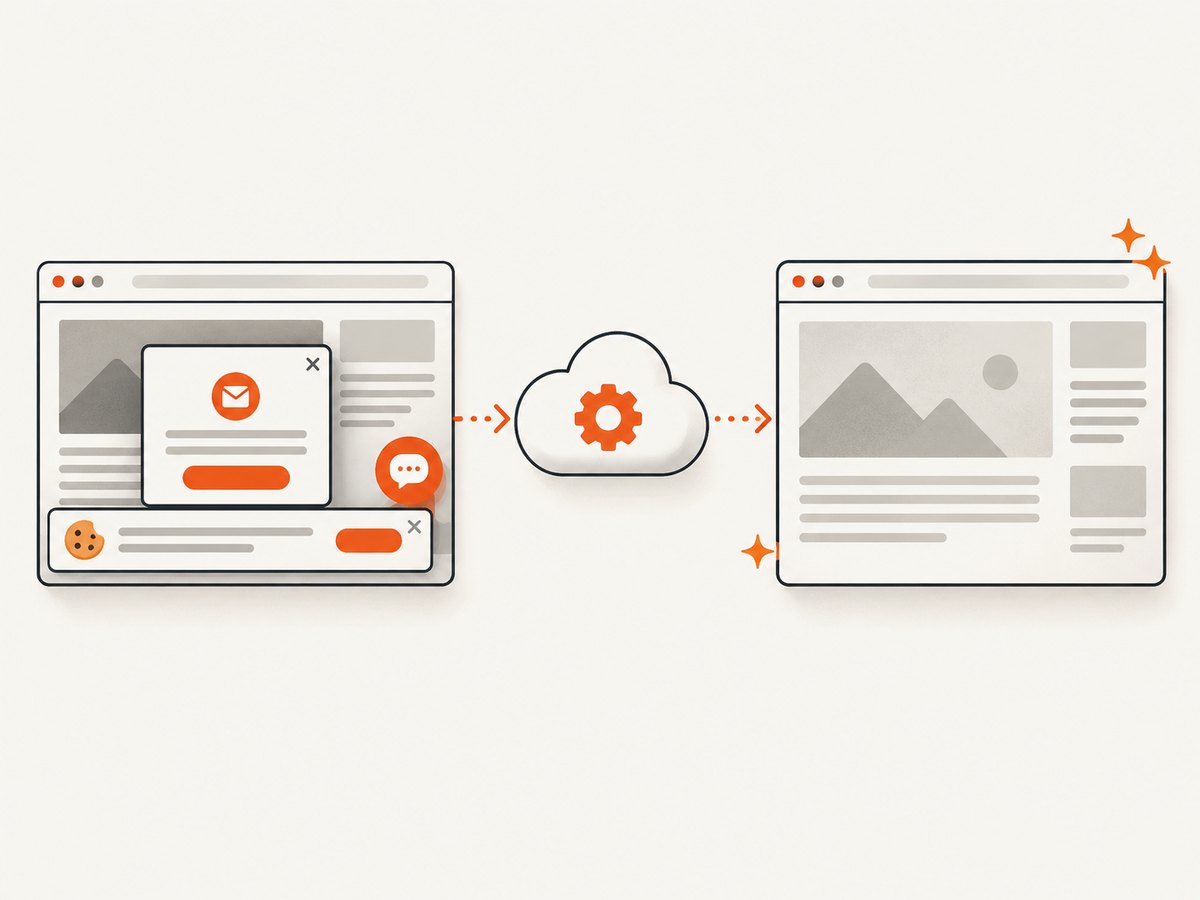
For a screenshot, ScreenshotNeo takes a URL in one GET request and returns a PNG, JPEG, WebP, or PDF. Its cookie and consent handling accepts banners like a visitor and removes 60+ known consent platforms, newsletter popups, and chat widgets before capture; each step can be turned off. Bot checks/CAPTCHAs, blank pages, timeouts, failed loads, and cache hits are not billed, and the response identifies the page verdict and billing status in headers. ScreenshotNeo also provides an MCP server with take_screenshot, get_page_info, and capture_pdf tools for AI agents.
See the ScreenshotNeo API documentation for request options and setup.
curl -G "https://api.screenshotneo.com/v1/shot" -d access_key=YOUR_API_KEY --data-urlencode url=https://stripe.com -o shot.webpimport requests
r = requests.get("https://api.screenshotneo.com/v1/shot", params={"access_key": "YOUR_API_KEY", "url": "https://stripe.com"}, timeout=90)
open("shot.webp", "wb").write(r.content)const q = new URLSearchParams({ access_key: 'YOUR_API_KEY', url: 'https://stripe.com' });
const res = await fetch(`https://api.screenshotneo.com/v1/shot?${q}`);One thousand screenshots per month are free with no card; paid plans start at $5 for 3,000 screenshots. Learn about ScreenshotNeo or sign up for the free plan.
Frequently asked questions
Can Selenium close a popup without clicking its button?
For a native JavaScript dialog, use accept() or dismiss(). For a DOM modal, interact with its page control or use an application-supported keyboard action; the alert API does not apply.
Should I use time.sleep() to wait for a popup?
Prefer an explicit wait for the popup’s actual state. A fixed sleep can waste time when the popup is fast and still be too short when the page is slow.
How do I know whether it is a JavaScript alert?
If an alert wait succeeds and Selenium can read the dialog text, it is a native dialog. If the content is inspectable as page elements, handle it as DOM content; if it opened another tab or lives in a frame, switch context accordingly.
Can I handle a popup opened during navigation?
Yes. Use the same classification approach and wait for the expected alert, document element, window handle, or frame after triggering navigation. For beforeunload prompts, account for the driver’s prompt behavior.


