How to Handle Popup Dialogs in Selenium
Learn how to handle JavaScript alerts, confirms, prompts, tabs, and windows in Selenium with reliable waits, complete code, and fixes for common errors.
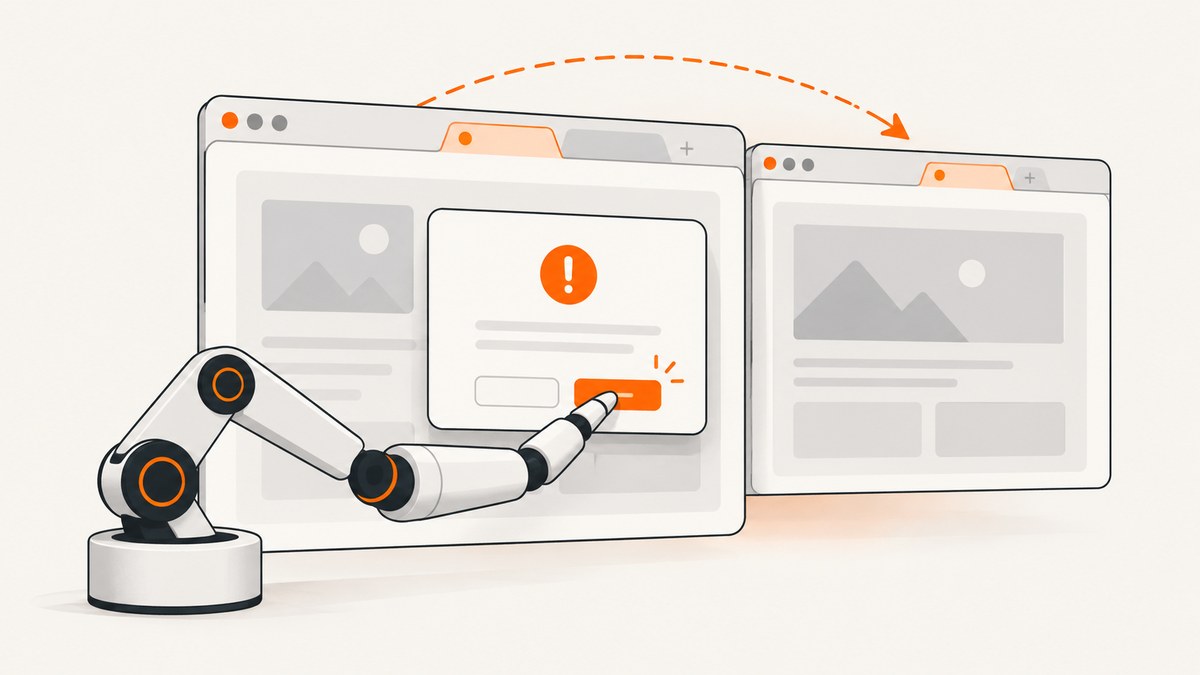
Selenium popup handling depends on what “popup” means. A JavaScript alert, confirm, or prompt is a native modal dialog controlled through Selenium’s alert API. A new tab or browser window is a separate browsing context controlled through window handles. They require different operations.
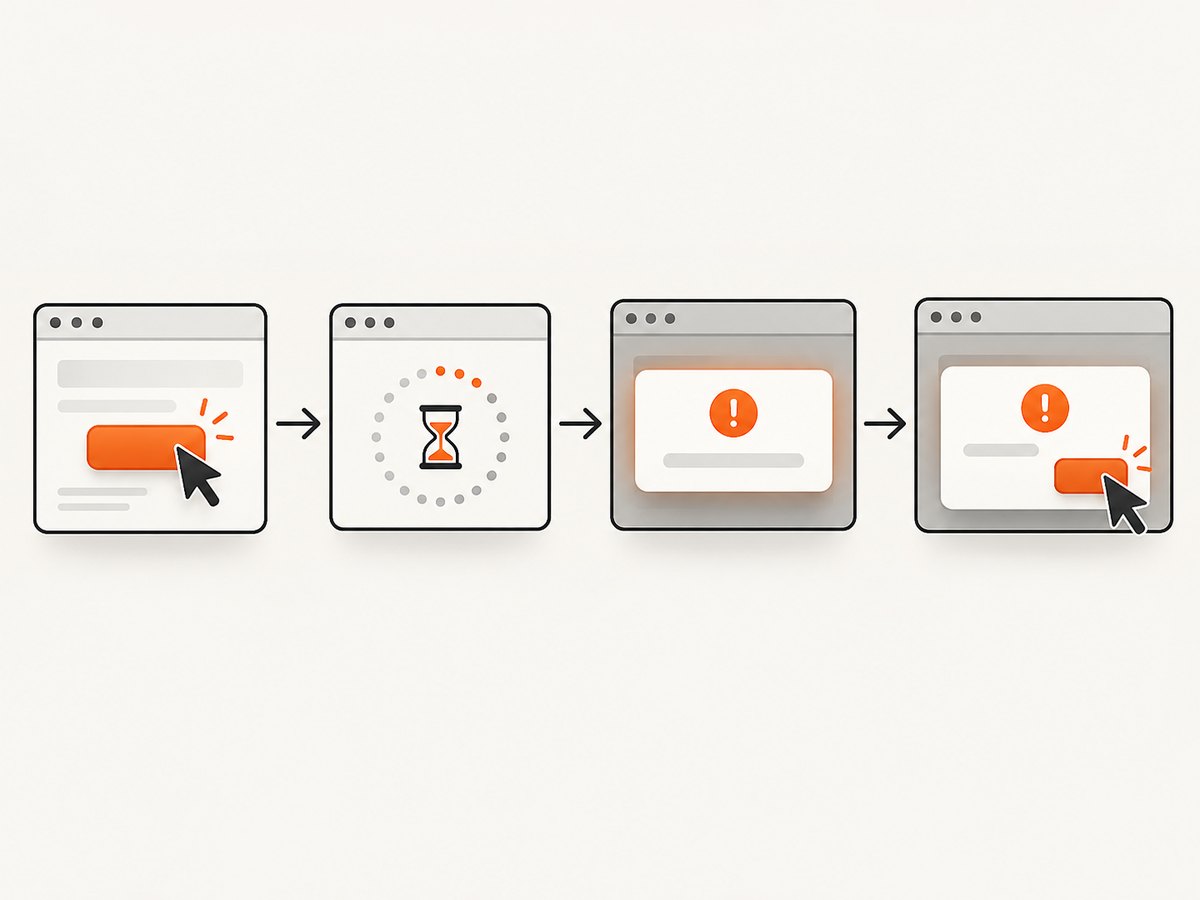
The reliable sequence is:
- Trigger the dialog or new browsing context.
- Wait for the expected alert or window handle.
- Switch to the alert or target handle.
- Read text or enter prompt data when the test needs to validate it.
- Accept, dismiss, close, or switch back according to the expected user path.
Selenium’s official documentation describes an API for the three native JavaScript popup messages: alerts, confirms, and prompts. Read the official alerts guide for binding-specific examples.
What counts as a popup in Selenium?
| Browser behavior | What the user sees | Selenium operation |
|---|---|---|
| Alert | Message and an acknowledgement button | Wait for an alert, read alert.text, then accept() |
| Confirm | Message with OK and Cancel | Accept or dismiss to test each outcome |
| Prompt | Message with a text field and buttons | Send text, then accept; or dismiss without submitting |
| New tab or window | A new browsing context containing a web page | Save and compare window handles, switch with switch_to.window |
| HTML modal, cookie banner, or overlay | Page markup styled to look like a dialog | Locate its DOM elements and interact normally |
This distinction prevents a common mistake: trying to locate a page element while a native modal dialog is open. A native dialog is outside the page DOM, so handle it through the alert interface first. An HTML modal remains part of the DOM and should be treated like any other element.
Set up a reliable explicit wait
Do not immediately call driver.switch_to.alert after clicking a button. The page may need time to execute JavaScript. Use an explicit wait for alert presence. The following Python example uses Selenium’s expected condition documented by the Selenium project.
from selenium import webdriver
from selenium.webdriver.common.by import By
from selenium.webdriver.support.ui import WebDriverWait
from selenium.webdriver.support import expected_conditions as EC
from selenium.common.exceptions import TimeoutException, NoAlertPresentException


def wait_for_alert(driver, timeout=10):
    wait = WebDriverWait(driver, timeout)
    return wait.until(EC.alert_is_present())


driver = webdriver.Chrome()
try:
    driver.get("https://example.test/alerts")
    driver.find_element(By.ID, "open-alert").click()

    alert = wait_for_alert(driver)
    print("Dialog text:", alert.text)
    alert.accept()
except TimeoutException:
    raise AssertionError("The expected JavaScript alert did not appear")
finally:
    driver.quit()
Keep the wait close to the action that triggers the dialog. This makes failures easier to diagnose and avoids sleeping for a fixed amount of time when the dialog is already available.
Handle JavaScript alerts
An alert has one meaningful user action: acknowledgement. Read its text before accepting if the message is part of the behavior under test.
from selenium import webdriver
from selenium.webdriver.common.by import By
from selenium.webdriver.support.ui import WebDriverWait
from selenium.webdriver.support import expected_conditions as EC


driver = webdriver.Chrome()
try:
    driver.get("https://example.test/alerts")
    driver.find_element(By.CSS_SELECTOR, "button[data-test='alert']").click()

    alert = WebDriverWait(driver, 10).until(EC.alert_is_present())
    assert alert.text == "Saved successfully"
    alert.accept()
finally:
    driver.quit()
After accept(), Selenium returns to the page context. If the application updates the page asynchronously, add a second explicit wait for a page condition such as a success element or changed URL.
Handle confirmation dialogs
A confirm dialog represents two separate user paths. Test both when accepting and canceling produce different application behavior.
from selenium import webdriver
from selenium.webdriver.common.by import By
from selenium.webdriver.support.ui import WebDriverWait
from selenium.webdriver.support import expected_conditions as EC


def run_confirm_case(driver, accept):
    driver.find_element(By.ID, "delete-item").click()
    dialog = WebDriverWait(driver, 10).until(EC.alert_is_present())
    message = dialog.text
    if "Delete" not in message:
        raise AssertionError(f"Unexpected confirm text: {message}")

    if accept:
        dialog.accept()
    else:
        dialog.dismiss()

    WebDriverWait(driver, 10).until(
        lambda d: d.find_element(By.ID, "status").is_displayed()
    )


driver = webdriver.Chrome()
try:
    driver.get("https://example.test/confirm")
    run_confirm_case(driver, accept=True)
    driver.refresh()
    run_confirm_case(driver, accept=False)
finally:
    driver.quit()
Use accept() for OK and dismiss() for Cancel. Keep these as distinct test cases when they cover different server requests, redirects, or state changes.
Handle prompt dialogs
A prompt adds an input value to the alert workflow. Send the desired text before accepting. Dismissing a prompt cancels it and does not submit the entered value.
from selenium import webdriver
from selenium.webdriver.common.by import By
from selenium.webdriver.support.ui import WebDriverWait
from selenium.webdriver.support import expected_conditions as EC


driver = webdriver.Chrome()
try:
    driver.get("https://example.test/prompt")
    driver.find_element(By.ID, "rename-item").click()

    prompt = WebDriverWait(driver, 10).until(EC.alert_is_present())
    assert prompt.text == "Enter a new name"
    prompt.send_keys("Quarterly report")
    prompt.accept()

    WebDriverWait(driver, 10).until(
        lambda d: d.find_element(By.ID, "name").text == "Quarterly report"
    )
finally:
    driver.quit()
To cover cancellation, trigger the prompt again and call dismiss() without sending keys. If the prompt has a default value, verify whether the application treats accepting that default differently from canceling.
JavaScript Selenium example
Method names vary slightly by language binding. In Selenium’s JavaScript binding, wait for an alert, obtain the alert object, then call its text, accept, dismiss, or send-keys methods.
const { Builder, By, until } = require('selenium-webdriver');

(async function handlePrompt() {
  const driver = await new Builder().forBrowser('chrome').build();
  try {
    await driver.get('https://example.test/prompt');
    await driver.findElement(By.id('rename-item')).click();

    const alert = await driver.wait(until.alertIsPresent(), 10000);
    const message = await alert.getText();
    if (message !== 'Enter a new name') {
      throw new Error(`Unexpected prompt text: ${message}`);
    }
    await alert.sendKeys('Quarterly report');
    await alert.accept();
  } finally {
    await driver.quit();
  }
})();
Install the binding with npm install selenium-webdriver. Check the official Selenium alerts documentation when adapting the example to Java, C#, Ruby, or another binding because exact wait and alert method names differ.
Handle a popup tab or browser window
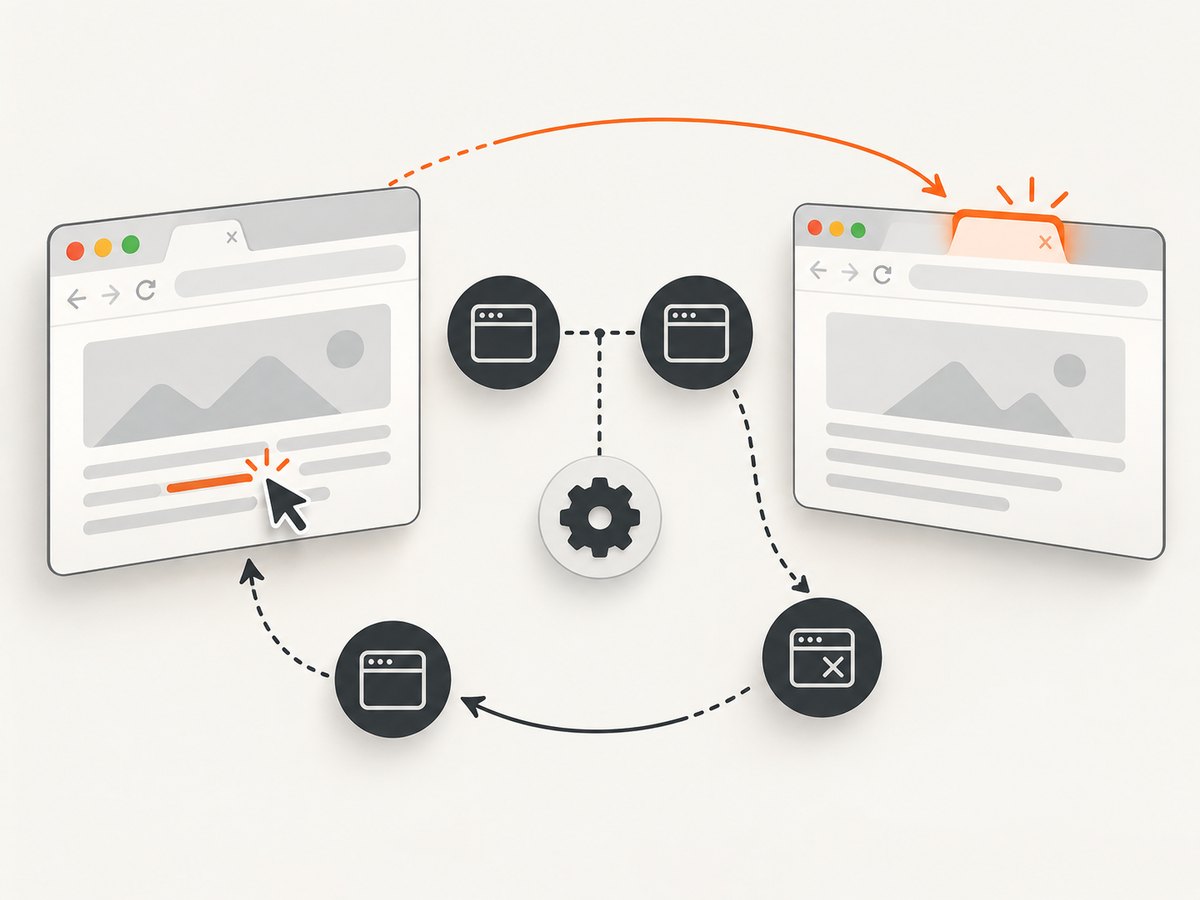
A tab or window is not a JavaScript alert. Selenium treats both as browsing contexts and exposes them through opaque window handles. Save the original handle before triggering the link, then wait until a second handle exists.
from selenium import webdriver
from selenium.webdriver.common.by import By
from selenium.webdriver.support.ui import WebDriverWait


def wait_for_new_window(driver, original, timeout=10):
    WebDriverWait(driver, timeout).until(
        lambda d: len(d.window_handles) > 1
    )
    handles = [handle for handle in driver.window_handles if handle != original]
    if not handles:
        raise AssertionError("A new window handle was not created")
    return handles[0]


driver = webdriver.Chrome()
try:
    driver.get("https://example.test/window")
    original = driver.current_window_handle
    driver.find_element(By.ID, "open-report").click()

    popup = wait_for_new_window(driver, original)
    driver.switch_to.window(popup)
    WebDriverWait(driver, 10).until(lambda d: d.title == "Report")
    assert "report" in driver.current_url

    driver.close()
    driver.switch_to.window(original)
    assert "example.test" in driver.current_url
finally:
    driver.quit()
Do not assume the operating system’s visibly active window is Selenium’s current context. Selenium remains attached to whichever handle was selected with switch_to.window. After closing the popup, switch to a handle that is still open before locating another element. Continuing from a closed context can raise NoSuchWindowException. Selenium’s windows and tabs guide covers this workflow.
JavaScript window-handle example
const { Builder, By, until } = require('selenium-webdriver');

(async function handleWindow() {
  const driver = await new Builder().forBrowser('chrome').build();
  try {
    await driver.get('https://example.test/window');
    const original = await driver.getWindowHandle();
    await driver.findElement(By.id('open-report')).click();

    await driver.wait(async () => {
      const handles = await driver.getAllWindowHandles();
      return handles.length > 1;
    }, 10000);

    const handles = await driver.getAllWindowHandles();
    const popup = handles.find(handle => handle !== original);
    await driver.switchTo().window(popup);
    await driver.wait(until.titleIs('Report'), 10000);

    await driver.close();
    await driver.switchTo().window(original);
  } finally {
    await driver.quit();
  }
})();
Configure unexpected prompt behavior
Recent drivers automatically dismiss beforeunload prompts by default. Older or specially configured environments can differ. Selenium documents the unhandledPromptBehavior capability and the actions accept, dismiss, accept and notify, dismiss and notify, and ignore. Set it deliberately when your suite depends on the behavior.
from selenium import webdriver

options = webdriver.ChromeOptions()
options.set_capability("unhandledPromptBehavior", "dismiss")
driver = webdriver.Chrome(options=options)
try:
    driver.get("https://example.test")
finally:
    driver.quit()
Use ignore only when the test explicitly needs to inspect an unhandled prompt. Otherwise, an unexpected modal can block later commands and make the failure appear unrelated.
Common errors and fixes
| Error or symptom | Cause | Fix |
|---|---|---|
TimeoutException waiting for alert |
The click did not trigger a native dialog, the dialog is delayed, or it is an HTML modal. | Verify the trigger, increase the explicit wait only when justified, and inspect the DOM to determine whether the “popup” is HTML. |
NoAlertPresentException |
The code switched before the alert appeared or already handled it. | Use WebDriverWait(...).until(EC.alert_is_present()) and handle the alert once. |
| Element lookup hangs while dialog is visible | Native dialogs block normal page interaction. | Switch to the alert and accept or dismiss it before locating page elements. |
| New tab opens but commands affect the old page | The driver stayed on the original window handle. | Compare window_handles, then switch to the new handle. |
NoSuchWindowException after closing a popup |
The driver is still attached to the closed context. | Switch to a remaining handle immediately after close(). |
| Prompt value is missing | Text was sent after accepting, or the prompt was dismissed. | Wait, call send_keys(), then call accept(). |
| Intermittent failures in CI | Fixed sleeps, slow page scripts, or stale handles. | Use condition-based waits, capture handles after the trigger, and record dialog text and current handle on failure. |
Performance and reliability practices
- Prefer explicit waits. Wait for alert presence, a new handle, a title, URL, or a specific page state. Fixed sleeps increase suite time and still fail when the environment is slower.
- Keep timeout budgets intentional. A short dialog timeout catches a broken trigger quickly; a longer timeout can be appropriate for a remote browser or a page known to load slowly.
- Capture diagnostics. On failure, record the current URL, current window handle, all available handles, alert text when available, browser console logs, and a screenshot of the page.
- Close every extra context. Leaving tabs open leaks browser resources and can make later tests select the wrong handle.
- Isolate outcomes. Test confirm acceptance and cancellation separately, and test prompt submission separately from prompt cancellation.
- Use stable selectors. Prefer data-test attributes over brittle text or layout selectors for the element that triggers the popup.
- Reset state between cases. Refreshing or starting a new driver prevents one dialog outcome from changing the next case.
Or skip the browser setup
If your goal is a clean image of a page rather than interaction testing, ScreenshotNeo provides a website screenshot API and MCP server. Its capture can accept cookie or consent banners and remove more than 60 known consent platforms, newsletter popups, and chat widgets before the shot. Each step can be turned off when you need the original page state.
Only clean shots are billed. Bot checks, CAPTCHAs, blank pages, timeouts, failed loads, and cache hits cost nothing, and the response reports the result through X-Page-Verdict and X-Billed headers. The MCP server exposes take_screenshot, get_page_info, and capture_pdf for Claude, Cursor, and other MCP clients.
One request is enough:
curl -G "https://api.screenshotneo.com/v1/shot" -d access_key=YOUR_API_KEY --data-urlencode url=https://stripe.com -o shot.webpPython:
import requests
r = requests.get("https://api.screenshotneo.com/v1/shot", params={"access_key": "YOUR_API_KEY", "url": "https://stripe.com"}, timeout=90)
open("shot.webp", "wb").write(r.content)
Node.js:
const q = new URLSearchParams({ access_key: 'YOUR_API_KEY', url: 'https://stripe.com' });
const res = await fetch(`https://api.screenshotneo.com/v1/shot?${q}`);
See the ScreenshotNeo API documentation for authentication, response headers, and the full option set. You can choose full-page or element capture, device presets or any viewport, dark mode, retina scale, custom CSS and JavaScript, clicks, waits, blocked resource types, headers, cookies, user agents, timezone, geolocation, transparent backgrounds, resizing, caching TTLs, signed links, asynchronous jobs, webhooks, bulk capture, usage data, and PDF settings.
The free plan includes 1,000 screenshots per month with no card. Paid plans start at $5 for 3,000 shots; every feature is available on every plan. Create a free ScreenshotNeo account.
FAQ
Can Selenium click a button behind an alert?
No. A native alert blocks normal page interaction. Switch to the alert, accept or dismiss it, then continue with page elements.
Are browser tabs and windows handled differently?
No. Selenium uses window handles for both. The operating system’s visual distinction does not change the WebDriver workflow.
Should every popup test use JavaScript execution?
No. Use Selenium’s alert API for native dialogs and normal element APIs for HTML modals. JavaScript execution is usually a workaround for application-specific behavior, not the primary popup interface.
Why does dismissing a prompt lose the text?
Dismiss means cancel. A prompt value is submitted only when the prompt is accepted after the intended text is entered.
What should happen after driver.close()?
Switch to another valid window handle before issuing more commands. Otherwise the driver can remain attached to a closed context and raise NoSuchWindowException.


