How to Handle Web Capture SDK Errors
Diagnose web capture SDK failures by vendor, lifecycle stage, browser policy, and exact error code—and choose a recovery that fits the cause.
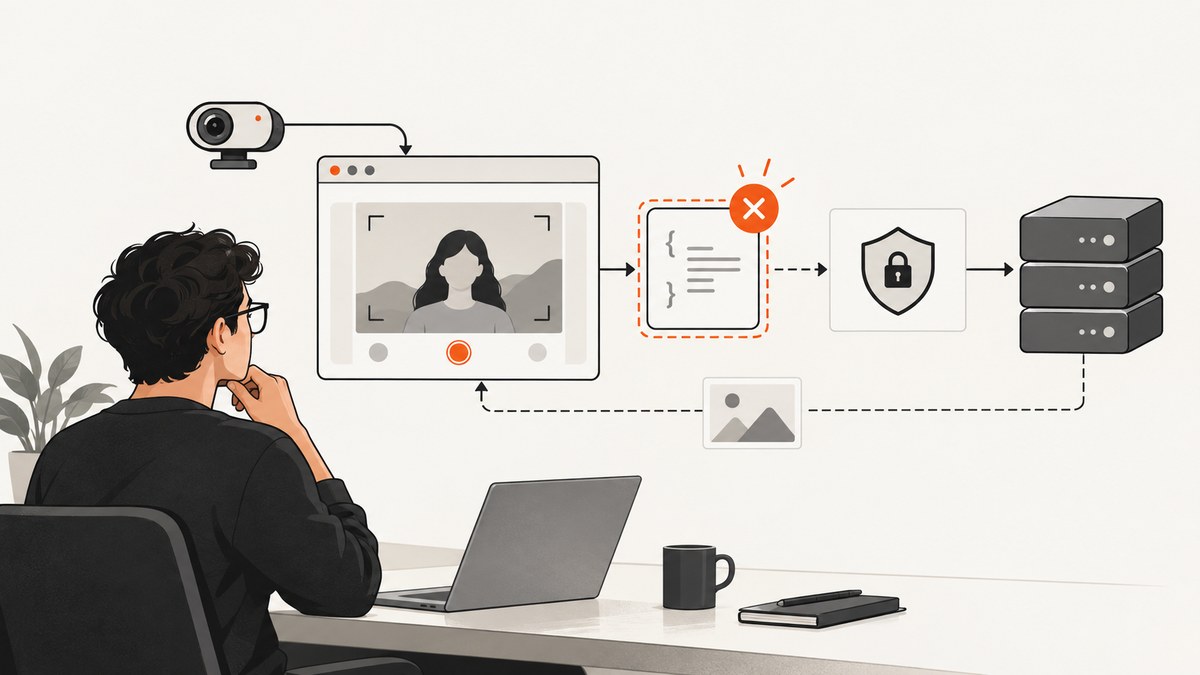
To handle a web capture SDK error, first identify which SDK and operation failed, then preserve the exact error name or code and locate the failure in the SDK lifecycle. Check script loading and configuration, browser security policies, camera support and permission when relevant, and the server or session response. Catch startup Promise rejections and runtime errors at the documented points. Retry only failures the vendor documents as transient; malformed input, missing sessions, permission denials, and user cancellations need different remedies.
“Web capture SDK” can mean a bug-reporting widget, a camera-based scanner, or an identity document flow. There is no universal error list or recovery policy. An error code from one vendor or SDK version should not be applied to another. The steps below help you collect useful evidence and route each failure without exposing captured personal data.
1. Identify the SDK and capture operation
Before changing code, write down the vendor, exact SDK version, operation that failed, browser and version, and the exact error name, code, or message. Also note whether the failure occurs while loading the SDK, initializing it, opening a camera, capturing data, or sending a request to a backend. These stages have different causes and often different handlers.
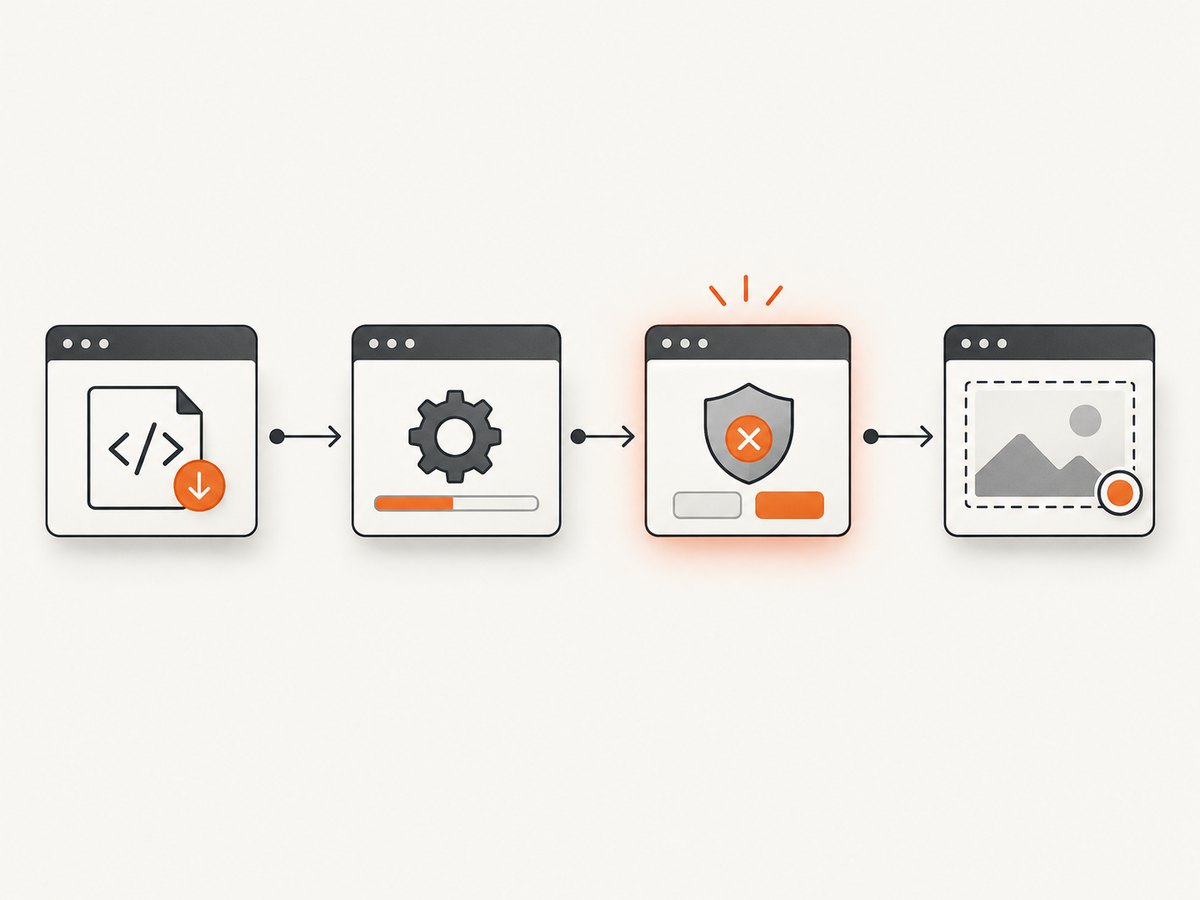
Save the full console error and stack trace, the rejected Promise value or callback payload, and the relevant network request and response status. Remove tokens, session secrets, document images, and other personal information before sharing logs. A short report should say what the user was doing immediately before the error and whether it reproduces in a clean browser session.
Build a useful failure record
- SDK: vendor, package or script URL, and exact version.
- Environment: browser and version, operating system, device type, and whether the page is embedded in an iframe.
- Operation: widget load, scanner initialization, camera stream, capture, or backend/session request.
- Evidence: error name/code, message, stack, console policy warnings, and sanitized network response.
- Outcome: startup failure, runtime failure, timeout, cancellation, or completed capture.
Do not begin by searching for a generic “web capture error code” and applying the first result. Even camera SDKs distinguish errors differently, and document capture APIs may use status values that have no relationship to browser widget errors.
2. Verify script loading and initialization order
If the widget never appears, inspect the browser Network and Console panels. Confirm that the SDK script request succeeded, the expected version was loaded, and the initialization code ran after the required configuration was set. Check for a 404, blocked request, JavaScript exception before initialization, or an incorrect environment key.
For example, Capture.dev instructs integrators to set window.captureOptions with the team capture key before loading its asynchronous script. Its client-side capture key is designed to be public. This setup applies to Capture.dev specifically; follow the equivalent initialization instructions for the SDK you use.
Use this sequence when investigating a widget:
- Open DevTools before reloading the page and preserve the log.
- Reload and confirm the SDK script request has a successful response.
- Look for configuration errors or exceptions that happen before the widget initializes.
- Verify that required options were set before the script or initialization call ran.
- Confirm the expected widget frame or DOM element appears, and inspect its load errors.
3. Check Content Security Policy and browser permissions
A browser policy can prevent an SDK from loading even when its URL and initialization code look correct. Content Security Policy (CSP) may block a script or an iframe. Check the console for policy violation messages and inspect the response headers or page meta policy. Allow only the SDK origins and resource types required by the product.
Capture.dev’s troubleshooting guidance, for example, calls out its script host in script-src and widget host in frame-src. Those hosts are specific to Capture.dev; do not copy them into a policy for another SDK. Consult that SDK’s deployment documentation and add the relevant origin to the narrowest applicable directive.
Permissions Policy is a separate check. Depending on the integration, the page or embedding iframe can restrict camera, microphone, clipboard writing, or display capture. A blocked API may look like an SDK failure. Review the browser console and the page’s Permissions-Policy response header and iframe allow attribute. Enable only the browser capabilities the flow needs, for the intended origin.
4. Diagnose camera startup failures separately
For a camera-based scanner, distinguish three questions: does the browser expose the required media API, is the user allowed to use the camera, and is a matching camera available? A single message such as “camera failed” does not answer all three. Check the vendor’s supported-browser matrix and deployment requirements before asking users to switch browsers or devices.
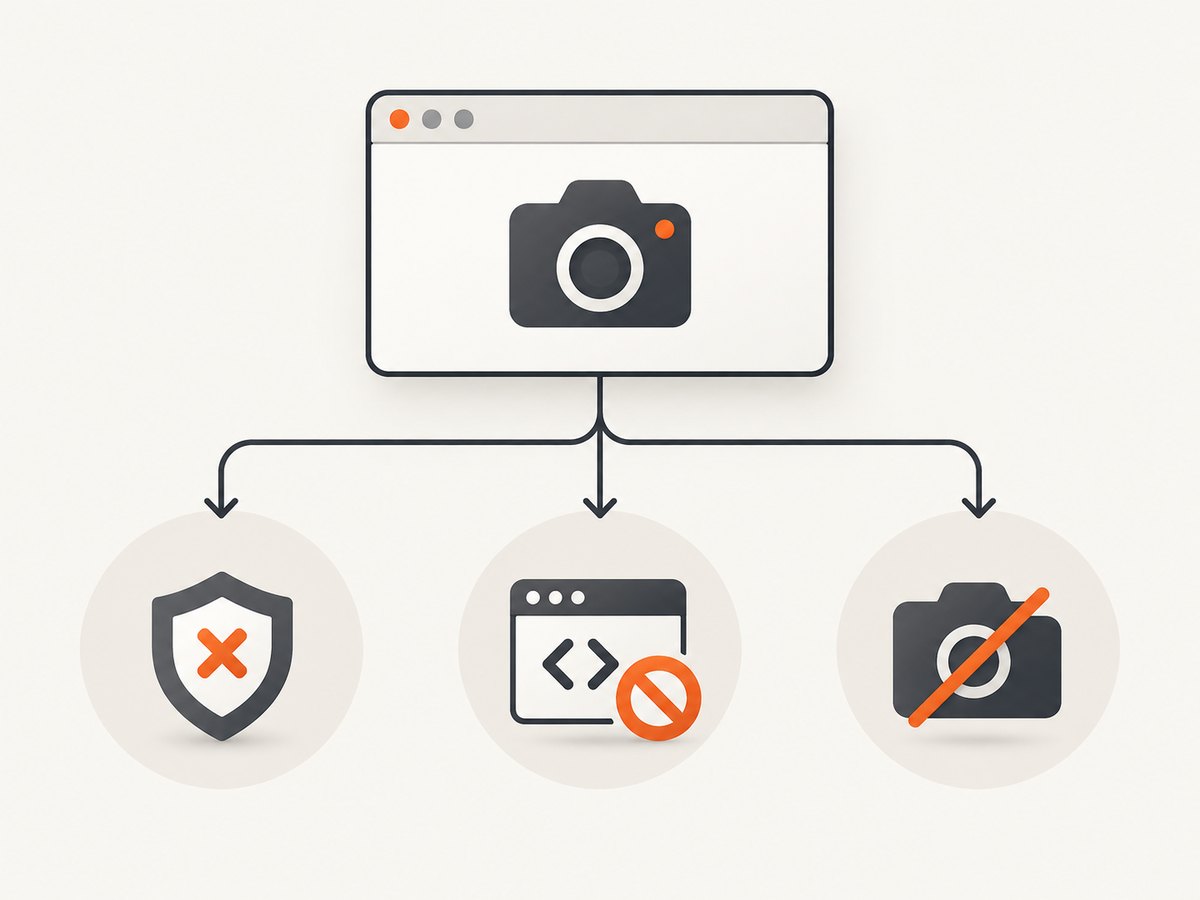
Scanbot SDK’s Web Data Capture documentation illustrates why the error name matters. It describes MediaPermissionError for denied permission, UnsupportedMediaDevicesError when mediaDevices is unavailable, and MediaNotAvailableError when no matching media source is available. These names are Scanbot-specific, not standard names to expect from every SDK.
Ask the user to grant camera access when permission was denied. If the API is unsupported, first confirm the SDK version and browser support; changing the permission prompt will not add a missing browser API. If no device is available, ask the user to connect or select a supported camera. Do not log or upload a captured image merely to diagnose camera startup.
5. Catch errors at startup and during runtime
Many SDKs have separate handling for initialization failures and errors after successful startup. A try/catch around a Promise-based initialization catches a rejected startup Promise, but may not catch a later camera or scanner failure reported through a callback. Register the documented runtime handler as well.
The following is an illustrative JavaScript pattern, not a drop-in vendor API. Replace createScanner, the error callback, and error fields with the methods documented by the SDK version you installed. Keep the original name or code for diagnostics while giving the user an action they can take.
async function startCapture() {
  try {
    const scanner = await VendorSDK.createScanner({
      onError(error) {
        reportCaptureError({
          stage: "runtime",
          name: error.name,
          code: error.code
        });
        showCaptureRecovery(error);
      }
    });

    await scanner.start();
    return scanner;
  } catch (error) {
    reportCaptureError({
      stage: "startup",
      name: error.name,
      code: error.code
    });
    showCaptureRecovery(error);
    return null;
  }
}
Scanbot documents catching Promise rejection when creating a scanner and configuring onError for failures after startup. Use the actual SDK’s lifecycle and callback contracts: do not assume every error is thrown, every callback receives the same shape, or that a failed operation can safely be started twice.
6. Classify backend responses, timeouts, and user outcomes
When capture involves a session or server request, diagnose the response separately from browser setup. IDEMIA’s Document WebCapture 3.9 reference gives product-specific examples: 400 for invalid input, 404 for a missing session, 409 when a mandatory native integration datum was not pushed, 500/2000 for internal errors, 503 for server overload, and 1304 for no active video stream. Its status vocabulary separately includes DONE, FAILED, TIMEOUT, ABORTED, and ERROR. These meanings apply to that reference, not to other SDKs.
| Failure kind | What to check | Useful response |
|---|---|---|
| Invalid request (example: IDEMIA 400) | Required fields, formats, and current SDK contract | Correct input; do not repeat unchanged input. |
| Missing session (example: IDEMIA 404) | Session creation, expiry, identifier, and request ordering | Create or recover valid state according to the vendor flow. |
| Missing integration data (example: IDEMIA 409) | Required native integration step and data handoff | Complete the required step before continuing. |
| Server failure (example: IDEMIA 500/2000) | Sanitized response, request ID if provided, and server health | Report the incident; retry only under documented rules. |
| Temporary overload (IDEMIA 3.9 example: 503) | Whether the vendor marks the operation retryable | That reference advises retrying after a few seconds; use its retry guidance. |
| Timeout or abort | Whether the user cancelled, the deadline elapsed, or the network stalled | Show a clear retry or exit path and preserve that outcome. |
Before retrying a capture or submission, check whether the operation is idempotent, whether it creates a new session, and whether a partial result may already exist. Follow vendor guidance for retry delays and limits. Repeating a malformed request or expired session without fixing state only creates more noise.
7. Troubleshooting checklist
| Symptom | Likely checks | Fix direction |
|---|---|---|
| Widget does not appear | Script request, initialization order, console, CSP script and frame directives | Fix the load or policy failure, then reload after the resource can load. |
| Browser API is blocked | Permissions Policy header, iframe permissions, console messages | Permit only the capability and origin the integration needs. |
| Scanner cannot start | Supported browser, mediaDevices, device presence, permission |
Map the vendor’s named startup error to a specific user remedy. |
| Failure after scanner starts | Runtime callback registration and payload shape | Handle the documented runtime event; startup handling alone is insufficient. |
| Backend/session request fails | Validation, session existence, integration prerequisites, response code | Fix invalid state; use vendor-specific transient retry guidance. |
| User exits or runs out of time | Result status and cancellation path | Distinguish user outcome from a technical failure and offer retry or exit. |
If the issue occurs only in production, compare the deployed headers, iframe origin, SDK URL/version, and environment configuration with a working environment. Use sanitized client-side error telemetry to collect the stage, browser, SDK version, and error code. Do not collect document contents or camera frames just to improve diagnostics.
8. Make error handling reliable and efficient
Preserve structured error information rather than converting everything to “capture failed.” A useful diagnostic event includes a correlation or request ID when the vendor provides one, the operation stage, SDK version, browser, error name/code, and sanitized status. Keep user-facing messages separate: “Allow camera access in browser settings” is more helpful than displaying a raw stack trace.
Avoid logging secrets, authorization headers, full session tokens, document images, or unnecessary personal data. Apply the same care to browser logs, analytics, and support tickets. Retain enough context to diagnose recurring failures, but follow your organization’s privacy and retention rules.
For performance, distinguish a slow initial SDK download from a slow camera startup, capture processing, or server round trip. Measure stages separately before changing timeouts. A longer timeout may help a genuinely slow network but can also leave users waiting through a policy error that cannot recover. If the vendor provides a status API or request identifier, use it rather than repeatedly resubmitting the capture.
For reliability, use a bounded retry only for failures documented as transient, with the vendor’s delay and idempotency rules. Do not retry user denial, unsupported APIs, invalid input, missing sessions, or explicit cancellation unchanged. Give users a clear way to retry after fixing permission or to leave the flow. Cost depends on the SDK and service contract; this research does not establish a universal charge model, so check your vendor’s billing terms for failed, retried, and abandoned operations.
9. Or skip the browser setup
If your goal is a website screenshot for a report, audit, or AI workflow rather than a camera capture SDK, [ScreenshotNeo](https://screenshotneo.com) provides a website screenshot API and MCP server. The browser setup example above is for SDK error handling; for a website screenshot, a single API call can return an image or PDF. See the [ScreenshotNeo API documentation](https://screenshotneo.com/docs/) for request options.
curl -G "https://api.screenshotneo.com/v1/shot" -d access_key=YOUR_API_KEY --data-urlencode url=https://stripe.com -o shot.webpimport requests
r = requests.get(
"https://api.screenshotneo.com/v1/shot",
params={"access_key": "YOUR_API_KEY", "url": "https://stripe.com"},
timeout=90,
)
open("shot.webp", "wb").write(r.content)const q = new URLSearchParams({ access_key: 'YOUR_API_KEY', url: 'https://stripe.com' });
const res = await fetch(`https://api.screenshotneo.com/v1/shot?${q}`);ScreenshotNeo removes cookie and consent banners, newsletter popups, and chat widgets before capture. Bot checks, blank pages, failed loads, and cache hits are not billed, and responses identify the page verdict and billing result in headers. Its MCP server offers take_screenshot, get_page_info, and capture_pdf for Claude, Cursor, and other MCP clients. The free plan includes 1,000 screenshots a month with no card; paid plans start at $5 for 3,000. Sign up for 1,000 free screenshots a month, with no card required.
10. FAQ
Is there a standard web capture SDK error list?
No. Names, codes, lifecycle handlers, and recovery behavior depend on the vendor, product type, and version. Use the installed SDK’s documentation and preserve its original error details.
Why does my capture widget fail only after deployment?
Compare production CSP, Permissions Policy, iframe settings, script URL, and environment configuration with the working setup. Browser console policy violations and failed network requests often identify the difference.
Should every failed capture be retried?
No. Retry only failures documented as transient and follow the vendor’s idempotency and delay guidance. Fix invalid input, missing state, permission denial, or unsupported browser conditions first.
What should a support ticket include?
Include vendor and SDK version, browser/version, operation stage, exact error name/code, sanitized console and network evidence, and steps to reproduce. Exclude tokens, images, and personal capture data.
Sources
- Capture.dev Web SDK installation and troubleshooting documentation — script setup, developer tools, and product-specific policy guidance.
- Scanbot SDK Web Data Capture error handling documentation — startup Promise errors, runtime handling, and camera-related error distinctions.
- IDEMIA Document WebCapture 3.9 documentation — version-specific response codes and status vocabulary.


