How to Take Screenshots Quickly in a Headless Browser
Speed up headless browser screenshots by capturing only what you need, choosing efficient output settings, and waiting for the right page state.
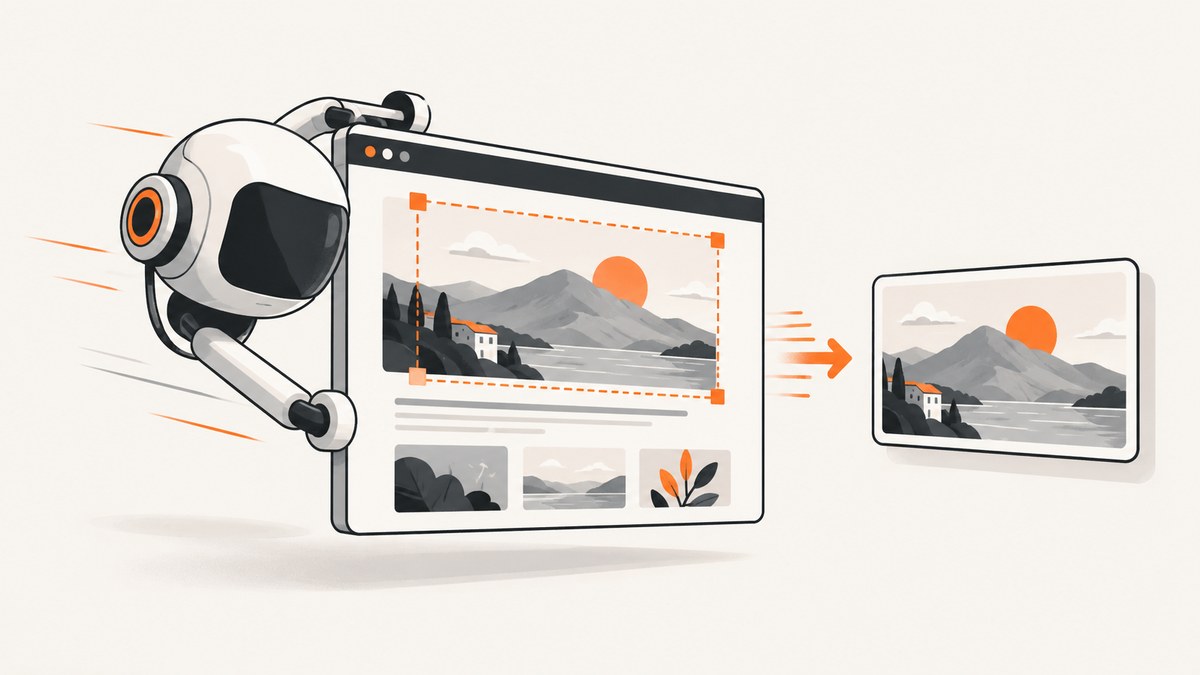
The quickest reliable screenshot is usually the smallest capture that contains the content you need. Use a viewport screenshot for visible content, an element screenshot for one component, and a full-page screenshot only when below-the-fold content matters. Keep output at CSS-pixel scale unless you need high-DPI detail, choose a compressed format when lossy output is acceptable, and wait for the specific content your task depends on. Neither Playwright nor Puppeteer documentation establishes a universally fastest framework or a quantified speed gain; benchmark the full workflow in your own runtime.
This guide uses Playwright with Node.js for the main runnable example, then gives Puppeteer, Python, and cURL alternatives where they apply. The cURL example calls a hosted screenshot API; it is not a local headless browser.
1. Choose the smallest screenshot that answers the question
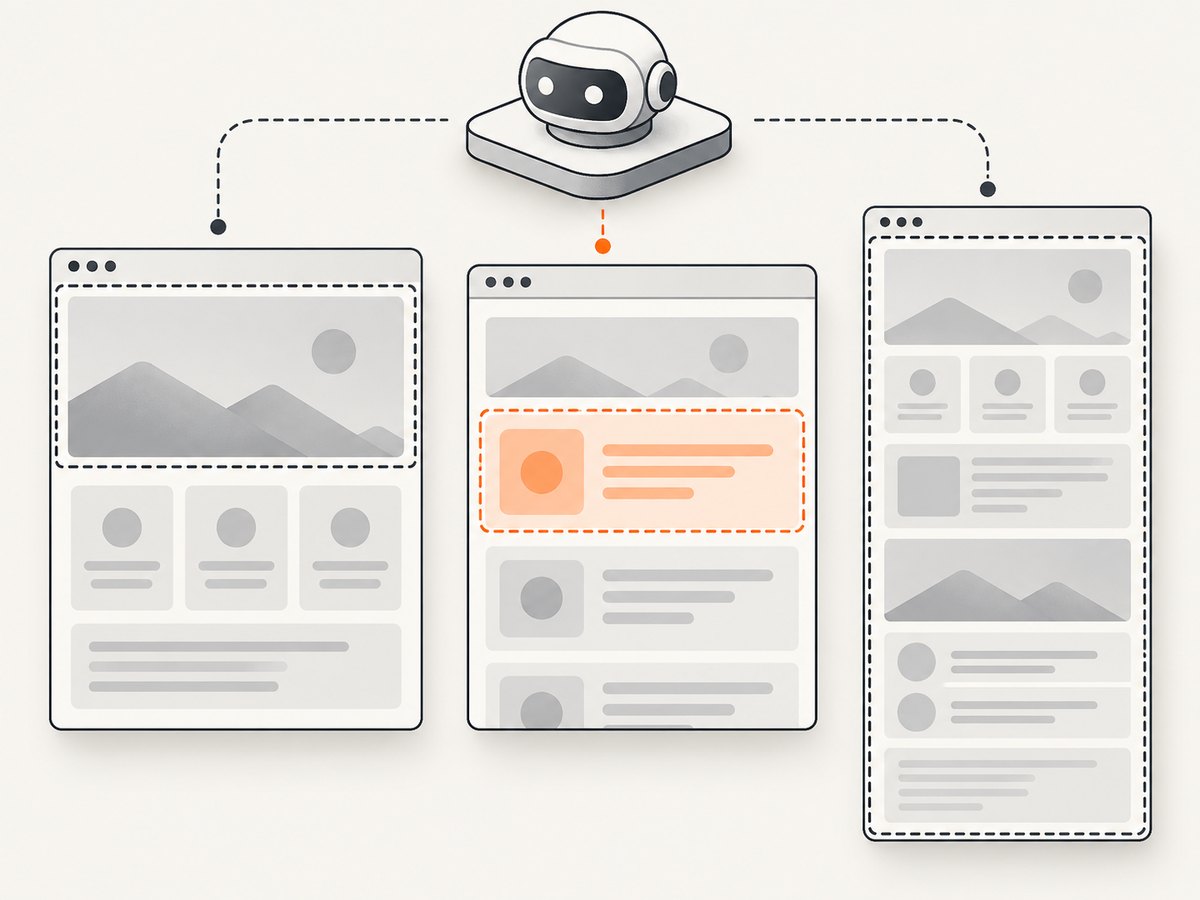
| Need | Capture | Why |
|---|---|---|
| What a user sees on initial load | Viewport | Limits the captured area to the configured viewport. |
| A card, chart, form, or other component | Element or locator | Avoids capturing unrelated page regions. |
| All content, including below the fold | Full page | Captures the scrollable document, with more image area to render and encode. |
Playwright and Puppeteer both document page and element screenshots. Full-page screenshots cover the complete scrollable page; neither official reference provides a universal time difference between these modes. See the Playwright screenshot guide and Puppeteer screenshot guide.
2. Runnable Playwright example
Install Playwright and its Chromium browser in a Node.js project:
npm install playwright
npx playwright install chromium
Save this as screenshot.mjs. It writes a viewport screenshot by default; set CAPTURE=element or CAPTURE=full to capture a locator or full page. The target URL is configurable with TARGET_URL.
import { chromium } from 'playwright';

const url = process.env.TARGET_URL ?? 'https://example.com';
const capture = process.env.CAPTURE ?? 'viewport';
const browser = await chromium.launch({ headless: true });

try {
  const page = await browser.newPage({
    viewport: { width: 1280, height: 800 },
    deviceScaleFactor: 1,
  });

  // Use domcontentloaded as a starting point, then wait for the
  // actual content required by your capture.
  await page.goto(url, { waitUntil: 'domcontentloaded', timeout: 30_000 });
  await page.locator('main').waitFor({ state: 'visible', timeout: 10_000 });

  const options = { path: 'shot.webp', type: 'webp', quality: 80, scale: 'css' };
  if (capture === 'full') {
    await page.screenshot({ ...options, fullPage: true });
  } else if (capture === 'element') {
    await page.locator('main').screenshot(options);
  } else {
    await page.screenshot(options);
  }
} finally {
  await browser.close();
}
Run it with node screenshot.mjs. For a full page use CAPTURE=full node screenshot.mjs; for the main element use CAPTURE=element node screenshot.mjs. Replace main with a stable selector present on your target site. The example uses WebP quality 80 as an explicit lossy-output choice; select PNG for lossless output or omit quality for PNG.
3. Make page readiness efficient and correct
Navigation completion and screenshot readiness are separate questions. page.goto() can return while client-side rendering, fonts, images, or data-driven components are still changing. Conversely, waiting for all network activity can stall on analytics, polling, streaming connections, or other requests that never settle.
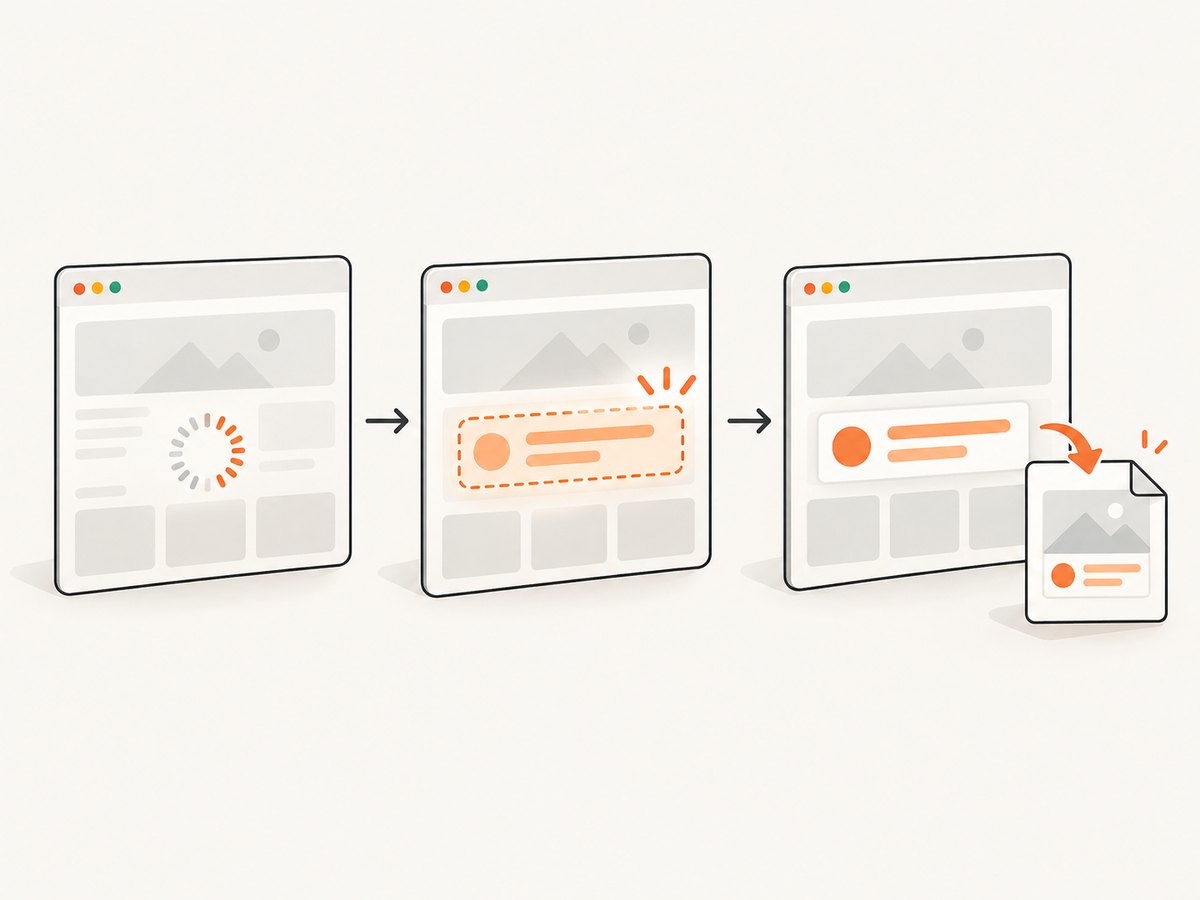
- Wait for a selector when a known element means the useful content is ready. Prefer a specific locator over a generic delay.
- Wait for a known delay only for an app with a documented animation or rendering interval that has no observable ready signal.
- Use network idle carefully. Puppeteer’s screenshot guide demonstrates navigation with
waitUntil: 'networkidle2'; that example does not establish it as the fastest or best condition for every site. - Load lazy content deliberately. If full-page output must include lazy images, scroll through the document and wait for images to load before capturing. This adds work, so do it only when those images are required.
- Control animations and time-varying content for repeatable visual comparisons. Disable animations or freeze clocks only if that matches the screenshot’s purpose.
For diagnosis, record navigation time, readiness wait, capture time, and file-write or upload time separately. Otherwise a slow application response may be mistaken for a slow screenshot encoder.
4. Capture with Puppeteer
Install Puppeteer, which downloads a compatible browser by default:
npm install puppeteerSave and run as puppeteer-shot.mjs:
import puppeteer from 'puppeteer';

const browser = await puppeteer.launch({ headless: true });
try {
  const page = await browser.newPage();
  await page.setViewport({ width: 1280, height: 800, deviceScaleFactor: 1 });
  await page.goto(process.env.TARGET_URL ?? 'https://example.com', {
    waitUntil: 'domcontentloaded',
    timeout: 30_000,
  });
  await page.waitForSelector('main', { visible: true, timeout: 10_000 });
  await page.screenshot({ path: 'shot.webp', type: 'webp', quality: 80 });
} finally {
  await browser.close();
}
For an element screenshot, use await page.$eval('main', el => el) is not a Puppeteer element handle; instead select and pass an element handle:
const main = await page.waitForSelector('main', { visible: true });
await main.screenshot({ path: 'main.png', type: 'png' });
Set fullPage: true on page.screenshot() when the entire scrollable page is necessary. Puppeteer documents optimizeForSpeed as a screenshot option, but its API reference does not quantify the improvement. Measure it with your pages and output settings before relying on it.
5. Output settings that affect time and size
| Setting | Practical choice | Trade-off |
|---|---|---|
| Capture region | Viewport or element when sufficient | Full page covers more content and produces a larger image. |
| Pixel scale | CSS pixels for ordinary previews and many automation tasks | Device-pixel output can multiply dimensions and pixel count on high-DPI contexts. |
| Format | JPEG or WebP when lossy compression is acceptable | Compression can reduce output size; artifacts may affect text, edges, or visual diffs. |
| PNG | When lossless output or exact pixels matter | Quality controls for lossy encoding do not apply to PNG. |
| Viewport | Set only the width and height needed by the task | Larger dimensions mean more pixels to render and encode. |
Playwright supports screenshot formats and scale controls; its API describes scale: 'css' and scale: 'device'. Device scale can create significantly larger images. Quality is relevant to lossy formats, not PNG. Check the Playwright Page screenshot API for current options.
When the output is uploaded, transmitted, or stored, compare total pipeline time and bytes as well as capture duration. A slightly slower encode can still make the workflow faster if it substantially reduces transfer and storage overhead; measure rather than assume.
6. Python and cURL for a hosted screenshot
These examples call ScreenshotNeo’s screenshot endpoint instead of launching a local browser. They are useful when you need an image from a URL and do not need to manage browser installation, lifecycle, or capture code. See the ScreenshotNeo API documentation for its request options.
Python
import requests

r = requests.get(
    "https://api.screenshotneo.com/v1/shot",
    params={"access_key": "YOUR_API_KEY", "url": "https://example.com"},
    timeout=90,
)
r.raise_for_status()
with open("shot.webp", "wb") as f:
    f.write(r.content)
cURL
curl -G "https://api.screenshotneo.com/v1/shot" \
  -d access_key=YOUR_API_KEY \
  --data-urlencode url=https://example.com \
  -o shot.webp
7. Benchmark the workflow you will operate
There is no source-backed universal speed winner between Playwright and Puppeteer. Compare them only under controlled conditions: same URLs and page state, browser build, host OS and hardware, viewport, device scale, format, capture region, and readiness rule. Browser output and rendering can vary with host OS, browser version, settings, hardware, power source, and headless mode; keep those stable for meaningful comparisons. See Playwright visual testing guidance.
- Warm the browser and page consistently, or explicitly include cold-start cost if production requests are cold.
- Run enough repetitions to see variance; report a distribution such as median and tail latency, not one favorable run.
- Measure browser launch, navigation, page readiness, screenshot encoding, and output handling separately.
- Test representative pages, including unusually long pages and pages with heavy images or client rendering.
- For sustained volume, track throughput, memory, browser crashes, timeouts, retries, and queue delay along with latency.
8. Reliability and production considerations
- Reuse browser processes where appropriate. Starting a browser for every capture adds startup work. Reuse can improve throughput, but isolate contexts or pages so cookies, storage, and state do not leak across jobs.
- Bound concurrency. Too many simultaneous pages can exhaust memory or CPU and make all captures slower. Increase worker concurrency gradually while watching tail latency and failures.
- Set timeouts and cleanup. Give navigation and readiness waits explicit limits, close pages or contexts after failures, and always close a browser during worker shutdown.
- Retry selectively. A transient navigation failure may merit a retry; a deterministic missing selector usually needs a code or target-page fix. Use a retry limit and avoid duplicate side effects on pages that submit forms.
- Keep the environment stable for visual tests. Browser version, OS, fonts, viewport, and headless mode can affect pixels. Update baselines intentionally when the environment changes.
- Use custom launch arguments sparingly. Playwright warns: “Use custom browser args at your own risk, as some of them may break Playwright functionality.” See the BrowserType launch API.
9. Troubleshooting
| Symptom | Likely cause | Fix |
|---|---|---|
| Screenshot is blank or missing page content | Capture happened before the relevant app content rendered, or the selector is wrong. | Wait for a visible, page-specific locator and confirm the URL and selector. |
| Navigation or readiness timeout | Waiting for an event that never happens, a slow target, or a selector absent on an error page. | Choose the readiness condition based on required content, inspect navigation errors, and set a bounded timeout. |
| Capture takes much longer on full pages | The document and resulting image cover a larger area; lazy content may also need loading. | Use viewport or element capture if it meets the requirement; only load below-fold content when needed. |
| Output files are unexpectedly large | Device-pixel scale, large viewport/full page, or lossless format. | Use CSS scale, narrow the capture, or use JPEG/WebP when lossy compression is acceptable. |
| Text or edges look blurry | Lossy compression or insufficient pixel scale. | Use PNG for exact lossless output or test a higher scale when the extra pixels are needed. |
| Visual snapshots differ between machines | OS, browser version, fonts, settings, hardware, power source, or headless mode differs. | Run comparisons in a consistent environment and update baselines deliberately. |
| Intermittent failures under load | Excessive concurrency, resource pressure, or shared browser state. | Bound concurrency, isolate contexts, collect resource and failure metrics, and retry only transient errors. |
Puppeteer optimizeForSpeed has no visible effect |
The option name is not a guarantee of a measurable gain for a particular page or environment. | Benchmark repeated runs with identical conditions and retain it only if the result helps. |
10. Or skip the browser setup
ScreenshotNeo takes a URL and returns a screenshot or PDF through one API request. Cookie banners, popups, and chat widgets are removed before the shot. Bot checks, blank pages, and failed loads are never billed. An MCP server lets AI agents use screenshot tools. The Free plan includes 1,000 screenshots per month with no card; paid plans start at $5 for 3,000. Every feature is on every plan.
const q = new URLSearchParams({ access_key: 'YOUR_API_KEY', url: 'https://example.com' });
const res = await fetch(`https://api.screenshotneo.com/v1/shot?${q}`);
if (!res.ok) throw new Error(`Screenshot request failed: ${res.status}`);
await Bun.write('shot.webp', res);
For Node.js versions without Bun.write, save the response with the built-in filesystem API:
import { writeFile } from 'node:fs/promises';
const bytes = Buffer.from(await res.arrayBuffer());
await writeFile('shot.webp', bytes);
Review the API docs and ScreenshotNeo. Sign up for 1,000 free screenshots a month, no card required.
11. Frequently asked questions
Is Playwright or Puppeteer faster?
The cited official documentation does not establish a universal winner. Compare both in the browser and runtime environment you plan to use, with identical page readiness and output settings.
Does a faster screenshot mean waiting less for the page?
Not necessarily. Navigation, application rendering, readiness waits, image encoding, and saving or uploading the result contribute separate time. Measure each stage.
Should I use full-page screenshots for visual tests?
Only when content below the viewport is part of the test. Otherwise a viewport or element capture limits scope and avoids extra image area.
Does Puppeteer’s speed optimization guarantee a faster result?
No quantified gain is stated in its option reference. Treat it as something to benchmark, not a performance guarantee.
How do I keep screenshots consistent across runs?
Fix the browser and host environment, viewport, device scale, readiness condition, and page state; control dynamic content when appropriate.


