How to Run Headless Browsers in the Cloud for Web Scraping
Run Playwright or Puppeteer on a remote browser, choose the right cloud setup, and handle versions, routing, retries, and data quality.
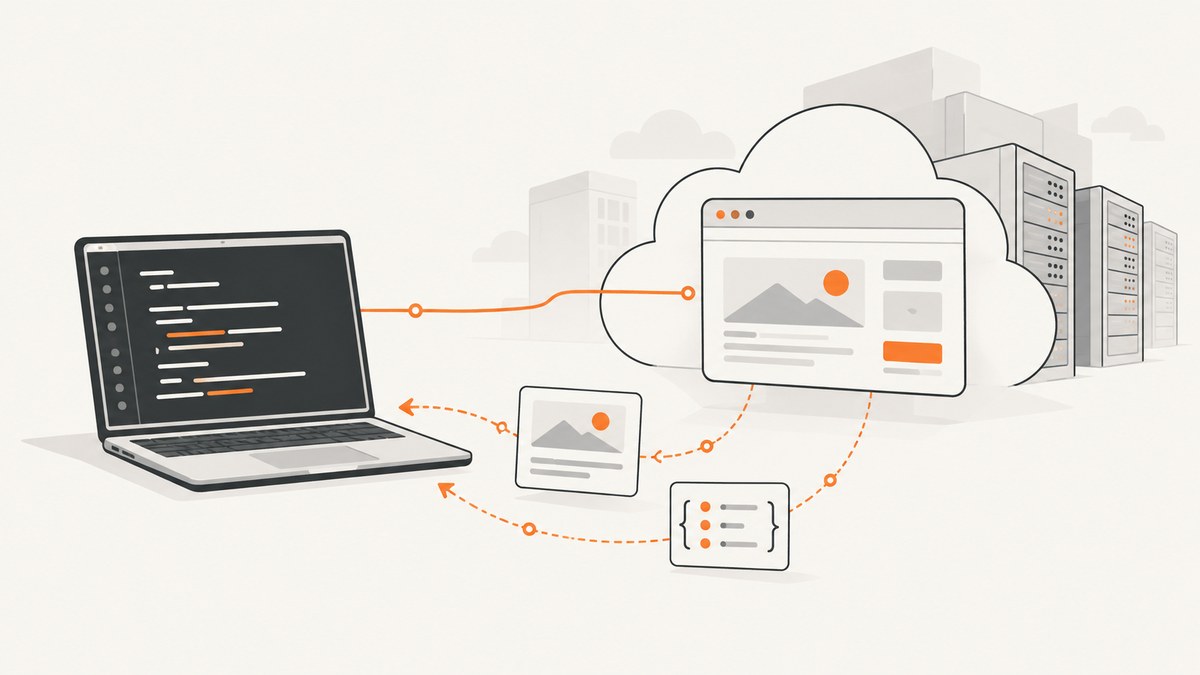
To run a headless browser in the cloud, connect a browser automation client such as Playwright or Puppeteer to a remote browser endpoint, navigate to pages you are authorized to access, and save the rendered result. A managed endpoint operates the browser infrastructure for you; a self-hosted service gives your team responsibility for deployment and operations. If you only need a page screenshot or PDF, a screenshot API can be simpler than writing browser automation.
This guide uses Playwright with a managed endpoint as the concrete example. The endpoint URL, route, authentication, supported browser versions, and plan limits are provider-specific: use the provider’s current connection instructions. Browserless documents managed browser connections over WebSocket and distinguishes CDP routes from Playwright-native routes. Its BaaS v2 documentation says the client must match the route protocol and that Selenium/WebDriver is not supported there. Browserless BaaS documentation
1. Decide whether you need a browser
Start with the least complex interface that returns the data your workflow needs.
- Use a stateless scraping or extraction endpoint when you submit a URL and receive the needed page content without interaction or a persistent browser session.
- Use a remote browser when the page relies on JavaScript rendering, navigation, clicks, scrolling, or other browser interaction, or when you already have a Playwright or Puppeteer workflow.
- Use a screenshot API when the output is a screenshot or PDF rather than extracted, structured page data. For example, ScreenshotNeo accepts a URL and returns a screenshot or PDF.
These interfaces solve different problems. A browser session gives your code control over page behavior; an API may handle a narrower task with less code. Avoid adding browser automation if a simpler endpoint already returns the exact authorized data you need. Browserless documents both REST scraping APIs and controllable browser sessions. Browserless overview
2. Choose where the browser runs
| Option | Good fit | What your team operates |
|---|---|---|
| Managed remote browser | Move an existing Playwright or Puppeteer script to a hosted browser. | Your automation code, credentials, job flow, and result handling. The provider operates the hosted browser service. |
| Self-hosted browser service | You need to deploy the browser service in infrastructure your team manages. | Deployment environment and ongoing service operation, as well as your automation and job pipeline. |
| Stateless scraping API | A URL-in, content-out request meets the collection need. | Request handling, validation, storage, and any retries or downstream processing in your workflow. |
Browserless documents a cloud service and Docker self-hosting; its documentation also describes remote browser sessions and REST or GraphQL interfaces. Apify documents platform features such as Actors, storage, schedules, monitoring, and proxies. Those descriptions identify available interfaces and features; they do not establish a cost, speed, reliability, or privacy advantage for a particular workload. Compare providers against your own requirements and review their current data-handling terms. Browserless · Apify documentation
3. Connect a Playwright script to a cloud browser
There are two common approaches. In the first, your code connects to a provider’s Playwright-native WebSocket route. In the second, it connects through a CDP endpoint when the provider and client support that combination. Follow the provider’s current route instructions exactly: a URL for one protocol cannot necessarily be used with a client expecting another.
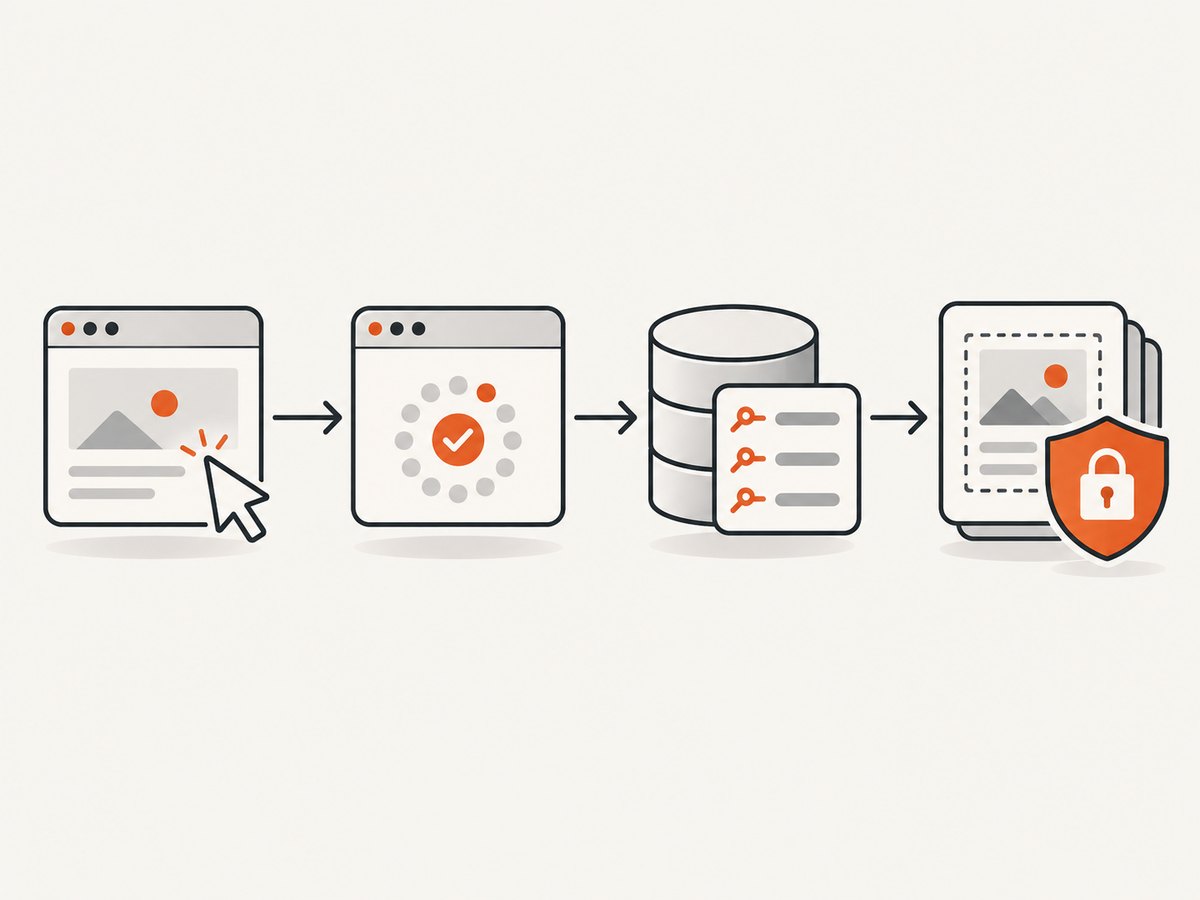
The example below shows the structure of a Playwright-native connection. Replace the placeholder with the full WebSocket endpoint and authentication format supplied by your provider. Do not guess the route or append credentials unless the provider documents that format.
Install Playwright
npm init -y
npm install playwright
For local browser development, install the browser build associated with your Playwright package:
npx playwright install chromiumWith a hosted browser, the remote provider supplies the browser process. Check which engine and version it supports rather than assuming your local browser installation is used remotely.
Complete Node.js example
import { chromium } from 'playwright';

const endpoint = process.env.BROWSER_WS_ENDPOINT;
if (!endpoint) throw new Error('Set BROWSER_WS_ENDPOINT from your provider instructions');

let browser;
try {
  browser = await chromium.connect(endpoint);
  const context = await browser.newContext();
  const page = await context.newPage();
  const response = await page.goto('https://example.com', {
    waitUntil: 'domcontentloaded',
    timeout: 30000,
  });

  if (!response) {
    throw new Error('Navigation returned no main-resource response');
  }
  if (!response.ok()) {
    throw new Error(`Page returned HTTP ${response.status()}`);
  }

  const title = await page.title();
  const text = await page.locator('body').innerText();
  console.log(JSON.stringify({ url: page.url(), title, text }, null, 2));

  await context.close();
} finally {
  if (browser) await browser.close();
}
Set the endpoint in the environment according to your provider’s documented format, for example by exporting BROWSER_WS_ENDPOINT in your shell or secret manager. Keep tokens out of source control, logs, and error messages. Browserless documents token-based authentication for its own service; authentication is provider-specific, not a universal WebSocket convention. Browserless overview
The example checks the main navigation response, but an HTTP success does not prove the page contains useful data. Add a page-specific readiness check: wait for a known selector, validate required fields, and reject empty or unexpected output.
4. Match browser, library, and protocol versions
Playwright supports Chromium, Firefox, and WebKit, and documents installing browser builds associated with the Playwright release. Keep the library and browser versions aligned in local environments. In a managed environment, check the provider’s supported engines, versions, and connection methods. A mismatch can break APIs, page rendering, or connection setup. Playwright browser documentation
- Use a Playwright-native connection only with a compatible provider route and Playwright client.
- Use CDP only when the selected browser endpoint and client support CDP.
- Check whether your workflow requires Chromium specifically or can use another documented engine.
- When upgrading Playwright, confirm that your chosen provider supports the corresponding connection behavior and browser build.
- Do not assume Selenium/WebDriver works through an endpoint documented for another protocol.
Playwright also documents a headless-shell installation option for local Chromium use. That is a local browser packaging choice; a hosted endpoint controls its own browser installation. Playwright browser installation
5. Add proxy routing only for a real network requirement
A proxy can route browser traffic through a required network path or egress location. It does not establish that collecting a page is authorized, and it does not guarantee access or successful extraction. Playwright documents HTTP and SOCKS proxy settings for browser use; the exact configuration point depends on whether you launch a browser locally or connect to a remote one. Playwright Browser API
Before configuring routing, identify the actual requirement: for example, the target is reachable only from a particular network, or an application test must use a specified egress path. For a remote browser, check whether the provider configures proxying at the session, account, or request level. Avoid placing proxy credentials in code or logs. Review target-site rules, data rights, and applicable legal requirements before collecting data.
6. Turn a script into a reliable data pipeline
A browser connection is one step in a collection workflow. For recurring jobs, plan the surrounding system before increasing concurrency.
- Schedule the work. Define when jobs run and how missed or duplicate runs are handled.
- Limit concurrency. Start with a conservative number of simultaneous sessions, then adjust based on provider limits, target-site rules, and observed failures. Do not assume an advertised maximum is appropriate for your workload.
- Set explicit timeouts. Bound connection, navigation, and selector waits separately where the client and service allow it. A single slow page should not hold a worker forever.
- Validate the result. Check required selectors, fields, and record counts. Store a clear failure reason when content is missing or structurally different.
- Persist output and metadata. Store the extracted data with capture time, requested URL, status, and a job identifier. Avoid retaining sensitive page content longer than needed.
- Retry selectively. Retry transient connection and service failures with a bounded backoff. Do not endlessly retry authorization failures, blocked requests, or page content that consistently fails validation.
- Monitor quality. Alert on failure rates, empty results, schema changes, and unusual volume. A successful browser connection is not the same as a successful data collection.
Apify documents scheduling, storage, and monitoring as platform capabilities; Browserless documents browser sessions and crawl APIs. Choose the orchestration surface that matches your job rather than treating those feature descriptions as evidence of measured performance. Apify documentation · Browserless documentation
7. Consider a screenshot API for visual output
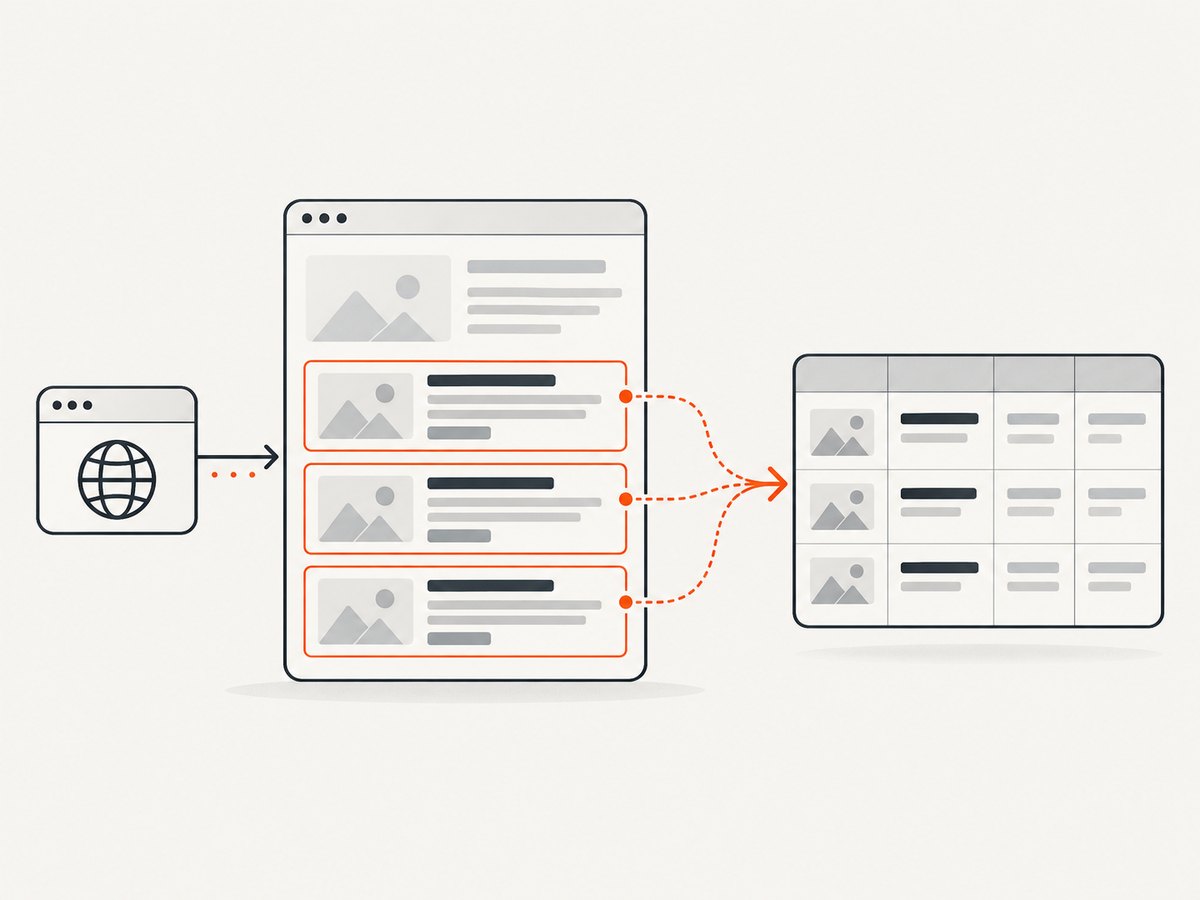
If your deliverable is a screenshot or PDF, a browser session may be more machinery than the task needs. A screenshot API accepts a URL and returns an image or document. ScreenshotNeo also offers an MCP server with take_screenshot, get_page_info, and capture_pdf tools for MCP clients such as Claude and Cursor. Its API supports options including full-page capture, element selectors, device and viewport settings, custom CSS and JavaScript, waits, and PDF output. See the ScreenshotNeo API documentation for parameter details.
Or skip the browser setup
For a screenshot or PDF, call ScreenshotNeo with a URL. This cURL request saves a WebP image:
curl -G "https://api.screenshotneo.com/v1/shot" \
  -d access_key=YOUR_API_KEY \
  --data-urlencode url=https://stripe.com \
  -o shot.webp
Python:
import requests

r = requests.get(
    "https://api.screenshotneo.com/v1/shot",
    params={"access_key": "YOUR_API_KEY", "url": "https://stripe.com"},
    timeout=90,
)
r.raise_for_status()
open("shot.webp", "wb").write(r.content)
Node.js:
const q = new URLSearchParams({
  access_key: 'YOUR_API_KEY',
  url: 'https://stripe.com'
});
const res = await fetch(`https://api.screenshotneo.com/v1/shot?${q}`);
if (!res.ok) throw new Error(`Screenshot request failed: ${res.status}`);
await Bun.write('shot.webp', res);
ScreenshotNeo accepts cookie or consent banners like a visitor and removes more than 60 known consent platforms, newsletter popups, and chat widgets before capture; each step can be turned off. Bot checks or CAPTCHAs, blank pages, timeouts, failed loads, and cache hits cost nothing, and response headers identify the page verdict and billing status. An MCP server lets AI agents take screenshots. The free plan includes 1,000 screenshots per month with no card; paid plans start at $5 for 3,000. The API also supports PNG, JPEG, WebP, PDF, signed links, async jobs, bulk capture, and a usage API. For screenshots and PDFs, that can avoid setting up a browser session. Read the API docs and sign up for 1,000 free screenshots a month, no card required.
8. Troubleshoot common failures
| Symptom | Likely cause | What to check |
|---|---|---|
| WebSocket connection is rejected | Wrong endpoint, expired or missing credential, or incorrect authentication format. | Copy the current connection URL and token format from the provider’s docs. Check secret injection without printing the secret. |
| Client reports an unsupported protocol | Playwright-native and CDP route/client do not match. | Use the matching client method and route documented by the provider. Confirm protocol support for the service version. |
| Browser launches locally but remote connect fails | Local launch code is being used where a remote connection method is required, or vice versa. | Follow the provider’s remote connection example; check whether it expects Playwright connect, CDP connect, or another API. |
| Navigation times out | Slow page, unsuitable wait condition, network issue, or a page that never becomes idle. | Use a bounded timeout and an appropriate readiness condition. Wait for a required selector when the workflow needs specific content. |
| Navigation succeeds but extracted data is empty | The content is delayed, selector changed, or page returned an error/interstitial. | Validate the response status and expected page markers. Capture diagnostic metadata and update selectors only after checking the page and permission. |
| Works on one browser version but not another | Different engine or browser build changes rendering or supported behavior. | Confirm the provider’s engine/version and test against that supported environment. Keep local Playwright and browser installs aligned. |
| Job succeeds but output is duplicated or missing | Scheduling, retries, or storage writes are not idempotent. | Give each task a stable identifier, make writes idempotent, and record job state through completion. |
| Remote session closes unexpectedly | Provider limits, network interruption, or an unhandled script error. | Check provider session limits and logs, close pages and contexts deliberately, and retry only transient failures with a cap. |
9. Performance, reliability, and cost considerations
There is no universal performance or cost winner between a managed browser, self-hosting, and an API. The research sources reviewed here do not provide comparable benchmarks or pricing for those options. Measure your own representative pages and include connection setup, browser work, retries, storage, and operations in the comparison.
- Performance: record connection and navigation durations separately, along with time to the required selector and extraction. Limit unnecessary page work and avoid waiting for network idle when the page’s required data is already ready.
- Reliability: track successful validated records, not just HTTP status or browser connection success. Make retry policy bounded and distinguish transient infrastructure errors from persistent page or permission issues.
- Cost: compare the provider’s current pricing and usage limits against actual sessions, pages, and concurrency. For self-hosting, account for deployment and ongoing operation. For a stateless API, verify its output and limits against the task.
- Data handling: evaluate what page content, cookies, credentials, and output pass through the provider. Keep secrets scoped and short-lived where possible, and minimize stored sensitive content.
For ScreenshotNeo specifically, the published plans are Free: 1,000 shots per month; Starter: $5 for 3,000; Growth: $15 for 15,000; Pro: $39 for 60,000; Scale: $99 for 250,000; and Business: $249 for 1,000,000. Yearly billing gives two months free, and every feature is on every plan. Check the ScreenshotNeo site for current plan details.
10. FAQ
Can I use Selenium with any cloud browser endpoint?
No. Client support depends on the endpoint. Browserless says Selenium/WebDriver is not supported in its BaaS v2, so verify the specific provider’s protocol and client support before choosing a stack.
Does using a cloud browser make scraping permitted?
No. Infrastructure and proxy settings do not answer whether a collection is authorized. Check the target site’s rules, data rights, and applicable legal requirements.
Should every cloud scraping job use a browser?
No. If a stateless extraction endpoint returns the needed data, it may be sufficient. Use a controllable browser when the workflow needs rendering or interaction.
Can a screenshot API replace a browser for data extraction?
It replaces browser setup for screenshot or PDF output. It is not automatically a substitute for a workflow that needs custom interaction or structured extraction from page elements.


