Headless Chrome Screenshots Are Blank: Causes and Fixes
A blank Headless Chrome screenshot is usually a timing, navigation, viewport, or runtime problem. Use this diagnostic sequence and working fixes.
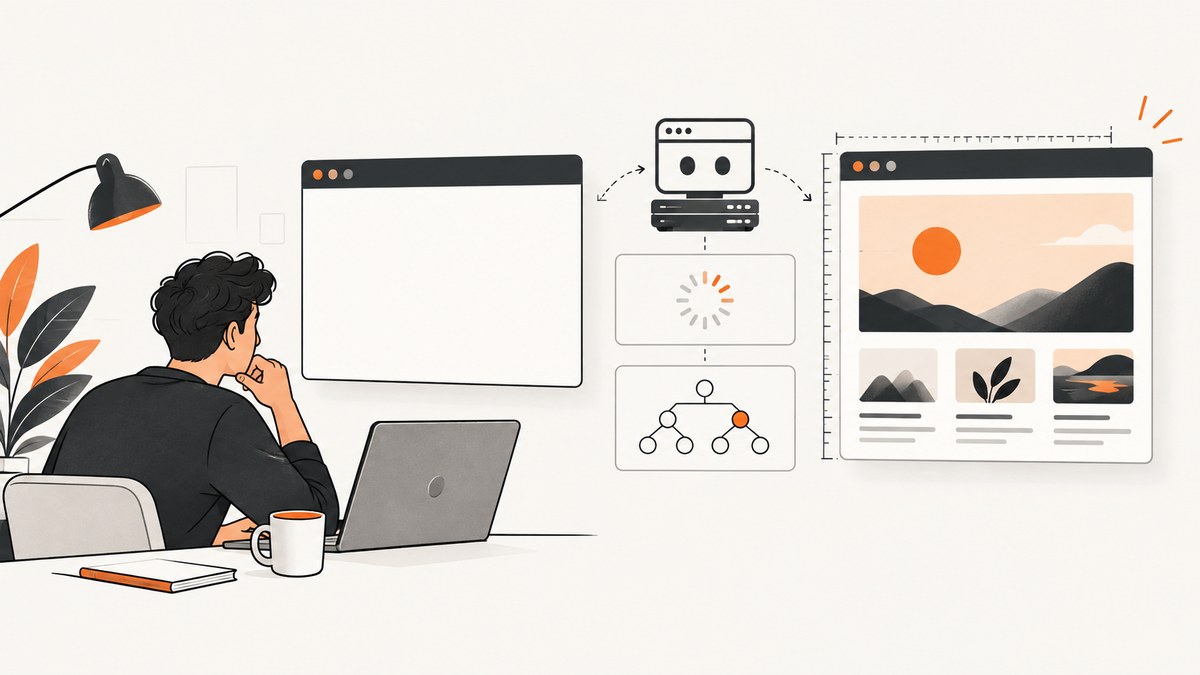
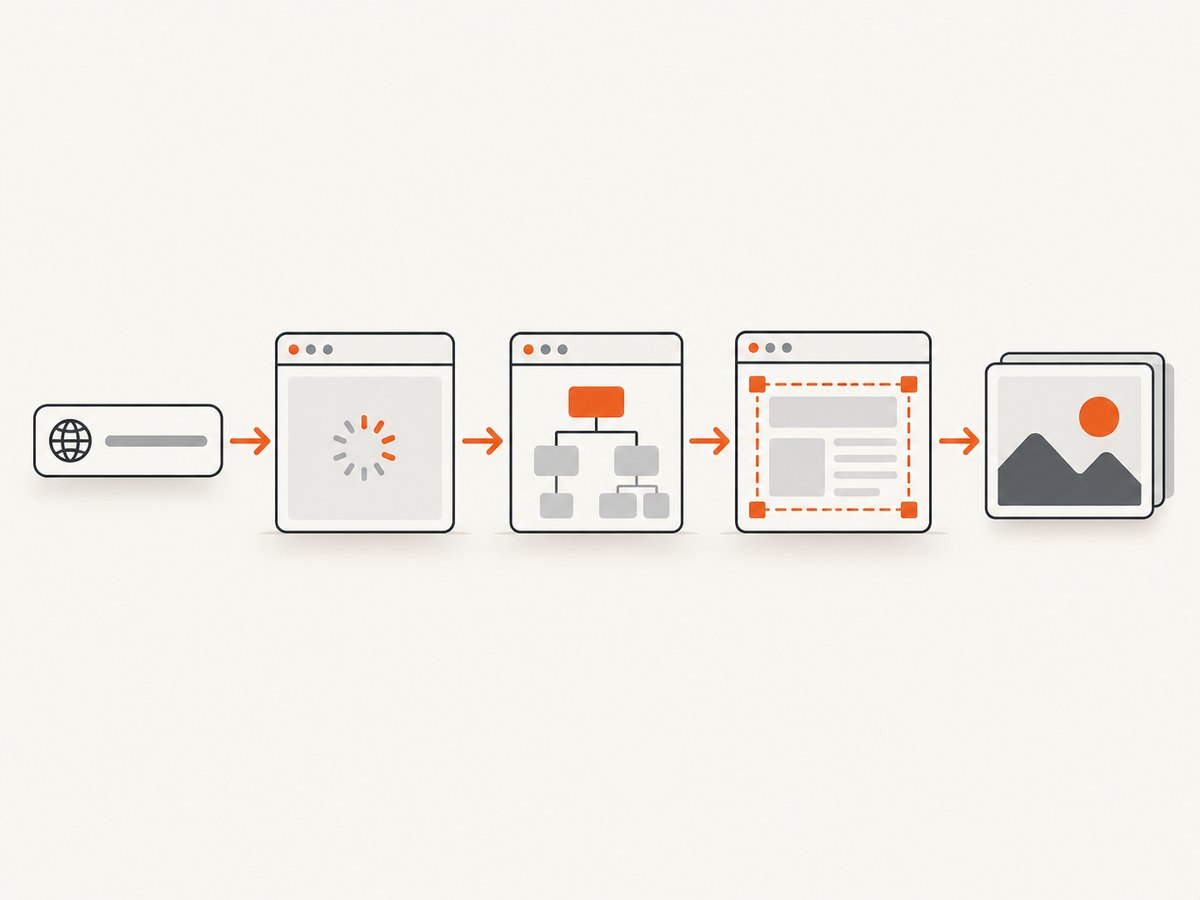
A screenshot file can be created successfully while containing an error page, an empty application shell, or the wrong part of the document. Treat “blank” as a symptom. The reliable fix is to inspect navigation, the final URL, the DOM, readiness state, viewport and runtime before changing Chrome flags.
Quick diagnosis
- Log the final URL and the response status returned by
page.goto(). - Check that the expected application root or content exists in the DOM.
- Wait for a selector that represents the rendered state, preferably with
visible: true. - Set the viewport before navigation and review
fullPageandclip. - Record the Chrome and Puppeteer versions, then compare unified Headless, Headless Shell and headful mode only if the problem appears mode-specific.
- Investigate GPU support only when the page actually needs WebGL, WebGPU or another graphics feature.
A successful PNG write proves only that Chrome produced an image. It does not prove that your intended page rendered.
1. Confirm navigation and the response
Start by recording what Chrome loaded. A redirect, authentication page, DNS failure, or server error can all look like a blank screenshot. Puppeteer’s page.goto() returns the main resource response when one exists. Keep that value and inspect its status. Headless Shell does not throw merely because a valid HTTP response is 404 or 500, so an error document can still be captured.
import puppeteer from 'puppeteer';

const url = 'https://example.com/dashboard';
const browser = await puppeteer.launch({ headless: true });
const page = await browser.newPage();

page.on('console', message => {
  console.log('[console]', message.type(), message.text());
});
page.on('pageerror', error => console.error('[pageerror]', error));

const response = await page.goto(url, {
  waitUntil: 'domcontentloaded',
  timeout: 30_000,
});

console.log({
  requestedUrl: url,
  finalUrl: page.url(),
  status: response?.status() ?? null,
});

await page.screenshot({ path: 'debug.png', fullPage: true });
await browser.close();
If the final URL is an unexpected login, consent or error page, fix the target, credentials, routing or server response first. If there is no response, inspect DNS, TLS, proxy and navigation errors in your process logs.
2. Prove that the expected DOM exists
Navigation milestones describe document loading, not application readiness. A single-page app may return domcontentloaded while its root is still empty and JavaScript is fetching data. Choose a stable element that appears only when the content you need has rendered.
await page.waitForSelector('#app[data-ready="true"]', {
  visible: true,
  timeout: 30_000,
});

const state = await page.evaluate(() => ({
  title: document.title,
  bodyText: document.body?.innerText?.slice(0, 500) ?? '',
  appExists: Boolean(document.querySelector('#app')),
  ready: Boolean(document.querySelector('#app[data-ready="true"]')),
}));
console.log(state);

await page.screenshot({ path: 'ready.png', fullPage: true });
waitForSelector resolves when the selector exists by default. The visible: true option additionally requires that it is not hidden with display: none or visibility: hidden. Make the selector meaningful: a generic wrapper that is present in the initial HTML is not a useful readiness signal.
If the application has no marker, use a stable heading, table row, chart container or other element that only appears after the expected request completes. You can also use an application-specific predicate.
await page.waitForFunction(
  () => document.querySelectorAll('[data-item]').length >= 10,
  { timeout: 30_000 },
);
Catch timeout errors and print the URL, a short body excerpt and relevant console messages. That turns a vague blank image into an observable failed condition.
3. Handle delayed content and timers
Content can arrive after delayed API calls, hydration, animations or JavaScript timers. A fixed sleep is useful as a short diagnostic, but it is usually slower and less reliable than waiting for a condition.
await page.goto(url, { waitUntil: 'domcontentloaded' });
await page.waitForSelector('[data-page-loaded="true"]', {
  visible: true,
  timeout: 30_000,
});
For Chrome’s command line, --timeout defines the maximum wait before --screenshot, --dump-dom or --print-to-pdf captures, even if loading continues. It is a bound, not proof that your application is ready. Chrome also provides --virtual-time-budget for pages whose behavior depends on timers.
chrome --headless --screenshot --window-size=1280,900 --timeout=5000 https://example.com/Use a virtual-time budget as a separate experiment when timer-driven code is suspected:
chrome --headless --screenshot --window-size=1280,900 --virtual-time-budget=5000 https://example.com/Increase bounds only after identifying what is still loading. An arbitrary long delay can hide a broken request and make every capture expensive.
4. Check viewport, full-page capture and clipping
A screenshot can be technically valid but show an unintended, tiny or empty region. Set dimensions deliberately before navigation when responsive layout matters.
await page.setViewport({
  width: 1440,
  height: 900,
  deviceScaleFactor: 1,
});
await page.goto(url, { waitUntil: 'domcontentloaded' });

await page.screenshot({
  path: 'viewport.png',
  fullPage: true,
});
In Puppeteer, fullPage defaults to false, so the default image is only the viewport. A clip object can constrain the result further. Remove clipping while diagnosing, then add it back with measured coordinates. On the command line, use --window-size=width,height. Check responsive breakpoints too: a mobile viewport may intentionally replace desktop content with a menu or a different route.
await page.screenshot({
  path: 'region.png',
  clip: { x: 0, y: 0, width: 800, height: 600 },
});
If the page uses CSS that depends on device scale, test a known viewport and scale first. A transparent or same-colored background can also make content look absent; temporarily set a contrasting background through CSS while diagnosing.
5. Compare Headless implementations and versions
Modern --headless uses the same browser implementation as headful Chrome. Since Chrome 132.0.6793.0, the old implementation is distributed as the separate chrome-headless-shell binary. Puppeteer supports headless: true for Headless Chrome and headless: 'shell' for Headless Shell.
const browser = await puppeteer.launch({
  headless: 'shell',
});
Run the same URL in headful mode, unified Headless and Headless Shell only as a controlled comparison. Record the exact Chrome binary, Puppeteer version, operating system and container image. If only one mode is blank, you have a reproducible runtime difference to investigate; changing flags at random loses that evidence.
6. Investigate graphics only for graphics-dependent pages
GPU configuration is relevant to WebGL, WebGPU and other GPU-dependent rendering. It is not a general remedy for an empty HTML page. Check the browser’s graphics feature status, such as chrome://gpu in a comparable run, and compare a supported configuration for the exact operating system, container and Chrome version.
Chrome’s WebGPU and WebGL testing guidance demonstrates environments where graphics are software-only and hardware acceleration is unavailable. Specialized launch arguments from that guidance are workload-specific. Do not blindly enable unsafe features or disable GPU for every screenshot job. First establish that the missing pixels belong to a canvas or GPU surface rather than to ordinary DOM content.
7. A complete diagnostic Puppeteer script
import puppeteer from 'puppeteer';

const url = process.argv[2] ?? 'https://example.com/';
const browser = await puppeteer.launch({ headless: true });
const page = await browser.newPage();
await page.setViewport({ width: 1280, height: 900, deviceScaleFactor: 1 });

page.on('console', msg => console.log(`[console:${msg.type()}] ${msg.text()}`));
page.on('pageerror', err => console.error('[pageerror]', err.message));
page.on('requestfailed', req => {
  console.error('[requestfailed]', req.url(), req.failure()?.errorText);
});

try {
  const response = await page.goto(url, {
    waitUntil: 'domcontentloaded',
    timeout: 30_000,
  });
  console.log('navigation', {
    finalUrl: page.url(),
    status: response?.status() ?? null,
  });

  await page.waitForSelector('main, #app, [role="main"]', {
    visible: true,
    timeout: 30_000,
  });

  const summary = await page.evaluate(() => ({
    title: document.title,
    url: location.href,
    viewport: { width: innerWidth, height: innerHeight },
    text: document.body?.innerText?.slice(0, 300) ?? '',
  }));
  console.log(summary);
  await page.screenshot({ path: 'capture.png', fullPage: true });
} catch (error) {
  console.error('capture failed:', error);
  await page.screenshot({ path: 'failure-state.png', fullPage: true }).catch(() => {});
  process.exitCode = 1;
} finally {
  await browser.close();
}
Replace the readiness selector with one from the target application. The script intentionally reports console, page, failed-request and navigation evidence before producing the final image.
8. Causes and fixes at a glance
| Observed clue | Check | Fix |
|---|---|---|
| Unexpected page or error document | Final URL and main response status | Fix target URL, authentication, redirects or server errors. |
| DOM shell exists but app content is missing | Application-specific visible selector | Wait for the rendered state, not only navigation. |
| Content appears after a delay | Loading state, delayed requests and timers | Wait for a meaningful condition; use CLI timeout or virtual time when appropriate. |
| Image is clipped, tiny or empty | Viewport, fullPage and clip |
Set dimensions deliberately and remove unintended clipping. |
| Only one mode or binary fails | Chrome and Puppeteer versions | Compare unified Headless, Headless Shell and headful runs. |
| Canvas is blank but DOM is present | WebGL/WebGPU feature status | Investigate graphics support for that workload and runtime. |
9. Troubleshooting common errors
TimeoutError: Waiting for selector failed
The selector never appeared, appeared under a different route, or remained hidden. Confirm the final URL, dump a DOM excerpt, inspect console errors and verify the selector in a normal browser. Increase the timeout only when the application is known to be slow.
Navigation timeout exceeded
A request may remain open indefinitely, a proxy may be unreachable, or the page may contain long-lived connections. Capture the response and failed-request logs. Use a suitable navigation milestone and then wait for the application selector rather than allowing an unbounded navigation wait.
HTTP 404 or 500 but a screenshot was written
Inspect the response status. Valid HTTP errors do not necessarily reject navigation, particularly with Headless Shell. Route errors to your job’s failure path instead of publishing the image.
Only a blank canvas is visible
Determine whether the page relies on WebGL or WebGPU. Compare graphics feature status and browser versions in the same environment. Do not apply GPU flags before proving that the missing content is graphics-dependent.
Works headful, fails in CI
Record the CI container, Chrome binary, fonts, viewport, permissions, proxy and network policy. Compare unified Headless and Headful with identical page code. Missing fonts or blocked API requests can change layout without producing a browser exception.
Screenshot is white but DOM text exists
Check CSS visibility, opacity, overlays, color and background settings. Inspect computed styles for the target element and remove clipping. A page can contain text nodes that are outside the captured region or visually hidden.
10. Reliability, performance and cost practices
- Wait on state: selectors and predicates reduce flaky captures compared with arbitrary sleeps.
- Bound every operation: set navigation, selector and job timeouts, then save diagnostic evidence on failure.
- Reuse browsers carefully: a browser process is expensive, but stale cookies, service workers and memory leaks can contaminate later pages. Use isolated contexts and recycle workers according to your workload.
- Control network work: block irrelevant ads, trackers and large resources only when they are not part of the visual result. Blocking an API or stylesheet can itself create a blank page.
- Stabilize layout: wait for images and fonts that affect geometry, disable animations where appropriate, and use a fixed viewport and device scale.
- Cache intentionally: cache only when a slightly older image is acceptable. Include URL, viewport and relevant options in your cache key.
- Classify failures: distinguish navigation errors, application readiness failures, bot checks, empty pages and rendering failures so retries target the actual cause.
Retries help transient network failures but cannot repair a wrong selector, a 404 route or an unsupported graphics feature. Keep the original failure metadata with each retry.
11. Or skip the browser setup
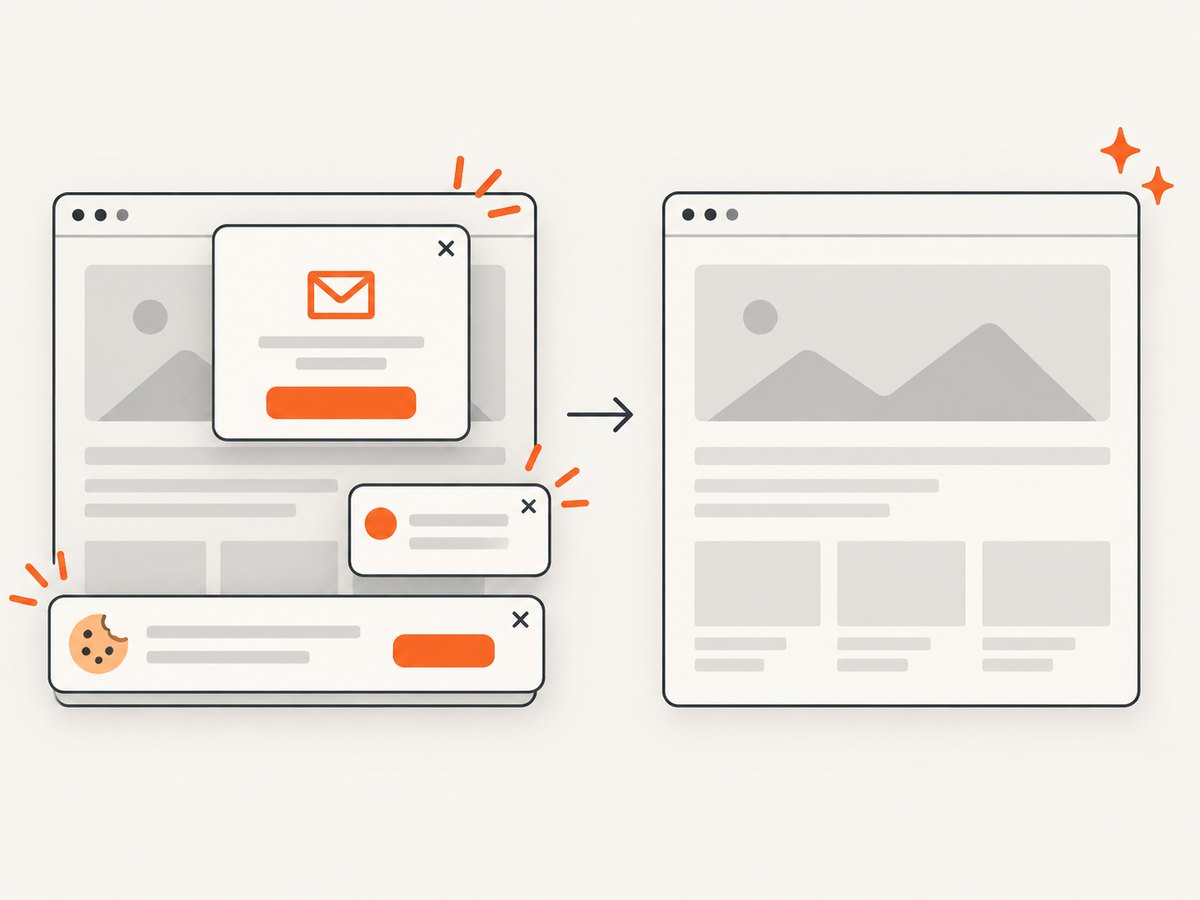
ScreenshotNeo provides a hosted website screenshot API when you do not want to maintain Chrome, Puppeteer, fonts and CI graphics configuration. It accepts a URL and returns PNG, JPEG, WebP or PDF. Before capture it accepts cookie and consent banners and removes more than 60 known consent platforms, newsletter popups and chat widgets; each step can be turned off. Bot checks and CAPTCHAs, blank pages, timeouts, failed loads and cache hits are not billed, and the response identifies the result with X-Page-Verdict and X-Billed headers.
See the ScreenshotNeo API documentation for the complete option list. The one-call request is:
curl -G "https://api.screenshotneo.com/v1/shot" -d access_key=YOUR_API_KEY --data-urlencode url=https://stripe.com -o shot.webpimport requests
r = requests.get("https://api.screenshotneo.com/v1/shot", params={"access_key": "YOUR_API_KEY", "url": "https://stripe.com"}, timeout=90)
open("shot.webp", "wb").write(r.content)const q = new URLSearchParams({ access_key: 'YOUR_API_KEY', url: 'https://stripe.com' });
const res = await fetch(`https://api.screenshotneo.com/v1/shot?${q}`);Options cover full-page capture with lazy images loaded, CSS element capture, dark mode, 12 device presets or any viewport, retina scale, PDF paper size and page ranges, HTML/CSS rendering, custom CSS and JavaScript, clicks, selector hiding, selector or network-idle waits, request and resource blocking, headers, cookies, user agents, Authorization, timezone, geolocation, transparent backgrounds, resizing, chosen cache TTLs, signed image links, asynchronous jobs with signed webhooks, bulk capture of up to 100 URLs per call, a usage API and an OpenAPI specification. Parameter names used by other screenshot APIs also work, which can simplify migration.
ScreenshotNeo also has an MCP server with take_screenshot, get_page_info and capture_pdf tools for Claude, Cursor and other MCP clients. Every feature is included on every plan: 1,000 shots per month free with no card, then Starter is $5 for 3,000, Growth $15 for 15,000, Pro $39 for 60,000, Scale $99 for 250,000 and Business $249 for 1,000,000. Yearly billing gives two months free. Create a free ScreenshotNeo account and start with 1,000 screenshots a month without a card.
12. FAQ
Does networkidle guarantee a non-blank screenshot?
No. A page can be network-idle while its route is wrong, its root is hidden, or a client-side error prevented rendering. Pair a network condition with an application-specific visible selector.
Should I always add --no-sandbox?
No. Sandbox settings depend on your deployment and security model. A blank page is not evidence that disabling the sandbox is appropriate; diagnose navigation, readiness, bounds and graphics first.
Is a 200 response proof that the page is usable?
No. The server can return an application shell, an access challenge or a page whose JavaScript failed. Inspect the final URL, DOM and browser errors.
Why does full-page mode differ from the viewport screenshot?
Full-page capture changes the capture bounds and can expose lazy-loading or layout behavior triggered by scroll. Compare both modes with a fixed viewport and wait for the content that must appear.
When should I use a hosted screenshot API?
Use one when maintaining browser binaries, fonts, consent handling, retries and CI graphics support costs more than the capture itself. ScreenshotNeo’s free tier lets you evaluate that tradeoff with 1,000 shots per month and no card.


