Running Headless Google Chrome to Convert HTML to PDF in Docker
Run Chrome Headless in Docker, print HTML to PDF, wait for client-rendered content, and avoid common sandbox and timing mistakes.

Direct answer: put Chrome in a container, run it without a display, and use --headless --print-to-pdf with an explicit writable output path:
chrome --headless --print-to-pdf=/out/page.pdf https://example.com/The command navigates to the URL and writes a PDF. Chrome documents output.pdf in the current directory as the default when no path is supplied, but an explicit path is safer in Docker because the container user and working directory determine where the file can be written. See the Chrome Headless shell documentation and the command-line reference.
This guide shows a repeatable container layout, explains timing and PDF flags, and then covers Puppeteer, troubleshooting, security, reliability, and operating costs.
1. Choose the capture approach
| Approach | Best suited to | What you must control |
|---|---|---|
| Chrome CLI | One URL or simple batch jobs | Chrome flags, output path, process startup, and capture timing |
| Puppeteer | Applications that need navigation, waits, selectors, or PDF options | Browser/runtime versions and an explicit readiness strategy |
| Selenium WebDriver | Existing WebDriver automation and test infrastructure | Driver and browser compatibility |
Chrome’s official Headless overview documents both Puppeteer and Selenium. Current Headless mode uses the same Chrome implementation as headful mode. Chrome 112 introduced the unified implementation; from Chrome 132.0.6793.0, the older implementation is available only as a standalone chrome-headless-shell binary. Check which binary your image contains before copying flags from an older recipe.
2. Run the Chrome CLI in a container
The exact base image and package installation sequence depend on your distribution and Chrome build. The official documentation does not prescribe a universal Dockerfile. Whichever image you select, verify four things: the Chrome binary name, the installed flags, a runtime user, and writable locations for the browser profile and PDF output.
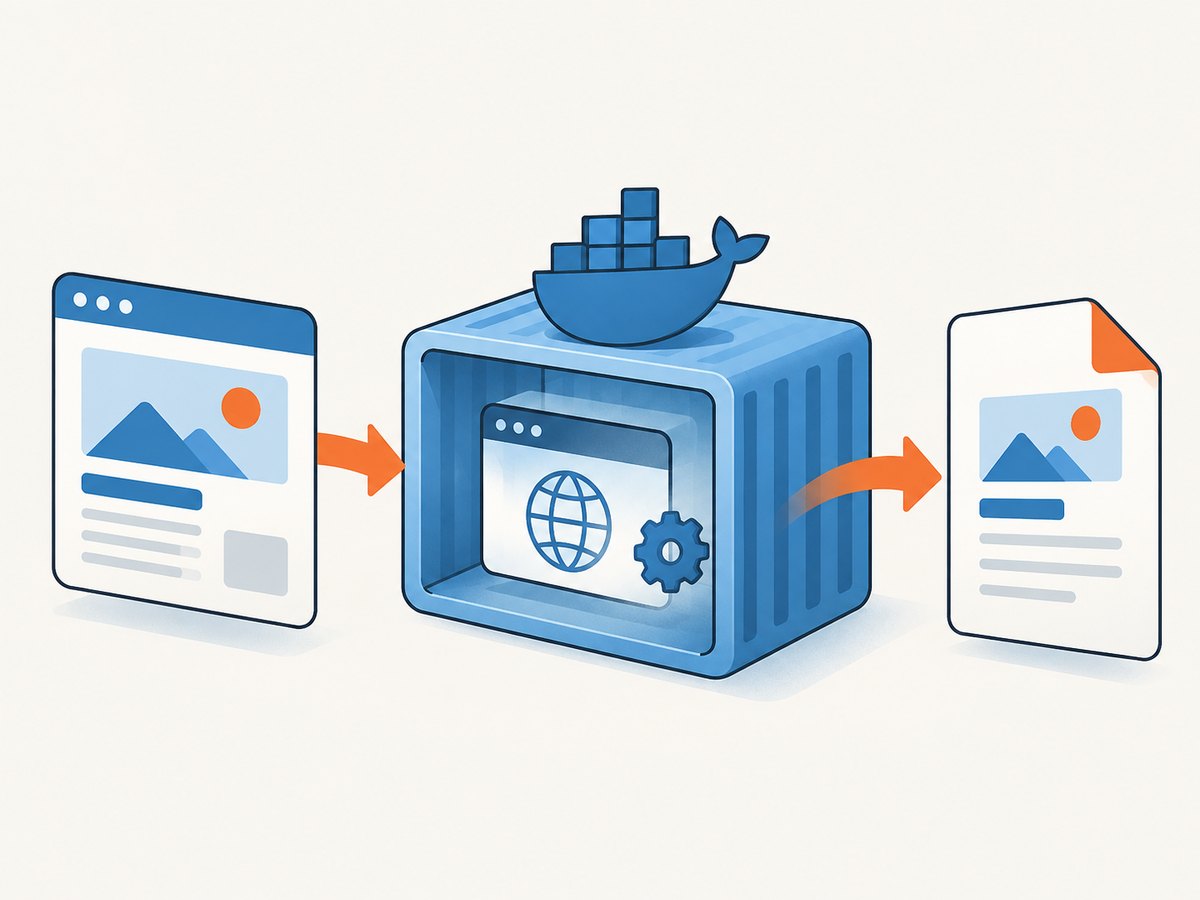
Minimal container contract
- Install a current Chrome or Chromium build in your image.
- Create an output directory such as
/outand make it writable by the runtime user. - Run Chrome as that non-root user when possible.
- Mount or copy the resulting PDF out of the container.
A generic invocation looks like this:
docker run --rm \
  -v "$PWD/out:/out" \
  your-chrome-image \
  chrome --headless --print-to-pdf=/out/page.pdf https://example.com/
The image name above is illustrative. Replace your-chrome-image with the image you have built and confirm whether its executable is called chrome, google-chrome, or another name.
Do not add --no-sandbox automatically
Chrome’s Headless shell FAQ states: “--no-sandbox is not needed if you properly setup a user in the container.” Treat that as a condition, not as a complete container-hardening procedure. A production deployment still needs its own review of the base image, browser build, runtime user, writable profile and output paths, Linux capabilities, and other restrictions imposed by your runtime. If a particular environment requires --no-sandbox, document why and understand the security trade-off instead of making it the default in every Dockerfile.
3. Control headers, timing, and printed output
Remove print headers and footers
Chrome can add the date, URL, and page number to printed pages. Use:
chrome --headless \
  --no-pdf-header-footer \
  --print-to-pdf=/out/page.pdf \
  https://example.com/
The CLI reference notes that older Chrome releases may use the earlier spelling --print-to-pdf-no-header. Ask the installed binary which flags it accepts and pin your image if a deployment depends on one spelling.
Wait for pages that render after navigation
A successful navigation does not prove that client-side data, fonts, charts, or lazy components are ready. Chrome provides two related controls:
--timeoutsets a maximum wait before capture.--virtual-time-budgetadvances time-dependent page code.
chrome --headless \
  --timeout=5000 \
  --virtual-time-budget=42000 \
  --print-to-pdf=/out/page.pdf \
  https://example.com/
The values are examples from Chrome’s documentation, not universal defaults. Neither flag guarantees that every asynchronous request has completed. If correctness matters, use an automation library and wait for a page-specific signal such as a selector, a network condition, or application state.
CSS print behavior
PDF output follows the page’s print rules. A site can hide content under @media print, change colors, or use print-specific page breaks. When you own the HTML, add explicit print CSS and test long tables, positioned elements, fonts, and images. When you do not own it, inspect a representative set of pages because the source site controls the final layout.
4. Use Puppeteer when the CLI is not enough
Puppeteer gives your application control over navigation and readiness. The following script assumes Puppeteer is installed in your Node.js project and that Chrome is available in the container:
const puppeteer = require('puppeteer');

(async () => {
  const browser = await puppeteer.launch({
    headless: true,
    args: []
  });
  try {
    const page = await browser.newPage();
    await page.goto('https://example.com/', {
      waitUntil: 'networkidle2',
      timeout: 30000
    });
    await page.pdf({
      path: '/out/page.pdf',
      format: 'A4',
      printBackground: true,
      displayHeaderFooter: false,
      margin: { top: '16mm', right: '16mm', bottom: '16mm', left: '16mm' }
    });
  } finally {
    await browser.close();
  }
})();
networkidle2 is a useful heuristic, not a proof of application readiness. Pages with analytics, live sockets, polling, or ads may never become truly idle. Add a bounded timeout and wait for a selector that represents the content you need:
await page.goto('https://example.com/report', { waitUntil: 'domcontentloaded', timeout: 30000 });
await page.waitForSelector('[data-report-ready="true"]', { timeout: 15000 });
Do not copy browser launch arguments from another image without checking its user and sandbox setup. Puppeteer’s bundled browser and a system Chrome can also differ in version, fonts, and available codecs, so record which one your image uses.
5. Reproducible PDF jobs
- Normalize the URL. Include the scheme, follow redirects deliberately, and reject unexpected destinations if URLs come from users.
- Set a total job deadline. Bound navigation, readiness waits, PDF generation, and container execution separately so one stalled page cannot consume a worker forever.
- Use a deterministic viewport and locale. Responsive breakpoints, timezone, and language can change pagination and line wrapping.
- Bundle required fonts. Missing fonts cause different line lengths and page breaks even when the HTML is unchanged.
- Keep output isolated. Use a unique output directory or filename per job and remove temporary profiles afterward.
- Capture diagnostics. Save the final URL, browser version, exit status, stderr, and timing data with the job record.
6. Troubleshooting
| Symptom | Likely cause | Fix |
|---|---|---|
| No PDF appears | The output directory is missing or not writable. | Create the directory, mount it, and verify permissions for the runtime user. |
| Chrome exits immediately | Wrong executable name, unsupported flag, or incompatible browser build. | Run the binary’s help/version command inside the image and adjust flags to that build. |
| Sandbox error | The process and container user setup do not satisfy Chrome’s sandbox requirements. | Configure a suitable non-root user and review the container security context. Only use --no-sandbox when your environment requires it and you have assessed the risk. |
| Blank or incomplete PDF | Client-side rendering had not finished. | Use a page-specific readiness selector, a bounded delay, or an appropriate virtual-time budget. |
| Headers or URL appear on every page | Print headers and footers are enabled. | Use --no-pdf-header-footer; check the older spelling for older Chrome. |
| Images are missing | Lazy loading, blocked requests, or a capture taken before image decode. | Scroll or trigger lazy content in Puppeteer, wait for image readiness, and inspect network failures. |
| Fonts change pagination | The container lacks the site’s fonts or the font request failed. | Install or bundle required fonts and verify that requests succeed before printing. |
| Job hangs | Long polling, sockets, or a page that never reaches an idle condition. | Use a hard deadline and a selector-based readiness check instead of waiting indefinitely for network idle. |
7. Performance, reliability, and cost
Chrome startup is process work, so repeated one-page jobs can spend substantial time launching and shutting down a browser. Reuse a browser process for controlled batches, but create a fresh context or page per job and clean up failed work. Measure your own image and workload; the supplied Chrome documentation does not publish a Docker speed, memory, or image-size benchmark.
Reliability depends on more than Chrome. Track navigation failures separately from PDF-write failures, retry only transient errors, and cap retries so a broken URL does not create a loop. A retry should use a fresh page or context. Keep the browser version pinned and update it intentionally because flag behavior and rendering can change.
For cost, account for container CPU and memory, browser startup, storage for generated PDFs, and any queue or orchestration layer. There is no universal cost figure in the Chrome documentation; measure resource use in your own runtime.
8. Or skip the browser setup
ScreenshotNeo provides a hosted website capture API and an MCP server. For a PDF, call its API endpoint with the PDF option documented in the ScreenshotNeo API docs. The same endpoint also returns PNG, JPEG, or WebP screenshots.
curl -G 'https://api.screenshotneo.com/v1/shot' \
  -d access_key=YOUR_API_KEY \
  --data-urlencode url=https://example.com \
  -d format=pdf \
  -o page.pdf
import requests
r = requests.get(
'https://api.screenshotneo.com/v1/shot',
params={
'access_key': 'YOUR_API_KEY',
'url': 'https://example.com',
'format': 'pdf',
},
timeout=90,
)
r.raise_for_status()
open('page.pdf', 'wb').write(r.content)const q = new URLSearchParams({
access_key: 'YOUR_API_KEY',
url: 'https://example.com',
format: 'pdf'
});
const res = await fetch(`https://api.screenshotneo.com/v1/shot?${q}`);
if (!res.ok) throw new Error(`HTTP ${res.status}`);
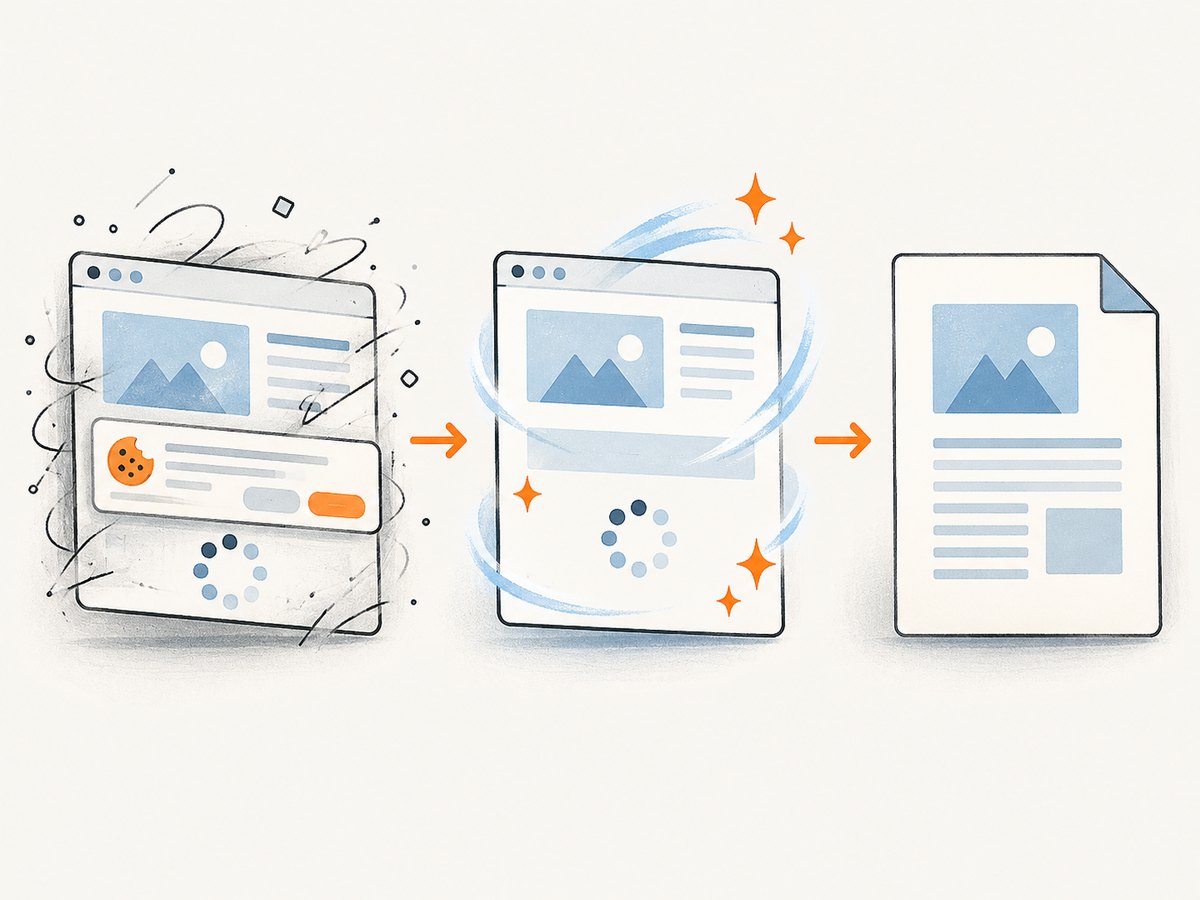
require('fs').writeFileSync('page.pdf', Buffer.from(await res.arrayBuffer()));ScreenshotNeo can accept paper size, margins, landscape mode, and page ranges for PDF output. It also supports waits, custom JavaScript and CSS, headers, cookies, user agents, timezone and geolocation, request blocking, caching with a chosen TTL, bulk capture, asynchronous jobs with signed webhooks, and signed links. Cookie and consent banners, newsletter popups, and chat widgets are removed before capture; each cleanup step can be disabled. Bot checks, blank pages, timeouts, failed loads, and cache hits are not billed, and the response identifies the result with X-Page-Verdict and X-Billed headers. An MCP server exposes take_screenshot, get_page_info, and capture_pdf for Claude, Cursor, and other MCP clients.
The Free plan includes 1,000 shots per month with no card. Paid plans start at $5 for 3,000 shots; yearly billing gives two months free, and every feature is available on every plan. Start with the free ScreenshotNeo account.
9. FAQ
Can Chrome Headless print a local HTML file?
Yes, if the container can read the file and the URL is addressed using the file scheme or a local server. A local server is often easier when the page loads relative assets or makes HTTP requests.
Does --timeout wait for JavaScript frameworks?
It only provides a maximum wait. Use an application-specific readiness signal when framework rendering matters.
Should every Docker Chrome command include --no-sandbox?
No. Chrome’s documentation says it is unnecessary when the container user is properly configured. Validate your complete runtime setup before deciding.
When should I choose Puppeteer over the CLI?
Choose Puppeteer when you need selectors, scripted interaction, custom waits, request handling, or per-page PDF settings. The CLI is simpler for straightforward URL-to-PDF jobs.
How do I prevent a single page from exhausting workers?
Apply independent navigation, readiness, PDF, and overall job deadlines, then terminate the browser process and clean its temporary files when a deadline is exceeded.


