How to Install and Configure Headless Chrome on Jenkins Linux
Install Chrome and its matching ChromeDriver on the Jenkins Linux agent that runs your tests, then launch Chrome in headless mode with a reproducible Pipeline setup.
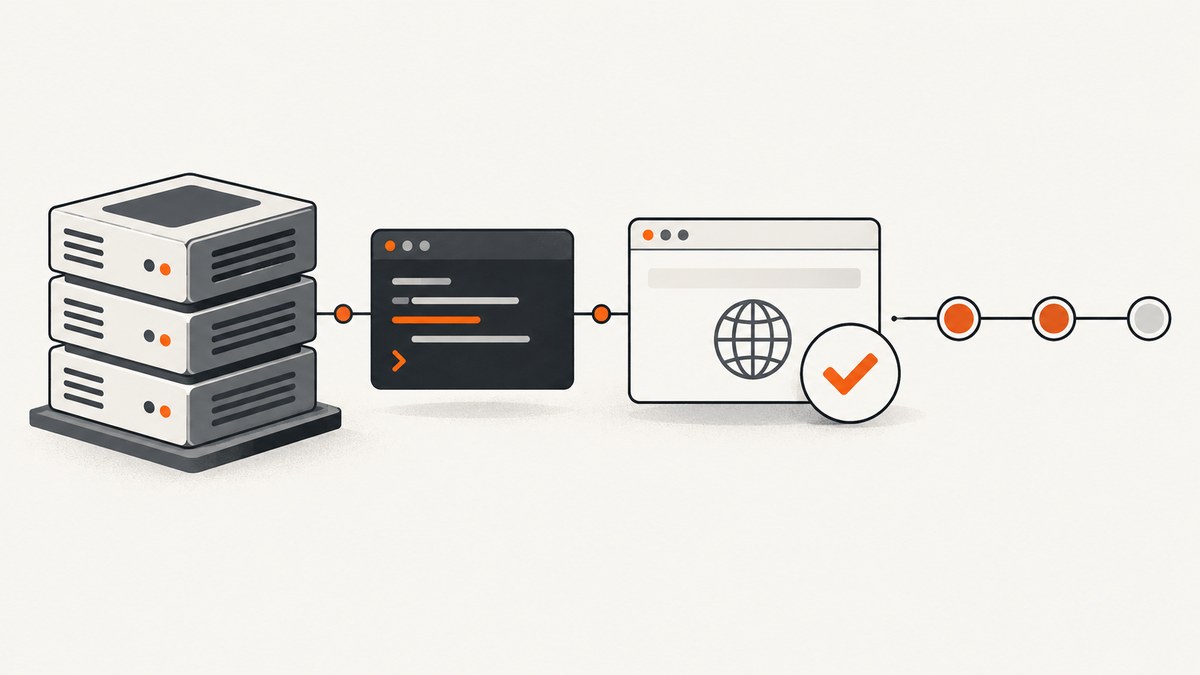
To run headless Chrome in Jenkins on Linux, install Chrome and a compatible ChromeDriver in the environment where the browser test executes, then pass --headless through your test framework’s Chrome options. Jenkins itself does not provide Chrome: its Pipeline allocates an agent, and the agent (or a container used by a Pipeline stage) must have the browser runtime. Run the job as a regular Linux user, pin the browser and driver versions when repeatability matters, and update them together.
Chrome Headless is Chrome running without a visible UI; it is a launch mode, not a Jenkins feature. Selenium WebDriver uses the separate ChromeDriver executable to control Chrome. See the official Chrome Headless documentation and ChromeDriver documentation.
1. Choose where Chrome will run
First identify the machine or container that runs the test command. If Jenkins uses separate controller and agent machines, browser dependencies belong on the agent. Installing Chrome only on the controller will not help a job assigned to a different agent. Jenkins Pipelines execute on allocated agents, and a Pipeline can also use a Docker image as the environment for a stage.
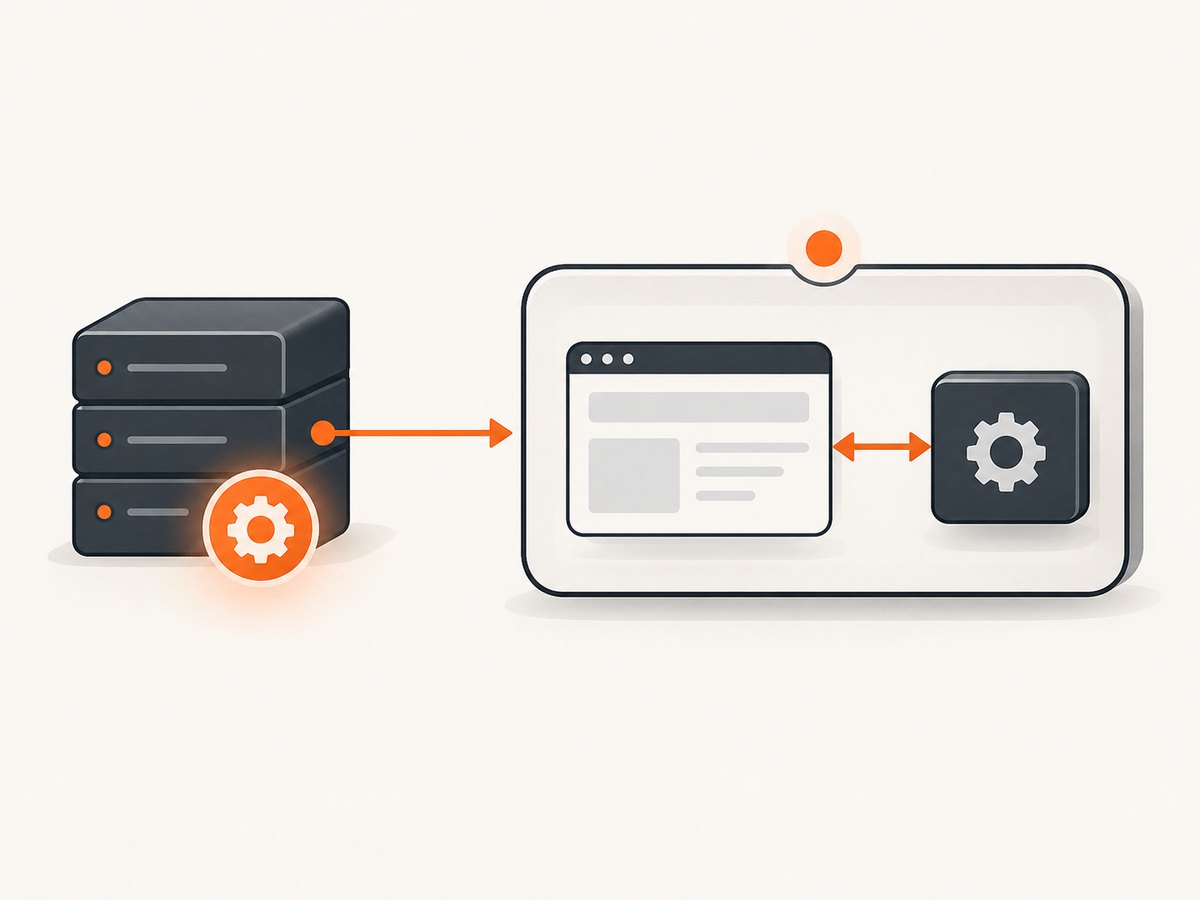
| Approach | Use it when | What to pin and maintain |
|---|---|---|
| Dedicated Linux agent | The agent is already managed as a stable test machine. | Chrome, ChromeDriver, system dependencies, and the agent’s non-root user. |
| Pipeline container | You want the browser runtime declared with the job and an appropriate Docker-capable agent is available. | The container image digest or version tag, Chrome, ChromeDriver, and any image dependencies. |
Jenkins’ Docker Pipeline examples require the Docker Pipeline plugin. A Docker stage runs in a container on a node configured for Docker-based Pipelines; without that execution environment, select a regular labeled Linux agent instead. See Using Docker with Pipeline and Pipeline agent syntax.
2. Install Jenkins separately from the browser
Jenkins and Chrome have separate installation and runtime requirements. The official Jenkins Linux guide lists Debian/Ubuntu, Fedora, and Red Hat Enterprise Linux and derivatives, and requires Java 21 or later. Follow that guide’s current, distribution-specific Jenkins instructions; do not copy a browser package command from another distribution. For Debian/Ubuntu, Jenkins recommends installing Java before Jenkins. The guide’s example is:
sudo apt update
sudo apt install fontconfig openjdk-21-jre
java -version
Then install Jenkins by following the current instructions for your chosen distribution in the official Jenkins Linux installation guide. Jenkins installation does not install Chrome or ChromeDriver on every build agent. Provision those separately in the browser test’s execution environment.
3. Install a compatible Chrome and ChromeDriver pair
For Chrome 115 and newer, Chrome and ChromeDriver releases are integrated through Chrome for Testing (CfT). Choose a CfT Chrome release and its corresponding ChromeDriver release, then install both in the agent or container. For a non-CfT Chrome binary, use the official version-selection procedure to match its MAJOR.MINOR.BUILD version. The selection guide describes the CfT JSON endpoints and the fallback for finding a compatible driver: ChromeDriver version selection.
The research sources do not establish a single current Chrome installation command that applies to every Linux distribution. Use the browser vendor’s current instructions for the specific Linux image you chose, or provision a version-pinned CfT browser and driver. Avoid mixing an automatically updated system Chrome with a driver pinned to an older release.
Make ChromeDriver discoverable on PATH, or configure your test framework with the explicit driver and browser paths. ChromeDriver expects Chrome in a recognized/default location unless the test configuration supplies a custom binary path. Once installed, inspect both versions during setup and fail early if your pinned pair is not the one the job expects:
google-chrome --version
chromedriver --version
id
Executable names and paths can differ by package or image. Substitute the actual paths provided by your installation. The important checks are that the Jenkins job user can execute both binaries and that the browser and driver correspond.
4. Configure Selenium to launch headless Chrome
Pass --headless as a Chrome argument through Selenium’s options. Here is a runnable Python example for Selenium 4 when Chrome and ChromeDriver are already installed and discoverable. It opens a URL and prints the page title:
from selenium import webdriver
from selenium.webdriver.chrome.options import Options

options = Options()
options.add_argument("--headless")

with webdriver.Chrome(options=options) as driver:
    driver.get("https://example.com")
    print(driver.title)
Install the Selenium Python package in the test environment using your project’s dependency management, and make sure the ChromeDriver executable and browser binary are installed in the same environment. This example intentionally uses the modern --headless mode. Since Chrome 132.0.6793.0, the old Headless implementation is available only as the separate chrome-headless-shell binary; consult the Headless documentation if your project specifically depends on that implementation.
5. Run the browser test from a Jenkins Pipeline
For a preconfigured Linux agent, use a label that identifies agents with your browser setup. This Declarative Pipeline checks the runtime before invoking the project’s test command:
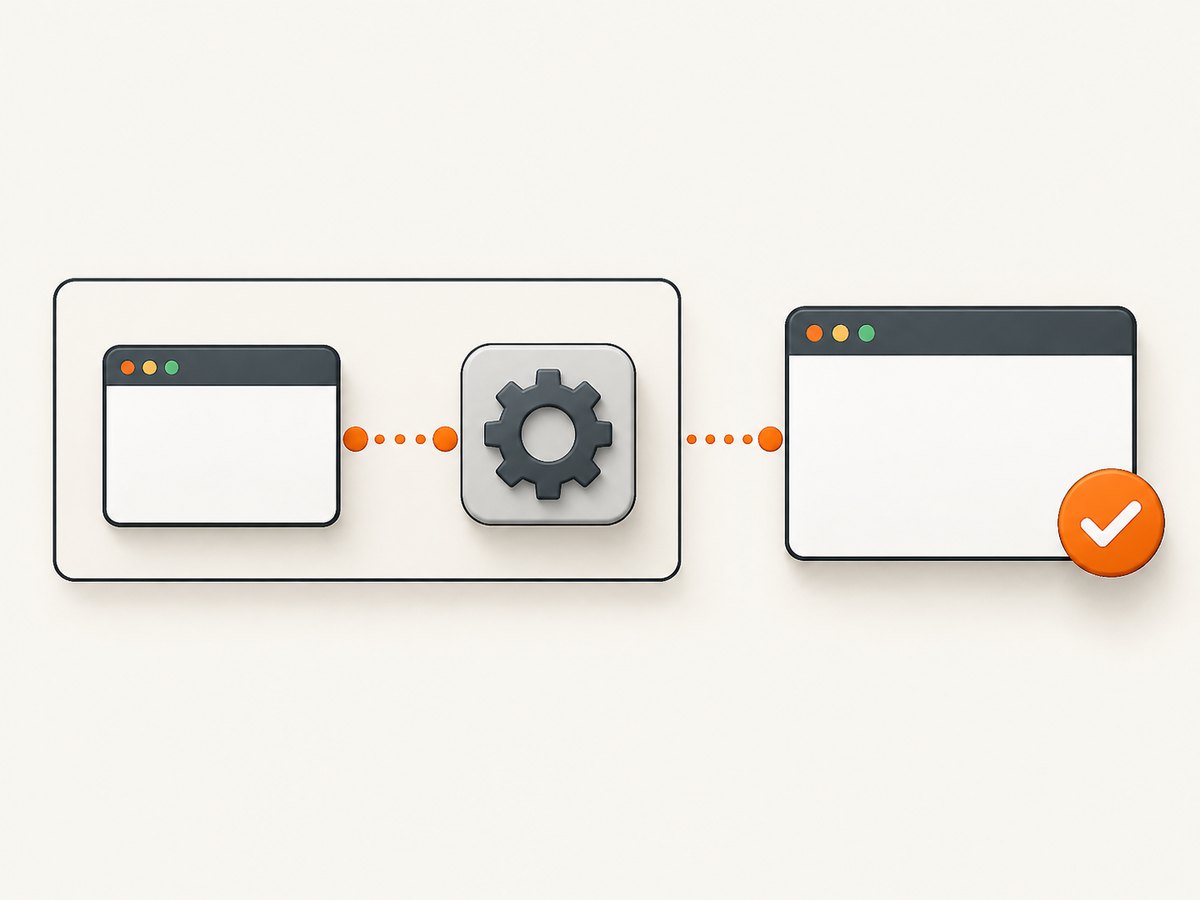
pipeline {
    agent { label 'linux-chrome' }

    stages {
        stage('Check browser runtime') {
            steps {
                sh '''
                    id
                    google-chrome --version
                    chromedriver --version
                '''
            }
        }
        stage('Browser tests') {
            steps {
                sh 'python -m pytest tests/browser'
            }
        }
    }
}
Replace the label and test command to match your Jenkins setup and project. Configure the agent’s service or launch method to run the job as a regular, non-root Linux user. A useful diagnostic is to run the browser command directly from a Pipeline step: that tests the same user and environment as the browser test.
With Docker Pipeline installed and a Docker-capable agent available, a browser stage can instead use an image that your team maintains with a pinned Chrome/ChromeDriver pair:
pipeline {
    agent none

    stages {
        stage('Browser tests') {
            agent {
                docker {
                    image 'your-registry/your-pinned-chrome-test-image:version'
                }
            }
            steps {
                sh 'google-chrome --version'
                sh 'chromedriver --version'
                sh 'python -m pytest tests/browser'
            }
        }
    }
}
The image name above is a placeholder, not a published image recommendation. Build or select an image that contains your actual test runtime, Chrome, and its matching ChromeDriver. Jenkins documents the Docker agent requirements and workspace behavior in Using Docker with Pipeline. A stage can use a temporary workspace by default; if your Pipeline needs to share the current node’s workspace, consult the documented reuseNode option.
6. Make browser jobs reproducible
- Pin the pair: record the Chrome and ChromeDriver versions or use corresponding CfT artifacts. Update them together.
- Pin the execution environment: for containers, use a controlled image tag or digest and update it deliberately. For direct agents, manage package and binary updates through the same provisioning process as the test machine.
- Check versions in the build: print both version strings in setup logs so a changed agent is visible when a test starts failing.
- Keep user and paths consistent: the user that runs the Pipeline must have execute access to the binaries and write access to the profile and temporary directories Chrome needs.
- Keep Jenkins requirements distinct: Java 21 or later is a Jenkins server requirement in the current Linux installation guide; it does not determine which ChromeDriver matches Chrome.
Direct agent installation gives the agent owner responsibility for browser updates and machine configuration. A container can make the runtime part of the build definition, but it still requires a Docker-capable agent and a maintained image. The Jenkins documentation supports both execution patterns; it does not provide a universal speed or cost comparison.
7. Troubleshoot common failures
| Symptom | Likely cause | What to check or fix |
|---|---|---|
| Chrome fails immediately or reports a sandbox error. | The job is running Chrome as root, or the runtime environment differs from the one used for manual checks. | Run the job as a regular agent user. Execute Chrome directly under that same user and inspect ChromeDriver logs. ChromeDriver guidance says --no-sandbox is unsupported and highly discouraged; do not make it the routine fix. See Chrome doesn’t start. |
| “Chrome version must be between…” or a session cannot be created. | ChromeDriver and Chrome are incompatible. | Print both versions in the failing build. For Chrome 115+, install corresponding CfT releases. For non-CfT Chrome, follow the version-selection procedure. |
| ChromeDriver says it cannot find Chrome. | Chrome is not at a recognized path, is missing from the container, or the test configuration points somewhere else. | Check the binary path from the Pipeline step and configure the test’s Chrome binary location if needed. Confirm the path exists inside the container, not just on the host. |
| “chromedriver: command not found.” | Driver is absent from the job environment or not on its PATH. |
Install it in the actual agent/container, add its directory to PATH, or configure the framework with its explicit path. Print PATH and test command -v chromedriver. |
| A Docker agent stage cannot start. | Docker Pipeline may be missing, or the selected node may not have the required Docker execution configured. | Confirm the Docker Pipeline plugin is installed and the stage is assigned to a Docker-capable agent. If you do not use container execution, run the job on a labeled preconfigured Linux agent. |
| Browser works in a shell but fails in Jenkins. | Jenkins may use a different user, environment variables, home directory, PATH, permissions, or container. |
Compare id, PATH, binary paths, and direct launch results from a Pipeline step. Inspect ChromeDriver logs for the startup error. |
An older guide tells you to install Xvfb or pass --disable-gpu. |
The guide may describe an older setup or a project-specific need. | Modern Chrome Headless is a no-visible-UI browser mode. The reviewed current Headless guidance does not establish a general Xvfb requirement for modern Linux headless jobs. Start with --headless and add environment-specific options only when a demonstrated issue requires them. |
Or skip the browser setup
If the job’s goal is to capture a webpage screenshot rather than run browser automation against it, ScreenshotNeo provides a screenshot API and MCP server. Its one-request API returns a screenshot or PDF, so your Jenkins job does not need to install and coordinate Chrome and ChromeDriver for that capture:
curl -G "https://api.screenshotneo.com/v1/shot" -d access_key=YOUR_API_KEY --data-urlencode url=https://stripe.com -o shot.webpSee the ScreenshotNeo API documentation for request options. Cookie banners, newsletter popups, and chat widgets are removed before the shot. Bot checks, blank pages, and failed loads are never billed. An MCP server lets AI agents use screenshot tools, and 1,000 screenshots a month are free with no card; paid plans start at $5 for 3,000. These are useful when you need a page capture, not a substitute for Selenium tests that interact with an application.
Sign up for ScreenshotNeo’s free plan: 1,000 screenshots a month, no card required.
Performance, reliability, and cost considerations
This setup has no single runtime or price figure: the research sources do not provide comparable benchmarks or costs for direct agents and containers. In practice, a persistent agent may avoid container image setup for each job, while a container can package the browser runtime with the test environment. Jenkins notes that clean container filesystems may not retain dependency caches between runs; cache mounts can avoid repeated downloads when configured appropriately. That is a cache and image-maintenance decision, not a guarantee of faster browser tests.
For reliability, log browser and driver versions, capture ChromeDriver logs on startup failures, and keep the job’s execution user stable. Treat browser updates as coordinated changes: update the pair in a controlled image or agent, then run the project’s browser suite. Keep temporary files and browser profiles isolated between parallel jobs if your test setup shares a machine. Avoid updating Chrome in place without also checking the driver compatibility.
For costs, account for the Linux agent or container infrastructure your team already operates and the effort of maintaining the image or agent packages. Jenkins and Chrome sources reviewed here do not establish a price for those resources. If what you need is a screenshot rather than an interactive test, ScreenshotNeo’s published plans include 1,000 free monthly shots and paid plans from $5 for 3,000; see its product site for plan details.
Frequently asked questions
Does Jenkins need a special Headless Chrome plugin?
No. Headless is enabled by passing --headless to Chrome through your automation framework. Jenkins schedules the Pipeline step; the agent or container supplies the browser.
Can I use Chrome without Selenium?
Yes. Chrome can be launched headlessly by other automation tools or directly with command-line options. ChromeDriver is specifically the separate WebDriver control executable used by Selenium WebDriver.
Do I need Xvfb for modern Headless Chrome?
The current Headless guidance describes a no-visible-UI mode and does not establish Xvfb as a general requirement. Follow your framework’s current Linux guidance if a particular environment has additional display dependencies.
Should Chrome run on the Jenkins controller?
Only if the browser test actually executes there. In a typical distributed setup, install the runtime on the allocated agent or in the container where the Pipeline runs.
What changed in Chrome 132?
Starting with Chrome 132.0.6793.0, the old Headless implementation is available only as a separate chrome-headless-shell binary. Modern Headless remains the standard --headless launch mode.


