Can Headless Chrome Generate PDFs with Bookmarks?
Yes. Headless Chrome can add a navigable PDF outline through the DevTools Protocol, with a version-sensitive option. Here’s how to request it and verify the result.
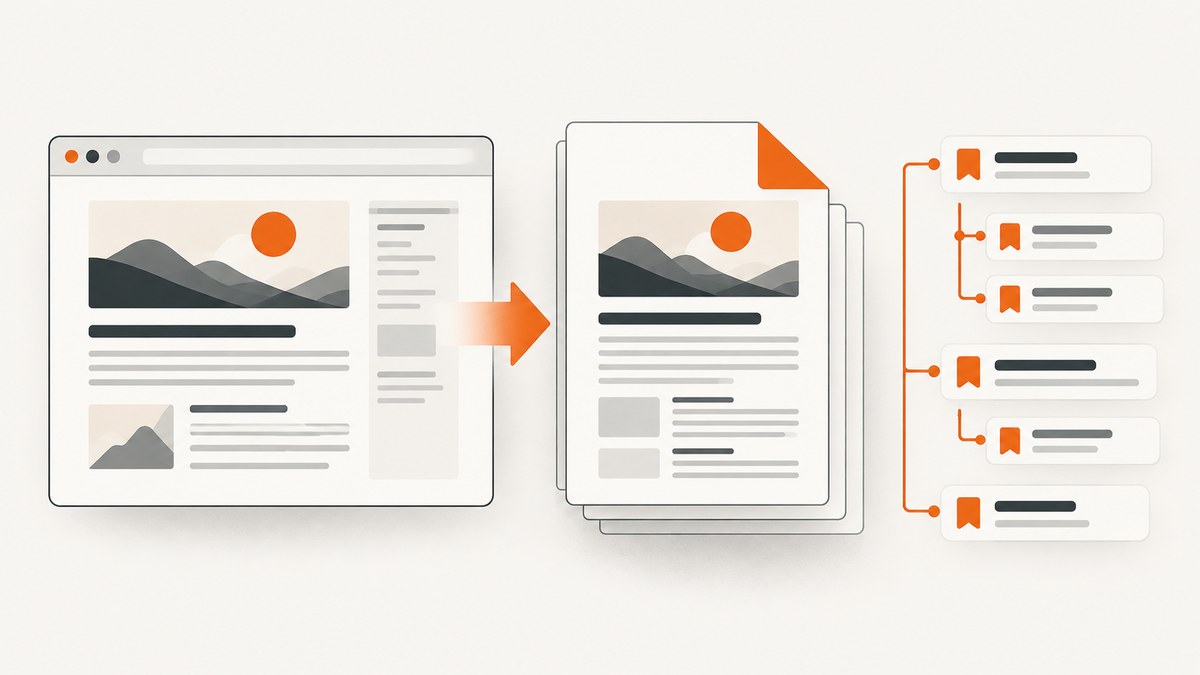
Yes. Headless Chrome can generate a PDF with a navigable document outline—often called PDF bookmarks—by calling the Chrome DevTools Protocol method Page.printToPDF with generateDocumentOutline: true. This option is marked experimental, so check that the Chrome version and automation client you deploy support it, then inspect the resulting PDF in your target reader. The Chromium implementation record says the outline is generated from content headers, so use a meaningful HTML heading hierarchy.
This is different from a clickable link inside the PDF. A document outline is a navigation panel, usually shown along the side of a PDF reader, whose entries jump to sections. Ordinary links can remain clickable even if there is no outline.
1. What the option does
Page.printToPDF asks Chrome to print the current page to PDF. Its generateDocumentOutline parameter requests an embedded outline. The DevTools Protocol calls the parameter experimental and describes it as controlling whether to embed the document outline. Chromium’s 2023 change record describes generating the outline from content headers. Those sources establish the mechanism, but not a guarantee that every Chrome build, wrapper, PDF viewer, or heading structure produces the same visible result.
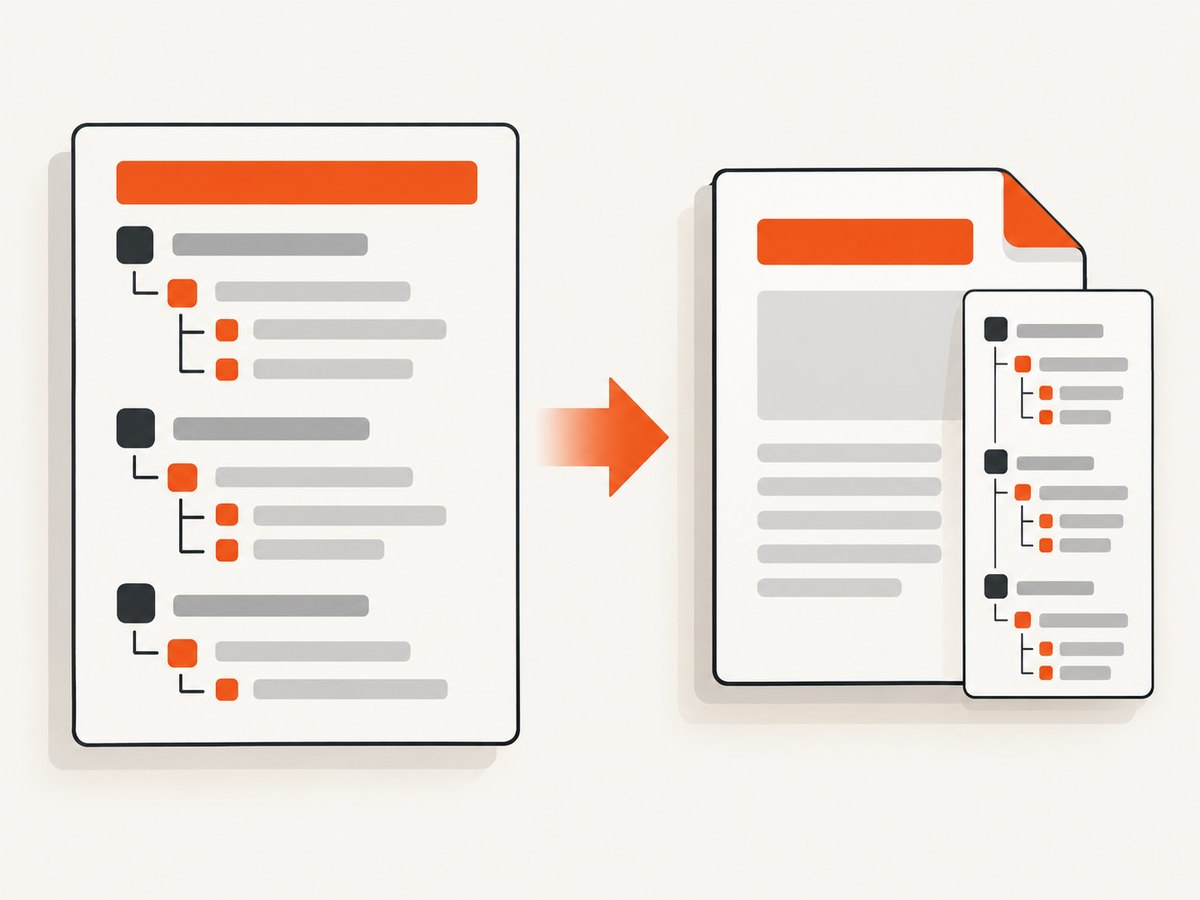
For the best input, structure the page with real headings:
<h1>Guide title</h1>
<h2>Install</h2>
<h3>Linux</h3>
<h2>Configure</h2>
Use heading levels to express the document’s hierarchy. Don’t style generic elements to look like headings and assume they will become outline entries. After printing, verify which headings Chrome included and how they are nested for your page and browser version.
2. Print with Chrome DevTools Protocol
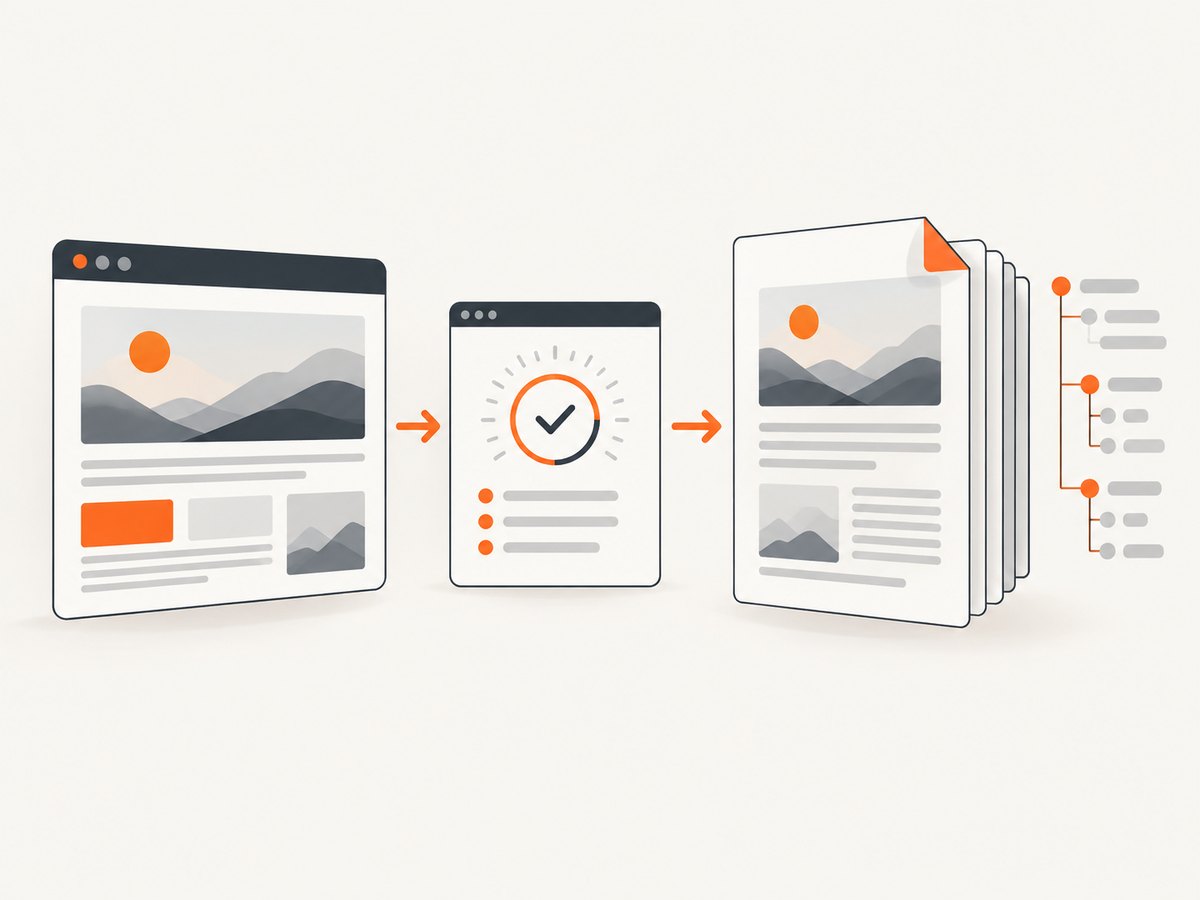
The reliable automation route is to connect to Chrome through CDP, navigate to the page, wait for the print content to be ready, then invoke Page.printToPDF with the outline option. The following runnable Node.js example uses Puppeteer’s CDP session to send the protocol command directly. Install Puppeteer with npm install puppeteer; the package can download a compatible browser, or you can point it at an installed Chrome executable.
// save as print-with-outline.mjs
import puppeteer from 'puppeteer';
import { writeFile } from 'node:fs/promises';

const url = process.argv[2] ?? 'https://example.com';
const output = process.argv[3] ?? 'document.pdf';

const browser = await puppeteer.launch({ headless: true });
try {
  const page = await browser.newPage();
  await page.goto(url, { waitUntil: 'networkidle0', timeout: 60_000 });

  const cdp = await page.createCDPSession();
  const result = await cdp.send('Page.printToPDF', {
    printBackground: true,
    preferCSSPageSize: true,
    generateDocumentOutline: true
  });

  await writeFile(output, Buffer.from(result.data, 'base64'));
  console.log(`Wrote ${output}`);
} finally {
  await browser.close();
}
Run it with node print-with-outline.mjs https://example.com report.pdf. Replace the example URL with a page you are authorized to capture. The code waits for network quiet before printing, but that condition can be inappropriate for pages with analytics, polling, or other long-lived requests. In that case, wait for a known content selector or application-ready signal instead.
The protocol result’s data field is base64-encoded PDF data. Decode it before writing the file; writing the base64 text itself creates an invalid PDF. The printBackground and preferCSSPageSize settings are included as useful print choices, not requirements for the outline. You can omit them or adjust them for your output.
3. Use the DevTools Protocol directly
If you already have a CDP client, the essential request is just this parameter on Page.printToPDF:
{
  "generateDocumentOutline": true
}
It is a method parameter, not a Chrome command-line flag. The protocol option is experimental; consult the protocol schema that corresponds to the Chrome build you deploy and confirm your chosen client lets you pass it through. A wrapper may expose PDF printing without exposing every protocol parameter.
The command-line route is simpler when you only need a PDF file:
chrome --headless --print-to-pdf=output.pdf https://example.comChrome’s documented command-line reference establishes PDF creation with --print-to-pdf, but the reviewed reference does not establish that this command requests an embedded outline. Use CDP when you need explicit outline control. The command-line reference also documents --no-pdf-header-footer to omit print headers and footers. Header and footer settings are separate from outline generation.
4. Make the page ready to print
- Choose the final URL. Ensure it returns the intended page without an authentication redirect, interstitial, or error page.
- Wait for the content. Navigation completion alone may not mean client-rendered sections, images, or data have appeared. Wait for an application-specific selector or readiness condition where possible.
- Check print styling. Use print CSS for page breaks and hide controls that should not appear. Keep semantic headings in the DOM.
- Print through CDP. Request
generateDocumentOutline: trueonPage.printToPDF, then save the returned base64 data as bytes. - Inspect the output. Open the PDF in the reader your users rely on. Confirm the outline exists, entries point to the expected pages, nesting makes sense, and links still work.
Do not use a fixed sleep as the only readiness check unless the page is known to be deterministic. A delay may be too short on a slow run and waste time on a fast one. If content loads after navigation, wait for a selector that identifies the finished document.
5. PDF options and layout choices
The outline flag controls navigation metadata. Other print settings control page appearance. The protocol supports a range of print parameters; verify names and availability in the schema for your Chrome version before relying on them. Common layout decisions include:
- Paper size and orientation: choose a paper format and landscape mode when the content requires it.
- Margins: set margins for printed page content, or use CSS page rules where that fits your document.
- Backgrounds: enable background printing when colors or backgrounds carry meaning.
- CSS page size: decide whether page size declared in print CSS should take precedence.
- Page ranges: print only the required pages when supported by the deployed protocol method.
- Headers and footers: decide whether Chrome’s print header/footer should appear; they are independent of outline generation.
- Page breaks: use print CSS such as
break-beforeandbreak-insideto make pagination predictable.
These options can affect where a heading appears, but the research sources do not specify every outline-selection or nesting rule. Treat the actual PDF as the acceptance artifact, particularly if your content has skipped heading levels, repeated headings, hidden headings, or unusual print-only content.
6. Edge cases to check
- Single-page content: an outline may still be useful, but confirm your viewer displays it and that entries navigate correctly.
- Client-rendered headings: print only after the headings are present in the rendered document.
- Print-only changes: if CSS hides or replaces headings in print mode, verify the outline against the printed content.
- Malformed hierarchy: headings that skip levels or appear in unexpected order may produce an outline you did not intend. The available sources do not define all such cases; test your own structure.
- Version changes: because the parameter is experimental, pin or record the Chrome version and validate after upgrades.
- Different viewers: a PDF can contain navigation metadata while a viewer keeps its outline panel closed or presents it differently. Check more than one reader if your audience uses several.
7. Troubleshooting
| Symptom | Likely cause | Fix |
|---|---|---|
| The PDF is created but has no visible bookmarks | The command-line path did not request an outline, the CDP option was omitted or unsupported, or the viewer’s outline panel is closed. | Send generateDocumentOutline: true with Page.printToPDF; check the deployed protocol schema; inspect the PDF in a viewer with an outline panel. |
| Some sections are missing from the outline | The page lacks semantic headings, headings were not rendered before printing, or the browser’s selection behavior differs from expectations. | Use real h1–h6 elements, wait for the final document, and inspect the output for the deployed Chrome version. |
| CDP reports an unknown parameter | The Chrome build or wrapper does not accept this experimental option. | Check the protocol schema for the exact browser build and update the client or browser deliberately. Do not silently assume the flag worked. |
| The output file is corrupted or tiny | The base64 result was saved as text, the response was truncated, or printing failed. | Decode the returned data to bytes, await the write, and surface protocol errors before treating the job as successful. |
| Headings or images are missing | Printing began before asynchronous content was ready. | Wait for a selector or app-ready state; use a reasonable navigation timeout and handle timeout failures explicitly. |
| Command-line printing ends too early | The documented --timeout can stop waiting even if the page is still loading. |
Set an appropriate timeout where the command supports it, and ensure the content is ready before capture. |
| Page layout differs from the browser | Print CSS, page dimensions, margins, or background settings differ from screen rendering. | Review print styles, set the intended print parameters, and inspect page breaks and page count in the generated PDF. |
8. Performance, reliability, and cost
PDF generation time depends on page navigation, resource loading, JavaScript rendering, and pagination. A network-idle wait may improve completeness for a quiet page, but can delay or time out on pages with persistent traffic. A selector or application-ready condition is usually more targeted when the page exposes one. For a batch workflow, reuse a controlled browser process where appropriate, but isolate jobs that require different authentication, locale, or state.
Reliability depends on observing each stage: navigation, readiness, the CDP print call, file decoding, and output validation. Log the URL, Chrome version, wait strategy, print parameters, duration, and failure stage. Retry only failures that are plausibly transient, and use a bounded retry policy so a permanently broken URL does not consume worker capacity indefinitely. The protocol option’s experimental status makes version validation part of deployment maintenance.
Running Chrome yourself has infrastructure and maintenance costs: browser installation, updates, memory and CPU capacity, concurrency management, and debugging failed renders. No general benchmark or fixed cost follows from the cited documentation; measure on your own pages and hosting environment. The bare command-line method is operationally simpler but does not provide documented outline control in the reviewed reference.
9. Or skip the browser setup
For a screenshot of a page, ScreenshotNeo is a website screenshot API and MCP server from Yorker Media. Its one-call PDF option can capture a page without you managing headless Chrome. ScreenshotNeo’s API can also return PNG, JPEG, or WebP, but a screenshot PDF is not the same as a Chrome-generated PDF with a document outline; use the CDP method above when PDF bookmarks are a requirement.
See the ScreenshotNeo API documentation for request options. Example one-call screenshot request:
curl -G "https://api.screenshotneo.com/v1/shot" \
  -d access_key=YOUR_API_KEY \
  --data-urlencode url=https://stripe.com \
  -o shot.webp
Cookie and consent banners, newsletter popups, and chat widgets are removed before the shot. Bot checks, blank pages, timeouts, failed loads, and cache hits are not billed, with response headers identifying the page verdict and billing status. An MCP server gives AI agents tools to take screenshots, get page information, and capture PDFs. The free plan includes 1,000 screenshots per month with no card; paid plans start at $5 for 3,000.
Sign up free for 1,000 screenshots a month—no card required.
10. FAQ
Are PDF bookmarks the same as clickable links?
No. Bookmarks are entries in the PDF’s document outline; links are clickable destinations embedded in page content. A document can have either or both.
Does the outline option change the page layout?
It requests navigation metadata. Paper size, margins, page breaks, and printed backgrounds are separate layout concerns.
Can I rely on this option across all Chrome versions?
The protocol labels it experimental. Check the schema and behavior for the Chrome version you deploy, and validate the generated PDF after upgrades.
Will a PDF screenshot API create the same kind of bookmarked document?
Do not assume so. A screenshot API’s PDF output and Chrome’s printed PDF with a document outline are different workflows. Confirm that the service explicitly supports the outline metadata if bookmarks are required.
Sources
- Chrome DevTools Protocol: Page domain —
Page.printToPDFparameters, including experimentalgenerateDocumentOutline. - Chromium change: Add –generate-pdf-document-outline — implementation record describing an outline generated from content headers.
- Chrome Headless command-line reference — PDF printing, header/footer control, and command timeout.
- Headless Chrome shell — headless PDF generation context.


