Headless Chrome Node API and Puppeteer Installation
Install Puppeteer with a compatible Chrome, fix common launch errors, and deploy headless automation in Linux and containers.
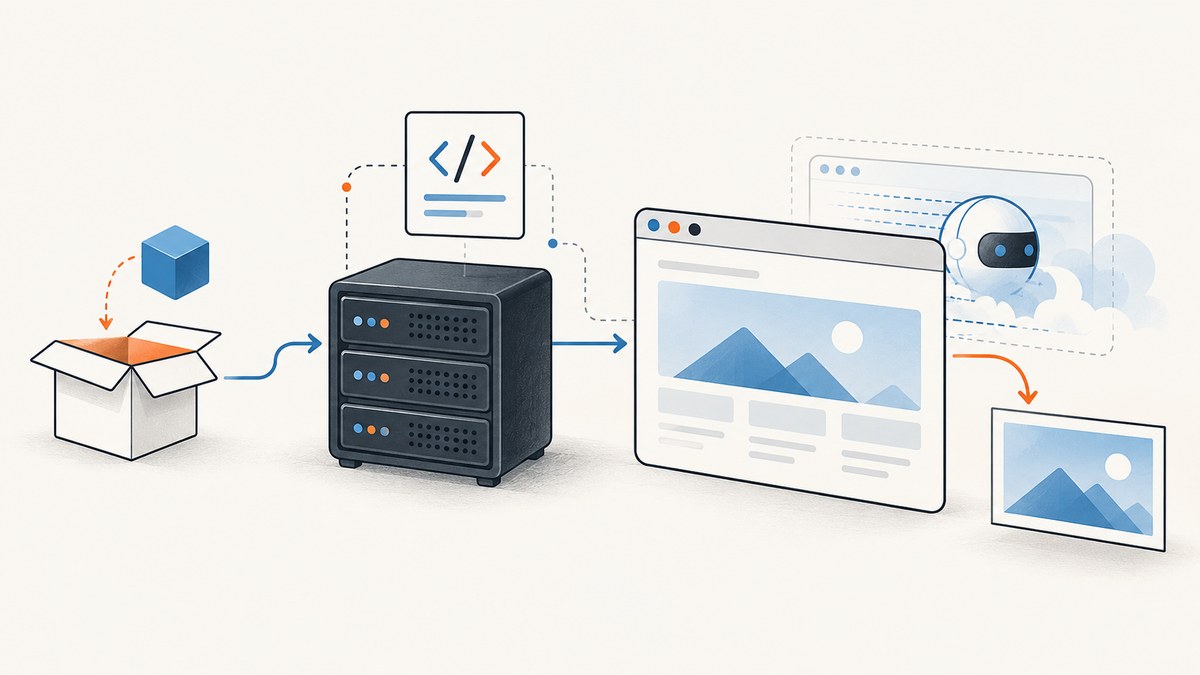
Puppeteer is a Node.js library for controlling Chrome or Firefox through the DevTools Protocol or WebDriver BiDi. For the simplest setup, install puppeteer: it normally downloads a compatible Chrome for Testing build for you. If you install puppeteer-core, you must provide a browser separately with executablePath or channel. The API call is puppeteer.launch(options), which resolves to a Browser.
This guide covers installation, a runnable Node example, explicit browser configuration, cache and package-manager issues, and Linux and container deployment. For the underlying API and options, see the official Puppeteer documentation.
1. Choose how to install Chrome
There are two main approaches. Pick one based on who should manage the browser version.
| Approach | Install | Browser source | Launch setup | Best fit |
|---|---|---|---|---|
| Puppeteer-managed | npm i puppeteer |
Chrome for Testing downloaded by Puppeteer | Usually no browser path needed | Local development and matching browser/library versions |
| Externally managed | npm i puppeteer-core |
System Chrome, Chromium, or a managed endpoint | Set executablePath or channel |
Custom images and environments that provide Chrome |
The bundled approach is generally the least configuration. Puppeteer’s launch reference says it works best with its downloaded Chrome for Testing version and does not guarantee compatibility with arbitrary browser versions.
Install the bundled browser
npm init -y
npm install puppeteer
Installing Puppeteer normally downloads a recent Chrome for Testing build and chrome-headless-shell. The browser download is substantial: the current installation guide gives approximate sizes of 170 MB on macOS, 282 MB on Linux, and 280 MB on Windows. Account for this in CI transfer time and container image size.
Install only the library
npm init -y
npm install puppeteer-core
This does not download a browser. You are responsible for installing Chrome or Chromium and keeping its version compatible with Puppeteer. On a developer machine, set CHROME_BIN to the actual executable path, or choose an installed Chrome channel where supported.
2. Run a minimal Puppeteer script
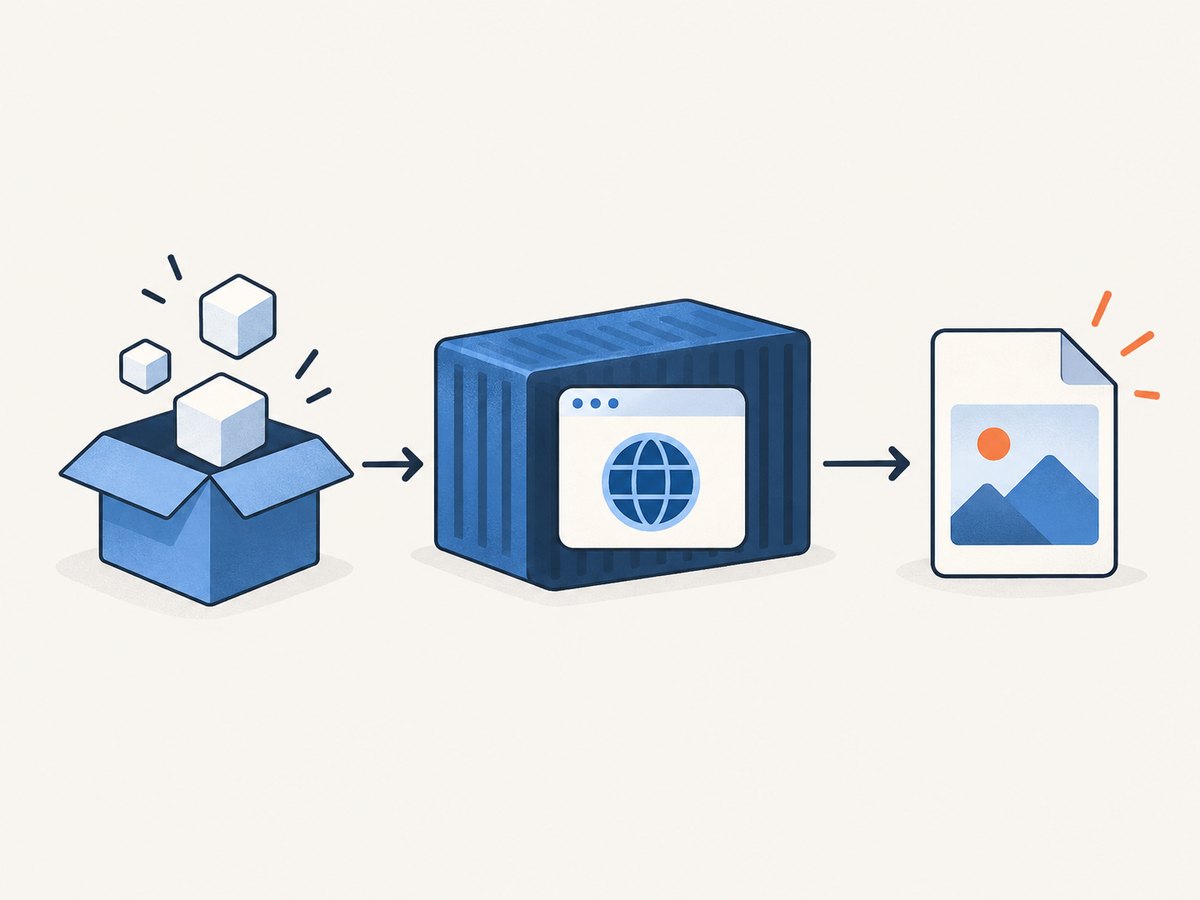
Set the project to use ES modules, save the following as index.js, and run node index.js:
{
  "type": "module",
  "scripts": { "start": "node index.js" },
  "dependencies": { "puppeteer": "YOUR_INSTALLED_VERSION" }
}
import puppeteer from 'puppeteer';
const browser = await puppeteer.launch({ headless: true });
try {
const page = await browser.newPage();
await page.goto('https://example.com', { waitUntil: 'networkidle2' });
console.log(await page.title());
} finally {
await browser.close();
}For an ordinary project, install the dependency through npm and let npm write the actual version to package.json; the placeholder above is only illustrative. Puppeteer runs headless by default, so headless: true documents the intent but is not required. Use try/finally so the browser process is closed even if navigation or page logic throws.
waitUntil: 'networkidle2' waits for a period with no more than two network connections. It is useful for many pages, but analytics, long-polling, or streaming connections can make network-idle waiting unsuitable. If the page has a known readiness signal, wait for that selector or application condition instead.
3. Configure puppeteer-core with an explicit browser
With puppeteer-core, pass a path or channel. The API reference requires one of these options:
import puppeteer from 'puppeteer-core';

const browser = await puppeteer.launch({
  headless: true,
  executablePath: process.env.CHROME_BIN
  // Or, for an installed Chrome channel:
  // channel: 'chrome'
});

try {
  const page = await browser.newPage();
  await page.goto('https://example.com', { waitUntil: 'domcontentloaded' });
  console.log(await page.title());
} finally {
  await browser.close();
}
Set the environment variable to the browser binary before starting the process. For example, in a shell: export CHROME_BIN=/usr/bin/google-chrome. The example path is not universal: check the installed package or image to learn its real path. Do not assume a path from your laptop exists in a container or cloud runtime.
When install scripts are blocked
Some npm, pnpm, Yarn Berry, Bun, or Deno configurations block dependency install scripts. If Puppeteer is present but its browser was not downloaded, run:
npx puppeteer browsers installAlternatively, allow the Puppeteer install script in the package manager’s policy. Confirm the browser files are included in the build output or available in the runtime cache. A successful JavaScript dependency installation does not prove the Chrome download ran.
4. Understand browser cache and build layers
Since Puppeteer v19.0.0, downloaded browsers are stored under ~/.cache/puppeteer by default. This matters in CI and serverless builds: a cached node_modules directory may be restored while the separate browser cache is absent, or the install hook may not run again.
- Make sure the runtime user can read the browser cache.
- Persist or recreate the cache in the same build stage that produces the runtime image.
- If your platform caches
node_modulesbut suppresses postinstall, configure a stable cache directory. Puppeteer’s troubleshooting guide documentsnode_modules/.puppeteer_cacheas a pattern for some Google runtimes. - For externally managed Chrome, verify the executable exists in the final runtime environment and set
executablePath.
Keep the Puppeteer and browser versions aligned. Puppeteer’s bundled download is the predictable option; with a system browser, pin and update both deliberately rather than relying on an unverified arbitrary Chrome build.
5. Make a reliable capture script
Browser automation has several separate stages: browser startup, navigation, page readiness, and the action you want. Set timeouts intentionally and report which stage failed. Here is a small screenshot script with a navigation timeout and cleanup:
import puppeteer from 'puppeteer';

const browser = await puppeteer.launch({ headless: true });
try {
  const page = await browser.newPage();
  page.setDefaultNavigationTimeout(30_000);
  await page.goto('https://example.com', { waitUntil: 'domcontentloaded' });
  await page.screenshot({ path: 'page.png', fullPage: true });
} catch (error) {
  console.error('Page capture failed:', error);
  process.exitCode = 1;
} finally {
  await browser.close();
}
Choose a navigation condition that matches the site. domcontentloaded is often faster when you only need initial markup. Use a specific selector when the page has an application-level ready state. Use network idle only when the site’s traffic pattern permits it. For repeat jobs, reuse a browser process where appropriate and create a fresh page per task; close pages and the browser during shutdown to avoid orphaned processes. Limit concurrent pages according to available memory and CPU.
For screenshot jobs, decide whether the capture should include the full document or just the viewport. A full-page image may require the browser to lay out a long document and load lazy content. If content appears only after interaction or scrolling, script that behavior before capturing and verify that the page is ready.
6. Diagnose Linux and container launch failures
Chrome may install successfully and still fail to start. Linux launches depend on shared libraries, executable permissions, writable profile and cache directories, and a usable Chrome sandbox.
Check shared libraries
On Debian-family distributions, the official troubleshooting guide points to missing libraries as a common cause. Inspect the browser binary with:
ldd /path/to/chrome | grep notThe exact binary path varies. Commonly needed packages include libnss3, libgbm1, libgtk-3-0, libasound2, libx11-6, and libx11-xcb1. Install dependencies appropriate to the base image and verify the result in the final image, not just an intermediate build stage.
Use a non-root user and writable directories
Run Chrome as a non-root user when possible. Ensure that user owns or can write to its home directory, Puppeteer cache, temporary directory, and browser profile. Permission problems can surface as profile creation failures or an immediate browser exit. Container builds should explicitly set ownership and keep runtime paths writable.
Treat sandbox flags carefully
Chrome’s sandbox is a host-protection layer. Puppeteer documents --no-sandbox for cases where the opened content is absolutely trusted. It is not a routine fix to apply to arbitrary web pages. First fix the container user, kernel, and sandbox configuration. If an isolated environment truly requires disabling the sandbox, understand that this removes a security boundary and restrict the browser to trusted content.
Alpine Linux
Chrome does not support Alpine out of the box. Alpine uses a different system-library environment, so a Chromium package and Puppeteer version must be matched and the resulting image tested. If you control the base image and do not need Alpine’s footprint, a Debian-based image can reduce compatibility work.
7. Deploying to Docker and hosted runtimes
A container needs more than Node and your application code: it needs the browser binary, its shared libraries, the cache or executable path, permissions, and a working sandbox arrangement.
Docker checklist
- Choose either the Puppeteer-managed browser or a pinned system Chromium installation.
- Install browser dependencies in the image stage that will run the application.
- Run
npx puppeteer browsers installduring the build if the install hook was skipped. - Set the cache path or
CHROME_BINconsistently for build and runtime. - Run as a non-root user and make home, cache, temporary, and profile directories writable.
- Exercise a real launch and navigation in the built image before deploying.
The exact Dockerfile depends on the chosen base image and whether Chrome is downloaded or supplied by the image, so package lists and binary paths should not be copied blindly across distributions.
Google Cloud Run
The default Node.js runtime on Cloud Run lacks system packages needed for Headless Chrome. The Puppeteer troubleshooting guide recommends building a custom Docker image with the required dependencies. Include the browser and libraries in that image and make sure the runtime user can access them.
App Engine and Cloud Functions
Puppeteer’s troubleshooting documentation describes Google App Engine standard and Google Cloud Functions runtimes as including the needed system packages. Still verify browser availability and cache persistence for your deployment configuration, especially when install hooks do not rerun and the platform retains only node_modules.
8. Performance, reliability, and cost considerations
Chrome has meaningful startup time, memory use, and disk footprint. A new browser per request provides process isolation but increases startup cost; a long-lived browser can reduce repeated startup work but requires lifecycle management, page cleanup, and limits on concurrent tasks. Measure in the deployment environment because the provided research does not establish universal timing or memory figures.
For dependable jobs, give navigation and application readiness separate timeouts, capture useful error context, close pages after each task, and close the browser on shutdown. Avoid unlimited concurrency: each page consumes resources, and full-page work can be heavier than a viewport capture. If jobs can be retried, make their output handling safe for duplicate attempts.
Budget for browser download and image size in CI and deployment storage. Keeping a browser cache persistent can avoid repeated downloads, but it must match the Puppeteer version and be readable by the runtime identity. Using a system Chrome shifts browser installation and update work to your image or host; it does not eliminate version management.
9. Common errors and fixes
| Error or symptom | Likely cause | Fix |
|---|---|---|
Could not find Chrome |
Install script was blocked, cache is missing, or cache path differs between build and runtime. | Run npx puppeteer browsers install, check cache readability and persistence, or set an explicit system browser path. |
puppeteer-core launch fails without a path |
No browser was downloaded and no executable or channel was specified. | Set executablePath to the installed binary or supply a supported channel. |
| Browser exits immediately on Linux | Missing shared library, permissions issue, or sandbox incompatibility. | Use ldd to find missing libraries; check executable and directory permissions; diagnose sandbox setup. |
| Profile or cache creation error | Runtime user cannot write to home, cache, temp, or profile directory. | Make the relevant directories writable and owned by the runtime user. |
| Works locally, fails in Docker | Host libraries or browser files were not included in the final image. | Install dependencies and browser in the runtime image, then verify there. |
| Cloud Run launch fails | Default runtime does not include Chrome’s required system packages. | Build and deploy a custom image containing Chrome dependencies. |
| Navigation never reaches network idle | Page holds open analytics, streaming, or long-polling connections. | Wait for domcontentloaded or a page-specific selector/readiness condition. |
| Alpine launch incompatibility | Chrome’s expected libraries do not match Alpine’s environment. | Match Chromium to Puppeteer and validate the image, or use a compatible base distribution. |
10. Or skip the browser setup
If your goal is a website screenshot rather than browser automation, ScreenshotNeo offers a website screenshot API and MCP server. One GET request returns an image or PDF, so there is no Chrome binary or Puppeteer cache to manage. See the API documentation.
curl -G "https://api.screenshotneo.com/v1/shot" \
  -d access_key=YOUR_API_KEY \
  --data-urlencode url=https://stripe.com \
  -o shot.webp
import requests
r = requests.get(
"https://api.screenshotneo.com/v1/shot",
params={"access_key": "YOUR_API_KEY", "url": "https://stripe.com"},
timeout=90,
)
r.raise_for_status()
open("shot.webp", "wb").write(r.content)const q = new URLSearchParams({
access_key: 'YOUR_API_KEY',
url: 'https://stripe.com'
});
const res = await fetch(`https://api.screenshotneo.com/v1/shot?${q}`);
if (!res.ok) throw new Error(`Screenshot request failed: ${res.status}`);
const bytes = Buffer.from(await res.arrayBuffer());
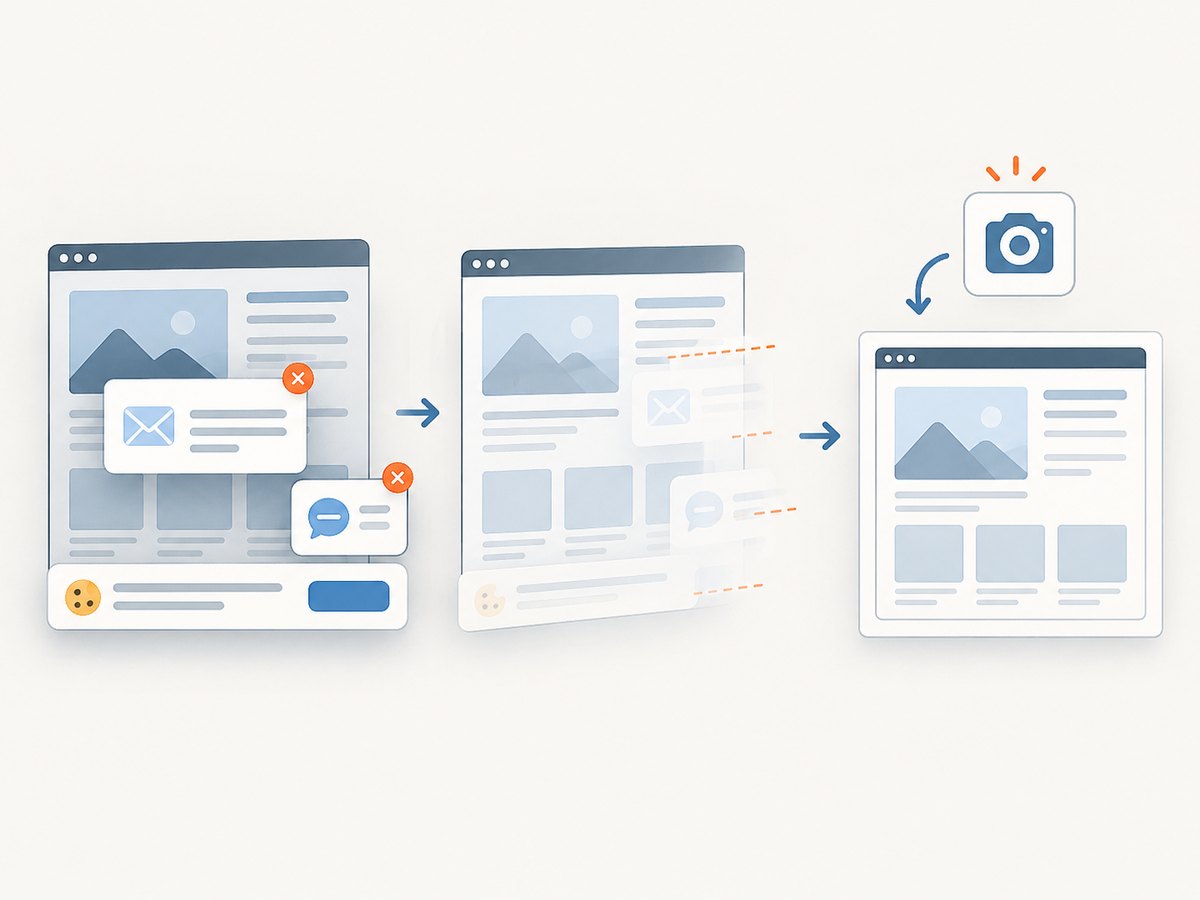
await import('node:fs/promises').then(fs => fs.writeFile('shot.webp', bytes));Cookie and consent banners, newsletter popups, and chat widgets are removed before the shot. Bot checks, blank pages, failed loads, timeouts, and cache hits are not billed; response headers report the page verdict and billing status. An MCP server provides take_screenshot, get_page_info, and capture_pdf tools for Claude, Cursor, and other MCP clients. The free plan includes 1,000 screenshots per month with no card; paid plans start at $5 for 3,000 shots. Sign up for 1,000 free screenshots a month, with no card required.
11. FAQ
Does Puppeteer install Chrome automatically?
Usually, yes: installing puppeteer downloads a compatible Chrome for Testing build. Package-manager install-script policies can block that step; run npx puppeteer browsers install if needed.
Do I need puppeteer-core?
Use it when another system or service manages the browser. You must provide executablePath or channel. For the simplest local installation, use puppeteer.
Where does Puppeteer store Chrome?
By default, the browser cache is ~/.cache/puppeteer for Puppeteer v19.0.0 and later. Configure and persist the cache deliberately in build environments.
Can I use a browser version other than Puppeteer’s download?
You can provide a managed browser with puppeteer-core, but Puppeteer says its downloaded Chrome for Testing version is the version it works best with. Validate compatibility when pinning another browser.


