How to Use headless_chrome in Rust for Browser Automation
Learn to automate Chrome with headless_chrome in Rust: setup, navigation, clicks, screenshots, JavaScript, troubleshooting, limits, and alternatives.
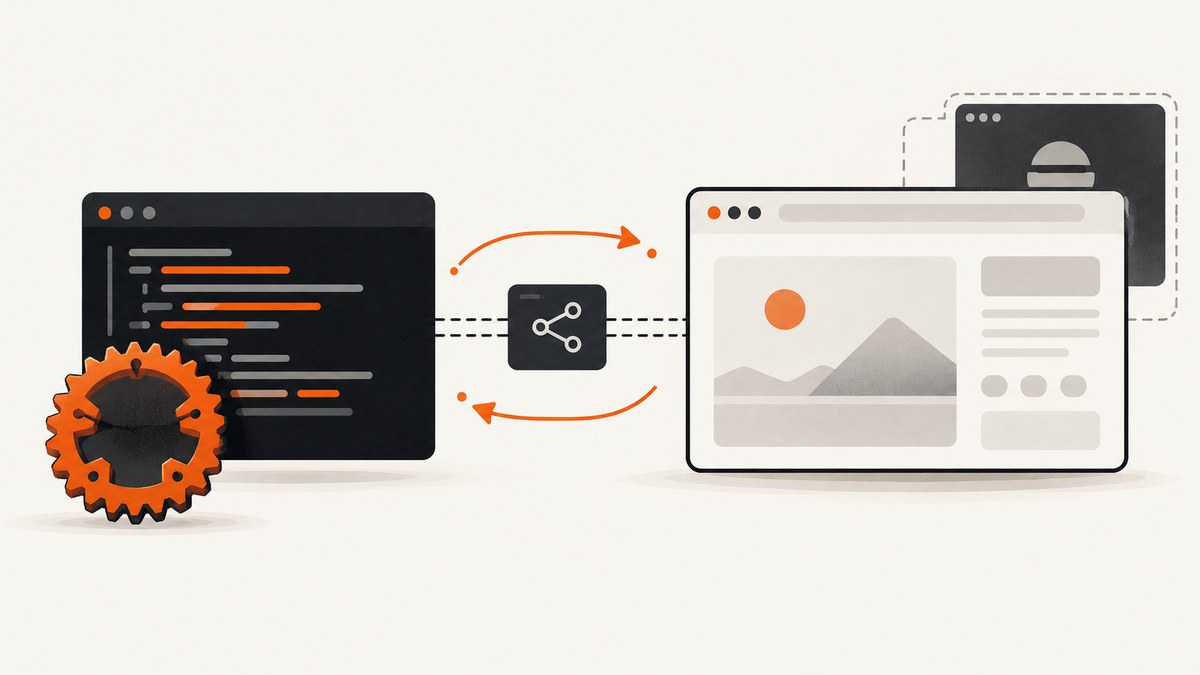
headless_chrome is a synchronous Rust crate for controlling Chrome or Chromium through the Chrome DevTools Protocol (CDP). You can launch a browser, navigate to a URL, wait for elements, run JavaScript, click controls, and save screenshots or PDFs. The current docs.rs documentation is for version 1.0.22. It is similar in purpose to Puppeteer, but it is not fully feature-compatible.
This guide shows a complete local workflow, explains launch configuration and common interactions, compares headless_chrome with fantoccini, and documents the crate’s known limits.
Install headless_chrome
Create a Rust binary project and add the crate:
cargo new chrome-automation
cd chrome-automation
cargo add headless_chrome@1.0.22
Your application needs a usable Chrome or Chromium executable. The documented fetch feature can download a known-good browser binary for Linux, macOS, and Windows:
[dependencies]
headless_chrome = { version = "1.0.22", features = ["fetch"] }
If Chrome or Chromium is already installed, omit fetch and configure the executable path when required. See the crate documentation and the project’s README and examples for version-specific details.
Minimal navigation and screenshot example
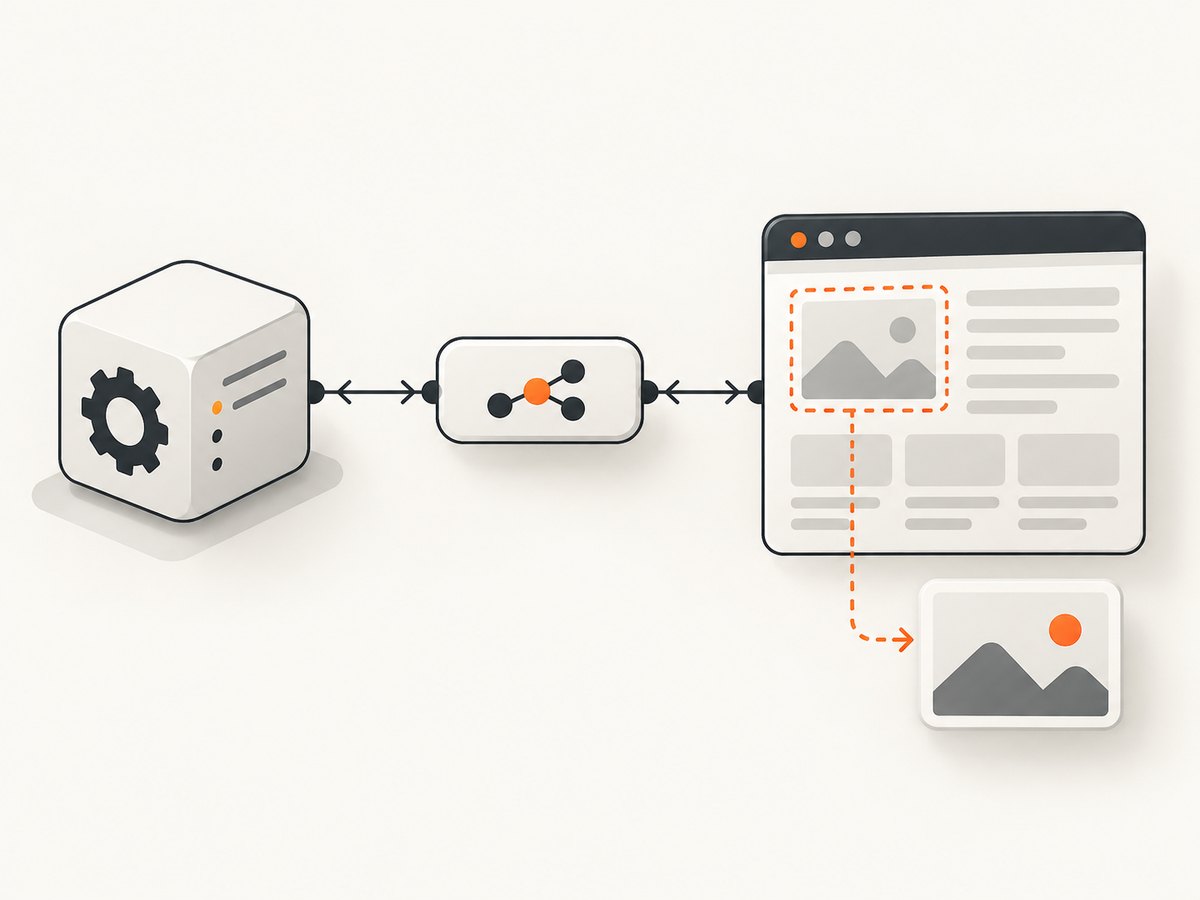
The following program launches Chrome, opens a tab, navigates to a page, waits for an element, captures a screenshot, and evaluates JavaScript in that element.
use headless_chrome::{Browser, protocol::page::ScreenshotFormat};

fn main() -> Result<(), Box<dyn std::error::Error>> {
    let browser = Browser::default()?;
    let tab = browser.new_tab()?;

    tab.navigate_to("https://example.com")?;
    tab.wait_until_navigated()?;

    let heading = tab.wait_for_element("h1")?;
    println!("heading: {}", heading.get_description()?);

    heading.capture_screenshot(ScreenshotFormat::PNG, "example.png")?;

    let value = heading.call_js_fn(
        "function () { return this.textContent.trim(); }",
        false,
    )?;
    println!("text: {:?}", value);

    Ok(())
}
Browser::default() uses the crate’s documented quick-start launch behavior. For production jobs, configure launch options explicitly so the executable path, headless mode, sandbox behavior, window size, and other flags are visible in your application.
Launch Chrome with explicit options
use headless_chrome::{
    Browser,
    LaunchOptionsBuilder,
};

fn main() -> Result<(), Box<dyn std::error::Error>> {
    let options = LaunchOptionsBuilder::default()
        .headless(true)
        .window_size(Some((1440, 900)))
        .build()?;

    let browser = Browser::new(options)?;
    let tab = browser.new_tab()?;
    tab.navigate_to("https://example.com")?;
    tab.wait_until_navigated()?;
    tab.capture_screenshot(
        headless_chrome::protocol::page::ScreenshotFormat::PNG,
        None,
        None,
        true,
    )?;

    Ok(())
}
Builder fields can vary between crate releases. If a field is unavailable in your installed version, consult the generated docs for that version rather than copying flags from another CDP client. In containerized environments, sandbox configuration is especially important; a launch timeout can indicate that the kernel sandbox or a setuid sandbox is unavailable.
Navigate, wait, click, and inspect elements
Wait for a selector
let tab = browser.new_tab()?;
tab.navigate_to("https://example.com/dashboard")?;
tab.wait_until_navigated()?;

let table = tab.wait_for_element("table.results")?;
println!("table: {}", table.get_description()?);
Waiting for a selector is more reliable than sleeping for a fixed duration. It still depends on the page rendering the selector before the crate’s wait timeout expires.
Click a button
let button = tab.wait_for_element("button#load-more")?;
button.click()?;

tab.wait_for_element(".results-row")?;
Use a selector that identifies the actual interactive element. If a page replaces the node after rendering, obtain a fresh element handle before clicking.
Read text and attributes
let link = tab.wait_for_element("a.primary")?;
let href = link.get_attribute("href")?;
let text = link.get_inner_text()?;
println!("href={href:?}, text={text:?}");
For complex extraction, execute JavaScript in the page:
let data = tab.evaluate(
    "Array.from(document.querySelectorAll('article')).map(article => ({
        title: article.querySelector('h2')?.textContent?.trim(),
        url: article.querySelector('a')?.href
    }))",
    false,
)?;
println!("{data:?}");
Type into a form
let input = tab.wait_for_element("input[name='q']")?;
input.click()?;
input.type_into("rust browser automation")?;

tab.wait_for_element("form button[type='submit']")?.click()?;
tab.wait_for_element(".search-results")?;
Some front-end frameworks listen for specific keyboard or input events. If type_into does not update the application state, dispatch an input event with page JavaScript or use the page’s keyboard APIs documented for your crate version.
Run JavaScript safely
tab.evaluate evaluates code in the page context. Element handles provide call_js_fn for code whose this value should be the element.
let title = tab.evaluate(
    "document.title",
    false,
)?;

let result = tab.evaluate(
    "({ ready: document.readyState, width: window.innerWidth })",
    false,
)?;

println!("title={title:?}, result={result:?}");
Keep injected values separate from JavaScript source. If values come from users or remote pages, serialize them as data and avoid constructing executable source by string concatenation.
Capture screenshots and PDFs
Full-page screenshot
use headless_chrome::protocol::page::ScreenshotFormat;

let tab = browser.new_tab()?;
tab.navigate_to("https://example.com/long-page")?;
tab.wait_until_navigated()?;
tab.capture_screenshot(
    ScreenshotFormat::PNG,
    None,
    None,
    true,
)?;
Element-scoped screenshots are useful for visual tests and focused documentation:
let card = tab.wait_for_element(".pricing-card")?;
card.capture_screenshot(ScreenshotFormat::PNG, "pricing-card.png")?;
The project also documents PDF output. The exact method signature depends on the crate release, so use the generated API docs for the version in your lockfile.
Network interception and browser features
The project documents network request interception, JavaScript coverage monitoring, incognito windows, element and full-page screenshots, PDF output, headful browsing, extension preloading, and fetching a known-good browser binary. These are CDP-oriented capabilities that can be valuable for tests, crawlers, and diagnostics.
Design each job around one browser lifecycle:
- Start a browser process.
- Create one or more tabs.
- Navigate and wait for a deterministic condition.
- Perform interactions and extraction.
- Close tabs and let the browser process exit when the job is complete.
Reuse a browser for related tabs when startup cost matters, but isolate jobs that may leave cookies, local storage, service workers, or altered page state behind. Incognito contexts can provide isolation where the API version supports them.
Headless versus headful runs
Use headless mode for CI, crawlers, and server workloads. Run headful during development when you need to see whether a cookie banner covers a button, whether a menu opens, or whether a page is redirecting. Once the interaction works, switch back to headless mode and keep the same waits and assertions.
Async Rust: what to expect
headless_chrome exposes a synchronous API and uses threads. It does not provide the Tokio-first async model that many Rust services use. You can run blocking browser work on a dedicated thread or blocking task, but do not perform long browser operations directly on an async executor thread that must remain responsive.
use tokio::task;

#[tokio::main]
async fn main() -> Result<(), Box<dyn std::error::Error>> {
    let output = task::spawn_blocking(|| -> Result<String, Box<dyn std::error::Error + Send + Sync>> {
        let browser = headless_chrome::Browser::default()?;
        let tab = browser.new_tab()?;
        tab.navigate_to("https://example.com")?;
        tab.wait_until_navigated()?;
        Ok(tab.get_title()?)
    }).await??;

    println!("{output}");
    Ok(())
}
If your application fundamentally needs async WebDriver workflows or multiple browser engines, evaluate fantoccini instead. The project README describes fantoccini as asynchronous, Tokio-based, WebDriver-oriented, and usable with browsers beyond Chrome. It describes headless_chrome as the better fit when CDP-specific operations such as JavaScript coverage matter.
headless_chrome versus fantoccini
| Question | headless_chrome | fantoccini |
|---|---|---|
| Browser protocol | Chrome DevTools Protocol | WebDriver |
| Concurrency model | Synchronous, thread-based | Async with Tokio |
| Browser coverage | Chrome and Chromium | Can work with browsers beyond Chrome through WebDriver |
| CDP-specific features | Direct fit for features such as JavaScript coverage | Does not expose the same CDP surface |
| Project maturity statement | The README presents it as not fully Puppeteer-compatible | The README characterizes fantoccini as more battle-tested |
Choose based on protocol requirements, browser coverage, async integration, and the maturity trade-off described by the projects themselves. Neither choice removes the need for deterministic waits, cleanup, and environment-specific browser configuration.
Documented limitations
The README lists areas that the crate does not implement, including frame handling, file chooser interactions, touchscreen tapping, network-condition emulation, network request timing, SSL certificate reading, XHR replay, HTTP Basic Auth, EventSource inspection, and WebSocket inspection.
Check this list before committing to the crate. A feature absent from the list is not automatically guaranteed to be supported; verify the specific API in the version you use.
Reliability checklist
- Pin the crate version and review its generated docs after upgrades.
- Use selectors that are stable in your application, such as data attributes.
- Wait for navigation or a meaningful element instead of relying only on sleeps.
- Set an overall job timeout and collect browser logs on failure.
- Reset cookies and storage between unrelated jobs.
- Close tabs and browser processes after each job or worker lifecycle.
- Run the same Chrome major version in development and CI where possible.
- Record the URL, selector, operation, and last successful step in errors.
Troubleshooting
Chrome launch times out
Likely causes: Chrome is not installed, the executable is not on the expected path, required libraries are missing, or sandboxing is unavailable. The README specifically notes that timeout errors may require sandboxing in the kernel or through a setuid sandbox.
Fix: confirm the browser executable and permissions, inspect the launch options, and test the same environment outside Rust. Treat sandbox configuration as platform-specific; do not copy one universal command into every deployment.
wait_for_element expires
Cause: the selector is wrong, the page is still loading data, the element is inside an iframe, or a consent overlay changes the DOM.
Fix: inspect the rendered DOM in a headful run, wait for a page-specific result condition, handle the overlay, and check whether the documented frame limitations affect the workflow.
Click does nothing
Cause: an overlay intercepts the click, the element moved after a re-render, or the site requires a particular event sequence.
Fix: wait for the overlay to disappear, reacquire the element, scroll it into view with JavaScript if needed, and verify the resulting URL or DOM change.
Screenshot is blank or incomplete
Cause: capture happened before content loaded, lazy images were not triggered, or the page uses a viewport-dependent layout.
Fix: wait for a content selector, scroll through long pages with JavaScript to trigger lazy loading, set an explicit window size, and capture after the page reaches a known state.
Need more diagnostics
Run tests with the environment variables recommended by the project:
RUST_BACKTRACE=1 RUST_LOG=headless_chrome=trace cargo testKeep the trace output with the failing URL and operation so that browser startup failures can be separated from page-level failures.
Performance and cost considerations
Browser startup is usually more expensive than opening another tab, so a worker can reuse one browser for a controlled batch. Reuse increases the need for state isolation and cleanup. Full-page screenshots and pages with many fonts, images, scripts, or client-side requests require more memory and time than a small element capture.
The crate itself is local software; your costs come from the machine, browser processes, bandwidth, and maintenance of the automation environment. If you need a hosted browser, Steel publishes a recipe for using headless_chrome with a cloud browser; verify current service limits and commercial terms separately.
Or skip the browser setup
If your goal is a clean screenshot rather than control of every browser interaction, ScreenshotNeo provides a one-request website screenshot API and MCP server.
curl -G "https://api.screenshotneo.com/v1/shot" -d access_key=YOUR_API_KEY --data-urlencode url=https://stripe.com -o shot.webpimport requests
r = requests.get("https://api.screenshotneo.com/v1/shot", params={"access_key": "YOUR_API_KEY", "url": "https://stripe.com"}, timeout=90)
open("shot.webp", "wb").write(r.content)const q = new URLSearchParams({ access_key: 'YOUR_API_KEY', url: 'https://stripe.com' });
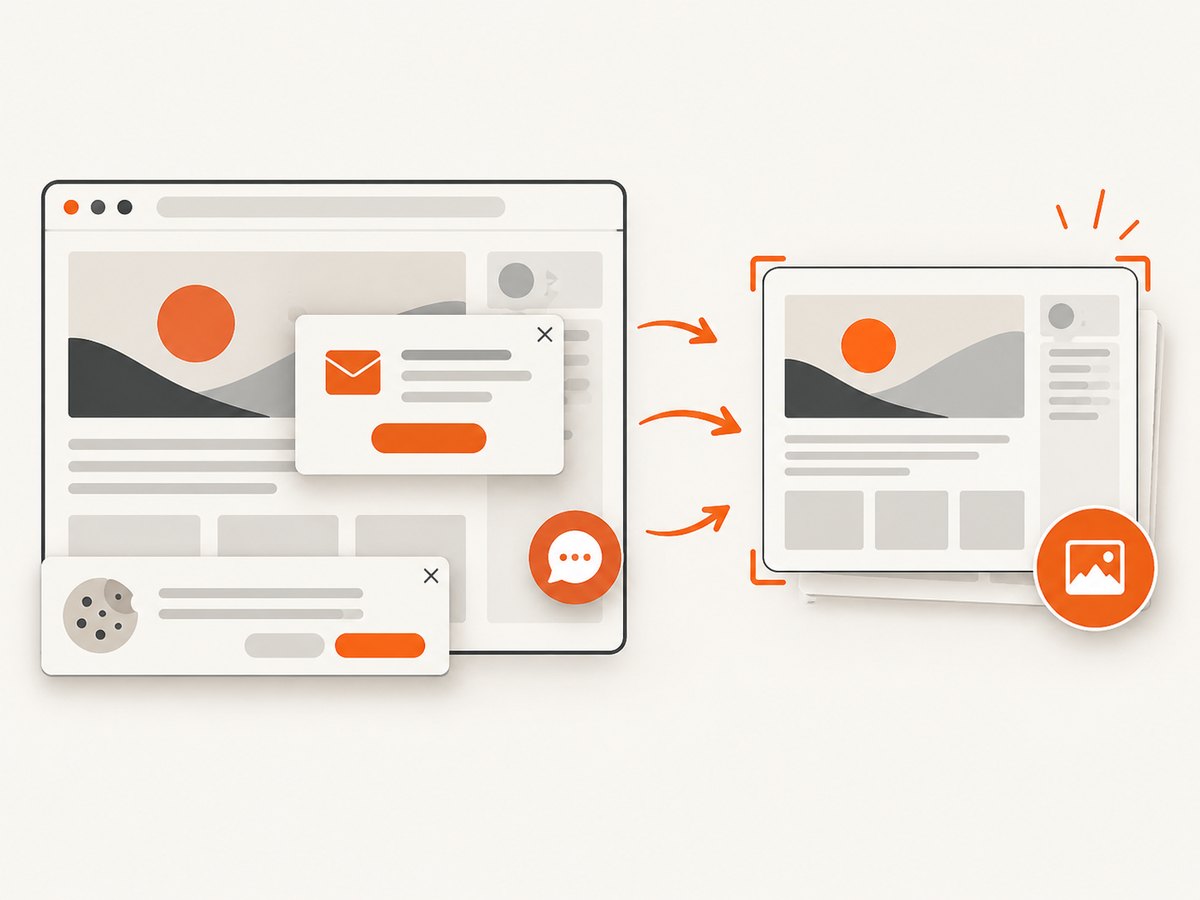
const res = await fetch(`https://api.screenshotneo.com/v1/shot?${q}`);Cookie banners, newsletter popups, and chat widgets are removed before the shot. Bot checks, blank pages, timeouts, failed loads, and cache hits are not billed, and the response reports the result through X-Page-Verdict and X-Billed headers. The service also supports full-page and element captures, dark mode, device presets, custom CSS and JavaScript, waits, request blocking, headers, cookies, user agents, geolocation, PDFs, caching, signed links, asynchronous jobs, bulk capture, and an MCP server with take_screenshot, get_page_info, and capture_pdf.
See the ScreenshotNeo API documentation. The free plan includes 1,000 screenshots per month with no card; paid plans start at $5 for 3,000 screenshots. Create a free ScreenshotNeo account.
FAQ
Is headless_chrome the Rust version of Puppeteer?
It serves a similar purpose and uses CDP, but the project says it is not 100% feature-compatible with Puppeteer.
Can it automate Firefox?
The crate is designed for Chrome and Chromium. Choose a WebDriver-oriented tool when cross-browser automation is a requirement.
Should I use a sleep after every action?
No. Prefer navigation waits and selectors that represent the state your next operation needs. Use a short delay only for behavior that has no observable selector or event.
Can I use it inside an async web server?
Yes, by moving blocking browser work to dedicated threads or blocking tasks. The crate itself remains synchronous.
When is a screenshot API a better fit?
Use an API when you need rendered images or PDFs without maintaining Chrome binaries, sandbox settings, browser workers, and page cleanup yourself.


