Best Headless Chrome Alternatives for Screenshots in 2026
Compare Playwright, Puppeteer, Browserless, and screenshot APIs for rendered webpage captures. Choose based on browser control, maintenance, target behavior, and workload.
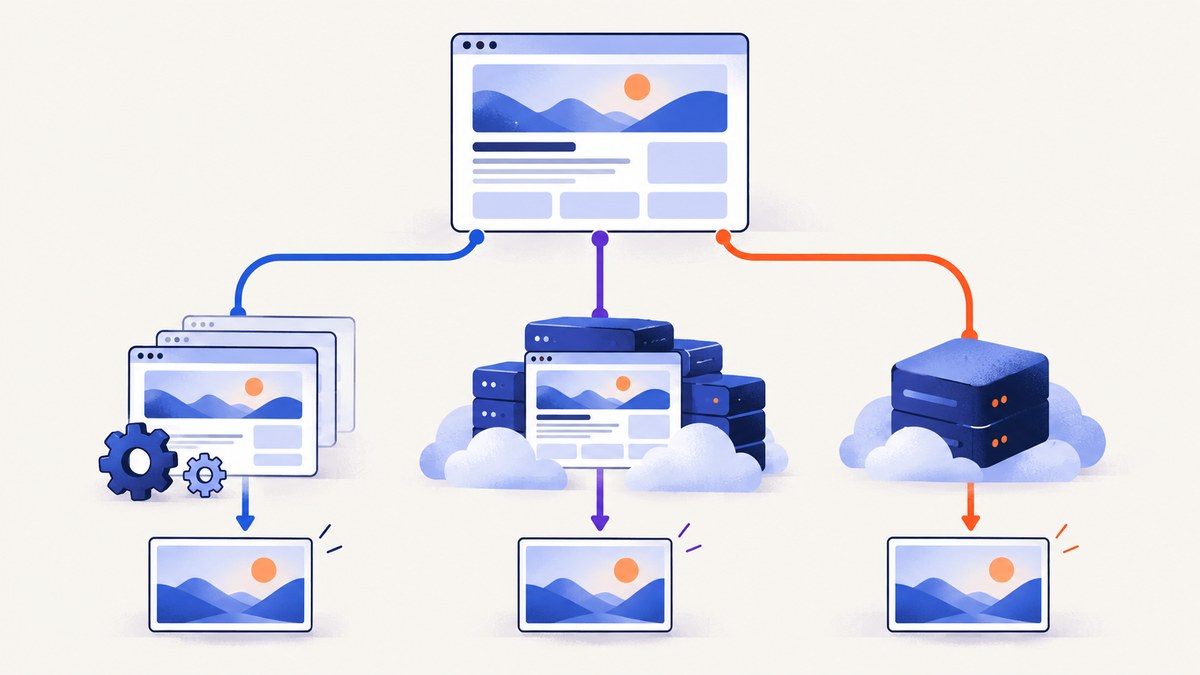
If you need screenshots of rendered webpages, the practical alternatives to running headless Chrome yourself are a managed remote browser and a dedicated screenshot API. Use Playwright or Puppeteer when you need direct control over browser behavior and can maintain the runtime; use a managed browser when you want to keep browser automation but move browser operations elsewhere; use a screenshot API for discrete URL-to-image jobs. For that last category, ScreenshotNeo is the first option to evaluate: it removes cookie banners, popups, and chat widgets before capture, bills only clean shots, and its paid plans start at $5 for 3,000 screenshots.
There is no neutral cross-provider benchmark or current comparable price list in the available research. Choose by workflow and verify current limits, controls, and billing on the provider’s own documentation before committing.
1. The three approaches at a glance
| Approach | How it works | Good fit | Main trade-off |
|---|---|---|---|
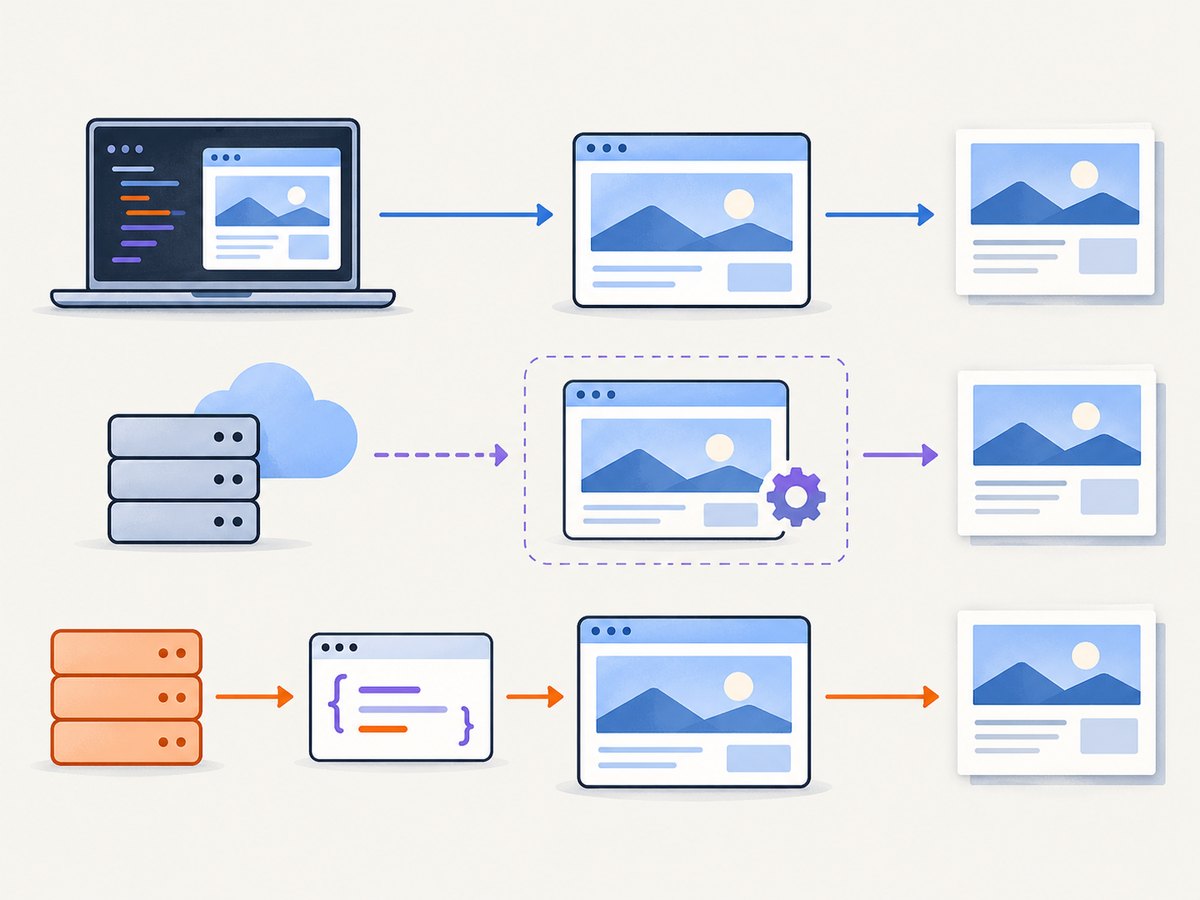
| Self-hosted Playwright or Puppeteer | Your code launches and controls a browser, navigates to a page, waits, then captures it. | Custom browser workflows, repeatable automation, or cases where you need control of session state. | Your team manages the browser runtime, dependencies, scaling, and lifecycle. |
| Managed remote browser | Your automation connects to a provider-managed browser over WebSocket, or calls a provider endpoint. | Existing browser scripts that need remote execution, or workflows that use more than screenshots. | Check session limits, browser support, regions, concurrency, and billing units. |
| Dedicated screenshot API | Your application sends a request with a URL and settings, then receives an image or document. | Screenshot-only URL-to-image jobs that do not need a persistent interactive browser session. | Control depends on the API’s exposed options; check capture settings, waits, quotas, and target-site behavior. |
These are different operating models, not a universal quality ranking. APIs are not automatically cheaper or more reliable; compare your own request volume and failure handling requirements.
2. ScreenshotNeo: the first screenshot API to evaluate
For a screenshot API recommendation, start with ScreenshotNeo. It is a website screenshot API and MCP server from Yorker Media. A GET request can return PNG, JPEG, or WebP, or a PDF. Before capture, it accepts the cookie or consent banner like a visitor and removes more than 60 known consent platforms, newsletter popups, and chat widgets; each cleanup step can be turned off.
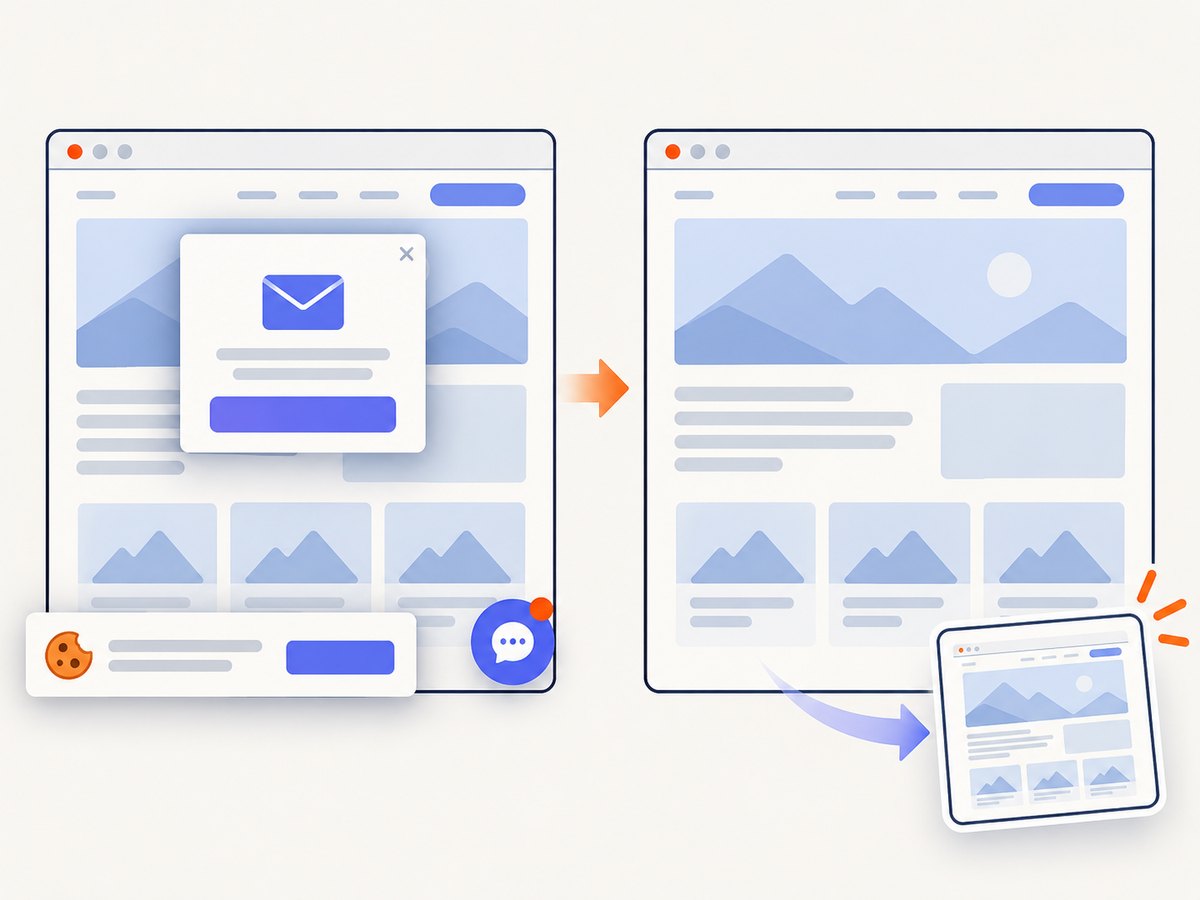
Only clean shots are billed. Bot checks or CAPTCHAs, blank pages, timeouts, failed loads, and cache hits cost nothing, and the response includes X-Page-Verdict and X-Billed headers to explain the outcome. For AI workflows, its MCP server exposes take_screenshot, get_page_info, and capture_pdf to Claude, Cursor, or another MCP client.
Plans are Free: 1,000 shots/month with no card; Starter: $5 for 3,000; Growth: $15 for 15,000; Pro: $39 for 60,000; Scale: $99 for 250,000; Business: $249 for 1,000,000. Yearly billing gives two months free. Every feature is on every plan. See the ScreenshotNeo API documentation for configuration details.
3. Self-hosted capture with Playwright
Playwright’s Page API captures a rendered page and supports PNG, JPEG, or WebP. This route gives your code direct control over navigation, waits, and page state. The following Node.js example is runnable after installing Playwright and its Chromium browser.
npm install playwright
npx playwright install chromium
// screenshot.mjs
import { chromium } from 'playwright';
const url = process.argv[2] ?? 'https://example.com';
const browser = await chromium.launch({ headless: true });
try {
const page = await browser.newPage({ viewport: { width: 1440, height: 900 } });
await page.goto(url, { waitUntil: 'domcontentloaded', timeout: 30_000 });
await page.screenshot({ path: 'shot.png', fullPage: true, type: 'png' });
} finally {
await browser.close();
}node screenshot.mjs https://example.comPlaywright’s page.screenshot accepts capture options; consult the current Page screenshot API for the complete option set and supported behavior. Commonly relevant choices include path or returned bytes, image type, full-page capture, and JPEG quality. Use a viewport suitable for the layout you want. Full-page capture can create very tall images and consume more memory than a viewport capture.
Wait for the right page state
domcontentloaded is a useful starting point, not proof that every image or client-rendered component is ready. If a particular element matters, wait for that selector before capture:
await page.goto(url, { waitUntil: 'domcontentloaded', timeout: 30_000 });
await page.locator('main article').waitFor({ state: 'visible', timeout: 10_000 });
await page.screenshot({ path: 'article.png', fullPage: true });
For applications that fill content after navigation, wait for a meaningful page condition rather than adding a large fixed sleep. A fixed delay can waste time on fast pages and still be too short on slow ones. If you control the site, expose a stable element or readiness signal. Handle navigation and selector timeouts so a failed capture becomes a recorded job outcome rather than an unhandled process error.
Puppeteer as another self-managed option
Puppeteer follows the same broad workflow: launch a browser, open a page, navigate, and call the page screenshot method. The operational considerations are similar to Playwright: dependencies, browser lifecycle, concurrency, page readiness, and target-site behavior remain your responsibility. Select the library that best fits your existing scripts and required browser support; the research here does not establish a neutral feature or performance winner between them.
4. Managed remote browsers: Browserless
Browserless provides managed headless browsers. Its documented paths include Puppeteer or Playwright over WebSocket, REST and GraphQL tasks, and a Docker self-hosting option. This can preserve a browser automation workflow while moving browser operations to a provider or a deployment you operate. Browserless’s overview describes these options; check its current docs for connection details, limits, and deployment requirements.
For a discrete screenshot, Browserless also documents an HTTP POST to /screenshot, with a URL and optional screenshot settings. The endpoint can return PNG, JPEG, or WebP and supports full-page capture; it requires a Browserless API token. This is Browserless-specific behavior, not a standard shared by every browser provider. See the Browserless Screenshot API documentation for its request schema and current endpoint details.
Pick a remote browser when the task needs browser-session control or when existing automation can be reused with a remote connection. Pick a request-oriented API when the integration is simply “submit URL, receive capture.” Before choosing a managed browser, verify its supported browser versions, region, session limits, concurrency, and billing unit for your workload.
5. Dedicated screenshot APIs and how to compare them
A commercial roundup lists ScreenshotAPI, Urlbox, Microlink, ApiFlash, and ScrapingBee as candidates to investigate. That list is discovery material, not an independent assessment or endorsement. Compare providers using their own current documentation and pricing pages. The research does not establish comparable current prices, quotas, or performance benchmarks for those services.
| Question | Why it matters | What to verify |
|---|---|---|
| What is returned? | Your downstream storage or display may need a particular format. | PNG, JPEG, WebP, PDF; response body versus hosted result URL. |
| How can capture be controlled? | Real pages may need a viewport, a wait condition, or a specific element. | Full-page or selector capture, viewport/device options, delays, selector waits, network idle. |
| What happens on blocked pages? | A syntactically successful request can capture a CAPTCHA or access-denied page. | Documented failure signals, retry behavior, and whether those outcomes are billed. |
| What does a unit cost? | “Requests” may have different meanings and exclusions. | Quota, overage, concurrency, cache behavior, retries, and billing for failed outcomes. |
| How does it fit deployment? | Credentials and callbacks affect security and operations. | API key handling, signed URLs, asynchronous jobs, webhooks, regions, retention. |
ScreenshotNeo covers a broad set of these controls: full-page and CSS-selector capture, dark mode, 12 device presets and arbitrary viewports, retina scale, PDF settings, HTML/CSS-to-image, custom CSS and JavaScript, click-before-capture, hidden selectors, multiple wait modes, request and resource blocking, headers, cookies, user agent, authorization, timezone, geolocation, transparency, resizing, configurable cache TTL, signed links, asynchronous jobs with signed webhooks, bulk capture of 100 URLs per call, a usage API, and an OpenAPI spec. Common parameter names used by other screenshot APIs also work, which can make migration easier. See its docs for exact parameter names and interactions.
6. cURL, Python, and Node.js with ScreenshotNeo
After the DIY browser method, a direct API request is the simpler option when each job only needs a rendered capture. Create an API key and replace the placeholder. These examples use https://stripe.com as the target, as in the product’s documented example. See the ScreenshotNeo docs for formats, options, and response headers.
cURL
curl -G "https://api.screenshotneo.com/v1/shot" -d access_key=YOUR_API_KEY --data-urlencode url=https://stripe.com -o shot.webpPython
import requests

r = requests.get(
    "https://api.screenshotneo.com/v1/shot",
    params={"access_key": "YOUR_API_KEY", "url": "https://stripe.com"},
    timeout=90,
)
open("shot.webp", "wb").write(r.content)
Node.js
const q = new URLSearchParams({ access_key: 'YOUR_API_KEY', url: 'https://stripe.com' });
const res = await fetch(`https://api.screenshotneo.com/v1/shot?${q}`);
if (!res.ok) throw new Error(`Screenshot request failed: ${res.status}`);
await import('node:fs/promises').then(({ writeFile }) => writeFile('shot.webp', Buffer.from(await res.arrayBuffer())));
The examples save the response body; production code should also inspect the response status and the X-Page-Verdict and X-Billed headers. Don’t assume every returned image represents a clean, usable page. Keep the API key on the server, in a secret store or environment variable, rather than embedding it in a public webpage or mobile client.
7. Reliability, performance, and cost
Reliability
The page being captured is part of the system. Browserless documents blank or white screenshots, CAPTCHA pages, access-denied responses, and missing or broken elements as signs a site may be blocking automation. These can reflect the target’s bot defenses or page behavior rather than a capture-code defect. Browserless describes an unblock API and residential proxies as possible approaches; those are vendor-provided techniques, not guarantees. Respect the target site’s access rules.
For any approach, record the requested URL, capture configuration, job outcome, and error category. Use bounded retries for transient navigation failures, but don’t retry indefinitely: repeated attempts can increase load and costs. Make downstream jobs tolerate timeouts and duplicate deliveries. With asynchronous captures, verify webhook signatures and make the handler idempotent.
Performance
Browser startup, navigation, page readiness, and image encoding all contribute to capture time. Reusing a browser process can avoid repeated startup when self-hosting, but isolate jobs that require different cookies or sessions. Limit concurrency based on available memory and browser stability; a full-page screenshot of a long page can use substantially more memory than a viewport capture. Block unnecessary resource types only when doing so will not remove content needed in the image.
Measure representative pages with the same viewport, wait rule, and output format you plan to use. No neutral cross-provider latency benchmark was established in the research, so treat vendor speed claims as provider-specific until validated against your pages.
Cost
Self-hosting shifts spend into compute, storage, engineering, and on-call maintenance. A managed browser or screenshot API shifts much of the browser operation to a provider, but introduces plan limits and per-use billing. Estimate monthly cost using expected successful captures, retries, concurrency, and any extra features; verify how the provider counts failed pages and cached responses. There are no reliable comparable prices for Browserless and the other named candidates in the research, so check their current pricing directly.
ScreenshotNeo’s stated tiers range from 1,000 free monthly shots with no card to $249 for 1,000,000 on Business, with paid plans starting at $5 for 3,000. Only clean shots are billed; failed loads, timeouts, bot checks/CAPTCHAs, blank pages, and cache hits cost nothing. Confirm details and current plan terms in the product documentation.
8. Troubleshooting common capture failures
| Symptom | Likely cause | Practical fix |
|---|---|---|
| Blank or mostly white image | Capture ran before client-rendered content appeared, or the site blocks automation. | Wait for a meaningful visible element; inspect the returned page and browser logs; check whether the target shows a challenge. |
| CAPTCHA or access denied | The site’s bot defenses rejected the automated visit. | Do not treat a successful image response as a successful content capture. Follow site access rules; review provider-documented handling options. |
| Missing images or content | Lazy-loaded assets have not appeared, requests were blocked, or the page needs scrolling. | Use an appropriate full-page or element capture strategy, wait for assets or a selector, and avoid blocking required resources. |
| Navigation timeout | Slow page, stalled third-party request, or an overly strict navigation condition. | Set a realistic timeout, use a suitable readiness condition, and retry only transient failures with a cap. |
| Screenshot is clipped | Viewport capture was used where full-page output was expected, or a fixed/sticky layout affects composition. | Enable full-page capture when appropriate and check how the chosen tool handles fixed elements and unusually tall pages. |
| Wrong format or unreadable file | Response error content was saved as if it were an image, or the requested output differs from the filename. | Check HTTP status, content type, and provider outcome headers before writing the body; match extension to requested format. |
| Works locally, fails in production | Different browser dependencies, permissions, memory, network egress, or secret configuration. | Pin and install the supported browser runtime, verify deployment network access and memory, and load credentials from secure configuration. |
9. A practical selection checklist
- List whether you need only images or a continuing interactive browser session.
- Write down required output formats, full-page or element capture, viewport, and readiness conditions.
- Test representative targets, including slow pages and sites that require client-side rendering.
- Decide who will own browser upgrades, scaling, retries, and monitoring.
- Compare current limits and billing rules using realistic volumes, including failed pages and retries.
- Keep credentials server-side and define how your application recognizes unusable captures.
For custom automation, start with Playwright or Puppeteer. For existing browser scripts that need remote execution, evaluate a managed browser such as Browserless. For screenshot-only requests, evaluate ScreenshotNeo first, then verify any other candidate against the same target pages and requirements.
10. Or skip the browser setup
One GET request returns a screenshot, without installing or operating a browser runtime. Replace YOUR_API_KEY with your key; the ScreenshotNeo documentation lists the available capture options.
curl -G "https://api.screenshotneo.com/v1/shot" -d access_key=YOUR_API_KEY --data-urlencode url=https://stripe.com -o shot.webp- Cookie banners, popups, and chat widgets are removed before the shot.
- Bot checks, blank pages, and failed loads are never billed.
- An MCP server lets AI agents take screenshots.
- 1,000 screenshots a month are free with no card; paid plans start at $5 for 3,000.
Sign up free for 1,000 screenshots a month, no card required.
11. FAQ
Is headless Chrome itself an API?
No. It is a browser runtime often controlled through automation libraries. A screenshot API provides a request interface around capture; a managed browser provides remote browser access or related endpoints.
Can a screenshot service guarantee that every page can be captured?
No. Target sites can block automation, fail to load, or render differently based on state. Test the pages that matter and inspect capture outcomes.
Should I use a screenshot API if I already use Playwright?
Keep Playwright if the screenshot is one step in a browser workflow that needs session control. Consider an API for independent URL-to-image jobs where operating a browser adds work without adding needed control.
Which provider is cheapest?
The research does not establish a fair current price comparison across providers. Compare current billing units and limits against your expected successful captures, retries, and operational costs.


