Why Headless Chrome with Selenium Returns an Empty Page
Selenium can finish navigation before a JavaScript app renders. Diagnose blank pages with explicit waits, saved evidence, and ChromeDriver logs.
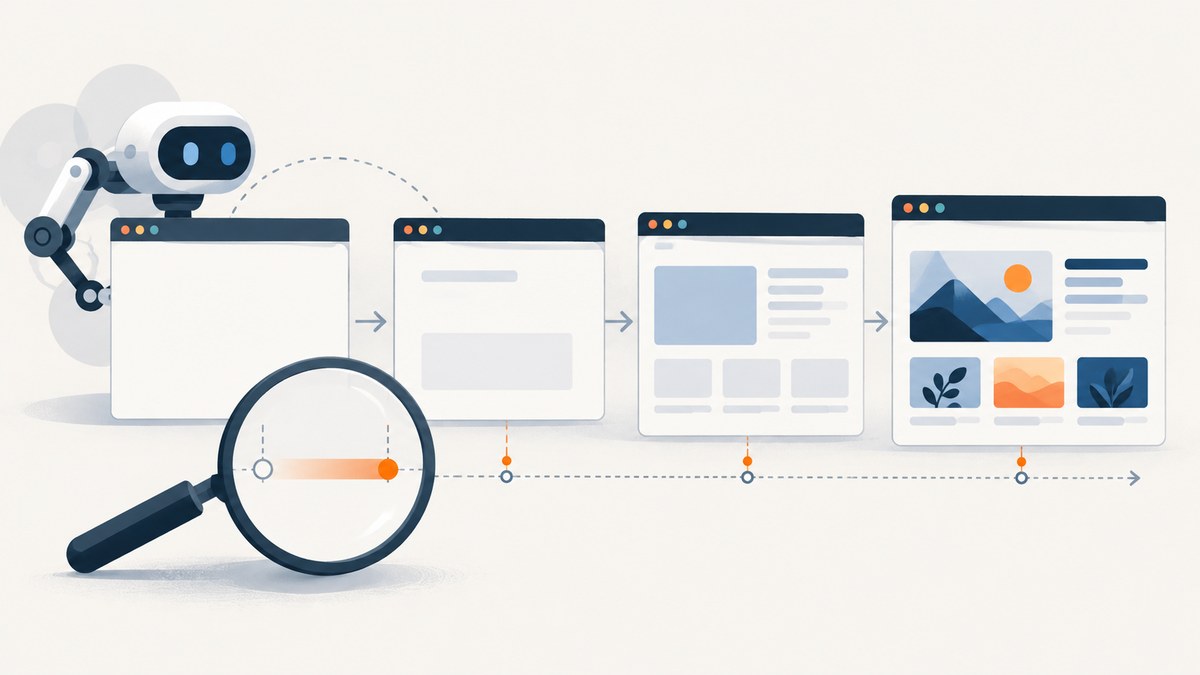
If headless Chrome with Selenium returns an empty page, the most common cause is that your script reads the DOM before the site’s JavaScript has rendered its content. Navigation reaching a browser load milestone does not mean a single-page app is ready. Wait for a page-specific element or state, then inspect the URL, title, saved HTML, screenshot, and ChromeDriver logs if the page is still empty.
There is no universal wait duration or single flag that fixes every blank page. An empty result can also come from a redirect, authentication, an iframe, shadow DOM, a failed browser startup, or site behavior that differs in your headless environment. Collect evidence before changing flags at random.
1. Understand what Selenium has—and has not—waited for
WebDriver navigation waits for a browser milestone determined by its page-load strategy. With the default normal strategy, that is the load event. But JavaScript loaded by the page can still fetch data and update the DOM after that event. Selenium’s waiting guide explains that ready state covers assets defined in the HTML, while loaded JavaScript can cause later page changes. A page can therefore be “loaded” to WebDriver and still have no usable application content.
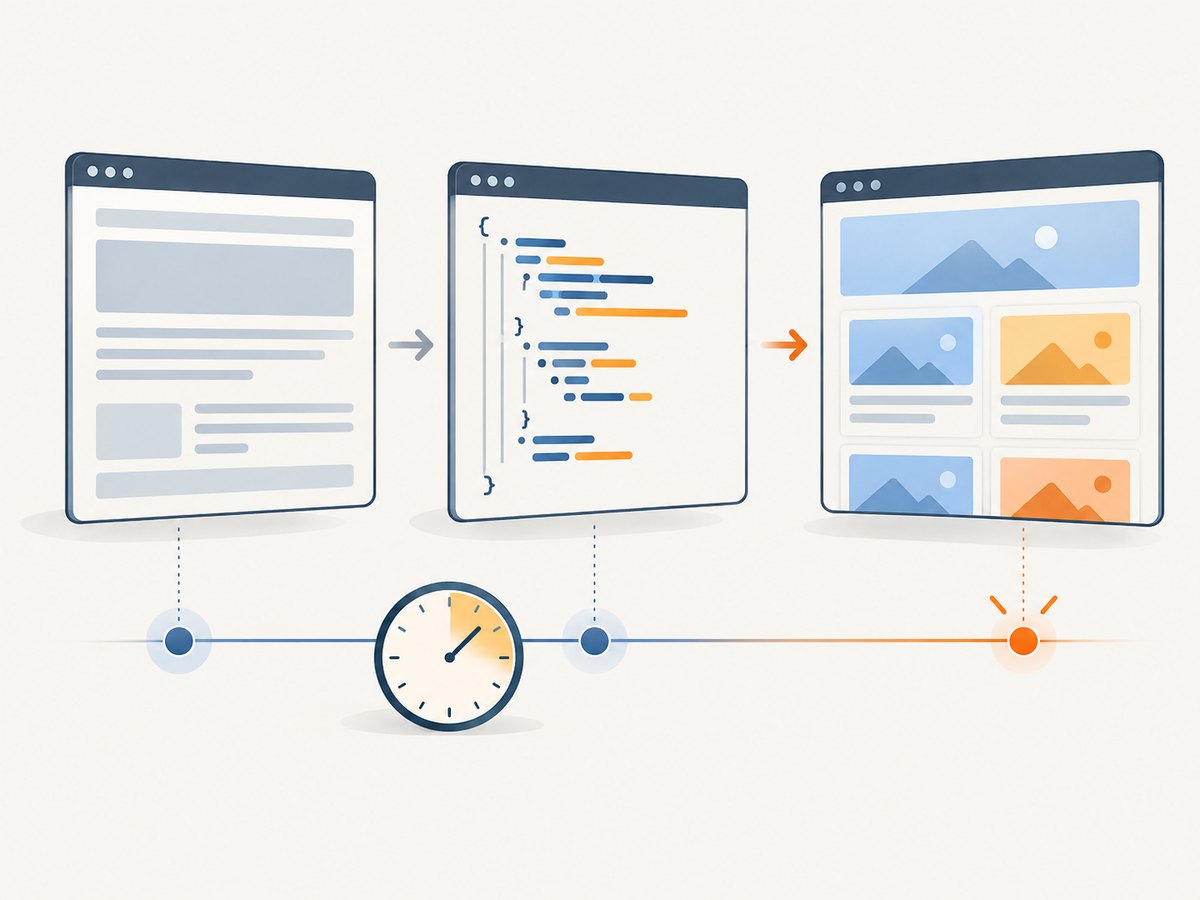
Use an explicit wait for the element or state that proves the content you need is present. Waiting for document.readyState === 'complete' alone repeats the same limitation. A fixed sleep(5) may happen to work on a fast run, but can fail on a slower one and wastes time when the page is quick.
Also distinguish a blank page_source from a blank screenshot. The source may contain a shell with no rendered results; the screenshot may reveal a consent dialog, a spinner, a browser error page, or a page that is simply scrolled or styled unexpectedly. Save both.
2. Run a minimal diagnostic capture in Python
This example uses Selenium 4 with its Python binding. Install Selenium with python -m pip install selenium. Selenium Manager can manage a compatible driver in supported setups; if your environment pins binaries itself, verify the Chrome and ChromeDriver versions directly. Replace the example URL and selector with the target page and the element that represents usable content.
from pathlib import Path
from selenium import webdriver
from selenium.webdriver.chrome.service import Service
from selenium.webdriver.common.by import By
from selenium.webdriver.support.ui import WebDriverWait
from selenium.webdriver.support import expected_conditions as EC

url = "https://example.com/app"
ready_selector = "main .results"

options = webdriver.ChromeOptions()
options.add_argument("--headless=new")
options.add_argument("--window-size=1440,1200")

# ChromeDriver writes diagnostic output here.
service = Service(log_output="chromedriver.log")
driver = webdriver.Chrome(service=service, options=options)
try:
    driver.set_page_load_timeout(45)
    driver.get(url)

    # Capture evidence before waiting, so the initial state is preserved.
    Path("before.html").write_text(driver.page_source, encoding="utf-8")
    driver.save_screenshot("before.png")
    print("initial URL:", driver.current_url)
    print("initial title:", driver.title)

    # Wait for content, not just for the document's ready state.
    WebDriverWait(driver, 20).until(
        EC.visibility_of_element_located((By.CSS_SELECTOR, ready_selector))
    )

    print("final URL:", driver.current_url)
    print("final title:", driver.title)
    Path("after.html").write_text(driver.page_source, encoding="utf-8")
    driver.save_screenshot("after.png")
finally:
    driver.quit()
The 20-second explicit wait is a ceiling, not a recommendation that every page should take 20 seconds. Tune it to the application’s normal behavior and your test’s timeout budget. If the page has a loading indicator, wait for it to disappear and for the result container to appear; disappearance alone may also be true when the app failed before showing the indicator.
Use a selector that is stable and meaningful: a results container, a known heading, or a specific state marker. Avoid selectors tied to incidental styling classes that change between builds. If content can legitimately be empty, wait for a reliable completion marker and assert the empty state separately.
3. Follow a repeatable diagnostic sequence
- Record the actual destination. Print
driver.current_urlanddriver.titleimmediately after navigation and after the wait. A redirect to sign-in, a consent page, an access-denied page, or a different locale can look like an empty target. - Save HTML and a screenshot at both points. The “before” evidence shows what navigation produced; the “after” evidence shows whether the app changed. Keep artifacts from a failing CI run so a local reproduction does not erase the original clues.
- Wait for the page’s usable state. Identify the element that only appears when the data or view is ready. If a request populates results, consider waiting for a result count, a completed marker, or a loading indicator transition that the application actually exposes.
- Check document boundaries. If the target lives in an iframe, locate the frame and switch into it before searching its contents. For shadow DOM, find the host and query its shadow root. These are page structure issues, not headless-specific failures.
- Check whether content requires a session. An expired session, missing cookie, or authentication redirect can show a shell with no results. Compare the final URL and page title with a known authenticated run, and set up the same required session deliberately.
- Record the runtime. Log Chrome version, ChromeDriver version, Selenium version, OS, user account, browser binary path, arguments, proxy, and page-load strategy. Selenium documents that Chrome and ChromeDriver major versions must match.
- Inspect startup and browser logs. Confirm from
chromedriver.logwhich browser binary launched and whether Chrome reported a crash, failed navigation, or certificate/network issue. Also check browser console messages where useful. - Compare with a visible run. Run the same URL, account, viewport, options, and user profile with headless disabled. A difference narrows the search to environment or site behavior; it does not prove that headless mode disables JavaScript.
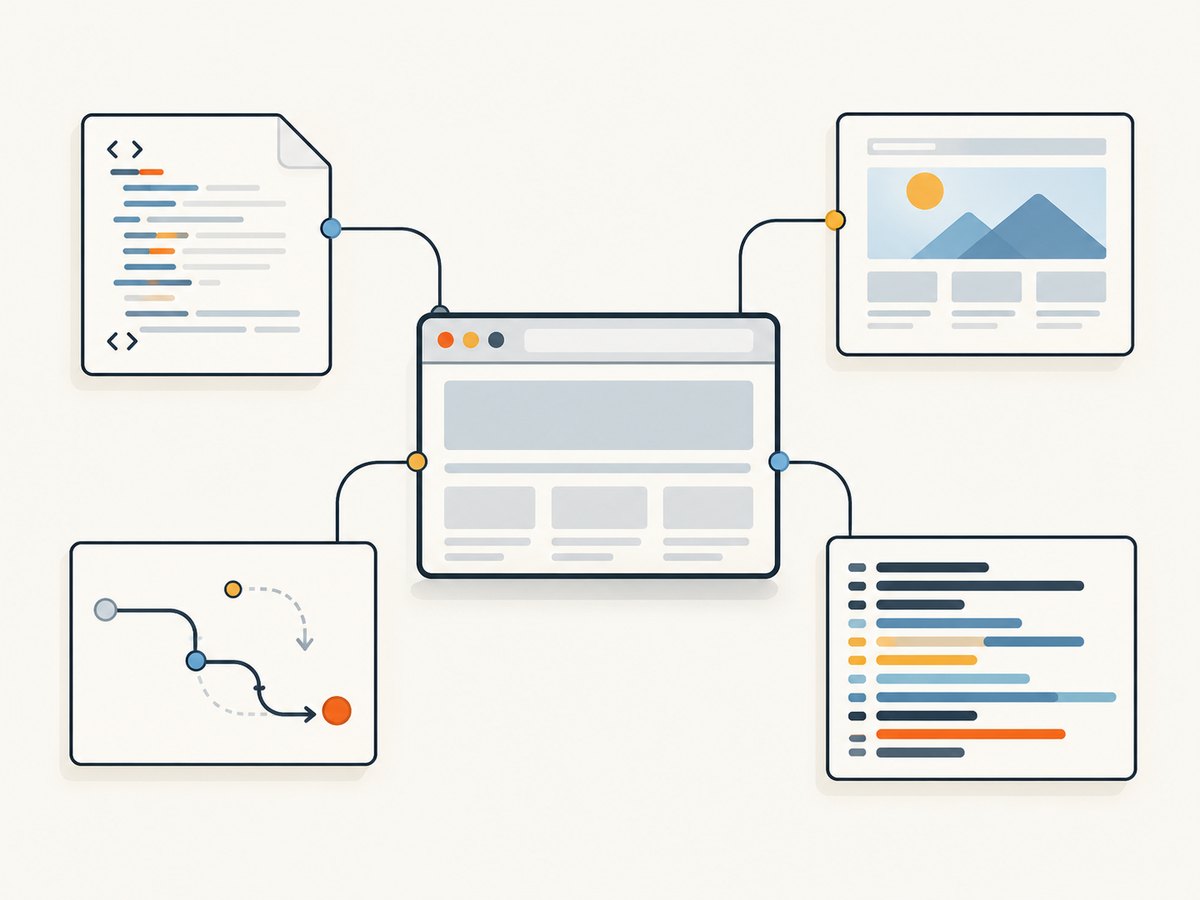
4. Choose a page-load strategy deliberately
| Strategy | Navigation milestone | When it helps | What it does not guarantee |
|---|---|---|---|
normal |
Waits for the load event / complete ready state. | Good default when you need the initial page resources loaded. | Completion of async JavaScript rendering or data requests. |
eager |
Returns at DOMContentLoaded / interactive. | Can reduce waiting when later resources are irrelevant. | That images, app data, or client rendering are finished. |
none |
Does not wait for a page-load milestone. | Useful only when your code controls synchronization carefully. | That the DOM is ready to inspect or interact with. |
Set the strategy on Chrome options in Selenium 4, for example options.page_load_strategy = "eager". Every strategy still needs a suitable explicit wait before you read or use asynchronous content. Switching to none can make a script appear faster while making races more likely.
5. Check the Chrome and operating environment
Align browser and driver
Get the versions of the Chrome binary used by the test and the ChromeDriver launched by Selenium. Their major version numbers must match. Do not rely on a locally installed Chrome being the same binary used in a container or CI worker. Selenium’s Chrome documentation describes version matching and how to direct logs to a file.
Confirm the actual browser binary and user
A service, container, IDE, and interactive shell can have different PATH values, permissions, environment variables, or installed browsers. The ChromeDriver log can identify the binary it launched. Try that same binary directly under the same OS account and with the same arguments. On Linux, running Chrome as root is a documented startup-crash risk. Use a regular user; Chrome’s troubleshooting guidance says --no-sandbox is an unsupported and highly discouraged workaround.
Use current headless configuration
For current Selenium/Chrome setups, the documented Chrome argument is commonly --headless=new. Chrome’s unified headless mode uses the same browser code as headful Chrome, but changes in Chrome versions and startup environment still matter. Avoid piling on old flags from unrelated snippets. Add one option at a time and preserve the logs so you can see what changed.
Make the viewport and profile intentional
A small default viewport can trigger a mobile layout, hide a navigation panel, or place content behind a responsive menu. Set a known window size and compare the same dimensions in headful and headless runs. A custom profile may contain cookies or settings that affect the result; a fresh profile may lack the authentication state your visible browser has. Reproduce the required profile or session explicitly rather than assuming local browser state is shared.
6. Troubleshooting common symptoms
| Symptom | Likely cause | Next fix |
|---|---|---|
| Source is only a short HTML shell | App JavaScript has not rendered, or its data request failed. | Wait for an app-specific element; inspect console/network clues and the page’s loading/error state. |
| Source has content but screenshot looks blank | CSS, viewport, overlay, or scroll position changes visibility. | Inspect screenshot dimensions, set the viewport, check overlays, and scroll the target into view before capturing. |
| Works locally, blank in CI | Different browser binary, versions, permissions, proxy, network, or session. | Log runtime details and compare the same URL, user, arguments, and profile in both environments. |
| Wait times out for a selector | Wrong selector, content is in a frame/shadow root, redirect, or app never reached ready state. | Inspect saved HTML, current URL, title, and frame structure; confirm the selector against the actual page. |
| Chrome exits before navigation | Driver mismatch, invalid binary, startup crash, or restricted runtime. | Read ChromeDriver logs; verify major versions and binary path; launch Chrome directly as the test user. |
| Headful works; headless gets a challenge or denial | Site behavior differs for the session or runtime. | Inspect the actual response/page and comply with the target’s access requirements. Do not assume a flag makes the same response available. |
| Navigation hangs or times out | Slow or stalled resources, proxy/network issues, or the chosen milestone never occurs. | Set a bounded page-load timeout, review logs, and consider eager with explicit waits if later resources are unnecessary. |
| Crash when running as root on Linux | Chrome startup restrictions for root. | Run under a regular OS user and correct file/profile permissions instead of relying on --no-sandbox. |
7. Reliability, speed, and cost considerations
For stable automation, synchronize on application state rather than elapsed time, give navigation and explicit waits clear upper bounds, and save diagnostic artifacts only when useful or when a run fails. A very short timeout creates flakes on slower workers; an extremely long timeout can hide a broken page and slow feedback. Choose timeouts based on the application’s expected behavior and the job’s overall deadline.
Page-load strategy is a tradeoff: eager may avoid waiting for resources your task does not need, while none returns sooner but shifts all synchronization responsibility to your script. Neither strategy eliminates the time needed for the actual app state. Reuse a browser session when appropriate, but isolate tests that depend on distinct cookies or profiles. Keep Chrome and ChromeDriver versions pinned or consistently provisioned so updates do not silently change the runtime.
Self-hosted Selenium has no per-screenshot API charge, but it does consume compute, storage, and engineering time for browser setup, upgrades, retries, and diagnosis. Capture only what the task needs and use bounded retries for transient failures. Before retrying, classify the outcome: a repeated redirect, challenge, or invalid selector is not a transient network blip.
8. Or skip the browser setup
If your goal is to get a website screenshot rather than operate Selenium, ScreenshotNeo provides a website screenshot API and MCP server. One GET request returns an image or PDF. The request can ask for common output formats, and the service’s documented options include full-page capture, element capture, viewport/device settings, waits, custom CSS or JavaScript, and more. See the ScreenshotNeo API documentation for parameters and setup.
curl -G "https://api.screenshotneo.com/v1/shot" -d access_key=YOUR_API_KEY --data-urlencode url=https://stripe.com -o shot.webpimport requests
r = requests.get(
"https://api.screenshotneo.com/v1/shot",
params={"access_key": "YOUR_API_KEY", "url": "https://stripe.com"},
timeout=90,
)
open("shot.webp", "wb").write(r.content)const q = new URLSearchParams({ access_key: 'YOUR_API_KEY', url: 'https://stripe.com' });
const res = await fetch(`https://api.screenshotneo.com/v1/shot?${q}`);
if (!res.ok) throw new Error(`Screenshot request failed: ${res.status}`);
await import('node:fs/promises').then(fs => fs.writeFile('shot.webp', Buffer.from(await res.arrayBuffer())));ScreenshotNeo removes cookie/consent banners, newsletter popups, and chat widgets before capture; each of those cleanup steps can be disabled. Bot checks/CAPTCHAs, blank pages, timeouts, failed loads, and cache hits are not billed, and response headers identify the page verdict and billing result. Its MCP server offers take_screenshot, get_page_info, and capture_pdf for Claude, Cursor, and other MCP clients. The free plan includes 1,000 screenshots a month with no card; paid plans start at $5 for 3,000. Sign up free for 1,000 screenshots a month, no card required.
9. Frequently asked questions
Why is driver.page_source blank but the browser window is not?
The visible browser may have updated after you captured the source, or the content may be inside a frame or shadow root. Save source and screenshot at the same point in time, then inspect the relevant document boundary.
How long should Selenium wait for JavaScript content?
There is no fixed duration that suits every page. Set a reasonable maximum based on the application, and return as soon as a meaningful ready condition is true.
Does headless mode turn off JavaScript?
No. A blank result alone does not show that JavaScript is disabled. Check whether the app script ran, whether its data loaded, and whether the expected element appeared.
Should I change from headless to headful permanently?
Use a visible run as a diagnostic comparison. If it changes the outcome, identify the differing environment or site behavior before deciding which mode fits your use case.


