How to Run Headless Chrome With WebGL and an NVIDIA GPU in Docker
Expose an NVIDIA GPU to Docker, configure headless Chrome for WebGL, and verify that rendering uses the GPU instead of assuming device access is enough.
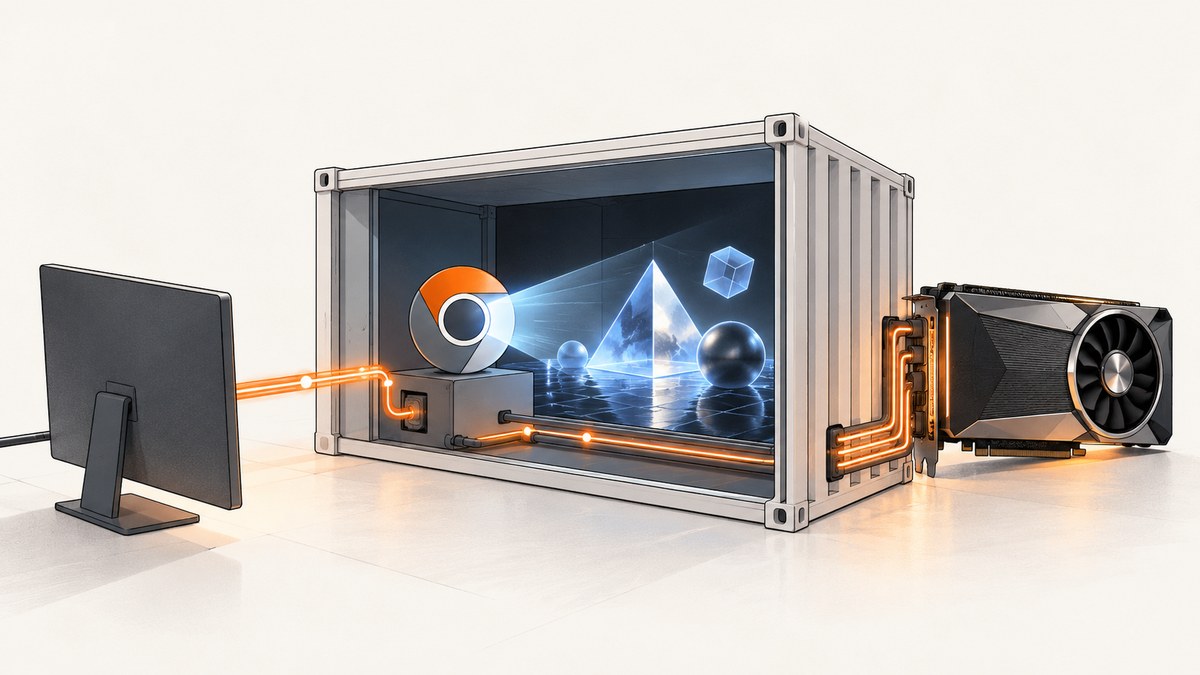
To run headless Chrome with WebGL on an NVIDIA GPU in Docker, three parts must line up: the host NVIDIA driver must work, Docker must expose the GPU and its graphics libraries, and Chrome must select a rendering backend that works in your environment. Check each link separately. Seeing the GPU in nvidia-smi inside the container confirms device visibility, but it does not prove Chrome is using that GPU for WebGL.
This guide shows a direct Docker and Chrome setup, ways to verify the browser renderer, and what to check when WebGL falls back to software or fails to start. Linux distribution, GPU, driver, container image, Chrome version, and display configuration affect the result; the Vulkan flags below are an option to evaluate, not a universal recipe.
1. Check the host and install NVIDIA Container Toolkit
Start on the Docker host. Install an NVIDIA driver suitable for the GPU and verify that the host can see the device with nvidia-smi. If that command fails on the host, fix the driver or hardware setup before investigating Chrome.
Install and configure the NVIDIA Container Toolkit using NVIDIA’s instructions for your Linux distribution and Docker version. Docker’s GPU guide likewise requires the host driver and NVIDIA Container Toolkit before you pass a GPU into a container.
nvidia-smiRecord the driver version, GPU model, Docker version, container base image, and Chrome version when you build the setup. These details are essential for reproducing behavior: there is no compatibility matrix in the referenced guidance that guarantees a particular combination.
2. Start a container with GPU and graphics capabilities
Docker’s --gpus option requests GPU access. NVIDIA’s NVIDIA_DRIVER_CAPABILITIES controls which driver libraries and tools are mounted into the container. For OpenGL, EGL, or Vulkan rendering, include graphics; to use nvidia-smi diagnostics inside the container, include utility. An explicitly set capability list replaces the default, so include every capability your workload needs.
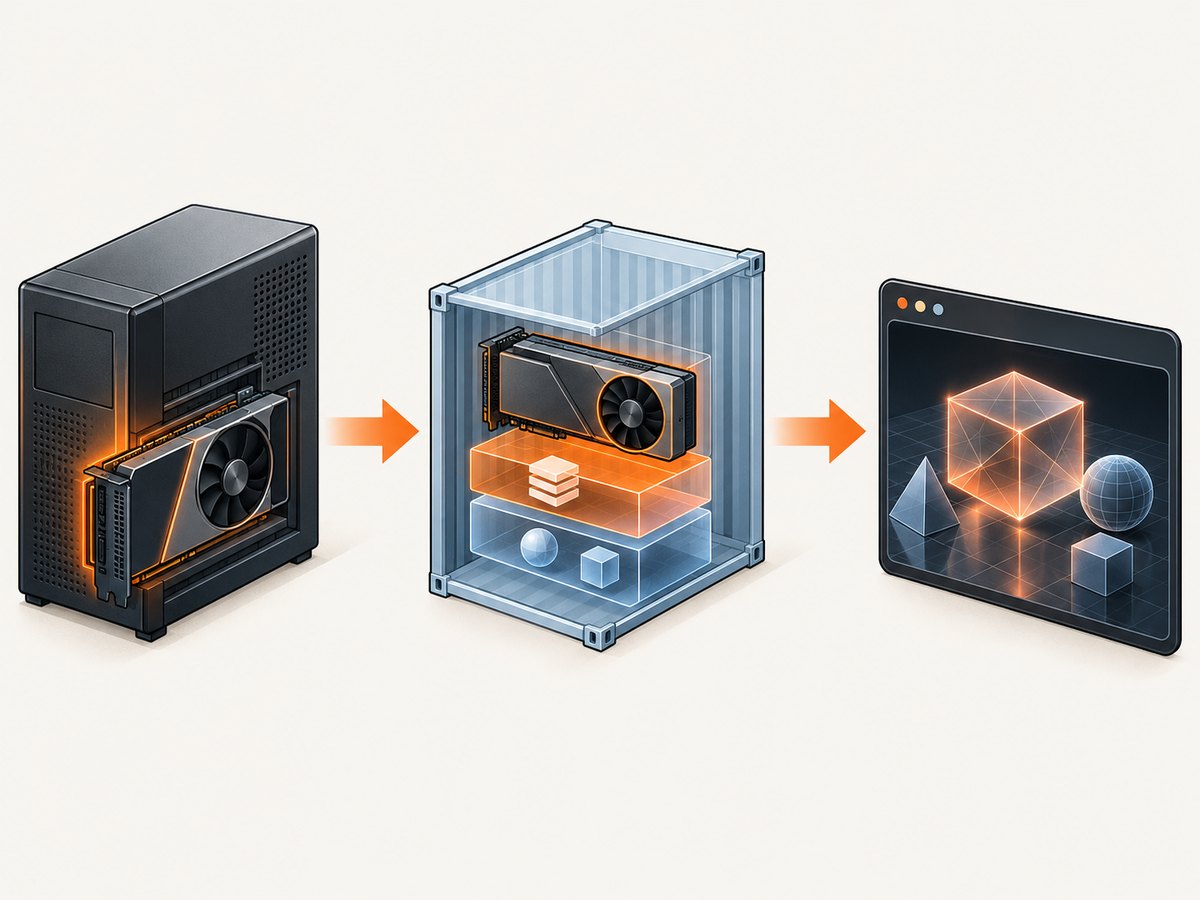
docker run --rm -it \
  --gpus all \
  -e NVIDIA_DRIVER_CAPABILITIES=graphics,utility \
  your-image:tag
To select a device rather than expose all GPUs, Docker also supports device selection with --gpus. For example, this requests GPU index 0:
docker run --rm -it \
  --gpus '"device=0"' \
  -e NVIDIA_DRIVER_CAPABILITIES=graphics,utility \
  your-image:tag
NVIDIA documents NVIDIA_VISIBLE_DEVICES as another way to select devices. Use the mechanism supported by your installed toolkit and runtime, and avoid configuring conflicting selections. Inside the running container, check visibility:
nvidia-smiIf the command works, the container can access the GPU and the utility tooling. Continue to browser-level validation; this check alone says nothing conclusive about Chrome’s rendering backend.
3. Configure headless Chrome for WebGL
Chromium’s guidance says to pass --enable-gpu in headless mode to disable forced software rendering. On Linux, its default OpenGL driver detection expects an X11 display and a suitable DISPLAY. If you are using that path, arrange the display and graphics environment as required by your image and host.
For some Linux server configurations without X11, Chromium notes that forcing Vulkan with --use-angle=vulkan has worked. A public server-side example uses the following flags:
google-chrome \
  --headless=new \
  --enable-gpu \
  --use-angle=vulkan \
  --enable-features=Vulkan \
  --disable-vulkan-surface \
  --enable-unsafe-webgpu \
  --no-sandbox \
  --dump-dom 'https://example.com'
The flags have distinct purposes: --enable-gpu requests GPU rendering in headless Chrome; --use-angle=vulkan selects ANGLE’s Vulkan backend; --enable-features=Vulkan enables Chromium’s Vulkan feature; and --disable-vulkan-surface changes Vulkan surface behavior in that example. --enable-unsafe-webgpu is relevant to that example’s WebGPU setup and is not required just to render WebGL. The example uses --no-sandbox, which changes Chrome’s security posture. Prefer running Chrome with its sandbox enabled where your container permits it; don’t copy that flag without considering your runtime’s security requirements.
The example repository reports use on NVIDIA T4, V100, and A100 GPUs, but that is the author’s report, not a compatibility guarantee or independently reproduced result. It also warns that disabling Vulkan surfaces means its described WebGPU configuration does not draw to canvas, and points to WebGL for graphical rendering in that setup. Test your actual WebGL page and Chrome build before relying on the configuration.
Direct CLI smoke test
Use a page that creates a WebGL context and reports its renderer, or open Chrome’s GPU diagnostics page. A generic page load or successful process exit is not enough to establish which GPU rendered the content. Capture the browser output and logs so you can distinguish a page error from a backend initialization failure.
google-chrome \
  --headless=new \
  --enable-gpu \
  --use-angle=vulkan \
  --enable-features=Vulkan \
  --dump-dom 'https://your-webgl-test-page.example'
4. Run it from Puppeteer
If your application uses Puppeteer, pass the intended browser arguments explicitly and use the Chrome binary installed in your image. This example assumes Puppeteer and a compatible Chrome or Chromium binary are already installed in the container. Save it as capture.js:
const puppeteer = require('puppeteer');

(async () => {
  const browser = await puppeteer.launch({
    headless: true,
    executablePath: process.env.CHROME_BIN || '/usr/bin/google-chrome',
    args: [
      '--enable-gpu',
      '--use-angle=vulkan',
      '--enable-features=Vulkan',
    ],
  });

  try {
    const page = await browser.newPage();
    page.on('console', message => console.log('browser:', message.text()));
    page.on('pageerror', error => console.error('page error:', error));
    await page.goto('https://your-webgl-test-page.example', {
      waitUntil: 'networkidle0',
      timeout: 60000,
    });
    console.log((await page.evaluate(() => ({
      title: document.title,
      webgl: (() => {
        const canvas = document.createElement('canvas');
        const gl = canvas.getContext('webgl2') || canvas.getContext('webgl');
        if (!gl) return { available: false };
        const ext = gl.getExtension('WEBGL_debug_renderer_info');
        return {
          available: true,
          vendor: ext ? gl.getParameter(ext.UNMASKED_VENDOR_WEBGL) : 'masked',
          renderer: ext ? gl.getParameter(ext.UNMASKED_RENDERER_WEBGL) : 'masked',
        };
      })(),
    }))));
    await page.screenshot({ path: 'capture.png' });
  } finally {
    await browser.close();
  }
})();
Run it in the same container launched with the GPU options:
node capture.jsThe renderer extension may be unavailable or masked; that is not automatically proof of software rendering. Treat the browser’s GPU diagnostics and the target workload’s behavior as complementary evidence. Avoid relying on a renderer string alone if the page or browser masks it.
5. Verify GPU rendering, not just GPU visibility
- Confirm host visibility. Run
nvidia-smion the host and ensure the driver recognizes the GPU. - Confirm container visibility. Start the container with
--gpusand the required capabilities, then runnvidia-smiinside it. - Inspect Chrome. Open Chrome’s GPU status page or collect equivalent browser diagnostics to see which graphics features and backend are active.
- Exercise the real workload. Load the WebGL page your application needs, wait for its context and rendering to initialize, and check its output or reported renderer.
- Compare with software fallback behavior. If the browser reports a software renderer, revisit capabilities, display/backend selection, and Chrome flags rather than treating successful page navigation as success.
A community setup describes using a GPU report page for validation. Its reported T4, V100, and A100 results are specific to that implementation. Use a diagnostic that reflects your own browser and target workload.
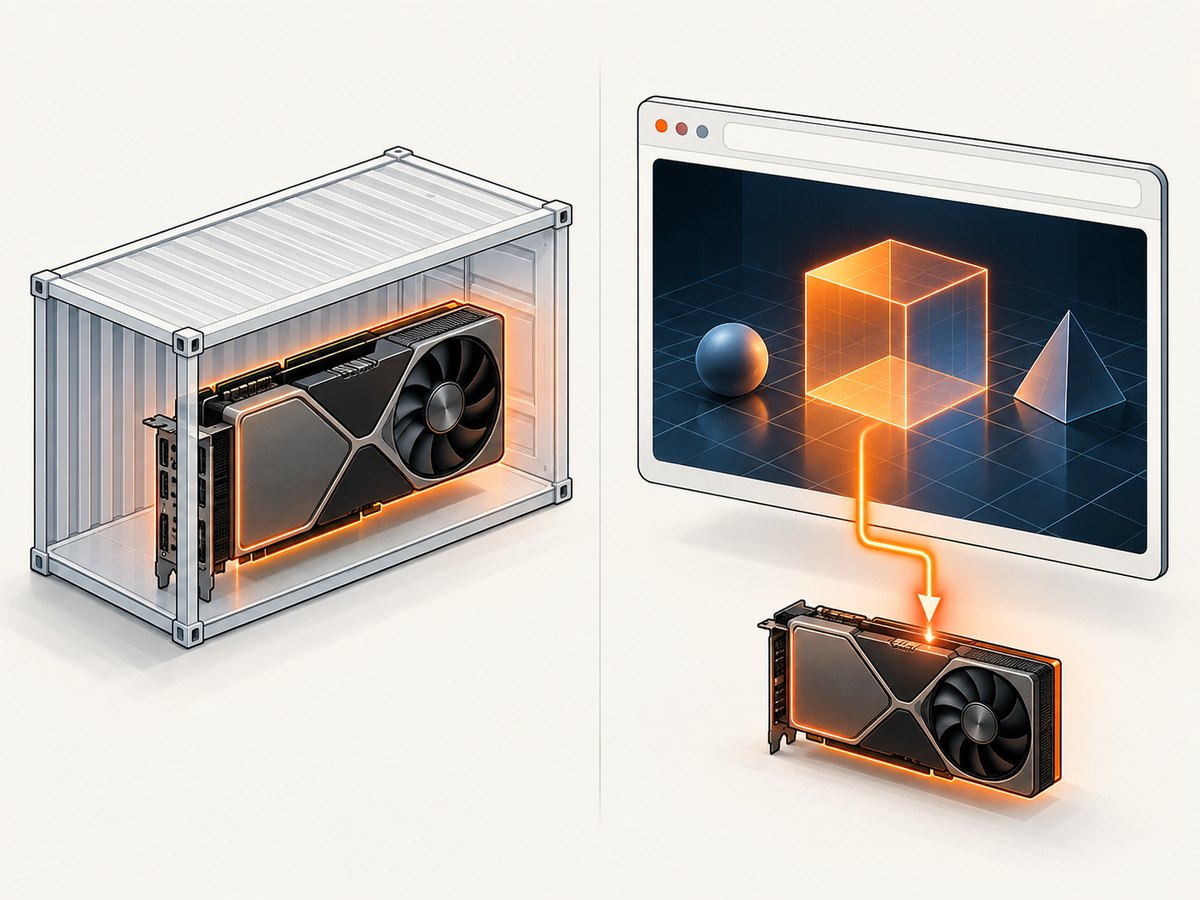
6. OpenGL with X11 or Vulkan without X11
| Approach | What it needs | Trade-off |
|---|---|---|
| OpenGL path | A suitable X11 display and DISPLAY in the Linux configuration described by Chromium |
Uses the default OpenGL detection path; headless operation still depends on a working display setup. |
| Vulkan path | Exposed NVIDIA graphics libraries and a Chrome/driver combination that initializes Vulkan | Can work without X11 in some configurations, but is not guaranteed. Validate WebGL and any WebGPU canvas behavior separately. |
Choose the path your environment can actually support and keep the browser flags aligned with it. Don’t pile on unrelated flags as a substitute for checking Chrome’s selected backend. A hosted GPU environment and a local GPU host have the same basic chain to validate: driver, runtime exposure, graphics libraries, and browser renderer.
7. Configuration checklist and edge cases
- GPU selection: use
--gpus allfor all devices or target a specific device using Docker’s supported selection syntax. Check the selected device from inside the container. - Capabilities: include
graphicsfor OpenGL, EGL, and Vulkan; includeutilityif you neednvidia-smi. Explicit capability lists replace defaults. - Display: Chrome’s default Linux OpenGL detection expects X11 and
DISPLAY. A display-less setup may require testing Vulkan instead. - Headless mode: Chromium’s guidance covers
--enable-gpu; the public example uses--headless=new. Check current flags and behavior against the installed Chrome version. - WebGL versus WebGPU: the example’s
--enable-unsafe-webgpuconcerns WebGPU. A workaround involving Vulkan surfaces may affect canvas drawing for WebGPU; it does not establish that every WebGL workload behaves the same way. - Browser sandbox: container recipes sometimes disable Chrome’s sandbox, but this is a security-sensitive setting. Keep the sandbox on when feasible and account for your container’s user and permissions.
- Version drift: pin the image and browser versions for repeatable deployments. Revalidate after changing Chrome, the driver, the base image, or the host GPU.
- Concurrent workloads: multiple browser processes share GPU resources. Limit parallel captures according to observed memory use and workload behavior, and handle browser crashes or context loss in the caller.
8. Troubleshooting
| Symptom | Likely cause | What to check or change |
|---|---|---|
nvidia-smi fails on the host |
Host driver or device setup is incomplete | Fix host NVIDIA driver/device visibility before changing Docker or Chrome options. |
| Host sees GPU, container does not | NVIDIA Container Toolkit/runtime setup or Docker GPU selection is missing or incorrect | Verify toolkit installation, Docker configuration, and --gpus or supported device selection. |
Container sees GPU, but nvidia-smi is missing |
The utility capability may not be mounted | Set NVIDIA_DRIVER_CAPABILITIES=graphics,utility; explicit lists replace defaults. |
| Chrome reports software rendering | GPU rendering may be forced off, libraries may be unavailable, or backend/display setup may not match | Include graphics, try Chromium’s documented --enable-gpu, and inspect the OpenGL/X11 or Vulkan path. |
| Vulkan initialization fails | Driver libraries, feature support, flags, or Chrome/driver versions may not work together | Check container graphics capability and browser diagnostics; compare against the actual GPU and driver. Do not assume the example flags are universal. |
| WebGL context creation fails | Browser backend unavailable, GPU process failure, or page-specific requirements | Read Chrome logs and page errors, verify context creation in a minimal page, then test the target page. |
| Page loads but canvas is blank | Rendering may not have initialized, the page may need more time, or a backend/surface limitation may apply | Wait for the app’s own ready signal, inspect console errors, and test a simple WebGL page. If using the cited Vulkan-surface workaround, investigate its stated WebGPU canvas limitation. |
| Puppeteer times out at navigation | Network-idle conditions may never occur on pages with ongoing requests | Use a page-specific readiness selector or application signal and set a bounded timeout instead of requiring global network idle. |
| Chrome exits immediately in the container | Permissions, sandbox constraints, executable path, or missing runtime dependencies | Check stderr, user permissions, Chrome path, and image dependencies. Avoid treating --no-sandbox as a universal fix. |
| It stopped working after an image update | Chrome, OS libraries, NVIDIA driver, or toolkit behavior changed | Pin versions, compare the recorded configuration, and re-run host, container, browser, and workload checks in order. |
9. Performance, reliability, and cost
GPU rendering is useful only if the workload actually uses it and produces the correct output. Keep a small representative WebGL page as a deployment smoke test, and collect browser diagnostics when the image, driver, or Chrome build changes. A successful nvidia-smi check is a runtime check, not a rendering benchmark.
For reliable automation, wait for application readiness rather than a fixed short delay, set explicit navigation and execution timeouts, log browser and page errors, and close pages and browser processes in cleanup paths. Reuse a browser process where your workload model permits, while watching GPU memory and recovering cleanly from crashed browser processes or lost WebGL contexts. The research sources do not establish comparative performance numbers, so benchmark your own scene and concurrency on the target host.
Cost depends on where the GPU runs, how long it is allocated, and the number and concurrency of browser jobs. The cited technical sources do not provide instance prices or a cost comparison. Measure utilization and job duration in your own environment before choosing between a local GPU and a hosted one; verify the specific GPU, driver, Chrome build, and display/backend setup.
10. Or skip the browser setup
If your goal is a website screenshot rather than running your own WebGL browser stack, ScreenshotNeo is a website screenshot API and MCP server. One GET request returns an image or PDF; see the ScreenshotNeo API documentation for configuration and supported parameters.
curl -G "https://api.screenshotneo.com/v1/shot" \
  -d access_key=YOUR_API_KEY \
  --data-urlencode url=https://stripe.com \
  -o shot.webp
ScreenshotNeo removes cookie banners, newsletter popups, and chat widgets before capture. Bot checks, blank pages, and failed loads are never billed. Its MCP server lets AI agents take screenshots. The Free plan includes 1,000 screenshots a month with no card; paid plans start at $5 for 3,000.
Sign up free for 1,000 screenshots a month, no card required.
FAQ
Does Docker’s --gpus all make Chrome use NVIDIA for WebGL?
No. It exposes the device to the container. Chrome’s backend and graphics libraries must also work, and you need browser-level or workload-level validation.
Is Vulkan required for headless WebGL?
No. Chromium documents --enable-gpu for headless Chrome and describes default Linux OpenGL detection with X11. Vulkan is an option that has worked in some display-less server configurations.
Should I enable WebGPU flags for a WebGL page?
The cited example includes a WebGPU flag for its WebGPU configuration. WebGL and WebGPU are distinct APIs; test the API your application uses and omit unrelated experimental flags unless you need them.
Can I assume this works on every NVIDIA GPU?
No. The public example reports particular server GPUs, but the sources provide no universal GPU, driver, Chrome, and image compatibility matrix. Record versions and validate your combination.


