How to Take Screenshots with Headless Firefox and Selenium in Python
Capture viewport, full-page, PNG bytes, and Base64 screenshots with headless Firefox and Selenium in Python, plus fixes for common failures.
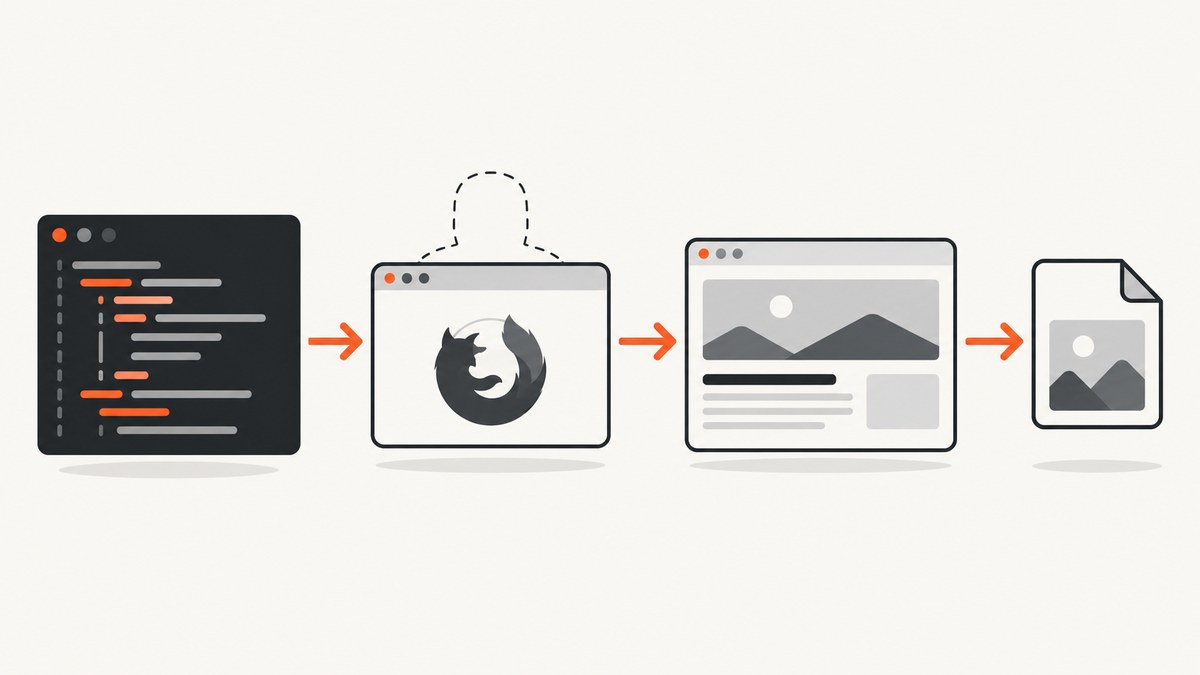
Use Selenium’s Firefox WebDriver in headless mode, navigate to the page, wait until the useful content is rendered, and then call the screenshot method that matches your output:
driver.save_screenshot(path)captures the current Firefox viewport as a PNG file.driver.save_full_page_screenshot(path)captures the entire Firefox document as a PNG file.driver.get_screenshot_as_png()returns PNG bytes in memory.driver.get_screenshot_as_base64()returns a Base64 string.
Headless mode is set on Options while the driver is created. Screenshot calls happen after get() and after the page has reached the state you intend to record. Selenium’s Firefox API documents the file methods, full-document method, PNG bytes, and Base64 output; file methods return False when writing fails. See the Selenium screenshot documentation and the Python API reference.
1. Install Firefox, geckodriver, and Selenium
You need Firefox, a compatible geckodriver, and the Python Selenium package. Recent Selenium releases can manage drivers automatically when the browser is installed, but a controlled build or CI image may provide geckodriver explicitly.
python -m venv .venv
source .venv/bin/activate              # Windows: .venv\\Scripts\\activate
python -m pip install --upgrade pip selenium
firefox --version
geckodriver --version
Keep Firefox and geckodriver compatible. In a container, install both packages in the image and run Firefox with the system libraries it requires. A missing executable, incompatible driver, or missing shared library is a browser startup problem, before Selenium can take a screenshot.
2. Capture a viewport screenshot
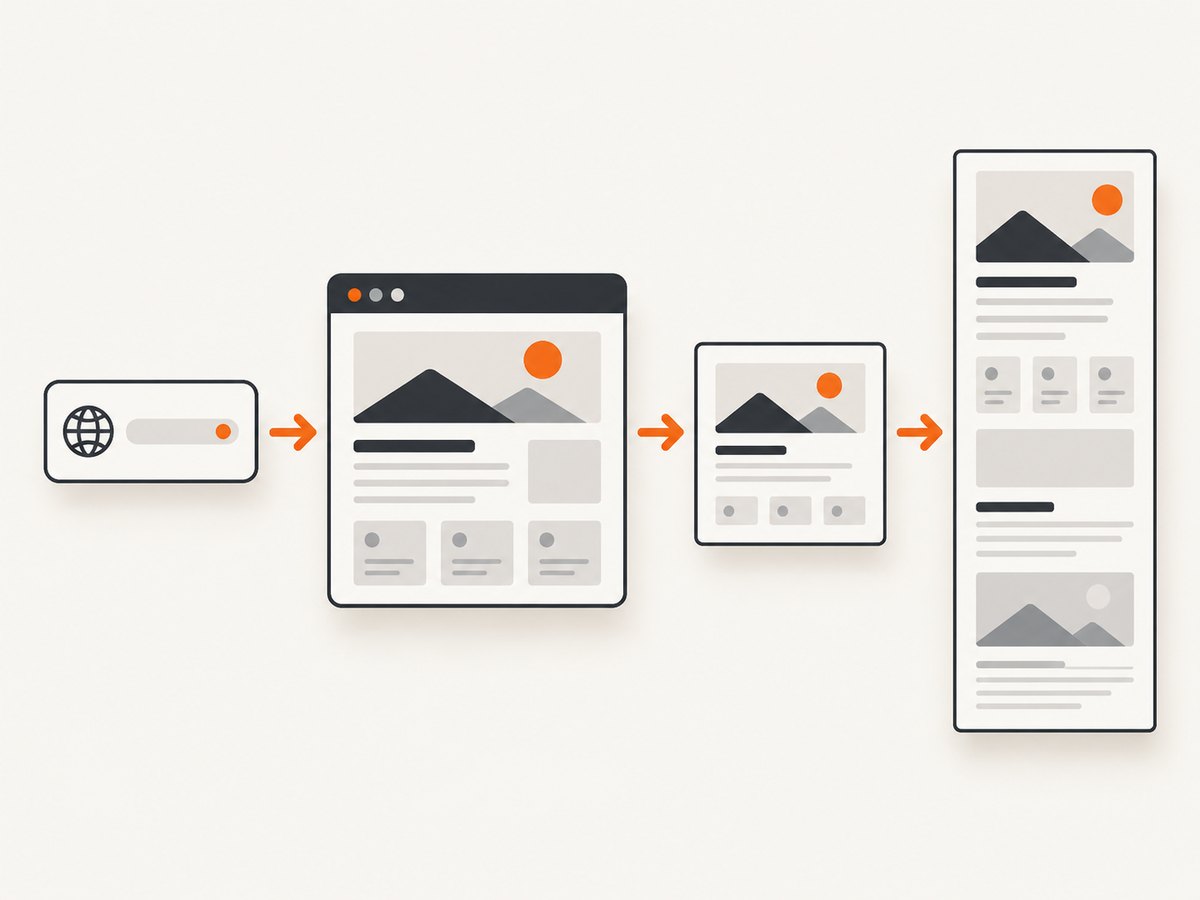
This runnable example creates a headless Firefox session, chooses a deterministic viewport, navigates to a URL, waits for the document to finish loading, writes an absolute PNG path, checks the Boolean result, and always quits the browser.
from pathlib import Path
from selenium import webdriver
from selenium.webdriver.firefox.options import Options
from selenium.webdriver.support.ui import WebDriverWait

url = "https://example.com"
out = Path("/tmp/example-viewport.png").resolve()
out.parent.mkdir(parents=True, exist_ok=True)

options = Options()
options.add_argument("-headless")
# options.add_argument("--width=1440")  # optional Firefox command-line setting
# options.add_argument("--height=900")

driver = webdriver.Firefox(options=options)
try:
    driver.set_window_size(1440, 900)
    driver.get(url)
    WebDriverWait(driver, 30).until(
        lambda d: d.execute_script("return document.readyState") == "complete"
    )

    ok = driver.save_screenshot(str(out))
    if not ok:
        raise OSError(f"Selenium could not write {out}")
    print(f"Saved {out}")
finally:
    driver.quit()
save_screenshot records what is visible in the current browser window. The image dimensions therefore depend on the window size and Firefox’s device pixel behavior. Set the size deliberately when screenshots are compared in tests or generated for documentation.
3. Capture the complete page in Firefox
Firefox exposes a full-document method that includes content below the viewport:
from pathlib import Path
from selenium import webdriver
from selenium.webdriver.firefox.options import Options
from selenium.webdriver.support.ui import WebDriverWait

options = Options()
options.add_argument("-headless")
driver = webdriver.Firefox(options=options)
try:
    driver.set_window_size(1440, 900)
    driver.get("https://example.com/long-page")
    WebDriverWait(driver, 30).until(
        lambda d: d.execute_script("return document.readyState") == "complete"
    )

    path = Path("/tmp/example-full-page.png").resolve()
    path.parent.mkdir(parents=True, exist_ok=True)
    ok = driver.save_full_page_screenshot(str(path))
    if not ok:
        raise OSError("Firefox could not write the full-page PNG")
finally:
    driver.quit()
save_full_page_screenshot is Firefox-specific. The related get_full_page_screenshot_as_file API is also file-oriented. Full-page capture is a single tall PNG, so very long documents can consume substantial memory and produce an unwieldy image. If you need paginated output, use a PDF workflow instead of assuming a tall PNG will be convenient.
4. Get PNG bytes or Base64 without an intermediate file
In-memory methods are useful for uploading to object storage, returning an HTTP response, hashing an image, or embedding it in another system.
from base64 import b64decode
from pathlib import Path
from selenium import webdriver
from selenium.webdriver.firefox.options import Options

options = Options()
options.add_argument("-headless")
driver = webdriver.Firefox(options=options)
try:
    driver.get("https://example.com")

    png_bytes = driver.get_screenshot_as_png()
    Path("/tmp/from-bytes.png").write_bytes(png_bytes)

    encoded = driver.get_screenshot_as_base64()
    Path("/tmp/from-base64.png").write_bytes(b64decode(encoded))
finally:
    driver.quit()
The byte method returns binary PNG data. Base64 is text-safe for JSON or text protocols, but it is larger than the original bytes and must be decoded before saving as an image. Firefox also provides full-page PNG and Base64 variants in its API; use the full-page form when you need the complete document in memory.
5. Wait for the page state you actually need
document.readyState == "complete" means the document load event has completed. It does not guarantee that a JavaScript application has fetched its data, that fonts have loaded, or that lazy images are visible. Add a condition for meaningful content:
from selenium.webdriver.common.by import By
from selenium.webdriver.support.ui import WebDriverWait

driver.get("https://example.com/dashboard")
wait = WebDriverWait(driver, 30)
wait.until(lambda d: d.execute_script("return document.readyState") == "complete")
wait.until(lambda d: d.find_element(By.CSS_SELECTOR, "main.dashboard").is_displayed())
# Optional: wait until a loading marker disappears.
wait.until(lambda d: not d.find_elements(By.CSS_SELECTOR, ".loading"))
For pages that lazy-load content as you scroll, scroll in increments and wait between increments before taking a full-page image:
driver.execute_script("window.scrollTo(0, document.body.scrollHeight)")
WebDriverWait(driver, 10).until(
    lambda d: d.execute_script("return document.documentElement.scrollHeight") > 1000
)
driver.execute_script("window.scrollTo(0, 0)")
Use explicit waits rather than a fixed sleep when possible. A fixed delay is either too short on a slow run or unnecessarily long on a fast one. A short delay can still be appropriate for an animation or a known third-party widget, but document why it exists.
6. Control viewport, scale, and page appearance
| Goal | Selenium/Firefox approach | Reason |
|---|---|---|
| Stable viewport | driver.set_window_size(width, height) |
Makes viewport screenshots reproducible. |
| High-density output | Configure Firefox device scale in the runtime or capture pipeline | Changes pixel density; verify the resulting dimensions in your environment. |
| Responsive layout | Set a representative width before navigation or before capture | CSS breakpoints are chosen from the viewport. |
| Reduced animation | Inject CSS or set an application test flag | Prevents a moving frame from making visual tests flaky. |
For a simple animation freeze, inject a stylesheet before capture:
driver.execute_script("""
const style = document.createElement('style');
style.textContent = `*, *::before, *::after {
  animation: none !important;
  transition: none !important;
  caret-color: transparent !important;
}`;
document.head.appendChild(style);
""")
Run this only when altering animation is acceptable. It changes the rendered page and should not be used when the animation itself is what you are documenting.
7. Capture one element instead of the viewport
Selenium's standard screenshot call targets the current window. To capture one element, locate it and use the element screenshot API:
from selenium.webdriver.common.by import By

card = WebDriverWait(driver, 30).until(
    lambda d: d.find_element(By.CSS_SELECTOR, "article.card")
)
card.screenshot("/tmp/card.png")
The element must exist and be rendered. If it is outside the current viewport, Selenium or Firefox may scroll it into view. For consistent output, make sure the element has finished resizing and that fonts and images it contains are ready.
8. Handle cookies, authentication, and private pages
Navigate to the site before adding cookies, because browsers reject cookies for an unrelated domain. Then refresh so the application reads them:
driver.get("https://example.com/")
driver.add_cookie({"name": "session", "value": "REDACTED", "path": "/"})
driver.refresh()
WebDriverWait(driver, 30).until(
    lambda d: d.execute_script("return document.readyState") == "complete"
)
Never print session cookies, Authorization headers, or screenshot URLs containing secrets. Use a dedicated test account and keep credentials in environment variables or a secret manager. For basic HTTP behavior, custom headers are often easier in an API service than in a browser, but Selenium is appropriate when JavaScript, browser storage, or authenticated interaction is required.
9. Common errors and fixes
| Symptom | Likely cause | Fix |
|---|---|---|
WebDriverException: Unable to obtain driver |
Firefox/geckodriver is missing or incompatible. | Install both, put geckodriver on PATH, and check their versions. |
| Browser starts and immediately exits | Missing Linux libraries, sandbox restrictions, or a damaged profile. | Use a supported container image, install Firefox dependencies, and inspect geckodriver logs. Do not add random flags without understanding their security impact. |
save_screenshot returns False |
Destination cannot be written, is relative when a full path is expected, or lacks a .png suffix. |
Create the directory, use Path(...).resolve(), ensure permissions, and check the Boolean result. |
| Screenshot is blank or incomplete | Capture happened before application data or lazy content rendered. | Wait for a specific selector, loading marker, network-driven state, or a known readiness condition. |
| Only the top of a long page appears | save_screenshot captures the viewport. |
Use Firefox's save_full_page_screenshot. |
| Wrong mobile or desktop layout | Viewport dimensions were not set or changed after layout. | Set the window size before navigation and confirm CSS breakpoints. |
| Text differs between runs | Web fonts, locale, timezone, or dynamic data differ. | Wait for fonts, set a consistent environment, freeze data, and disable animations where appropriate. |
| Full-page image is extremely large | The document is very tall or contains large raster assets. | Capture a viewport, capture selected elements, reduce the viewport width, or generate a PDF when pagination is the real requirement. |
10. Reliability and performance checklist
- Use one driver per worker and always call
quit()infinally. - Set explicit page-load and script timeouts so a broken page cannot hold a worker forever.
- Use explicit waits tied to content rather than arbitrary long sleeps.
- Reuse a browser for a controlled batch of URLs, but isolate jobs that carry different credentials or browser state.
- Write to unique paths when jobs run concurrently; otherwise two captures can overwrite one file.
- Record the URL, viewport, Firefox version, timestamp, and readiness condition next to each artifact.
- Limit concurrency to what the host has CPU and memory for. Headless browsers are cheaper than visible browsers in display overhead, but each session still consumes resources.
- Retry navigation failures selectively. A retry can help a transient network error, but it will not fix a permanently blocked page or a selector that never appears.
File screenshots are local I/O operations, so disk capacity and permissions matter. In-memory screenshots avoid temporary files but increase process memory and require an explicit upload or storage step. Full-page PNGs generally cost more memory than viewport images because the output dimensions grow with document height.
11. Or skip the browser setup
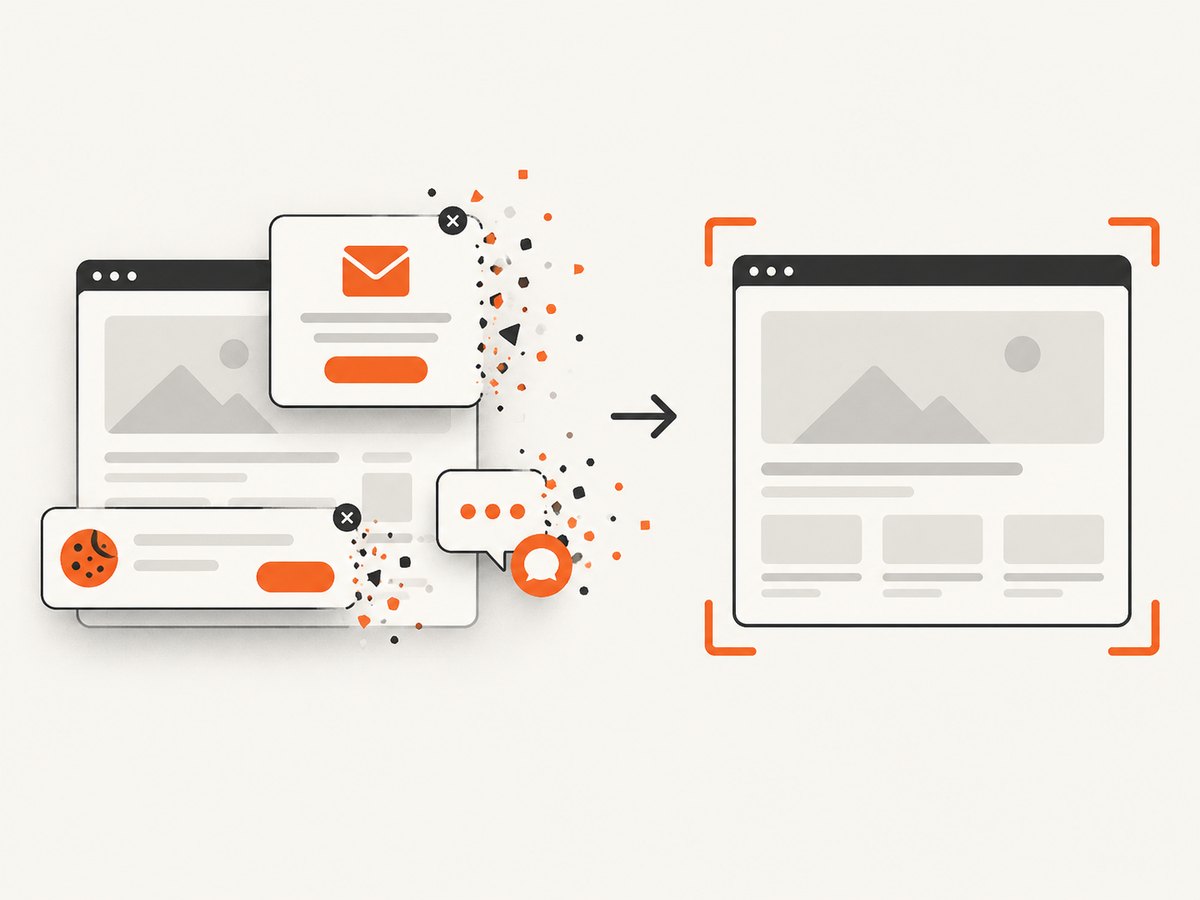
If you need a URL-to-image request rather than browser orchestration, ScreenshotNeo provides a website screenshot API and MCP server. One GET request returns PNG, JPEG, WebP, or a PDF. Cookie and consent banners are accepted and removed before capture, along with 60+ known consent platforms, newsletter popups, and chat widgets; each step can be turned off. Bot checks, blank pages, timeouts, failed loads, and cache hits are not billed, and response headers report the page verdict and whether the shot was billed.
See the ScreenshotNeo API documentation for all options.
cURL
curl -G "https://api.screenshotneo.com/v1/shot" -d access_key=YOUR_API_KEY --data-urlencode url=https://stripe.com -o shot.webpPython
import requests
r = requests.get("https://api.screenshotneo.com/v1/shot", params={"access_key": "YOUR_API_KEY", "url": "https://stripe.com"}, timeout=90)
r.raise_for_status()
open("shot.webp", "wb").write(r.content)
Node.js
const q = new URLSearchParams({ access_key: 'YOUR_API_KEY', url: 'https://stripe.com' });
const res = await fetch(`https://api.screenshotneo.com/v1/shot?${q}`);
if (!res.ok) throw new Error(`HTTP ${res.status}`);
require('fs').writeFileSync('shot.webp', Buffer.from(await res.arrayBuffer()));
ScreenshotNeo also supports full-page capture with lazy images loaded, CSS-selector element capture, dark mode, device presets or custom viewports, retina scale, custom CSS and JavaScript, clicks, waits, request blocking, headers, cookies, user agents, Authorization, timezone, geolocation, transparent backgrounds, resizing, TTL caching, signed links, asynchronous jobs with signed webhooks, bulk capture for 100 URLs per call, a usage API, and an OpenAPI specification. An MCP server exposes take_screenshot, get_page_info, and capture_pdf to Claude, Cursor, and other MCP clients.
There are 1,000 free screenshots each month with no card. Paid plans start at $5 for 3,000 shots, and every feature is available on every plan. Create a free ScreenshotNeo account.
12. FAQ
Does headless Firefox produce the same image as visible Firefox?
It uses the same browser engine, but runtime environment, fonts, window dimensions, device scale, and timing can change pixels. Pin those inputs for repeatable captures.
Can I save a screenshot as JPEG?
Selenium's Firefox screenshot methods produce PNG output. Convert the PNG with an image library after capture if a JPEG artifact is required.
Why does my screenshot show a cookie dialog?
Selenium captures the page as rendered. Locate and click the site's consent control, or remove the dialog with an approved test hook before capture. An API such as ScreenshotNeo can accept consent banners and remove known consent platforms before taking the shot.
When should I use full-page capture?
Use it when one image must contain the entire document. Use viewport or element capture for visual regression, thumbnails, and very long pages where a tall PNG is impractical.
Should I use Selenium for a large screenshot queue?
Selenium gives you browser-level control, but each session has startup and memory costs. For URL-to-image batches, compare that operational work with an API that supports bulk capture, caching, and asynchronous jobs.


