Headless or Headed Browser: How to Choose and Debug
Headless runs without a visible browser window; headed shows one. Learn how Playwright, Puppeteer and Chrome differ, and choose the right mode for automation, testing and debugging.
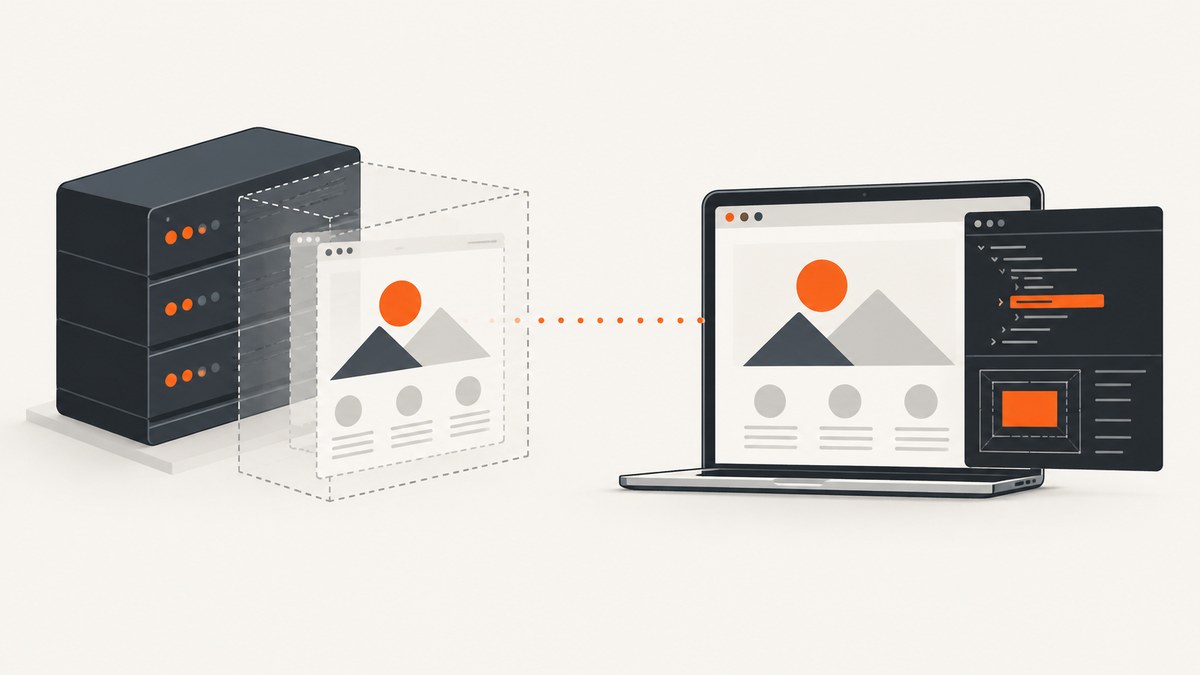
A headless browser runs without displaying a browser window. A headed browser opens a visible window you can watch and interact with. Use headless mode for unattended automation and CI when its browser implementation matches your target. Use headed mode when you need to inspect interactions, reproduce a visual issue or debug a test by watching it run.
The choice is not always just whether to show a window. Frameworks may launch different browser builds in their headless and headed modes. Playwright’s default Chromium headless setup can use a separate headless shell, while its chromium channel opts into new headless mode. Puppeteer also offers an older shell mode. For a repeatable result, record the framework, browser channel or binary, and version.
This guide compares the modes, gives runnable Playwright and Puppeteer examples, and explains how to choose, troubleshoot and control the differences.
1. What headless and headed mean
In headed mode, the browser has a visible graphical window. A person can observe the page, use developer tools, and interact with it. In headless mode, the browser runs without showing that window. It still loads pages and can perform automation tasks such as taking screenshots or generating PDFs.
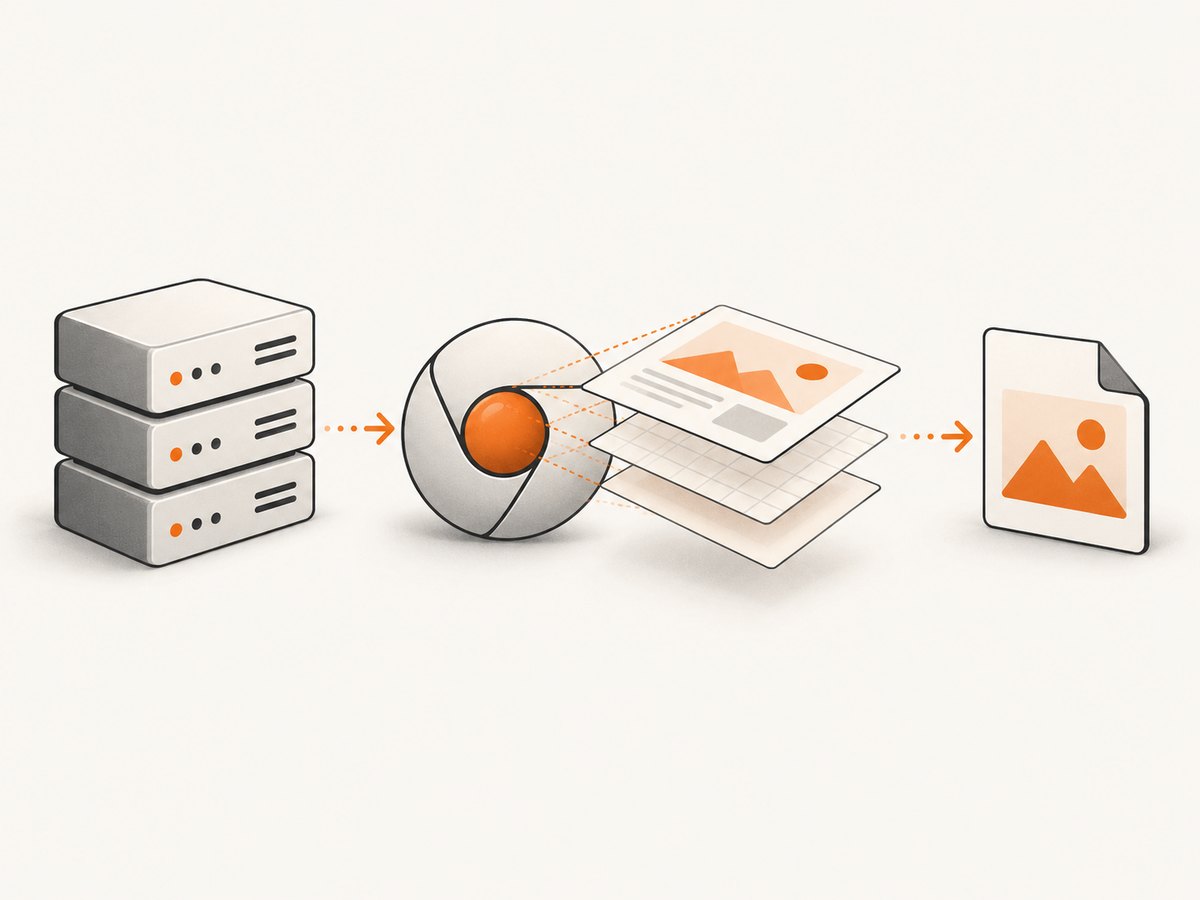
Headless is common in server environments and CI pipelines because those environments often have no desktop session for a browser window. Chrome documents modern Headless for unattended automation, and lists screenshots, PDF output, remote debugging and virtual screen configuration among its capabilities. Headed mode is useful when a person needs to see what the automated browser is doing.
These are modes of running a browser, not two universal browser products. Their behavior depends on the browser, framework, launch options and version. In particular, do not assume every framework’s default headless launch uses the same Chrome implementation as its headed launch.
2. Choose a mode for the job
| Situation | Good starting point | Reason |
|---|---|---|
| Scheduled capture or unattended automation | Headless | No visible window is needed, and it fits servers and CI. |
| Test fails and the cause is unclear | Headed | Watch navigation, interaction and rendering as they happen. |
| Check output against a target Chrome environment | Match the target browser and headless implementation | Framework defaults and browser builds can differ. |
| Reduce browser features or consider a shell option | Evaluate the framework’s shell mode | It may have a different feature set and behavior; measure it for your workload. |
| Debug a slow or timing-sensitive test | Headed with slow motion | A delay between operations can make execution easier to observe. |
There is no documented universal speed or reliability winner. Choose based on whether you need visual inspection, how closely the selected implementation matches the target, and the resource and feature requirements of your workload. If fidelity matters, compare like with like: the same browser version, channel, viewport, fonts, locale, device scale and test data.
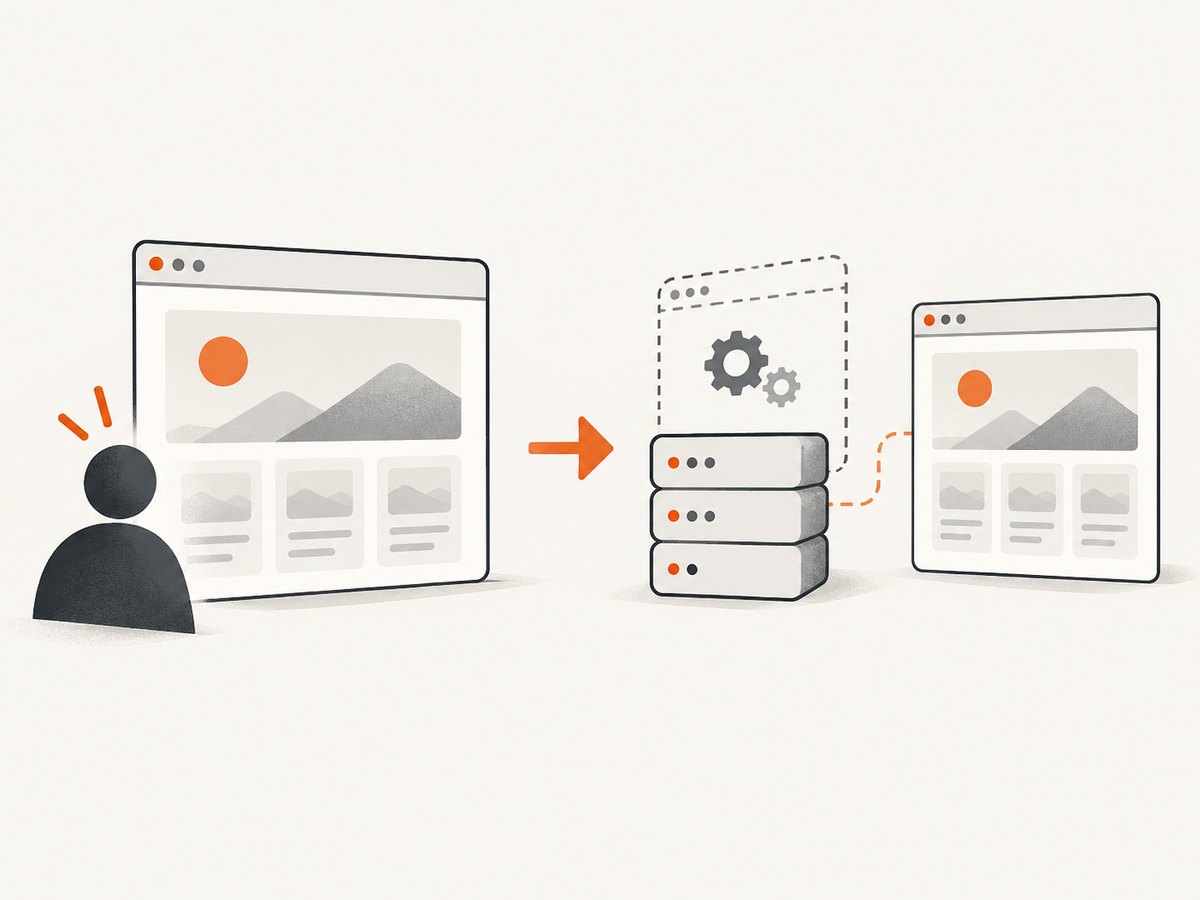
3. Playwright: headed, default headless and new headless
Playwright runs browsers headlessly by default. Set headless: false to open a visible browser. For Chromium, Playwright documents that its default headless setup can use a separate Chromium headless shell; setting the channel to chromium opts into new headless mode. Browser channels and builds can behave differently, so select the one that represents your target.
Install Playwright and its Chromium browser, then save this as capture.mjs. It captures a screenshot in either mode. Set HEADED=1 to show the window. The slowMo launch option adds a delay between operations to make execution easier to follow while debugging.
npm install playwright
npx playwright install chromium

// capture.mjs
import { chromium } from 'playwright';

const headed = process.env.HEADED === '1';
const browser = await chromium.launch({
  headless: !headed,
  // Uncomment to opt into Playwright's new Chromium headless mode:
  // channel: 'chromium',
  // Uncomment when watching a headed run:
  // slowMo: 250,
});

try {
  const page = await browser.newPage({
    viewport: { width: 1440, height: 900 },
    deviceScaleFactor: 1,
  });
  await page.goto('https://example.com', {
    waitUntil: 'networkidle',
    timeout: 30000,
  });
  await page.screenshot({ path: 'capture.png', fullPage: true });
} finally {
  await browser.close();
}
Run the default headless capture with node capture.mjs. Run visibly with HEADED=1 node capture.mjs. If you are comparing the default headless shell with headed Chromium, make that distinction explicit in your notes; try channel: 'chromium' when your question is specifically about Playwright’s new headless route.
Playwright’s browser documentation describes Chromium builds, channels and headless behavior. Its debugging guide covers headed execution and slowMo.
4. Puppeteer: headed, default headless and shell
Puppeteer currently defaults to Headless mode. Use headless: false for a visible Chrome window. Use headless: 'shell' to select the older headless shell. Puppeteer’s documentation describes a performance and behavior tradeoff for the shell; it is a distinct option, not a guarantee that all headless execution is faster.
npm install puppeteer

// capture-puppeteer.mjs
import puppeteer from 'puppeteer';

const mode = process.env.MODE ?? 'new'; // new, headed, or shell
const browser = await puppeteer.launch({
  headless: mode === 'headed' ? false : mode === 'shell' ? 'shell' : true,
});

try {
  const page = await browser.newPage();
  await page.setViewport({ width: 1440, height: 900, deviceScaleFactor: 1 });
  await page.goto('https://example.com', {
    waitUntil: 'networkidle2',
    timeout: 30000,
  });
  await page.screenshot({ path: 'capture.png', fullPage: true });
} finally {
  await browser.close();
}
Run with node capture-puppeteer.mjs for the default mode, MODE=headed node capture-puppeteer.mjs for a visible window, or MODE=shell node capture-puppeteer.mjs for the shell. Puppeteer’s headless modes guide explains its current Headless and shell modes.
5. A practical workflow for deciding
- Start with the execution environment. If the job runs without a desktop, use headless. If you need to observe the browser interactively, use headed mode in a local environment with a display.
- Name the implementation. Identify the framework, browser version, channel or binary, and headless option. For Playwright Chromium, distinguish the default setup from
channel: 'chromium'. For Puppeteer, distinguish default Headless from'shell'. - Make the capture conditions repeatable. Set the same viewport and device scale factor. Keep locale, timezone, fonts, browser version, cookies, authentication and test data consistent where they affect the page.
- Compare output before changing the test. If a screenshot or test differs, rerun in headed mode to inspect the page, then compare the implementation and environment. A difference does not by itself prove that headless mode is defective.
- Return to headless for unattended runs. Once the cause is understood, run in the target CI configuration and preserve screenshots, logs or other diagnostics when failures occur.
Chrome’s documentation says modern Chrome Headless shares the browser implementation with headful Chrome. That fact describes modern Chrome Headless; it does not mean every framework’s default headless setting launches that same implementation. Chrome also documents that since version 132.0.6793.0, the old headless mode is available as the standalone chrome-headless-shell binary. See Chrome’s automation and testing overview and its Headless mode documentation.
6. Troubleshooting common problems
| Symptom | Likely cause | What to check or change |
|---|---|---|
| Browser will not start in CI | The required browser binary is missing, or the environment cannot run it. | Install the browser version required by your framework (for Playwright, run its browser install command), inspect launch output, and check the container’s browser dependencies. |
| A headed launch says no display is available | The server or CI runner has no graphical session. | Use headless mode in that environment, or debug locally in headed mode. |
| Headless and headed screenshots differ | They may use different implementations, versions or environment settings; the page may also render asynchronously. | Record the exact browser and channel, match viewport and device scale, wait for the required page state, and compare using the target implementation. |
| The page times out waiting for network idle | Some sites keep network connections active, so network idle may not arrive. | Wait for a meaningful selector or a known application-ready condition instead. Use a timeout that fits the page and retain diagnostics on failure. |
| Screenshot is blank or incomplete | Navigation may not have completed, the page may require authentication, or content may load after the chosen wait condition. | Check the final URL, response and page errors; wait for a specific element, and confirm required cookies or credentials are present. |
| Shell mode behaves differently | The shell has documented behavior differences and is a separate browser implementation. | Reproduce with the browser mode intended for deployment. Switch modes only after deciding that the shell tradeoff suits the task. |
| Headed mode works locally but not remotely | The remote host may lack a display or interactive session. | Run headless remotely. Use headed mode on a machine where a browser window can be displayed. |
Keep failure evidence useful but safe: store the browser version, launch options, URL, viewport, relevant console and page errors, and a screenshot where appropriate. Avoid logging secrets from cookies, headers or authenticated URLs.
7. Performance, reliability and cost
Headless execution avoids displaying a window, but that fact alone does not establish a speed advantage for your job. The shell may be appropriate when its smaller or different feature set meets the need, but benchmark the actual workload before choosing it for performance. Rendering time depends on the page, network, browser, machine, wait condition and capture size. Compare identical runs and configuration rather than relying on a generic claim.
For reliability, pin or record browser and framework versions and use the same launch mode in the environment that matters. Make waits depend on page readiness rather than arbitrary short delays. Close browser processes even after errors, as the examples do with finally. In CI, retain enough logs and artifacts to distinguish a page failure from a browser launch or timing failure.
For cost, browser automation usually consumes the compute and network resources of the machine or service running it. Headed mode may also require a graphical environment. There is no universal cost or resource figure for the two modes; estimate using your own workload, concurrency and infrastructure.
8. Or skip the browser setup
If your task is simply to get a page screenshot, ScreenshotNeo is a website screenshot API and MCP server for developers. Its one-call API returns a screenshot or PDF, so you do not have to install and operate a browser for that capture. The API can take PNG, JPEG or WebP output, and supports options such as full-page capture, element selection, viewport and device presets, waits, custom headers and cookies. See the ScreenshotNeo API documentation for parameters.
curl -G "https://api.screenshotneo.com/v1/shot" -d access_key=YOUR_API_KEY --data-urlencode url=https://stripe.com -o shot.webpimport requests
r = requests.get(
"https://api.screenshotneo.com/v1/shot",
params={"access_key": "YOUR_API_KEY", "url": "https://stripe.com"},
timeout=90,
)
r.raise_for_status()
open("shot.webp", "wb").write(r.content)const q = new URLSearchParams({ access_key: 'YOUR_API_KEY', url: 'https://stripe.com' });
const res = await fetch(`https://api.screenshotneo.com/v1/shot?${q}`);
if (!res.ok) throw new Error(`Screenshot request failed: ${res.status}`);
await Bun.write('shot.webp', res);ScreenshotNeo accepts cookie and consent banners like a visitor and removes 60+ known consent platforms, newsletter popups and chat widgets before capture; each step can be turned off. Bot checks and CAPTCHAs, blank pages, timeouts, failed loads and cache hits are not billed, and response headers report the page verdict and billing status. Its MCP server provides take_screenshot, get_page_info and capture_pdf for Claude, Cursor and other MCP clients. The free plan includes 1,000 shots a month with no card; paid plans start at $5 for 3,000 shots. Sign up for 1,000 free screenshots a month, with no card required.
9. Frequently asked questions
Does headless Chrome behave the same as regular Chrome?
Modern Chrome Headless shares the browser implementation with headful Chrome, according to Chrome’s documentation. Framework defaults can select a different headless build, so identify the channel or binary before drawing a comparison.
Can a headless browser take screenshots or PDFs?
Yes. Headless execution does not mean it cannot render output. Chrome documents screenshot and PDF generation among its automation capabilities.
Should browser tests always run headless?
No universal rule fits every test. Headless is practical for unattended runs; headed mode helps when observing or debugging. For release confidence, use the mode and browser implementation that match the environment you care about.
Is headed mode more reliable?
Visibility helps a developer inspect what happened, but it does not automatically make a run more reliable. Reliability depends on the browser implementation, environment, page readiness and test design.
What details should I include when reporting a rendering difference?
Include framework and browser versions, headless setting or channel, viewport, device scale, operating environment, wait condition and a minimal reproduction. Those details make the comparison actionable.


