Headless Website Testing With Cypress
Run Cypress headlessly in CI with reliable startup checks, browser control, artifacts, debugging, and practical fixes for headed/headless differences.
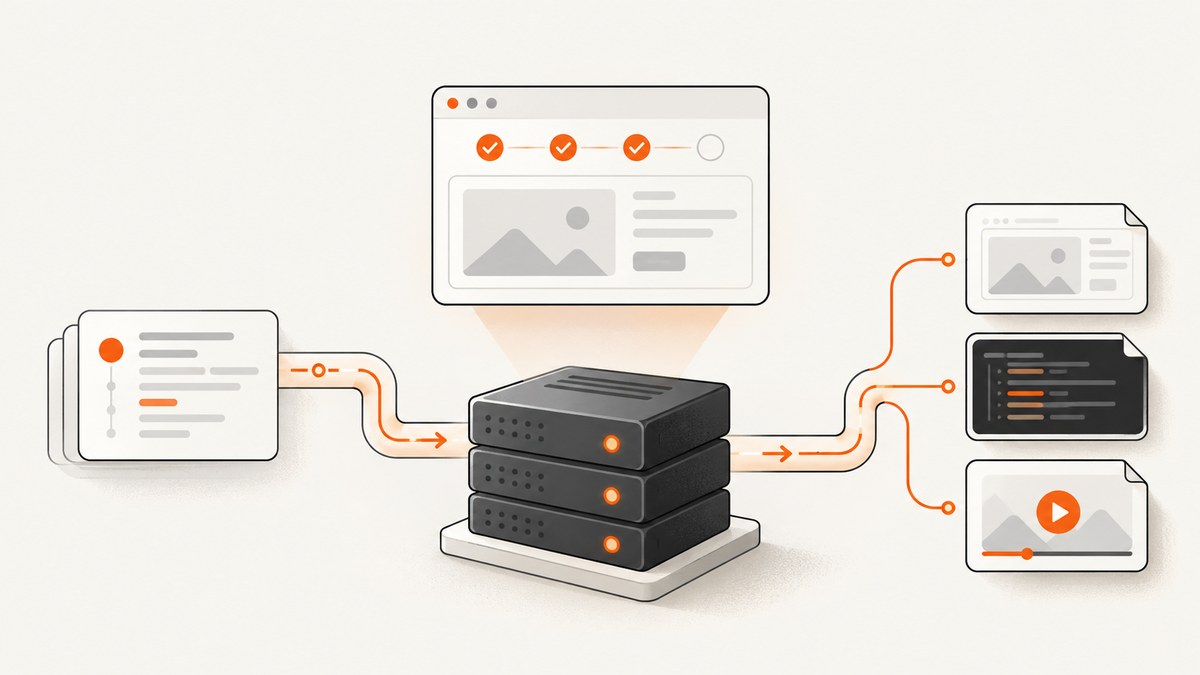
Direct answer: run cypress run in your CI job. Cypress launches the selected browser headlessly by default. Install Cypress and the browser, start the application, wait until it is ready, then invoke Cypress. Use cypress open or cypress run --headed --no-exit when you need a visible reproduction.
This guide shows a complete workflow for local development and continuous integration, including browser selection, readiness checks, screenshots and videos, viewport differences, environment variables, failure diagnosis, and resource planning.
How do I run Cypress headlessly in CI?
- Install dependencies with your project’s package manager.
- Install or provide the browser that the job will run.
- Start the application under test.
- Wait for its HTTP endpoint to respond.
- Run
cypress run, optionally selecting a browser, spec, configuration, or base URL. - Upload Cypress screenshots, videos, and test reports as CI artifacts.
A minimal command is:
npx cypress runTo select an installed browser:
npx cypress run --browser chrome
npx cypress run --browser firefox
To see the browser while retaining the CLI workflow:
npx cypress run --headed --no-exitcypress open is the interactive headed application. The official browser documentation confirms that cypress run launches browsers headlessly by default: Launching browsers in Cypress.
Install Cypress in a project
Use the package manager already used by the repository:
npm install --save-dev cypress
npx cypress verify
npx cypress run
For Yarn or pnpm, use the equivalent install and execution commands. Keeping Cypress in devDependencies gives CI a reproducible version from the lockfile. Pin the Node.js version and browser version in the runner image when repeatability matters.
The first interactive setup can create the Cypress directory and example configuration:
npx cypress openAfter setup, your CI job normally needs only the dependency installation and cypress run. Do not rely on a developer’s globally installed Cypress binary.
Start the app and wait for readiness
The application must be running before Cypress starts. This common command is unreliable:
npm start & npx cypress runThe process starts asynchronously, so Cypress can begin while the server is still compiling, binding its port, or running migrations. Use a readiness checker such as wait-on:
npm install --save-dev wait-on
npx wait-on http://localhost:3000 && npx cypress run
A package script keeps the sequence readable:
{
  "scripts": {
    "start:ci": "my-app-start-command",
    "test:e2e": "cypress run",
    "test:e2e:ci": "start-server-and-test start:ci http://localhost:3000 test:e2e"
  }
}
Alternatively, use the official Cypress GitHub Action, which provides start and wait-on inputs. The CI overview explains why readiness checks are needed and how to target deployed previews: Cypress continuous integration overview.
Example GitHub Actions job
name: e2e
on: [push, pull_request]
jobs:
  cypress:
    runs-on: ubuntu-latest
    steps:
      - uses: actions/checkout@v4
      - uses: actions/setup-node@v4
        with:
          node-version: 20
          cache: npm
      - run: npm ci
      - uses: cypress-io/github-action@v6
        with:
          start: npm run start:ci
          wait-on: http://localhost:3000
          browser: chrome
        env:
          CYPRESS_BASE_URL: http://localhost:3000
Set CYPRESS_BASE_URL when the same test suite should run against a staging or preview URL. Avoid embedding credentials in command lines; provide secrets through the CI secret store and read them with Cypress environment configuration.
Choose and provision a browser
Cypress supports Chrome-family browsers and Firefox. WebKit support is experimental, so verify its current status before making it a release gate. The browser named in --browser must exist on the runner.
| Choice | Use it when | CI concern |
|---|---|---|
| Chrome for Testing | Your primary user path is Chromium | Versioned binaries improve repeatability |
| Firefox | You need Gecko coverage | Install Firefox in the image and run a separate job or matrix entry |
| WebKit | You are evaluating experimental coverage | Confirm support and expect additional maintenance |
Cypress recommends Chrome for Testing where possible because its binaries do not silently auto-update. A cross-browser policy can run the full suite on the primary browser and critical paths on secondary browsers, balancing confidence against runtime and infrastructure cost. See browser launching and advanced installation.
Official Cypress Docker images include Linux browser prerequisites. Headless runs can work in containers without an extra display server when those prerequisites are present. Interactive cypress open needs a graphical display, so use a local machine or a desktop-enabled debugging container.
Viewport, display size, and artifact dimensions
There are two dimensions to configure:
- Application viewport:
viewportWidthandviewportHeightcontrol the page’s CSS viewport and responsive breakpoints. - Browser display: headless screenshot and video output defaults documented by Cypress are 1280×720 with device pixel ratio 1.
These settings are independent. A test can use a 1440px application viewport while the captured browser display remains at its own default. Configure the application viewport in cypress.config.js:
const { defineConfig } = require('cypress');
module.exports = defineConfig({
  e2e: {
    baseUrl: 'http://localhost:3000',
    viewportWidth: 1440,
    viewportHeight: 900
  }
});
For artifact framing, adjust browser launch arguments in the setupNodeEvents hook:
const { defineConfig } = require('cypress');
module.exports = defineConfig({
  e2e: {
    setupNodeEvents(on, config) {
      on('before:browser:launch', (browser, launchOptions) => {
        if (browser.family === 'chromium' && browser.isHeadless) {
          launchOptions.args.push('--window-size=1440,900');
        }
        return launchOptions;
      });
    }
  }
});
Check the current browser launch API for browser-specific arguments. Treat dimensions as part of your test contract when visual snapshots or layout assertions are involved.
Screenshots, videos, and CI artifacts
During cypress run, Cypress captures screenshots automatically when a test fails unless you disable that behavior. Videos are opt-in:
const { defineConfig } = require('cypress');
module.exports = defineConfig({
  video: true,
  screenshotOnRunFailure: true,
  screenshotsFolder: 'cypress/screenshots',
  videosFolder: 'cypress/videos',
  videoCompression: 32
});
Cypress clears screenshot and video folders before a run by default. Preserve the generated files by uploading them in an always-run CI step:
- name: Upload Cypress artifacts
  if: always()
  uses: actions/upload-artifact@v4
  with:
    name: cypress-artifacts
    path: |
      cypress/screenshots
      cypress/videos
Video recording increases disk usage and encoding time. Compression can reduce storage but adds processing time. Enable video for suites where timeline evidence is useful; screenshots are usually sufficient for isolated assertion failures. Details are in Cypress screenshots and videos.
Debug headed/headless differences
A test can pass in headed mode and fail headlessly, or the reverse. Reproduce the same browser and spec visibly:
npx cypress run --browser chrome --spec cypress/e2e/checkout.cy.js --headed --no-exitCompare that run with the normal headless command and inspect failure screenshots or videos. Common causes include:
- Timing: a headed run is slower, accidentally masking a race. Wait on a network response or a visible state instead of using arbitrary sleeps.
- Rendering: fonts, animations, GPU behavior, and viewport dimensions can change layout.
- Browser mismatch: local Chrome and the CI binary may differ in version or flags.
- Environment: timezone, locale, feature flags, service workers, and missing environment variables can alter the page.
- Resource pressure: a constrained runner can delay the application or browser.
Run with the same browser and Cypress version locally where possible. Capture the DOM state, console output, and network failures around the assertion. When available, Cypress Test Replay provides inspection of DOM, requests, console logs, JavaScript errors, and rendering for a recorded run: Test Replay.
Reliable test design for headless execution
- Wait for observable application state:
cy.get('[data-testid=ready]').should('be.visible'). - Give important controls stable
data-testidor accessible selectors. - Stub nondeterministic third-party requests when the test is not intended to verify them.
- Set a deterministic timezone and seed test data when date or random values affect assertions.
- Keep tests independent so a failed spec does not poison later specs.
- Use retries selectively for known transient infrastructure issues; do not hide deterministic product failures.
Performance, reliability, and cost planning
Headless mode removes the visible window but does not make browser work free. Runtime depends on browser startup, application performance, test count, network calls, video encoding, and runner resources. Measure your own suite rather than converting the 1280×720 display default into a speed claim.
For faster, more predictable jobs:
- Cache package-manager downloads while keeping lockfiles authoritative.
- Use a maintained CI image with the required browser already installed.
- Split independent specs across workers after confirming the application and test data can run in parallel.
- Record videos only where their diagnostic value exceeds storage and encoding cost.
- Fail fast on server startup errors and upload artifacts even when tests fail.
Common errors and fixes
| Error or symptom | Likely cause | Fix |
|---|---|---|
| Connection refused at the base URL | Server is not running or is not ready | Use wait-on or the GitHub Action’s wait-on option; verify the port and bind address. |
| Browser not found | Requested browser is absent from the runner | Install it, use a Cypress image that includes it, or select an installed browser with --browser. |
| Works headed, fails headless | Race, viewport, browser version, rendering, or environment difference | Run the same spec with --headed --no-exit, compare artifacts, and replace sleeps with state-based waits. |
| No video uploaded | Video recording is disabled or the upload step ran only on success | Set video: true and use if: always() for artifact upload. |
| Old screenshots remain locally | Custom scripts changed Cypress cleanup behavior | Check screenshotsFolder, trashAssetsBeforeRuns, and your CI workspace reuse. |
| Layout assertions differ | Application viewport and browser display dimensions are being confused | Set viewportWidth/viewportHeight and browser launch size separately. |
| Flaky third-party widget | External network or consent state is nondeterministic | Stub it when outside test scope, or explicitly control cookies, network, and test data. |
Or skip the browser setup
If your goal is a clean image of a page rather than an assertion-driven browser test, ScreenshotNeo provides a website screenshot API and MCP server. It accepts one GET request and returns PNG, JPEG, WebP, or PDF. Cookie and consent banners are accepted and 60+ known consent platforms, newsletter popups, and chat widgets are removed before capture; each step can be turned off. Bot checks, CAPTCHAs, blank pages, timeouts, failed loads, and cache hits are not billed, and the response identifies the result with X-Page-Verdict and X-Billed headers.
See the ScreenshotNeo API documentation for all options.
cURL
curl -G "https://api.screenshotneo.com/v1/shot" -d access_key=YOUR_API_KEY --data-urlencode url=https://stripe.com -o shot.webpPython
import requests
r = requests.get("https://api.screenshotneo.com/v1/shot", params={"access_key": "YOUR_API_KEY", "url": "https://stripe.com"}, timeout=90)
open("shot.webp", "wb").write(r.content)
Node.js
const q = new URLSearchParams({ access_key: 'YOUR_API_KEY', url: 'https://stripe.com' });
const res = await fetch(`https://api.screenshotneo.com/v1/shot?${q}`);
Useful capture controls include full-page screenshots with lazy images loaded, CSS element capture, dark mode, 12 device presets or custom viewports, retina scale, PDF paper size and margins, custom CSS and JavaScript, clicks, selector waits, delays, network-idle waits, ad and tracker blocking, custom headers and cookies, user agents, Authorization, timezone, geolocation, transparent backgrounds, resizing, chosen cache TTLs, signed links, asynchronous jobs with signed webhooks, bulk capture for up to 100 URLs, a usage API, and an OpenAPI specification. Parameter names used by other screenshot APIs also work, which simplifies migration.
The MCP server includes take_screenshot, get_page_info, and capture_pdf for Claude, Cursor, and other MCP clients. Plans include 1,000 shots per month free with no card; paid plans start at $5 for 3,000 shots. Start with 1,000 free screenshots.
FAQ
Does Cypress run headlessly by default?
Yes. cypress run is headless by default; add --headed for a visible CLI run.
Should CI use Chrome or Firefox?
Use the browser that represents your product risk. Chrome for Testing is often easier to reproduce because its binary is versioned; add Firefox or experimental WebKit coverage when those engines matter.
Do I need Xvfb for headless Cypress?
Headless execution in a suitable Linux container generally does not need an extra display server. Headed execution does require graphical display support.
Why are my screenshots the wrong size?
Check both the application viewport settings and the browser display settings. They control different dimensions.
Are Cypress videos enabled automatically?
No. Set video: true, then upload the video directory from an always-run CI step.


