How to Hide Chat Widgets When Taking a Screenshot With Puppeteer
Hide a floating chat widget before capturing a page with Puppeteer. Choose a site-specific selector, handle late loading, and avoid common screenshot timing issues.
To hide a chat widget in a Puppeteer screenshot, add CSS that targets the widget, then capture the page. The selector must match the actual site: Puppeteer does not provide a universal chat-widget selector. For example:
await page.addStyleTag({
  content: `
    .chat-widget-container {
      display: none !important;
    }
  `,
});

await page.screenshot({ path: 'page.png' });
.chat-widget-container is an example only. Inspect the page and replace it with a selector specific enough to hide the chat interface without affecting unrelated elements. Puppeteer documents Page.addStyleTag() for adding a style element to a page and Page.screenshot() for capturing it. Puppeteer addStyleTag reference · Puppeteer screenshot guide.
1. Identify the widget and its selector
Chat providers and websites use different markup. A floating launcher might be a button, a custom element, an iframe, or a container injected by a script. Start by inspecting the target page in browser developer tools. Find the visible bubble or panel, inspect its element and ancestors, and choose a selector that distinguishes it from other page content.
Prefer a stable ID, a provider-specific class, or a distinctive attribute if one exists. Avoid broad selectors such as iframe, button, [role="dialog"], or aside unless you have confirmed they match only the widget on this page. These can hide video embeds, navigation, forms, or other legitimate content.
Test the selector in the browser console before automating:
document.querySelectorAll('.chat-widget-container').lengthCheck the matching elements, not just the count. If a selector matches several nodes, determine whether all should disappear. If the widget lives inside a cross-origin iframe, page CSS in the parent document cannot select into the iframe. You can hide the iframe element itself when the iframe is the widget, but you cannot style its internal document from the parent page.
2. Install Puppeteer and capture a page
The following is a complete Node.js example using Puppeteer. Install the package in a project first:

npm install puppeteerSave this as hide-chat.js and run it with node hide-chat.js. Replace the example URL and CSS selector with the page and selector you inspected.
const puppeteer = require('puppeteer');

(async () => {
  const browser = await puppeteer.launch({ headless: true });
  try {
    const page = await browser.newPage();
    await page.setViewport({ width: 1440, height: 1000 });
    await page.goto('https://example.com', { waitUntil: 'networkidle2' });

    await page.addStyleTag({
      content: `
        .chat-widget-container {
          display: none !important;
        }
      `,
    });

    await page.screenshot({ path: 'page.png' });
  } finally {
    await browser.close();
  }
})();
networkidle2 is a navigation wait condition, not a guarantee that every third-party widget has finished appearing. Some pages keep network connections open, while others add the chat widget later. Choose a wait strategy based on the site, then verify that the final image has the intended result.
3. Handle widgets that appear after navigation
A chat script may inject its launcher after the main page has loaded. If you add the hiding rule after navigation but before the widget is inserted, the CSS should apply when a matching element later appears. If the page removes or replaces styles, or the widget uses shadow DOM, that may not be enough. Puppeteer documentation supports adding page styles and waiting for selectors; it does not prescribe one universal timing sequence for every third-party widget.
Wait for a widget, then hide it
When the widget appears predictably, wait for its selector before adding the rule. Set a timeout so a missing widget does not wait forever.
await page.goto('https://example.com', { waitUntil: 'domcontentloaded' });

try {
  await page.waitForSelector('.chat-widget-container', { timeout: 5000 });
} catch {
  // The widget may be disabled, blocked, or absent on this page.
}

await page.addStyleTag({
  content: '.chat-widget-container { display: none !important; }',
});

await page.screenshot({ path: 'page.png' });
This sequence can briefly allow the widget to appear before the rule is added. That normally does not affect the captured frame if the hide rule is in place before the screenshot, but a page animation, screenshot-triggered script, or layout shift can complicate timing.
Apply the rule early
For pages that insert the widget asynchronously, one practical approach is to add the stylesheet as soon as the document exists, before waiting for the widget. This reduces the chance that a late insertion is visible in the captured frame:
await page.goto('https://example.com', { waitUntil: 'domcontentloaded' });

await page.addStyleTag({
  content: '.chat-widget-container { display: none !important; }',
});

await page.waitForTimeout(1500);
await page.screenshot({ path: 'page.png' });
The delay is illustrative, not a recommended universal value. Use a selector wait when the site provides a reliable signal; use a bounded delay only when there is no better signal and you have accounted for the page’s behavior. Puppeteer also documents selector waiting with a hidden option to wait for an element to be hidden or absent. See the Page API reference.
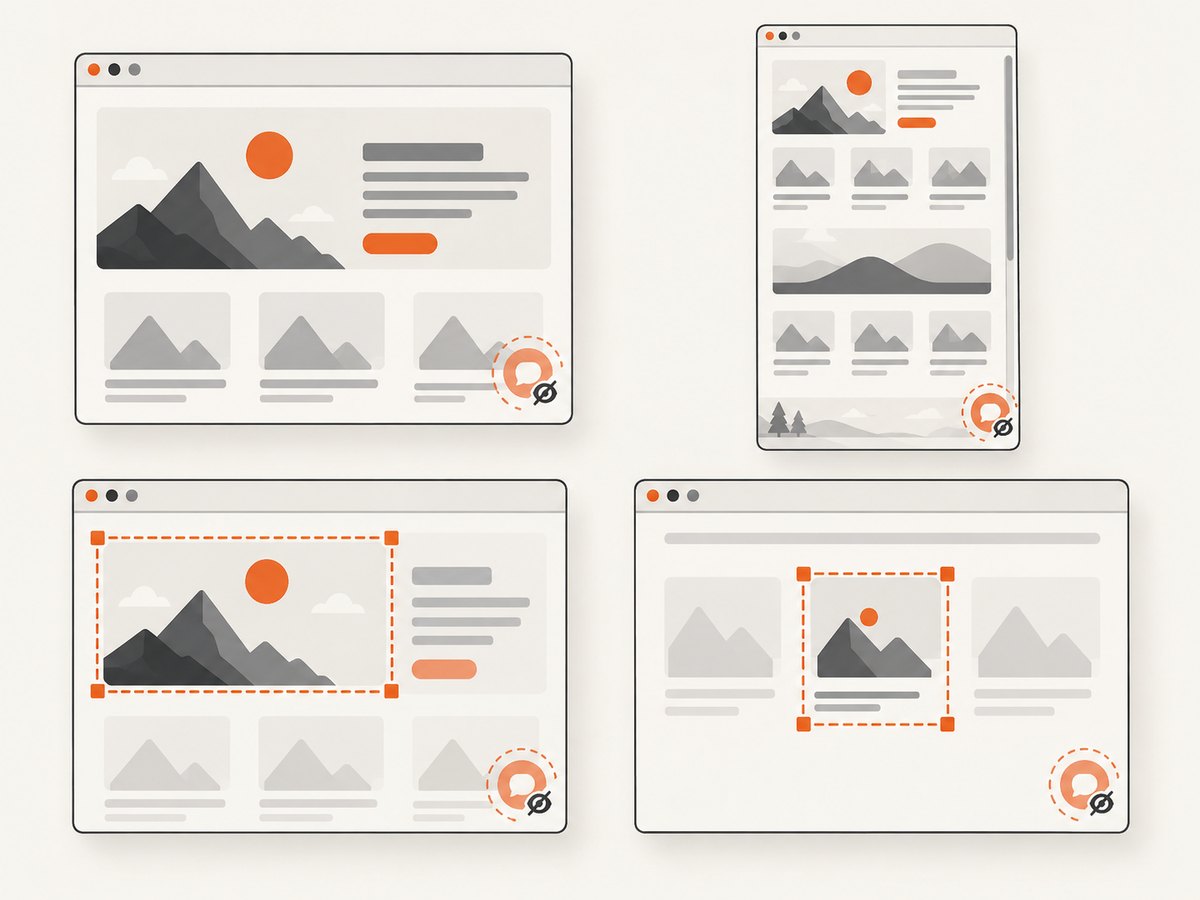
4. Choose the capture scope
CSS controls visibility; screenshot options control which region is captured. Hiding the widget remains necessary if it overlaps the selected region.
| Goal | Puppeteer approach | Notes |
|---|---|---|
| Visible viewport | page.screenshot({ path: 'page.png' }) |
Captures the current viewport. |
| Entire page | page.screenshot({ path: 'full.png', fullPage: true }) |
Requests a full-page capture. Check whether sticky or fixed widgets appear in the result. |
| Specific region | page.screenshot({ path: 'region.png', clip: { x: 0, y: 0, width: 900, height: 600 } }) |
Captures the specified clip region. Coordinates and dimensions are in page screenshot units. |
| One element | await (await page.$('main')).screenshot({ path: 'main.png' }) |
Captures the selected element; use a selector that identifies the intended element. |
These options are documented in the Page.screenshot API, ScreenshotOptions reference, and screenshots guide. A page-level floating widget may not be inside the element you capture, but it can still overlap the selected element in a viewport screenshot.
5. Deal with iframes, shadow DOM, and stubborn widgets
If a CSS rule appears to have no effect, inspect how the widget is rendered:
- Iframe widget: If the iframe element itself is the floating widget, target that iframe using a site-specific selector. A parent page stylesheet cannot reach into a cross-origin iframe’s contents.
- Shadow DOM: A selector in the document stylesheet generally does not select elements inside a shadow root. Hide the host element if that is safe, or use a site-specific approach that reaches the component where permitted.
- Selector mismatch: The provider may generate changing class names, or the visible control may be in a different container. Inspect the live DOM after the widget appears and choose a more stable target.
- Inline styles or higher-specificity rules:
!importantoften helps, but it is not a substitute for selecting the correct element. Check computed styles and whether another rule or script is changing visibility. - Closed or inaccessible content: Some browser boundaries prevent page-level CSS from reaching internal content. Hide the visible host or frame only if doing so does not remove other content.
Removing the widget from the layout with display: none can change page geometry. If the element occupies layout space and you want to preserve that space, use visibility: hidden instead. Floating overlays are often positioned independently, but confirm the effect on the actual page.
6. Troubleshooting
| Symptom | Likely cause | Fix |
|---|---|---|
| The chat bubble is still in the screenshot. | The selector does not match, the CSS was added too late, or the widget is inside a boundary such as an iframe or shadow root. | Inspect the rendered DOM, verify selector matches, apply the rule before capture, and target the iframe or host element when appropriate. |
| The CSS hides other page content. | The selector is too broad. | Use a narrower ID, class, attribute, or ancestor-descendant selector verified on that site. |
waitForSelector times out. |
The widget is absent, blocked, delayed beyond the timeout, or uses a different selector. | Confirm the selector in the live page, increase a bounded timeout if justified, or handle absence as an expected case. |
The page never reaches networkidle. |
Long polling, analytics, or other persistent requests keep activity going. | Use a less restrictive navigation milestone such as domcontentloaded, then wait for the page condition you actually need. |
| The screenshot is blank or incomplete. | Capture ran before navigation or rendering completed, or the page failed to load. | Await navigation and a relevant selector or bounded delay; inspect the page before diagnosing the screenshot call. |
| Full-page capture still shows a widget. | The widget is fixed-positioned or inserted again after the rule was applied. | Confirm the hide rule remains active and matches the widget at capture time; inspect the final full-page image. |
addStyleTag throws. |
The page may not have a usable document yet, or navigation may have replaced the execution context. | Wait for document readiness after navigation, then apply the stylesheet and capture. |
7. Reliability, performance, and cost
For repeatable captures, keep the selector and timing policy specific to each site, bound all waits, and close the browser in a finally block. Record which URL and selector were used when a capture is wrong; that makes selector drift easier to diagnose. A third-party widget can change its markup without changing your Puppeteer code, so recheck the target when results regress.
Browser startup, page loading, and external scripts usually dominate the work in a single capture; adding one small stylesheet is typically a minor step, but no fixed performance figure applies to every site or machine. Reusing a browser process for a batch can avoid repeated startup, while giving each capture a fresh page helps isolate cookies and page state. Keep concurrency within the memory and CPU capacity of the host, especially for full-page images.
With self-hosted Puppeteer, account for the machine or container running Chromium, maintenance of browser dependencies, and time spent handling site-specific behavior. The cost of an individual screenshot depends on that infrastructure and workload; there is no universal per-image price in the Puppeteer API documentation. If capture reliability matters, treat failed navigation and missing content as explicit outcomes instead of silently accepting an image file.
Or skip the browser setup
If you do not want to run and maintain a browser for this capture, ScreenshotNeo is a website screenshot API and MCP server. It can accept cookie or consent banners and remove more than 60 known consent platforms, newsletter popups, and chat widgets before capture; each cleanup step can be turned off. Only clean shots are billed. Bot checks or CAPTCHAs, blank pages, timeouts, failed loads, and cache hits cost nothing, and response headers report the page verdict and billing status.
One GET request returns a screenshot or PDF. See the ScreenshotNeo API documentation for request options and formats.
curl -G "https://api.screenshotneo.com/v1/shot" -d access_key=YOUR_API_KEY --data-urlencode url=https://example.com -o shot.webpimport requests
r = requests.get(
"https://api.screenshotneo.com/v1/shot",
params={"access_key": "YOUR_API_KEY", "url": "https://example.com"},
timeout=90,
)
open("shot.webp", "wb").write(r.content)const q = new URLSearchParams({
access_key: 'YOUR_API_KEY',
url: 'https://example.com',
});
const res = await fetch(`https://api.screenshotneo.com/v1/shot?${q}`);
if (!res.ok) throw new Error(`Screenshot request failed: ${res.status}`);
await Bun.write('shot.webp', res);The Node.js example uses the built-in fetch and Bun’s file-writing helper; in a Node project, save the response bytes with your preferred filesystem method. ScreenshotNeo also offers an MCP server with take_screenshot, get_page_info, and capture_pdf tools for Claude, Cursor, and other MCP clients. Plans include 1,000 shots per month free with no card; paid plans start at $5 for 3,000 shots. Sign up for 1,000 free screenshots a month, no card required.
FAQ
Does Puppeteer have a built-in option to remove chat widgets?
The documented approach is to add page CSS with addStyleTag() and capture with screenshot(). The selector and timing depend on the target site.
Can I hide every chat widget with one selector?
No universal selector is defined by Puppeteer. Inspect each site and target only the widget you intend to hide.
Should I remove the widget or just hide it?
For a screenshot, hiding it with CSS is often sufficient. Removing page scripts or changing site behavior is a separate intervention and can affect the page in other ways.
Will this also hide the widget in a PDF?
The same page CSS can affect page rendering before PDF generation, provided the selector matches and the rule is active at capture time. PDF-specific layout and page-break behavior should be checked separately.
Can I automate this for many URLs?
Yes. Reuse a browser process where practical, but maintain per-site selectors and bounded waits because widget implementations and load timing vary.