How to Hide a Div with Selenium in Python
Hide a div with Selenium in Python using JavaScript, waits, iframe and shadow DOM handling, verification, troubleshooting, and screenshot alternatives.
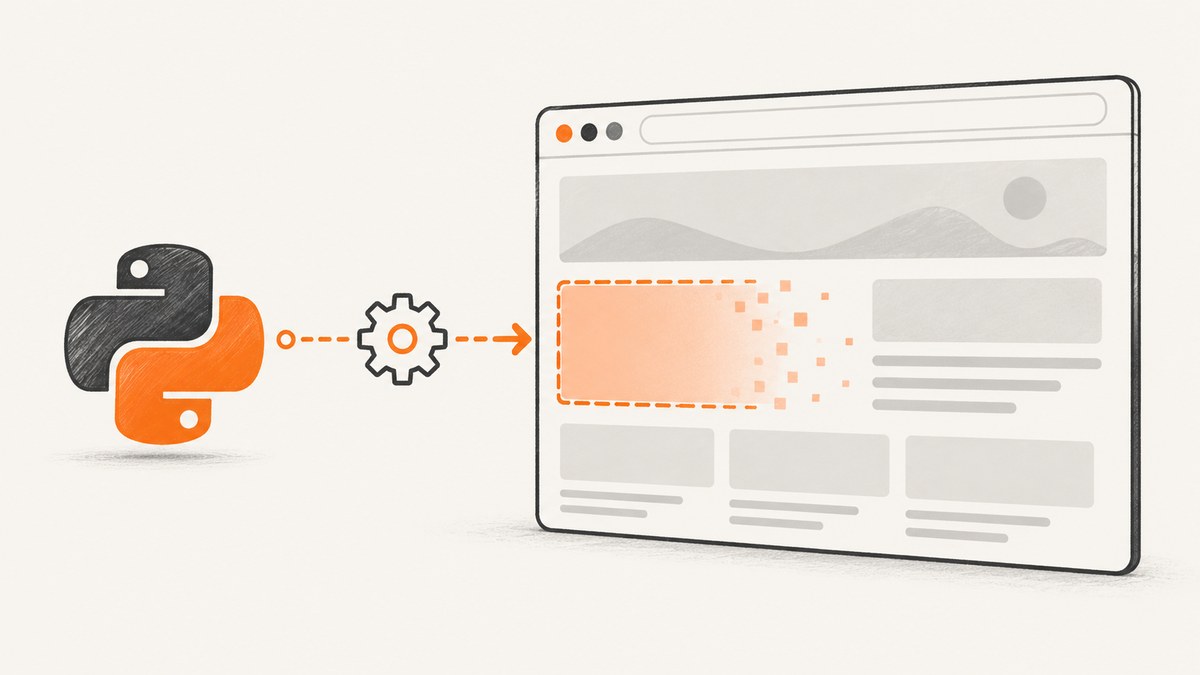
Use Selenium’s JavaScript execution API to hide a div: locate the element, then set its inline display style to none.
from selenium.webdriver.common.by import By

# Locate the div
element = driver.find_element(By.CSS_SELECTOR, "div#target")

# Hide it with JavaScript
driver.execute_script(
    "arguments[0].style.display = 'none';",
    element,
)
Selenium does not provide a dedicated hide() method. The documented execute_script(script, *args) method runs JavaScript synchronously in the current window and lets you pass WebElement arguments into that script. See the Selenium Python WebDriver API.
What display: none does
Setting display: none removes the element from rendering and from the layout flow. The node remains in the DOM, so a later locator can still find it unless the page removes or replaces it.
| Technique | Visible? | Layout space | Node remains? | Typical use |
|---|---|---|---|---|
display: none |
No | Removed | Yes | Hide a panel, banner, or overlay |
visibility: hidden |
No | Reserved | Yes | Keep the layout geometry |
| CSS class | Depends on class | Depends on class | Yes | Use the application’s own state model |
remove() |
No | Removed | No | Delete the node entirely |
Choose the behavior that matches your test. If you only need a clean screenshot, display: none is usually sufficient. If the application has a supported “closed” or “hidden” class, using that class can survive framework re-renders better than an inline style.
Complete runnable example
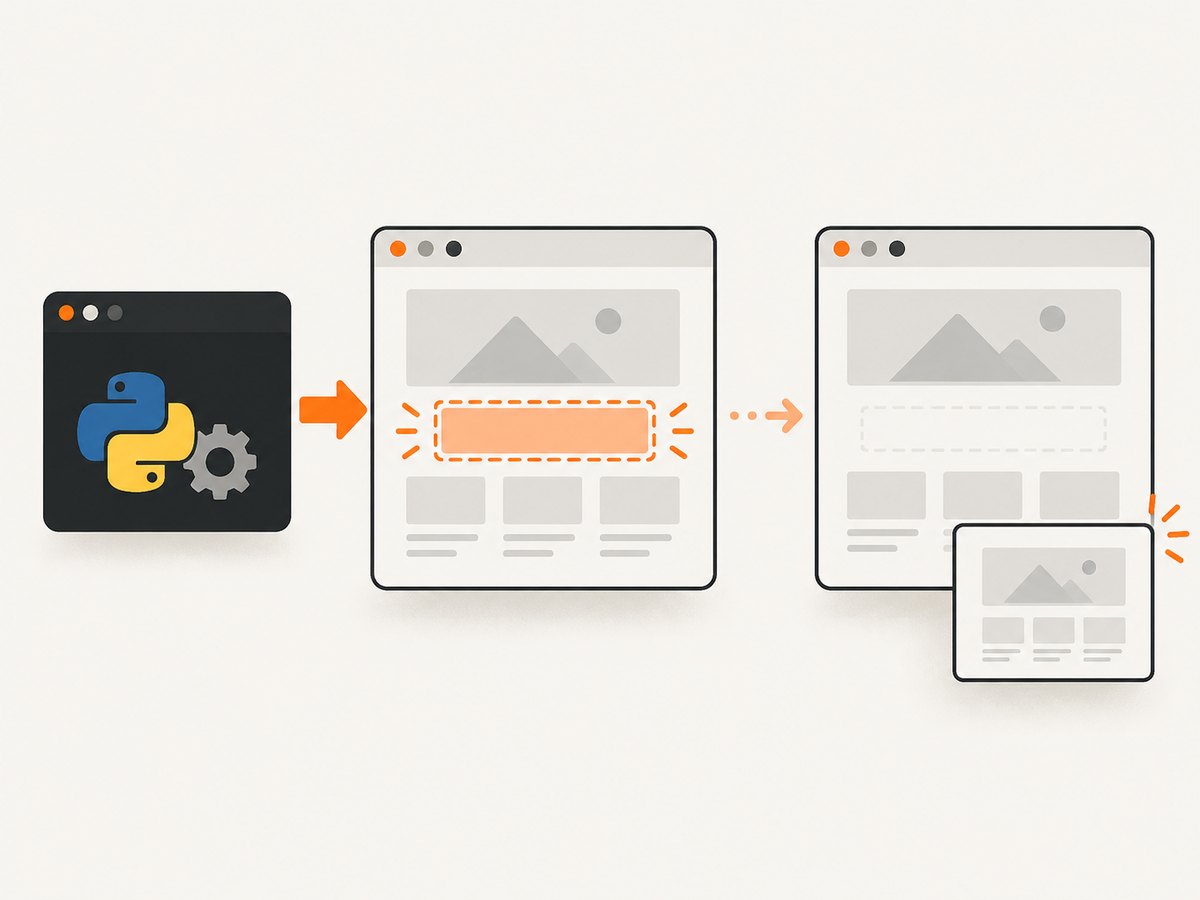
The following script opens a page, waits for a div, hides it, verifies that it is invisible, and saves a screenshot. Install Selenium with pip install selenium. Selenium Manager can obtain a compatible browser driver when a supported browser is installed.
from pathlib import Path

from selenium import webdriver
from selenium.webdriver.common.by import By
from selenium.webdriver.support.ui import WebDriverWait
from selenium.webdriver.support import expected_conditions as EC

URL = "https://example.com"
SELECTOR = "div#target"

options = webdriver.ChromeOptions()
options.add_argument("--headless=new")
options.add_argument("--window-size=1440,1000")

driver = webdriver.Chrome(options=options)
wait = WebDriverWait(driver, 10)

try:
    driver.get(URL)

    # Wait until the element exists in the DOM.
    locator = (By.CSS_SELECTOR, SELECTOR)
    element = wait.until(EC.presence_of_element_located(locator))

    # Hide it. Passing the WebElement as an argument avoids quoting its HTML.
    driver.execute_script(
        "arguments[0].style.display = 'none';",
        element,
    )

    # Wait for Selenium's postcondition: invisible or no longer present.
    wait.until(EC.invisibility_of_element_located(locator))

    # A second, explicit assertion is useful in tests and CI logs.
    assert element.is_displayed() is False

    Path("page-without-div.png").write_bytes(driver.get_screenshot_as_png())
finally:
    driver.quit()
The example uses presence_of_element_located because the div may exist but not yet be visible while the page is rendering. If you need to interact with it before hiding it, wait for visibility_of_element_located instead.
Waiting for dynamically rendered divs
Modern pages often create banners and panels after the initial HTML response. Calling find_element immediately can raise NoSuchElementException, and hiding too early can be undone by the component’s first render. Use an explicit wait, then apply the mutation.
from selenium.webdriver.common.by import By
from selenium.webdriver.support.ui import WebDriverWait
from selenium.webdriver.support import expected_conditions as EC

locator = (By.CSS_SELECTOR, "[data-testid='newsletter-modal']")
wait = WebDriverWait(driver, 15)

element = wait.until(EC.presence_of_element_located(locator))
driver.execute_script(
    "arguments[0].style.display = 'none';",
    element,
)
wait.until(EC.invisibility_of_element_located(locator))
Selenium’s invisibility_of_element_located condition succeeds when the element is invisible or no longer present. This makes it suitable for both a CSS hide and a framework that removes the node.
Hide after a known application event
If the div appears only after a click, perform the click first and then wait for the element. Avoid arbitrary sleeps where possible; they make tests slower and still fail on machines with different timing.
open_button = wait.until(
    EC.element_to_be_clickable((By.CSS_SELECTOR, "button.open-menu"))
)
open_button.click()

menu_locator = (By.CSS_SELECTOR, "div#menu")
menu = wait.until(EC.visibility_of_element_located(menu_locator))
driver.execute_script("arguments[0].style.display = 'none';", menu)
wait.until(EC.invisibility_of_element_located(menu_locator))
Other ways to hide the element
Use visibility: hidden
driver.execute_script(
    "arguments[0].style.visibility = 'hidden';",
    element,
)
This keeps the div’s layout space. It is useful when later assertions depend on surrounding elements staying at the same coordinates.
Toggle a page-defined class
driver.execute_script(
    "arguments[0].classList.add('is-hidden');",
    element,
)
A class is often the best choice when the application already defines transitions, accessibility state, or responsive behavior for hidden content. It also gives the frontend framework a state it understands. Confirm that the class really applies display: none or another intended rule.
Remove the node
driver.execute_script("arguments[0].remove();", element)Removal is permanent for that DOM instance. A later call to find_element will fail unless the page recreates the node. Use it when you are deliberately testing behavior after a component disappears, rather than simply hiding it for a screenshot.
Set a CSS property with priority
A page rule using !important can override a normal inline declaration. You can set the property with priority through style.setProperty:
driver.execute_script(
    "arguments[0].style.setProperty('display', 'none', 'important');",
    element,
)
Use this sparingly. If a framework keeps replacing the element, changing the component state or adding a stable class is more reliable than escalating CSS priority.
Locators that keep working
Prefer a stable ID, a dedicated data attribute, or a short CSS selector supplied by the application. Examples:
# ID
driver.find_element(By.ID, "target")

# Data attribute
driver.find_element(By.CSS_SELECTOR, "[data-testid='target']")

# Semantic class
driver.find_element(By.CSS_SELECTOR, "div.cookie-banner")
A long absolute XPath such as /html/body/div[2]/div[1]/section is coupled to layout structure and commonly breaks after a redesign. If no stable hook exists, ask the application team to add a test attribute rather than relying on generated class names.
iframes and shadow DOM
Div inside an iframe
JavaScript runs in the current browsing context. Switch into the iframe before locating the div, then switch back when finished.
frame_locator = (By.CSS_SELECTOR, "iframe.payment-frame")
wait.until(EC.frame_to_be_available_and_switch_to_it(frame_locator))

inside = wait.until(
    EC.presence_of_element_located((By.CSS_SELECTOR, "div#target"))
)
driver.execute_script("arguments[0].style.display = 'none';", inside)

# Return to the top-level document.
driver.switch_to.default_content()
Div inside a shadow root
Regular document selectors do not cross a shadow boundary. Obtain the host’s shadow root and query inside it. Selenium versions that support shadow-root objects let you use normal locator methods on the returned root.
host = wait.until(
    EC.presence_of_element_located((By.CSS_SELECTOR, "cookie-widget"))
)
shadow_root = host.shadow_root
inside = shadow_root.find_element(By.CSS_SELECTOR, "div#target")
driver.execute_script("arguments[0].style.display = 'none';", inside)
If the component uses a closed shadow root, browser automation cannot directly query its internals. Use the component’s public control, a page-level event, or a test hook exposed by the application.
Preventing a re-render from undoing the hide
React, Vue, Angular, and other rendering systems can replace a node or rewrite its style. Symptoms include the div briefly disappearing and then returning, or your saved WebElement becoming stale.
- Wait for the final render state, such as a loading indicator disappearing.
- Prefer the application’s own hidden class or close action.
- If the node is recreated, locate it again and reapply the mutation.
- For a screenshot, inject CSS immediately before capture and avoid actions that trigger another render.
hide_script = """
const selector = arguments[0];
const node = document.querySelector(selector);
if (node) node.style.display = 'none';
return Boolean(node);
"""

for _ in range(3):
    changed = driver.execute_script(hide_script, "div#target")
    if changed:
        break
    WebDriverWait(driver, 2).until(
        EC.presence_of_element_located((By.CSS_SELECTOR, "div#target"))
    )
For highly dynamic pages, a MutationObserver can reapply a style, but it adds complexity and can mask a real application-state problem. Keep the observer limited to the capture or test window and disconnect it afterward.
Verification patterns
Use Selenium’s display state
assert element.is_displayed() is FalseThis checks Selenium’s visibility model, including CSS properties and layout conditions. It is a useful test assertion but does not prove that no pixels are painted by an overlapping child or pseudo-element.
Read computed style
display_value = driver.execute_script(
    "return getComputedStyle(arguments[0]).display;",
    element,
)
assert display_value == "none"
Check layout dimensions
rect = driver.execute_script(
    "const r = arguments[0].getBoundingClientRect(); "
    "return {width: r.width, height: r.height};",
    element,
)
assert rect["width"] == 0 or rect["height"] == 0
Use the computed-style check when your requirement is specifically display: none. Use invisibility_of_element_located when the page may remove the node or use another hiding rule.
Inject CSS when you need to hide several elements
For multiple selectors, one stylesheet injection is easier to maintain than many WebElement calls.
css = """
const style = document.createElement('style');
style.dataset.seleniumHide = 'true';
style.textContent = `
  div.cookie-banner,
  div.newsletter-modal,
  .chat-widget { display: none !important; }
`;
document.head.appendChild(style);
"""
driver.execute_script(css)
Use stable selectors and keep the injected rule scoped. Remove it when the test must continue with the page’s original appearance:
driver.execute_script(
    "document.querySelector('style[data-selenium-hide]')?.remove();"
)
Or skip the browser setup
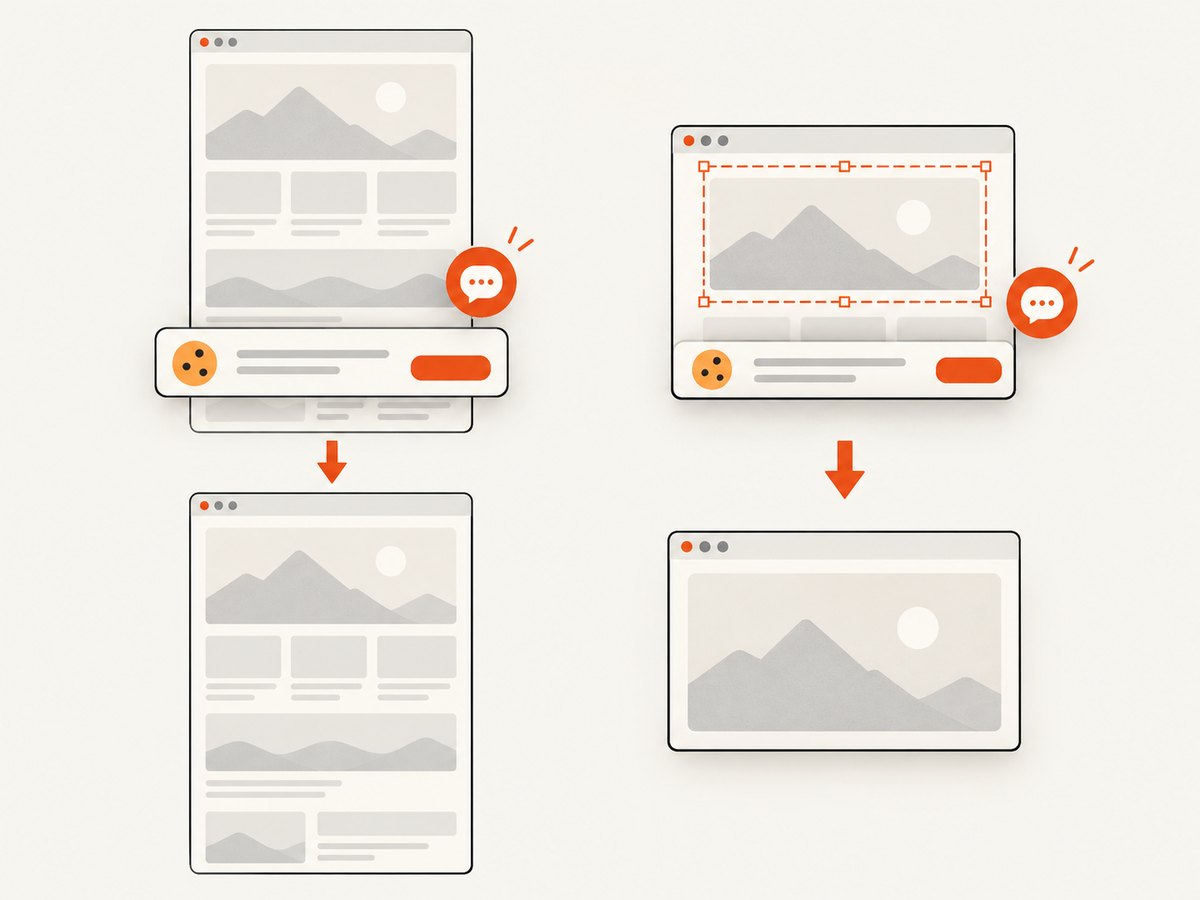
If your goal is a clean image or PDF rather than browser interaction, ScreenshotNeo captures the URL through one API request. Its options include hiding selectors, custom JavaScript and CSS, waiting for a selector or network idle, full-page capture, element capture, dark mode, device presets, cookies, headers, and PDF output. See the ScreenshotNeo documentation for the complete parameter list.
curl -G "https://api.screenshotneo.com/v1/shot" \
  -d access_key=YOUR_API_KEY \
  --data-urlencode url=https://stripe.com \
  -o shot.webp
import requests
r = requests.get(
"https://api.screenshotneo.com/v1/shot",
params={"access_key": "YOUR_API_KEY", "url": "https://stripe.com"},
timeout=90,
)
r.raise_for_status()
open("shot.webp", "wb").write(r.content)const q = new URLSearchParams({
access_key: 'YOUR_API_KEY',
url: 'https://stripe.com'
});
const res = await fetch(`https://api.screenshotneo.com/v1/shot?${q}`);
if (!res.ok) throw new Error(`Screenshot failed: ${res.status}`);
const buffer = Buffer.from(await res.arrayBuffer());
require('fs').writeFileSync('shot.webp', buffer);For this use case, pass the target selector through ScreenshotNeo’s hide-selector option or supply custom CSS that sets display: none; the exact parameter names and examples are in the docs. Cookie banners, newsletter popups, and chat widgets are removed before the shot. Bot checks, blank pages, failed loads, timeouts, and cache hits are not billed, and response headers report the page verdict and billing result. An MCP server lets Claude, Cursor, and other MCP clients call take_screenshot, get_page_info, and capture_pdf. The free plan includes 1,000 screenshots per month without a card; paid plans start at $5 for 3,000 shots. Create a free ScreenshotNeo account.
Troubleshooting
| Symptom | Cause | Fix |
|---|---|---|
NoSuchElementException |
The div is not in the DOM yet, or the selector is wrong. | Check the selector in browser developer tools and wait with presence_of_element_located. |
TimeoutException |
The page never reaches the expected state, or the timeout is too short. | Inspect network and console errors, wait for a meaningful state, and increase the timeout only when the page genuinely needs it. |
| The div returns after hiding | A framework re-render replaced the node or reset its style. | Use the application’s hidden class, wait for final rendering, or reapply the mutation after the replacement. |
| Element is inside an iframe | The locator is running in the top-level document. | Switch with frame_to_be_available_and_switch_to_it before locating it. |
| Selector cannot find a shadow element | The element is behind a shadow-root boundary. | Get the host’s shadow_root and query within it. |
StaleElementReferenceException |
The page replaced the element after you located it. | Locate it again immediately before executing the script. |
| Screenshot still contains the div | The hide ran before capture, or another overlay is painted separately. | Wait for invisibility, verify computed style, and inspect fixed-position children or pseudo-elements. |
| JavaScript changes the wrong window | The driver is on a different tab or frame. | Select the correct window handle and browsing context first. |
Performance and reliability notes
- Use explicit waits: They finish as soon as the condition is true and avoid a fixed sleep on fast runs.
- Keep selectors stable: IDs and test attributes reduce retries and maintenance.
- Minimize round trips: One JavaScript call can hide several selectors when the page is static.
- Capture after verification: A screenshot taken immediately after mutation can race with layout and paint; wait for the postcondition first.
- Run headless consistently: Set a fixed viewport, device scale, timezone, and user agent when pixel output must be reproducible.
- Clean up drivers: Put
quit()in afinallyblock so failed tests do not leave browser processes running. - Separate test intent from presentation: Hiding a banner for a visual regression is different from testing whether a user can close it. Keep those tests distinct.
FAQ
Can Selenium hide an element without JavaScript?
There is no general Selenium hide() command. You can click the page’s close control, use an application-supported class, or execute JavaScript to set the CSS property.
Does display: none delete the div?
No. It stays in the DOM and can be located again until the page removes or replaces it.
Should I use is_displayed() or an expected condition?
Use is_displayed() for a direct assertion after you hold a WebElement. Use invisibility_of_element_located when the node may be replaced or removed.
Why does hiding a parent not remove every visible pixel?
Normally a hidden parent hides its descendants too. If pixels remain, inspect fixed-position elements outside that subtree, pseudo-elements, canvas content, or a duplicate component elsewhere in the DOM.
Can I use this approach for PDF generation?
Yes, if Selenium is driving the browser’s print flow or a PDF tool after the mutation. For direct URL-to-PDF capture with waiting, CSS, and page cleanup controls, ScreenshotNeo’s capture_pdf MCP tool and API options are designed for that workflow.
Checklist
- Choose a stable locator.
- Switch into the correct iframe or shadow root.
- Wait for the div to exist or become visible.
- Apply
display: none, a class, or removal according to the required behavior. - Verify with an expected condition,
is_displayed(), or computed style. - Account for framework re-renders and stale elements.
- Capture only after the hidden state is confirmed.


