How to Hide an Element in Playwright Screenshots
Hide dynamic elements in Playwright screenshots with capture-time CSS, or cover them with a locator mask. Includes runnable JavaScript examples and fixes for common errors.

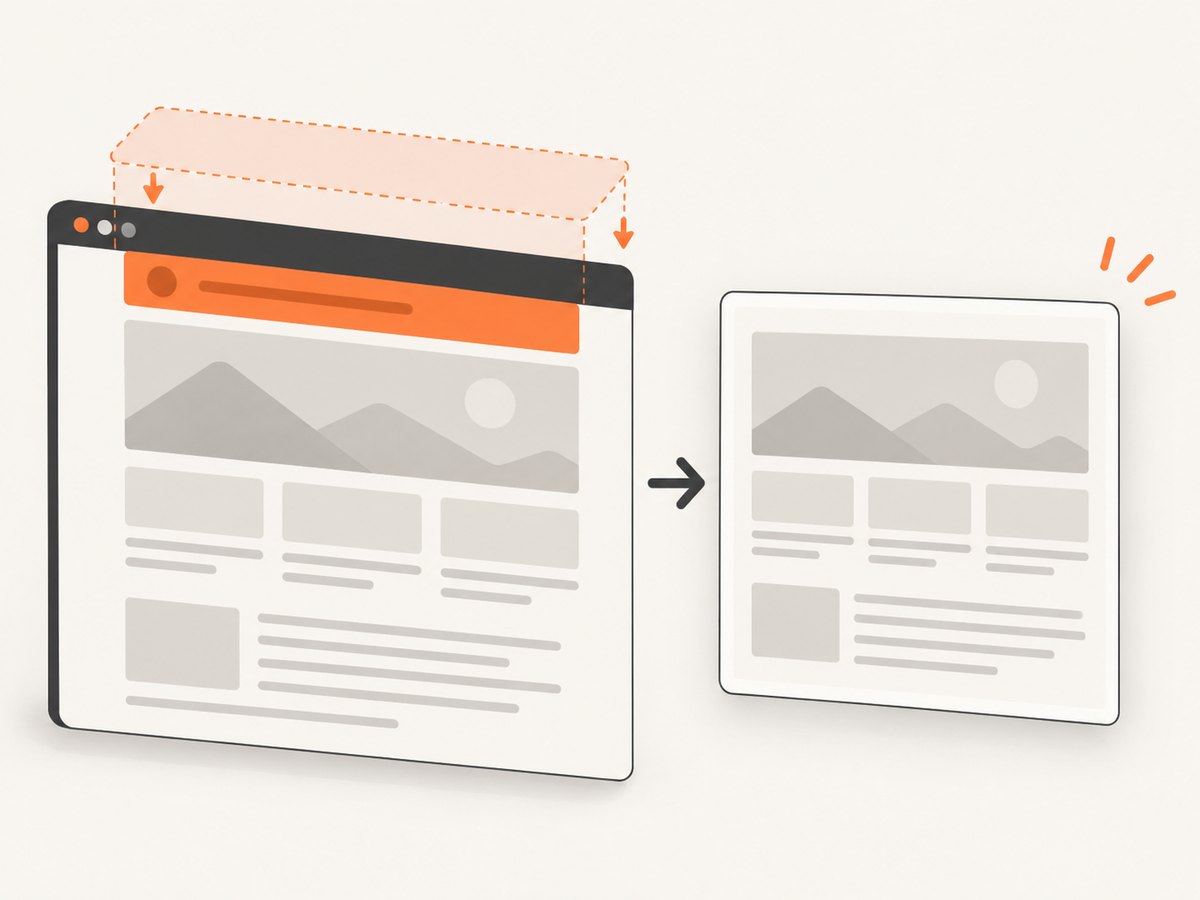
Use Playwright’s screenshot-time style option to hide an element without changing the page permanently. Pass a CSS rule such as display: none !important to page.screenshot(). If you want the element’s area covered instead of removed from the image, use the screenshot option mask with a locator.
This guide focuses on JavaScript, the language used in the examples. The CSS and masking concepts are useful wherever Playwright exposes the corresponding screenshot options; check the API reference for your language binding and installed version before relying on a particular option. Official references: Locator screenshot API, Screenshots guide.
1. Hide an element with screenshot-time CSS
The simplest approach is to add a CSS rule to the screenshot call. The stylesheet applies while Playwright captures the screenshot, so it is a good fit for transient content such as ads, timestamps, newsletter prompts, or widgets that make visual snapshots unstable.
const { chromium } = require('playwright');

(async () => {
  const browser = await chromium.launch();
  const page = await browser.newPage();

  try {
    await page.goto('https://example.com', { waitUntil: 'domcontentloaded' });

    await page.screenshot({
      path: 'page.png',
      style: '.ad-slot { display: none !important; }',
      fullPage: true,
    });
  } finally {
    await browser.close();
  }
})();
Install Playwright in a Node.js project with npm install -D playwright, then install a browser with npx playwright install chromium. Save the example as screenshot.js and run node screenshot.js. Replace the example URL and selector with the page and element you need to capture.
Choose a stable selector
Use a selector that targets only the unwanted element and is stable across page loads. A dedicated class or test attribute is usually less fragile than a long chain of nested elements. If several matching elements should disappear, a CSS selector can match them all. If the selector is too broad, the screenshot may omit useful content; if it matches nothing, the capture will still proceed without hiding anything.
!important helps ensure that the temporary rule wins when the page’s own CSS sets a conflicting display value. The supplied style is a CSS string. Include valid CSS declarations and braces; do not pass a JavaScript object or a locator in this option.
Hide versus make invisible
display: none removes the element from layout for the capture. Nearby content can move into the space it occupied. visibility: hidden makes the element invisible while preserving its layout space. Choose based on the result you want:
| CSS rule | What the screenshot shows | When it helps |
|---|---|---|
display: none !important |
The element is absent and its layout space is removed. | Remove a banner or widget and let surrounding content fill the gap. |
visibility: hidden !important |
The element is invisible, but its layout space remains. | Keep surrounding content in the same position while hiding the pixels. |
opacity: 0 !important |
The element is transparent but still occupies layout space. | Preserve layout and avoid painting the element; consider whether its interaction effects matter to the page before capture. |
These rules affect the rendered screenshot, not your application’s source code or a persistent browser stylesheet. If your application needs the element removed for other behavior, change the application itself rather than relying on a screenshot-only override.
2. Hide an element in a full-page screenshot
The same style option works with full-page capture. Full-page screenshots can include content outside the initial viewport, so apply the hiding rule to the entire capture rather than trying to scroll to one particular position first.
await page.screenshot({
  path: 'full-page.png',
  fullPage: true,
  style: `
    .cookie-banner,
    .newsletter-popup,
    .chat-widget {
      display: none !important;
    }
  `,
});
For lazy-loaded content, the capture may depend on the page’s own loading behavior. If screenshots omit content, wait for a meaningful selector or application-ready condition before capturing. Hiding an element does not itself load the content beneath it or trigger lazy loading. For a page with several unwanted elements, list their selectors in the stylesheet and inspect the resulting image to make sure the rule did not hide a parent container that also contains content you need.
3. Cover content with a locator mask
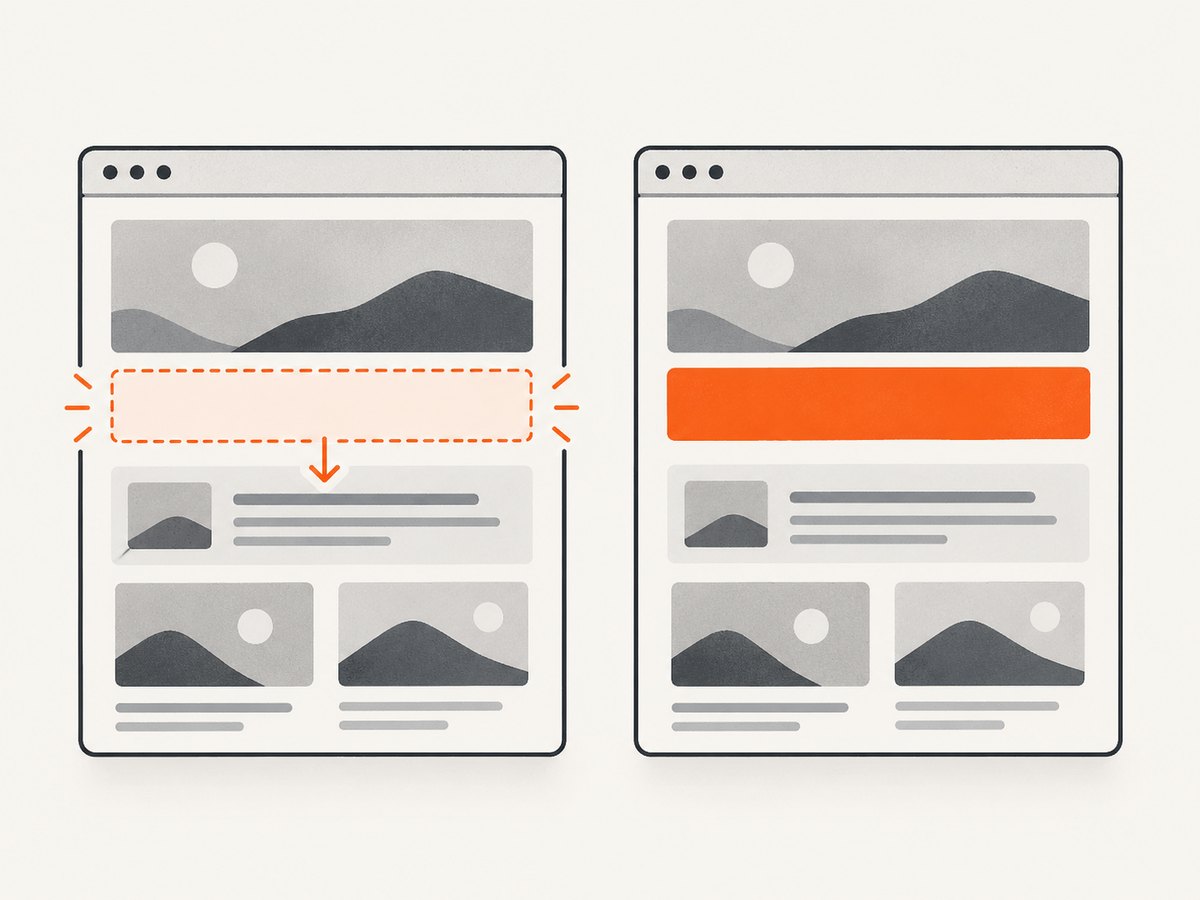
Use mask when you want a solid block over an area, for example to keep a layout stable while obscuring a changing value. A mask covers the matched locator’s bounding box; it is an overlay on the screenshot, not removal of the DOM node. The default mask color is pink (#FF00FF); set maskColor to a CSS color for a different overlay.
await page.screenshot({
  path: 'masked.png',
  mask: [page.locator('.private-value')],
  maskColor: '#000000',
});
Use a page screenshot when the goal is to hide a target while preserving the rest of the page. A locator screenshot captures the matched element itself, so hiding that same target with display: none is not a useful way to capture the surrounding page. Locator screenshots also scroll the element into view after actionability checks, and the operation can fail if the element detaches before capture.
CSS hiding or mask: which should you choose?
| Need | Use | Reason |
|---|---|---|
| Make the content absent from the rendered image | style with display: none or visibility: hidden |
The screenshot-time stylesheet changes how the target is rendered. |
| Cover a value with an opaque block | mask and a locator |
The mask paints over the matched element’s bounding box. |
| Keep an unwanted element’s space in the layout | visibility: hidden, or consider a mask |
display: none can shift nearby content. |
| Capture the target element itself | Use a locator screenshot without hiding that target | A hidden target has no useful visible content to capture. |
A mask covers pixels, so it should not be treated as a way to delete or sanitize data from the page’s DOM. If the underlying content must not reach the browser or capture process, remove or replace it before it is rendered.
4. Screenshot options that affect repeatability
Playwright’s screenshot APIs include options beyond hiding. They solve different problems, so combine them only when the capture requires them. The official locator screenshot reference documents the exact options for the API.
style: Injects CSS for screenshot capture. The documentation describes it as a way to hide dynamic elements, make elements invisible, or change properties to help create repeatable screenshots. It pierces Shadow DOM and applies to inner frames.maskandmaskColor: Cover locator bounding boxes. The default color is pink;maskColoraccepts a CSS color.animations: Controls animation handling for the capture. Disabling animations may improve repeatability, but it does not hide a target. Use CSS or a mask for that.caret: Controls caret rendering in the screenshot. This can matter when a focused text field produces a blinking caret between captures.fullPage: Captures the full scrollable page in the page screenshot API.path: Writes the screenshot to a file. The API can also return screenshot bytes for further processing.
Screenshot-time styling is documented as added in Playwright v1.41. The locator screenshot API lists maskColor as added in v1.35. Check the version actually installed in your project; a newer online reference does not add an option to an older package. The official screenshots guide covers page and element screenshots and byte output: Playwright screenshots guide.
5. Capture one element or target content across frames
When you want an element-only image, use locator.screenshot(). When you want a full page with one target removed, use page.screenshot() and its style option. These are different capture shapes:
// Capture only the selected element.
await page.locator('.product-card').screenshot({ path: 'card.png' });

// Capture the page while hiding a selected element at screenshot time.
await page.screenshot({
  path: 'page-without-ad.png',
  style: '.ad-slot { display: none !important; }',
});
The documented screenshot stylesheet crosses Shadow DOM and applies to inner frames, which can help when the unwanted content lives in a component or frame. Selector matching still matters: target the element inside the relevant rendered content, and confirm that the selector identifies the intended node. If an iframe is cross-origin, ordinary page JavaScript access may be restricted, but Playwright’s documented screenshot style behavior is specifically described as applying to inner frames; consult the versioned API documentation if a particular frame setup behaves differently.
6. Troubleshooting
| Symptom | Likely cause | Fix |
|---|---|---|
| The element remains visible. | The selector does not match, matches a different node, or a page rule overrides the declaration. | Inspect the selector in the page, make it more specific, and add !important. Confirm you are passing style to the screenshot call. |
| Other page content disappears too. | The selector matches a parent or a broad group of elements. | Use a unique selector for the exact element. Avoid hiding a shared wrapper that contains content you need. |
| The layout shifts unexpectedly. | display: none removes the element from layout. |
Use visibility: hidden to preserve its space, or use a mask if covering the original bounding box is appropriate. |
Playwright rejects style or maskColor. |
The installed Playwright version predates the option. | Check the project’s package version and upgrade if appropriate; style is documented from v1.41 and maskColor from v1.35. |
| The mask is pink. | Pink is the documented default mask color. | Set maskColor to a supported CSS color such as '#000000'. |
| A locator screenshot errors or captures nothing useful. | The target detached, failed actionability checks, or was hidden before its own screenshot. | Wait for a stable target, use a page screenshot to hide it while retaining surrounding content, or capture a different locator. |
| A dynamic value still changes between screenshots. | It is not covered by the selector, or another changing region affects the image. | Target every relevant element, consider a locator mask for variable pixels, and control animations separately if they cause motion. |
| Full-page capture omits lower-page content. | The page has not loaded that content, or it is lazy-loaded. | Wait for the page’s relevant content or loading condition before capture. Hiding an element does not trigger loading of other content. |
7. Performance, reliability, and cost
A screenshot-time CSS rule is a small, local change to the capture request; it avoids application code changes for one-off visual cleanup. A mask adds locator targeting and an overlay to the capture. For a small number of elements, choose the simplest selector or locator that expresses the intended result. For visual regression work, stabilize the page’s loaded state, viewport, and animation behavior as well as hiding dynamic regions; screenshot CSS alone cannot make an unpredictable page deterministic.
Reliability depends on the target being present when the screenshot is taken and the selector remaining meaningful as the site changes. A stable selector reduces accidental misses. A page may render a popup only after a delay, so decide whether to wait for it and then hide it, or capture before it appears. For repeatable runs, wait for a known page-ready signal rather than relying on an arbitrary delay where the application offers a better condition.
Playwright itself is an open-source browser automation framework; the runtime cost of this method is your browser and execution environment. Consider browser startup, page loading, screenshot size, and whether full-page images consume extra memory or storage in your own pipeline. This how-to makes no benchmark or fixed cost claim: actual time and infrastructure cost depend on the page, browser, capture frequency, and deployment.
8. Or skip the browser setup
If you only need a website screenshot and do not want to install or run a browser, ScreenshotNeo is a website screenshot API and MCP server for developers. One GET request returns a PNG, JPEG, WebP, or PDF. See the ScreenshotNeo API documentation for parameters and options.
curl -G "https://api.screenshotneo.com/v1/shot" \
  -d access_key=YOUR_API_KEY \
  --data-urlencode url=https://example.com \
  -o shot.webp
import requests
r = requests.get(
"https://api.screenshotneo.com/v1/shot",
params={"access_key": "YOUR_API_KEY", "url": "https://example.com"},
timeout=90,
)
open("shot.webp", "wb").write(r.content)const q = new URLSearchParams({
access_key: 'YOUR_API_KEY',
url: 'https://example.com',
});
const res = await fetch(`https://api.screenshotneo.com/v1/shot?${q}`);
if (!res.ok) throw new Error(`Screenshot request failed: ${res.status}`);
await require('node:fs/promises').writeFile('shot.webp', Buffer.from(await res.arrayBuffer()));ScreenshotNeo removes cookie and consent banners, newsletter popups, and chat widgets before capture; each cleanup step can be turned off. Bot checks and CAPTCHAs, blank pages, timeouts, failed loads, and cache hits cost nothing, and response headers report the page verdict and billing status. Its MCP server offers take_screenshot, get_page_info, and capture_pdf for Claude, Cursor, and other MCP clients. The free plan includes 1,000 screenshots a month with no card; paid plans start at $5 for 3,000 shots. Every feature is on every plan.
Sign up for ScreenshotNeo’s free 1,000 screenshots a month, with no card required.
9. FAQ
Does screenshot-time CSS change the website for other users?
No. The style option is applied for the screenshot capture; it is not a persistent edit to the site.
Can I use a mask to remove data from a screenshot file?
A mask covers the locator’s visible bounding box with an overlay. It does not remove the underlying DOM content. For sensitive data, prevent it from being rendered or included in the capture process.
Why use visibility: hidden instead of display: none?
Use it when the element should disappear visually but keep its layout space. Use display: none when that space should collapse.
Can screenshot styling target content in Shadow DOM?
The Playwright screenshot API documentation says the stylesheet pierces Shadow DOM and applies to inner frames. Check the documentation for your installed version and target page structure.


