How to Hide Elements From html2canvas Screenshots
Learn four reliable ways to hide elements in html2canvas, with runnable JavaScript, troubleshooting, canvas limits, and a ScreenshotNeo alternative.
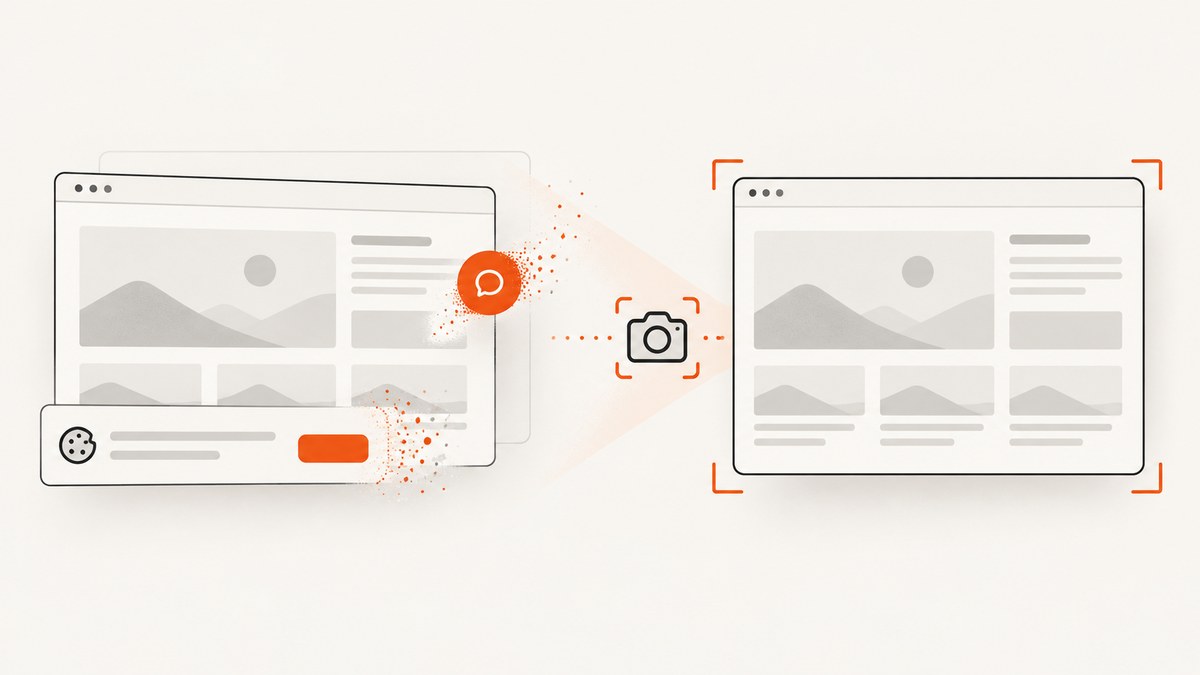
Use data-html2canvas-ignore when you always want to exclude one element. For conditional rules, pass an ignoreElements predicate. For changes that should affect only the rendered image, use onclone to edit html2canvas’s cloned document. These are the documented controls for hiding content from an html2canvas render.
This guide shows each method with complete code, explains when CSS hiding is appropriate, covers images and canvas limits, and includes an API alternative when you need a browser screenshot rather than a DOM reconstruction.
1. Add data-html2canvas-ignore for a fixed exclusion
The simplest solution is to mark the element in your HTML:
<button class="print-button" data-html2canvas-ignore>Print</button>
<div class="chat-widget" data-html2canvas-ignore>Need help?</div>

<script type="module">
  import html2canvas from 'html2canvas';

  const panel = document.querySelector('#report');
  const canvas = await html2canvas(panel);
  document.querySelector('#preview').src = canvas.toDataURL('image/png');
</script>
html2canvas checks for this attribute while traversing the target element and excludes the marked node from the render. The attribute is documented in the configuration reference.
2. Use ignoreElements for conditional rules
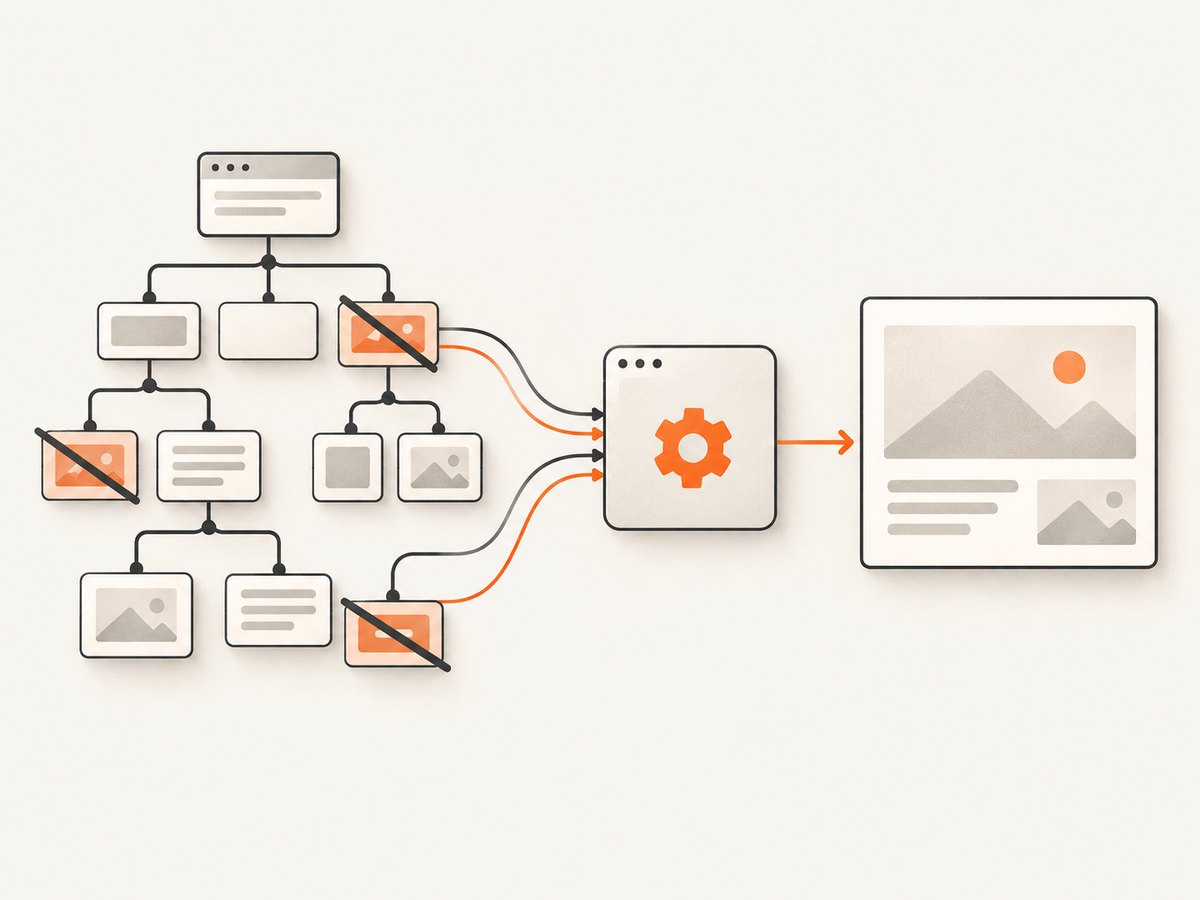
When the element cannot be changed, or the decision depends on a class, attribute, or runtime state, provide a predicate. The function receives each element and returns true when that element should be omitted.
import html2canvas from 'html2canvas';

const target = document.querySelector('#invoice');

const canvas = await html2canvas(target, {
  ignoreElements: (element) => {
    return element.matches(
      '.screen-only, [data-hide-in-capture], button.dismiss'
    );
  }
});

document.body.appendChild(canvas);
The documented default is (element) => false, so nothing is ignored unless your predicate returns true. Keep the predicate fast: it runs while html2canvas walks the render tree.
Targeting parents and descendants
Returning true for a parent removes that subtree from the render. If you only want to remove a child, match the child specifically. Avoid broad selectors such as div unless you have verified the result, because a generic match can remove more content than intended.
3. Use onclone when the live page must stay unchanged
onclone receives the cloned document that html2canvas prepares for rendering. You can hide elements, add a capture-only class, or replace content there without changing what the visitor sees.
import html2canvas from 'html2canvas';

const canvas = await html2canvas(document.querySelector('#dashboard'), {
  onclone: (clonedDocument) => {
    clonedDocument.querySelectorAll('.capture-hidden').forEach((element) => {
      element.style.display = 'none';
    });

    const watermark = clonedDocument.querySelector('.watermark');
    if (watermark) {
      watermark.textContent = 'Archived copy';
      watermark.style.display = 'block';
    }
  }
});

canvas.toBlob((blob) => {
  if (blob) {
    const link = document.createElement('a');
    link.href = URL.createObjectURL(blob);
    link.download = 'dashboard.png';
    link.click();
    URL.revokeObjectURL(link.href);
  }
}, 'image/png');
This is the best choice for “hide it only in the screenshot.” The original document remains visible and interactive because your changes are applied to the clone.
4. Hide with CSS when the page itself can change
Setting display: none or visibility: hidden hides content from the render. The project’s visibility reftest demonstrates both behaviors (visibility test).
const banner = document.querySelector('.temporary-banner');
const oldDisplay = banner.style.display;

banner.style.display = 'none';
try {
  const canvas = await html2canvas(document.querySelector('#page'));
  document.querySelector('#output').replaceChildren(canvas);
} finally {
  banner.style.display = oldDisplay;
}
The try/finally matters: if rendering fails, the element is restored. Prefer data-html2canvas-ignore or onclone when changing the visible page would cause flicker or interfere with user input.
Choosing the right method
| Method | Best for | Changes live page? | Typical example |
|---|---|---|---|
data-html2canvas-ignore |
Permanent, markup-level exclusions | No | Remove a print button everywhere |
ignoreElements |
Rules decided in JavaScript | No | Ignore elements with a runtime class |
onclone |
Capture-only edits | No | Hide controls and add a watermark in the image |
| CSS hide/show | One-off captures where page changes are acceptable | Yes, temporarily or permanently | Hide a banner during export |
Complete runnable example
This page includes a toolbar, a chat bubble, and a report. The toolbar and chat bubble are excluded without changing the visible page.
<!doctype html>
<html lang="en">
<head>
  <meta charset="utf-8">
  <script type="module">
    import html2canvas from 'https://cdn.jsdelivr.net/npm/html2canvas@1.4.1/+esm';

    document.querySelector('#capture').addEventListener('click', async () => {
      const report = document.querySelector('#report');
      const canvas = await html2canvas(report, {
        backgroundColor: '#ffffff',
        scale: Math.min(window.devicePixelRatio || 1, 2),
        ignoreElements: (element) => element.matches('.chat, [data-export-ignore]'),
        onclone: (clone) => {
          clone.querySelector('.toolbar').style.display = 'none';
        }
      });
      const link = document.createElement('a');
      link.download = 'report.png';
      link.href = canvas.toDataURL('image/png');
      link.click();
    });
  </script>
  <style>
    #report { width: 720px; padding: 24px; background: white; }
    .toolbar { display: flex; gap: 8px; margin-bottom: 16px; }
    .chat { position: fixed; right: 20px; bottom: 20px; }
  </style>
</head>
<body>
  <section id="report">
    <div class="toolbar">
      <button id="capture">Save screenshot</button>
      <button data-export-ignore>Edit</button>
    </div>
    <h1>Quarterly report</h1>
    <p>Revenue increased 18% compared with the previous quarter.</p>
  </section>
  <aside class="chat">Chat with us</aside>
</body>
</html>
Configuration options that affect hidden elements
The hiding mechanisms are only part of the render. These options often determine whether the remaining content appears correctly. Names and defaults are listed in the official configuration reference.
| Option | Use | Practical note |
|---|---|---|
ignoreElements |
Predicate for exclusions | Return true to omit an element and its descendants. |
onclone |
Edit the render clone | Use for capture-only styles or content. |
backgroundColor |
Set the canvas background | Use null for transparency when supported by your output path. |
scale |
Control pixel density | Higher values improve detail but increase memory and output size. |
width, height |
Set output dimensions | Useful when the target has unusual layout bounds. |
windowWidth, windowHeight |
Set the virtual viewport | Try the element’s scroll dimensions when output is cut off. |
x, y, scrollX, scrollY |
Control capture origin and scroll | Set explicitly for long or scrolled layouts. |
useCORS, allowTaint, proxy |
Handle cross-origin images | Images without suitable CORS headers can fail or taint the canvas. |
imageTimeout |
Limit image loading time | Increase it for slow assets or set 0 to disable the timeout. |
logging |
Enable diagnostic logs | Turn it on while investigating missing nodes or images. |
foreignObjectRendering |
Try browser foreignObject rendering | Support varies; compare output with the default renderer. |
removeContainer |
Remove the temporary clone container | Leave the default enabled unless debugging the cloned DOM. |
Important limitations and edge cases
html2canvas is not a native browser screenshot
html2canvas traverses the DOM and rebuilds a representation from information available to the page. It does not capture the browser’s final pixels. Rendering therefore depends on the CSS and browser features the library supports (documentation). Properties such as box-shadow, filter, and object-fit are listed among unsupported or limited features in the feature reference.
Nested ignored nodes
If a container is ignored, every descendant disappears. If only one child should be removed, move the marker or narrow the predicate to that child.
Cross-origin images
An image hosted on another origin needs appropriate CORS headers for reliable canvas use. Set useCORS: true when the server permits it, or configure a proxy. allowTaint: true may let rendering proceed, but a tainted canvas cannot be exported with toDataURL or toBlob.
Large pages and blank output
Canvas dimensions are limited by the browser, operating system, and hardware; the limits vary by environment. For blank or clipped captures, reduce scale, capture smaller sections, and set windowWidth and windowHeight from the element’s scroll dimensions. The FAQ discusses these constraints without treating historical browser limits as universal guarantees.
Animations, video, and lazy content
Pause animations before capture if a stable frame matters. Video frames and content that has not loaded into the DOM may be absent. Wait for fonts and images explicitly before calling html2canvas.
Troubleshooting checklist
| Symptom | Likely cause | Fix |
|---|---|---|
| Ignored element still appears | Predicate matches the wrong node, or the attribute is on a sibling | Inspect the matched element in DevTools; use element.matches() and return true for the exact node. |
| Everything below an element is missing | A parent container is being ignored | Remove the marker from the parent and target only the child. |
| Original page flashes or changes | Live CSS was modified during capture | Use onclone or data-html2canvas-ignore. |
| External images are blank | CORS headers are missing or the canvas is tainted | Enable server CORS, use useCORS, or provide a proxy; avoid exporting a tainted canvas. |
| Output is cut off | Viewport or canvas dimensions are too small | Set windowWidth/windowHeight, capture a smaller element, or lower scale. |
| Styles differ from the page | Unsupported CSS property or DOM reconstruction difference | Check the feature list, simplify the style for export, or use a native screenshot service. |
| Capture never resolves | Slow or broken image resources | Set a suitable imageTimeout, preload assets, and inspect console logs. |

Performance, reliability, and cost considerations
- Keep the target small. Capturing a focused report is faster and uses less memory than rendering the entire document.
- Choose a sensible scale. A scale of 2 can improve text clarity, but pixels and memory grow with both dimensions.
- Reduce work before capture. Ignore menus, live charts, chat widgets, and off-screen decorations that are not part of the deliverable.
- Wait for stable content. Resolve fonts and images before rendering, and pause transitions if repeatability matters.
- Handle failures. Wrap the promise in
try/catch, show a retry path, and release object URLs after downloads.
Because html2canvas runs in the user’s browser, the result depends on that browser’s memory, canvas limits, fonts, network, and security policy. A server-side screenshot API gives you a controlled capture environment when you need repeatable images from URLs.
Or skip the browser setup
ScreenshotNeo returns a screenshot or PDF from one GET request. Cookie and consent banners, newsletter popups, and chat widgets are removed before the shot. Bot checks, blank pages, failed loads, timeouts, and cache hits are not billed, and response headers identify the page verdict and billing status. Its MCP server lets Claude, Cursor, and other MCP clients call take_screenshot, get_page_info, and capture_pdf.
See the ScreenshotNeo API documentation for all options. This example captures a clean WebP image:
curl -G "https://api.screenshotneo.com/v1/shot" -d access_key=YOUR_API_KEY --data-urlencode url=https://stripe.com -o shot.webpimport requests
r = requests.get("https://api.screenshotneo.com/v1/shot", params={"access_key": "YOUR_API_KEY", "url": "https://stripe.com"}, timeout=90)
open("shot.webp", "wb").write(r.content)const q = new URLSearchParams({ access_key: 'YOUR_API_KEY', url: 'https://stripe.com' });
const res = await fetch(`https://api.screenshotneo.com/v1/shot?${q}`);You can also select one element by CSS selector, load lazy images in full-page captures, set a viewport or device preset, apply custom CSS or JavaScript, hide selectors, wait for a selector or network idle, block resource types, provide cookies and headers, set timezone or geolocation, resize images, cache with your chosen TTL, create signed links, submit async jobs with signed webhooks, capture up to 100 URLs per bulk call, and use the usage API or OpenAPI specification. Parameter names used by other screenshot APIs also work, which simplifies migration.
The free plan includes 1,000 screenshots per month with no card. Paid plans start at $5 for 3,000 shots. Create your free ScreenshotNeo account.
FAQ
Can I hide an element by its ID?
Yes. Use ignoreElements: element => element.id === 'toolbar', or add data-html2canvas-ignore to that element.
Does visibility:hidden preserve layout?
Yes. It keeps the element’s layout space while making it invisible. Use display:none when the layout should collapse.
Can I remove an element only for one capture?
Yes. Use onclone and change the cloned node, or temporarily change the live DOM inside a try/finally block.
Why does the result differ from Chrome’s screenshot tool?
Chrome captures final browser pixels. html2canvas reconstructs an image from DOM data, so unsupported CSS, fonts, cross-origin images, and canvas limits can produce differences.
When should I use a screenshot API?
Use one when the source is a remote URL, you need repeatable server-side output, or browser setup and cross-origin issues are slowing you down. ScreenshotNeo provides that path with a free 1,000-shot monthly plan.


