How to Hide the First Header or Footer in Puppeteer PDFs
Puppeteer has no documented first-page header/footer switch. Learn reliable options, CSS caveats, PDF merging, and a ScreenshotNeo alternative.
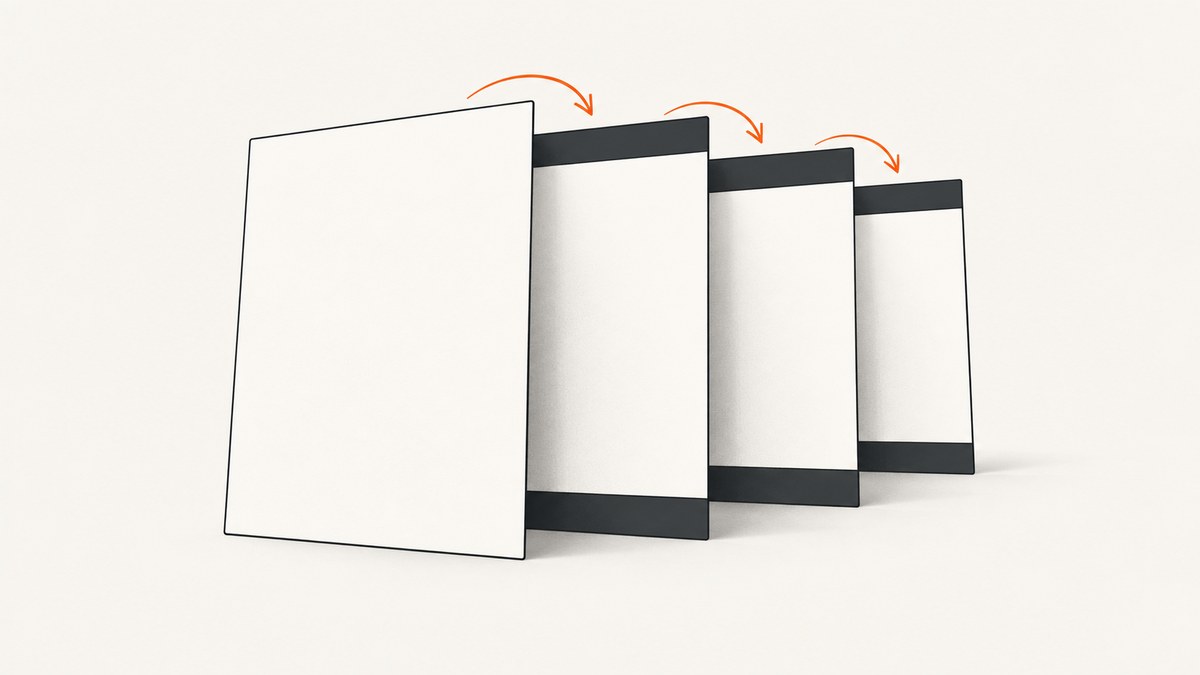
Short answer: Puppeteer does not document a first-page-only header or footer option. displayHeaderFooter is a single boolean for the whole PDF, while headerTemplate and footerTemplate are HTML strings reused by the PDF renderer. You can disable both everywhere, enable them everywhere, experiment with print CSS such as @page:first, or render page one separately and merge PDFs when strict control is required.
The safest choice depends on how exact the layout must be. A global header/footer is supported and predictable. CSS margin tricks are compact but depend on the Chromium and Puppeteer versions you deploy. Separate rendering and merging gives the most control, with extra work around page numbering, fonts, margins, and page breaks.
What Puppeteer officially supports
The Puppeteer PDFOptions documentation defines displayHeaderFooter as the switch that controls whether headers and footers are shown. Its documented default is false. The same options object accepts headerTemplate and footerTemplate HTML strings.
Puppeteer also provides special classes inside those templates for generated values such as the date, title, URL, current page number, and total page count. Those classes insert values; they do not provide JavaScript execution or a first-page conditional. A template cannot safely inspect pageNumber and decide to disappear on page one.
Page.pdf() generates the document with the print CSS media type. That matters because print styles, page margins, and page breaks affect the result independently of the header/footer templates.
Disable headers and footers on every page
If the document should have no generated header or footer, omit displayHeaderFooter or set it to false. This is the only setting you need.
import puppeteer from 'puppeteer';

const browser = await puppeteer.launch({headless: true});
const page = await browser.newPage();

await page.goto('https://example.com', {waitUntil: 'networkidle0'});
await page.pdf({
  path: 'document.pdf',
  format: 'A4',
  printBackground: true,
  displayHeaderFooter: false
});

await browser.close();
Do not leave space reserved for a header or footer when they are disabled. Remove unnecessary top and bottom margins, or the first page may appear to have an unexplained blank band.
Show the same header or footer on every page
For a document-wide header or footer, enable the option and provide templates. The templates are small HTML fragments, not complete documents.
import puppeteer from 'puppeteer';

const browser = await puppeteer.launch({headless: true});
const page = await browser.newPage();

await page.goto('https://example.com', {waitUntil: 'networkidle0'});
await page.pdf({
  path: 'report.pdf',
  format: 'A4',
  printBackground: true,
  displayHeaderFooter: true,
  headerTemplate: `
    <div style="font-size:9px; width:100%; text-align:center; color:#666;">
      Quarterly report
    </div>`,
  footerTemplate: `
    <div style="font-size:9px; width:100%; text-align:center; color:#666;">
      Page <span class="pageNumber"></span> of <span class="totalPages"></span>
    </div>`,
  margin: {
    top: '55px',
    bottom: '55px',
    left: '40px',
    right: '40px'
  }
});

await browser.close();
The top and bottom margins reserve room for the generated fragments. If the margins are too small, content can overlap the header or footer. If they are too large, every page loses usable space.
Why a template cannot hide itself on page one
It is tempting to write a template that checks the page number, for example with JavaScript or a conditional expression. Puppeteer does not document either capability. The special classes are placeholders that Chromium fills in while laying out the PDF. They are not variables exposed to a script running in the template.
Consequently, this does not implement a supported first-page exception:
// Not a supported Puppeteer feature:
footerTemplate: '<script>if (pageNumber !== 1) document.write("Footer")</script>'
Keep the template static. Put conditional content in the page itself when possible, or choose one of the page-specific approaches below.
Approach 1: experiment with print CSS
Some developers try page-margin rules such as @page:first to remove the first page’s margin boxes. This can be concise, but the behavior is version-dependent. A historical Puppeteer issue from 2018 reported inconsistent footer results when manipulating first-page margins. That report is a warning, not a current guarantee.
If you evaluate this technique, test the exact Puppeteer package, Chromium revision, operating system, and input document used in production. Test both a one-page and a multi-page document, and inspect the first transition between pages.
<style>
@media print {
  @page {
    margin: 60px 40px 60px 40px;
  }

  /* Experimental: validate with your deployed Chromium build. */
  @page :first {
    margin-top: 0;
    margin-bottom: 0;
  }
}
</style>
This CSS changes page geometry; it does not directly switch displayHeaderFooter off for one page. Depending on the browser build, the generated header/footer may still appear, move, or leave reserved space. Treat the output as an experiment and keep a regression PDF in your CI checks.
Approach 2: render page one and the remaining pages separately
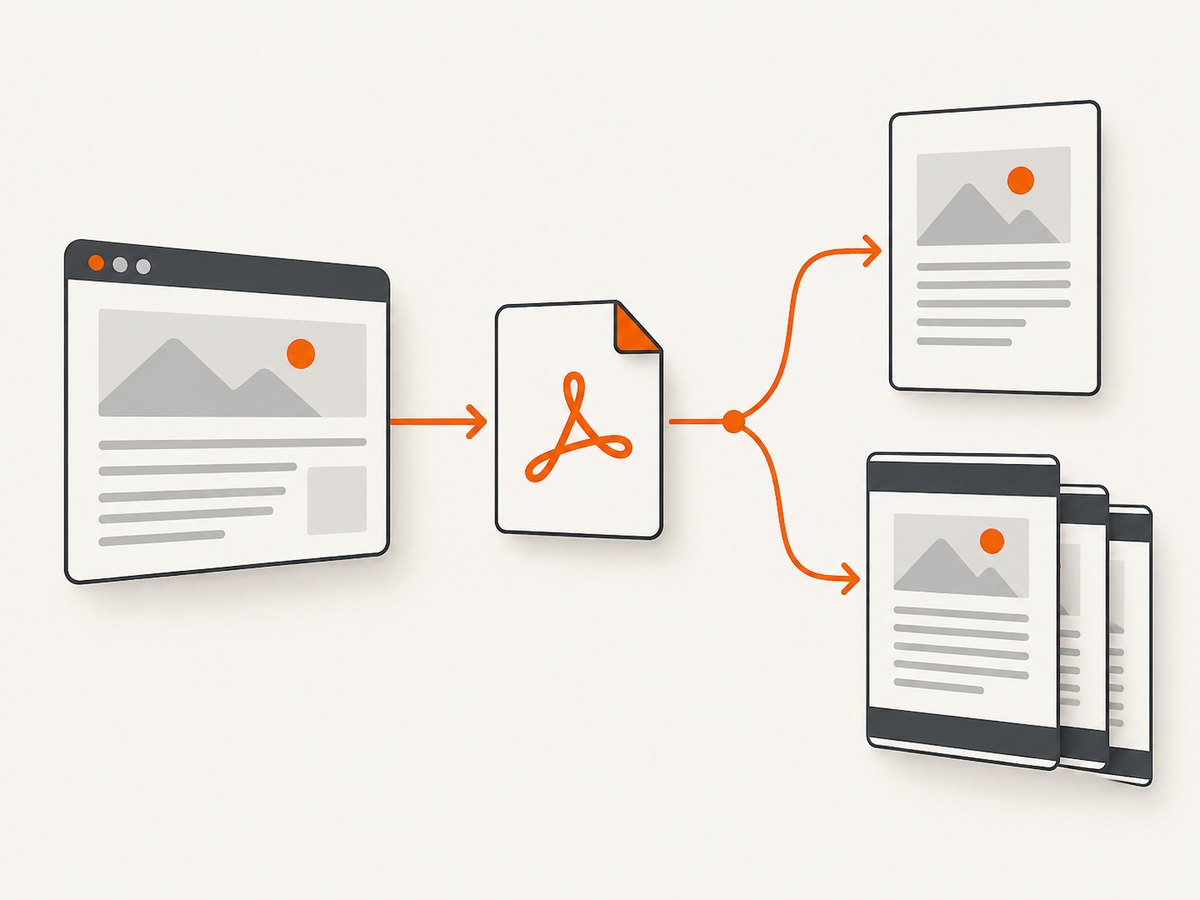
When the first page must be materially different, application-level composition is usually easier to reason about. Render a cover or first page with displayHeaderFooter: false. Render the remaining content with the header/footer enabled. Then merge the two PDFs with a PDF library.
The following example uses Puppeteer and pdf-lib. It assumes your application can provide separate HTML for the first page and the remaining pages. The merge is not a Puppeteer option; it is a document-assembly workaround.
import puppeteer from 'puppeteer';
import { PDFDocument } from 'pdf-lib';
import { writeFile } from 'node:fs/promises';

async function render(browser, html, options) {
  const page = await browser.newPage();
  await page.setContent(html, {waitUntil: 'networkidle0'});
  const bytes = await page.pdf(options);
  await page.close();
  return bytes;
}

const browser = await puppeteer.launch({headless: true});

const firstPage = await render(browser, `
  <main class="cover">
    <h1>Report title</h1>
    <p>The first page has no generated header or footer.</p>
  </main>`, {
    format: 'A4',
    printBackground: true,
    displayHeaderFooter: false,
    margin: {top: '40px', bottom: '40px', left: '40px', right: '40px'}
  });

const remainingPages = await render(browser, `
  <main>
    <h2>Details</h2>
    <p>Put the content that starts on page two here.</p>
    <div style="page-break-before: always"></div>
    <p>More content...</p>
  </main>`, {
    format: 'A4',
    printBackground: true,
    displayHeaderFooter: true,
    headerTemplate: '<div style="font-size:9px;width:100%;text-align:center">Report</div>',
    footerTemplate: '<div style="font-size:9px;width:100%;text-align:center">Page <span class="pageNumber"></span></div>',
    margin: {top: '55px', bottom: '55px', left: '40px', right: '40px'}
  });

const output = await PDFDocument.create();
for (const sourceBytes of [firstPage, remainingPages]) {
  const source = await PDFDocument.load(sourceBytes);
  const pages = await output.copyPages(source, source.getPageIndices());
  pages.forEach(page => output.addPage(page));
}

await writeFile('combined.pdf', await output.save());
await browser.close();
Install the extra dependency with npm install puppeteer pdf-lib. Page numbers in the second render start at one, so the merged document may show “Page 1” on its physical second page. If continuous numbering matters, add an offset in your own footer content or stamp page numbers after merging. Also verify links, outlines, fonts, and page dimensions after assembly.
Keep layout stable across the page boundary
- Use the same paper format, scale, margins, and font loading strategy for both renders.
- Wait for web fonts and images before calling
page.pdf(). - Use explicit
break-beforeorpage-break-beforerules where the second render starts. - Do not assume a CSS height measured in screen pixels maps exactly to a printed page.
- Open the final merged PDF in more than one viewer; clipping and font substitution can reveal assembly errors.
Timing, media, and resource options
Because Page.pdf() uses print media, include print-specific rules deliberately:
@media print {
  body { color: #111; background: white; }
  .screen-only { display: none !important; }
  h2 { break-after: avoid; }
  .avoid-split { break-inside: avoid; }
}
Wait for the page state your content requires. networkidle0 is useful for pages that finish loading, but analytics or streaming requests can keep it from settling. In those cases, wait for a specific selector or use a bounded delay after the important content appears.
await page.goto(url, {waitUntil: 'domcontentloaded'});
await page.waitForSelector('#report-ready', {timeout: 30000});
await page.evaluate(() => document.fonts.ready);
Common errors and fixes
| Symptom | Likely cause | Fix |
|---|---|---|
| Header appears on page one | displayHeaderFooter applies to the whole PDF. |
Use separate rendering and merge, or validate a CSS experiment on your exact browser build. |
| Footer overlaps content | Bottom margin is smaller than the footer’s rendered height. | Increase margin.bottom and reduce template padding or font size. |
| Blank band remains when footer is disabled | Print CSS or PDF margins still reserve space. | Remove unused margins and inspect computed print styles. |
pageNumber prints literally |
The class name was changed or placed outside the template fragment. | Use the documented pageNumber and totalPages classes exactly inside the template. |
| CSS works locally but not in production | Different Puppeteer or Chromium versions. | Pin the version and test the deployed revision; first-page CSS behavior is not a documented toggle. |
| Images or fonts are missing | PDF generation started before resources finished loading. | Wait for a readiness selector, document.fonts.ready, and required image requests. |
| Second section starts too high or low after merging | The two renders use different margins, paper sizes, or scale. | Share one options object and compare page dimensions before merging. |
| Only one-page documents look correct | No page transition was tested. | Use fixtures with at least three pages and inspect first, middle, and final pages. |

Performance, reliability, and cost considerations
A single page.pdf() call is faster and simpler than two browser renders plus a merge. Separate rendering adds browser work and PDF parsing, but it avoids relying on undocumented page-margin behavior. Reuse one browser process for multiple jobs, close each page, and cap navigation and selector timeouts so a stalled site cannot hold a worker indefinitely.
For repeatable output, pin Puppeteer and its Chromium revision, keep print CSS in source control, and compare generated PDFs in a representative test set. Include long headings, images, missing assets, slow fonts, one-page input, and documents that cross the first-page boundary.
Or skip the browser setup
ScreenshotNeo can generate a PDF from a URL with one request. Its capture service accepts cookie and consent banners like a visitor and removes more than 60 known consent platforms, newsletter popups, and chat widgets before the capture; each step can be turned off. Bot checks, blank pages, timeouts, failed loads, and cache hits are not billed, and the response identifies the result with X-Page-Verdict and X-Billed headers. An MCP server also lets Claude, Cursor, and other MCP clients call capture_pdf.
For PDF-specific controls such as paper size, margins, landscape mode, and page ranges, see the ScreenshotNeo documentation.
cURL
curl -G "https://api.screenshotneo.com/v1/shot" \
  -d access_key=YOUR_API_KEY \
  --data-urlencode url=https://stripe.com \
  -o shot.webp
Python
import requests

r = requests.get(
    "https://api.screenshotneo.com/v1/shot",
    params={"access_key": "YOUR_API_KEY", "url": "https://stripe.com"},
    timeout=90,
)
r.raise_for_status()
open("shot.webp", "wb").write(r.content)
Node.js
const q = new URLSearchParams({
  access_key: 'YOUR_API_KEY',
  url: 'https://stripe.com'
});
const res = await fetch(`https://api.screenshotneo.com/v1/shot?${q}`);
if (!res.ok) throw new Error(`HTTP ${res.status}`);
const buffer = Buffer.from(await res.arrayBuffer());
await import('node:fs/promises').then(fs => fs.writeFile('shot.webp', buffer));
ScreenshotNeo includes full-page capture with lazy images loaded, custom CSS and JavaScript, waits for selectors or network idle, custom headers and cookies, device presets, PDF options, caching with a chosen TTL, asynchronous jobs, signed webhooks, bulk capture, usage reporting, and an OpenAPI specification. It also accepts parameter names used by other screenshot APIs, which can simplify migration. There are 1,000 free shots per month without a card; paid plans start at $5 for 3,000 shots.
Create a free ScreenshotNeo account and try the PDF endpoint with 1,000 screenshots per month at no charge.
FAQ
Can I use pageNumber to hide the first footer?
No. It is a replacement class for the current page value, not a conditional expression or JavaScript variable.
Does @page:first always work?
No. It is a version-sensitive workaround. Validate both header and footer output with the exact Chromium build you deploy.
What is the most predictable strict solution?
Render the first page without generated margins, render the remaining pages with the header/footer, and merge the PDFs. Account for page-number offsets and consistent page dimensions.
Can ScreenshotNeo remove a header from only page one?
Its documented PDF controls cover paper size, margins, landscape mode, and page ranges. For a custom first-page exception, prepare the source document or use the Puppeteer render-and-merge method above.


