How to Hide HTML While Generating a PDF with html2pdf
Hide print controls and other screen-only HTML in html2pdf PDFs with data-html2canvas-ignore or ignoreElements, without changing the live page.

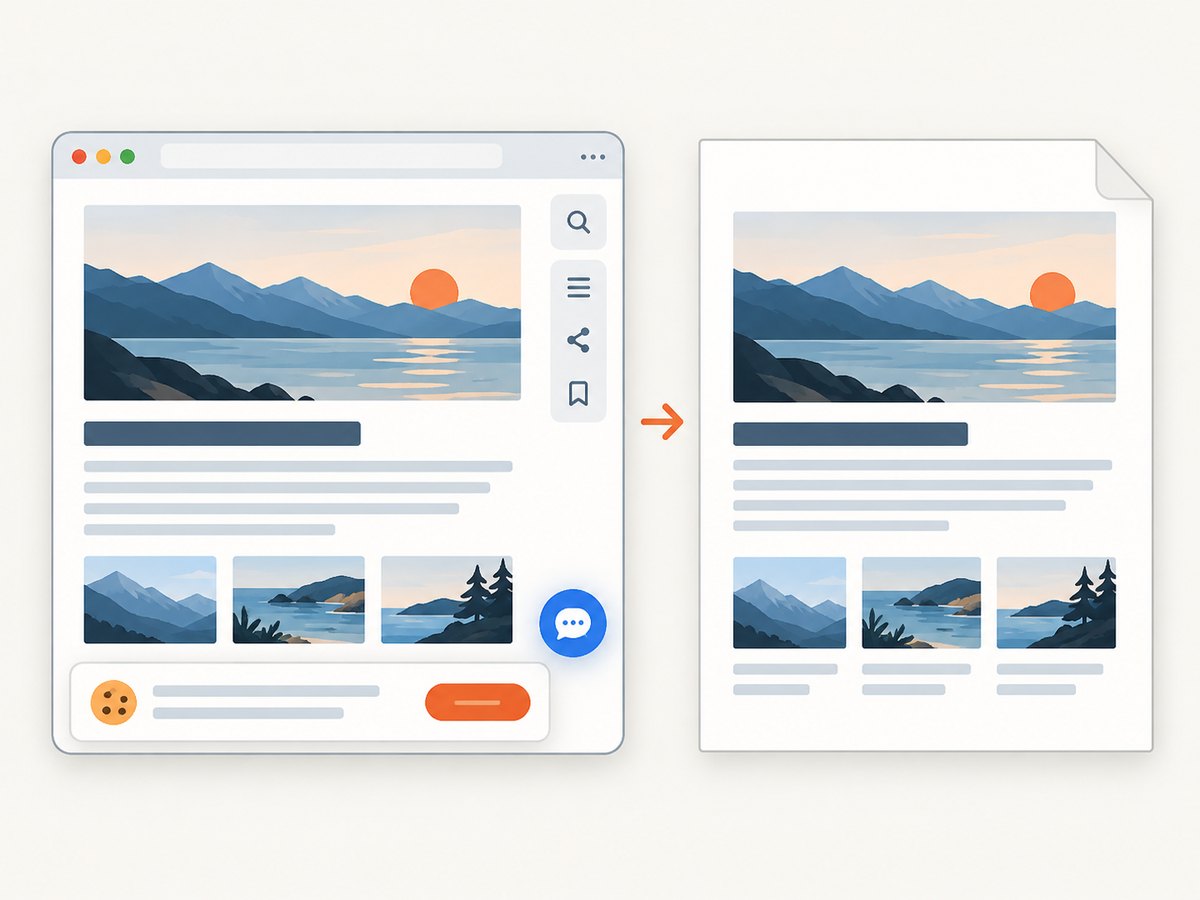
To hide HTML while generating a PDF with html2pdf.js, leave the element in the live DOM and mark it with data-html2canvas-ignore. html2canvas skips that element during rendering, and html2pdf.js passes the result to jsPDF. For conditional rules, use the ignoreElements predicate inside the html2canvas options object.
This approach keeps buttons, menus, debug panels, and other screen-only controls available to visitors while excluding them from the exported PDF. It also avoids changing CSS just before capture, which can cause layout shifts or restoration bugs.
1. The direct solution: mark elements to ignore
Here is a complete browser example. The invoice heading and paragraph appear in the PDF, while the button remains usable on screen and is omitted from the export.
<!doctype html>
<html lang="en">
<head>
  <meta charset="utf-8">
  <meta name="viewport" content="width=device-width, initial-scale=1">
  <title>html2pdf ignore example</title>
  <script src="https://cdnjs.cloudflare.com/ajax/libs/html2pdf.js/0.10.1/html2pdf.bundle.min.js"></script>
</head>
<body>
  <main id="print-area">
    <h1>Invoice</h1>
    <p>This paragraph is visible in the PDF.</p>
    <button data-html2canvas-ignore onclick="window.print()">
      Print controls
    </button>
  </main>

  <button id="download">Download PDF</button>

  <script>
    document.querySelector('#download').addEventListener('click', () => {
      html2pdf().set({
        margin: 0.5,
        filename: 'invoice.pdf',
        html2canvas: { scale: 2 },
        jsPDF: {
          unit: 'in',
          format: 'letter',
          orientation: 'portrait'
        }
      }).from(document.getElementById('print-area')).save();
    });
  </script>
</body>
</html>
The attribute is declarative: any descendant carrying data-html2canvas-ignore is excluded when html2canvas renders the selected element. You can put it on a button, a toolbar, a modal, a chat launcher, or a wrapper containing several controls.
When to use the attribute
- Use it for a small, known set of elements.
- Use it when the same element should always be hidden from exports.
- Use it when you want the live layout and interaction to remain unchanged.
The attribute does not remove the node from the DOM. It only affects the canvas rendering step used to build the PDF.
2. Conditional hiding with ignoreElements
For class-based or rule-based filtering, supply an ignoreElements function. html2canvas calls the predicate for each element; return true to omit that element.
const exportOptions = {
  margin: 0.5,
  filename: 'report.pdf',
  html2canvas: {
    scale: 2,
    ignoreElements: (element) => {
      return element.matches('.screen-only, [data-export="false"]');
    }
  },
  jsPDF: {
    unit: 'in',
    format: 'letter',
    orientation: 'portrait'
  }
};

html2pdf()
  .set(exportOptions)
  .from(document.getElementById('print-area'))
  .save();
This is useful when a shared component can be configured for different exports, or when several classes represent screen-only content. Keep the predicate fast and deterministic because it runs during the render walk.
Combining both methods
You can use the attribute for permanent exclusions and the predicate for a broader policy. For example, mark a one-off support widget with data-html2canvas-ignore and ignore every element with data-export="false". Document the rule so future components do not accidentally disappear from an export.
3. How the html2pdf pipeline works
html2pdf.js runs in the browser. The normal workflow is .set(options).from(element).save(). It hands the selected DOM subtree to html2canvas, which paints a canvas representation, then gives that image to jsPDF for PDF creation.
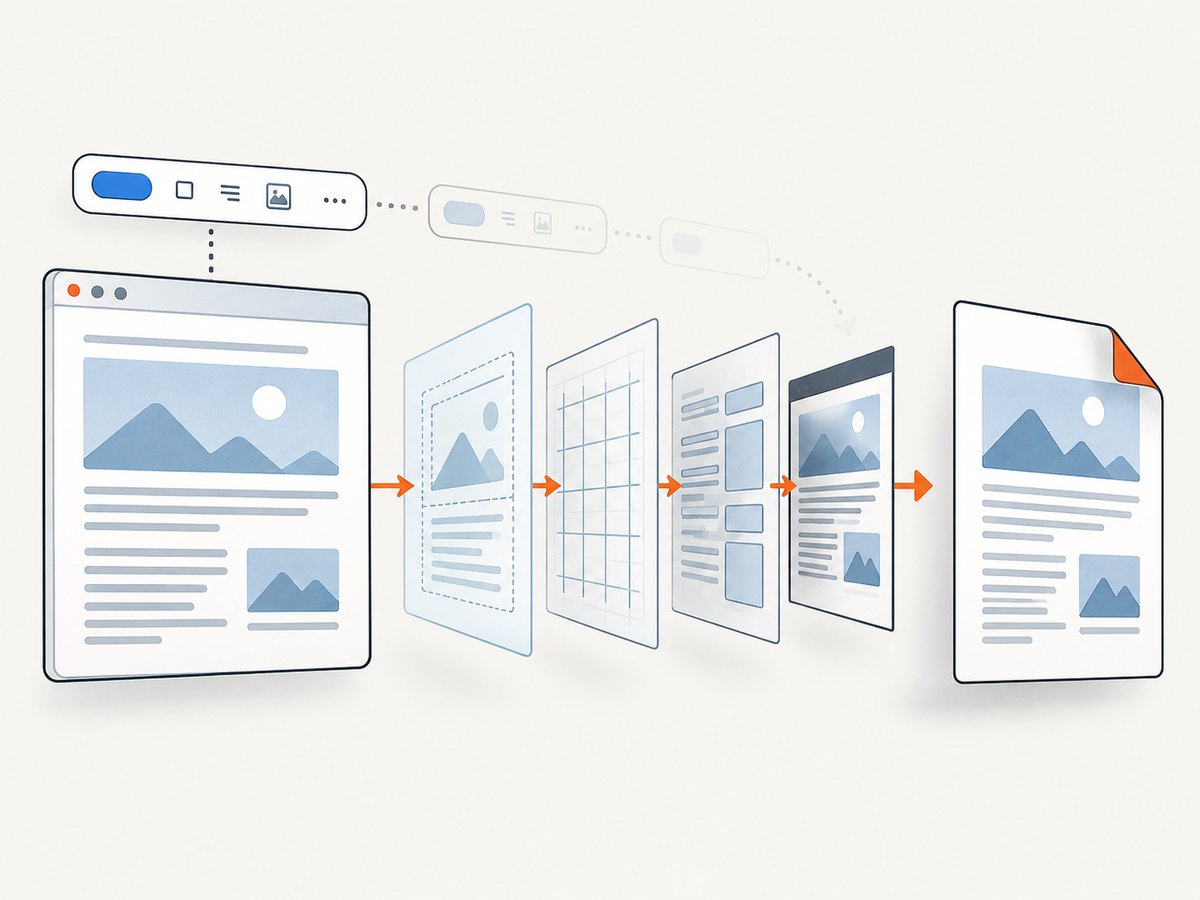
- Select a root element. Pass the invoice, report, or article container to
from(). - Filter nodes. html2canvas applies
data-html2canvas-ignoreandignoreElements. - Render the remaining DOM. Styles, fonts, images, and layout are converted into a canvas.
- Create the PDF. jsPDF places the rendered output on pages using your paper and margin settings.
- Save or return the file.
save()downloads it in the browser.
Because html2canvas depends on window, document, layout, and browser rendering APIs, this is not a direct Node.js-only renderer. A server-side Node process needs a real browser automation layer, or you can use a hosted capture service.
4. Choosing the right exclusion technique
| Technique | Best for | Trade-off |
|---|---|---|
data-html2canvas-ignore |
Simple, permanent exclusions | Each element must be marked |
ignoreElements |
Classes, attributes, and conditional policies | Predicate logic must stay correct and fast |
| Temporary CSS changes | Special export-only layout changes | Can shift layout, race with capture, or fail to restore |
Prefer renderer-level exclusion when your requirement is only “do not include this node.” Temporarily setting display:none can work, but it changes layout and may alter line wrapping, page breaks, and element dimensions. If you must change styles, save the original values, await the export, and restore them in a finally block.
5. Options that affect hidden-content exports
Scale and image quality
html2canvas.scale controls the rendering resolution. A value of 2 usually produces sharper text and images than the default device scale, but it increases canvas memory use and PDF size. Very large pages can exceed browser canvas limits at high scales.
Margins, paper, and orientation
Set margin in the units expected by your jsPDF configuration. Common choices include letter and A4, with portrait or landscape orientation. Test long tables and headings at page boundaries because html2pdf’s output is image based.
Waiting for dynamic content
Run the export only after fonts, images, and application data are ready. For images, wait for load or use a loading state. For asynchronous content, await the request before calling html2pdf. Hiding a node does not prevent other resources in the selected subtree from affecting render time.
Element versus full-page capture
Pass a narrow root such as #print-area when controls sit outside the document. A smaller root reduces work and prevents unrelated navigation from entering the PDF. If you need the complete page, create a dedicated export wrapper and mark every screen-only region explicitly.
6. A reusable export helper
async function downloadPdf(root, filename = 'export.pdf') {
  if (!root) throw new Error('Export root was not found');

  const options = {
    margin: 0.5,
    filename,
    image: { type: 'jpeg', quality: 0.95 },
    html2canvas: {
      scale: Math.min(window.devicePixelRatio || 1, 2),
      ignoreElements: (element) => (
        element.matches('.screen-only, [data-export="false"]')
      )
    },
    jsPDF: {
      unit: 'in',
      format: 'letter',
      orientation: 'portrait'
    }
  };

  await html2pdf().set(options).from(root).save();
}

document.querySelector('#download').addEventListener('click', () => {
  downloadPdf(document.querySelector('#print-area'), 'invoice.pdf')
    .catch(console.error);
});
The helper caps the scale at two to reduce memory surprises on high-density displays. Adjust that policy for your documents, and keep the export root stable so selectors and page breaks behave consistently.
7. Common errors and fixes
| Symptom | Likely cause | Fix |
|---|---|---|
| The button still appears | The attribute is on a different node, or the export root excludes the intended ancestor | Put data-html2canvas-ignore directly on the rendered button or verify the from() root. |
| Everything disappears | ignoreElements returns true for the root or a broad ancestor |
Log matched elements and restrict the selector to screen-only nodes. |
| PDF is blank | Capture starts before content is mounted, or the root has no dimensions | Await rendering and data loading; confirm the root is visible and sized. |
| Images are missing | Cross-origin image restrictions or images not loaded yet | Use same-origin assets or configure a suitable image-loading strategy, then wait for completion. |
| Text is blurry | Low canvas scale or a very large page being downsampled | Increase scale moderately and split oversized documents when practical. |
| Layout differs from the browser | html2canvas does not implement every CSS feature exactly like the browser | Simplify problematic CSS, use export-specific styles, and verify fonts and dimensions. |
| Export hangs or crashes | Huge DOM, high scale, or canvas memory limits | Capture a smaller root, lower scale, remove unnecessary nodes, and export sections separately. |
Node.js says window is undefined |
html2canvas requires a browser environment | Run the code in a browser or use browser automation/hosted capture for server-side work. |
8. Performance, reliability, and cost notes
Rendering cost grows with DOM size, image dimensions, scale, and the number of pages. Marking an element ignored saves painting work for that subtree, but it does not make network requests outside the subtree disappear. Keep export roots focused, load only the data required for the document, and avoid exporting hidden duplicate layouts.
For reliability, treat export as an asynchronous operation. Disable duplicate clicks while a job is running, surface errors to the user, and retry only when the failure is transient. Very large reports are more reliable when divided into logical sections or generated by a server-side PDF system designed for long documents.
html2pdf.js is client-side open-source software, so there is no per-request ScreenshotNeo charge for this local workflow. Your costs are browser CPU, memory, bandwidth, and any infrastructure you add for server-side rendering. Validate output in the browsers your users rely on because browser differences and html2canvas limitations can affect complex CSS, cross-origin images, and very large canvases.
9. Or skip the browser setup
If you need a clean screenshot or PDF from a URL without maintaining browser code, ScreenshotNeo provides a website screenshot API and MCP server. It accepts one GET request and can capture PNG, JPEG, WebP, or PDF output. Cookie and consent banners are accepted and removed before capture, along with more than 60 known consent platforms, newsletter popups, and chat widgets; each step can be turned off.
Only clean shots are billed. Bot checks or CAPTCHAs, blank pages, timeouts, failed loads, and cache hits cost nothing, and the response identifies the result with X-Page-Verdict and X-Billed headers. An MCP server exposes take_screenshot, get_page_info, and capture_pdf to Claude, Cursor, and other MCP clients.
curl -G "https://api.screenshotneo.com/v1/shot" \
  -d access_key=YOUR_API_KEY \
  --data-urlencode url=https://stripe.com \
  -o shot.webp
import requests
r = requests.get(
"https://api.screenshotneo.com/v1/shot",
params={"access_key": "YOUR_API_KEY", "url": "https://stripe.com"},
timeout=90,
)
r.raise_for_status()
open("shot.webp", "wb").write(r.content)const q = new URLSearchParams({
access_key: 'YOUR_API_KEY',
url: 'https://stripe.com'
});
const res = await fetch(`https://api.screenshotneo.com/v1/shot?${q}`);
if (!res.ok) throw new Error(`HTTP ${res.status}`);
const bytes = new Uint8Array(await res.arrayBuffer());
// Save bytes as shot.webp in your application.See the ScreenshotNeo API documentation for output formats and options. You can select an element by CSS selector, capture full pages with lazy images loaded, set dark mode and device presets, use any viewport and retina scale, generate PDFs with paper size, margins, landscape mode, and page ranges, inject CSS or JavaScript, click before capture, wait for a selector, delay, or network idle, block ads and resource types, provide headers, cookies, user agents, authorization, timezone, and geolocation, use transparent backgrounds, resize images, cache with a chosen TTL, create signed links, submit asynchronous jobs with signed webhooks, capture up to 100 URLs per call, and read usage through the API.
The free plan includes 1,000 screenshots each month with no card. Paid plans start at $5 for 3,000 shots; every feature is available on every plan, and yearly billing gives two months free. Create a free ScreenshotNeo account to start.
10. FAQ
Does hiding an element remove it from the live page?
No. The node remains in the DOM and can continue handling clicks, focus, and other interactions. The exclusion applies to html2canvas rendering.
Can I hide a parent and keep one child?
Do not ignore the parent if a child must appear. Apply the attribute to the specific controls, or use a predicate that matches only the unwanted nodes.
Can this remove content from a PDF generated on a server?
The documented hooks apply to html2canvas in a browser. A server renderer may use a different engine and exclusion mechanism.
Why does the PDF look like an image?
html2pdf.js uses html2canvas to render the DOM into a canvas before jsPDF creates the document. This image-based pipeline explains some text-selection, CSS, and large-canvas limitations.
Should I use CSS @media print instead?
Print styles are useful for browser print dialogs, but they do not replace renderer-level filtering when html2pdf is producing a canvas snapshot. You can use both when their rules are tested together.


