How to Hide PDF Headers and Footers on the Cover Page
Hide headers and footers on a PDF cover page while keeping them on later pages. Steps for Word, Google Docs, Acrobat, and a browser-based workaround.

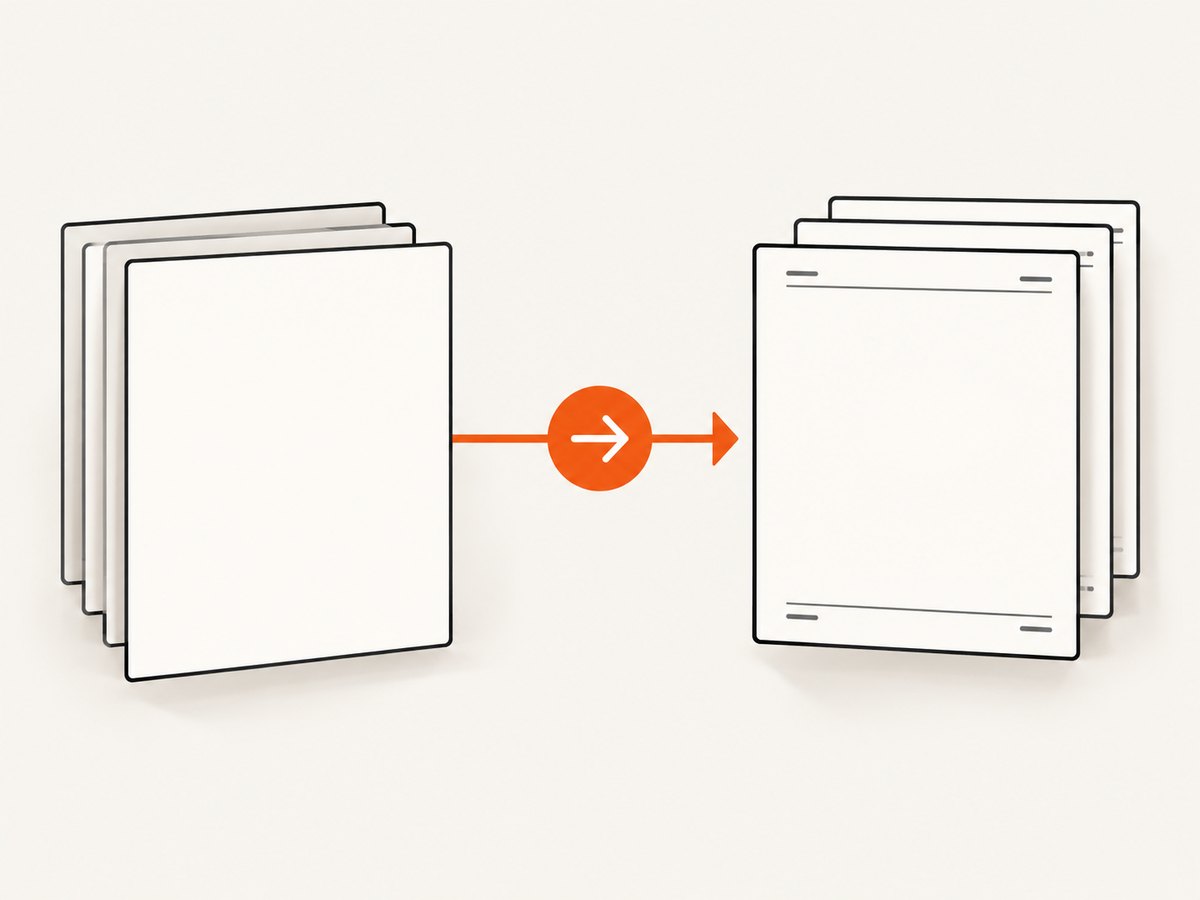
To hide headers and footers on a PDF cover page while keeping them on later pages, change the source document before exporting it. In Microsoft Word, enable Different First Page; in Google Docs, enable Different first page in a document set to Pages format. Then export or download the document as a PDF. If you only have the finished PDF, Acrobat’s documented Remove command removes headers and footers from the PDF, but Adobe’s instructions do not establish that it can remove them from only the cover page.
The key distinction is whether you can edit the source and whether the cover is the document’s first page or the first page of a later section. Use a section break when you need a different treatment at a point inside the document.
1. Choose the right method
| Your situation | Recommended method | What to expect |
|---|---|---|
| You can edit a Word source; cover is page 1 | Turn on Different First Page | Leave the first-page header/footer blank; later pages can retain the regular content. |
| You can edit a Google Docs source; cover is page 1 | Use Pages format and turn on Different first page | The first page or section can have distinct header/footer content. |
| The cover begins a section later in the document | Use a section break and section-specific header/footer settings | Check Link to Previous so the section is independent where needed. |
| You only have the finished PDF | Use Acrobat’s Header and footer > Remove if removing them throughout is acceptable | The cited workflow is general removal; it does not document cover-only removal. |
2. Microsoft Word: hide the first-page header and footer
Word’s Different First Page setting gives page one its own header and footer areas. Leave those areas empty to produce a clean cover, while the regular header and footer remain available on following pages.
- Open the document and go to the first page.
- Double-click in the header area or footer area to open the Header & Footer controls.
- Select Different First Page.
- Inspect the first-page header and footer. Remove any content there, or add distinct cover content if you want it.
- Close Header & Footer, then inspect page two and a later page to confirm the regular header and footer are still present.
- Export or save the document as a PDF, then check the resulting PDF page by page.
Microsoft documents this control for recent desktop versions, including Microsoft 365 and Word 2024, 2021, 2019, and 2016, including Mac editions. Interface labels or placement may vary slightly by version. See Microsoft’s instructions for changing or deleting a header or footer on a single page.
When the cover is not document page one
If a cover page begins a later section, isolate that section rather than relying on the document’s first-page setting:
- Place the cursor where the new section should begin.
- Choose Layout > Breaks > Next Page to insert a section break. A section break is different from a page break: it creates a new section with its own layout controls.
- Open the header in the new section and turn off Link to Previous. Do the same for the footer if you need to control it independently.
- Remove or change the header/footer content in that section. Check the next section too, especially if it should resume the original running header and footer.
- Export to PDF and verify the transition pages.
Headers and footers can have separate linking behavior, so disabling the link for one does not replace checking the other. If you accidentally remove content from later pages, undo the change and confirm that you are editing the intended section and have the correct Link to Previous state.
3. Google Docs: use Different first page
Google Docs supports different headers and footers on the first page of a document or section. The document needs to be in Pages format; headers and footers are not available in Pageless format.
- Open the document and make sure it uses Pages format.
- Click in the header or footer area on the cover page.
- Enable Different first page in the header/footer options.
- Leave the first-page area blank if you want no header or footer on the cover. Later pages can keep their regular content.
- For a cover at the start of a later section, insert a section break and check Link to previous so the section’s header and footer behavior is independent as intended.
- Choose the PDF download/export option and inspect the resulting PDF, including the first page and the pages after it.
Google’s help page explains first-page and section-specific header/footer controls, plus header/footer margin settings. If the option is missing, confirm the document is in Pages format and that you clicked inside the header or footer. See Google Docs Editors Help.
4. Existing PDF: what Acrobat’s removal command does
If the original document is unavailable, Adobe documents a workflow for removing headers and footers from a PDF. Open the PDF in Acrobat, choose Edit from the global bar, select Header and footer > Remove, confirm, and save the file. Adobe also documents batch removal for selected PDFs.
This workflow is appropriate when you want the header and footer removed from the PDF generally. The cited Acrobat instructions do not describe restricting removal to the cover page while preserving the same items on later pages. If that page-specific result is required, the most reliable documented route is to change the source document’s first-page or section settings and export again, when the source is available. Refer to Adobe Acrobat Help: Remove headers and footers.
5. Verify the exported PDF
Do not stop when the source editor looks right. Export can reveal a page-break, section, or layout issue that is easy to miss while editing. Use this short review checklist:
- The cover has no unwanted header or footer content.
- The next page has the expected running header and footer.
- Later sections retain their intended content and numbering.
- Any section after the cover resumes the correct header/footer settings.
- The header/footer margins do not push cover content into an awkward position.
- The PDF has the expected page count and no blank page introduced by a section break.
If page numbers are part of the footer, inspect numbering on both sides of a section boundary. Hiding the cover’s footer is separate from deciding whether later page numbers should continue, restart, or use another format.
6. Troubleshooting
| Symptom | Likely cause | Fix |
|---|---|---|
| The header disappears from every page in Word | The edit affected a linked section or the regular header instead of the first-page area. | Undo, open the intended section, enable Different First Page, and inspect the first-page and regular header areas separately. |
| The cover still shows a header in Google Docs | The document is in Pageless format, or the setting was not enabled for the correct page/section. | Switch to Pages format, click in the cover header, enable Different first page, then check the section settings. |
| A later section changes when the cover is edited | Its header or footer is linked to the previous section. | At the section boundary, disable Link to Previous for the header and footer that need independent content. |
| Page two loses its header after export | The header was deleted from the shared regular area rather than only the first-page area. | Restore the regular header, use the first-page-specific area for the cover, and export again. |
| Acrobat removes the header from all pages | The documented Remove command is being applied as a PDF-wide operation. | Use the source document’s page-specific controls when only the cover should differ; Adobe’s cited instructions do not promise cover-only removal. |
| A blank page appears after adding a section break | The break type or its position changed pagination. | Inspect the break and surrounding paragraph/page layout settings; use the appropriate next-page section boundary and review the exported page count. |
| The cover is page 3, not page 1 | Different First Page applies to a document or section’s first page, not an arbitrary page number. | Create a section boundary before the cover and configure that section’s first-page behavior, or adjust the source document structure. |
7. Browser-based PDF workflow
If your document is generated from HTML in a browser, the same principle applies: generate the PDF with the cover and later-page running content configured separately in the source layout. A website screenshot service can also capture a web page as an image or PDF, but that does not itself change an existing PDF’s headers or footers. If your task is capturing a rendered page or checking a PDF-like web view, you can inspect the output after generation.
Or skip the browser setup
ScreenshotNeo is a website screenshot API and MCP server. For a one-call capture of a page as a PDF, use the documented endpoint and request parameters; see the ScreenshotNeo API documentation. This is for capturing a rendered page, not for editing headers and footers inside an existing PDF.
curl -G "https://api.screenshotneo.com/v1/shot" -d access_key=YOUR_API_KEY --data-urlencode url=https://stripe.com -d format=pdf -o page.pdfimport requests
r = requests.get(
"https://api.screenshotneo.com/v1/shot",
params={"access_key": "YOUR_API_KEY", "url": "https://stripe.com", "format": "pdf"},
timeout=90,
)
r.raise_for_status()
open("page.pdf", "wb").write(r.content)const q = new URLSearchParams({
access_key: 'YOUR_API_KEY',
url: 'https://stripe.com',
format: 'pdf'
});
const res = await fetch(`https://api.screenshotneo.com/v1/shot?${q}`);
if (!res.ok) throw new Error(`Capture failed: ${res.status}`);
const fs = await import('node:fs/promises');
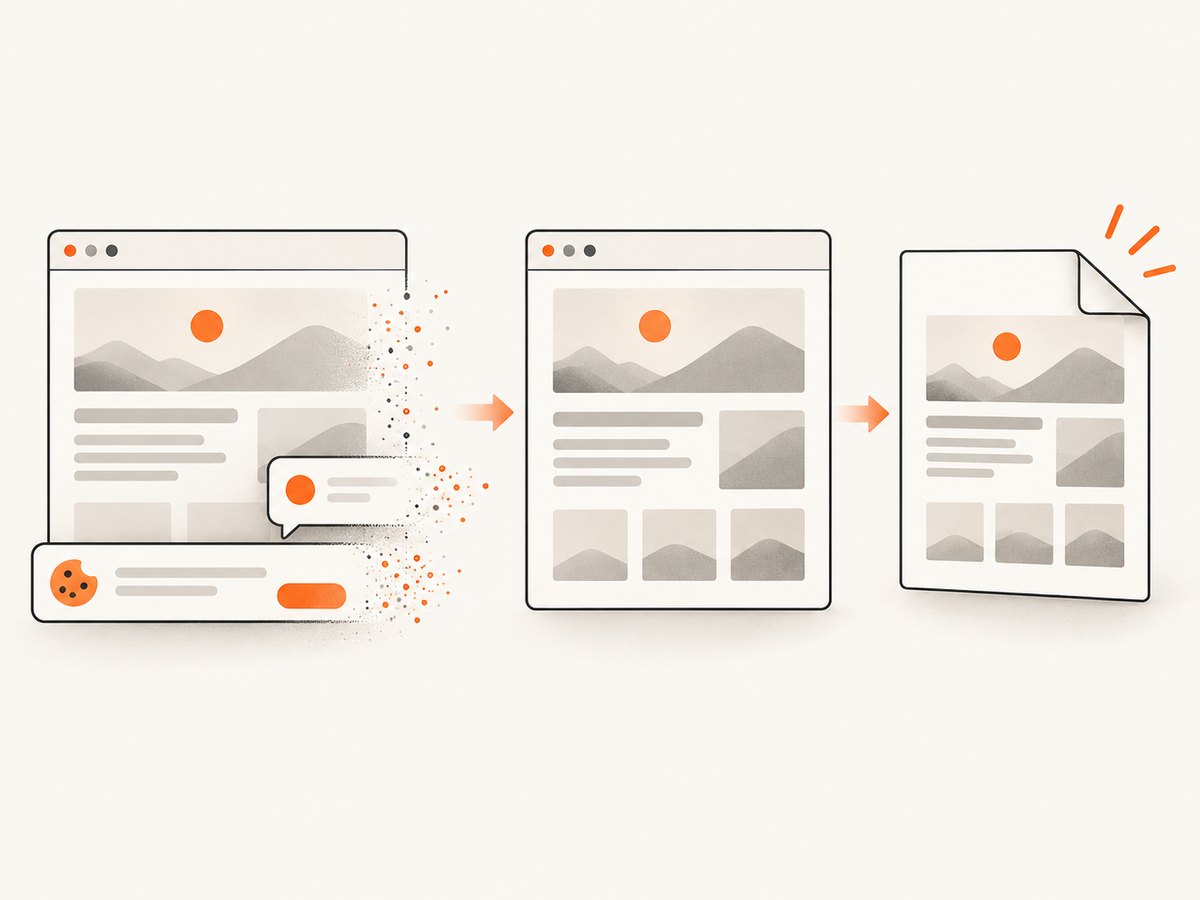
await fs.writeFile('page.pdf', Buffer.from(await res.arrayBuffer()));ScreenshotNeo accepts a URL and returns a clean screenshot in PNG, JPEG, or WebP, or a PDF. Its capture options include PDF page size, margins, landscape orientation, and page ranges, as well as custom CSS and JavaScript, waits, and request blocking. Cookie banners, newsletter popups, and chat widgets are removed before capture, and each of those cleanup steps can be turned off. Bot checks/CAPTCHAs, blank pages, timeouts, failed loads, and cache hits cost nothing; response headers identify the page verdict and whether it was billed. An MCP server provides take_screenshot, get_page_info, and capture_pdf for Claude, Cursor, and other MCP clients.
Plans include 1,000 shots per month free with no card, then Starter at $5 for 3,000, Growth $15 for 15,000, Pro $39 for 60,000, Scale $99 for 250,000, and Business $249 for 1,000,000; yearly billing gives two months free. Every feature is on every plan. Create a free ScreenshotNeo account for 1,000 screenshots a month with no card.
8. Performance, reliability, and cost considerations
For a document you control, editing the source is usually the shortest path: configure the cover once, export, and review. A PDF capture API is useful for rendering a live page to a PDF, but it introduces a network request and depends on the target page loading. Give capture requests enough time for the page’s content to settle, and use the service’s verdict and billing headers to distinguish a successful capture from an empty or failed result.
For repeated captures, consider caching when the page does not need to be refreshed on every request. For large workloads, the product supports asynchronous jobs with signed webhooks and bulk capture for up to 100 URLs per call; use the usage API to review consumption. Avoid assuming a cache hit represents a fresh render. When making cost estimates, count only successful clean shots as billable according to the supplied product policy, and account for the selected plan’s monthly allowance.
9. FAQ
Can I hide a header on just one arbitrary page?
Use section-based controls around that page and configure the relevant header/footer independently. The first-page option applies to a document or section’s first page, not any arbitrary page number.
Will hiding the cover footer remove page numbers from the rest of the document?
It should not when the first-page or section-specific areas are configured correctly. Check numbering and the following pages in the exported PDF.
Can Acrobat’s Remove command preserve headers on interior pages?
The cited Adobe instructions document removal from the PDF and do not establish a cover-only mode. Use source-document controls for a documented first-page-specific result.
Does ScreenshotNeo edit an existing PDF’s header or footer?
No such editing feature is included in the supplied product facts. ScreenshotNeo captures web pages as images or PDFs; edit the source document or use an appropriate PDF editor for existing files.


