How to Hide Popups, Ads, and Overlays in Website Screenshots
Remove popups, cookie banners, ads, and chat widgets from screenshots with Playwright, CSS, masks, and a hosted API workflow.

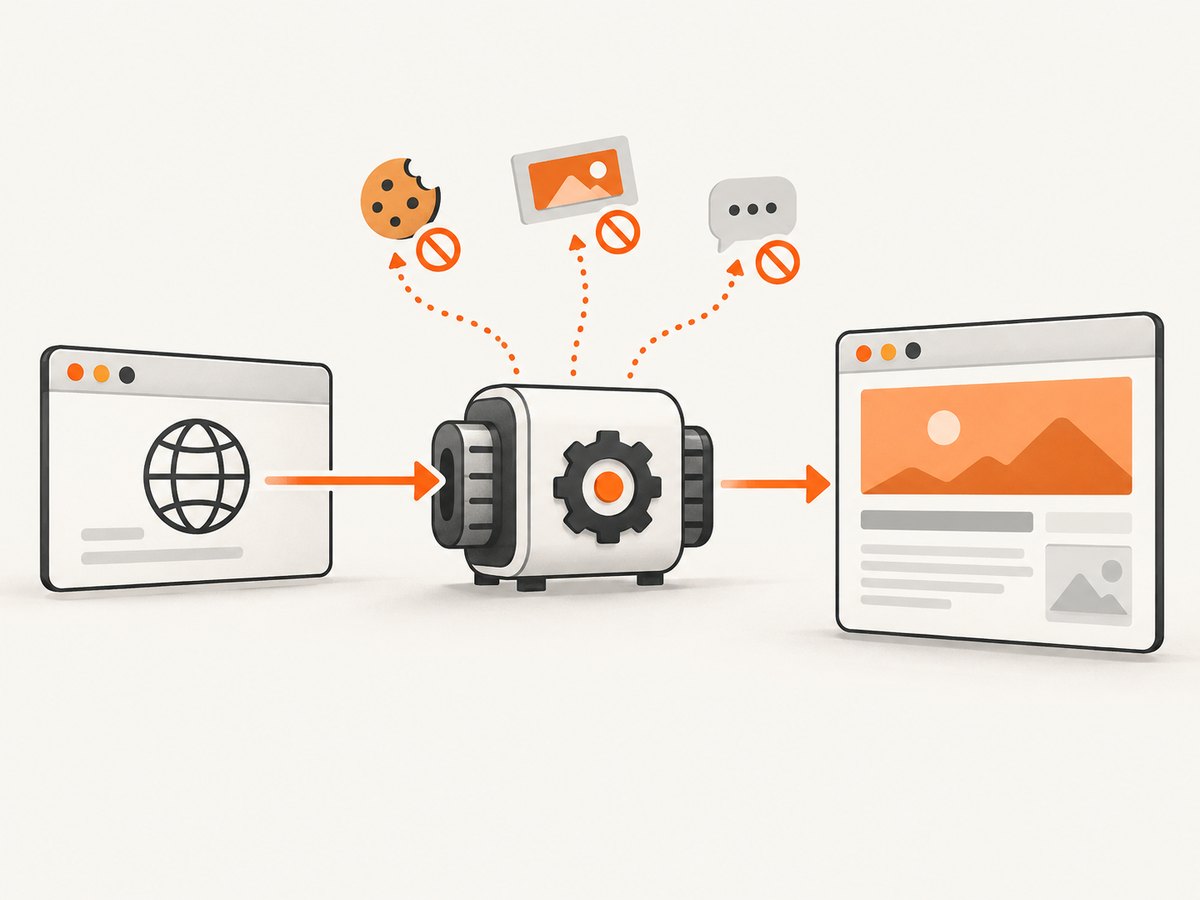
To hide popups, ads, and overlays in a website screenshot, first decide whether the element represents a real consent or access decision. Use the site’s own close or consent control when that choice should affect page state. For repeatable automation, dismiss predictable overlays with Playwright locators, inject narrowly targeted CSS at capture time, or use a screenshot mask when you only need to cover pixels. Then inspect the resulting image for blank gaps, sticky elements, and content hidden by an over-broad selector.
There is no universal selector for “all popups.” A selector containing ad, modal, or banner can also match useful navigation, article content, or a required age gate. Treat each overlay according to its purpose and test the final image.
Choose the right removal method
| Method | Changes page state? | Layout collapses? | Best use |
|---|---|---|---|
| Site-provided close or consent control | Usually yes | Usually yes | Consent, login, promotional dialogs, and normal user flows |
| Playwright locator handler | Yes, by running a handler | Usually yes | Intermittent overlays that appear during actions |
| Injected or capture-time CSS | Usually no application state | Yes, if using display:none |
Repeatable visual suppression of known selectors |
| Screenshot mask | No | No | Covering a region while preserving the page layout |
| DevTools focus emulation | Changes visibility behavior | Depends | Investigating focus-dependent menus and controls |
Playwright documents page styles, screenshot-time styles, masks, full-page screenshots, locator handlers, and explicit overlay dismissal in its Page API documentation. A mask covers a locator’s bounding box; it does not remove the element or reveal what is behind it.
One-off screenshots in a browser
- Load the exact URL and wait for the layout to settle.
- Identify the overlay. Decide whether it is a consent prompt, access gate, advertisement, newsletter prompt, chat widget, or focus-dependent control.
- For consent or access, use the site’s documented choice when appropriate. For a promotional prompt, use its close control if available.
- Capture the viewport or the complete scrollable page.
- Open the image and check the top, bottom, sticky edges, and areas where the overlay was removed.
This workflow preserves normal site behavior better than deleting arbitrary nodes. Some dialogs are requirements rather than decoration. Google Search Central specifically recognizes mandatory gates such as age gates and recommends avoiding full-page interstitials when a smaller banner can communicate the message; see its guidance on interstitials and dialogs.
Automate removal with Playwright
Dismiss a predictable overlay
When the page has a stable, visible close or accept control, make that action part of the normal flow. Replace the example selectors with selectors inspected on the target site.
import { chromium } from 'playwright';

const browser = await chromium.launch();
const page = await browser.newPage({ viewport: { width: 1440, height: 900 } });
await page.goto('https://example.com', { waitUntil: 'networkidle' });

const close = page.locator('[data-testid="newsletter-close"]');
if (await close.isVisible().catch(() => false)) {
  await close.click();
}

const consent = page.getByRole('button', { name: /accept|agree/i });
if (await consent.isVisible().catch(() => false)) {
  await consent.click();
}

await page.screenshot({ path: 'clean.png', fullPage: true });
await browser.close();
Do not blindly click every button containing “accept.” Accepting cookies can create a real consent record and change later requests. Browserless describes a hosted blockConsentModals=true option and a custom-selector fallback in its cookie consent example; its documented behavior is vendor-specific and should be reviewed for your use case.
Hide known selectors with CSS
Playwright can insert a stylesheet with page.addStyleTag(), or apply a style string only during a screenshot. Keep selectors specific to the site. Removing an element with display:none lets surrounding content reflow.
import { chromium } from 'playwright';

const browser = await chromium.launch();
const page = await browser.newPage();
await page.goto('https://example.com', { waitUntil: 'domcontentloaded' });
await page.waitForTimeout(1000);

await page.addStyleTag({ content: `
  .site-newsletter-modal,
  [data-consent-banner],
  .support-chat-launcher,
  .advertisement-slot--sidebar {
    display: none !important;
  }
` });

await page.screenshot({ path: 'clean-full-page.png', fullPage: true });
await browser.close();
For a one-shot style that cannot affect other actions, use screenshot-time CSS:
await page.screenshot({
  path: 'clean.png',
  fullPage: true,
  style: `
    .site-newsletter-modal,
    [data-consent-banner],
    .support-chat-launcher { display: none !important; }
  `
});
Use a mask when layout must stay unchanged
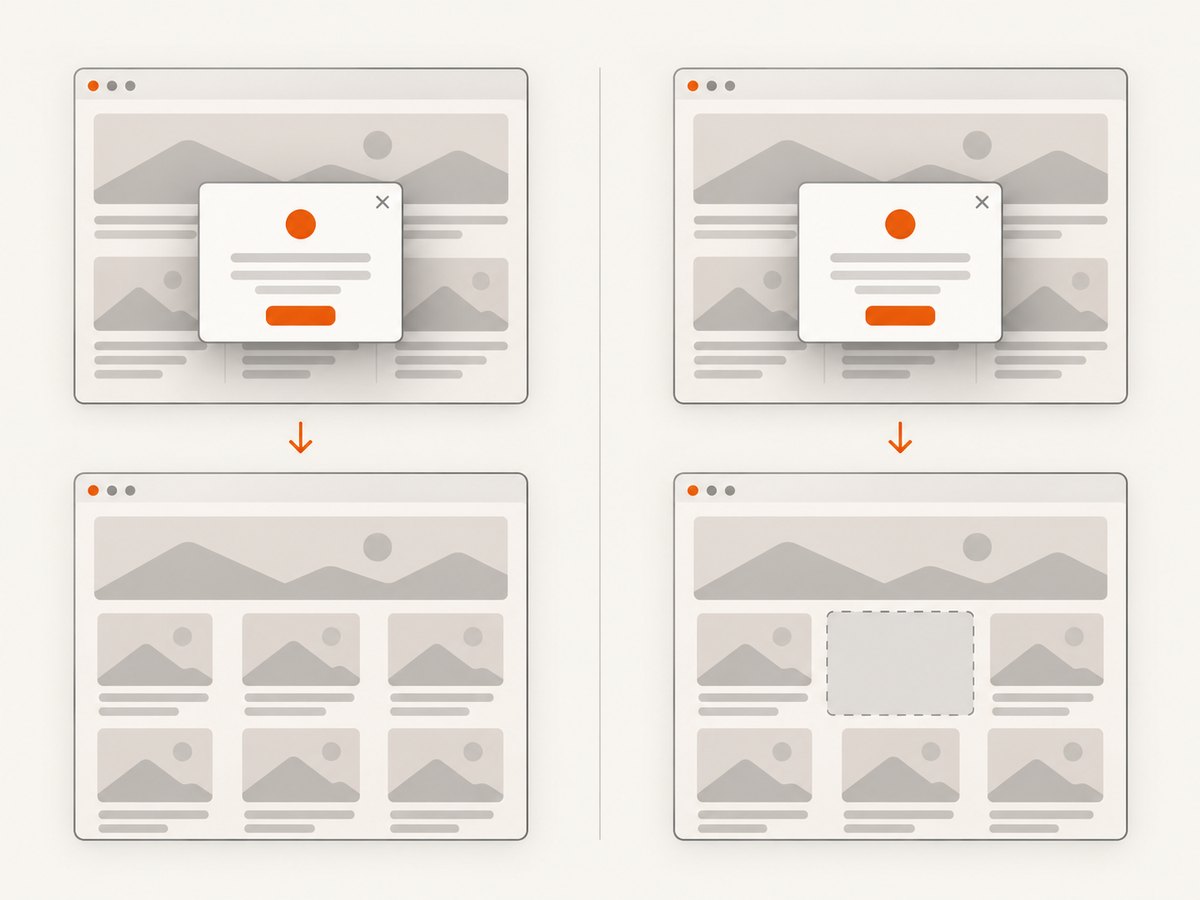
A mask covers the selected locator’s bounding box in the output. It is useful when an element’s presence affects layout, or when you must avoid changing page state. It can also hide useful content underneath, so inspect the image.
const chat = page.locator('.support-chat-launcher');
await page.screenshot({
  path: 'masked.png',
  fullPage: true,
  mask: [chat]
});
Handle intermittent overlays
For an overlay that unexpectedly blocks an action, Playwright’s page.addLocatorHandler() can run a handler when the locator is visible. The handler is checked around actions and assertions; it is not a background watcher that fires merely because a dialog appeared while the page was idle.
const popup = page.locator('.intermittent-promo');
await page.addLocatorHandler(popup, async () => {
  const dismiss = popup.getByRole('button', { name: /close|dismiss/i });
  if (await dismiss.isVisible().catch(() => false)) await dismiss.click();
});

await page.getByRole('link', { name: 'Documentation' }).click();
Handler execution counts toward the relevant timeout. For predictable overlays, an explicit wait and dismissal is easier to reason about and debug.
Full-page capture, timing, and lazy content
fullPage: true captures the complete scrollable page, but it does not guarantee that every lazy image has loaded. Wait for a meaningful selector, a known delay, or network idle, then check image completion before capture.
await page.goto('https://example.com/articles/guide', { waitUntil: 'networkidle' });
await page.waitForSelector('main article');
await page.evaluate(async () => {
  const images = Array.from(document.images);
  await Promise.all(images.map(img => {
    if (img.complete) return Promise.resolve();
    return new Promise(resolve => {
      img.addEventListener('load', resolve, { once: true });
      img.addEventListener('error', resolve, { once: true });
    });
  }));
});
await page.screenshot({ path: 'article.png', fullPage: true });
A long delay can improve completeness but increases runtime and the chance of timeouts. Prefer a selector or application-specific readiness signal over an arbitrary multi-second wait.
Block ads, trackers, and resources carefully
Request blocking can prevent an advertisement or tracker from loading, but blocking a broad resource type can also remove fonts, styles, images, or application data. Keep an allowlist or block only known hosts and selectors.
await page.route('**/*', async route => {
  const url = route.request().url();
  if (url.includes('ads.example') || url.includes('tracker.example')) {
    await route.abort();
  } else {
    await route.continue();
  }
});
Run routing before navigation. If a page becomes blank or unstyled, remove the rule and add narrower host or path matches.
Focus-dependent controls and DevTools
Some menus, date pickers, and dropdowns appear only while a page is focused. Chrome DevTools Rendering has “Emulate a focused page” for inspecting these states. Chrome warns that this sets document.visibilityState to visible and prevents the visibilitychange event from firing, so treat it as a debugging aid rather than a guarantee of ordinary page behavior. The workflow is documented in Chrome’s Rendering effects guide.
Common errors and fixes
| Symptom | Likely cause | Fix |
|---|---|---|
| Popup remains | Selector is wrong, iframe content is targeted, or the popup appears after capture | Inspect the DOM, wait for its visible state, and handle the correct frame or add a readiness wait. |
| Content disappears with the ad | A broad selector matched a shared container | Use a site-specific class or attribute and compare a before/after screenshot. |
| Large blank area remains | visibility:hidden or masking kept the element’s box |
Use display:none when reflow is desired, or accept the reserved space deliberately. |
| Screenshot cuts off content | Viewport capture was used instead of full-page capture, or the page had not finished expanding | Set fullPage: true and wait for the content and images that control page height. |
| Click times out | Overlay is hidden, covered, or the selector matches multiple elements | Use a visible locator, narrow the selector, and inspect the trace or DOM state. |
| Page is blank after blocking | A required script, stylesheet, font, or API request was aborted | Remove broad blocking and add host/path-specific rules incrementally. |
| Consent keeps returning | The choice is stored in cookies or local storage that is discarded between runs | Persist the storage state when that is appropriate, or repeat the site-provided consent flow. |
| Captcha or bot check appears | The site detected automation or requires access verification | Do not try to bypass an access control. Follow the site’s allowed flow or use an authorized capture service. |
Performance, reliability, and cost considerations
- Reduce work before capture: use a stable viewport, wait for a specific readiness selector, and avoid unbounded network-idle waits on pages with continuous analytics traffic.
- Reuse the browser: for batches, keep one browser process and create isolated contexts or pages. Repeated cold launches add startup time.
- Control page length: full-page screenshots consume more memory than viewport shots. Extremely long pages may need section captures and stitching.
- Make retries safe: use a bounded timeout, record the URL and selector set, and retry transient navigation failures without repeating irreversible consent actions unnecessarily.
- Inspect verdicts: a successful HTTP response does not prove that the image contains useful content. Check dimensions, file size, and a known page marker.
- Respect meaning: removing a cookie banner, age gate, login dialog, or paywall can change what the page communicates. Document the policy for your capture pipeline.
Or skip the browser setup
ScreenshotNeo provides a website screenshot API and MCP server. It accepts a URL and returns PNG, JPEG, WebP, or PDF. Before capture, it accepts the cookie or consent banner like a visitor and removes more than 60 known consent platforms, newsletter popups, and chat widgets; each step can be turned off. Only clean shots are billed: bot checks, CAPTCHAs, blank pages, timeouts, failed loads, and cache hits cost nothing. The response reports the result with X-Page-Verdict and X-Billed headers.
See the ScreenshotNeo API documentation for the full option list. Relevant controls include full-page capture with lazy images loaded, CSS-element capture, dark mode, 12 device presets or custom viewports, retina scale, PDF paper size and margins, custom CSS and JavaScript, clicks, selector or delay waits, network-idle waits, ad/tracker/request blocking, headers, cookies, user agents, Authorization, timezone, geolocation, transparent backgrounds, resizing, configurable cache TTL, signed image links, asynchronous jobs with signed webhooks, bulk capture for up to 100 URLs, usage reporting, and an OpenAPI specification.
One-call examples
curl -G "https://api.screenshotneo.com/v1/shot" -d access_key=YOUR_API_KEY --data-urlencode url=https://stripe.com -o shot.webpimport requests
r = requests.get("https://api.screenshotneo.com/v1/shot", params={"access_key": "YOUR_API_KEY", "url": "https://stripe.com"}, timeout=90)
open("shot.webp", "wb").write(r.content)const q = new URLSearchParams({ access_key: 'YOUR_API_KEY', url: 'https://stripe.com' });
const res = await fetch(`https://api.screenshotneo.com/v1/shot?${q}`);ScreenshotNeo also provides an MCP server with take_screenshot, get_page_info, and capture_pdf tools for Claude, Cursor, and other MCP clients. Every feature is available on every plan: 1,000 shots per month free with no card, then Starter is $5 for 3,000, Growth $15 for 15,000, Pro $39 for 60,000, Scale $99 for 250,000, and Business $249 for 1,000,000. Yearly billing gives two months free. Create a free ScreenshotNeo account and start with 1,000 screenshots a month without a card.
FAQ
Should I hide a cookie banner or click Accept?
Click the site’s control when the consent decision is part of the intended user flow. Use CSS or a mask only when you deliberately need a presentation-only image and have considered the meaning of the dialog.
Does a mask remove an overlay?
No. It covers the locator’s bounding box in the screenshot. The element remains in the page and its layout remains in place.
Why does full-page capture still show a sticky chat button?
Sticky elements can be rendered at each captured scroll position. Hide the specific launcher with CSS, dismiss it through its control, or mask its locator before capture.
Can I remove every element whose class contains “ad”?
That is unsafe. The text may occur in navigation, branding, or legitimate content. Start with inspected, site-specific selectors.
When should I use a hosted API?
Use one when you need repeatable captures across many URLs, consent and popup handling, caching, PDFs, asynchronous jobs, or AI-agent access without maintaining browser infrastructure.


