How to Hide Popups Before Capturing Individual Elements with Python Selenium
Hide JavaScript dialogs, cookie banners, and modal overlays in Selenium, then capture a clean WebElement screenshot with reliable waits.
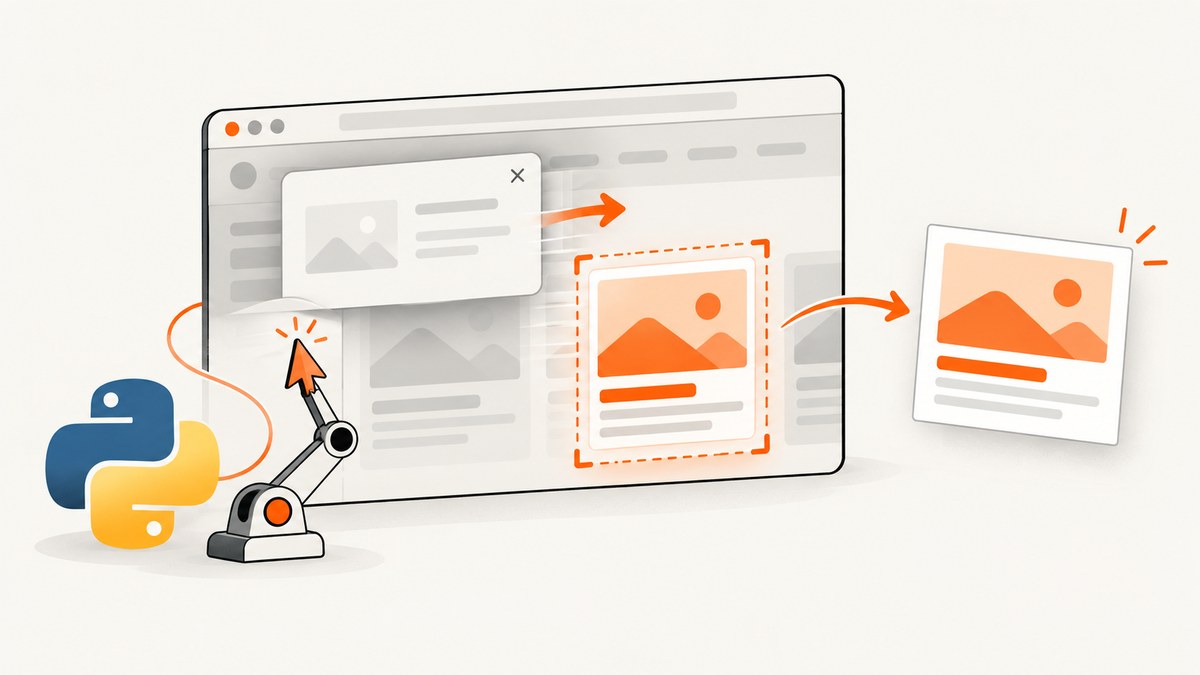
To hide a popup before capturing one element with Python Selenium, first identify the popup type. A browser-native JavaScript alert, confirm, or prompt must be handled through Selenium’s alert API. A cookie banner, marketing modal, newsletter panel, or chat widget is ordinary DOM content; locate it, dismiss it through its own control when possible, or hide it with JavaScript. After the page is clear, locate the target again and call its WebElement screenshot method.
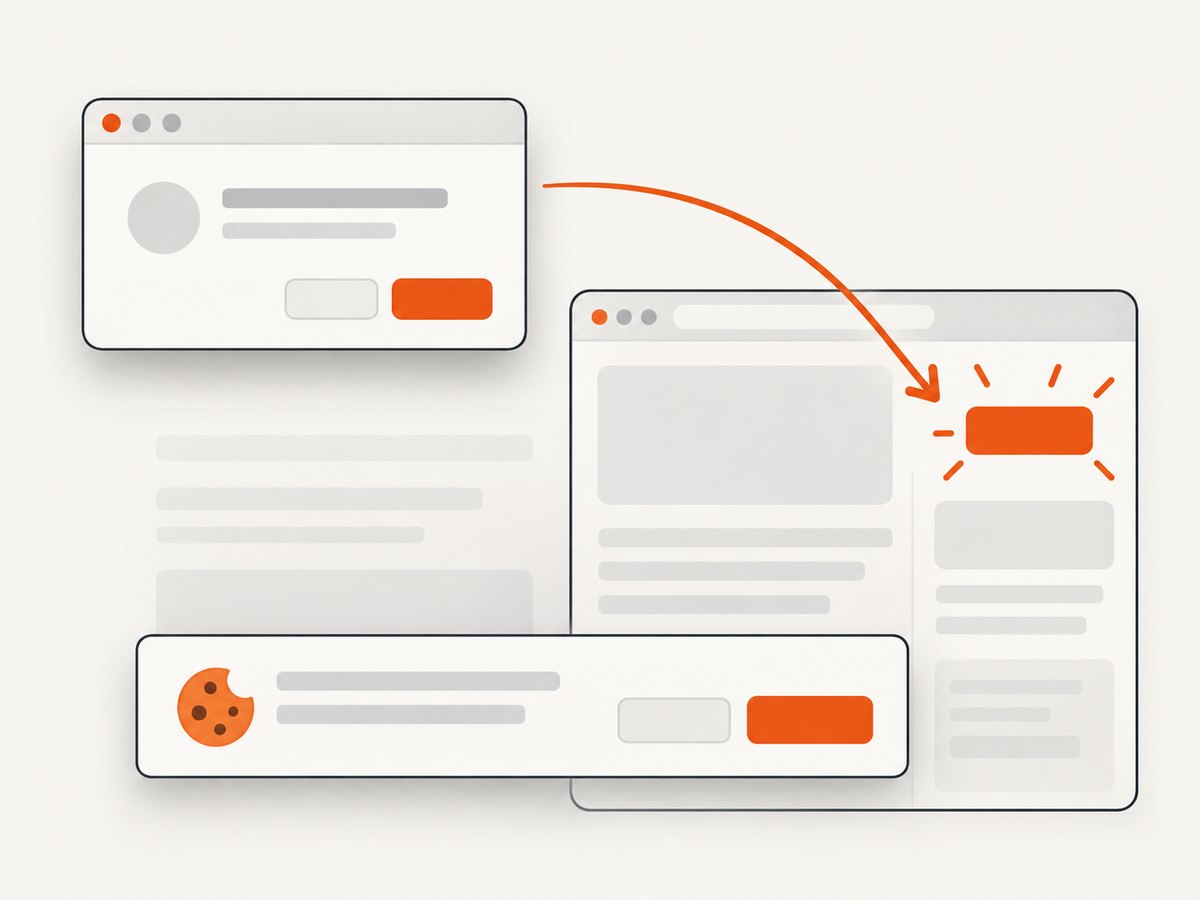
This distinction matters because native dialogs are not DOM nodes. Searching for an alert with a CSS selector will fail, while trying to handle a cookie banner with switch_to.alert will also fail. Selenium documents separate APIs for these two cases in its alert guide and element interactions guide.
1. Complete Python example
The following script handles a DOM overlay, waits for the target, and saves only that element as a PNG. Replace the example selectors with selectors from the page you automate.
from selenium import webdriver
from selenium.webdriver.common.by import By
from selenium.webdriver.support.ui import WebDriverWait
from selenium.webdriver.support import expected_conditions as EC
from selenium.common.exceptions import TimeoutException, StaleElementReferenceException

URL = "https://example.com/page"
OVERLAY_SELECTOR = ".popup-overlay"
TARGET_SELECTOR = "#target"

options = webdriver.ChromeOptions()
options.add_argument("--headless=new")
options.add_argument("--window-size=1440,1200")

driver = webdriver.Chrome(options=options)
wait = WebDriverWait(driver, 15)

try:
    driver.get(URL)

    # Wait for the overlay if this page normally shows one.
    try:
        overlay = wait.until(
            EC.presence_of_element_located((By.CSS_SELECTOR, OVERLAY_SELECTOR))
        )
        driver.execute_script(
            "arguments[0].style.display = 'none';", overlay
        )
    except TimeoutException:
        # No overlay appeared during the wait; continue with the capture.
        pass

    # Reacquire the target after changing the DOM's presentation.
    target = wait.until(
        EC.visibility_of_element_located((By.CSS_SELECTOR, TARGET_SELECTOR))
    )
    target.screenshot("target.png")
finally:
    driver.quit()
execute_script runs JavaScript in the currently selected window or frame and accepts the located element as an argument. Selenium’s WebElement screenshot operation writes a PNG for that individual element; it does not require taking a full browser screenshot and cropping it. See the Python API reference for the exact methods available in your installed Selenium version.
2. Decide what kind of popup you have
| Popup | How to detect it | How to handle it |
|---|---|---|
| JavaScript alert | WebDriver blocks normal page interaction and an alert is present | Wait for alert_is_present(), inspect alert.text, then accept or dismiss |
| JavaScript confirm | Native dialog with OK and Cancel | Use switch_to.alert; call accept() or dismiss() |
| JavaScript prompt | Native dialog with a text field | Use send_keys() on the alert, then accept or dismiss |
| Cookie banner or modal | Visible element in the page DOM | Click its close/consent control, or hide the element with JavaScript |
| Chat widget or newsletter panel | Often a fixed element, iframe, or shadow-root component | Locate the host, switch frame if needed, or hide the host after checking the page structure |
Use the site’s visible close or consent button when you need to preserve normal behavior, consent state, or analytics flow. Directly hiding an overlay is useful for a clean artifact when changing the active page styling is acceptable. There is no universal selector: inspect the page and choose a selector that is stable for that site.
3. Handle JavaScript alerts, confirms, and prompts
Native dialogs are controlled through Selenium’s alert interface, not through find_element. Selenium’s official guide describes the three native popup types and their corresponding operations.
from selenium.webdriver.common.by import By
from selenium.webdriver.support.ui import WebDriverWait
from selenium.webdriver.support import expected_conditions as EC

wait = WebDriverWait(driver, 10)

# For alert() or confirm():
alert = wait.until(EC.alert_is_present())
print(alert.text)
alert.accept()       # Click OK
# alert.dismiss()    # Use this instead for Cancel

# For prompt():
prompt = wait.until(EC.alert_is_present())
prompt.send_keys("value supplied by the test")
prompt.accept()
Only call alert_is_present when the page is expected to open a native dialog. If no dialog appears, the wait expires with a timeout. Handle that timeout when the dialog is optional.
4. Remove a DOM overlay safely
Prefer the site’s own close or consent action
Clicking a real control lets the page update cookies, local storage, focus state, and accessibility attributes as designed. Wait for the control to be clickable, click it, then wait for the overlay to become invisible.
close_button = wait.until(
    EC.element_to_be_clickable((By.CSS_SELECTOR, ".popup-overlay button.close"))
)
close_button.click()
wait.until(
    EC.invisibility_of_element_located((By.CSS_SELECTOR, ".popup-overlay"))
)
Hide the element with JavaScript
When a close control is difficult to automate, hide the located element. The change applies to the active document only.
overlay = wait.until(
    EC.presence_of_element_located((By.CSS_SELECTOR, ".popup-overlay"))
)
driver.execute_script(
    "arguments[0].style.setProperty('display', 'none', 'important');",
    overlay,
)
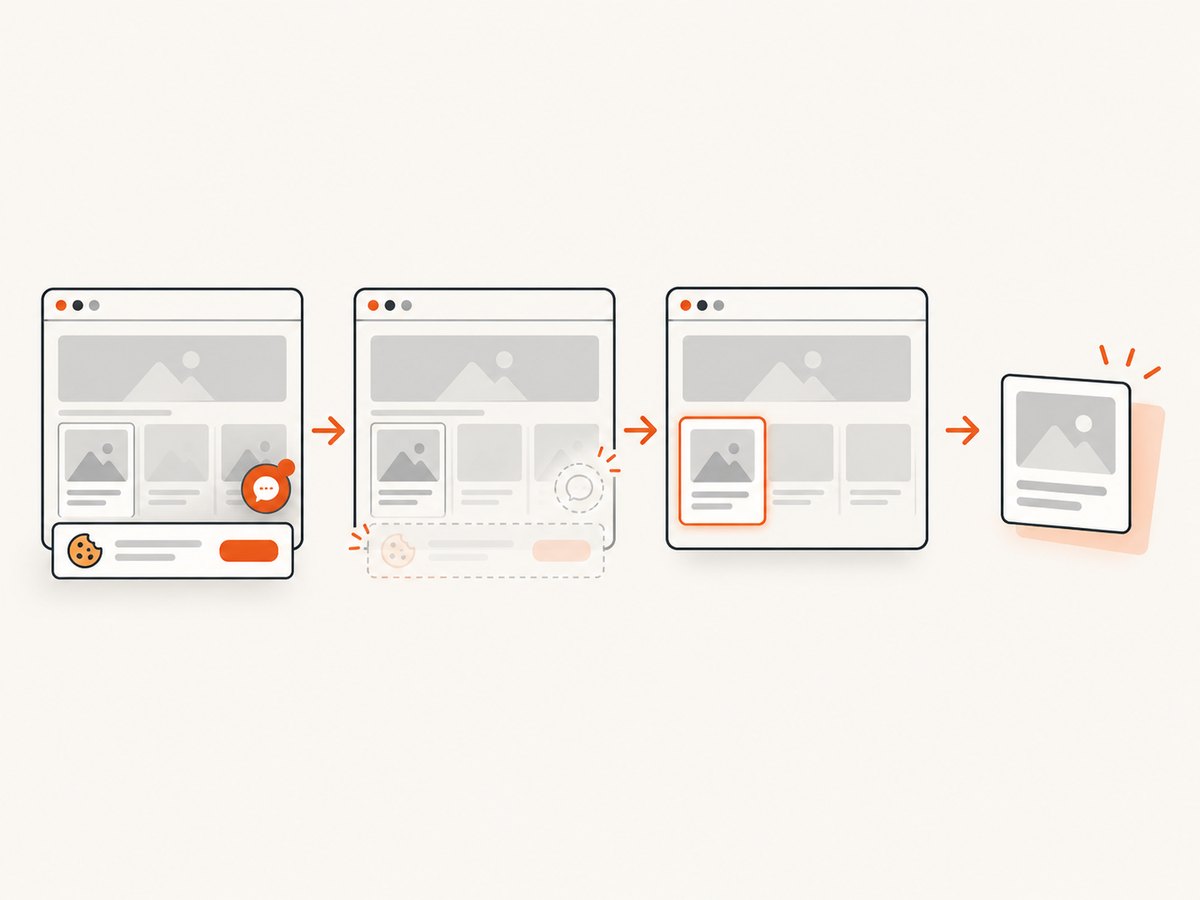
display: none removes the overlay from layout and hit testing. If the page uses a backdrop as a separate node, hide that node too. Some sites recreate the component after a timer or route change, so perform the removal immediately before locating the target and capturing it.
Hide several known overlays
selectors = [
    ".cookie-banner",
    ".newsletter-modal",
    ".chat-widget",
]
for selector in selectors:
    for element in driver.find_elements(By.CSS_SELECTOR, selector):
        driver.execute_script(
            "arguments[0].style.setProperty('display', 'none', 'important');",
            element,
        )
Use find_elements for optional selectors because it returns an empty list instead of raising when nothing matches. Keep this list site-specific; broad rules such as hiding every element with position: fixed can remove legitimate navigation or the target itself.
5. Capture one element after the page is ready
Wait for the state you need instead of relying on a fixed sleep. A target may exist before its text, images, or dimensions are ready.
target = wait.until(
    EC.visibility_of_element_located((By.CSS_SELECTOR, "#target"))
)
wait.until(lambda d: target.size["width"] > 0 and target.size["height"] > 0)
target.screenshot("target.png")
If the page replaces the target during rendering, the old WebElement becomes stale. Locate it again after the replacement.
from selenium.common.exceptions import StaleElementReferenceException

def screenshot_target(driver, selector, path):
    for attempt in range(3):
        try:
            element = WebDriverWait(driver, 15).until(
                EC.visibility_of_element_located((By.CSS_SELECTOR, selector))
            )
            element.screenshot(path)
            return
        except StaleElementReferenceException:
            if attempt == 2:
                raise
6. Frames, shadow roots, and difficult overlays
Elements inside an iframe
execute_script, selectors, and waits operate in the currently selected browsing context. Switch into the frame before locating or hiding an overlay there, then switch back if the target is in the parent document.
frame = wait.until(
    EC.presence_of_element_located((By.CSS_SELECTOR, "iframe.cookie-frame"))
)
driver.switch_to.frame(frame)
frame_overlay = wait.until(
    EC.presence_of_element_located((By.CSS_SELECTOR, ".banner"))
)
driver.execute_script("arguments[0].style.display = 'none';", frame_overlay)
driver.switch_to.default_content()
Shadow DOM
A component may keep its popup inside an open shadow root. Find the host, obtain its shadow root, and query inside it. Closed shadow roots cannot be traversed through ordinary Selenium selectors; use the component’s public controls, a supported browser interface, or hide the host if that is acceptable.
host = wait.until(
    EC.presence_of_element_located((By.CSS_SELECTOR, "consent-manager"))
)
shadow = host.shadow_root
close = shadow.find_element(By.CSS_SELECTOR, "button.dismiss")
close.click()
Overlay in a new window
If clicking a link opens a new tab, switch to the handle containing the page before searching. A selector that works in the original tab cannot find elements in another window.
7. Waiting and synchronization patterns
- Presence: use
presence_of_element_locatedwhen you only need the node to exist. - Visibility: use
visibility_of_element_locatedbefore an element screenshot. - Clickable: use
element_to_be_clickablebefore pressing a close or consent control. - Invisibility: wait for the overlay to disappear after clicking it.
- Alert: use
alert_is_presentfor native dialogs.
Explicit waits are tied to the condition you need. A fixed sleep(2) can be too short on a slow run and unnecessarily long on a fast run. If you must wait for an application-specific state, use a callable that checks a URL, attribute, text value, or JavaScript property.
8. Troubleshooting common failures
| Error or symptom | Cause | Fix |
|---|---|---|
NoAlertPresentException |
The popup is a DOM element, or the alert has not appeared. | Inspect the page type; use a DOM selector or wait with alert_is_present. |
TimeoutException |
Selector is wrong, the page is slow, or the optional popup never appears. | Verify the selector in browser developer tools, increase the explicit wait carefully, and catch the timeout for optional elements. |
StaleElementReferenceException |
A rerender detached the WebElement. | Locate the overlay or target again immediately before using it. |
| Overlay still blocks the target | The backdrop is a separate element, the overlay was recreated, or it is in a frame. | Hide both overlay and backdrop, repeat after rerender, or switch into the correct frame. |
| Target screenshot is blank or cropped | The target has zero dimensions, is off-screen, or its content has not loaded. | Wait for visibility and nonzero dimensions, scroll into view, and wait for the page-specific ready state. |
| Click intercepted by another element | A fixed overlay remains above the control. | Dismiss or hide the overlay first; then reacquire and click the control. |
| Selector works manually but not in Selenium | Wrong window, frame, or shadow root. | Switch window/frame and query the correct shadow root. |
| Different pixels across runs | Fonts, animations, responsive layout, or network timing vary. | Set a fixed viewport, disable animations with CSS, wait for images/fonts, and use deterministic test data. |
9. Make captures reliable in CI
- Pin the browser and driver versions used by your build.
- Set a predictable viewport with
--window-sizeand avoid changing it between runs. - Use headless mode consistently; headed and headless rendering can differ.
- Disable transitions and blinking cursors through a temporary stylesheet when animation affects the image.
- Wait for the target’s dimensions and any required network or application state.
- Use stable data fixtures. Ads, rotating recommendations, and live counters can change the pixels.
- Save diagnostic HTML or a full-page screenshot when an element capture fails, so selector problems are easier to inspect.
driver.execute_script("""
const style = document.createElement('style');
style.textContent = '* { animation: none !important; transition: none !important; }';
document.head.appendChild(style);
""")
Element screenshots are limited to what the browser can render for that WebElement. For a very tall element, verify the resulting image dimensions and memory use in your CI environment.
10. Performance and cost considerations
Launching a browser is usually the expensive part of a Selenium capture. Reuse one driver for multiple pages when isolation permits, avoid unnecessary full-page screenshots, and keep waits tied to real conditions. Hiding an element with JavaScript is fast; repeatedly searching the entire DOM with many broad selectors is slower and more fragile. Parallel drivers can increase throughput but also consume more CPU, memory, and display resources.
Selenium itself does not charge per screenshot; your costs come from the machines, browser infrastructure, and maintenance needed to keep drivers, fonts, and selectors working. If you need a service instead of managing browsers, compare the billing rules carefully. A failed browser run can still consume your infrastructure time even when no image is produced.
11. Or skip the browser setup
ScreenshotNeo provides a website screenshot API and MCP server. One GET request returns a PNG, JPEG, WebP, or PDF, and it supports element capture with the same selector-oriented options used by many screenshot APIs. The service removes cookie and consent banners, newsletter popups, and chat widgets before capture; each step can be turned off.
See the ScreenshotNeo documentation for all request options. A basic WebP capture is:
curl -G "https://api.screenshotneo.com/v1/shot" \
  -d access_key=YOUR_API_KEY \
  --data-urlencode url=https://stripe.com \
  -o shot.webp
import requests
r = requests.get(
"https://api.screenshotneo.com/v1/shot",
params={"access_key": "YOUR_API_KEY", "url": "https://stripe.com"},
timeout=90,
)
r.raise_for_status()
open("shot.webp", "wb").write(r.content)const q = new URLSearchParams({ access_key: 'YOUR_API_KEY', url: 'https://stripe.com' });
const res = await fetch(`https://api.screenshotneo.com/v1/shot?${q}`);
if (!res.ok) throw new Error(`HTTP ${res.status}`);
const data = Buffer.from(await res.arrayBuffer());
require('fs').writeFileSync('shot.webp', data);ScreenshotNeo bills only clean shots. Bot checks or CAPTCHAs, blank pages, timeouts, failed loads, and cache hits cost nothing, and each response identifies the result with X-Page-Verdict and X-Billed headers. Its MCP server exposes take_screenshot, get_page_info, and capture_pdf for Claude, Cursor, and other MCP clients. The free plan includes 1,000 screenshots per month with no card; paid plans start at $5 for 3,000.
Create a free ScreenshotNeo account and start with the 1,000 monthly screenshots.
12. Short FAQ
Can I hide a popup without deleting it?
Yes. Setting display: none changes its presentation for the active document while leaving the node in the DOM. A page script may recreate it, so capture soon after hiding it.
Should I accept a cookie banner or hide it?
Accept it when consent state matters to the page behavior. Hide it when the goal is only a clean visual capture and changing consent state is undesirable.
Why does target.screenshot() save PNG only?
Selenium’s WebElement screenshot API writes PNG output. Convert the file afterward if your pipeline requires JPEG or WebP.
Can Selenium capture an element inside a closed shadow root?
Not through ordinary shadow-root queries. Use the component’s public UI, a supported browser mechanism, or capture a suitable host element.
How do I capture many URLs?
Reuse a configured driver and isolate each navigation, or use a screenshot API with bulk capture. ScreenshotNeo supports bulk capture of up to 100 URLs per call.


