How to Hide the Scrollbar in Playwright Screenshots
Hide scrollbars in Playwright screenshots with temporary CSS while keeping the page scrollable. Includes full-page captures, nested panels, troubleshooting, and runnable examples.

To hide the scrollbar in a Playwright screenshot while keeping the page scrollable, pass temporary CSS through the screenshot call’s style option. Combine scrollbar-width: none with the WebKit scrollbar pseudo-element rule for coverage across browser engines:
await page.screenshot({
  path: 'screenshot.png',
  fullPage: true,
  style: `
    html, body {
      scrollbar-width: none;
    }
    html::-webkit-scrollbar,
    body::-webkit-scrollbar {
      display: none;
    }
  `,
});
Playwright applies this stylesheet while taking the screenshot. It can pierce Shadow DOM and applies to inner frames. The CSS is temporary: it does not modify the site’s production styles. For a viewport-only image, remove fullPage: true; for a full document capture, keep it.
1. Install Playwright and capture a page
The example below is a complete Node.js script using Playwright’s library. It launches Chromium, opens a URL, waits for the page to load, and writes a full-page PNG without visible page scrollbars.
import { chromium } from 'playwright';

const browser = await chromium.launch();
const page = await browser.newPage({ viewport: { width: 1440, height: 900 } });

try {
  await page.goto('https://example.com', { waitUntil: 'networkidle' });
  await page.screenshot({
    path: 'screenshot.png',
    fullPage: true,
    style: `
      html, body { scrollbar-width: none; }
      html::-webkit-scrollbar,
      body::-webkit-scrollbar { display: none; }
    `,
  });
} finally {
  await browser.close();
}
Save this as screenshot.mjs, install Playwright with npm install playwright, install its browser with npx playwright install chromium, then run node screenshot.mjs. If your project uses a test-runner fixture, reuse the same style string in its page screenshot call.
Viewport screenshot
Playwright captures the current viewport by default. The CSS is the same; omit the full-page option:
await page.screenshot({
  path: 'viewport.png',
  style: `
    html, body { scrollbar-width: none; }
    html::-webkit-scrollbar,
    body::-webkit-scrollbar { display: none; }
  `,
});
Reusable helper
If many tests or jobs need consistent output, put the CSS in a shared helper so a later change does not leave some screenshots with scrollbars:
const hideScrollbars = `
  html, body { scrollbar-width: none; }
  html::-webkit-scrollbar,
  body::-webkit-scrollbar { display: none; }
`;

async function saveCleanScreenshot(page, path, fullPage = true) {
  await page.screenshot({ path, fullPage, style: hideScrollbars });
}
2. Understand the two CSS rules
scrollbar-width: none hides the scrollbar while preserving scrolling. MDN describes the element as still scrollable when no scrollbar is shown. The ::-webkit-scrollbar pseudo-element is non-standard and targets the scrollbar in WebKit/Blink-style engines; setting display: none hides it there. Using both provides broader coverage than either rule alone. See MDN’s scrollbar-width reference and MDN’s WebKit scrollbar reference.
Apply the rules to both html and body because sites and browser engines can associate document scrolling with either element. If your application scrolls a panel rather than the document, target that panel instead. Hiding a scrollbar is a visual change; it does not itself prevent scrolling.
3. Capture the entire page
Set fullPage: true when the output should include the full scrollable document. Without it, Playwright captures the visible viewport. The screenshot stylesheet works with either mode. Playwright’s API documents fullPage as a screenshot of the full scrollable page; see the Page screenshot API.
await page.screenshot({
  path: 'whole-page.png',
  fullPage: true,
  style: hideScrollbars,
});
A full-page image can be much taller and larger than a viewport capture. If the page uses lazy-loaded images, make sure the content has loaded before capturing. A screenshot stylesheet only affects presentation during capture; it does not guarantee that application data, fonts, or deferred images have finished loading.
4. Hide scrollbars in nested panels
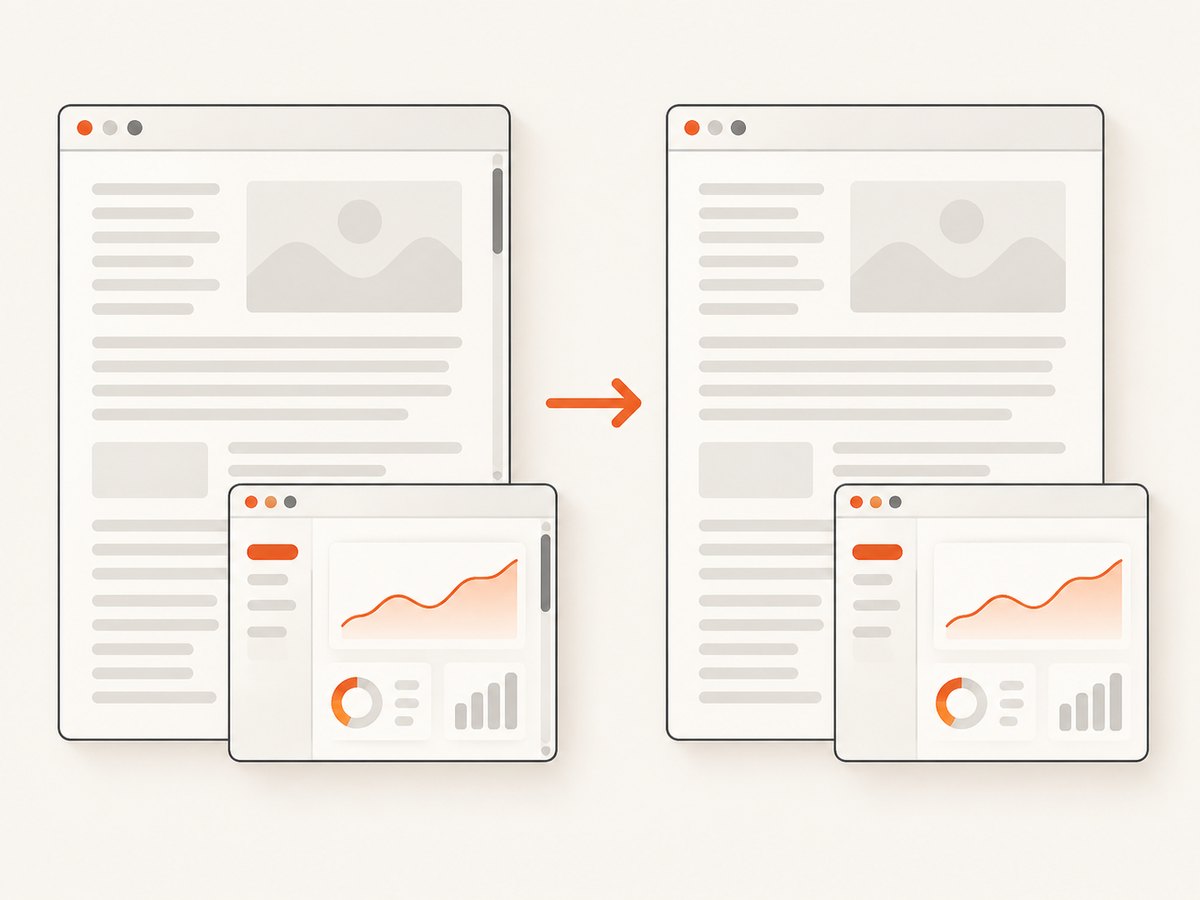
Many dashboards have an independently scrolling results pane, sidebar, modal, or code panel. Hiding only the document scrollbar will not hide those nested bars. Add the relevant selectors to the temporary stylesheet:
const style = `
  html, body, .results-pane, .sidebar {
    scrollbar-width: none;
  }
  html::-webkit-scrollbar,
  body::-webkit-scrollbar,
  .results-pane::-webkit-scrollbar,
  .sidebar::-webkit-scrollbar {
    display: none;
  }
`;

await page.screenshot({ path: 'dashboard.png', style });
Replace .results-pane and .sidebar with selectors from the page. For nested scrolling regions, include each container whose scrollbar is visible. Playwright’s screenshot style reaches into Shadow DOM, but your selector still needs to match the element inside the relevant component.
5. Hide the bar versus disable scrolling
Use scrollbar styling when the goal is a clean image and the page should retain normal scroll behavior. Use overflow: hidden only when the captured state should not scroll or when clipping overflow is intended:
await page.screenshot({
  path: 'clipped.png',
  style: 'html, body { overflow: hidden; }',
});
overflow: hidden removes visible scrollbars but changes behavior: overflowing content can be clipped, and the element may still be scrolled programmatically or by focus navigation. It can also affect available layout width. MDN explains this behavior in its overflow reference. It is not interchangeable with hiding the scrollbar while preserving the page’s usual scroll behavior.
6. Make screenshot tests deterministic
For visual regression checks, apply the same stylesheet in every capture that participates in the comparison. Keep it in a shared helper or fixture and avoid having one test hide only document bars while another also hides inner panels. The screenshot should assert the intended page content rather than assume that a scrollbar must have been painted.
Scrollbar appearance depends on the browser, operating system, and capture mode. A Playwright issue records a Windows 11 and Playwright 1.50.1 case where a full-page screenshot did not include the body’s scrollbar. That means a test expecting the bar to exist can fail even before the hiding CSS is introduced. See Playwright issue #35328.
When testing the CSS itself, choose a page with enough content to scroll and verify the screenshot output in the browser environments you support. For nested panels, make the panel content exceed its fixed height. Avoid encoding assumptions about scrollbar thickness or position into pixel assertions; those details vary across environments.
7. Troubleshooting
| Symptom | Likely cause | Fix |
|---|---|---|
| The page scrollbar is gone, but a panel bar remains. | The scrolling element is a nested container. | Add the panel selector and its ::-webkit-scrollbar rule to the screenshot stylesheet. |
| The scrollbar remains in one browser. | Only one engine-specific CSS rule was used, or the selector does not match the scrolling element. | Use both scrollbar-width: none and ::-webkit-scrollbar { display: none; }; confirm which element actually scrolls. |
| The page content is cut off. | overflow: hidden clips content, or a viewport screenshot was used when the full document was expected. |
Prefer scrollbar visibility rules and set fullPage: true for the full scrollable document. |
| The screenshot still has unexpected layout shifts. | Fonts, images, or application content may still be loading; the scrollbar rule cannot make page data ready. | Wait for the content you need before capture, or use a selector wait for a known ready state. |
| A visual test fails because the scrollbar is absent. | Scrollbar painting can vary by OS, browser, and full-page behavior. | Do not require a scrollbar to appear. Apply the hide stylesheet consistently and assert stable page content. |
| Nothing changes after adding CSS. | The selector may target body while a different element owns scrolling, or the screenshot call may omit the style option. |
Inspect the page’s scroll containers and pass the CSS directly to the screenshot call. |
8. Performance, reliability, and cost
The CSS injection is small and scoped to the screenshot operation. It avoids changing application files or adding a persistent style that could affect ordinary visitors. Full-page captures may take more time and memory than viewport captures because they include more pixels; use viewport mode when the whole document is not needed. Keep browser versions and viewport dimensions stable in visual test jobs to reduce unrelated rendering differences.
Browser automation has operational costs: you need a compatible browser installation, compute to run it, and a reliable way to wait for the right page state. Large pages and many parallel captures can consume substantial memory. Reuse a browser process where your job architecture supports it, while keeping page state isolated for separate captures. The CSS itself does not make a capture more expensive in browser work in any meaningful way; the page size, rendering, and surrounding automation dominate.
9. Or skip the browser setup
ScreenshotNeo is a website screenshot API and MCP server. One GET request returns a PNG, JPEG, WebP, or PDF, and the API accepts the URL and screenshot options. Its documentation has the parameter reference. For an image capture, this cURL call saves a WebP:
curl -G "https://api.screenshotneo.com/v1/shot" -d access_key=YOUR_API_KEY --data-urlencode url=https://stripe.com -o shot.webpEquivalent Python:
import requests

r = requests.get(
    "https://api.screenshotneo.com/v1/shot",
    params={"access_key": "YOUR_API_KEY", "url": "https://stripe.com"},
    timeout=90,
)
open("shot.webp", "wb").write(r.content)
Equivalent Node.js:
const q = new URLSearchParams({ access_key: 'YOUR_API_KEY', url: 'https://stripe.com' });
const res = await fetch(`https://api.screenshotneo.com/v1/shot?${q}`);
if (!res.ok) throw new Error(`Screenshot request failed: ${res.status}`);
await Bun.write('shot.webp', res);
Use ScreenshotNeo when you want to avoid managing browser installation and capture workers. Cookie banners, newsletter popups, and chat widgets are removed before the shot. Bot checks, blank pages, and failed loads are never billed, and response headers report the page verdict and billing status. Its MCP server lets AI agents use take_screenshot, get_page_info, and capture_pdf. The free plan includes 1,000 screenshots per month with no card; paid plans start at $5 for 3,000 shots. Every feature is included on every plan.
Sign up for 1,000 free screenshots a month, with no card required.
10. FAQ
Can I hide the scrollbar without disabling scrolling?
Yes. Use scrollbar-width: none and the WebKit scrollbar pseudo-element rule. Scrolling remains available even though the bar is hidden.
Does Playwright’s screenshot stylesheet change the live website?
No. The style option applies CSS while making the screenshot. It is not a permanent edit to the site’s stylesheet.
Will hiding html and body remove every scrollbar?
No. Independently scrolling panels have their own scrollbars. Add rules for the specific containers that own them.
Should I use overflow: hidden for a full-page screenshot?
Usually not if you want the complete document. Use fullPage: true and hide the scrollbar visually; overflow: hidden can clip content and alter scrolling behavior.


