How to Hide Sensitive Content in Cypress Screenshots
Use Cypress blackout selectors, safe capture modes, failure settings, and retention controls to keep secrets and personal data out of test screenshots.
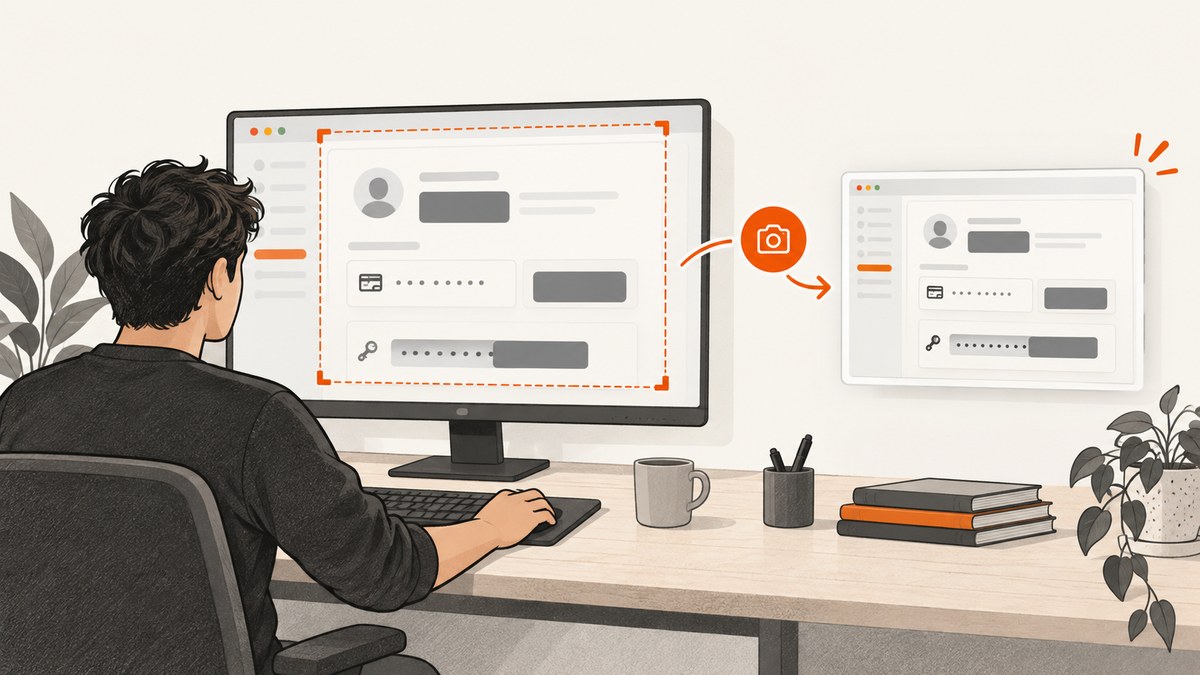
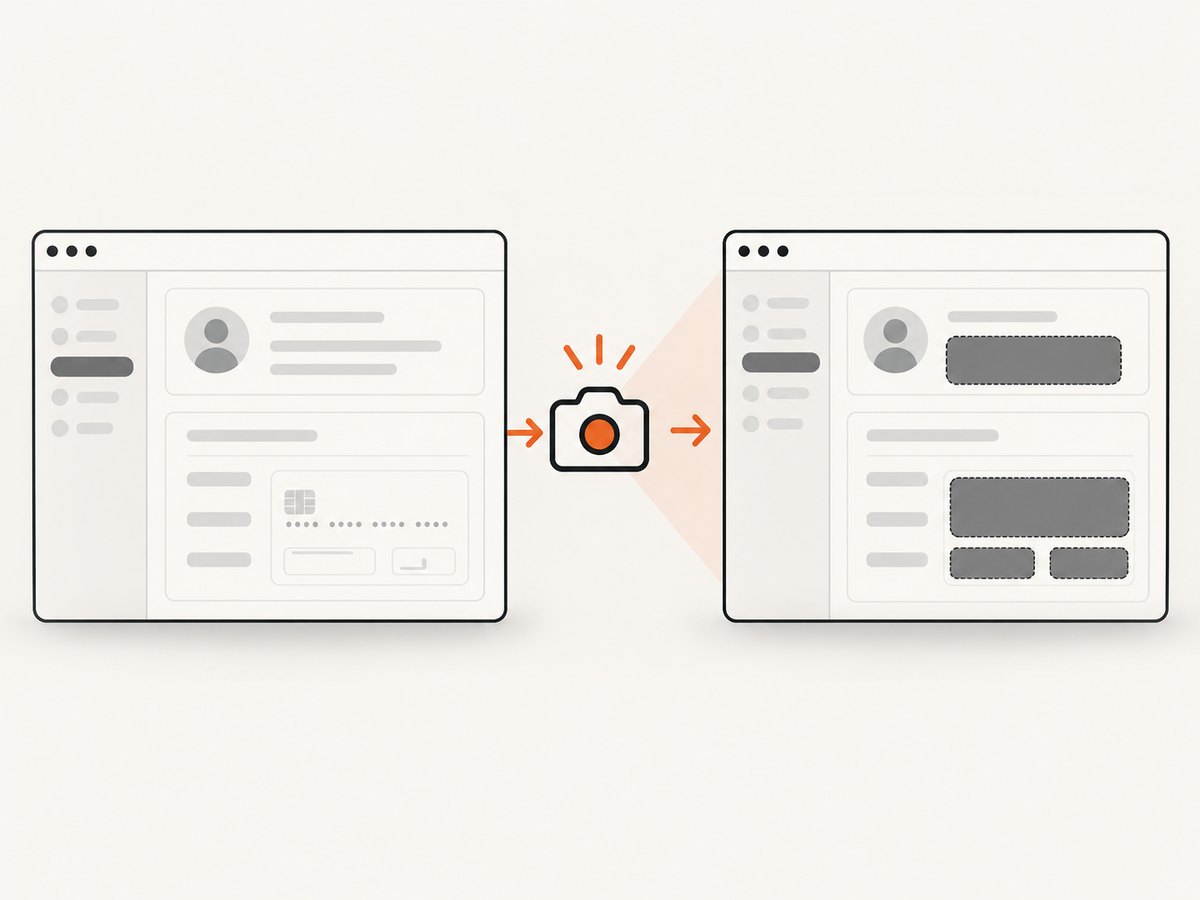
Direct answer: Cypress can hide selected page regions with the blackout option. Pass an array of CSS selectors to cy.screenshot(), or configure the same selectors globally with Cypress.Screenshot.defaults(). Use capture: 'viewport' when relying on blackout: Cypress documents blackout for viewport captures and says it is ignored for runner captures. Treat masking, automatic failure screenshots, Cypress Cloud access, CI artifact uploads, and retention as separate controls.
The safest workflow is to mark sensitive regions with stable selectors, capture the application rather than the Cypress runner, verify the rendered DOM at screenshot time, and control where screenshots are stored and uploaded. This guide covers manual screenshots, full-page behavior, automatic failure captures, temporary DOM changes, Cloud access, troubleshooting, and a browser-free alternative with ScreenshotNeo.
1. Mark sensitive content with stable selectors
Start by adding selectors that identify complete sensitive regions. A class or data attribute is usually more durable than a long structural selector.
<section class="account-summary" data-sensitive="true">
  <span class="email">alex@example.com</span>
  <span class="account-number">•••• 4242</span>
</section>

<div class="internal-debug-panel">
  API response and diagnostic details
</div>
Prefer selectors owned by the application, such as [data-sensitive='true'] or .account-summary. Avoid selectors generated from CSS-in-JS hashes, nth-child positions, or text that changes between locales. Blackout is selector based; it does not discover every secret automatically.
2. Black out elements in one screenshot
For a single screenshot, pass blackout and select an application capture mode.
describe('account page', () => {
  it('captures a redacted viewport', () => {
    cy.visit('/account');

    cy.get('[data-sensitive="true"]').should('be.visible');
    cy.get('.internal-debug-panel').should('exist');

    cy.screenshot('account-redacted', {
      capture: 'viewport',
      blackout: [
        '[data-sensitive="true"]',
        '.internal-debug-panel',
        '[data-hide="true"]'
      ]
    });
  });
});
The selectors are evaluated when the screenshot is taken. Wait for the page state that contains the sensitive elements before calling cy.screenshot(). If a component appears only after an API request, wait for that request or for a visible element rather than adding an arbitrary delay.
3. Set a global blackout policy
If the same regions must be hidden in many tests, configure screenshot defaults in a support file. Cypress recommends putting this setup in a support file because it is loaded before test files are evaluated.
// cypress/support/e2e.js
Cypress.Screenshot.defaults({
  capture: 'viewport',
  blackout: [
    '[data-sensitive="true"]',
    '[data-hide="true"]',
    '.private-user-data',
    '.internal-debug-panel'
  ]
});
A test can still override the defaults for a particular capture:
cy.screenshot('public-dashboard', {
  blackout: ['.customer-name', '.customer-email']
});
Keep the global list short enough to review. A broad selector such as body may make screenshots useless, while an overly narrow selector can leave a child element visible. When a sensitive component has nested content, mask the component container rather than only one label.
4. Understand Cypress capture modes
The capture option controls what Cypress records:
| Mode | What it captures | Blackout guidance |
|---|---|---|
viewport |
The application in the current browser viewport | Use this mode when relying on documented blackout behavior. |
fullPage |
The application from top to bottom | Validate the behavior in the Cypress version you run, especially for content outside the initial viewport. |
runner |
The application together with the Cypress browser interface and Command Log | Cypress documents blackout as ignored for runner captures. Do not assume selectors protect runner screenshots. |
The command reference describes fullPage as the default capture value, while the blackout documentation limits blackout to viewport captures. Because those descriptions concern different parts of the API, verify the behavior of your installed Cypress release before treating full-page masking as a security boundary. If the screenshot can contain a secret, prefer a viewport capture with documented blackout support or remove the secret from the rendered page before capture.
cy.screenshot('visible-app-only', {
  capture: 'viewport',
  blackout: ['[data-sensitive="true"]']
});
5. Prepare the DOM for a manual screenshot
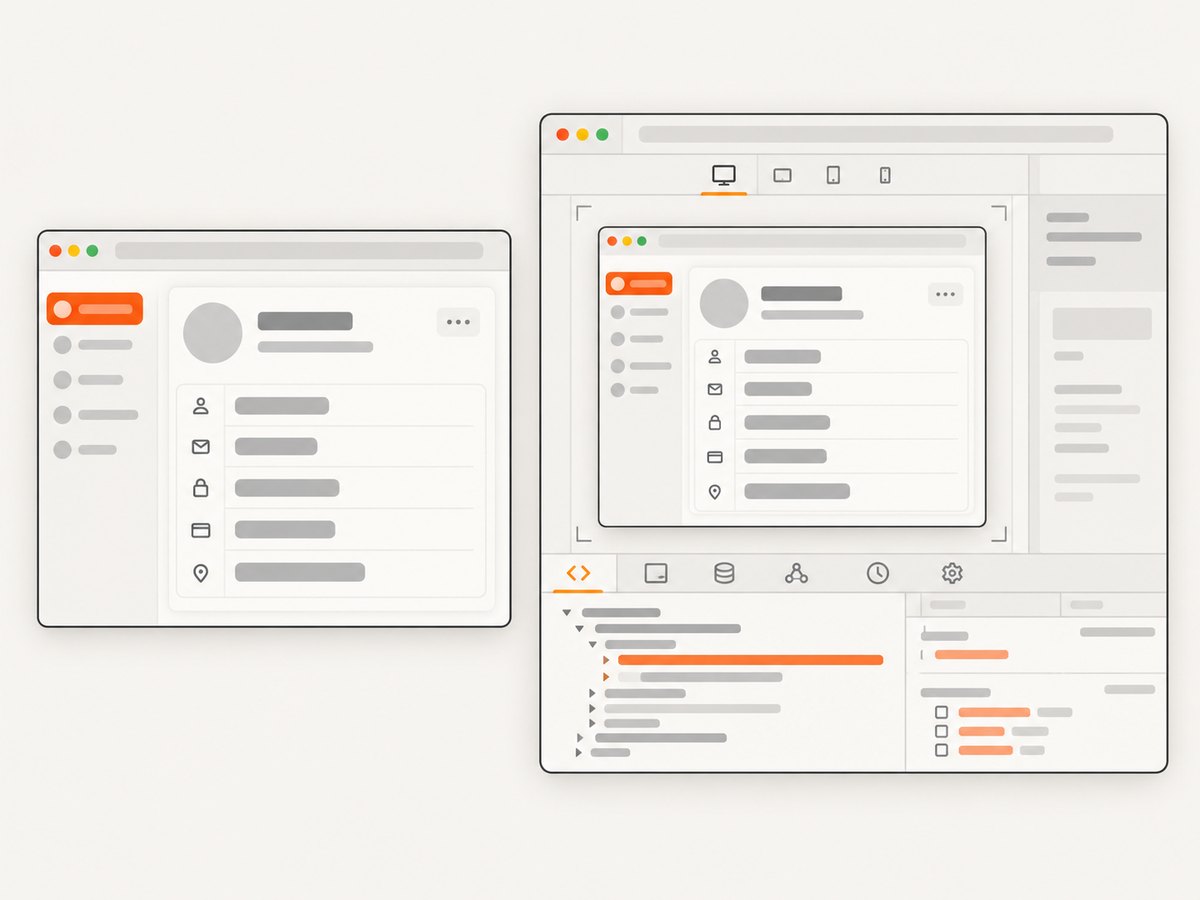
Some content is difficult to select or must be hidden only temporarily. Cypress supports synchronous onBeforeScreenshot and onAfterScreenshot callbacks for manual captures. Save the original state, change the DOM before capture, and restore it afterward.
cy.screenshot('invoice-without-live-clock', {
  capture: 'viewport',
  onBeforeScreenshot($el) {
    const clock = $el.find('.live-clock');
    clock.attr('data-was-visible', clock.is(':visible') ? 'yes' : 'no');
    clock.hide();
  },
  onAfterScreenshot($el) {
    const clock = $el.find('.live-clock');
    if (clock.attr('data-was-visible') === 'yes') {
      clock.show();
    }
    clock.removeAttr('data-was-visible');
  }
});
This technique is useful for a deliberate, non-failure screenshot. It should not be described as universal protection for automatic failure screenshots, which are generated by the test runner when a test fails. For reusable masking, selector blackout is easier to audit.
6. Handle automatic screenshots on failure
When you run Cypress with cypress run, Cypress automatically takes screenshots on failure by default. If a failed state can expose information that cannot safely be captured, disable this artifact:
// cypress.config.js
const { defineConfig } = require('cypress');

module.exports = defineConfig({
  e2e: {
    screenshotOnRunFailure: false
  }
});
You can also set the option through Cypress configuration in the format used by your project. Disabling failure screenshots removes a useful debugging artifact, so make the decision per environment. A common policy is to keep failure screenshots in a scrubbed test environment and disable them for tests that use production-like personal data.
Do not assume that a global cy.screenshot() default covers every automatically generated failure image. Test the exact failure path, inspect the resulting file, and confirm how your Cypress release applies blackout settings to that artifact.
7. Separate screenshot masking from network-data redaction
Cypress Cloud controls for screenshots and controls for captured network data address different artifacts. Blackout hides selected page elements in screenshots saved locally or shown to users who can access the Cloud run. Network-log redaction in Test Replay concerns request and response data, such as credential or token fields; it does not replace screenshot masking.
Use both policies when both artifacts exist:
- Mark and blackout visible secrets in the application.
- Redact sensitive fields in captured network data using the controls provided by your Cypress setup.
- Limit Cypress Cloud run access to the people and systems that need it.
- Review CI steps that upload the screenshots folder as an artifact.
8. Control local storage and retention
Cypress stores screenshots in the configured screenshotsFolder, which defaults to cypress/screenshots. Cypress can clear the screenshots folder before cypress run when its default asset cleanup behavior is active. That cleanup does not redact or securely delete files that were already uploaded, copied, cached, or retained by another system.
// cypress.config.js
const { defineConfig } = require('cypress');

module.exports = defineConfig({
  screenshotsFolder: 'cypress/screenshots',
  e2e: {
    setupNodeEvents(on, config) {
      return config;
    }
  }
});
Audit the complete path from capture to deletion:
- Find every command that copies
cypress/screenshots. - Check CI artifact retention and access permissions.
- Check Cypress Cloud retention and run visibility for the projects that upload screenshots.
- Remove old local files from developer machines and build agents.
- Use synthetic or scrubbed fixtures whenever a test does not require real personal data.
9. Verify that masking really works
A passing test does not prove that the screenshot is safe. Add a review step for the artifact itself.
- Run the test with the same command used in CI.
- Open the generated PNG or JPEG and inspect every viewport and page section.
- Test the state where the sensitive component is loading, expanded, collapsed, and replaced by an error message.
- Test responsive layouts. A selector may match a desktop container but miss a mobile variant.
- Check screenshots produced after a failure, not only explicit
cy.screenshot()calls. - Inspect uploaded Cloud and CI artifacts with a least-privilege account.
For high-risk data, use a fixture containing a recognizable fake value and assert that the value is not present in the image pipeline’s downstream OCR or review process. Cypress itself documents selector masking, but it does not claim automatic detection of every secret.
10. Common errors and fixes
| Symptom | Likely cause | Fix |
|---|---|---|
| The secret is visible in the image. | The selector did not match at capture time. | Wait for the element, use a stable data attribute, and confirm the selector in DevTools. |
| Blackout works in one image but not another. | The captures use different modes or code paths. | Check capture, especially runner, and inspect automatic failure screenshots separately. |
| The whole page is missing or unreadable. | A broad selector such as body was blacked out. |
Target the smallest complete sensitive container. |
| Dynamic content appears outside the mask. | A mobile or loading-state component uses a different selector. | Add selectors for each rendered variant and test responsive states. |
| The local folder is clean but data remains online. | CI or Cloud already copied the screenshot. | Review artifact and Cloud retention; local cleanup is not remote deletion. |
| The runner UI exposes commands or values. | capture: 'runner' includes the Cypress interface. |
Use an application capture, or disable that screenshot path. |
| A callback leaves the page altered. | The restore code did not run or did not preserve the original state. | Store the prior state per element and keep the callback synchronous and minimal. |
| Failure screenshots contain unmasked data. | Only manual screenshots were configured. | Test automatic failure behavior and set screenshotOnRunFailure: false where required. |
11. Performance and reliability considerations
Selector blackout is generally cheaper than rebuilding a page or taking a second screenshot, but the main cost in a Cypress run is usually navigation, application rendering, and full-page capture. Keep selectors deterministic so Cypress does not wait on unstable UI state. Prefer one container selector over dozens of descendants when the entire region is sensitive.
Full-page captures can be slower and more memory intensive than viewport captures because Cypress must render and stitch a taller page. Use full-page images only when the test needs them. Avoid masking animations or rapidly changing regions without first making the page deterministic; otherwise screenshots can differ even when the test passes.
For reliability, make the redaction policy part of the application contract. Components that can contain personal data should carry a shared attribute such as data-sensitive. Review changes to that component alongside screenshot tests. Run a dedicated privacy check in CI that fails when required selectors disappear from the DOM.
12. Or skip the browser setup
If you need a clean image of a URL rather than a screenshot coupled to a Cypress test, ScreenshotNeo provides a single GET request. Its capture service accepts cookie and consent banners like a visitor, then removes more than 60 known consent platforms along with newsletter popups and chat widgets; each step can be turned off. Bot checks, CAPTCHAs, blank pages, timeouts, failed loads, and cache hits are not billed, and response headers identify the page verdict and billing result.
See the ScreenshotNeo API documentation for all options, including hide selectors, custom CSS and JavaScript, waiting rules, device presets, full-page capture, element capture, headers, cookies, blocking rules, caching, PDFs, async jobs, and bulk capture.
cURL
curl -G "https://api.screenshotneo.com/v1/shot" \\
  -d access_key=YOUR_API_KEY \\
  --data-urlencode url=https://stripe.com \\
  -o shot.webp
Python
import requests

r = requests.get(
    "https://api.screenshotneo.com/v1/shot",
    params={"access_key": "YOUR_API_KEY", "url": "https://stripe.com"},
    timeout=90,
)
r.raise_for_status()
open("shot.webp", "wb").write(r.content)
Node.js
const q = new URLSearchParams({
  access_key: 'YOUR_API_KEY',
  url: 'https://stripe.com'
});
const res = await fetch(`https://api.screenshotneo.com/v1/shot?${q}`);
if (!res.ok) throw new Error(`HTTP ${res.status}`);
require('fs').writeFileSync('shot.webp', Buffer.from(await res.arrayBuffer()));
ScreenshotNeo also has an MCP server with take_screenshot, get_page_info, and capture_pdf tools for Claude, Cursor, and other MCP clients. Plans include 1,000 free screenshots per month with no card; paid plans start at $5 for 3,000 screenshots. Create a free ScreenshotNeo account to try the API.
FAQ
Does Cypress automatically find and hide secrets?
No. The documented feature is selector based. Add stable selectors to every sensitive region and verify each screenshot path.
Can I use blackout with runner screenshots?
Cypress documents blackout as ignored for runner captures. Use an application capture mode or remove the data before capture.
Does clearing cypress/screenshots delete Cloud copies?
No. Local cleanup does not control files already uploaded to Cypress Cloud, CI artifacts, caches, or backups.
Should I disable all failure screenshots?
Only when the failure state cannot be safely scrubbed. Otherwise, keep the debugging artifact and verify its masking behavior in the exact Cypress version and CI command you use.
Is network redaction the same as screenshot blackout?
No. Network redaction applies to captured request or response data; blackout applies to pixels in screenshots. Sensitive applications may need both.


