How to Generate High-Quality PDFs with jsPDF and html2canvas
Create sharper, better-paginated PDFs with jsPDF and html2canvas. Learn resolution, fonts, images, page breaks, troubleshooting, and a hosted alternative.

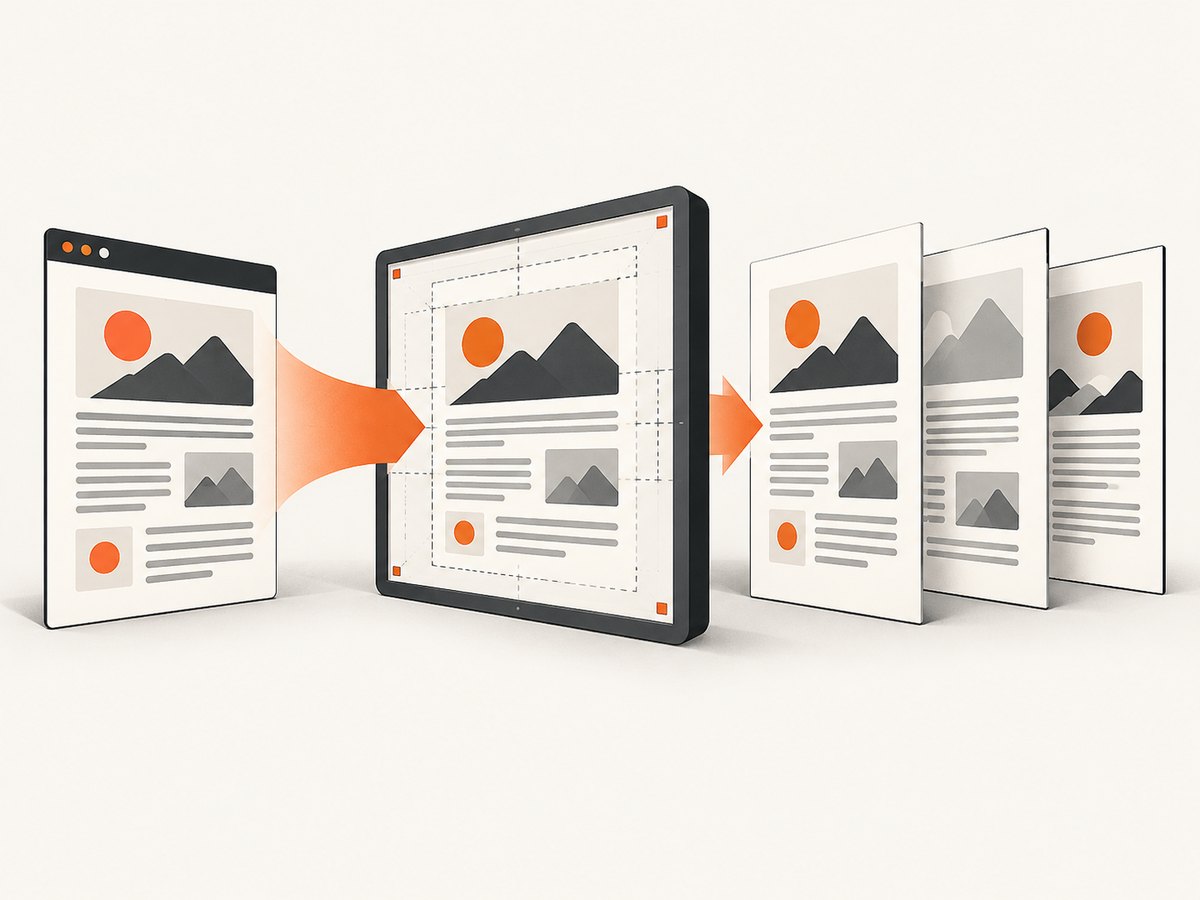
Short answer: use jsPDF’s html() integration to render your HTML, tune html2canvas options such as scale, image loading, viewport size, and CORS, then control margins, paging, image encoding, and fonts in jsPDF. There is no universal “best” quality preset: validate settings against your own layouts, images, and target browsers.
jsPDF creates the PDF. Its optional HTML workflow uses html2canvas to render DOM content and uses DOMPurify when you pass an HTML string. The project documentation also warns developers to sanitize user input before passing it to jsPDF.
1. Install the libraries
For a bundled browser project, install jsPDF and html2canvas with npm:
npm install jspdf html2canvasWith yarn:
yarn add jspdf html2canvasThe HTML integration is intended for a browser DOM. A Node.js process does not have a browser DOM by itself, so a server-side workflow needs a DOM and rendering environment. Do not assume that importing the browser bundle in Node will capture a page exactly as a real browser does.
2. A complete browser example
This example captures an element, renders it at a deliberate scale, waits for images, sets a predictable viewport, and saves a PDF. Start with the defaults, inspect the output, and then adjust one setting at a time.
import { jsPDF } from "jspdf";
import html2canvas from "html2canvas";

const source = document.querySelector("#invoice");

if (!source) {
  throw new Error("#invoice was not found");
}

const pdf = new jsPDF({
  orientation: "portrait",
  unit: "mm",
  format: "a4",
  compress: true,
  precision: 2
});

await pdf.html(source, {
  margin: [12, 12, 12, 12],
  autoPaging: "text",
  x: 0,
  y: 0,
  width: 186,
  windowWidth: 1200,
  windowHeight: 1600,
  html2canvas: {
    scale: Math.max(1, window.devicePixelRatio || 1),
    useCORS: true,
    imageTimeout: 15000,
    backgroundColor: "#ffffff",
    logging: false
  },
  callback: (finishedPdf) => {
    finishedPdf.save("invoice.pdf");
  }
});
scale controls the canvas rendering resolution. jsPDF’s declarations describe its default as the browser’s device pixel ratio. A larger value can make small text and lines appear sharper, but it also increases pixel count and may increase memory use, rendering time, and file size. Treat it as a knob to measure, not a guaranteed quality formula.
Use a stable capture element
Give the exported content its own wrapper instead of capturing the entire application shell. Remove animations, sticky navigation, transient alerts, and controls that should not appear in the document.
<main id="invoice" class="pdf-document">
  <h1>Invoice 1042</h1>
  <p>Issued 2026-09-30</p>
  <table>
    <tr><th>Description</th><th>Amount</th></tr>
    <tr><td>Design work</td><td>$1,200.00</td></tr>
  </table>
</main>
Wait for fonts and images before calling pdf.html(). For images, HTMLImageElement.decode() provides a useful browser-side check:
await Promise.all(
  [...document.images].map((image) => {
    if (image.complete) return Promise.resolve();
    return image.decode?.().catch(() => undefined) ?? Promise.resolve();
  })
);

await document.fonts?.ready;
3. Resolution, images, and viewport control
| Concern | Relevant control | What to verify |
|---|---|---|
| Canvas sharpness | html2canvas.scale |
Small text, borders, and icons at the intended zoom |
| Cross-origin images | useCORS, proxy |
Whether the image server permits the request |
| Slow images | imageTimeout |
Whether late assets are present or intentionally omitted |
| Rendered region | width, height, crop coordinates |
That the complete content is inside the canvas |
| Responsive CSS | windowWidth, windowHeight |
Media queries select the expected layout |
Increasing scale cannot repair a blocked image. A cross-origin image may require CORS headers from its origin or a configured proxy. Do not disable browser security protections indiscriminately. If an image is decorative, replace it with a same-origin asset or omit it intentionally.
Set windowWidth when your CSS changes at breakpoints. For example, a 1200-pixel capture can keep a two-column report while a narrow default viewport may trigger the mobile layout. The chosen viewport should match the document you want readers to receive.
Choose output encoding deliberately
The HTML options expose image type and quality controls, including JPEG, PNG, and WebP. PNG preserves hard edges and transparency well; JPEG can reduce size for photographic content; WebP is available where your chosen build and viewing pipeline support it. No source establishes a universal best combination, so compare representative pages and check the resulting PDF in the viewers your users actually use.
4. Pagination that does not cut through important content
Pagination is a layout problem, not only a resolution problem. The HTML integration exposes margins, output width, and autoPaging modes. Automatic paging is convenient for flowing text, but complex tables, transformed elements, and positioned components still need inspection near page boundaries.
await pdf.html(source, {
  margin: { top: 18, right: 14, bottom: 18, left: 14 },
  width: 182,
  autoPaging: "text",
  html2canvas: {
    windowWidth: 1200,
    scale: 2
  },
  callback: (documentPdf) => documentPdf.save("report.pdf")
});
Keep headings with the following paragraph where possible:
.pdf-document h2,
.pdf-document h3 {
  break-after: avoid;
  page-break-after: avoid;
}

.pdf-document table,
.pdf-document figure,
.pdf-document .callout {
  break-inside: avoid;
  page-break-inside: avoid;
}

.pdf-document .page-break {
  break-before: page;
  page-break-before: always;
}
These CSS rules express intent, but the renderer still has to translate a DOM layout into page-sized output. Test long headings, tables with many rows, and content that starts within a few pixels of a page bottom. If a table must never split, consider rendering each logical table section separately and adding pages deliberately.
5. Fonts and Unicode text
jsPDF’s 14 standard PDF fonts are limited to the ASCII codepage. Accented characters, Cyrillic, Arabic, CJK text, emoji, and many symbols therefore need an embedded TTF font containing the required glyphs. Load the font in your build, convert it to the format expected by jsPDF, register it with addFileToVFS and addFont, then select it.
import { jsPDF } from "jspdf";
import regularFont from "./NotoSans-Regular.ttf";

const pdf = new jsPDF();
pdf.addFileToVFS("NotoSans-Regular.ttf", regularFont);
pdf.addFont("NotoSans-Regular.ttf", "NotoSans", "normal");
pdf.setFont("NotoSans", "normal");
pdf.text("Résumé — مرحبًا — 東京", 20, 30);
pdf.save("unicode.pdf");
The exact font-loader syntax varies by bundler. Verify the actual scripts and symbols in your document; a font that supports Latin may not contain Arabic or CJK glyphs. Also verify line wrapping and right-to-left layout in the PDF viewer you support.
6. Sanitization and user-controlled HTML
If your export includes user-authored HTML, sanitize it before it reaches jsPDF. The project README strongly advises sanitizing user input before passing it to the library. Avoid concatenating untrusted strings into an HTML template. Prefer a trusted DOM subtree, an allowlist sanitizer, and escaped text nodes. When supplying an HTML string to the HTML method, account for its DOMPurify dependency and configure sanitization for your content model.
7. Node.js and automation considerations
jsPDF supports browser and Node usage through different package builds and APIs. The browser example above depends on an existing DOM, CSS engine, fonts, and image loading behavior. For an automated server job, use a browser renderer to produce the DOM first, or generate PDF content with jsPDF’s direct drawing APIs when you do not need CSS fidelity. Keep these flows separate in your architecture so a missing browser API does not look like a PDF quality defect.
For repeatable output, pin library versions, use the same font files in every environment, wait for network images and fonts, and record the viewport and scale used for each export. Compare PDFs from a small fixture set after upgrades because defaults and rendering behavior can change between releases.
8. Troubleshooting checklist
| Symptom | Likely cause | Fix |
|---|---|---|
| Text looks blurry | Canvas scale or viewport is too small | Increase scale gradually, set a deliberate windowWidth, and inspect file size and memory. |
| Images are missing | CORS policy, timeout, or an image that was not loaded | Wait for images, use useCORS with server CORS headers, configure a proxy where appropriate, and increase imageTimeout. |
| Content is cut off | Capture dimensions or output width do not include all content | Capture the correct wrapper, set width/height or viewport values, and remove overflow clipping in export CSS. |
| Pages break in awkward places | Automatic paging cannot infer semantic groups | Use margins and autoPaging, add break-inside: avoid, and insert explicit page breaks for critical sections. |
| Arabic or accented text is blank | Standard fonts lack the glyphs | Embed a TTF with coverage for every required script and select it before rendering. |
| Mobile layout appears in the PDF | Responsive media query matched the capture viewport | Set windowWidth and windowHeight to the intended document viewport. |
| Export hangs | Slow assets, infinite animation, or an oversized canvas | Stop animations, set image timeouts, wait for only required assets, reduce the capture region, and tune scale. |
| Output is unexpectedly large | High pixel count or lossless image encoding | Lower scale where acceptable, choose image type and quality deliberately, and remove unnecessary high-resolution backgrounds. |
9. Performance, reliability, and cost decisions
- Resolution versus resources: Larger scale and page dimensions create more pixel data. The effect on memory, speed, and file size depends on document complexity and the browser; measure with representative documents.
- Image loading: Waiting for every image improves completeness but can delay an export. Define which assets are essential and apply a finite timeout.
- Determinism: Disable animations, freeze timestamps when appropriate, pin fonts and dependencies, and use a stable viewport.
- Text behavior: html2canvas represents DOM content visually. If searchable or selectable text is a hard requirement, inspect the produced PDF and consider constructing important text with jsPDF APIs.
- Memory limits: Very tall pages and high scale can exceed browser canvas limits. Split a long report into sections or pages rather than capturing an unbounded document in one canvas.
- Security: Sanitize user-controlled markup and avoid weakening browser security to make an image load.
10. Or skip the browser setup
If your goal is a reliable screenshot or PDF of a live URL rather than a client-side DOM export, ScreenshotNeo provides a single HTTP request to its screenshot API. It removes cookie and consent banners, newsletter popups, and chat widgets before capture. Bot checks, blank pages, failed loads, timeouts, and cache hits are not billed, and the response identifies the result with X-Page-Verdict and X-Billed headers. Its MCP server lets Claude, Cursor, and other MCP clients call take_screenshot, get_page_info, and capture_pdf.

See the ScreenshotNeo API documentation for PDF settings, authentication, and the available capture options.
cURL
curl -G "https://api.screenshotneo.com/v1/shot" \
  -d access_key=YOUR_API_KEY \
  --data-urlencode url=https://stripe.com \
  -o shot.webp
Python
import requests

r = requests.get(
    "https://api.screenshotneo.com/v1/shot",
    params={"access_key": "YOUR_API_KEY", "url": "https://stripe.com"},
    timeout=90,
)
r.raise_for_status()
open("shot.webp", "wb").write(r.content)
Node.js
const q = new URLSearchParams({
  access_key: 'YOUR_API_KEY',
  url: 'https://stripe.com'
});
const res = await fetch(`https://api.screenshotneo.com/v1/shot?${q}`);
if (!res.ok) throw new Error(`Screenshot failed: ${res.status}`);
const file = Buffer.from(await res.arrayBuffer());
require('node:fs').writeFileSync('shot.webp', file);
ScreenshotNeo includes full-page capture with lazy images loaded, CSS element selection, device presets or custom viewports, retina scale, custom CSS and JavaScript, click and wait actions, request blocking, headers, cookies, user agents, timezone and geolocation, transparent backgrounds, resizing, caching with a chosen TTL, signed links, asynchronous jobs with signed webhooks, bulk capture for up to 100 URLs per call, a usage API, and an OpenAPI specification. Every feature is available on every plan.
The Free plan includes 1,000 shots each month without a card. Paid plans start at $5 for 3,000 shots; yearly billing provides two months free. Create a free ScreenshotNeo account.
11. FAQ
What scale should I use?
Start near the browser device pixel ratio, then compare representative pages. Increase it only when the target text or lines need more detail and the resulting resource use is acceptable.
Why does a higher scale not fix a missing image?
Scale changes canvas resolution. Cross-origin permissions, proxy configuration, image timeouts, and load timing determine whether the image can be rendered at all.
Can jsPDF preserve every CSS feature?
No renderer should be assumed to reproduce every browser layout feature perfectly. Test transforms, filters, positioned elements, complex tables, and responsive breakpoints in your own fixture set.
Should I use PNG or JPEG?
Use the format that fits the content: PNG often suits text-heavy graphics, while JPEG can reduce photographic content size. Validate appearance and file size for your documents.
Do I need an embedded font for English?
Not always. The built-in standard fonts cover ASCII, but any required characters outside that range need a TTF containing their glyphs.
How can I make exports reproducible?
Pin versions, use fixed fonts and viewport dimensions, stop animations, wait for required assets, sanitize input, and keep a regression set of representative documents.


