How to Capture High-Resolution Full-Page Screenshots
Capture an entire web page at device-pixel resolution with Playwright, Firefox, or the Playwright CLI. Learn how to prepare pages, choose output size, and fix common issues.

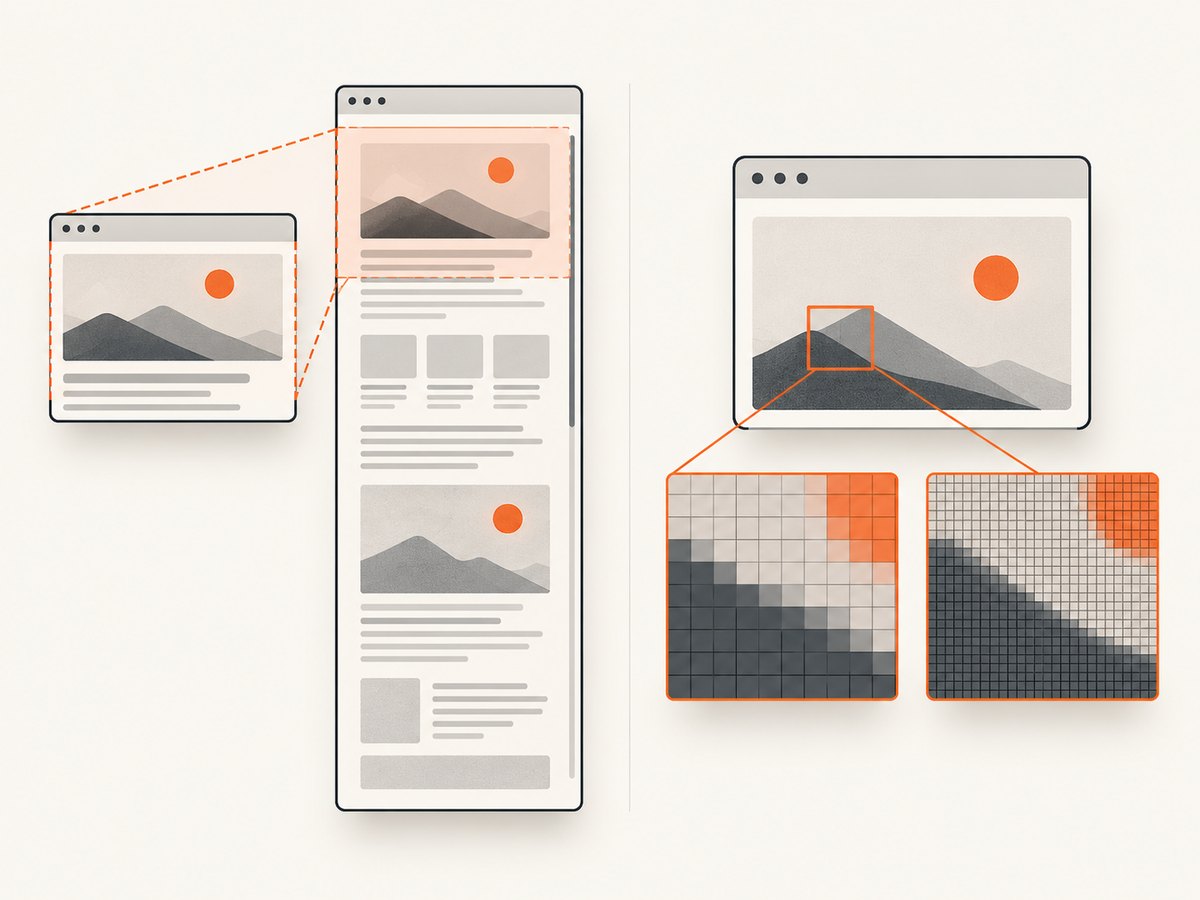
To capture a complete page at high pixel density, enable full-page capture and choose device-pixel output. In Playwright, use fullPage: true to include the full scrollable page and scale: "device" to make output pixels follow the device pixel ratio. These are separate choices: full-page controls the captured area; scale controls its pixel dimensions. For a smaller file, choose CSS-pixel scale instead. Playwright’s screenshot documentation describes these options.
This guide covers a runnable Playwright example, CLI and Firefox workflows, output-size trade-offs, page preparation, troubleshooting, and an API option for captures without setting up a browser.
1. Capture a full page at device-pixel resolution with Playwright
Install Playwright and its Chromium browser, save the script below as screenshot.mjs, then run it with Node.js. Replace the target URL with the page you need to capture.
npm install playwright
npx playwright install chromium
// screenshot.mjs
import { chromium } from 'playwright';
const url = process.argv[2] ?? 'https://example.com';
const browser = await chromium.launch();
try {
const page = await browser.newPage({
viewport: { width: 1440, height: 900 },
deviceScaleFactor: 2,
});
await page.goto(url, { waitUntil: 'networkidle', timeout: 60_000 });
await page.screenshot({
path: 'page.png',
fullPage: true,
scale: 'device',
});
} finally {
await browser.close();
}node screenshot.mjs https://example.comThe viewport sets the browser’s CSS layout width and height. deviceScaleFactor sets the emulated device pixel ratio; scale: 'device' requests output sized in device pixels. For a 1440 CSS-pixel-wide page at DPR 2, the output may be about 2880 pixels wide, depending on the page and browser. This is a consequence of the scale choice, not a guaranteed dimension: the actual page may have its own layout and content constraints.
Choose the scale deliberately
scale: 'device'preserves device-pixel detail. It can create larger dimensions and files, especially for tall pages or high device pixel ratios.scale: 'css'produces one output pixel per CSS pixel. Use it when a smaller image matters more than extra pixel density.fullPage: trueincludes the full scrollable page rather than only the visible viewport. It does not itself increase pixel density.
Full-page capture and high resolution are independent settings. A screenshot can be full-page at CSS scale, high-density for just the viewport, or both full-page and device-scale.
Wait for the page you need
networkidle can be useful when a page loads content through requests, but pages with analytics, polling, or other ongoing traffic may never become idle. If navigation times out, try a less strict navigation condition and wait for a page-specific selector or a short delay instead. For example:
await page.goto(url, { waitUntil: 'domcontentloaded', timeout: 60_000 });
await page.locator('main').waitFor({ state: 'visible', timeout: 15_000 });
await page.waitForTimeout(1_000);
await page.screenshot({ path: 'page.png', fullPage: true, scale: 'device' });
Replace main with a selector that indicates the content you need is present. A fixed delay is only a practical fallback; it cannot guarantee that every asynchronous widget, image, or animation has finished.
2. Use the Playwright command line
The Playwright CLI has distinct options for page area and pixel scale. Install Playwright, then capture a full page at device pixels with --full-page and --hires together:
npm install -D playwright
npx playwright install chromium
npx playwright screenshot --full-page --hires --filename=page.png https://example.com
Use --full-page without --hires for a full-page image at the regular scale, or --hires without --full-page for a high-resolution viewport screenshot. Check the CLI help for options available in your installed version:
npx playwright screenshot --helpThe CLI is convenient for a one-off capture. Use the API when you need to set a viewport, wait on a particular element, repeat captures, or control the browser lifecycle in a larger script. The documented CLI options are listed in Playwright’s Screenshots & PDF command reference.
3. Capture a full-page screenshot in Firefox
Firefox offers a graphical full-page screenshot control and a Web Console helper. To use the Developer Tools control, enable “Take a screenshot of the entire page” in Developer Tools settings, then use the page screenshot control.
For the Web Console, open Developer Tools, enter :screenshot --fullpage, and press Enter. To request a different device pixel ratio, add --dpr:
:screenshot --fullpage --dpr 2The helper also supports a delay, a filename, and clipboard output. Consult Mozilla’s screenshot documentation for the exact syntax and options in your Firefox version. The toolbar is useful for a manual capture; the console helper is better when you want explicit full-page and DPR controls.
4. Prepare the page before capturing
Full-page capture can include content far below the initial viewport, but a screenshot only records what the browser rendered. Pages that lazy-load images or content as you scroll may need preparation. No single wait rule guarantees complete rendering on every site.
- Set the viewport. Choose the width that matches the page layout you want. A narrower viewport can trigger a different responsive design.
- Wait for meaningful content. Prefer a selector for the main content or a known component over assuming that all network activity stops.
- Check below the fold. Inspect the output for missing images, placeholders, or sections that appear only after scrolling.
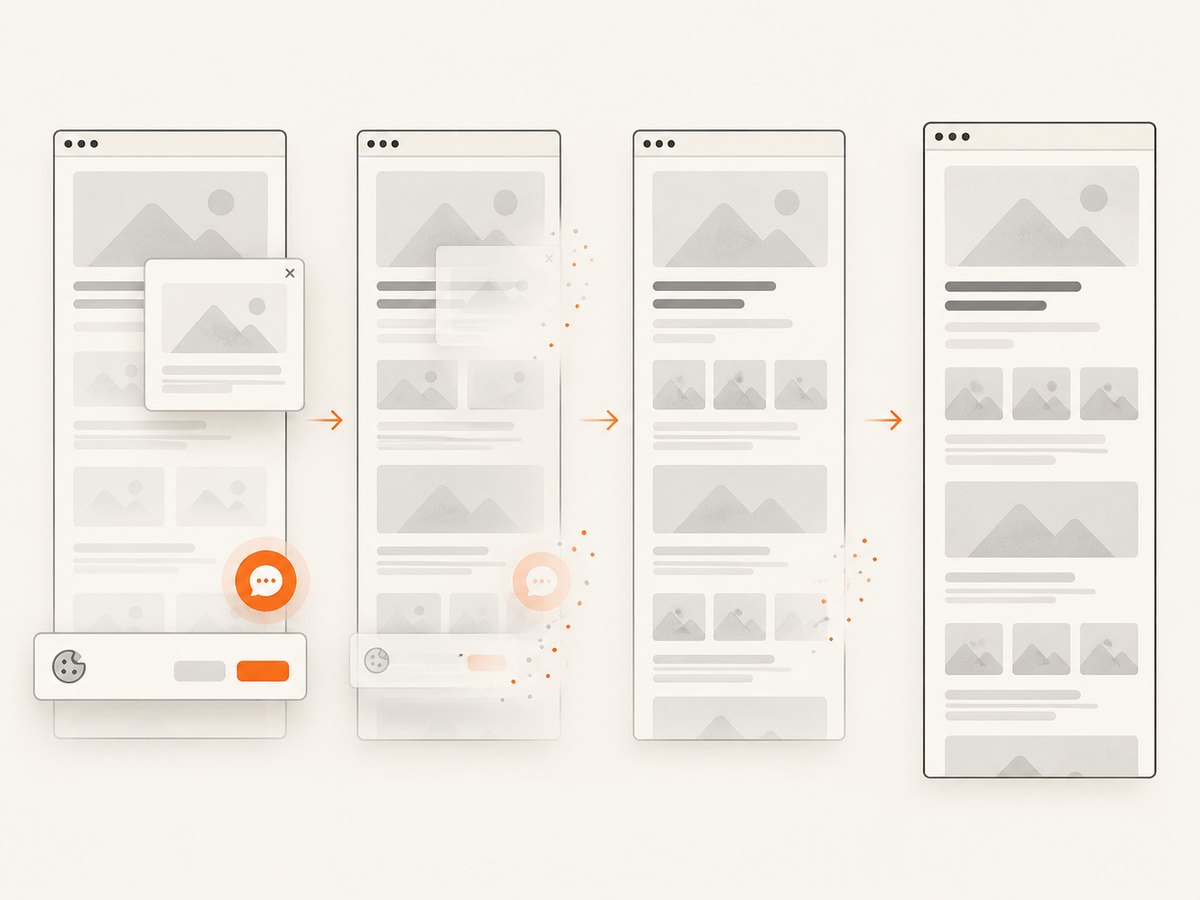
- Handle page-specific consent or overlays. A cookie dialog, newsletter popup, or chat widget can cover content. Use the site’s controls or your automation steps to dismiss or hide it when appropriate.
- Keep the capture repeatable. Use the same viewport, URL state, wait condition, browser, and scale when comparing screenshots.
Sticky headers and fixed elements may appear in ways that differ from how they behave while scrolling. Interactive pages can also change while the capture is being assembled. Inspect the resulting image rather than assuming that a single full-page image represents every scroll state perfectly.
5. Choose image dimensions, format, and workflow
| Decision | Use this when | Trade-off |
|---|---|---|
| Full page | You need content below the fold in one image. | The image can be much taller than a viewport. |
| Device-pixel scale | Small details need more pixel density. | Dimensions and file size can increase. |
| CSS-pixel scale | Output size should stay closer to the page’s CSS dimensions. | There are fewer pixels to inspect or enlarge. |
| Firefox controls | You are capturing a page manually in Firefox. | Less suited to repeatable batches or automation. |
| Playwright API or CLI | You need browser automation or repeatable captures. | Requires browser setup and page-specific handling. |
PNG is a common choice for crisp text and interface details. If your workflow supports other formats, choose one that fits how the image will be shared or stored. Higher density and greater page height both add pixels, which can increase memory use and file size. The documentation sources cited here do not provide universal maximum page dimensions, capture-speed benchmarks, or guaranteed output sizes.
6. Troubleshooting
| Symptom | Likely cause | What to try |
|---|---|---|
| Only the visible viewport is saved | Full-page capture was not enabled. | Set fullPage: true, use CLI --full-page, or Firefox :screenshot --fullpage. |
| The image is not sharper than expected | Full-page area was enabled, but output still uses CSS-pixel scale or DPR 1. | Set Playwright scale: 'device' and a suitable deviceScaleFactor, or use CLI --hires. In Firefox, set --dpr. |
| The output is very large | A tall page and device-pixel scale multiply the number of pixels. | Use CSS scale, reduce the viewport width only if the changed layout is acceptable, or capture a specific element instead of the whole page. |
| Images or sections are missing | Lazy content had not loaded, a selector was wrong, or a page-specific interaction was needed. | Wait for a meaningful element, scroll or otherwise trigger the content as the site requires, then inspect the result. |
networkidle never completes |
The page keeps connections or requests active. | Use domcontentloaded, then wait for a specific selector and, if necessary, a short delay. |
| The screenshot has a different layout than expected | Viewport dimensions, responsive breakpoints, or browser state differ. | Set the viewport explicitly and capture at the intended width and state. |
| Firefox does not recognize a screenshot command | The helper syntax or Developer Tools control differs by version or setting. | Enable the entire-page screenshot control in Developer Tools settings and check Mozilla’s documentation for the current syntax. |
7. Or skip the browser setup
ScreenshotNeo is a website screenshot API and MCP server for developers. One GET request can return a screenshot or PDF; use its full-page and retina options when you need a long, higher-density capture. See the ScreenshotNeo API documentation for request options.
curl -G "https://api.screenshotneo.com/v1/shot" \
  -d access_key=YOUR_API_KEY \
  --data-urlencode url=https://stripe.com \
  -d full_page=true \
  -d retina=true \
  -o shot.webp
import requests
r = requests.get(
"https://api.screenshotneo.com/v1/shot",
params={
"access_key": "YOUR_API_KEY",
"url": "https://stripe.com",
"full_page": "true",
"retina": "true",
},
timeout=90,
)
r.raise_for_status()
open("shot.webp", "wb").write(r.content)const q = new URLSearchParams({
access_key: 'YOUR_API_KEY',
url: 'https://stripe.com',
full_page: 'true',
retina: 'true',
});
const res = await fetch(`https://api.screenshotneo.com/v1/shot?${q}`);
if (!res.ok) throw new Error(`Screenshot request failed: ${res.status}`);
await Bun.write('shot.webp', res);In a Node.js environment without Bun, save the response body with Node’s file system module:
import { writeFile } from 'node:fs/promises';
const bytes = new Uint8Array(await res.arrayBuffer());
await writeFile('shot.webp', bytes);
ScreenshotNeo removes cookie banners, newsletter popups, and chat widgets before the shot. Bot checks, blank pages, and failed loads are never billed. Its MCP server lets AI agents take screenshots. The Free plan includes 1,000 shots a month with no card; paid plans start at $5 for 3,000. Sign up for 1,000 free screenshots a month, with no card.
8. Cost, reliability, and repeatability
Local Playwright and Firefox workflows do not call ScreenshotNeo’s API, so they do not incur ScreenshotNeo API charges; they do require a browser environment and your own storage and compute. For repeated captures, consider the time required to launch browsers, load pages, and manage output files. A script should close its browser even if navigation or capture fails, as the Playwright example does in a finally block.
For stable comparisons, keep the browser, viewport, scale, URL, and page state consistent. Pages can vary due to changing content, personalization, animation, network conditions, and consent state. A successful screenshot command does not prove that every below-the-fold component loaded. Review the image, and record capture settings alongside it when results need to be reproducible.
For API captures, ScreenshotNeo’s billing headers identify the page verdict and whether a capture was billed; cache hits cost nothing. Plans are Free: 1,000 shots/month; Starter: $5 for 3,000; Growth: $15 for 15,000; Pro: $39 for 60,000; Scale: $99 for 250,000; and Business: $249 for 1,000,000. Yearly billing gives two months free, and every feature is available on every plan. Check the product documentation for current request parameters before wiring a production workflow.
9. Frequently asked questions
Does full-page mean high resolution?
No. Full-page controls how much of the scrollable page is included. Scale or device pixel ratio controls how many output pixels represent the page.
Will a high-resolution capture always look sharper?
It contains more pixels when the device scale is higher, but the source page still determines the rendered detail. Increasing output pixels cannot restore detail that the page or its assets did not provide.
Can I capture an entire page as one image without browser automation?
Firefox has a manual full-page screenshot control and a Web Console helper. For a request-based workflow, ScreenshotNeo can return an image from a URL; its API options include full-page capture.
Why is the saved file too big to share?
Page height and device-pixel scale both add pixels. Try CSS-pixel scale or an output format and dimensions that fit your sharing workflow.
Does one full-page screenshot capture every interactive state?
No. It records a rendered page at capture time. Menus, dialogs, hover states, and content that appears after interaction may need separate preparation or captures.


