How to Capture a High-Resolution Screenshot from a YouTube Video
Capture a sharp YouTube video frame with the right source quality, VLC, Windows, macOS, and practical fixes for blurry screenshots.
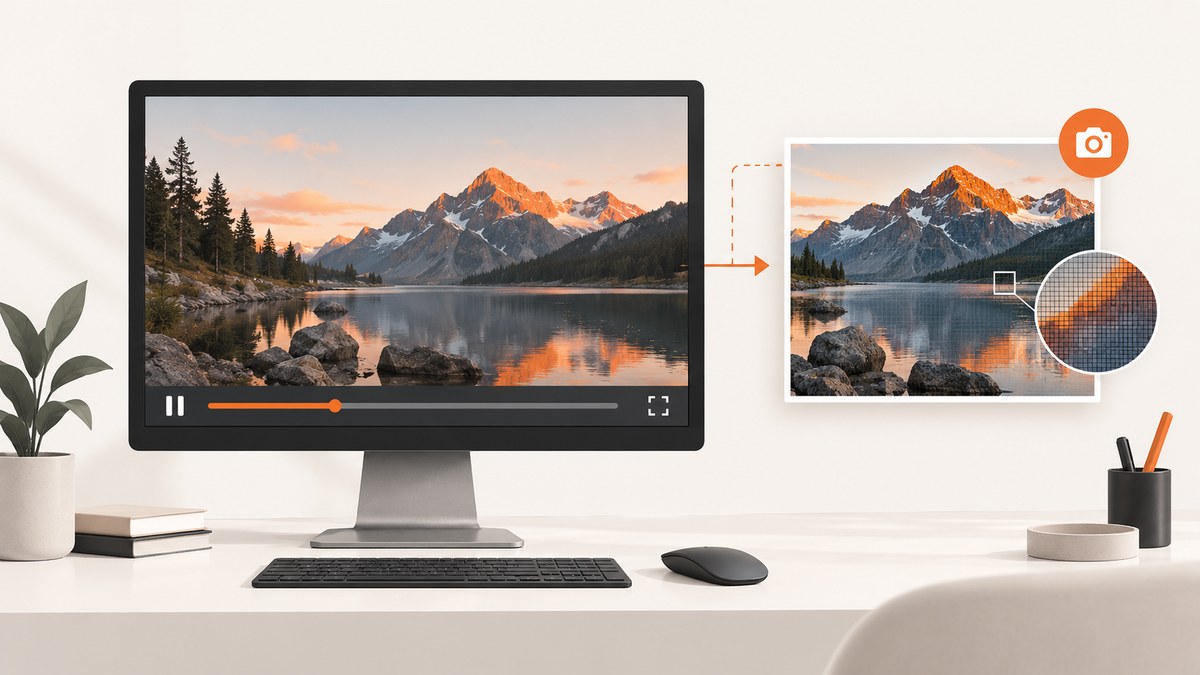
Short answer: Set YouTube to the highest quality available, pause on the exact frame, and capture only the video image. For the cleanest frame from a local file, use VLC’s Snapshot command; for a browser-only capture, use the built-in Windows or macOS selection tools. A screenshot cannot contain more detail than the video source provides.
What determines screenshot quality?
YouTube adjusts stream quality according to the original upload, connection, player or screen size, and browser. A 16:9 upload may be available at 1920×1080 (1080p), 2560×1440 (1440p), 3840×2160 (2160p/4K), or 7680×4320 (4320p/8K) when the source supports it. The Quality menu only shows resolutions available for that video and your current playback conditions. See YouTube’s video quality documentation.
- Source resolution: A 720p upload cannot become a genuinely detailed 4K still by enlarging it.
- Frame rate: Labels such as 1080p60 appear only when the upload includes a high-frame-rate stream.
- Display scaling: A display screenshot records the pixels being rendered. Browser zoom, operating-system scaling, and a small player can reduce the captured dimensions.
- Compression: YouTube re-encodes streams. Fine detail may already be softened before it reaches your screen.
Method 1: Capture a frame in YouTube’s player
- Open the video and select Settings (the gear icon).
- Choose Quality and select the highest resolution actually offered, such as 2160p or 1080p.
- Let the stream finish switching quality. Scrubbing immediately can leave a lower-quality segment on screen.
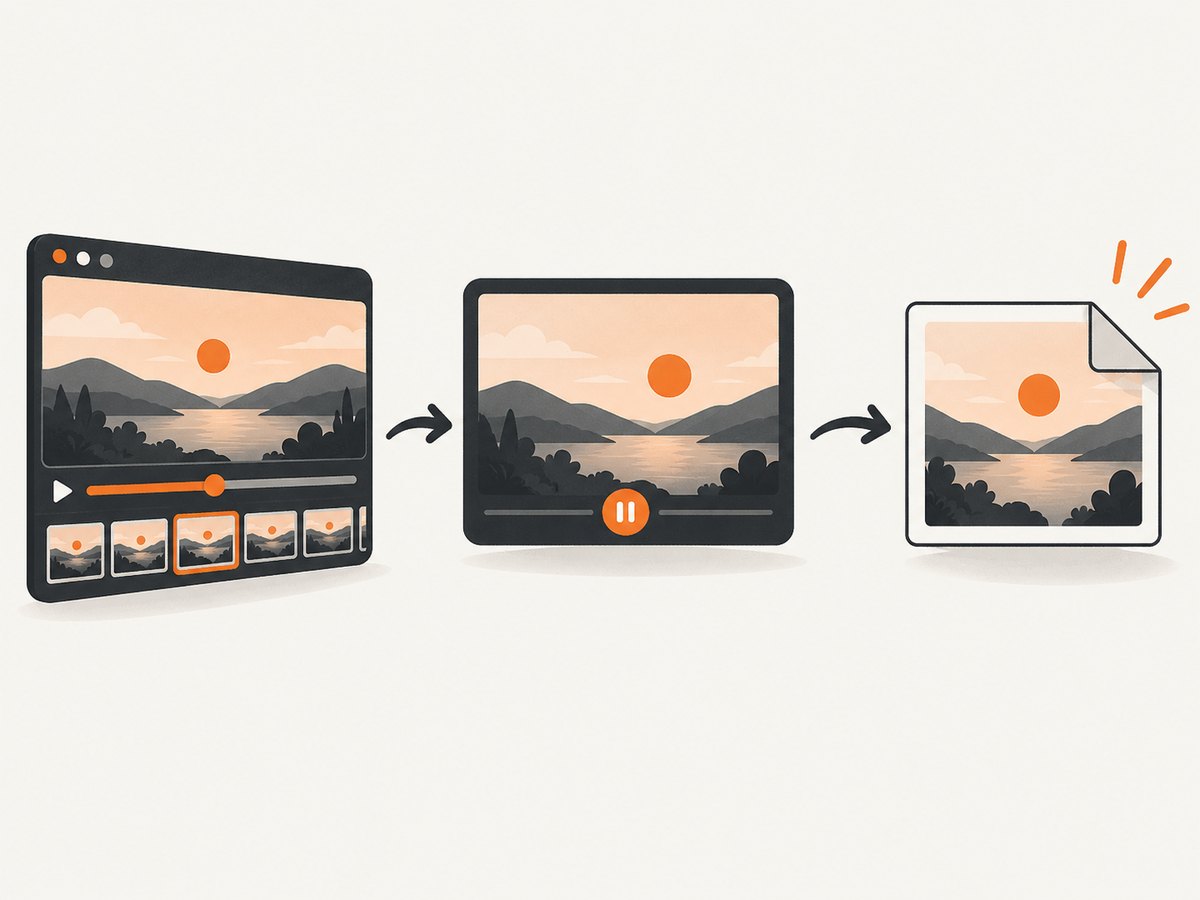
- Move the playhead to the required moment and pause.
- Enter full-screen mode if it makes the video rectangle larger.
- Move the pointer away and wait for playback controls to disappear.
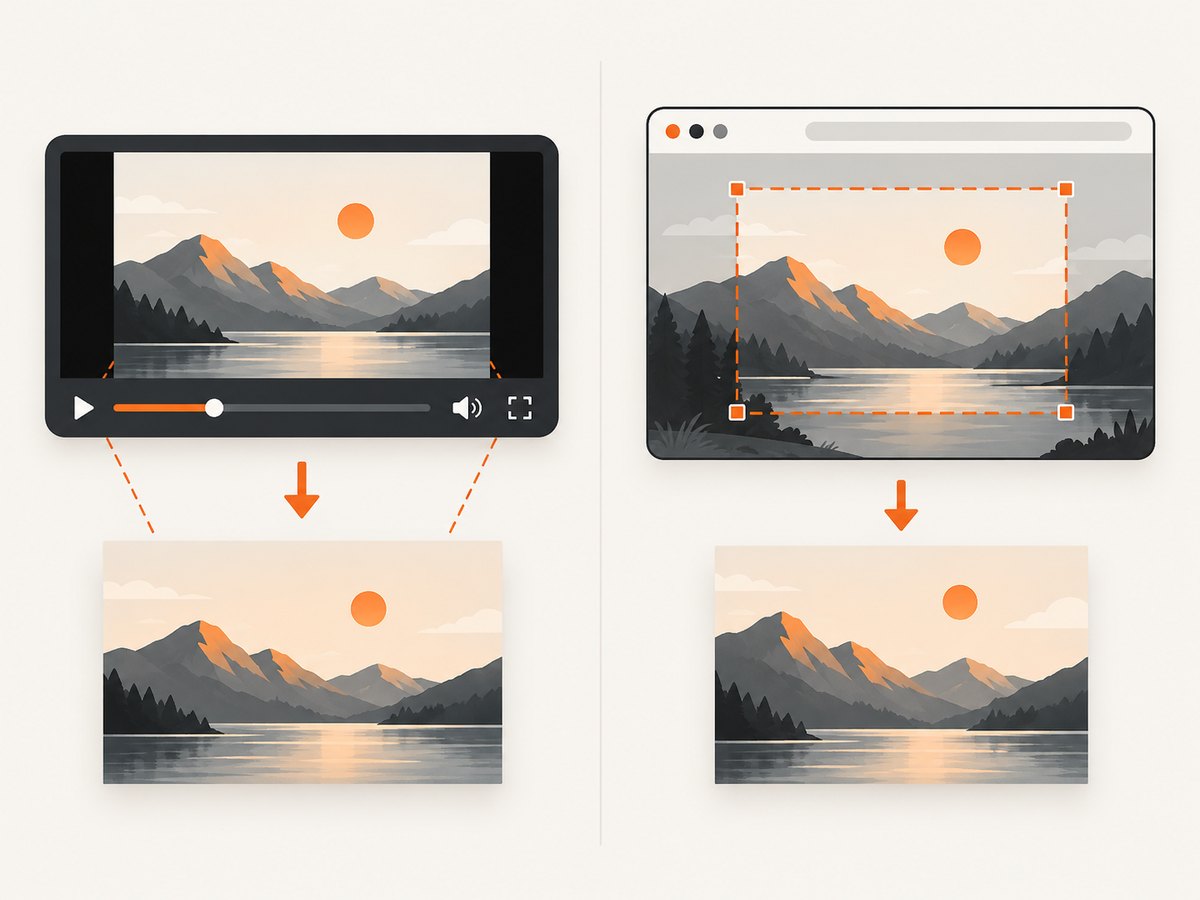
- Capture only the video rectangle with your operating system’s selection tool.
Windows
Press Windows+Shift+S, choose the rectangular snip, drag around the video image, and save the result. Microsoft documents this workflow in Snipping Tool instructions. Avoid including the browser toolbar, player controls, or black letterbox bars.
macOS
Press Shift-Command-4 and drag around the video. Press Shift-Command-5 for the Screenshot panel and its save options. Apple’s keyboard shortcut reference is at Apple Support.
Browser capture checklist
- Use the largest player size that does not crop the image.
- Keep the browser at 100% zoom unless a larger zoom produces more rendered pixels on a high-resolution display.
- Disable overlays, subtitles, and cursor highlights when they are not part of the intended frame.
- Capture at the video’s native aspect ratio to prevent stretching.
- Save as PNG for lossless stills; use JPEG only when file size matters.
Method 2: Use VLC Snapshot for a local video
When you have a permitted local copy of the video, VLC takes a snapshot from the decoded frame rather than from the screen. This avoids browser controls and display scaling. VideoLAN’s procedure is to pause at the desired frame and press Shift+S; VLC saves a PNG. You can also choose Video > Snapshot. The snapshot folder is configurable under VLC Preferences.
- Open the video file in VLC.
- Use the timeline or frame-stepping controls to reach the exact moment.
- Pause playback.
- Press Shift+S or choose Video > Snapshot.
- Open the configured snapshot directory and check the PNG dimensions and filename.
Use this method only for video you are allowed to download or process. A local file still cannot produce more detail than its encoded frame.
Fixing a black VLC snapshot
Hardware acceleration can produce a black snapshot on some systems. If the paused frame looks normal but the saved PNG is black, try disabling hardware decoding in VLC’s input/codecs preferences, restart VLC, and capture again. If needed, change the video output module and retest.
Choosing the right method
| Method | Source fidelity | Controls included? | One-off speed | Repeated captures |
|---|---|---|---|---|
| VLC Snapshot | Direct decoded frame | No | Medium | Best of these options |
| Windows Snipping Tool | Displayed pixels | Only if selected | Fastest on Windows | Manual |
| macOS Screenshot | Displayed pixels | Only if selected | Fastest on Mac | Manual |
For a single browser-only frame, use the operating-system tool. For many exact frames or a clean image from a local file, use VLC. Specialist browser extensions can help with repeated work, but verify their permissions, output dimensions, and terms before installing one.
Why a screenshot still looks blurry
- The source is lower resolution. Recheck YouTube’s Quality menu and the upload’s maximum quality.
- The player is too small. Enlarge the player or use full-screen before capturing.
- You captured during a quality switch. Pause after the higher-quality stream has loaded.
- Motion blur is in the source frame. Try an adjacent frame, especially in fast footage.
- Black bars or controls were included. Crop to the active video rectangle.
- The image was re-compressed. Keep the original PNG and avoid repeatedly exporting JPEG.
- High-DPI scaling changed the result. Check the saved pixel dimensions rather than judging only by preview size.
Exact-frame and legal considerations
A display screenshot records what your device renders; VLC records a decoded frame from a local file. Neither method restores information removed by the original upload or compression. Respect the creator’s copyright, YouTube’s terms, and any restrictions on downloading or redistributing the video. For commentary, documentation, or research, keep records of the source URL and the frame time.
Or skip the browser setup
ScreenshotNeo can capture a YouTube page or player URL through one HTTP request when you need a repeatable page image rather than a manually selected desktop snip. It does not replace VLC for extracting an exact decoded video frame at a timestamp; use it for automated page or player captures.
See the ScreenshotNeo API documentation for all options. This basic request returns an image response:
curl -G "https://api.screenshotneo.com/v1/shot" \
  -d access_key=YOUR_API_KEY \
  --data-urlencode url=https://www.youtube.com/watch?v=VIDEO_ID \
  -o youtube-page.webp
import requests
r = requests.get(
"https://api.screenshotneo.com/v1/shot",
params={
"access_key": "YOUR_API_KEY",
"url": "https://www.youtube.com/watch?v=VIDEO_ID",
},
timeout=90,
)
r.raise_for_status()
open("youtube-page.webp", "wb").write(r.content)const q = new URLSearchParams({
access_key: 'YOUR_API_KEY',
url: 'https://www.youtube.com/watch?v=VIDEO_ID'
});
const res = await fetch(`https://api.screenshotneo.com/v1/shot?${q}`);
if (!res.ok) throw new Error(`HTTP ${res.status}`);
const data = Buffer.from(await res.arrayBuffer());
await Bun.write('youtube-page.webp', data);Cookie banners, newsletter popups, and chat widgets are removed before the shot. Bot checks, blank pages, timeouts, failed loads, and cache hits are never billed, and response headers report the page verdict and billing status. An MCP server lets AI agents use take_screenshot, get_page_info, and capture_pdf. The Free plan includes 1,000 screenshots each month with no card; paid plans start at $5 for 3,000 shots. Create a free ScreenshotNeo account.
Performance, reliability, and cost notes
- For local extraction, VLC avoids network variability after the file is available.
- For browser captures, wait until the player and page overlays have settled before taking the shot.
- Automated captures can use caching with a chosen TTL when the same URL is requested repeatedly.
- ScreenshotNeo supports custom viewport and device settings, retina scale, waits, custom headers and cookies, and bulk capture for up to 100 URLs per call; these help with page automation but do not create detail absent from the YouTube stream.
- Only clean ScreenshotNeo captures are billed. Failed loads and cache hits cost nothing.
FAQ
Can I save a YouTube frame in 4K?
Yes, if YouTube offers a 2160p stream and your playback environment renders it. Select 2160p before pausing and verify the saved image’s pixel dimensions.
Does enlarging a 1080p screenshot make it 4K?
No. Upscaling increases pixel count but does not recreate detail that was never present.
Why does 1080p60 not appear?
The upload or current stream does not provide a 60-frame-per-second version, or playback conditions have not made it available.
Which format should I save?
Use PNG for a lossless frame. Use JPEG when a smaller file is more important than preserving every pixel.
What is the cleanest way to remove controls?
Use VLC on a permitted local file. In a browser, enter full-screen, wait for controls to hide, and select only the video rectangle.


